lock HYUNDAI I30 2012 Workshop Manual
[x] Cancel search | Manufacturer: HYUNDAI, Model Year: 2012, Model line: I30, Model: HYUNDAI I30 2012Pages: 635, PDF Size: 40.66 MB
Page 155 of 635
477
Features of your vehicle
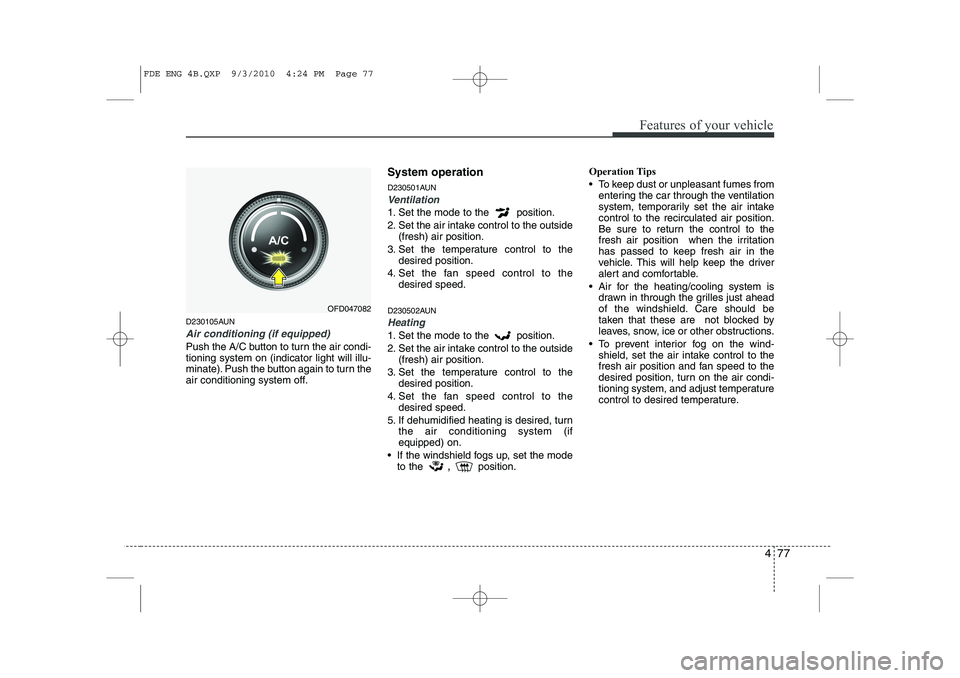
D230105AUN
Air conditioning (if equipped)
Push the A/C button to turn the air condi- tioning system on (indicator light will illu-
minate). Push the button again to turn the
air conditioning system off.System operation
D230501AUN
Ventilation
1. Set the mode to the position.
2. Set the air intake control to the outside
(fresh) air position.
3. Set the temperature control to the desired position.
4. Set the fan speed control to the desired speed.
D230502AUN
Heating
1. Set the mode to the position.
2. Set the air intake control to the outside (fresh) air position.
3. Set the temperature control to the desired position.
4. Set the fan speed control to the desired speed.
5. If dehumidified heating is desired, turn the air conditioning system (if equipped) on.
If the windshield fogs up, set the mode to the ,
position. Operation Tips
To keep dust or unpleasant fumes from
entering the car through the ventilation
system, temporarily set the air intakecontrol to the recirculated air position.
Be sure to return the control to the
fresh air position when the irritation
has passed to keep fresh air in the
vehicle. This will help keep the driver
alert and comfortable.
Air for the heating/cooling system is drawn in through the grilles just ahead
of the windshield. Care should be
taken that these are not blocked by
leaves, snow, ice or other obstructions.
To prevent interior fog on the wind- shield, set the air intake control to the
fresh air position and fan speed to the
desired position, turn on the air condi-
tioning system, and adjust temperature
control to desired temperature.
OFD047082
FDE ENG 4B.QXP 9/3/2010 4:24 PM Page 77
Page 170 of 635
Features of your vehicle
92
4
D270000AUN
These compartments can be used to
store small items required by the driver
or passengers.
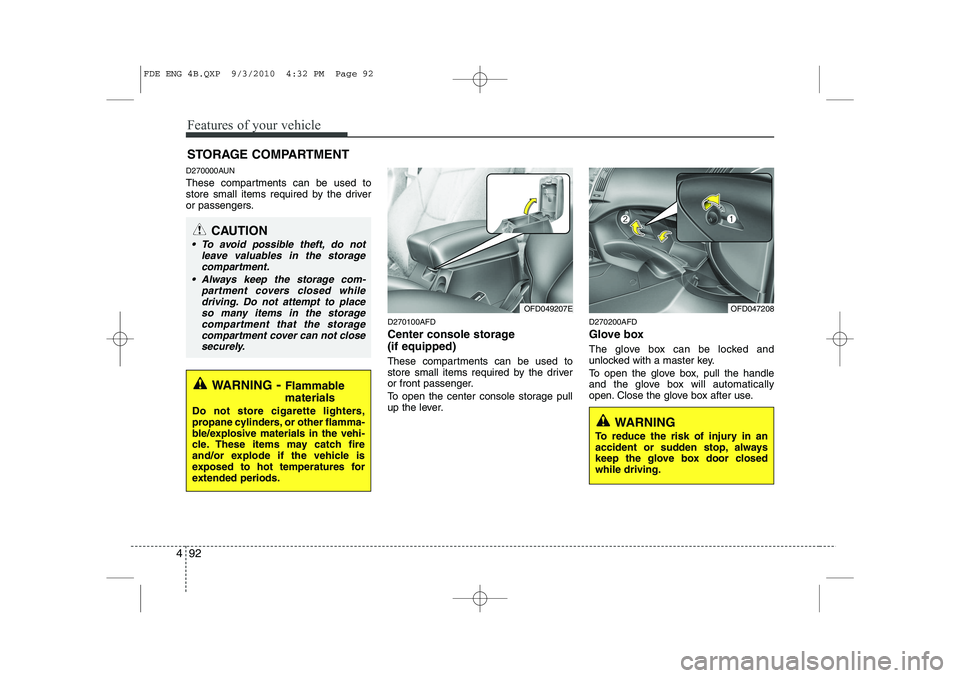
D270100AFD
Center console storage (if equipped)
These compartments can be used to
store small items required by the driver
or front passenger.
To open the center console storage pull
up the lever.D270200AFD
Glove box
The glove box can be locked and
unlocked with a master key.
To open the glove box, pull the handle
and the glove box will automatically
open. Close the glove box after use.
STORAGE COMPARTMENT
WARNING
- Flammable
materials
Do not store cigarette lighters,
propane cylinders, or other flamma-
ble/explosive materials in the vehi-
cle. These items may catch fire
and/or explode if the vehicle is
exposed to hot temperatures for
extended periods.
CAUTION
To avoid possible theft, do not leave valuables in the storage
compartment.
Always keep the storage com- partment covers closed whiledriving. Do not attempt to place
so many items in the storagecompartment that the storage compartment cover can not close securely.
OFD049207EOFD047208
WARNING
To reduce the risk of injury in an
accident or sudden stop, always
keep the glove box door closedwhile driving.
FDE ENG 4B.QXP 9/3/2010 4:32 PM Page 92
Page 172 of 635
Features of your vehicle
94
4
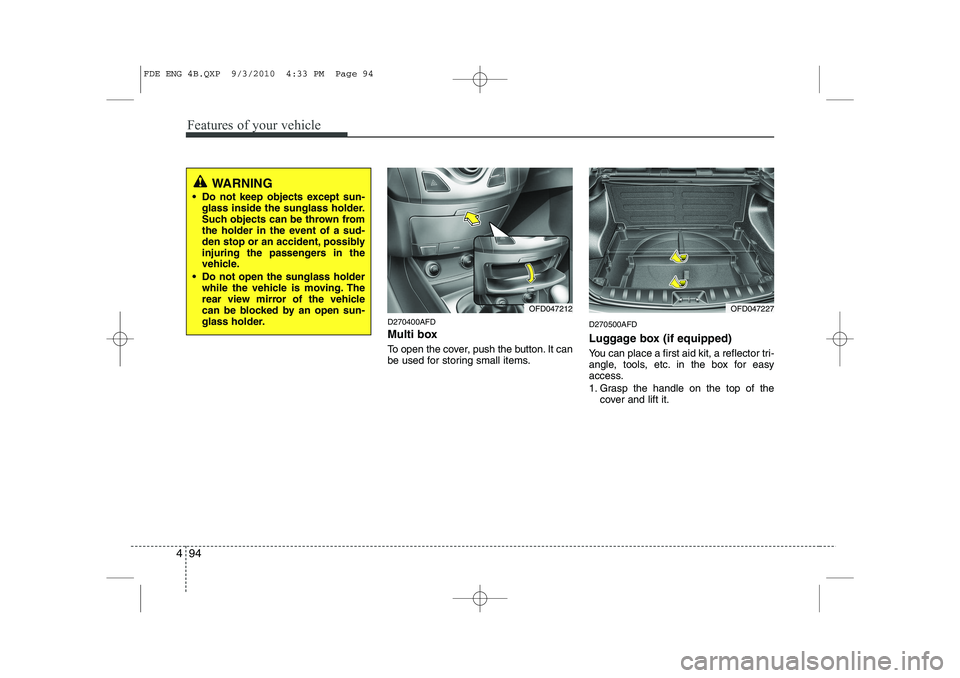
D270400AFD
Multi box
To open the cover, push the button. It can
be used for storing small items. D270500AFD
Luggage box (if equipped)
You can place a first aid kit, a reflector tri-
angle, tools, etc. in the box for easy
access.
1. Grasp the handle on the top of the
cover and lift it.
WARNING
Do not keep objects except sun- glass inside the sunglass holder.
Such objects can be thrown from
the holder in the event of a sud-
den stop or an accident, possibly
injuring the passengers in the
vehicle.
Do not open the sunglass holder while the vehicle is moving. The
rear view mirror of the vehicle
can be blocked by an open sun-
glass holder.
OFD047227OFD047212
FDE ENG 4B.QXP 9/3/2010 4:33 PM Page 94
Page 176 of 635
Features of your vehicle
98
4
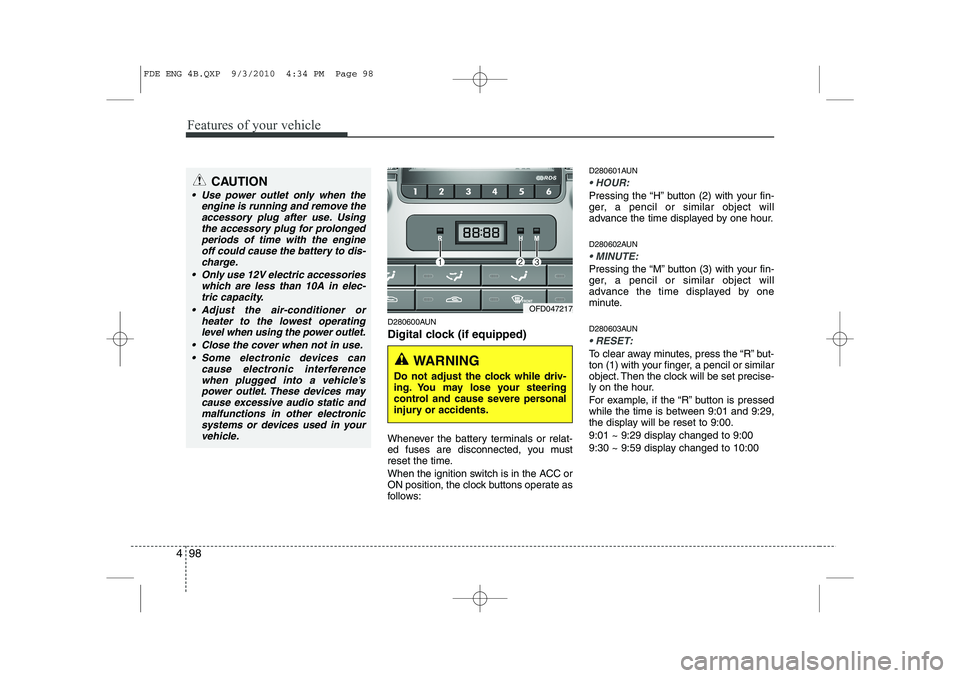
D280600AUN
Digital clock (if equipped)
Whenever the battery terminals or relat-
ed fuses are disconnected, you must
reset the time.
When the ignition switch is in the ACC or
ON position, the clock buttons operate as
follows: D280601AUN
HOUR:
Pressing the “H” button (2) with your fin-
ger, a pencil or similar object will
advance the time displayed by one hour.
D280602AUN
MINUTE:
Pressing the “M” button (3) with your fin-
ger, a pencil or similar object will
advance the time displayed by one
minute.
D280603AUN
RESET:
To clear away minutes, press the “R” but-
ton (1) with your finger, a pencil or similar
object. Then the clock will be set precise-
ly on the hour.
For example, if the “R” button is pressed
while the time is between 9:01 and 9:29,
the display will be reset to 9:00.
9:01 ~ 9:29 display changed to 9:00
9:30 ~ 9:59 display changed to 10:00
CAUTION
Use power outlet only when the
engine is running and remove the
accessory plug after use. Usingthe accessory plug for prolongedperiods of time with the engine off could cause the battery to dis-
charge.
Only use 12V electric accessories which are less than 10A in elec-tric capacity.
Adjust the air-conditioner or heater to the lowest operatinglevel when using the power outlet.
Close the cover when not in use. Some electronic devices can cause electronic interference
when plugged into a vehicle’spower outlet. These devices maycause excessive audio static and malfunctions in other electronic
systems or devices used in yourvehicle.
OFD047217
WARNING
Do not adjust the clock while driv-
ing. You may lose your steering
control and cause severe personal
injury or accidents.
FDE ENG 4B.QXP 9/3/2010 4:34 PM Page 98
Page 177 of 635
499
Features of your vehicle
D280604AUN
Display conversion:
To change the 12 hour format to the 24
hour format, press the “R” button (1) for
more than 4 seconds.
For example, if the “R” button is pressed
for more than 4 seconds while the time is
10:15 p.m., the display will be changed to22:15. ❈For the type of the clock built in the
audio, refer to “Audio system” in thissection.
D281400BFD
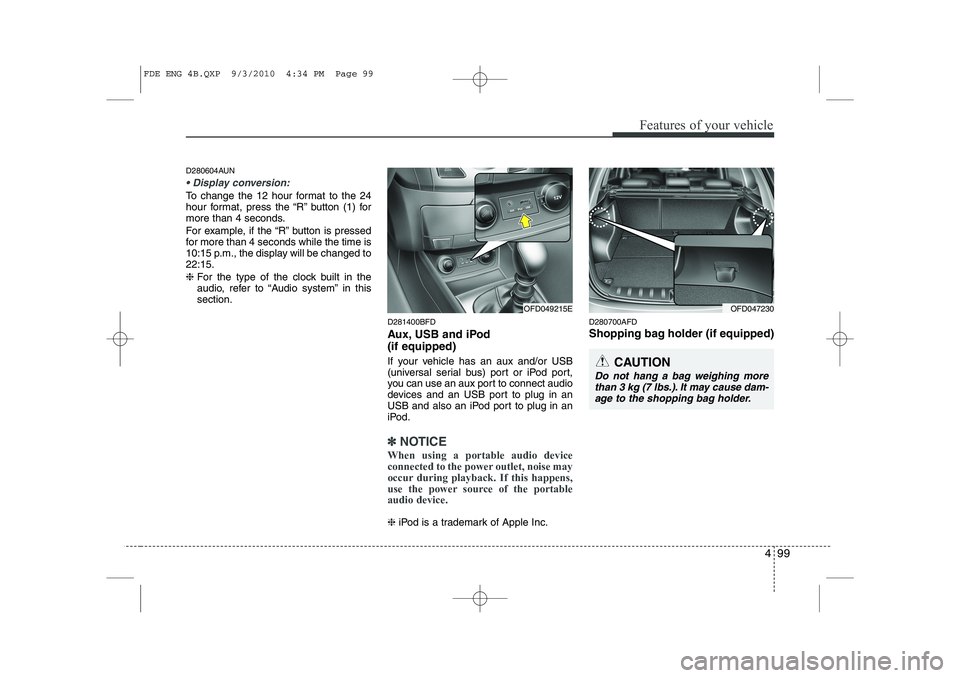
Aux, USB and iPod (if equipped)
If your vehicle has an aux and/or USB
(universal serial bus) port or iPod port,
you can use an aux port to connect audio
devices and an USB port to plug in an
USB and also an iPod port to plug in an
iPod.
✽✽NOTICE
When using a portable audio device
connected to the power outlet, noise may
occur during playback. If this happens,
use the power source of the portableaudio device.
❈ iPod is a trademark of Apple Inc. D280700AFD
Shopping bag holder (if equipped)
OFD049215EOFD047230
CAUTION
Do not hang a bag weighing more
than 3 kg (7 lbs.). It may cause dam-age to the shopping bag holder.
FDE ENG 4B.QXP 9/3/2010 4:34 PM Page 99
Page 180 of 635
Features of your vehicle
102
4
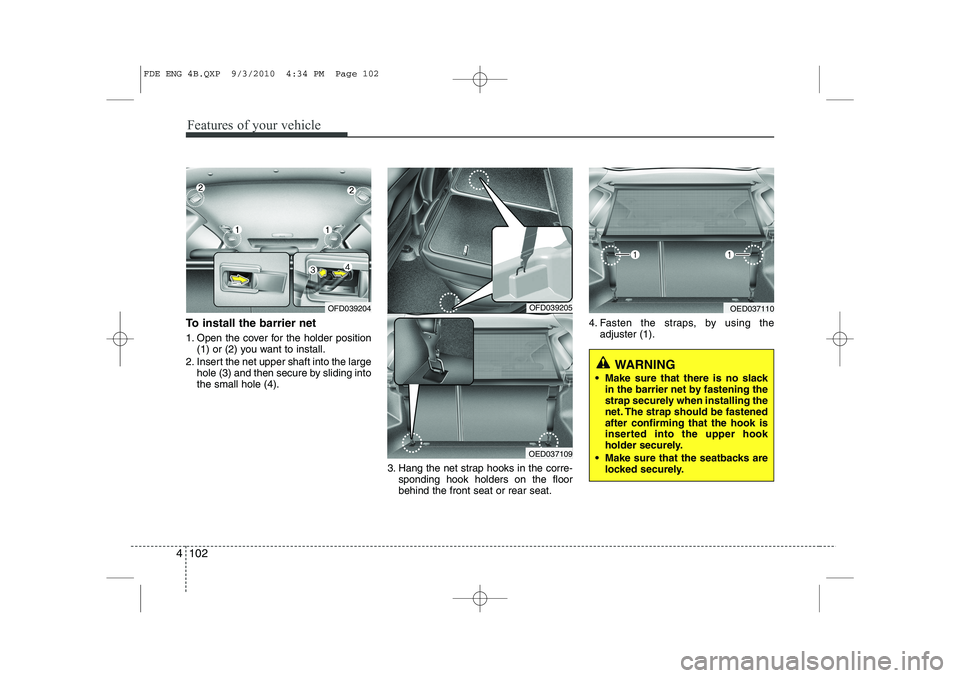
To install the barrier net
1. Open the cover for the holder position
(1) or (2) you want to install.
2. Insert the net upper shaft into the large hole (3) and then secure by sliding into the small hole (4).
3. Hang the net strap hooks in the corre-sponding hook holders on the floorbehind the front seat or rear seat. 4. Fasten the straps, by using the
adjuster (1).
OFD039204OFD039205
OED037109
OED037110
WARNING
Make sure that there is no slack in the barrier net by fastening the
strap securely when installing the
net. The strap should be fastenedafter confirming that the hook is
inserted into the upper hook
holder securely.
Make sure that the seatbacks are locked securely.
FDE ENG 4B.QXP 9/3/2010 4:34 PM Page 102
Page 185 of 635
4 107
Features of your vehicle
✽✽NOTICE
If you install an aftermarket HID head
lamp, your vehicle’s audio and electron-ic device may malfunction.
Antenna D300102AFD
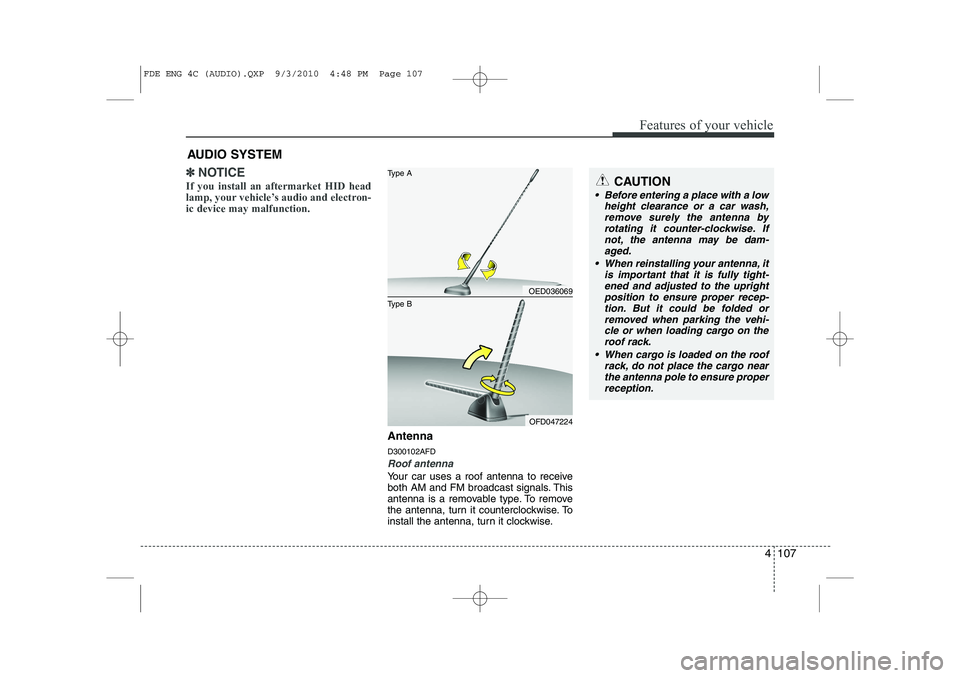
Roof antenna
Your car uses a roof antenna to receive
both AM and FM broadcast signals. This
antenna is a removable type. To remove
the antenna, turn it counterclockwise. To
install the antenna, turn it clockwise.
AUDIO SYSTEM
CAUTION
• Before entering a place with a low
height clearance or a car wash,
remove surely the antenna by rotating it counter-clockwise. Ifnot, the antenna may be dam-aged.
When reinstalling your antenna, it is important that it is fully tight-ened and adjusted to the upright position to ensure proper recep-
tion. But it could be folded or removed when parking the vehi-cle or when loading cargo on the roof rack.
When cargo is loaded on the roof rack, do not place the cargo nearthe antenna pole to ensure properreception.
OED036069
OFD047224
Type B Type A
FDE ENG 4C (AUDIO).QXP 9/3/2010 4:48 PM Page 107
Page 188 of 635
Features of your vehicle
110
4
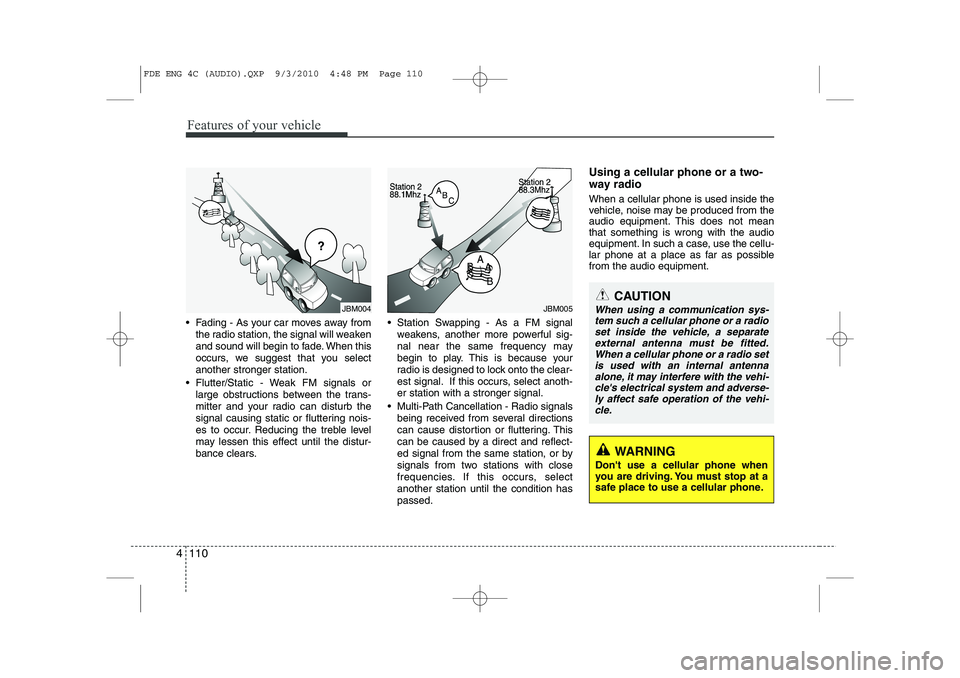
Fading - As your car moves away from
the radio station, the signal will weaken
and sound will begin to fade. When this
occurs, we suggest that you selectanother stronger station.
Flutter/Static - Weak FM signals or large obstructions between the trans-
mitter and your radio can disturb the
signal causing static or fluttering nois-
es to occur. Reducing the treble level
may lessen this effect until the distur-
bance clears. Station Swapping - As a FM signal
weakens, another more powerful sig-
nal near the same frequency may
begin to play. This is because your
radio is designed to lock onto the clear-
est signal. If this occurs, select anoth-er station with a stronger signal.
Multi-Path Cancellation - Radio signals being received from several directions
can cause distortion or fluttering. This
can be caused by a direct and reflect-
ed signal from the same station, or by
signals from two stations with close
frequencies. If this occurs, selectanother station until the condition haspassed. Using a cellular phone or a two-
way radio When a cellular phone is used inside the
vehicle, noise may be produced from the
audio equipment. This does not meanthat something is wrong with the audio
equipment. In such a case, use the cellu-
lar phone at a place as far as possiblefrom the audio equipment.
JBM004JBM005CAUTION
When using a communication sys-
tem such a cellular phone or a radio set inside the vehicle, a separateexternal antenna must be fitted.
When a cellular phone or a radio setis used with an internal antenna alone, it may interfere with the vehi-cle's electrical system and adverse-
ly affect safe operation of the vehi- cle.
WARNING
Don't use a cellular phone when
you are driving. You must stop at a
safe place to use a cellular phone.
FDE ENG 4C (AUDIO).QXP 9/3/2010 4:48 PM Page 110
Page 191 of 635
4 113
Features of your vehicle
1. FM/AM Selection Button
Turns to FM/AM mode and toggles FM1 and FM2➟AM ➟FM1··· when the button is
pressed each time.
2. Power ON/OFF & Volume
Control Button
Turns the ON/OFF set when the IGNI-
TION SWITCH is on ACC or ON.
If the button is turned to the right, it
increases the volume and left, decreases
the volume.
3. AUTO STORE Button
When the button is pressed, it automati-
cally selects and saves channels with
high reception rate to PRESET but-
tons(1~6) and plays the channel saved inPRESET1.
If no channel is saved after AST, it will
play the previous channel. 4. Automatic Channel Selection
Button
When the [SEEK ] button is pressed, it reduces the band frequency
by 5kHz to automatically select chan-
nel. Stops at the previous frequency if
no channel is found.
When the [SEEK ] button is pressed, it increases the band fre-
quency by 5kHz to automatically select
channel. Stops at the previous fre-
quency if no channel is found.
5. TUNE/AUDIO Control Button
Turn this button clockwise by one notch
to increase frequency by 0.05MHz from
current frequency.
Turn this button counterclockwise by one
notch to decrease frequency by 0.05MHz
from current frequency.
Turns to AUDIO CONTROL mode, and toggles in the order of BASS ➟
MIDDLE
➟ TREBLE ➟ FADER ➟ BALANCE ➟
AVC ON ➟ P.BASS ➟ BASS··· when the
button is pressed each time. 6. Preset Button
Push [1]~[6]button less than 0.8 second
to play the channel saved in each button.
Push preset button for 0.8 second or
longer to save current channel to the
respective button with a beep.
7. CD/AUX Selection Button
If there is a cd in the CDP DECK it turns
to CD mode, and if a device is connected
to AUX then it toggles. CD
➟AUX ➟CD··· when the button is
pressed each time.(It will not turn to AUX
if the auxiliary device is not connected.)
FDE ENG 4C (AUDIO).QXP 9/3/2010 4:48 PM Page 113
Page 196 of 635
Features of your vehicle
118
4
10. SET UP Button
Press this button to turn to the SOUND,
RDS option, clock setting, time display,
SCROLL, SDVC, temperature display
and adjustment mode.
If no action is taken for 5 seconds after
pressing the button, it will return to the
play mode.(After entering SET UP mode,
move between items using the left, right
and PUSH functions of the TUNE but-ton.)
The set up item changes from AUDIO ➟
RDS ➟ CLOCK ➟ TIME ➟ SCROLL ➟
SDVC ➟ TEMP ➟ P.BASS ➟ AUDIO...
The manual setting is a default for radio
time but if customer wants, the time
received from RDS station can be set for
radio time. In this case, the RDS time,
which is effected by the situation of RDS
station, can be different with actual time. ❈
TO SETUP TIME UPDATE
1. Press SETUP button.
2. Select RDS menu by rotating/pressing TUNE knob.
3. Select TIME menu by rotating/pressing TUNE knob.
4. Select Auto or Manual by rotating/ pressing TUNE knob.
5. Press SETUP button to exit SETUP mode.
11. TUNE/ENTER Button
Turn this button clockwise by one notch
to increase frequency by 0.05Mhz from
current frequency.
Turn this button counterclockwise by one
notch to decrease frequency by 0.05Mhz
from current frequency.
Press this button while holding SET UP
button to activate / inactivate the item to.
Select SET UP item using left and right
function of the Tune button. 12. PTY(FLDR) button
Moves [PTY ] Button when search-
ing PTY in RDS Broadcasting Program
Type selection.
Moves [PTY ] button when search- ing PTY in RDS Broadcasting Program
Type selection.
13. Preset Button
Push [1]~[6] buttons less than 0.8 second
to play the channel saved in each button.
Push preset button for 0.8 second or
longer to save current channel to the
respective button with a beep.
FDE ENG 4C (AUDIO).QXP 9/3/2010 4:49 PM Page 118