steering wheel HYUNDAI I30 2016 Owner's Manual
[x] Cancel search | Manufacturer: HYUNDAI, Model Year: 2016, Model line: I30, Model: HYUNDAI I30 2016Pages: 659, PDF Size: 17.14 MB
Page 233 of 659
Multimedia System
Multimedia system .................................................4-2
AUX, USB and iPod®
®port ...............................................4-2
Antenna ...............................................................................4-3
Steering wheel audio control .........................................4-4
Bluetooth®
®Wireless Technology hands-free ..........4-5
Audio / Video / Navigation system (AVN) ..................4-5
How vehicle radio works .................................................4-5
Audio (without touch screen) ..............................4-9
Feature of your audio ...................................................4-10
Radio...................................................................................4-19
Media..................................................................................4-21
Phone .................................................................................4-32
Setup ..................................................................................4-40
Audio (with touch screen) ..................................4-42
Feature of your audio ...................................................4-43
Radio .................................................................................4-48
Media..................................................................................4-51
Phone .................................................................................4-62
Setup ..................................................................................4-70
Declaration of conformity ..................................4-72
CE for EU ..........................................................................4-72
4
Page 236 of 659
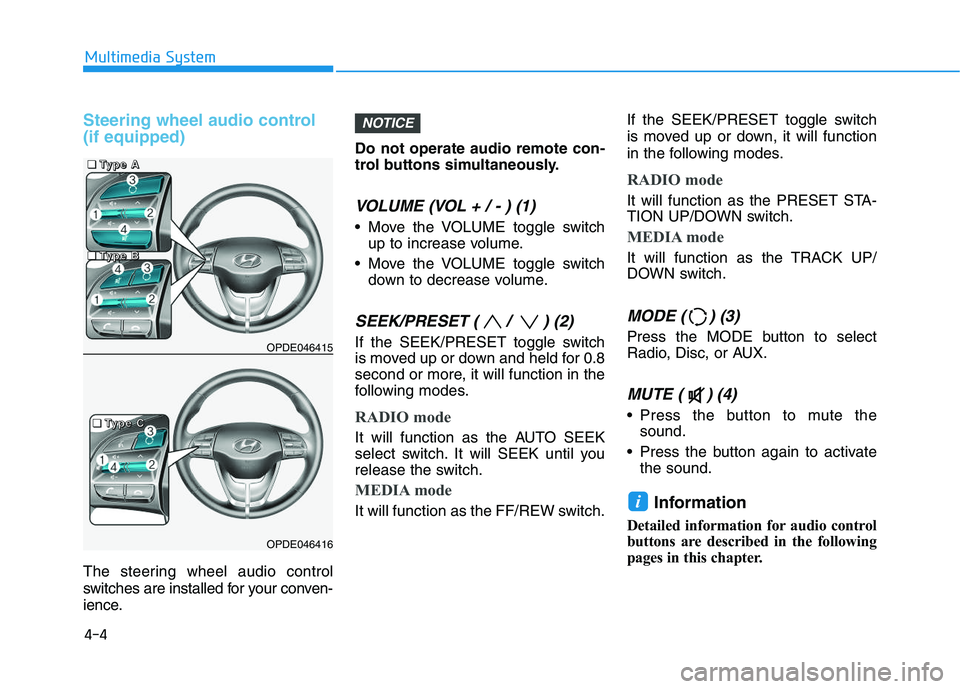
Steering wheel audio control
(if equipped)
The steering wheel audio control
switches are installed for your conven-
ience.Do not operate audio remote con-
trol buttons simultaneously.
VOLUME (VOL + / - ) (1)
Move the VOLUME toggle switch
up to increase volume.
Move the VOLUME toggle switch down to decrease volume.
SEEK/PRESET ( / ) (2)
If the SEEK/PRESET toggle switch
is moved up or down and held for 0.8
second or more, it will function in the
following modes.
RADIO mode
It will function as the AUTO SEEK
select switch. It will SEEK until you
release the switch.
MEDIA mode
It will function as the FF/REW switch. If the SEEK/PRESET toggle switch
is moved up or down, it will function
in the following modes.
RADIO mode
It will function as the PRESET STA-
TION UP/DOWN switch.
MEDIA mode
It will function as the TRACK UP/
DOWN switch.
MODE ( ) (3)
Press the MODE button to select
Radio, Disc, or AUX.
MUTE ( ) (4)
Press the button to mute the
sound.
Press the button again to activate the sound.
Information
Detailed information for audio control
buttons are described in the following
pages in this chapter.
i
NOTICE
OPDE046415
OPDE046416
4-4
Multimedia System
■
■
■
■
T
T
T
T
y
y
y
y
p
p
p
p
e
e
e
e
A
A
A
A
■
■
■
■
T
T
T
T
y
y
y
y
p
p
p
p
e
e
e
e
C
C
C
C
■
■
■
■
T
T
T
T
y
y
y
y
p
p
p
p
e
e
e
e
B
B
B
B
Page 247 of 659
4-15
Multimedia System
4
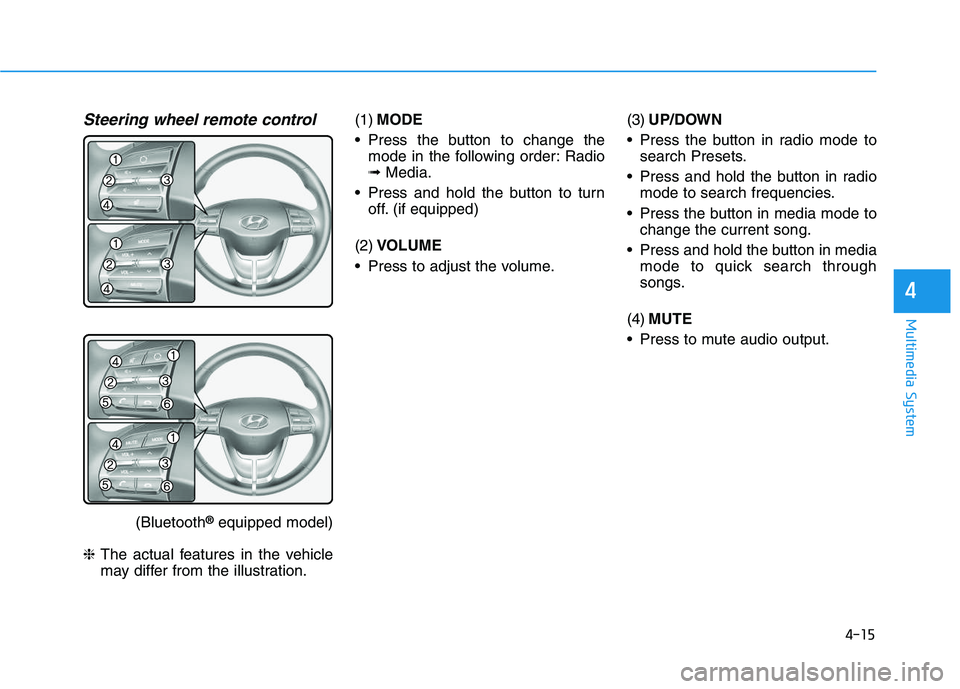
Steering wheel remote control
(Bluetooth®equipped model)
❈ The actual features in the vehicle
may differ from the illustration. (1)
MODE
Press the button to change the mode in the following order: Radio
➟ Media.
Press and hold the button to turn off. (if equipped)
(2) VOLUME
Press to adjust the volume. (3)
UP/DOWN
Press the button in radio mode to search Presets.
Press and hold the button in radio mode to search frequencies.
Press the button in media mode to change the current song.
Press and hold the button in media mode to quick search through
songs.
(4) MUTE
Press to mute audio output.
Page 266 of 659
4-34
Multimedia System
Pairing a Bluetooth®device
Information on pairing Bluetooth®
devices
Pairing refers to the process ofpairing Bluetooth®cell phones or
devices with the system prior to
connection. This is a necessary
procedure for Bluetooth
®connec-
tion and usage.
Up to five devices can be paired.
Pairing Bluetooth
®device is not
allowed while vehicle is moving.
Pairing the first Bluetooth®device
Press the [PHONE]button on the
audio system or the [CALL]button
on the steering wheel remote control
➟ Search for the vehicle from the
Bluetooth
®device, and pair ➟Enter
the passkey on the Bluetooth®
device or approve passkey ➟
Bluetooth®pairing completed.
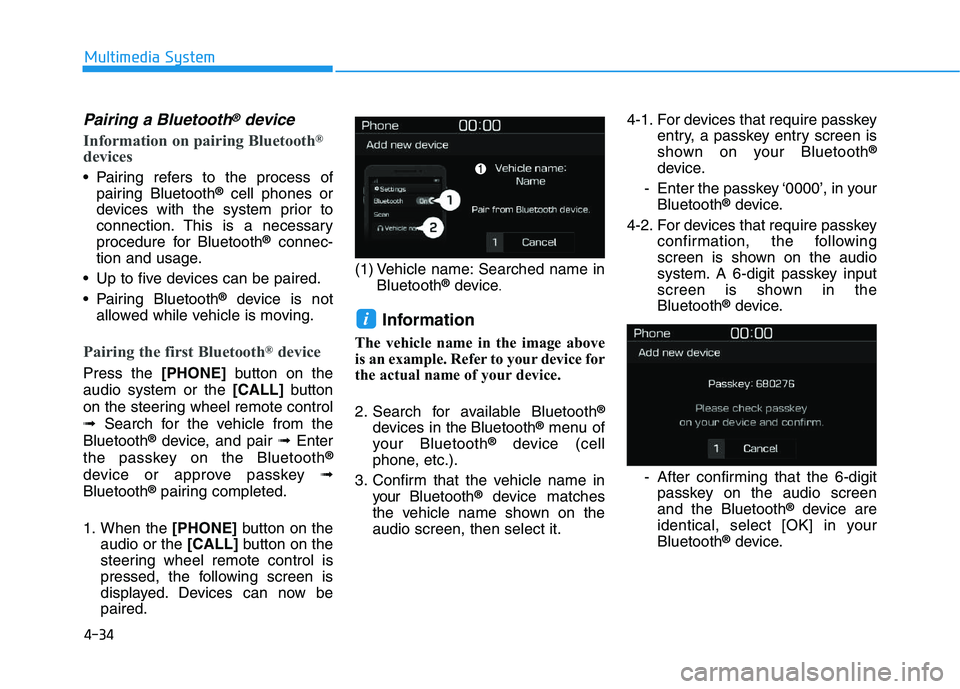
1. When the [PHONE]button on the
audio or the [CALL]button on the
steering wheel remote control is
pressed, the following screen is
displayed. Devices can now be
paired. (1) Vehicle name: Searched name in
Bluetooth
®device.
Information
The vehicle name in the image above
is an example. Refer to your device for
the actual name of your device.
2. Search for available Bluetooth
®
devices in the Bluetooth®menu of
your Bluetooth®device (cell
phone, etc.).
3. Confirm that the vehicle name in your Bluetooth
®device matches
the vehicle name shown on the
audio screen, then select it. 4-1. For devices that require passkey
entry, a passkey entry screen is
shown on your Bluetooth
®
device.
- Enter the passkey ‘0000’, in your Bluetooth
®device.
4-2. For devices that require passkey confirmation, the following
screen is shown on the audio
system. A 6-digit passkey input
screen is shown in the
Bluetooth
®device.
- After confirming that the 6-digit passkey on the audio screen
and the Bluetooth
®device are
identical, select [OK] in your
Bluetooth
®device.
i
Page 267 of 659
![HYUNDAI I30 2016 Owners Manual 4-35
Multimedia System
4
Information
The 6-digit passkey in the image
above is an example. Refer to your
vehicle for the actual passkey.
Pairing a second Bluetooth®device
Press the [SETUP/CLOCK] butt](/img/35/56151/w960_56151-266.png "HYUNDAI I30 2016 Owners Manual 4-35
Multimedia System
4
Information
The 6-digit passkey in the image
above is an example. Refer to your
vehicle for the actual passkey.
Pairing a second Bluetooth®device
Press the [SETUP/CLOCK] butt")
4-35
Multimedia System
4
Information
The 6-digit passkey in the image
above is an example. Refer to your
vehicle for the actual passkey.
Pairing a second Bluetooth®device
Press the [SETUP/CLOCK] button
on the audio system ➟Select
[Bluetooth] ➟Select [Connections]
➟ Select [Add new device].
- The pairing procedure from this point is identical to [Pairing the first
Bluetooth device].
Information
• Bluetooth®standby mode lasts for
three minutes. If a device is not
paired within three minutes, pairing
is canceled. Start over from the
beginning.
• For most Bluetooth
®devices, a con-
nection is established automatically
after pairing. Some devices, howev-
er, require separate confirmation
when connecting after pairing. Be
sure to check your Bluetooth
®
device after pairing to confirm that
it has connected.
Connecting Bluetooth®devices
If there are no connected devices
Press the [PHONE]button on the
audio system or the [CALL]button in
the steering wheel remote control ➟
List of paired Bluetooth
®devices ➟
Select the desired Bluetooth®device
from the list ➟Connect Bluetooth®.
ii
Page 277 of 659
4-45
Multimedia System
4
Steering wheel remote control
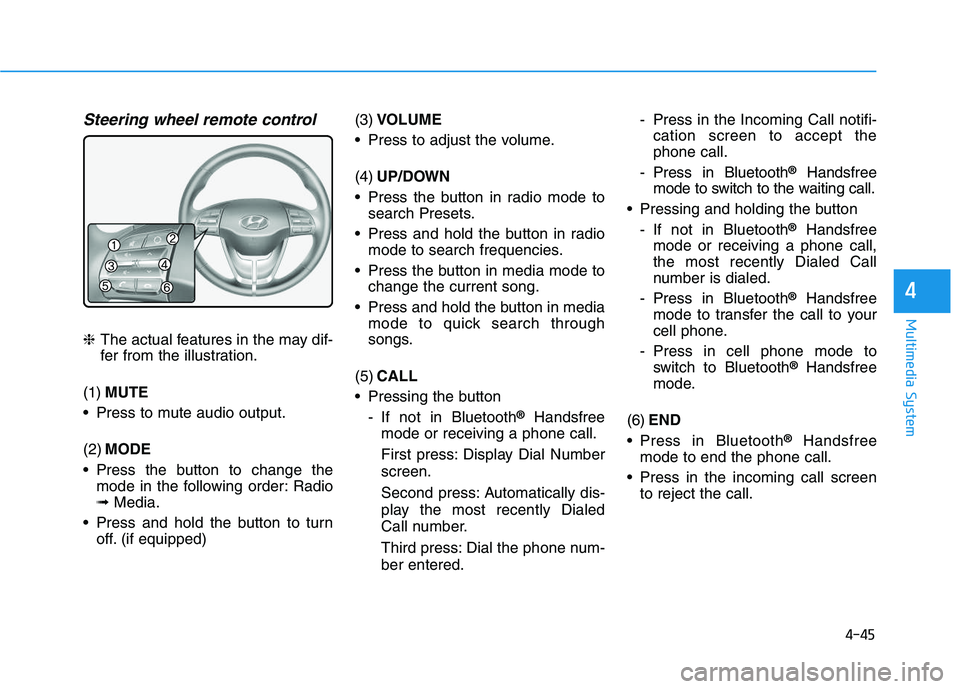
❈The actual features in the may dif-
fer from the illustration.
(1) MUTE
Press to mute audio output.
(2) MODE
Press the button to change the mode in the following order: Radio
➟ Media.
Press and hold the button to turn off. (if equipped) (3)
VOLUME
Press to adjust the volume.
(4) UP/DOWN
Press the button in radio mode to search Presets.
Press and hold the button in radio mode to search frequencies.
Press the button in media mode to change the current song.
Press and hold the button in media mode to quick search through
songs.
(5) CALL
Pressing the button - If not in Bluetooth
®Handsfree
mode or receiving a phone call.
First press: Display Dial Number
screen.
Second press: Automatically dis-
play the most recently Dialed
Call number.
Third press: Dial the phone num-
ber entered. - Press in the Incoming Call notifi-
cation screen to accept the
phone call.
- Press in Bluetooth
®Handsfree
mode to switch to the waiting call.
Pressing and holding the button - If not in Bluetooth
®Handsfree
mode or receiving a phone call,
the most recently Dialed Call
number is dialed.
- Press in Bluetooth
®Handsfree
mode to transfer the call to your
cell phone.
- Press in cell phone mode to switch to Bluetooth
®Handsfree
mode.
(6) END
Press in Bluetooth
®Handsfree
mode to end the phone call.
Press in the incoming call screen to reject the call.
Page 296 of 659
4-64
Multimedia System
Some Bluetooth
®devices are sub-
ject to intermittent Bluetooth®con-
nection failures. In this case, use
the following method.
1) Turn the Bluetooth
®function off
on your Bluetooth®device ➟
Turn it on and try again.
2) Delete the paired device from both the audio system and
Bluetooth
®device, then pair
again.
3) Power down your Bluetooth
®
device ➟Turn it on and try
again.
4) Completely remove the battery from your Bluetooth
®device;
reinsert it, reboot, and attempt
connection.
5) Restart the vehicle and reat- tempt connection.
Pairing a Bluetooth®device
Information on pairing Bluetooth®
devices
Pairing refers to the process ofpairing Bluetooth®cell phones or
devices with the system prior to
connection. This is a necessary
procedure for Bluetooth
®connec-
tion and usage.
Up to five devices can be paired.
Pairing Bluetooth
®device is not
allowed while vehicle is moving.
Pairing the first Bluetooth®device
Press the [PHONE]button on the
audio system or the [CALL]button
on the steering wheel remote control
➟ Search for the vehicle from the
Bluetooth
®device, and pair ➟Enter
the passkey on the Bluetooth®
device or approve passkey ➟
Bluetooth®pairing completed.
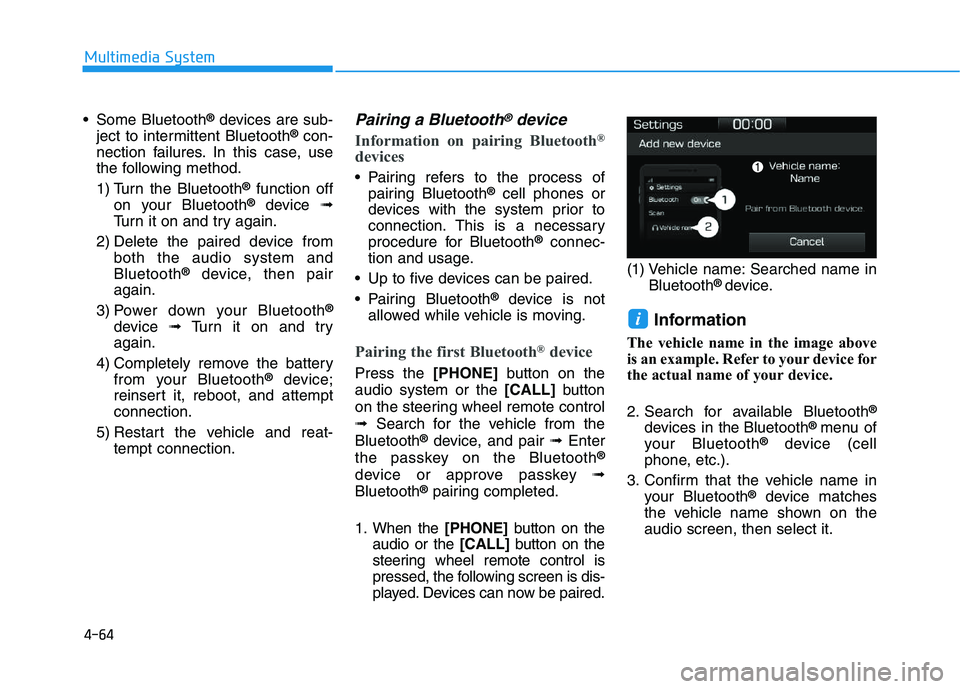
1. When the [PHONE]button on the
audio or the [CALL]button on the
steering wheel remote control is
pressed, the following screen is dis-
played. Devices can now be paired. (1) Vehicle name: Searched name in
Bluetooth
® device.
Information
The vehicle name in the image above
is an example. Refer to your device for
the actual name of your device.
2. Search for available Bluetooth
®
devices in the Bluetooth® menu of
your Bluetooth®device (cell
phone, etc.).
3. Confirm that the vehicle name in your Bluetooth
®device matches
the vehicle name shown on the
audio screen, then select it.
i
Page 298 of 659
![HYUNDAI I30 2016 Owners Manual 4-66
Multimedia System
Connecting Bluetooth®devices
If there are no connected devices
Press the[PHONE]button on the
audio system or the [CALL]button in
the steering wheel remote control ➟
List of](/img/35/56151/w960_56151-297.png "HYUNDAI I30 2016 Owners Manual 4-66
Multimedia System
Connecting Bluetooth®devices
If there are no connected devices
Press the[PHONE]button on the
audio system or the [CALL]button in
the steering wheel remote control ➟
List of")
4-66
Multimedia System
Connecting Bluetooth®devices
If there are no connected devices
Press the[PHONE]button on the
audio system or the [CALL]button in
the steering wheel remote control ➟
List of paired Bluetooth
®devices ➟
Select the desired Bluetooth®device
from the list ➟Connect Bluetooth®.
If there are connected devices
Press the [PHONE]button on the
audio system ➟Select [Settings] ➟
Select [Connections] ➟Select
Bluetooth
®device to connect ➟Select
[Connect] ➟Connect Bluet ooth®.
Information
• Only one Bluetooth®device can be
connected at a time.
• When a Bluetooth
®device is con-
nected, other devices cannot be
paired.
Accepting/rejecting phone calls
Receiving phone calls with Bluetooth®
connected.
(1) Caller name: If the caller number
is in your contacts, the correspon-
ding name is displayed.
(2) Incoming phone number: Incoming phone number is displayed.
(3) Accept: Accept call.
(4) Reject: Reject call.
i
Page 309 of 659
5-5
Driving your vehicle
5
Before entering the vehicle
• Be sure all windows, outside mir-ror(s), and outside lights are clean
and unobstructed.
Remove frost, snow, or ice.
Visually check the tires for uneven wear and damage.
Check under the vehicle for any sign of leaks.
Be sure there are no obstacles behind you if you intend to back up.
Before starting
Make sure the hood, the tailgate,and the doors are securely closed
and locked.
Adjust the position of the seat and steering wheel.
Adjust the inside and outside rearview mirrors.
Verify all the lights work.
Fasten your seatbelt. Check that all passengers have fastened their
seatbelts.
Check the gauges and indicators in the instrument panel and the mes-
sages on the instrument display
when the ignition switch is in the
ON position.
Check that any items you are car- rying are stored properly or fas-
tened down securely.
B
B E
E F
F O
O R
R E
E
D
D R
R I
I V
V I
I N
N G
G
To reduce the risk of SERIOUS
INJURY or DEATH, take the fol-
lowing precautions:
•ALWAYS wear your seat belt.
All passengers must be prop-
erly belted whenever the vehi-
cle is moving. For more infor-
mation, refer to "Seat Belts" in
chapter 2.
Always drive defensively.
Assume other drivers or pedes-
trians may be careless and
make mistakes.
Stay focused on the task of
driving. Driver distraction can
cause accidents.
Leave plenty of space between
you and the vehicle in front of
you.
WARNING
Page 311 of 659
5-7
Driving your vehicle
5
I
I G
G N
N I
I T
T I
I O
O N
N
S
S W
W I
I T
T C
C H
H
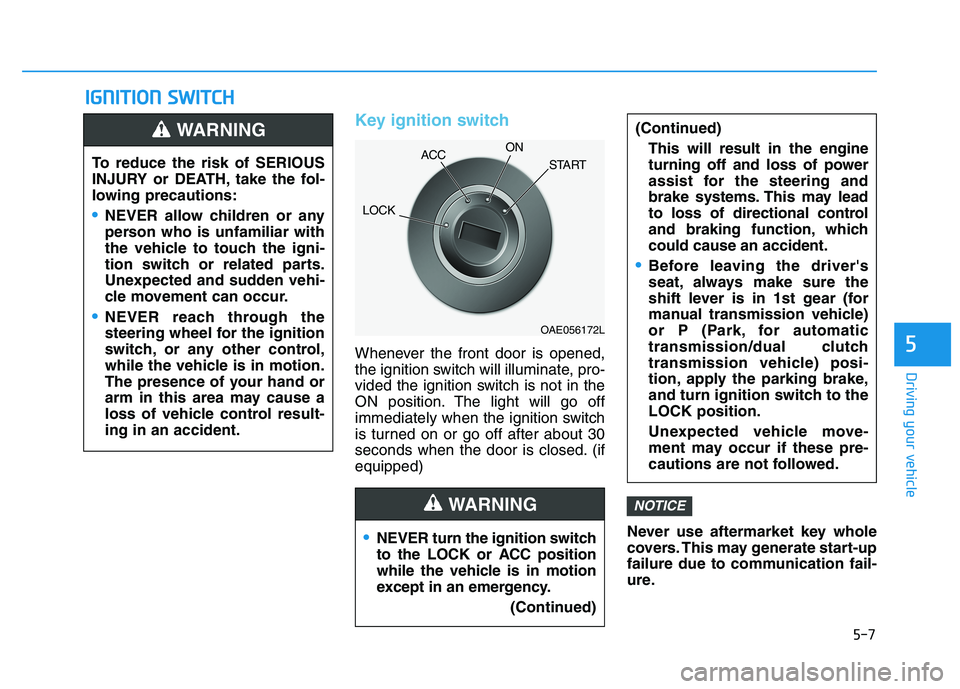
Key ignition switch
Whenever the front door is opened,
the ignition switch will illuminate, pro-
vided the ignition switch is not in the
ON position. The light will go off
immediately when the ignition switch
is turned on or go off after about 30
seconds when the door is closed. (if
equipped)
Never use aftermarket key whole
covers. This may generate start-up
failure due to communication fail-
ure.
NOTICE
NEVER turn the ignition switch
to the LOCK or ACC position
while the vehicle is in motion
except in an emergency.(Continued)
(Continued)This will result in the engine
turning off and loss of power
assist for the steering and
brake systems. This may lead
to loss of directional control
and braking function, which
could cause an accident.
Before leaving the driver's
seat, always make sure the
shift lever is in 1st gear (for
manual transmission vehicle)
or P (Park, for automatic
transmission/dual clutch
transmission vehicle) posi-
tion, apply the parking brake,
and turn ignition switch to the
LOCK position.
Unexpected vehicle move-
ment may occur if these pre-
cautions are not followed.
WARNING
To reduce the risk of SERIOUS
INJURY or DEATH, take the fol-
lowing precautions:
NEVER allow children or any
person who is unfamiliar with
the vehicle to touch the igni-
tion switch or related parts.
Unexpected and sudden vehi-
cle movement can occur.
NEVER reach through the
steering wheel for the ignition
switch, or any other control,
while the vehicle is in motion.
The presence of your hand or
arm in this area may cause a
loss of vehicle control result-
ing in an accident.
WARNING
OAE056172L
LOCK ACC
ON
START