fuel HYUNDAI I30 2017 Owner's Manual
[x] Cancel search | Manufacturer: HYUNDAI, Model Year: 2017, Model line: I30, Model: HYUNDAI I30 2017Pages: 659, PDF Size: 17.14 MB
Page 222 of 659
3-72
Convenient features of your vehicle
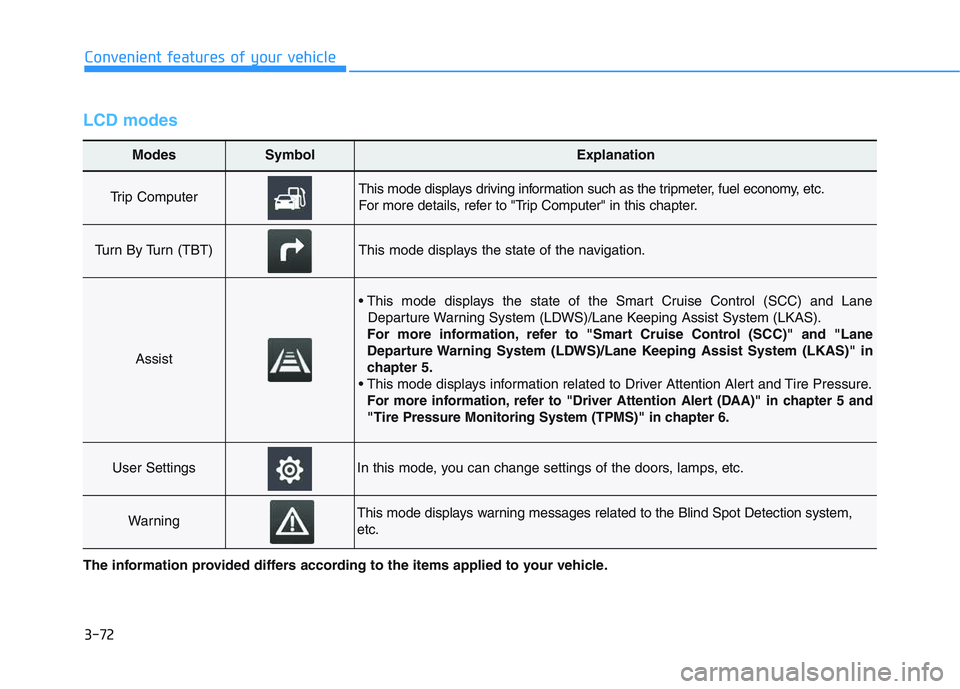
LCD modes
Modes SymbolExplanation
Trip Computer This mode displays driving information such as the tripmeter, fuel economy, etc.
For more details, refer to "Trip Computer" in this chapter.
Turn By Turn (TBT)This mode displays the state of the navigation.
Assist
• This mode displays the state of the Smart Cruise Control (SCC) and LaneDeparture Warning System (LDWS)/Lane Keeping Assist System (LKAS).
For more information, refer to "Smart Cruise Control (SCC)" and "Lane
Departure Warning System (LDWS)/Lane Keeping Assist System (LKAS)" in
chapter 5.
For more information, refer to "Driver Attention Alert (DAA)"in chapter 5 and
"Tire Pressure Monitoring System (TPMS)"in chapter 6.
User SettingsIn this mode, you can change settings of the doors, lamps, etc.
WarningThis mode displays warning messages related to the Blind Spot Detection system,
etc.
The information provided differs according to the items applied to your vehicle.
Page 223 of 659
3-73
Convenient features of your vehicle
3
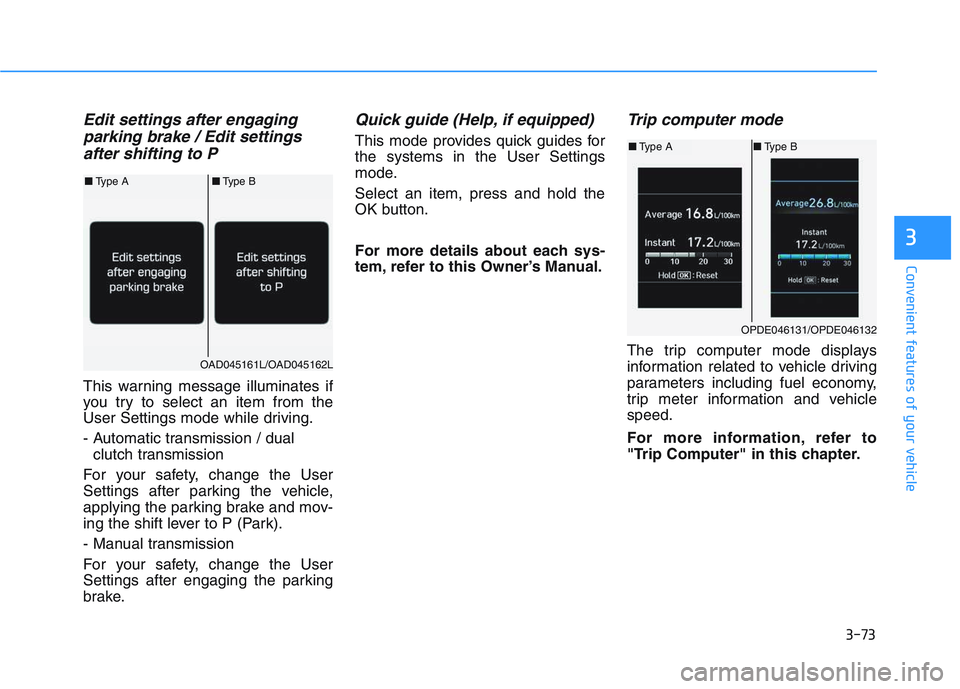
Edit settings after engaging parking brake / Edit settingsafter shifting to P
This warning message illuminates if
you try to select an item from the
User Settings mode while driving.
- Automatic transmission / dual
clutch transmission
For your safety, change the User
Settings after parking the vehicle,
applying the parking brake and mov-
ing the shift lever to P (Park).
- Manual transmission
For your safety, change the User
Settings after engaging the parking
brake.
Quick guide (Help, if equipped)
This mode provides quick guides for
the systems in the User Settings
mode.
Select an item, press and hold the
OK button.
For more details about each sys-
tem, refer to this Owner’s Manual.
Trip computer mode
The trip computer mode displays
information related to vehicle driving
parameters including fuel economy,
trip meter information and vehicle
speed.
For more information, refer to
"Trip Computer" in this chapter.
OPDE046131/OPDE046132
■ Type A ■Type B
OAD045161L/OAD045162L
■Type A ■Type B
Page 228 of 659
3-78
Convenient features of your vehicle
When activated, the gear position
will be displayed on the LCD display.
(if equipped with automatic transmis-
sion/dual clutch transmission)
6. Service Interval
To activate or deactivate the service
interval function.
If the service interval menu is acti-
vated, you may adjust the time and
distance.
Information
To use the service interval menu, con-
sult an authorized HYUNDAI dealer.
If the service interval is activated and
the time and distance is adjusted,
messages are displayed in the fol-
lowing situations each time the vehi-
cle is turned on.
- Service in : Displayed to inform the driver theremaining mileage and days to
service. - Service required
: Displayed when the mileage anddays to service has been reached
or passed.
Information
If any of the following conditions
occur, the mileage and number of days
to service may be incorrect.
- The battery cable is disconnected.
- The fuse switch is turned off.
- The battery is discharged.
7. Other Features
- Off: The average fuel economy will not reset automatically whenever
refueling.
- After Ignition: The average fuel economy will reset automatically
whenever it has passed 4 hours
after turning OFF the engine.
- After Refueling: The average fuel economy will reset automatically
when refueling.
For more information, refer to
"Trip Computer" in this chapter.
To select the fuel economy unit.
(km/L, L/100, MPG)
To select the temperature unit.
(°C,°F)
To select the tire pressure unit.
(psi, kPa, bar)
8. Reset
You can reset the menus in the User
Settings Mode. All menus in the User
Settings Mode are initialized, except
language and service interval.
i
i
Page 229 of 659
3-79
Convenient features of your vehicle
3
The trip computer is a microcomput-
er-controlled driver information sys-
tem that displays information related
to driving.
Information
Some driving information stored in the
trip computer (for example Average
Vehicle Speed) resets if the battery is
disconnected.
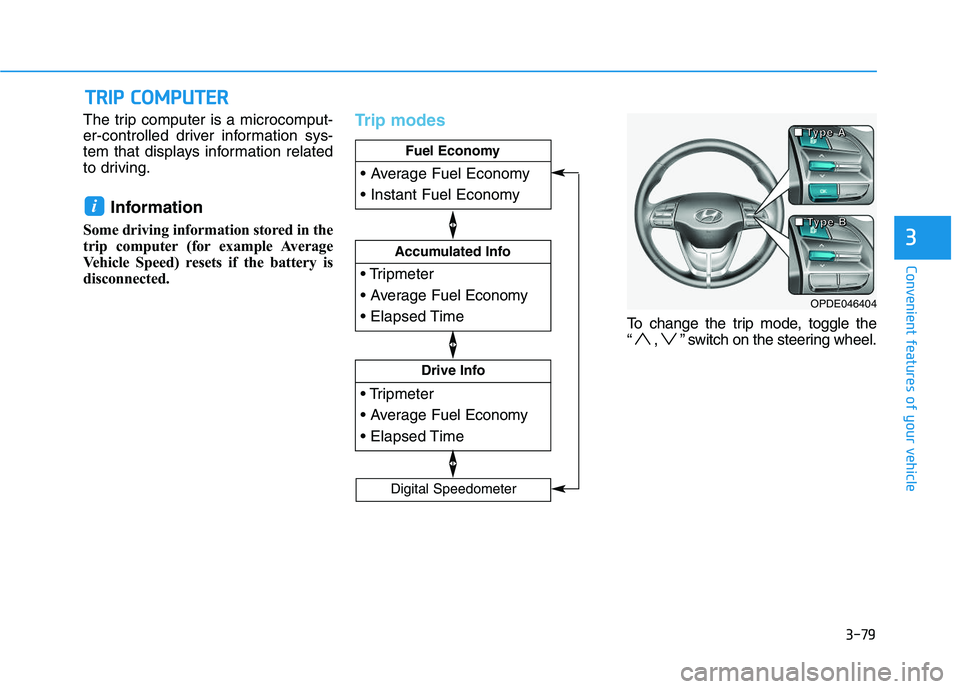
Trip modes
To change the trip mode, toggle the
“ , ” switch on the steering wheel.
i
T
T R
R I
I P
P
C
C O
O M
M P
P U
U T
T E
E R
R
Drive Info
Accumulated Info
Fuel Economy
Digital Speedometer
OPDE046404
■
■
■
■
T
T
T
T
y
y
y
y
p
p
p
p
e
e
e
e
A
A
A
A
■
■
■
■
T
T
T
T
y
y
y
y
p
p
p
p
e
e
e
e
B
B
B
B
Page 230 of 659
3-80
Convenient features of your vehicle
Fuel economy
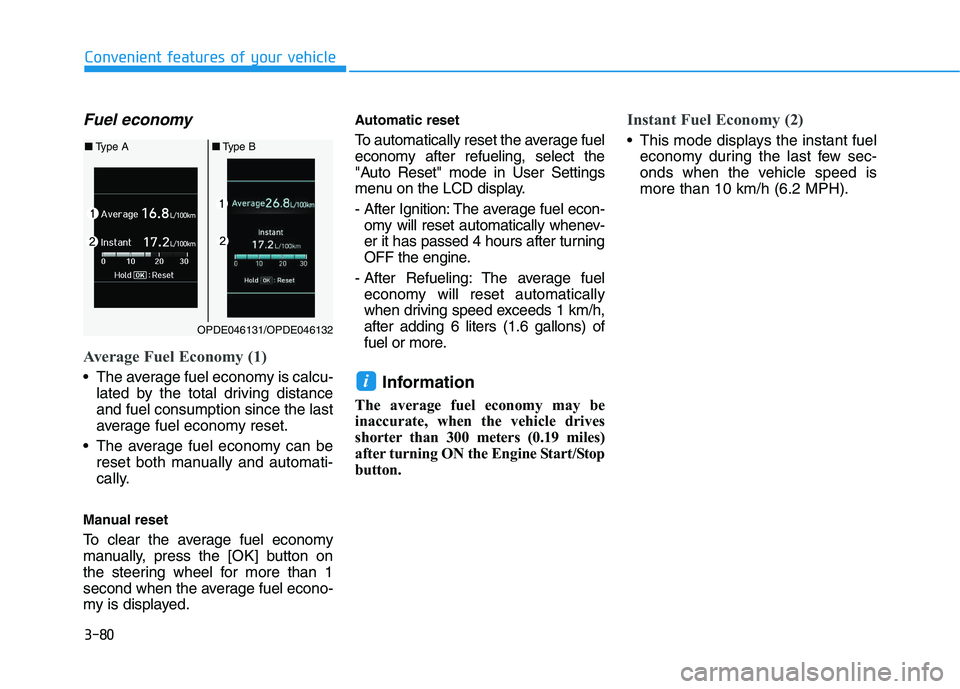
Average Fuel Economy (1)
The average fuel economy is calcu-lated by the total driving distance
and fuel consumption since the last
average fuel economy reset.
The average fuel economy can be reset both manually and automati-
cally.
Manual reset
To clear the average fuel economy
manually, press the [OK] button on
the steering wheel for more than 1
second when the average fuel econo-
my is displayed.
Automatic reset
To automatically reset the average fuel
economy after refueling, select the
"Auto Reset" mode in User Settings
menu on the LCD display.
- After Ignition: The average fuel econ- omy will reset automatically whenev-
er it has passed 4 hours after turning
OFF the engine.
- After Refueling: The average fuel economy will reset automatically
when driving speed exceeds 1 km/h,
after adding 6 liters (1.6 gallons) of
fuel or more.
Information
The average fuel economy may be
inaccurate, when the vehicle drives
shorter than 300 meters (0.19 miles)
after turning ON the Engine Start/Stop
button.
Instant Fuel Economy (2)
This mode displays the instant fuel economy during the last few sec-
onds when the vehicle speed is
more than 10 km/h (6.2 MPH).
i
OPDE046131/OPDE046132
■ Type A ■Type B
Page 231 of 659
3-81
Convenient features of your vehicle
3
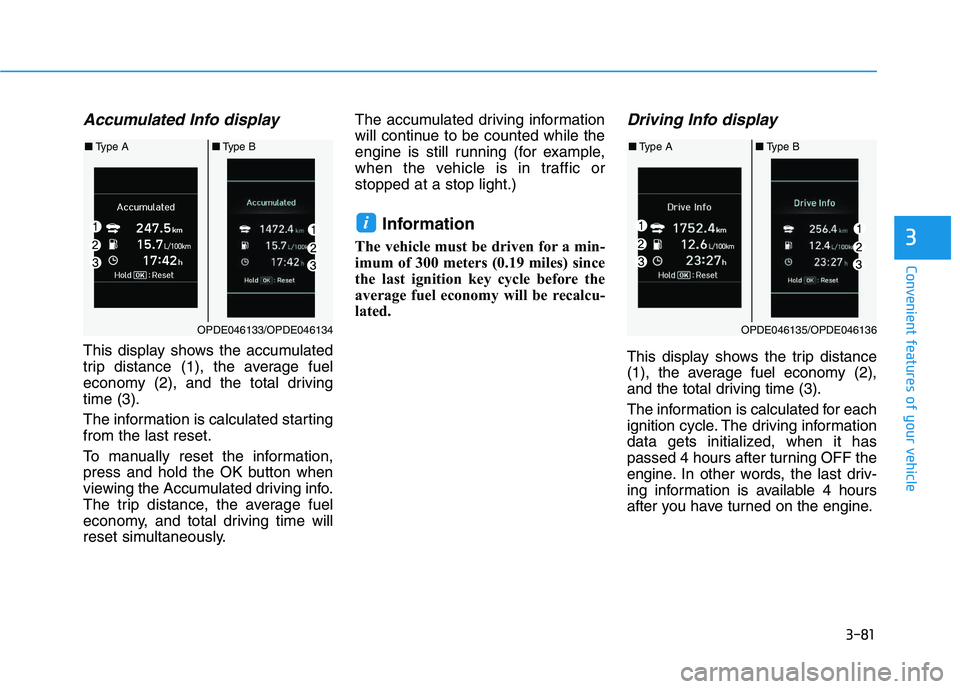
Accumulated Info display
This display shows the accumulated
trip distance (1), the average fuel
economy (2), and the total driving
time (3).
The information is calculated starting
from the last reset.
To manually reset the information,
press and hold the OK button when
viewing the Accumulated driving info.
The trip distance, the average fuel
economy, and total driving time will
reset simultaneously.The accumulated driving information
will continue to be counted while the
engine is still running (for example,
when the vehicle is in traffic or
stopped at a stop light.)
Information
The vehicle must be driven for a min-
imum of 300 meters (0.19 miles) since
the last ignition key cycle before the
average fuel economy will be recalcu-
lated.
Driving Info display
This display shows the trip distance
(1), the average fuel economy (2),
and the total driving time (3).
The information is calculated for each
ignition cycle. The driving information
data gets initialized, when it has
passed 4 hours after turning OFF the
engine. In other words, the last driv-
ing information is available 4 hours
after you have turned on the engine.
i
OPDE046133/OPDE046134
■
Type A ■Type B
OPDE046135/OPDE046136
■Type A ■Type B
Page 232 of 659
3-82
Convenient features of your vehicle
To manually reset the information,
press and hold the OK button when
viewing the Driving info. The trip dis-
tance, the average fuel economy, and
total driving time will reset simultane-
ously.
The driving information will continue
to be counted while the engine is still
running (for example, when the vehi-
cle is in traffic or stopped at a stop
light.)
Information
The vehicle must be driven for a min-
imum of 300 meters (0.19 miles) since
the last ignition key cycle before the
average fuel economy will be recalcu-
lated.
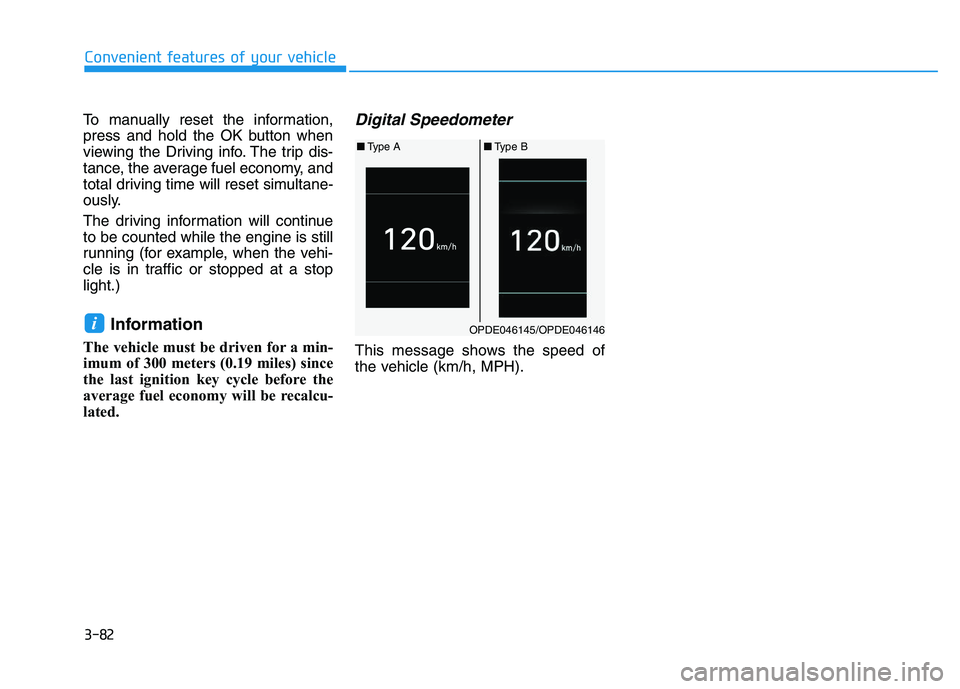
Digital Speedometer
This message shows the speed of
the vehicle (km/h, MPH).
iOPDE046145/OPDE046146
■ Type A ■Type B
Page 330 of 659
5-26
Driving your vehicle
N (Neutral)
The wheels and transmission are not
engaged.
Use N (Neutral) if you need to restart
a stalled engine, or if it is necessary
to stop with the engine ON. Shift into
P (Park) if you need to leave your
vehicle for any reason.
Always depress the brake pedal
when you are shifting from N
(Neutral) to another gear.
D (Drive)
This is the normal driving position.
The transmission will automatically
shift through a 6-gear sequence, pro-
viding the best fuel economy and
power.
For extra power when passing anoth-
er vehicle or driving uphill, depress
the accelerator fully. The transmis-
sion will automatically downshift to
the next lower gear (or gears, as
appropriate).
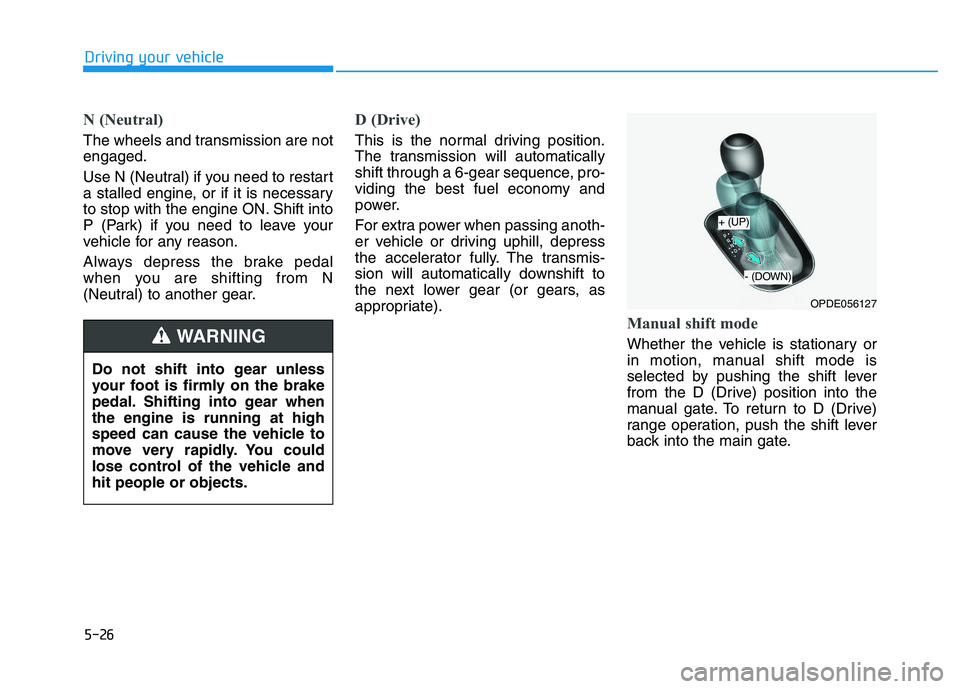
Manual shift mode
Whether the vehicle is stationary or
in motion, manual shift mode is
selected by pushing the shift lever
from the D (Drive) position into the
manual gate. To return to D (Drive)
range operation, push the shift lever
back into the main gate.
Do not shift into gear unless
your foot is firmly on the brake
pedal. Shifting into gear when
the engine is running at high
speed can cause the vehicle to
move very rapidly. You could
lose control of the vehicle and
hit people or objects.WARNING
OPDE056127
+ (UP)
- (DOWN)
Page 335 of 659
5-31
Driving your vehicle
5
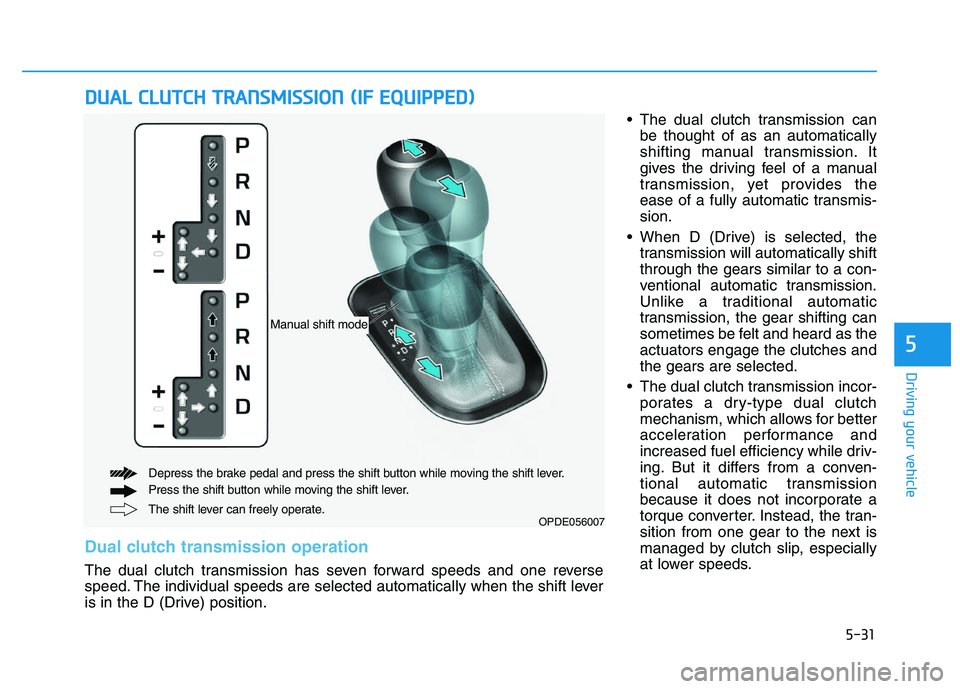
The dual clutch transmission canbe thought of as an automatically
shifting manual transmission. It
gives the driving feel of a manual
transmission, yet provides the
ease of a fully automatic transmis-
sion.
When D (Drive) is selected, the transmission will automatically shift
through the gears similar to a con-
ventional automatic transmission.
Unlike a traditional automatic
transmission, the gear shifting can
sometimes be felt and heard as the
actuators engage the clutches and
the gears are selected.
The dual clutch transmission incor- porates a dry-type dual clutch
mechanism, which allows for better
acceleration performance and
increased fuel efficiency while driv-
ing. But it differs from a conven-
tional automatic transmission
because it does not incorporate a
torque converter. Instead, the tran-
sition from one gear to the next is
managed by clutch slip, especially
at lower speeds.
D
D U
U A
A L
L
C
C L
L U
U T
T C
C H
H
T
T R
R A
A N
N S
S M
M I
I S
S S
S I
I O
O N
N
(
( I
I F
F
E
E Q
Q U
U I
I P
P P
P E
E D
D )
)
OPDE056007The shift lever can freely operate.
Depress the brake pedal and press the shift button while moving the shift lever.
Press the shift button while moving the shift lever.
Manual shift mode
Dual clutch transmission operation
The dual clutch transmission has seven forward speeds and one reverse
speed. The individual speeds are selected automatically when the shift lever
is in the D (Drive) position.
Page 340 of 659
5-36
Driving your vehicle
R (Reverse)
Use this position to drive the vehicle
backward.
Always come to a complete stop
before shifting into or out of R
(Reverse); you may damage the
transmission if you shift into R
(Reverse) while the vehicle is in
motion.
N (Neutral)
The wheels and transmission are not
engaged.
Use N (Neutral) if you need to restart
a stalled engine, or if it is necessary
to stop with the engine ON. Shift into
P (Park) if you need to leave your
vehicle for any reason.
Always depress the brake pedal
when you are shifting from N
(Neutral) to another gear.
D (Drive)
This is the normal driving position.
The transmission will automatically
shift through a 7-gear sequence, pro-
viding the best fuel economy and
power.
For extra power when passing anoth-
er vehicle or driving uphill, depress
the accelerator fully. The transmis-
sion will automatically downshift to
the next lower gear (or gears, as
appropriate).
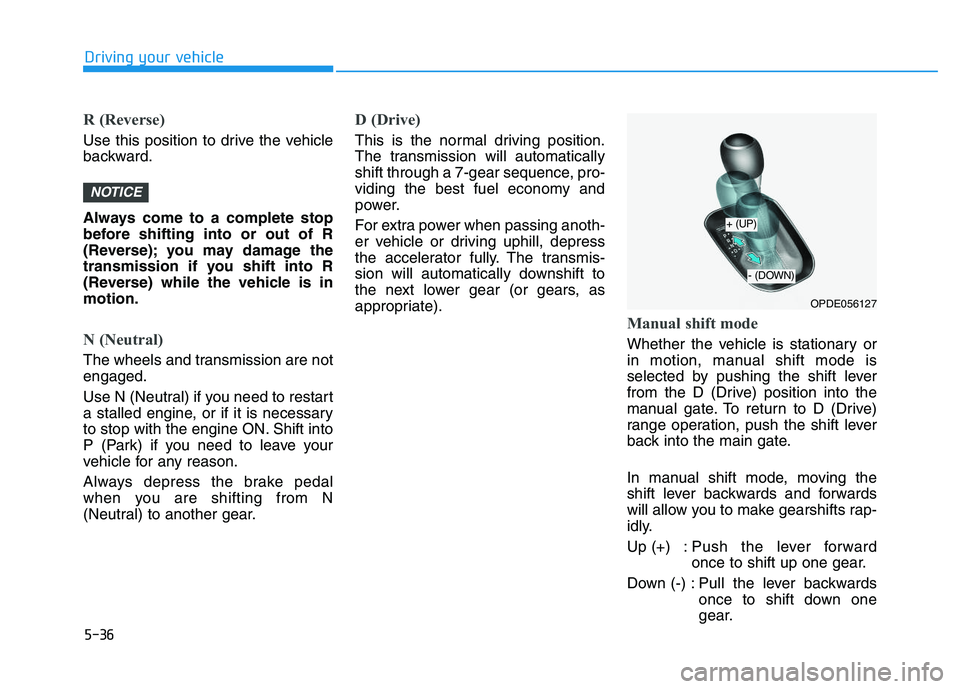
Manual shift mode
Whether the vehicle is stationary or
in motion, manual shift mode is
selected by pushing the shift lever
from the D (Drive) position into the
manual gate. To return to D (Drive)
range operation, push the shift lever
back into the main gate.
In manual shift mode, moving the
shift lever backwards and forwards
will allow you to make gearshifts rap-
idly.
Up (+) : Push the lever forwardonce to shift up one gear.
Down (-) : Pull the lever backwards once to shift down one
gear.
NOTICE
OPDE056127
+ (UP)
- (DOWN)