TURN HYUNDAI I30 2019 Owners Manual
[x] Cancel search | Manufacturer: HYUNDAI, Model Year: 2019, Model line: I30, Model: HYUNDAI I30 2019Pages: 659, PDF Size: 17.14 MB
Page 256 of 659

4-24
Multimedia System
(Continued)
• DRM (Digital Rights Management) files cannot be played.
• SD-type USB memory, CF-type USB memory, and other USB mem-
ory devices that require adapters
for connection are not supported.
• Proper operation of USB HDDs or USB drives with connectors that
loosen due to vehicle vibrations is
not guaranteed. (iStick, etc.)
• USB products that are used as key chains or
cell phone accessories
may damage the USB
jack and affect proper
file playback. Please refrain from
use. Use only products with plug
connectors, as shown in the follow-
ing illustration.
• When MP3 devices or cell phones are connected simultaneously
through AUX, BT Audio and USB
modes, a popping noise or malfunc-
tion may occur.
USB
(1) Repeat
Enable/disable repeat by pressing
button [1].
(2) Shuffle
Enable/disable shuffle play by press-
ing button [2].
(3) List
View a list of all songs by pressing
button [3].
Playback
Press the [MEDIA] button, and
select [USB].
• Connect a USB drive to the USB port to automatically play files on
the USB drive.
Changing songs
Press the [SEEK/TRACK] button to
play the previous or next song.
Press and hold the [SEEK/TRACK]
button to rewind or fast forward the
currently playing song.
Search songs by turning TUNE
knob, and press the knob to play.
Selecting songs from a list
Select [List] to see a list of songs
available for play.
Select and play the desired song.
Page 259 of 659
![HYUNDAI I30 2019 Owners Manual 4-27
Multimedia System
4
iPod®
(1) Repeat
Enable/disable repeat by pressing
button [1].
(2) Shuffle
Enable/disable shuffle play by press-
ing button [2].
(3) List
View a list of all songs by pressin](/img/35/56148/w960_56148-258.png "HYUNDAI I30 2019 Owners Manual 4-27
Multimedia System
4
iPod®
(1) Repeat
Enable/disable repeat by pressing
button [1].
(2) Shuffle
Enable/disable shuffle play by press-
ing button [2].
(3) List
View a list of all songs by pressin")
4-27
Multimedia System
4
iPod®
(1) Repeat
Enable/disable repeat by pressing
button [1].
(2) Shuffle
Enable/disable shuffle play by press-
ing button [2].
(3) List
View a list of all songs by pressing
button [3].
Playback
Connect your iPod®to the audio
USB port, press the [MEDIA]button,
and select [iPod].
Changing songs
Press the [SEEK/TRACK] button to
play the previous or next song.
Press and hold the [SEEK/TRACK]
button to rewind or fast forward the
currently playing song.
Search songs by turning the TUNE
knob, and press the knob to play.
Selecting songs from a list
Select [List] to see a list of songs
available for play.
Select and play the desired song.
Repeat play
Select [Repeat] to enable or disable
‘Repeat category’, ‘Repeat current
song’.
Repeat category: Repeat all songs in the current category.
Repeat current song: The cur- rently playing song is repeated.
Shuffle play
Select [Shuffle] to enable/disable
‘Shuffle category’ play.
Shuffle category: Songs withinthe current category are played in
random order.
Menu
Press the [MENU]button, and select
the desired function.
Information: Detailed info on the currently playing song is displayed.
Sound Settings: Audio sound set- tings can be changed.
Page 260 of 659
4-28
Multimedia System
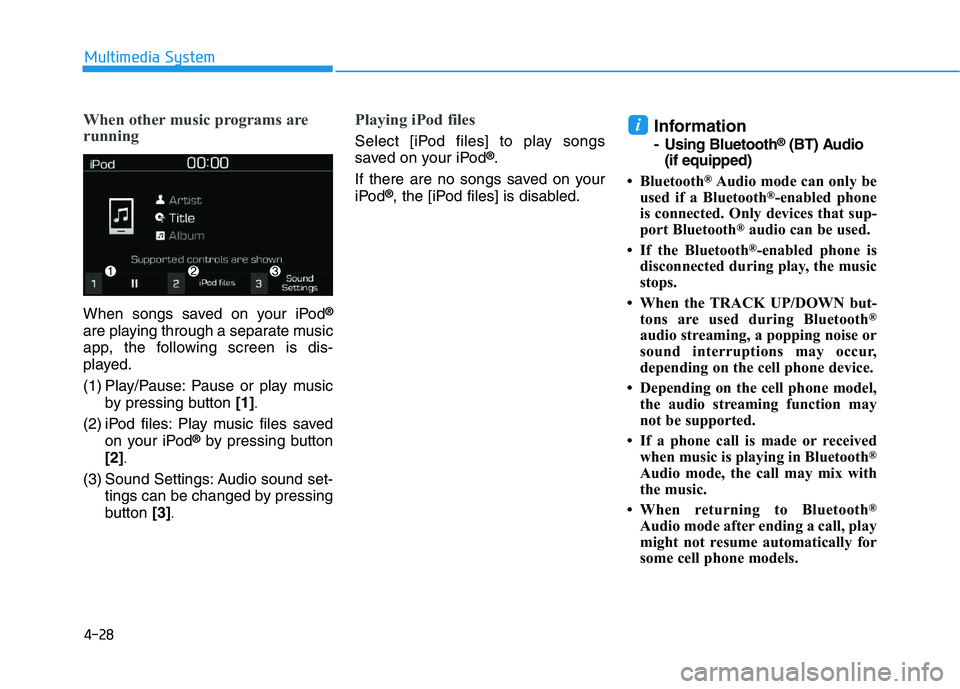
When other music programs are
running
When songs saved on your iPod®
are playing through a separate music
app, the following screen is dis-
played.
(1) Play/Pause: Pause or play musicby pressing button [1]
.
(2) iPod files: Play music files saved
on your iPod®by pressing button
[2]
.
(3) Sound Settings: Audio sound set- tings can be changed by pressing
button [3]
.
Playing iPod files
Select [iPod files] to play songs
saved on your iPod®.
If there are no songs saved on your
iPod
®, the [iPod files] is disabled.
Information
- Using Bluetooth®(BT) Audio
(if equipped)
• Bluetooth
®Audio mode can only be
used if a Bluetooth®-enabled phone
is connected. Only devices that sup-
port Bluetooth
®audio can be used.
• If the Bluetooth
®-enabled phone is
disconnected during play, the music
stops.
• When the TRACK UP/DOWN but- tons are used during Bluetooth
®
audio streaming, a popping noise or
sound interruptions may occur,
depending on the cell phone device.
• Depending on the cell phone model, the audio streaming function may
not be supported.
• If a phone call is made or received when music is playing in Bluetooth
®
Audio mode, the call may mix with
the music.
• When returning to Bluetooth
®
Audio mode after ending a call, play
might not resume automatically for
some cell phone models.
i
Page 263 of 659
![HYUNDAI I30 2019 Owners Manual 4-31
Multimedia System
4
Playback
Press the [MEDIA]button, and
select [My Music].
My Music cannot be selected if it does not contain music.
Check the content of your USB drive before saving music to](/img/35/56148/w960_56148-262.png "HYUNDAI I30 2019 Owners Manual 4-31
Multimedia System
4
Playback
Press the [MEDIA]button, and
select [My Music].
My Music cannot be selected if it does not contain music.
Check the content of your USB drive before saving music to")
4-31
Multimedia System
4
Playback
Press the [MEDIA]button, and
select [My Music].
My Music cannot be selected if it does not contain music.
Check the content of your USB drive before saving music to My
Music.
Changing songs
Press the [SEEK/TRACK] button to
play the previous or next song.
Press and hold the [SEEK/TRACK]
button to rewind or fast forward the
currently playing song.
Search songs by turning the TUNE
knob and press the knob to play.
Selecting songs from a list
Select [List] to see a list of songs
available for play.
Select and play the desired song.
Repeat play
Select [Repeat] to enable or disable
‘Repeat all’, ‘Repeat current song’ or
‘Repeat category’.
Repeat all: Repeat all songs.
Repeat current song: The cur- rently playing song is repeated.
Repeat category: Repeat all songs in the current category.
Shuffle play
Select [Shuffle] to enable/disable
‘Shuffle’, ‘Shuffle category’ play.
Shuffle: Songs are played inrandom order.
Shuffle category: Songs within the current category are played in
random order.
Menu
Press the [MENU]button, and select
the desired function.
Delete files: You can delete files from My Music.
(1) File: Select saved file by using TUNE knob
.
(2) Mark all: Select all files by press-
ing button [1]
.
(3) Unmark all: Deselect all files by
pressing button [2]
.
(4) Delete: Delete the selected file(s)
by pressing button [3]
.
- Select the file to delete, then
select [Delete] to delete it.
- Delete is canceled if voice recog- nition is activated or phone calls
are received or made during
delete.
Page 265 of 659
4-33
Multimedia System
4
Precautions when connecting
Bluetooth®devices
The vehicle supports the followingBluetooth®functions. Some
Bluetooth®devices may not sup-
port some functions.
1) Bluetooth
®Handsfree phone
calls
2) Operations during a call (Private, Switch, Mic Vol. con-
trols)
3) Download call history saved to the Bluetooth
®device
4) Download contacts saved to the Bluetooth
®device
5) Automatic contacts/call history download when Bluetooth
®is
connected
6) Automatic Bluetooth
®device
connection when the vehicle is
started
7) Bluetooth
®audio streaming
playback
Before connecting the audio sys- tem to your device, make sure your
device supports Bluetooth
®. Even if your device supports
Bluetooth
®, a Bluetooth®connec-
tion cannot be established if the
device’s Bluetooth
®function is
switched off. Search and connect
with the Bluetooth
®function
enabled.
Pair or connect Bluetooth
®devices
to the audio system with the vehi-
cle at a standstill.
If a Bluetooth
®connection is lost
due to abnormal conditions while a
Bluetooth
®device is connected
(communication range exceeded,
device power OFF, communication
errors, etc.), the disconnected
Bluetooth
®device is searched for
and automatically reconnected.
If you want to disable the Bluetooth
®device auto-connect
function, turn the Bluetooth®func-
tion OFF on your device. Consult
the user manuals for individual
devices to see whether Bluetooth
®
is supported.
Handsfree call quality and volume may vary depending on the type of
Bluetooth
®device. Some Bluetooth
®devices are sub-
ject to intermittent Bluetooth®con-
nection failures. In this case, use
the following method.
1) Turn the Bluetooth
®function off
on your Bluetooth®device ➟
Turn it on and try again.
2) Delete the paired device from both the audio system and
Bluetooth
®device, then pair
again.
3) Power down your Bluetooth
®
device ➟Turn it on and try
again.
4) Completely remove the battery from your Bluetooth
®device;
reinsert it, reboot, and attempt
connection.
5) Restart the vehicle and reat- tempt connection.
Page 272 of 659
![HYUNDAI I30 2019 Owners Manual 4-40
Multimedia System
Setup
Access Display, Sound, Date/Time,
Bluetooth*, System and Display Off
settings.
Press the[SETUP/CLOCK] button
on the audio system.
* if equipped
Display
Press the [SETUP/C](/img/35/56148/w960_56148-271.png "HYUNDAI I30 2019 Owners Manual 4-40
Multimedia System
Setup
Access Display, Sound, Date/Time,
Bluetooth*, System and Display Off
settings.
Press the[SETUP/CLOCK] button
on the audio system.
* if equipped
Display
Press the [SETUP/C")
4-40
Multimedia System
Setup
Access Display, Sound, Date/Time,
Bluetooth*, System and Display Off
settings.
Press the[SETUP/CLOCK] button
on the audio system.
* if equipped
Display
Press the [SETUP/CLOCK] button
on the audio system ➟Select
[Display].
Dimming mode: Audio screen brightness can be adjusted to the
time of day.
Brightness: The brightness of the audio screen can be changed.
Screensaver: Set the information displayed when the audio system
is switched off or the screen is
turned off.
Sound
Press the [SETUP/CLOCK] button
on the audio system ➟Select
[Sound].
Position: Sound balance and pan- ning can be adjusted.
Equaliser: Sound tone color can be adjusted.
Rear parking sensors prioritised: Automatically lower audio volume
while reversing.
Speed dependent volume control: Automatically adjust volume based
on vehicle speed.
Date/Time
Press the [SETUP/CLOCK] button
on the audio system ➟Select
[Date/Time].
Set time: Set the time displayed on the audio screen.
Time format: Choose betw een 12-
hour and 24-hour time formats.
Set date: Set the date displayed on the audio screen.
Bluetooth (if equipped)
Press the [SETUP/CLOCK] button
➟ Select [Bluetooth].
Connections: Control pairing, dele- tion, connection and disconnection
of Bluetooth
®devices.
Auto connection priority: Set the connection priority of Bluetooth
®
devices when the vehicle is started.
Update contacts: Contacts can be
downloaded from connected
Bluetooth
®devices.
Bluetooth voice guidance: Play or mute voice prompts for Bluetooth
®
device pairing, connection and
errors.
Page 273 of 659
4-41
Multimedia System
4
Information
• When paired devices are deleted,the call history and contacts of the
device saved to the audio system are
deleted.
• For Bluetooth
®connections with
low connection priority, some time
may be required for the connection
to be established.
• Contacts can be downloaded only from the currently connected
Bluetooth
®device.
• If no Bluetooth
®device is connected,
the Download Contacts button is
disabled.
• If the language setting is Slovakian, Hungarian or Korean, Bluetooth
voice guidance is not supported.
System
Press the [SETUP/CLOCK] button
on the audio system ➟Select
[System].
Memory information: View My Music memory usage.
Language: Change the user lan- guage.
Default: Reset the audio system.
Information
The system resets to the default val-
ues, and all saved data and settings
are lost.
Display Off
To prevent glare, the screen can be
turned off with the audio system in
operation.
Press the [SETUP/CLOCK] button
on the audio system ➟Select
[Display Off].
Information
Use ‘Screensaver’ to set the informa-
tion to be displayed when the screen is
turned off.
i
i
i
Page 275 of 659
4-43
Multimedia System
4
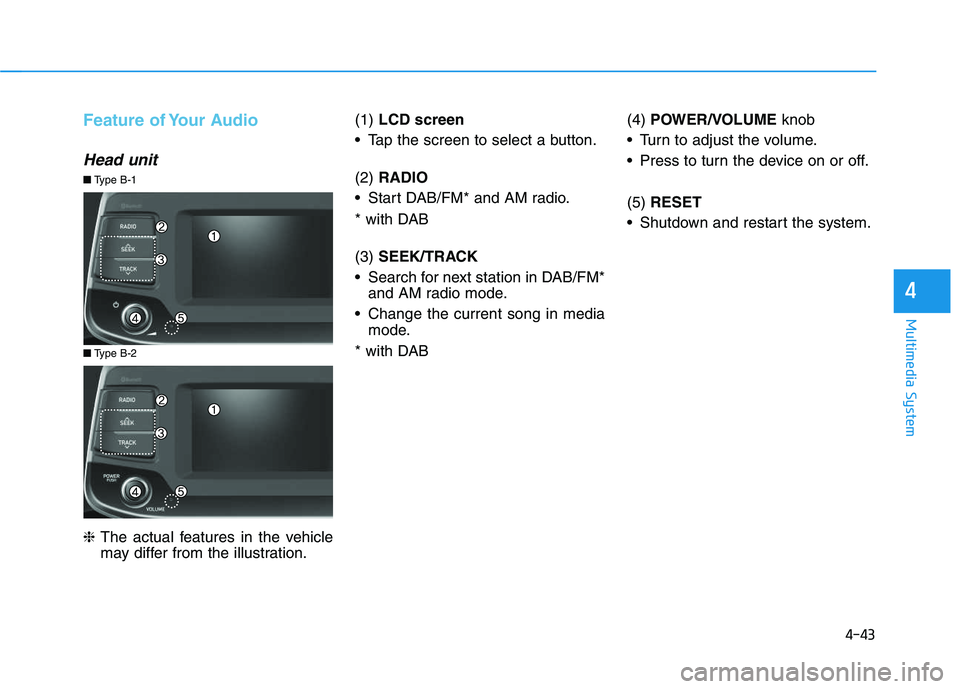
Feature of Your Audio
Head unit
❈The actual features in the vehicle
may differ from the illustration. (1)
LCD screen
Tap the screen to select a button.
(2) RADIO
Start DAB/FM* and AM radio.
* with DAB
(3) SEEK/TRACK
Search for next station in DAB/FM* and AM radio mode.
Change the current song in media mode.
* with DAB (4)
POWER/VOLUME knob
Turn to adjust the volume.
Press to turn the device on or off.
(5) RESET
Shutdown and restart the system.
■ Type B-2
■Type B-1
Page 276 of 659
![HYUNDAI I30 2019 Owners Manual 4-44
Multimedia System(6)MEDIA
Select USB(iPod
®), Bluetooth®(BT)
Audio, AUX or My Music.
Display the media menu when two or more media are connected or
when the [MEDIA]button is
pressed in media](/img/35/56148/w960_56148-275.png "HYUNDAI I30 2019 Owners Manual 4-44
Multimedia System(6)MEDIA
Select USB(iPod
®), Bluetooth®(BT)
Audio, AUX or My Music.
Display the media menu when two or more media are connected or
when the [MEDIA]button is
pressed in media")
4-44
Multimedia System(6)MEDIA
Select USB(iPod
®), Bluetooth®(BT)
Audio, AUX or My Music.
Display the media menu when two or more media are connected or
when the [MEDIA]button is
pressed in media mode.
(7) PHONE
Start Bluetooth
®Phone mode. (8)
SETUP
Access Display, Sound, Date/Time, Bluetooth, System, Screensaver
and Display Off settings.
(9) TUNE knob
Turn to navigate through the sta- tions/songs list.
Press to select an item.■ Type B-2
■Type B-1
Page 277 of 659
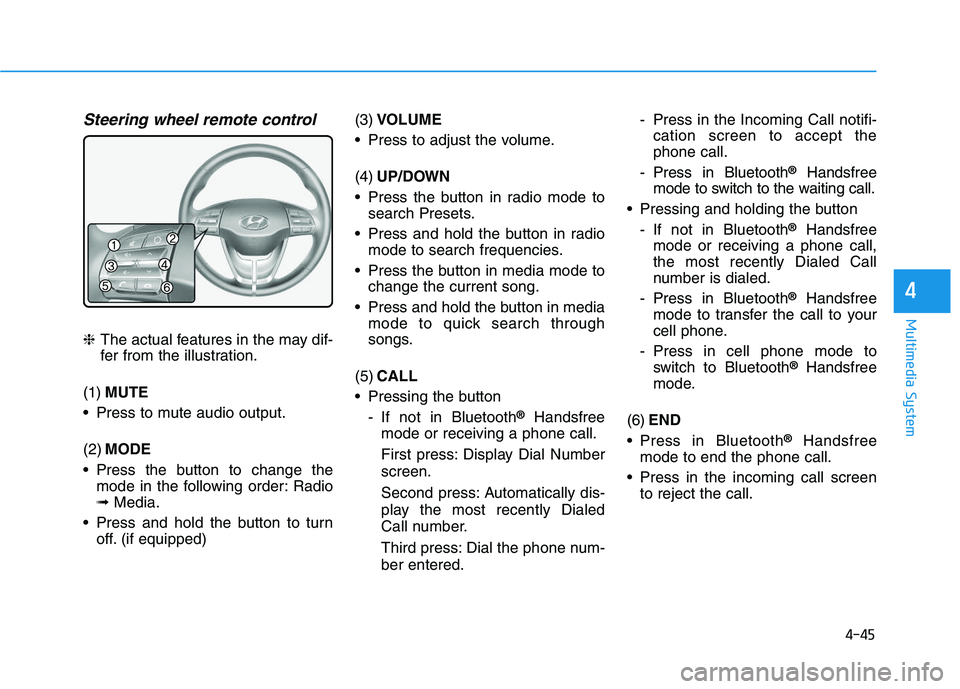
4-45
Multimedia System
4
Steering wheel remote control
❈The actual features in the may dif-
fer from the illustration.
(1) MUTE
Press to mute audio output.
(2) MODE
Press the button to change the mode in the following order: Radio
➟ Media.
Press and hold the button to turn off. (if equipped) (3)
VOLUME
Press to adjust the volume.
(4) UP/DOWN
Press the button in radio mode to search Presets.
Press and hold the button in radio mode to search frequencies.
Press the button in media mode to change the current song.
Press and hold the button in media mode to quick search through
songs.
(5) CALL
Pressing the button - If not in Bluetooth
®Handsfree
mode or receiving a phone call.
First press: Display Dial Number
screen.
Second press: Automatically dis-
play the most recently Dialed
Call number.
Third press: Dial the phone num-
ber entered. - Press in the Incoming Call notifi-
cation screen to accept the
phone call.
- Press in Bluetooth
®Handsfree
mode to switch to the waiting call.
Pressing and holding the button - If not in Bluetooth
®Handsfree
mode or receiving a phone call,
the most recently Dialed Call
number is dialed.
- Press in Bluetooth
®Handsfree
mode to transfer the call to your
cell phone.
- Press in cell phone mode to switch to Bluetooth
®Handsfree
mode.
(6) END
Press in Bluetooth
®Handsfree
mode to end the phone call.
Press in the incoming call screen to reject the call.