Acc HYUNDAI I30 2020 Owners Manual
[x] Cancel search | Manufacturer: HYUNDAI, Model Year: 2020, Model line: I30, Model: HYUNDAI I30 2020Pages: 659, PDF Size: 17.14 MB
Page 229 of 659
3-79
Convenient features of your vehicle
3
The trip computer is a microcomput-
er-controlled driver information sys-
tem that displays information related
to driving.
Information
Some driving information stored in the
trip computer (for example Average
Vehicle Speed) resets if the battery is
disconnected.
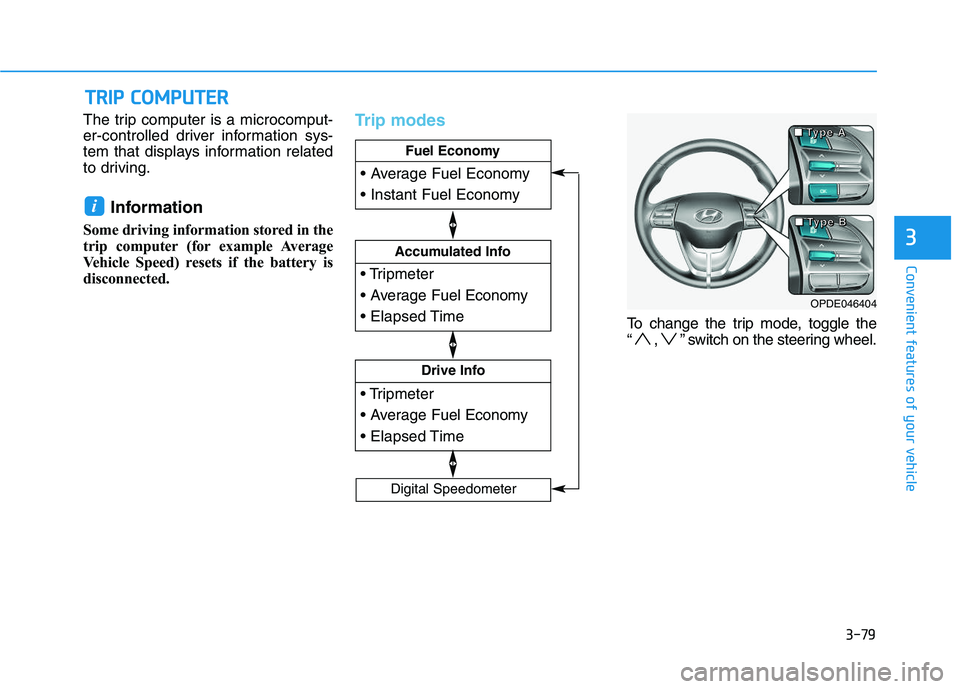
Trip modes
To change the trip mode, toggle the
“ , ” switch on the steering wheel.
i
T
T R
R I
I P
P
C
C O
O M
M P
P U
U T
T E
E R
R
Drive Info
Accumulated Info
Fuel Economy
Digital Speedometer
OPDE046404
■
■
■
■
T
T
T
T
y
y
y
y
p
p
p
p
e
e
e
e
A
A
A
A
■
■
■
■
T
T
T
T
y
y
y
y
p
p
p
p
e
e
e
e
B
B
B
B
Page 230 of 659
3-80
Convenient features of your vehicle
Fuel economy
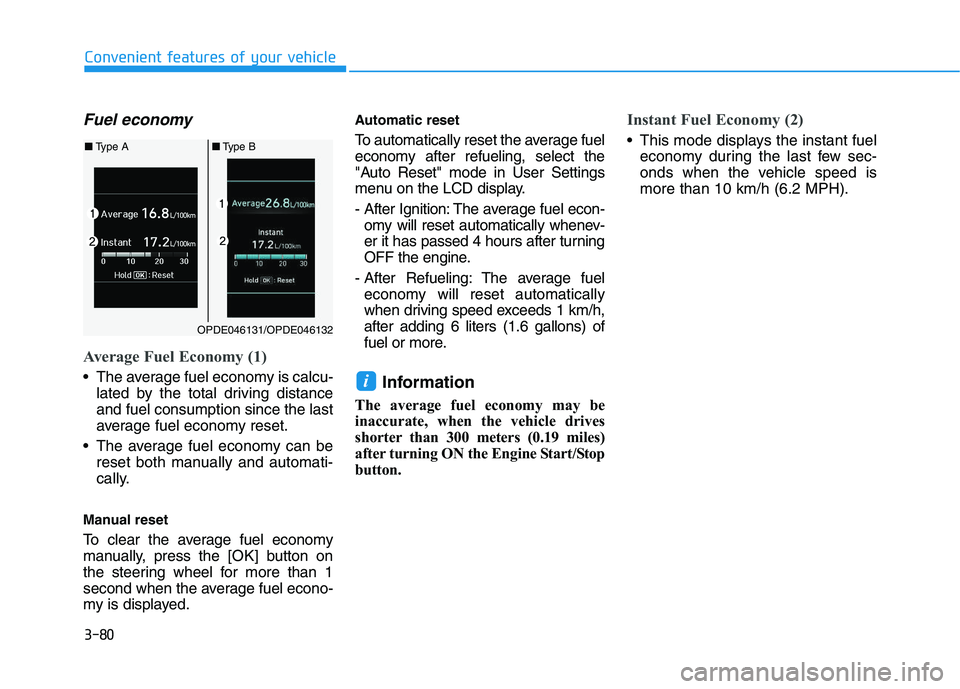
Average Fuel Economy (1)
The average fuel economy is calcu-lated by the total driving distance
and fuel consumption since the last
average fuel economy reset.
The average fuel economy can be reset both manually and automati-
cally.
Manual reset
To clear the average fuel economy
manually, press the [OK] button on
the steering wheel for more than 1
second when the average fuel econo-
my is displayed.
Automatic reset
To automatically reset the average fuel
economy after refueling, select the
"Auto Reset" mode in User Settings
menu on the LCD display.
- After Ignition: The average fuel econ- omy will reset automatically whenev-
er it has passed 4 hours after turning
OFF the engine.
- After Refueling: The average fuel economy will reset automatically
when driving speed exceeds 1 km/h,
after adding 6 liters (1.6 gallons) of
fuel or more.
Information
The average fuel economy may be
inaccurate, when the vehicle drives
shorter than 300 meters (0.19 miles)
after turning ON the Engine Start/Stop
button.
Instant Fuel Economy (2)
This mode displays the instant fuel economy during the last few sec-
onds when the vehicle speed is
more than 10 km/h (6.2 MPH).
i
OPDE046131/OPDE046132
■ Type A ■Type B
Page 231 of 659
3-81
Convenient features of your vehicle
3
Accumulated Info display
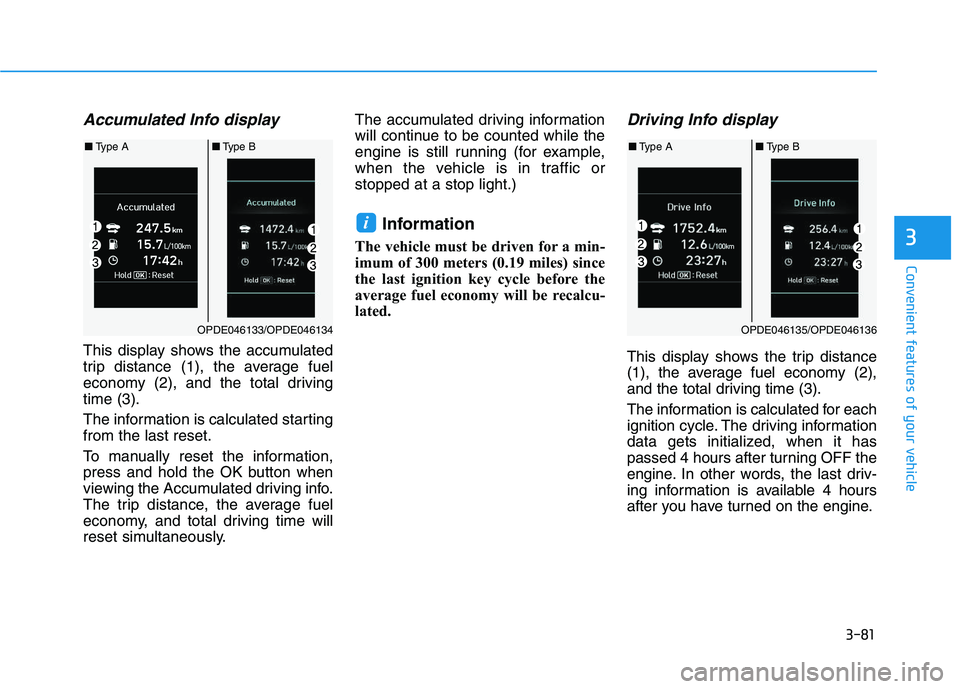
This display shows the accumulated
trip distance (1), the average fuel
economy (2), and the total driving
time (3).
The information is calculated starting
from the last reset.
To manually reset the information,
press and hold the OK button when
viewing the Accumulated driving info.
The trip distance, the average fuel
economy, and total driving time will
reset simultaneously.The accumulated driving information
will continue to be counted while the
engine is still running (for example,
when the vehicle is in traffic or
stopped at a stop light.)
Information
The vehicle must be driven for a min-
imum of 300 meters (0.19 miles) since
the last ignition key cycle before the
average fuel economy will be recalcu-
lated.
Driving Info display
This display shows the trip distance
(1), the average fuel economy (2),
and the total driving time (3).
The information is calculated for each
ignition cycle. The driving information
data gets initialized, when it has
passed 4 hours after turning OFF the
engine. In other words, the last driv-
ing information is available 4 hours
after you have turned on the engine.
i
OPDE046133/OPDE046134
■
Type A ■Type B
OPDE046135/OPDE046136
■Type A ■Type B
Page 243 of 659
4-11
Multimedia System
4
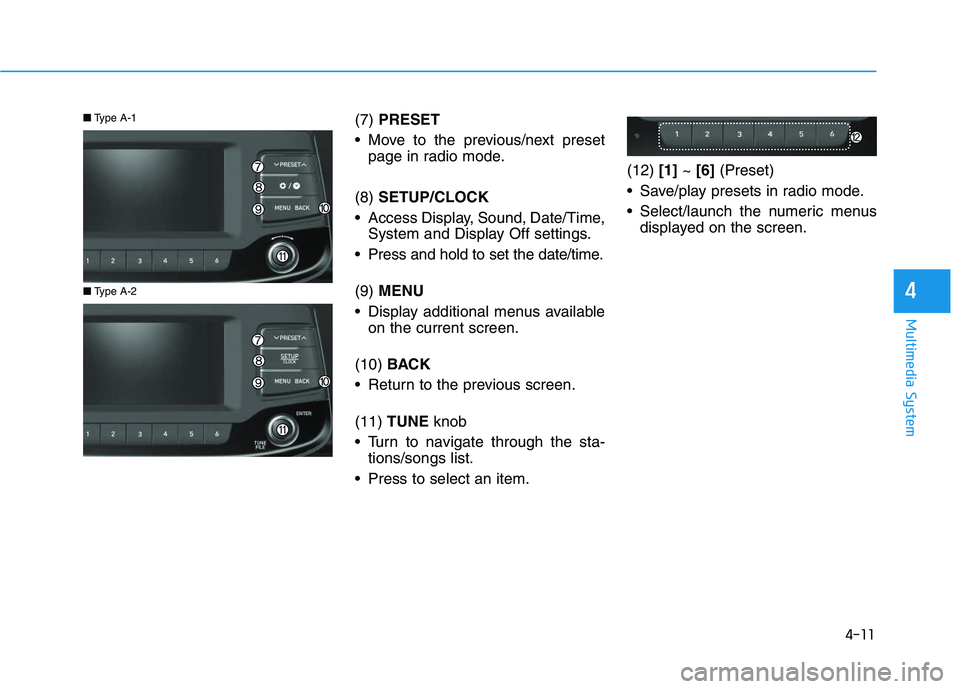
(7) PRESET
Move to the previous/next preset page in radio mode.
(8) SETUP/CLOCK
Access Display, Sound, Date/Time, System and Display Off settings.
Press and hold to set the date/time.
(9) MENU
Display additional menus available on the current screen.
(10) BACK
Return to the previous screen.
(11) TUNE knob
Turn to navigate through the sta- tions/songs list.
Press to select an item. (12)
[1]~ [6] (Preset)
Save/play presets in radio mode.
Select/launch the numeric menus displayed on the screen.
■ Type A-2
■Type A-1
Page 246 of 659
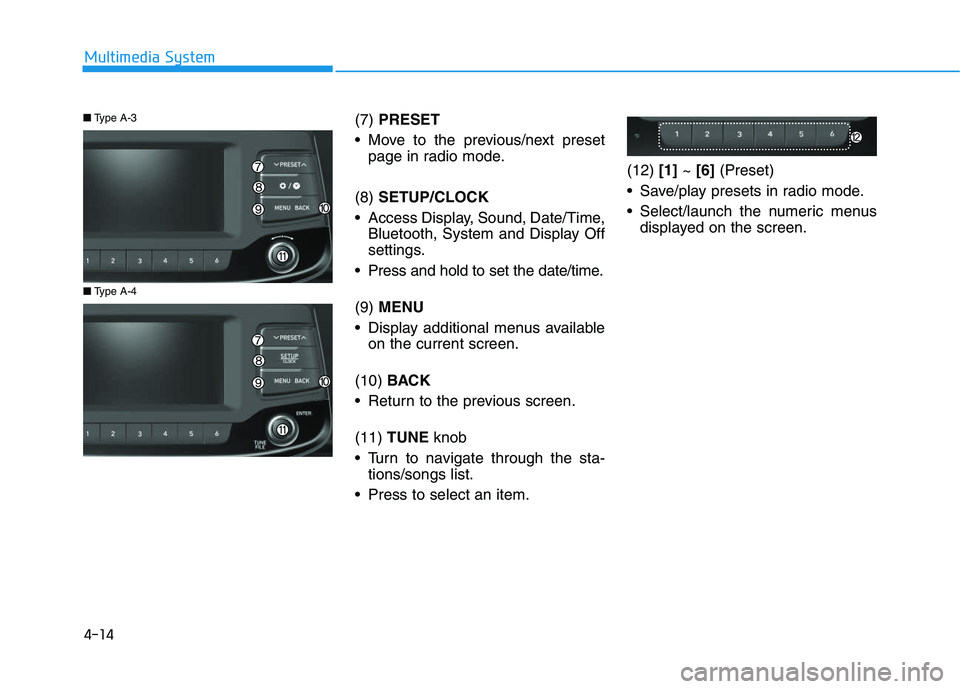
(7) PRESET
Move to the previous/next preset page in radio mode.
(8) SETUP/CLOCK
Access Display, Sound, Date/Time, Bluetooth, System and Display Off
settings.
Press and hold to set the date/time.
(9) MENU
Display additional menus available on the current screen.
(10) BACK
Return to the previous screen.
(11) TUNE knob
Turn to navigate through the sta- tions/songs list.
Press to select an item. (12)
[1]~ [6] (Preset)
Save/play presets in radio mode.
Select/launch the numeric menus displayed on the screen.
■ Type A-4
■Type A-3
4-14
Multimedia System
Page 248 of 659
(5)CALL (if equipped)
Pressing the button - If not in Bluetooth
®Handsfree
mode or receiving a phone call.
First press: Display Dial Number
screen.
Second press: Automatically dis-
play the most recently Dialed
Call number.
Third press: Dial the phone num-
ber entered.
- Press in the Incoming Call notifi- cation screen to accept the
phone call.
- Press in Bluetooth
®Handsfree
mode to switch to the waiting
call.
Pressing and holding the button - If not in Bluetooth
®Handsfree
mode or receiving a phone call,
the most recently Dialed Call
number is dialed.
- Press in Bluetooth
®Handsfree
mode to transfer the call to your
cell phone.
- Press in cell phone mode to switch to Bluetooth
®Handsfree
mode. (6)
END (if equipped)
Press in Bluetooth
®Handsfree
mode to end the phone call.
Press in the incoming call screen to reject the call.
4-16
Multimedia System
Page 249 of 659
4-17
Multimedia System
4
Do not stare at the screen
while driving. Staring at the
screen for prolonged periods
of time could lead to traffic
accidents.
Do not disassemble, assem-
ble, or modify the audio sys-
tem. Such acts could result in
accidents, fire, or electric
shock.
Using the phone while driving
may lead to a lack of attention
of traffic conditions and
increase the likelihood of
accidents. Use the phone fea-
ture after parking the vehicle.
Heed caution not to spill water
or introduce foreign objects
into the device. Such acts
could lead to smoke, fire, or
product malfunction.(Continued)
WARNING(Continued)
Please refrain from use if the
screen is blank or no sound
can be heard as these signs
may indicate product mal-
function. Continued use in
such conditions could lead to
accidents (fires, electric
shock) or product malfunc-
tions.
Do not touch the antenna dur-
ing thunder or lightening as
such acts may lead to light-
ning induced electric shock.
Do not stop or park in park-
ing-restricted areas to operate
the product. Such acts could
lead to traffic accidents.
Use the system with the vehi-
cle ignition turned on.
Prolonged use with the igni-
tion turned off could result in
battery discharge.
Driving while distracted can
result in a loss of vehicle con-
trol that may lead to an acci-
dent, severe personal injury,
and death. The driver’s primary
responsibility is in the safe and
legal operation of a vehicle, and
use of any handheld devices,
other equipment, or vehicle sys-
tems which take the driver’s
eyes, attention and focus away
from the safe operation of a
vehicle or which are not permis-
sible by law should never be
used during operation of the
vehicle.
WARNING
Page 250 of 659
4-18
Multimedia System
Operating the device while driv- ing could lead to accidents due
to a lack of attention to external
surroundings. First park the
vehicle before operating the
device.
Adjust the volume to levels that allow the driver to hear sounds
from outside of the vehicle.
Driving in a state where external
sounds cannot be heard may
lead to accidents.
Pay attention to the volume set- ting when turning the device on.
A sudden output of extreme vol-
ume upon turning the device on
could lead to hearing impair-
ment. (Adjust the volume to a
suitable levels before turning off
the device.)
If you want to change the position of device installation, please
inquire with your place of pur-
chase or service maintenance
center. Technical expertise is
required to install or disassem-
ble the device.
(Continued)(Continued)
Turn on the car ignition before
using this device. Do not oper-
ate the audio system for long
periods of time with the ignition
turned off as such operations
may lead to battery discharge.
Do not subject the device to severe shock or impact. Direct
pressure onto the front side of
the monitor may cause damage
to the LCD or touch screen.
When cleaning the device, make sure to turn off the device and
use a dry and smooth cloth.
Never use tough materials,
chemical cloths, or solvents
(alcohol, benzene, thinners,
etc.). As such materials may
damage the device panel or
cause color/quality deteriora-
tion.
Do not place beverages close to the audio system. Spilling bever-
ages may lead to system mal-
function.
In case of product malfunction, please contact your place of pur-
chase or After Service center.
(Continued)(Continued)
an electromagnetic environment
may result in noise interference.
NOTICE
Page 255 of 659
4-23
Multimedia System
4
Information
- Usingthe USB Devices
• Starting the vehicle while a USB device is connected can damage the
device. Please disconnect USB
devices before starting the vehicle.
• Starting the vehicle or stopping the engine while an external USB device
is connected can result in failure of
the external USB device to operate.
• Be cautious of static electricity when connecting/disconnecting external
USB devices.
• An encrypted MP3 player is not rec- ognized when connected as an exter-
nal device.
• External USB devices may not be recognized, depending on the state
of the external USB device.
• Only products with byte/sectors for- matted at 4 KB or lower are recog-
nized.
• Only USB devices in FAT12/16/32 format are recognized; NTFS and
ExFAT file systems are not recog-
nized.
• Some USB devices are not recog- nized due to compatibility issues.
(Continued)(Continued)
• Do not touch the USB connections.
• Connecting and disconnecting USB
devices rapidly over a short period
of time can cause equipment failure.
• Abnormal sounds may be audible when the USB device is disconnect-
ed.
• Turn the audio off before connecting or disconnecting external USB
devices.
• Recognition may take longer depending on the type, capacity or
file format of the external USB
device. This is not a product mal-
function.
• Use of USB devices for purposes other than playing music files is pro-
hibited.
• Image display and video playback are not supported.
• Use of USB accessories, including charge and heat though the USB I/F,
can lead to reduced product per-
formance or malfunctions. Do not
use USB devices or accessories for
these purposes.
(Continued)(Continued)
• Use of aftermarket USB hubs and
extension cables can result in the
vehicle’s audio system failing to rec-
ognize your USB device. Connect
the USB device directly to the multi-
media port of your vehicle.
• When using high-capacity USB devices with logical drive divisions,
only files saved on the highest level
logical drive can be played.
If applications are loaded on a USB
drive, file playback may fail.
• Some MP3 players, cell phones, dig- ital cameras, etc. (USB devices that
are not recognized as mobile stor-
age) may not operate normally
when connected.
• USB charging may not be supported by some mobile devices.
• Operation is guaranteed only for standard (Metal Cover Type) USB
Memory drives.
• Operation of HDD, CF, SD and memory stick devices is not guaran-
teed.
(Continued)
i
Page 256 of 659
4-24
Multimedia System
(Continued)
• DRM (Digital Rights Management) files cannot be played.
• SD-type USB memory, CF-type USB memory, and other USB mem-
ory devices that require adapters
for connection are not supported.
• Proper operation of USB HDDs or USB drives with connectors that
loosen due to vehicle vibrations is
not guaranteed. (iStick, etc.)
• USB products that are used as key chains or
cell phone accessories
may damage the USB
jack and affect proper
file playback. Please refrain from
use. Use only products with plug
connectors, as shown in the follow-
ing illustration.
• When MP3 devices or cell phones are connected simultaneously
through AUX, BT Audio and USB
modes, a popping noise or malfunc-
tion may occur.
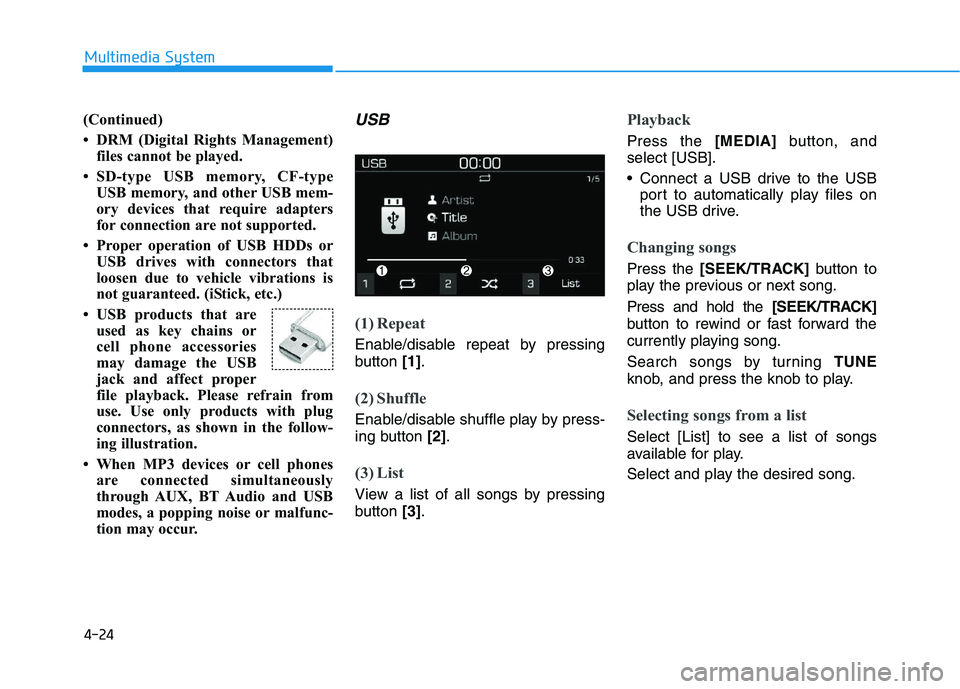
USB
(1) Repeat
Enable/disable repeat by pressing
button [1].
(2) Shuffle
Enable/disable shuffle play by press-
ing button [2].
(3) List
View a list of all songs by pressing
button [3].
Playback
Press the [MEDIA] button, and
select [USB].
• Connect a USB drive to the USB port to automatically play files on
the USB drive.
Changing songs
Press the [SEEK/TRACK] button to
play the previous or next song.
Press and hold the [SEEK/TRACK]
button to rewind or fast forward the
currently playing song.
Search songs by turning TUNE
knob, and press the knob to play.
Selecting songs from a list
Select [List] to see a list of songs
available for play.
Select and play the desired song.