audio HYUNDAI I40 2012 User Guide
[x] Cancel search | Manufacturer: HYUNDAI, Model Year: 2012, Model line: I40, Model: HYUNDAI I40 2012Pages: 534, PDF Size: 11.05 MB
Page 244 of 534
Downloaded from www.Manualslib.com manuals search engine 4157
Features of your vehicle
Care of disc (if equipped)
If the temperature inside the car is toohigh, open the car windows for ventila-
tion before using your car audio.
It is illegal to copy and use MP3/WMA files without permission. Use CDs that
are created only by lawful means.
Do not apply volatile agents such as benzene and thinner, normal cleaners
and magnetic sprays made for ana-
logue disc onto CDs.
To prevent the disc surface from get- ting damaged. Hold and carry CDs by
the edges or the edges of the center
hole only.
Clean the disc surface with a piece of soft cloth before playback (wipe it from
the center to the outside edge).
Do not damage the disc surface or attach pieces of sticky tape or paper
onto it.
Make sure objects other than CDs are not inserted into the CD player (Do not
insert more than one CD at a time). Keep CDs in their cases after use to
protect them from scratches or dirt.
Depending on the type of CD-R/CD- RW CDs, certain CDs may not operate
normally according to manufacturing
companies or making and recording
methods. In such circumstances, if you
still continue to use those CDs, they
may cause the malfunction of your car
audio system.
✽ ✽ NOTICE- Playing an
Incompatible Copy
Protected Audio CD
Some copy protected CDs, which do not
comply with the international audio CD
standards (Red Book), may not play on
your car audio. Please note that if you
try to play copy protected CDs and the
CD player does not perform correctly
the CDs maybe defective, not the CD
player.
Page 246 of 534
Downloaded from www.Manualslib.com manuals search engine 4159
Features of your vehicle
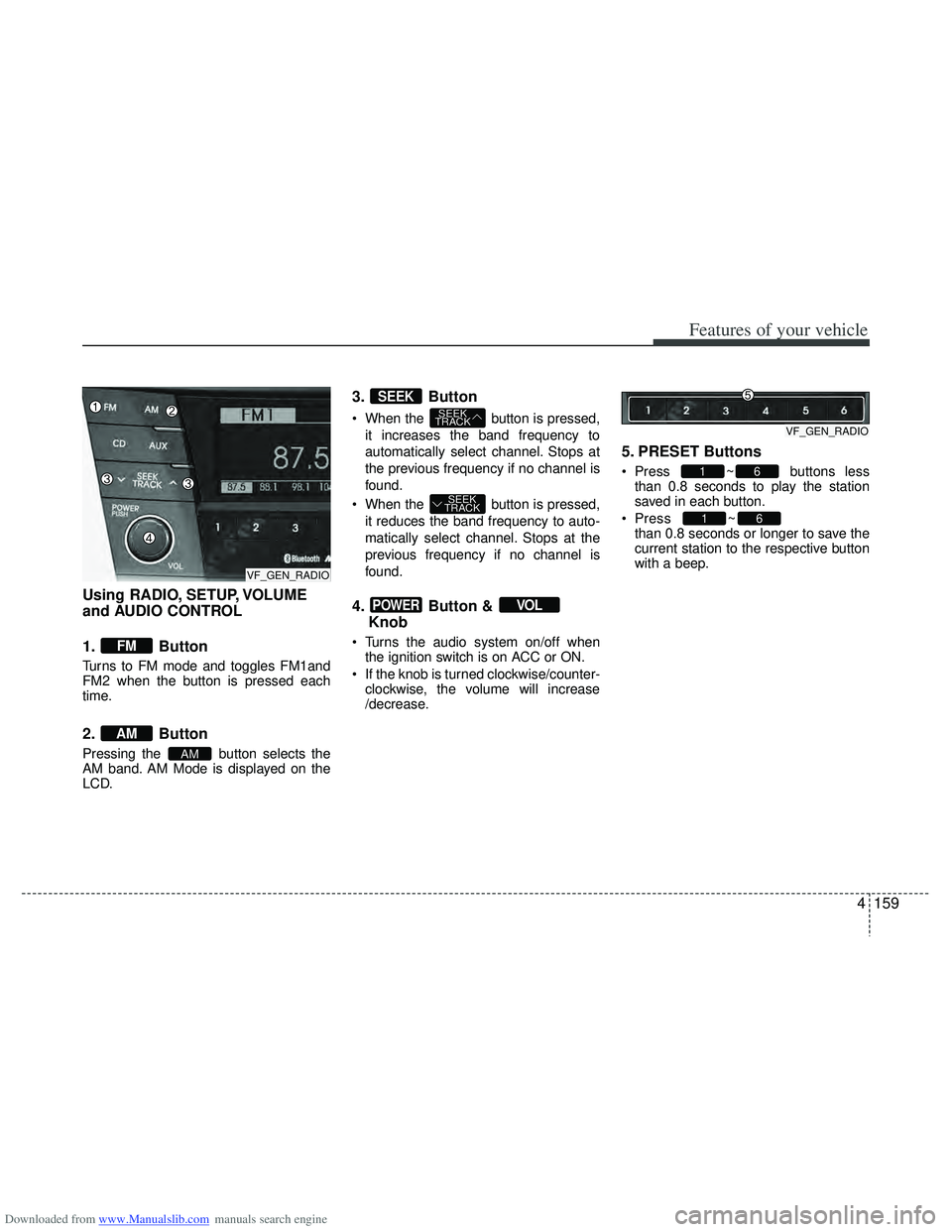
Using RADIO, SETUP, VOLUME
and AUDIO CONTROL
1. Button
Turns to FM mode and toggles FM1and
FM2 when the button is pressed each
time.
2. Button
Pressing the button selects the
AM band. AM Mode is displayed on the
LCD.
3. Button
When the button is pressed,it increases the band frequency to
automatically select channel. Stops at
the previous frequency if no channel is
found.
When the button is pressed, it reduces the band frequency to auto-
matically select channel. Stops at the
previous frequency if no channel is
found.
4. Button & Knob
Turns the audio system on/off when
the ignition switch is on ACC or ON.
If the knob is turned clockwise/counter- clockwise, the volume will increase
/decrease.
5. PRESET Buttons
Press ~ buttons lessthan 0.8 seconds to play the station
saved in each button.
Press ~
button more
than 0.8 seconds or longer to save the
current station to the respective button
with a beep.
61
61
VOLPOWER
SEEK
TRACK
SEEK
TRACK
SEEK
AM
AM
FM
VF_GEN_RADIOVF_GEN_RADIO
VF_GEN_RADIO
Page 248 of 534
Downloaded from www.Manualslib.com manuals search engine 4161
Features of your vehicle
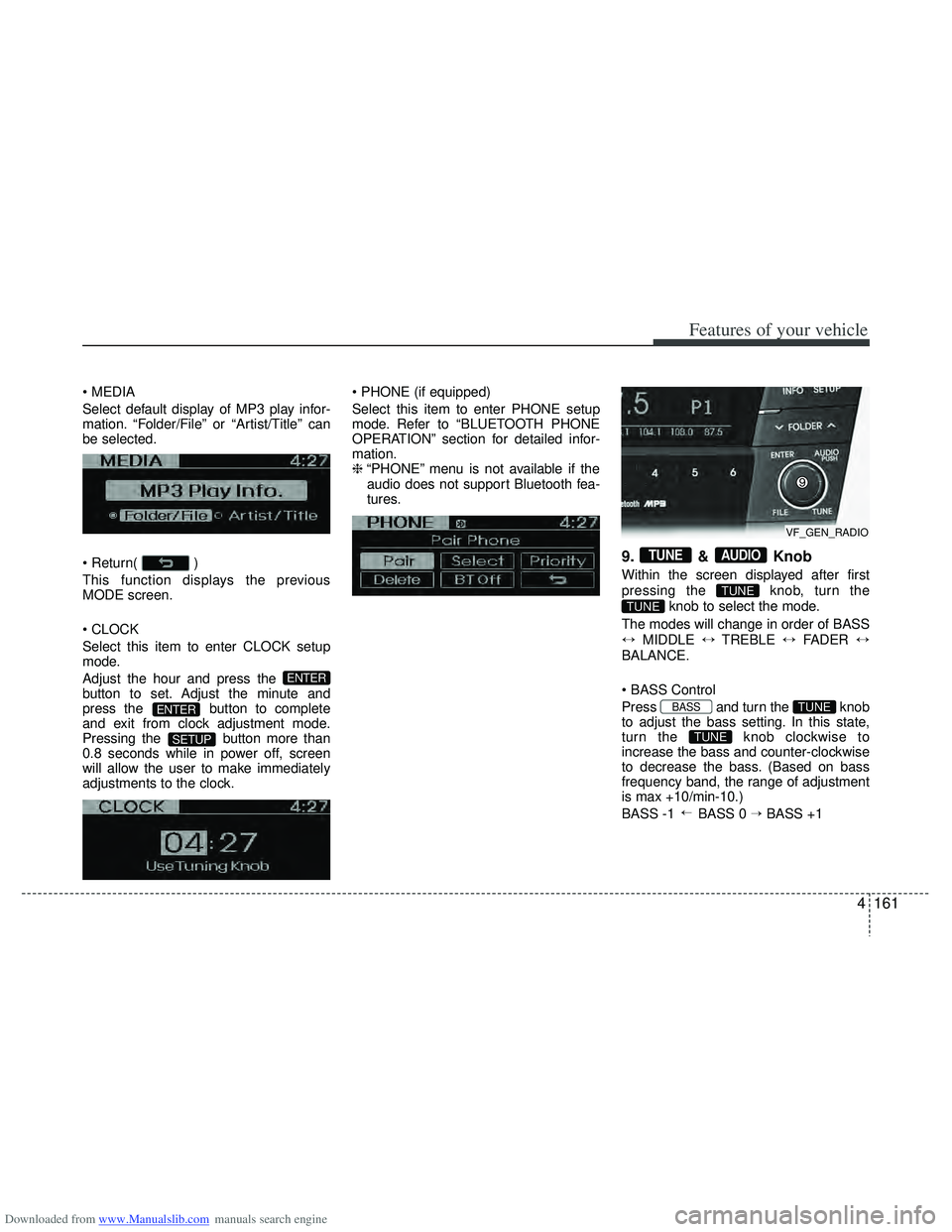
Select default display of MP3 play infor-
mation. “Folder/File” or “Artist/Title” can
be selected.
)
This function displays the previous
MODE screen.
Select this item to enter CLOCK setup
mode.
Adjust the hour and press the
button to set. Adjust the minute and
press the button to complete
and exit from clock adjustment mode.
Pressing the button more than
0.8 seconds while in power off, screen
will allow the user to make immediately
adjustments to the clock.
Select this item to enter PHONE setup
mode. Refer to “BLUETOOTH PHONE
OPERATION” section for detailed infor-
mation.
❈
“PHONE” menu is not available if the
audio does not support Bluetooth fea-
tures.
9. & Knob
Within the screen displayed after first
pressing the knob, turn the
knob to select the mode.
The modes will change in order of BASS
↔ MIDDLE ↔TREBLE ↔FADER ↔
BALANCE.
Press and turn the knob
to adjust the bass setting. In this state,
turn the knob clockwise to
increase the bass and counter-clockwise
to decrease the bass. (Based on bass
frequency band, the range of adjustment
is max +10/min-10.)
BASS -1 BASS 0 → BASS +1
→
TUNE
TUNEBASS
TUNE
TUNE
AUDIOTUNE
SETUP
ENTER
ENTER
VF_GEN_RADIO
Page 252 of 534
Downloaded from www.Manualslib.com manuals search engine 4165
Features of your vehicle
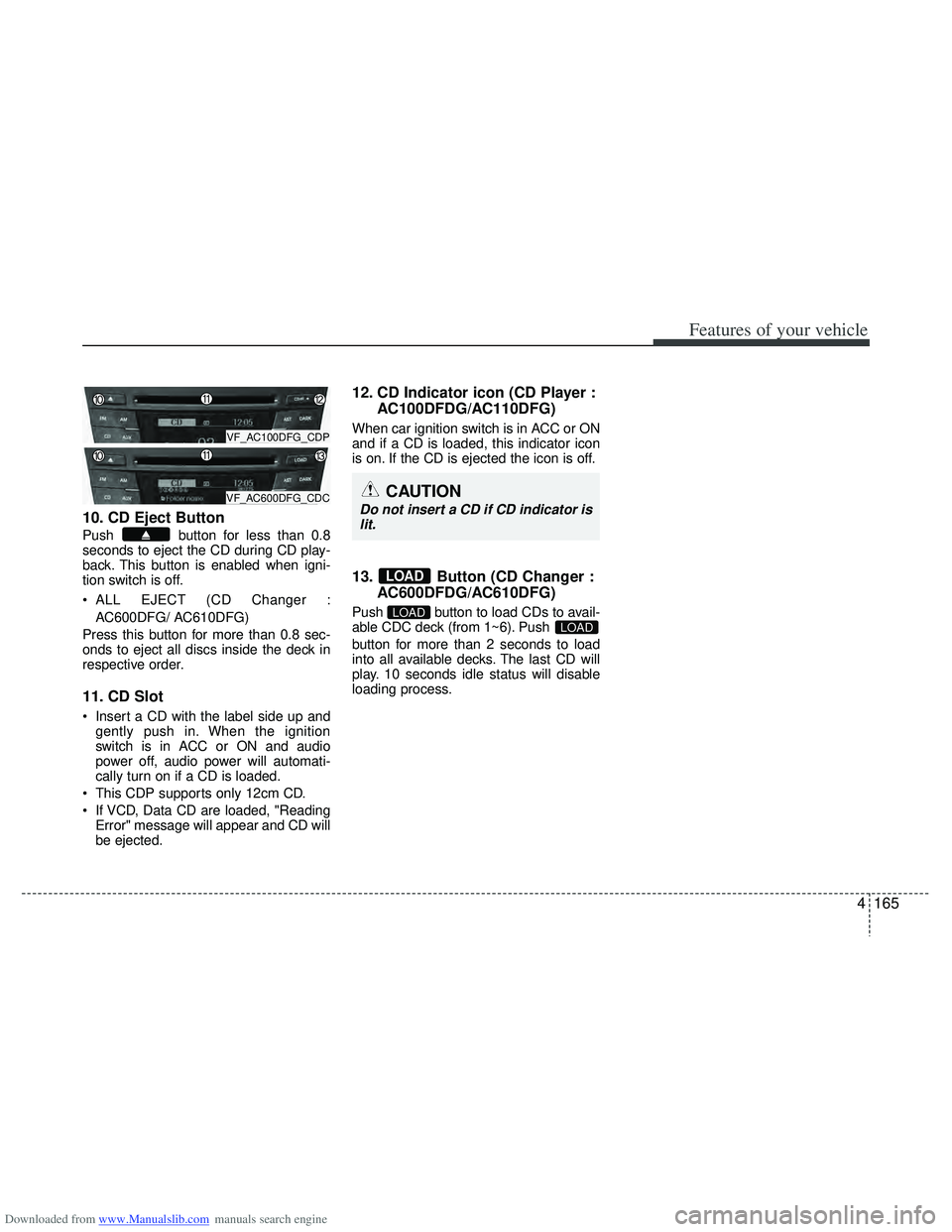
10. CD Eject Button
Push button for less than 0.8
seconds to eject the CD during CD play-
back. This button is enabled when igni-
tion switch is off.
ALL EJECT (CD Changer :AC600DFG/ AC610DFG)
Press this button for more than 0.8 sec-
onds to eject all discs inside the deck in
respective order.
11. CD Slot
Insert a CD with the label side up and gently push in. When the ignition
switch is in ACC or ON and audio
power off, audio power will automati-
cally turn on if a CD is loaded.
This CDP supports only 12cm CD.
If VCD, Data CD are loaded, "Reading Error" message will appear and CD will
be ejected.
12. CD Indicator icon (CD Player : AC100DFDG/AC110DFG)
When car ignition switch is in ACC or ON
and if a CD is loaded, this indicator icon
is on. If the CD is ejected the icon is off.
13. Button (CD Changer :AC600DFDG/AC610DFG)
Push button to load CDs to avail-
able CDC deck (from 1~6). Push
button for more than 2 seconds to load
into all available decks. The last CD will
play. 10 seconds idle status will disable
loading process.LOADLOAD
LOAD
VF_AC100DFG_CDP
VF_AC600DFG_CDCCAUTION
Do not insert a CD if CD indicator is
lit.
Page 256 of 534
Downloaded from www.Manualslib.com manuals search engine 4169
Features of your vehicle
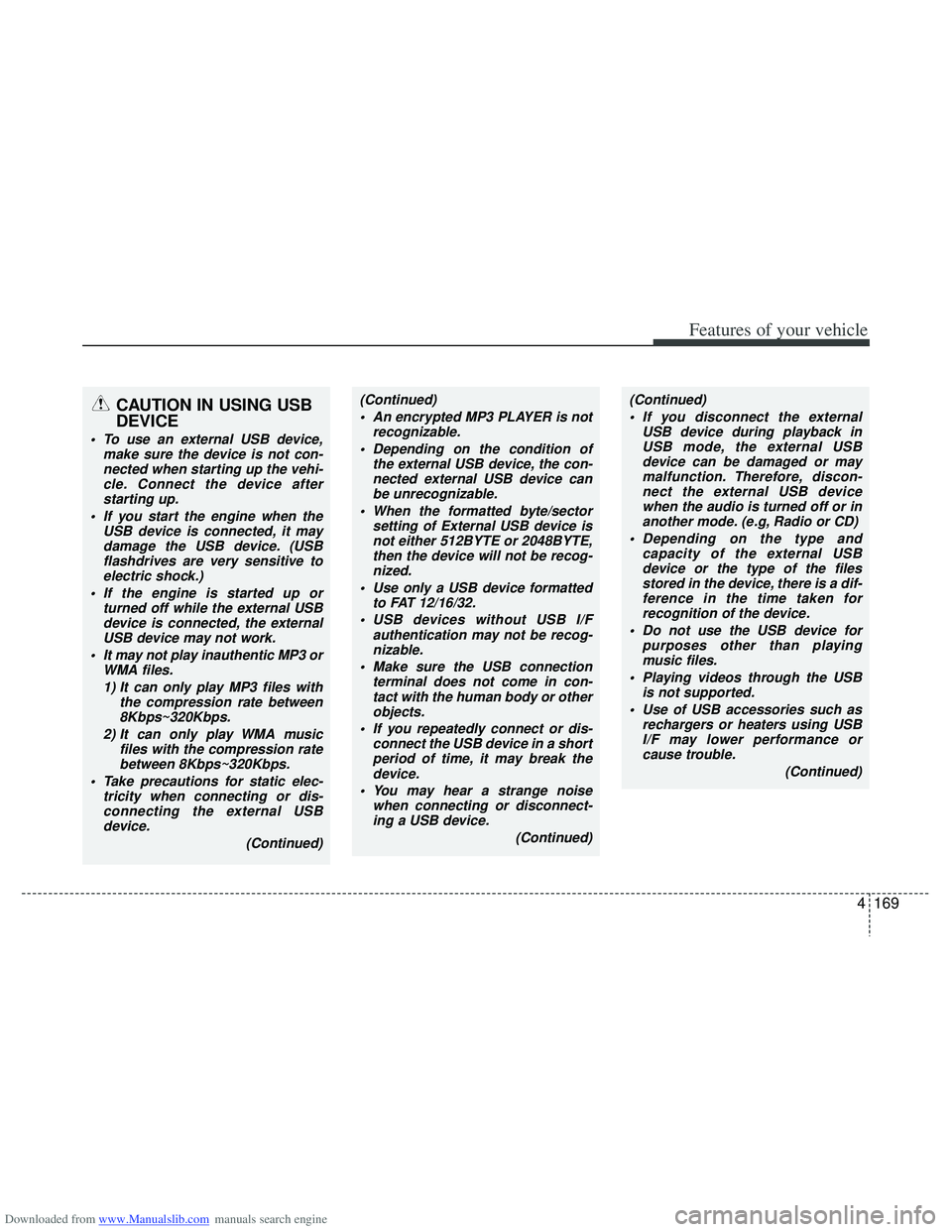
CAUTION IN USING USB
DEVICE
To use an external USB device,make sure the device is not con-nected when starting up the vehi-cle. Connect the device afterstarting up.
If you start the engine when the USB device is connected, it maydamage the USB device. (USBflashdrives are very sensitive toelectric shock.)
If the engine is started up or turned off while the external USBdevice is connected, the externalUSB device may not work.
It may not play inauthentic MP3 or WMA files.
1) It can only play MP3 files with the compression rate between8Kbps~320Kbps.
2) It can only play WMA music files with the compression ratebetween 8Kbps~320Kbps.
Take precautions for static elec- tricity when connecting or dis-connecting the external USBdevice.
(Continued)
(Continued) An encrypted MP3 PLAYER is not recognizable.
Depending on the condition of the external USB device, the con-nected external USB device canbe unrecognizable.
When the formatted byte/sector setting of External USB device isnot either 512BYTE or 2048BYTE,then the device will not be recog- nized.
Use only a USB device formatted to FAT 12/16/32.
USB devices without USB I/F authentication may not be recog-nizable.
Make sure the USB connection terminal does not come in con-tact with the human body or otherobjects.
If you repeatedly connect or dis- connect the USB device in a shortperiod of time, it may break thedevice.
You may hear a strange noise when connecting or disconnect-ing a USB device.
(Continued)(Continued) If you disconnect the external USB device during playback inUSB mode, the external USBdevice can be damaged or may malfunction. Therefore, discon-nect the external USB device when the audio is turned off or inanother mode. (e.g, Radio or CD)
Depending on the type and capacity of the external USBdevice or the type of the filesstored in the device, there is a dif- ference in the time taken forrecognition of the device.
Do not use the USB device for purposes other than playingmusic files.
Playing videos through the USB is not supported.
Use of USB accessories such as rechargers or heaters using USBI/F may lower performance or cause trouble.
(Continued)
Page 257 of 534
Downloaded from www.Manualslib.com manuals search engine Features of your vehicle
170
4
(Continued)
If you use devices such as a USB hub purchased separately, thevehicle’s audio system may notrecognize the USB device. In thatcase, connect the USB devicedirectly to the multimedia termi-nal of the vehicle.
If the USB device is divided by logical drives, only the music fileson the highest-priority drive arerecognized by car audio.
Devices such as MP3 Player/ Cellular phone/Digital camera canbe unrecognizable by standardUSB I/F can be unrecognizable.
Charging through the USB may not be supported in some mobiledevices.
❋
❋ A car exclusive cable (provided
or sold separately) is requiredto use the iPod.
Some non-standard USB devices (METAL COVER TYPE USB) canbe unrecognizable.
Some USB flash memory readers (such as CF, SD, microSD, etc.) orexternal-HDD type devices can beunrecognizable.
(Continued)(Continued) Music files protected by DRM (DIGITAL RIGHTS MANAGE-MENT) are not recognizable.
The data in the USB memory may be lost while using this audio.Always back up important data on a personal storage device.
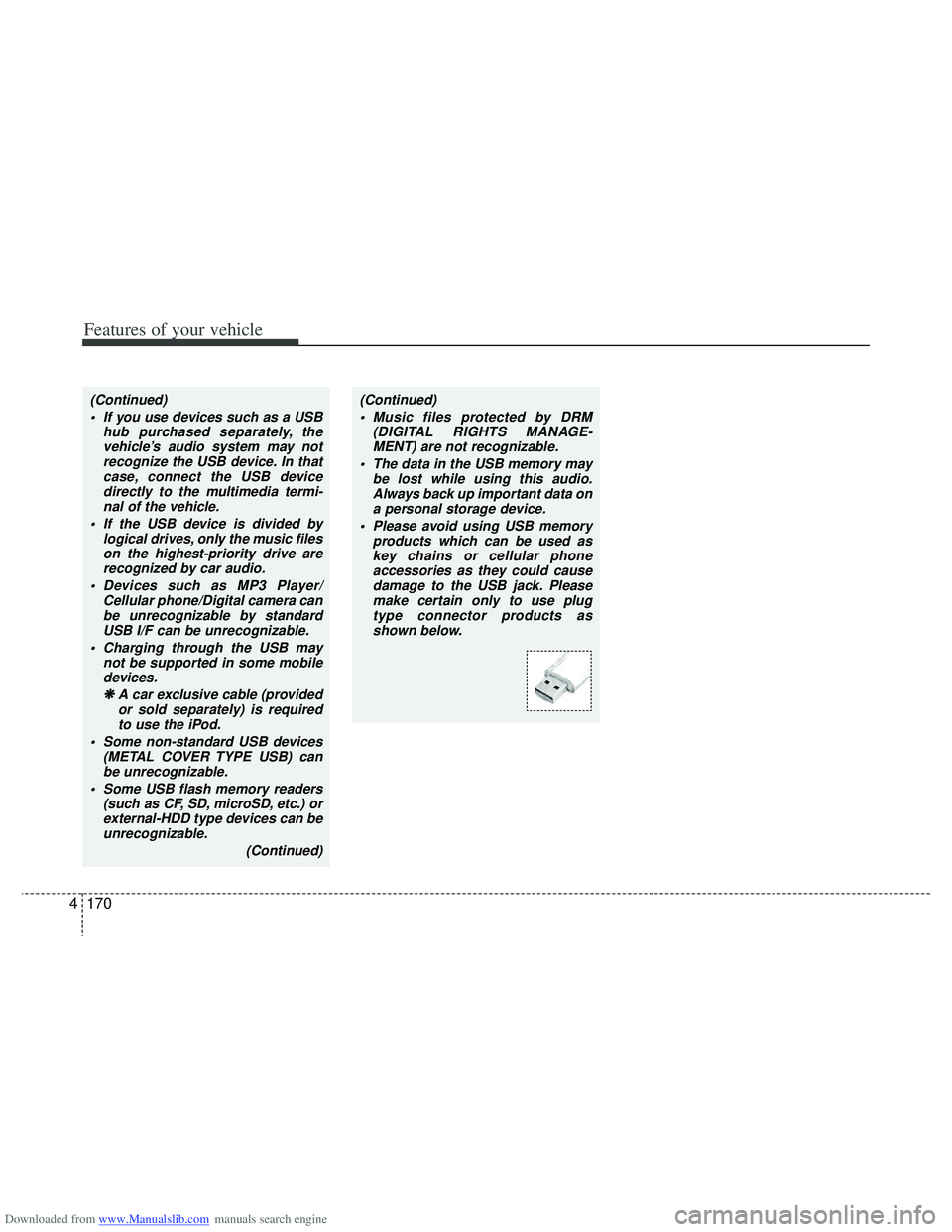
Please avoid using USB memory products which can be used askey chains or cellular phone accessories as they could causedamage to the USB jack. Pleasemake certain only to use plug type connector products asshown below.
Page 260 of 534
Downloaded from www.Manualslib.com manuals search engine 4173
Features of your vehicle
✽
✽NOTICE FOR USING THE
iPod DEVICE
• Some iPod models might not support
the communication protocol and the
files will not be played.
Supported iPod models:
- iPod Mini
- iPod 4th (Photo) ~ 6th(Classic) gen-eration
- iPod Nano 1st~4th generation
- iPod Touch 1st~2nd generation
• The order of search or playback of songs in the iPod can be different
from the order searched in the audio
system.
• If the iPod disabled due to its own malfunction, reset the iPod. (Reset:
Refer to iPod manual)
• An iPod may not operate normally on low battery.
• Some iPod devices, such as the iPhone, can be connected through the
Bluetooth
®interface. The device must
have audio Bluetooth®capability
(such as for stereo headphone
Bluetooth
®). The device can play, but
it will not be controlled by the audio
system.
CAUTION IN USING THE
iPod DEVICE
The HYUNDAI iPod Power Cable
is needed in order to operate iPodwith the audio buttons on theaudio system. The USB cable pro- vided by Apple may cause mal-function and should not be used for HYUNDAI vehicles.
❋ ❋ The HYUNDAI iPod Power
Cable may be purchasedthrough your HYUNDAIDealership.
When connecting iPod with the iPod Power Cable, insert the con-nector to the multimedia socket completely. If not inserted com-pletely, communications betweeniPod and audio may be interrupt- ed.
When adjusting the sound effects of the iPod and the audio system,the sound effects of both devices will overlap and might reduce ordistort the quality of the sound.
(Continued)
(Continued) Deactivate (turn off) the equalizer function of an iPod when adjust-ing the audio system’s volume,and turn off the equalizer of the audio system when using theequalizer of an iPod.
When the iPod cable is connect- ed, the system can be switched toAUX mode even without iPoddevice and may cause noise.Disconnect the iPod cable whenyou are not using the iPod device.
When not using iPod with car audio, detach the iPod cable fromiPod. Otherwise, iPod may remain in accessory mode, and may notwork properly.
(Continued)
Page 263 of 534
Downloaded from www.Manualslib.com manuals search engine Features of your vehicle
176
4
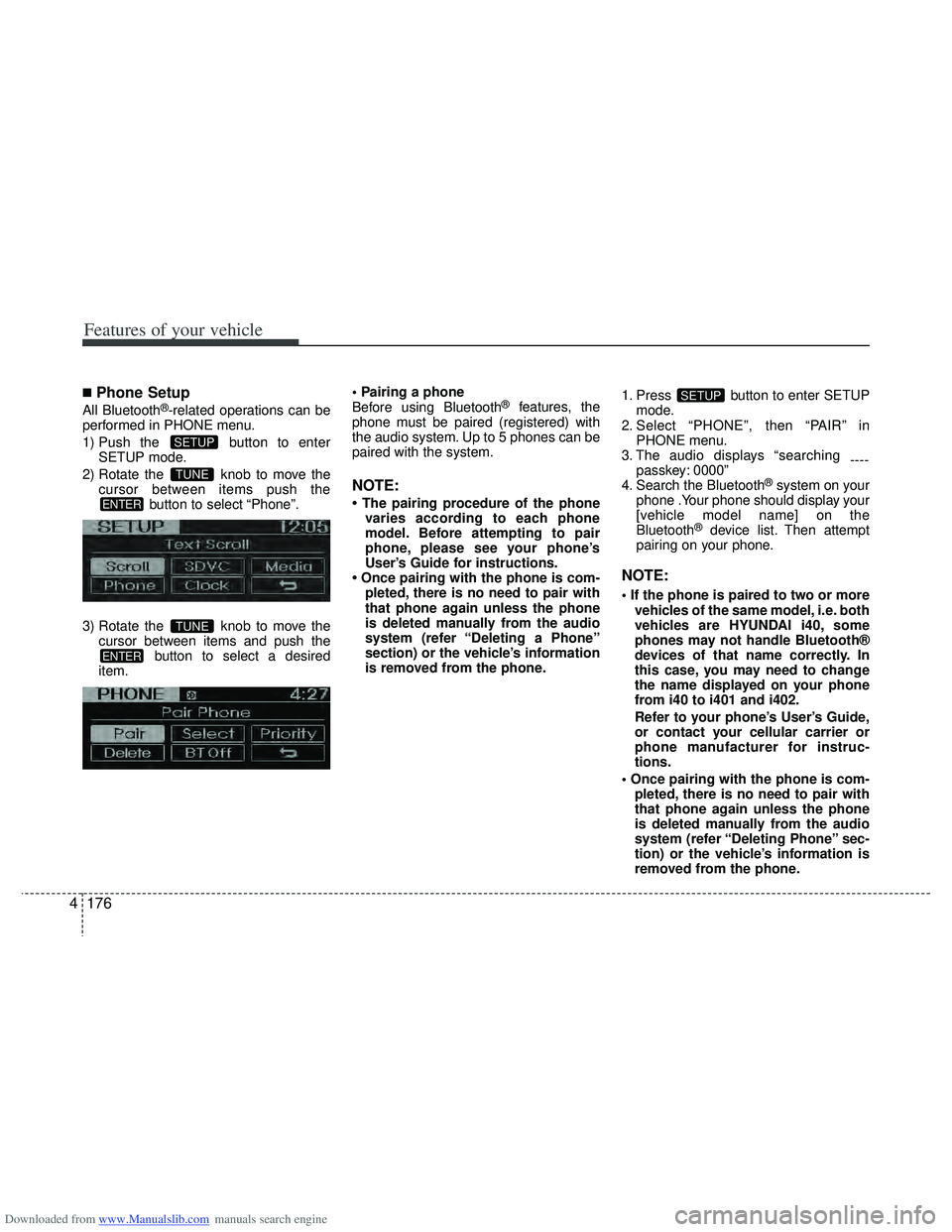
■Phone Setup
All Bluetooth®-related operations can be
performed in PHONE menu.
1) Push the button to enter SETUP mode.
2) Rotate the knob to move the cursor between items push the button to select “Phone”.
3) Rotate the knob to move the cursor between items and push the button to select a desired
item.
Before using Bluetooth®features, the
phone must be paired (registered) with
the audio system. Up to 5 phones can be
paired with the system.
NOTE:
• The pairing procedure of the phone varies according to each phone
model. Before attempting to pair
phone, please see your phone’s
User’s Guide for instructions.
• Once pairing with the phone is com- pleted, there is no need to pair with
that phone again unless the phone
is deleted manually from the audio
system (refer “Deleting a Phone”
section) or the vehicle’s information
is removed from the phone. 1. Press button to enter SETUP
mode.
2. Select “PHONE”, then “PAIR” in PHONE menu.
3. The audio displays “searching ----
passkey: 0000”
4. Search the Bluetooth
®system on your
phone .Your phone should display your
[vehicle model name] on the
Bluetooth
®device list. Then attempt
pairing on your phone.
NOTE:
vehicles of the same model, i.e. both
vehicles are HYUNDAI i40, some
phones may not handle Bluetooth®
devices of that name correctly. In
this case, you may need to change
the name displayed on your phone
from i40 to i401 and i402.
Refer to your phone’s User’s Guide,
or contact your cellular carrier or
phone manufacturer for instruc-
tions.
pleted, there is no need to pair with
that phone again unless the phone
is deleted manually from the audio
system (refer “Deleting Phone” sec-
tion) or the vehicle’s information is
removed from the phone.
SETUP
ENTER
TUNE
ENTER
TUNE
SETUP
Page 264 of 534
Downloaded from www.Manualslib.com manuals search engine 4177
Features of your vehicle
When the Bluetooth®system is enabled,
the phone previously used is automati-
cally selected and re-connected. If you
want to select different phone previously
paired, the phone can be selected
through “Select Phone” menu.
Only a selected phone can be used with
the hands-free system at a time.
1. Press button to enter SETUP mode.
2. Select “PHONE”, then “Select” in PHONE menu.
3. Select desired phone name from the list shown.
If several phones are paired with the
audio system, the system attempts to
connect following order when the
Bluetooth
®system is enabled:
1) “Priority” checked phone.
2) Previously connected phone
3) Gives up auto connection.
1. Press button to enter SETUP mode.
2. Select “PHONE”, then “Priority” in PHONE menu.
3. Select desired phone name from the list shown.
The paired phone can be deleted.
- When the phone is deleted, all the infor-
mation associated with that phone is
also deleted (including phonebook).
- If you want to use the deleted phone with the audio system again, pairing
procedure must be completed once
more.
1. Press button to enter SETUP mode.
2. Select “PHONE”, then “Delete” in PHONE menu.
3. Select desired phone name from the list shown.
SETUPSETUPSETUP
Page 265 of 534
Downloaded from www.Manualslib.com manuals search engine Features of your vehicle
178
4
Bluetooth®ON/OFF
Bluetooth®system can be enabled (ON)
or disabled (OFF) by this menu.
- If Bluetooth
®is disabled, all the com-
mands related to Bluetooth®system
prompts whether you wish to turn
Bluetooth
®ON or not.
1. Press button to enter SETUP mode.
2. Select “PHONE”, then “BT Off ” in PHONE menu.
■Receiving a Phone Call
When receiving a phone call, a ringtone
is audible from speakers and the audio
system changes into telephone mode.
When receiving a phone call, “Incoming”
message and incoming phone number
(if available) are displayed on the audio.
- Press button on the steering
wheel.
- Press button on the steering
wheel.
- Use VOLUME buttons on the steeringwheel.
Call):
- Press and hold button on the steering wheel until the audio system
transfers a call to the phone.
■Talking on the Phone
When talking on the phone, “Active Calls”
message and the other party’s phone
number (if available) are displayed on the
audio.
- Press button on the steering wheel.
■Making a Phone Call
A Call Back can be made by pressing button on the steering wheel.
- This is the same function as using the button solely on the cellular
phone.
NOTE:
Some phone models require pressing button twice to make a call.
SETUP