AUX HYUNDAI I800 2015 User Guide
[x] Cancel search | Manufacturer: HYUNDAI, Model Year: 2015, Model line: I800, Model: HYUNDAI I800 2015Pages: 339, PDF Size: 7.25 MB
Page 172 of 339
4101
Features of your vehicle
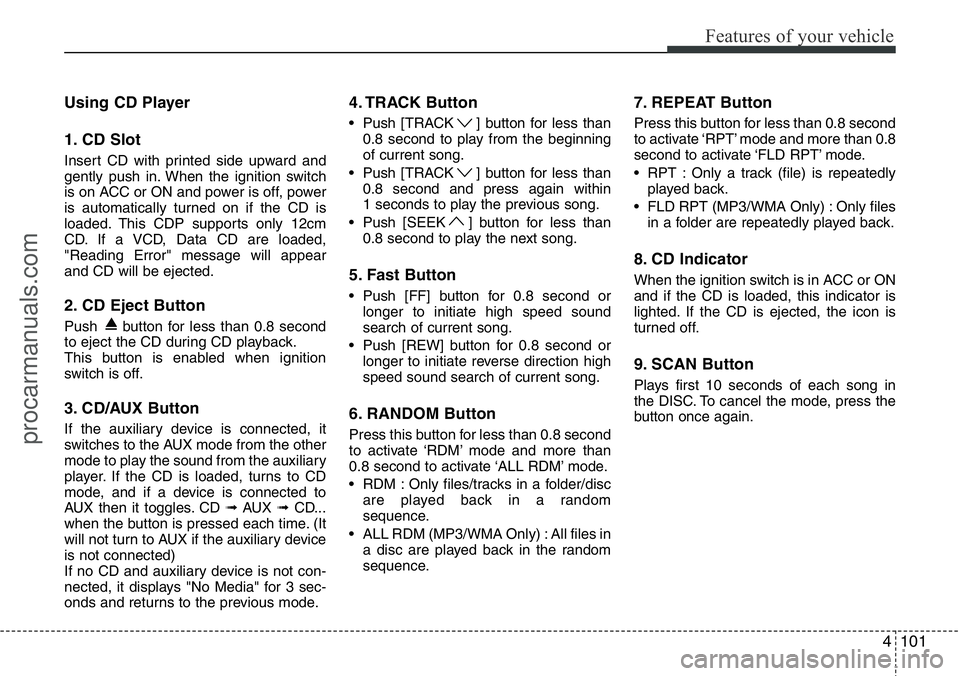
Using CD Player
1. CD Slot
Insert CD with printed side upward and
gently push in. When the ignition switch
is on ACC or ON and power is off, power
is automatically turned on if the CD is
loaded. This CDP supports only 12cm
CD. If a VCD, Data CD are loaded,
"Reading Error" message will appear
and CD will be ejected.
2. CD Eject Button
Push button for less than 0.8 second
to eject the CD during CD playback.
This button is enabled when ignition
switch is off.
3. CD/AUX Button
If the auxiliary device is connected, it
switches to the AUX mode from the other
mode to play the sound from the auxiliary
player. If the CD is loaded, turns to CD
mode, and if a device is connected to
AUX then it toggles. CD ➟AUX ➟CD...
when the button is pressed each time. (It
will not turn to AUX if the auxiliary device
is not connected)
If no CD and auxiliary device is not con-
nected, it displays "No Media" for 3 sec-
onds and returns to the previous mode.
4. TRACK Button
• Push [TRACK ] button for less than
0.8 second to play from the beginning
of current song.
• Push [TRACK ] button for less than
0.8 second and press again within
1 seconds to play the previous song.
• Push [SEEK ] button for less than
0.8 second to play the next song.
5. Fast Button
• Push [FF] button for 0.8 second or
longer to initiate high speed sound
search of current song.
• Push [REW] button for 0.8 second or
longer to initiate reverse direction high
speed sound search of current song.
6. RANDOM Button
Press this button for less than 0.8 second
to activate ‘RDM’ mode and more than
0.8 second to activate ‘ALL RDM’ mode.
• RDM : Only files/tracks in a folder/disc
are played back in a random
sequence.
• ALL RDM (MP3/WMA Only) : All files in
a disc are played back in the random
sequence.
7. REPEAT Button
Press this button for less than 0.8 second
to activate ‘RPT’ mode and more than 0.8
second to activate ‘FLD RPT’ mode.
• RPT : Only a track (file) is repeatedly
played back.
• FLD RPT (MP3/WMA Only) : Only files
in a folder are repeatedly played back.
8. CD Indicator
When the ignition switch is in ACC or ON
and if the CD is loaded, this indicator is
lighted. If the CD is ejected, the icon is
turned off.
9. SCAN Button
Plays first 10 seconds of each song in
the DISC. To cancel the mode, press the
button once again.
procarmanuals.com
Page 175 of 339
Features of your vehicle
104 4
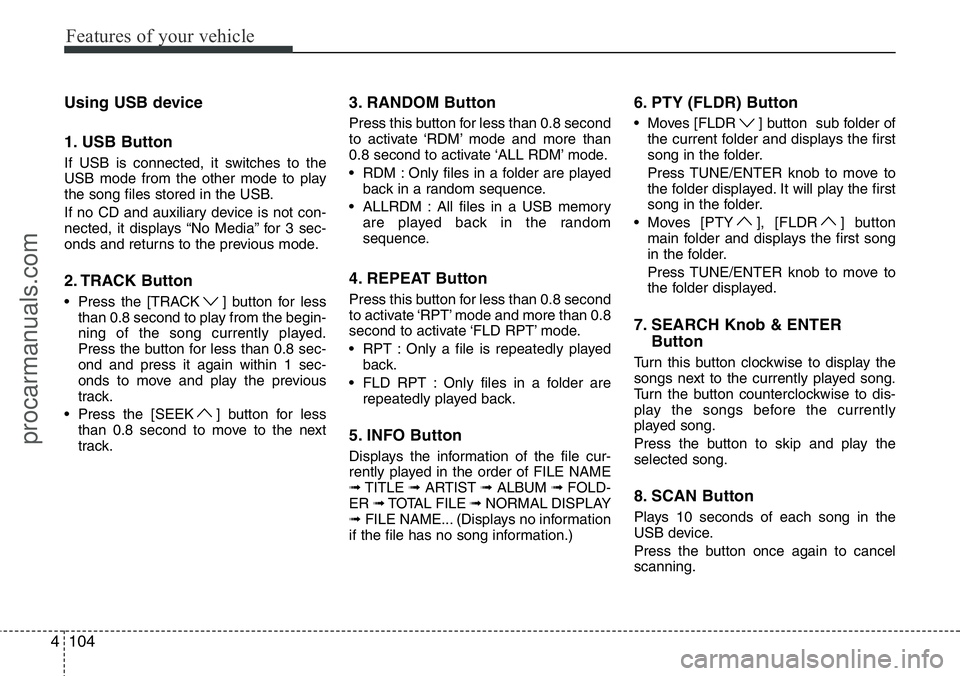
Using USB device
1. USB Button
If USB is connected, it switches to the
USB mode from the other mode to play
the song files stored in the USB.
If no CD and auxiliary device is not con-
nected, it displays “No Media” for 3 sec-
onds and returns to the previous mode.
2. TRACK Button
• Press the [TRACK ] button for less
than 0.8 second to play from the begin-
ning of the song currently played.
Press the button for less than 0.8 sec-
ond and press it again within 1 sec-
onds to move and play the previous
track.
• Press the [SEEK ] button for less
than 0.8 second to move to the next
track.
3. RANDOM Button
Press this button for less than 0.8 second
to activate ‘RDM’ mode and more than
0.8 second to activate ‘ALL RDM’ mode.
• RDM : Only files in a folder are played
back in a random sequence.
• ALLRDM : All files in a USB memory
are played back in the random
sequence.
4. REPEAT Button
Press this button for less than 0.8 second
to activate ‘RPT’ mode and more than 0.8
second to activate ‘FLD RPT’ mode.
• RPT : Only a file is repeatedly played
back.
• FLD RPT : Only files in a folder are
repeatedly played back.
5. INFO Button
Displays the information of the file cur-
rently played in the order of FILE NAME
➟TITLE ➟ARTIST ➟ALBUM ➟FOLD-
ER ➟TOTAL FILE ➟NORMAL DISPLAY
➟FILE NAME... (Displays no information
if the file has no song information.)
6. PTY (FLDR) Button
• Moves [FLDR ] button sub folder of
the current folder and displays the first
song in the folder.
Press TUNE/ENTER knob to move to
the folder displayed. It will play the first
song in the folder.
• Moves [PTY ], [FLDR ] button
main folder and displays the first song
in the folder.
Press TUNE/ENTER knob to move to
the folder displayed.
7. SEARCH Knob & ENTER
Button
Turn this button clockwise to display the
songs next to the currently played song.
Turn the button counterclockwise to dis-
play the songs before the currently
played song.
Press the button to skip and play the
selected song.
8. SCAN Button
Plays 10 seconds of each song in the
USB device.
Press the button once again to cancel
scanning.
procarmanuals.com
Page 180 of 339
4109
Features of your vehicle
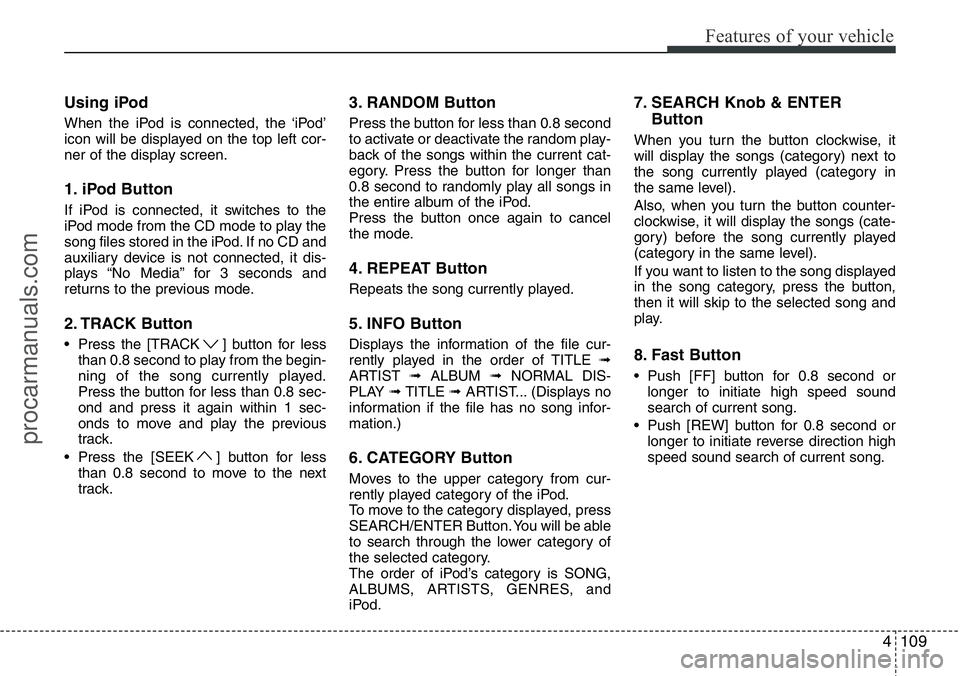
Using iPod
When the iPod is connected, the ‘iPod’
icon will be displayed on the top left cor-
ner of the display screen.
1. iPod Button
If iPod is connected, it switches to the
iPod mode from the CD mode to play the
song files stored in the iPod. If no CD and
auxiliary device is not connected, it dis-
plays “No Media” for 3 seconds and
returns to the previous mode.
2. TRACK Button
• Press the [TRACK ] button for less
than 0.8 second to play from the begin-
ning of the song currently played.
Press the button for less than 0.8 sec-
ond and press it again within 1 sec-
onds to move and play the previous
track.
• Press the [SEEK ] button for less
than 0.8 second to move to the next
track.
3. RANDOM Button
Press the button for less than 0.8 second
to activate or deactivate the random play-
back of the songs within the current cat-
egory. Press the button for longer than
0.8 second to randomly play all songs in
the entire album of the iPod.
Press the button once again to cancel
the mode.
4. REPEAT Button
Repeats the song currently played.
5. INFO Button
Displays the information of the file cur-
rently played in the order of TITLE ➟
ARTIST ➟ALBUM ➟NORMAL DIS-
PLAY ➟TITLE ➟ARTIST... (Displays no
information if the file has no song infor-
mation.)
6. CATEGORY Button
Moves to the upper category from cur-
rently played category of the iPod.
To move to the category displayed, press
SEARCH/ENTER Button. You will be able
to search through the lower category of
the selected category.
The order of iPod’s category is SONG,
ALBUMS, ARTISTS, GENRES, and
iPod.
7. SEARCH Knob & ENTER
Button
When you turn the button clockwise, it
will display the songs (category) next to
the song currently played (category in
the same level).
Also, when you turn the button counter-
clockwise, it will display the songs (cate-
gory) before the song currently played
(category in the same level).
If you want to listen to the song displayed
in the song category, press the button,
then it will skip to the selected song and
play.
8. Fast Button
• Push [FF] button for 0.8 second or
longer to initiate high speed sound
search of current song.
• Push [REW] button for 0.8 second or
longer to initiate reverse direction high
speed sound search of current song.
procarmanuals.com
Page 181 of 339
Features of your vehicle
110 4
✽NOTICE FOR USING THE
iPod®DEVICE
• Some iPod models might not support
the communication protocol and the
files will not be played.
Supported iPod models:
- iPod Mini
- iPod 4th (Photo) ~ 6th (Classic) gen-
eration
- iPod Nano 1st~4th generation
- iPod Touch 1st~2nd generation
• The order of search or playback of
songs in the iPod can be different
from the order searched in the audio
system.
• If the iPod crashes due to its own mal-
function, reset the iPod. (Reset: Refer
to iPod manual)
• An iPod may not operate normally on
low battery.
• Some iPod devices, such as the
iPhone, can be connected through the
Bluetooth
®Wireless Technology inter-
face. The device must have audio
Bluetooth
®Wireless Technology capa-
bility (such as for stereo headphone
Bluetooth
®Wireless Technology). The
device can play, but it will not be con-
trolled by the audio system.
(Continued)
• Deactivate (turn off) the equalizer
function of an iPod when adjust-
ing the audio system’s volume,
and turn off the equalizer of the
audio system when using the
equalizer of an iPod.
• When the iPod cable is connect-
ed, the system can be switched to
the AUX mode even without the
iPod device and may cause noise.
Disconnect the iPod cable when
you are not using the iPod device.
• When not using iPod with car
audio, detach the iPod cable from
iPod. Otherwise, the iPod may
remain in accessory mode, and
may not work properly.CAUTION IN USING THE
iPod®DEVICE
• The HYUNDAI iPod Power Cable
is needed in order to operate iPod
with the audio buttons on the
audio system. The USB cable pro-
vided by Apple may cause mal-
function and should not be used
for HYUNDAI vehicles.
❋The HYUNDAI iPod Power Cable
may be purchased through your
HYUNDAI Dealership.
Page 184 of 339
4113
Features of your vehicle
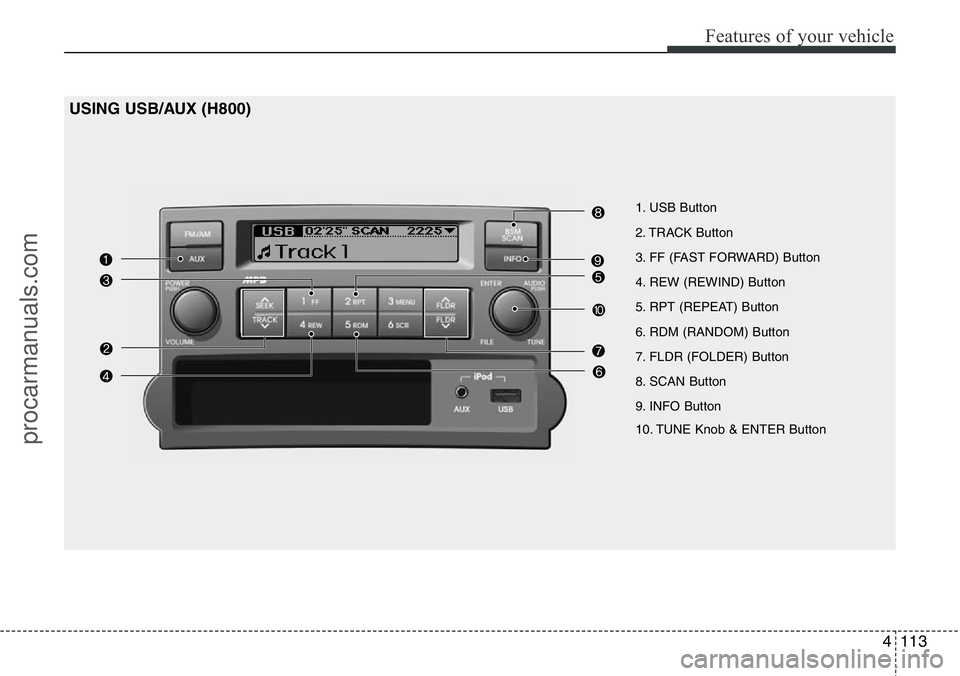
USING USB/AUX (H800)
1. USB Button
2. TRACK Button
3. FF (FAST FORWARD) Button
4. REW (REWIND) Button
5. RPT (REPEAT) Button
6. RDM (RANDOM) Button
7. FLDR (FOLDER) Button
8. SCAN Button
9. INFO Button
10. TUNE Knob & ENTER Button
procarmanuals.com
Page 185 of 339
Features of your vehicle
114 4
USING USB/AUX
1. USB Button
If USB/AUX is connected, it switches to
the USB/AUX mode from the other mode
to play the song files stored in the USB.
If no USB and auxiliary device is con-
nected, it displays "NO Media" for 3 sec-
onds and returns to the previous mode.
❋ AUX Button
If the auxiliary device is connected, it
turns to AUX mode from the other mode
to play the sound from the auxiliary play-
er. If no auxiliary device is connected, it
displays "NO Media" for 3 seconds and
returns to the previous mode.
2. TRACK Button
• Press the [TRACK ] button for less
than 0.8 second to play from the begin-
ning of the song currently played.
Press the button for less than 0.8 sec-
ond and press it again within 1 second
to move and play the previous track.
• Press the [SEEK ] button for less
than 0.8 second to move to the next
track.
3. FF (FAST FORWORD) Button
Press the button for 0.8 second or longer
to play the song in forward direction in
fast speed.
4. REW (REWIND) Button
Press the button for 0.8 second or longer
to play the song in reverse direction in
fast speed.
5. RPT (REPEAT) Button
Press this button for less than 0.8 second
to activate 'RPT' mode and more than
0.8 second to activate 'FLD RPT' mode.
• RPT : Only a file is repeatedly played
back.
• FLD RPT : Only files in a folder are
repeatedly played back.
6. RDM (RANDOM) Button
Press this button for less than 0.8 second
to activate 'RDM' mode and more than
0.8 second to activate 'ALL RDM' mode.
• RDM : Only files in a folder are played
back in a random sequence.
• ALL RDM : All files in a USB memory
are played back in the random
sequence.
7. FLDR (FOLDER) Button
• Moves [FLDR ] button sub folder of
the current folder and displays the first
song in the folder.
Press TUNE/ENTER knob to move to
the folder displayed. It will play the first
song in the folder.
• Moves [FLDR ] button main folder
and displays the first song in the folder.
Press TUNE/ENTER knob to move to
the folder displayed.
8. SCAN Button
Plays 10 seconds of each song in the
USB device.
Press the button once again to cancel
scanning.
9. INFO Button
Displays the information of the file cur-
rently played in the order of FILE NAME
➟TITLE ➟ARTIST ➟ALBUM ➟FOLD-
ER ➟TOTAL FILE ➟NORMAL DISPLAY
➟FILE NAME... (Displays no information
if the file has no song information.)
procarmanuals.com
Page 187 of 339
Features of your vehicle
116 4
(Continued)
• If you disconnect the external
USB device during playback in
USB mode, the external USB
device can be damaged or may
malfunction. Therefore, discon-
nect the external USB device
when the audio is turned off or in
another mode. (e.g, Radio or AUX)
• Depending on the type and
capacity of the external USB
device or the type of the files
stored in the device, there is a dif-
ference in the time taken for
recognition of the device.
• Do not use the USB device for
purposes other than playing
music files.
• Use of USB accessories such as
rechargers or heaters using USB
I/F may lower performance or
cause trouble.
• If you use devices such as a USB
hub purchased separately, the
vehicle’s audio system may not
recognize the USB device. In that
case, connect the USB device
directly to the multimedia termi-
nal of the vehicle.
(Continued)(Continued)
• If the USB device is divided by
logical drives, only the music files
on the highest-priority drive are
recognized by car audio.
• Devices such as MP3 Player/
Cellular phone/Digital camera can
be unrecognizable by standard
USB I/F can be unrecognizable.
• Some non-standard USB devices
(METAL COVER TYPE USB) can
be unrecognizable.
• Some USB flash memory readers
(such as CF, SD, microSD, etc.) or
external-HDD type devices can be
unrecognizable.
• Music files protected by DRM
(DIGITAL RIGHTS MANAGE-
MENT) are not recognizalbe.
• The data in the USB memory may
be lost while using this audio.
Always back up important data on
a personal storage device.
(Continued)(Continued)
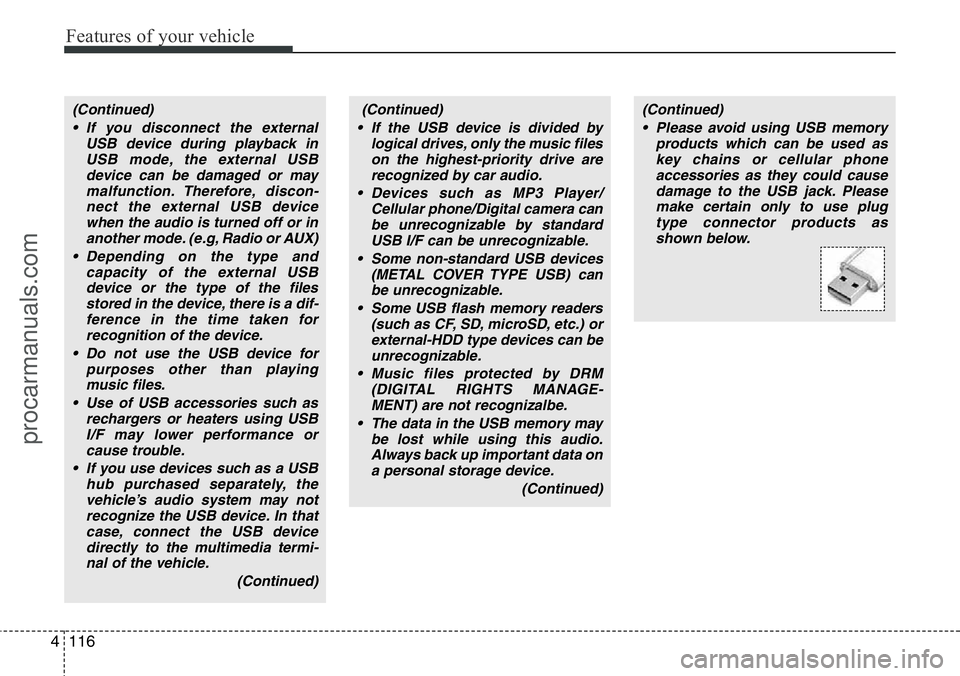
• Please avoid using USB memory
products which can be used as
key chains or cellular phone
accessories as they could cause
damage to the USB jack. Please
make certain only to use plug
type connector products as
shown below.
procarmanuals.com