reset HYUNDAI I800 2015 User Guide
[x] Cancel search | Manufacturer: HYUNDAI, Model Year: 2015, Model line: I800, Model: HYUNDAI I800 2015Pages: 339, PDF Size: 7.25 MB
Page 161 of 339
Features of your vehicle
90 4
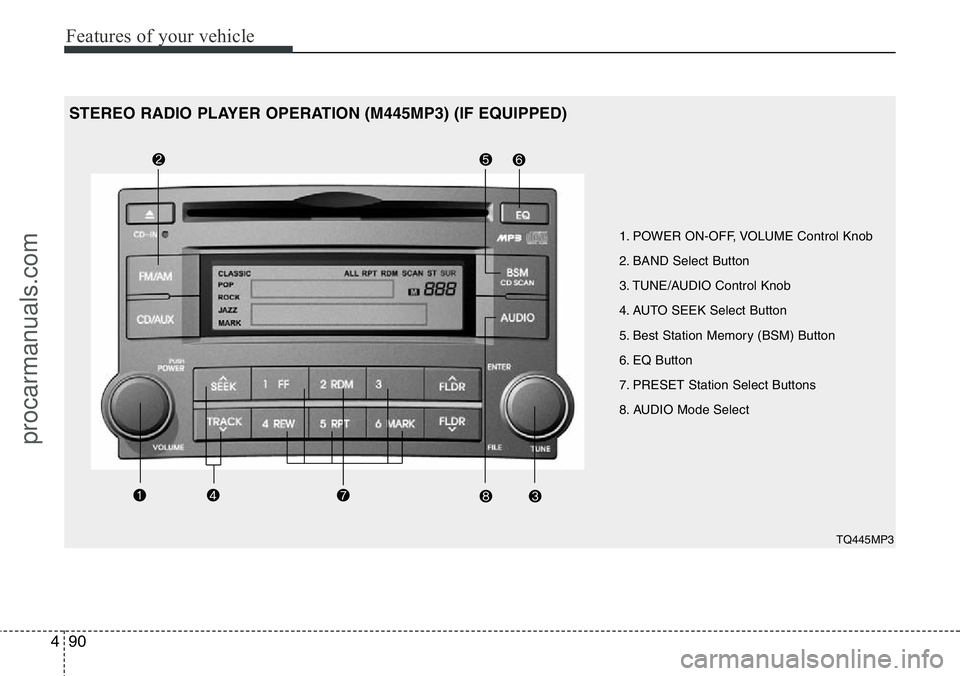
1. POWER ON-OFF, VOLUME Control Knob
2. BAND Select Button
3. TUNE/AUDIO Control Knob
4. AUTO SEEK Select Button
5. Best Station Memory (BSM) Button
6. EQ Button
7. PRESET Station Select Buttons
8. AUDIO Mode Select
TQ445MP3
STEREO RADIO PLAYER OPERATION (M445MP3) (IF EQUIPPED)
procarmanuals.com
Page 163 of 339
Features of your vehicle
92 4
5. Best Station Memory (BSM)
Button
When the BSM button is pressed, the six
channels from the highest field intensity
are selected next and stored in memory.
The stations selected are stored in the
sequence frequency from the first preset
key.
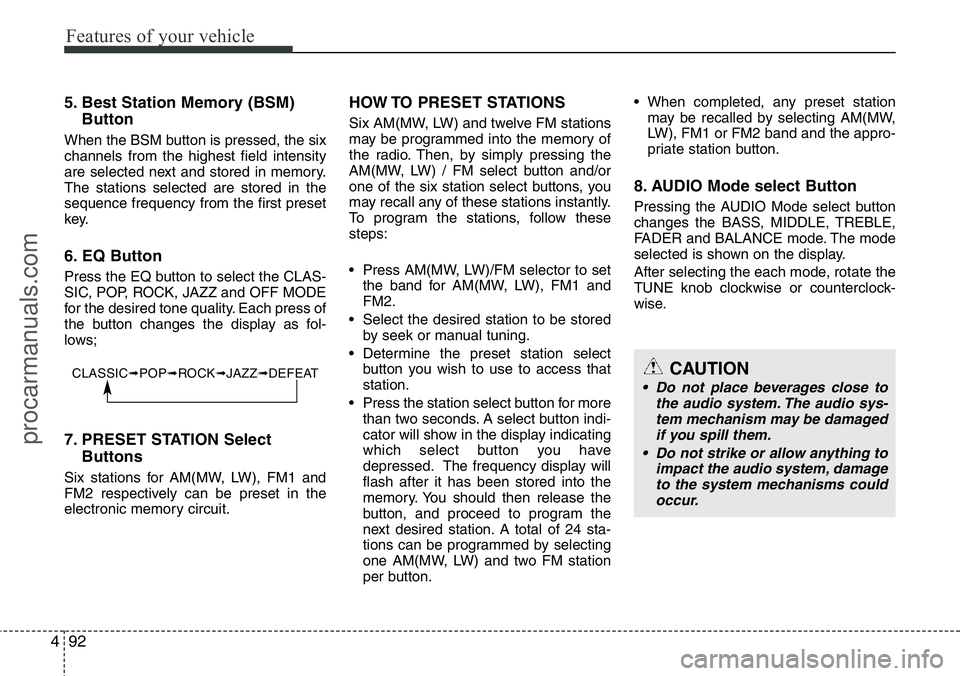
6. EQ Button
Press the EQ button to select the CLAS-
SIC, POP, ROCK, JAZZ and OFF MODE
for the desired tone quality. Each press of
the button changes the display as fol-
lows;
7. PRESET STATION Select
Buttons
Six stations for AM(MW, LW), FM1 and
FM2 respectively can be preset in the
electronic memory circuit.
HOW TO PRESET STATIONS
Six AM(MW, LW) and twelve FM stations
may be programmed into the memory of
the radio. Then, by simply pressing the
AM(MW, LW) / FM select button and/or
one of the six station select buttons, you
may recall any of these stations instantly.
To program the stations, follow these
steps:
• Press AM(MW, LW)/FM selector to set
the band for AM(MW, LW), FM1 and
FM2.
• Select the desired station to be stored
by seek or manual tuning.
• Determine the preset station select
button you wish to use to access that
station.
• Press the station select button for more
than two seconds. A select button indi-
cator will show in the display indicating
which select button you have
depressed. The frequency display will
flash after it has been stored into the
memory. You should then release the
button, and proceed to program the
next desired station. A total of 24 sta-
tions can be programmed by selecting
one AM(MW, LW) and two FM station
per button.• When completed, any preset station
may be recalled by selecting AM(MW,
LW), FM1 or FM2 band and the appro-
priate station button.
8. AUDIO Mode select Button
Pressing the AUDIO Mode select button
changes the BASS, MIDDLE, TREBLE,
FADER and BALANCE mode. The mode
selected is shown on the display.
After selecting the each mode, rotate the
TUNE knob clockwise or counterclock-
wise.
CLASSIC➟POP➟ROCK➟JAZZ➟DEFEATCAUTION
• Do not place beverages close to
the audio system. The audio sys-
tem mechanism may be damaged
if you spill them.
• Do not strike or allow anything to
impact the audio system, damage
to the system mechanisms could
occur.
procarmanuals.com
Page 167 of 339
Features of your vehicle
96 4
✽NOTICE
• When using a portable audio device
connected to power outlet, noise may
occur during playback.
If this happens, use the original power
source of the portable audio device
(e.g., batteries).
• To assure proper operation of the unit,
keep the vehicle interior temperature
within a normal range by using the
vehicle’s air conditioning or heating
system.
• When replacing the fuse, replace it
with a fuse having the correct capaci-
ty.
• All stored bookmarks are all erased
when the car battery is disconnected
or power to the vehicle is lost. If this
occurs, the bookmarks will have to be
reset.
• Do not add any oil to the rotating
parts. Keep magnets, screwdrivers
and other metallic objects away from
the tape mechanism and head.CAUTION
• Do not insert warped or poor
quality discs into the CD player
as damage to the unit may occur.
• Do not insert anything like coins
into the player slot as damage to
the unit may occur.
• Do not place beverages close to
the audio system. The playback
mechanism may be damaged if
you spill them.
• Do not strike or allow anything to
impact the audio system, damage
to the system mechanisms could
occur.
• Off-road or rough surface driving
may cause the compact disc to
skip. Do not use the compact disc
when driving in such conditions
as damage to the compact disc
face could occur.
• Do not attempt to grab or pull the
compact disc out whilst the disc
is being pulled into the audio unit
by the self-loading mechanism.
Damage to the audio unit and
compact disc could occur.
• This equipment is designed to be
used only in a 12 volt DC battery
system with negative ground.
• This unit is made of precision
parts. Do not attempt to disas-
semble or adjust any parts.
• When driving your vehicle, be
sure to keep the volume of the
unit set low enough to allow you
to hear sounds coming from the
outside.
• Do not expose this equipment
(including the speakers and tape)
to water or excessive moisture.
• Avoid using recorded compact
discs in your audio unit. Original
compact discs are recommended.
• The unit is not sure of playing CD-
RW (Rewritable).
• When using the EQ function, turn
off the EQ function of the device
on the AUX input.
• When no device is connected to
the AUX cable, please pull out the
cable from the JACK on the car.
(AUX MODE is operational and
noise may heard in the AUX
MODE.)
procarmanuals.com
Page 168 of 339
497
Features of your vehicle
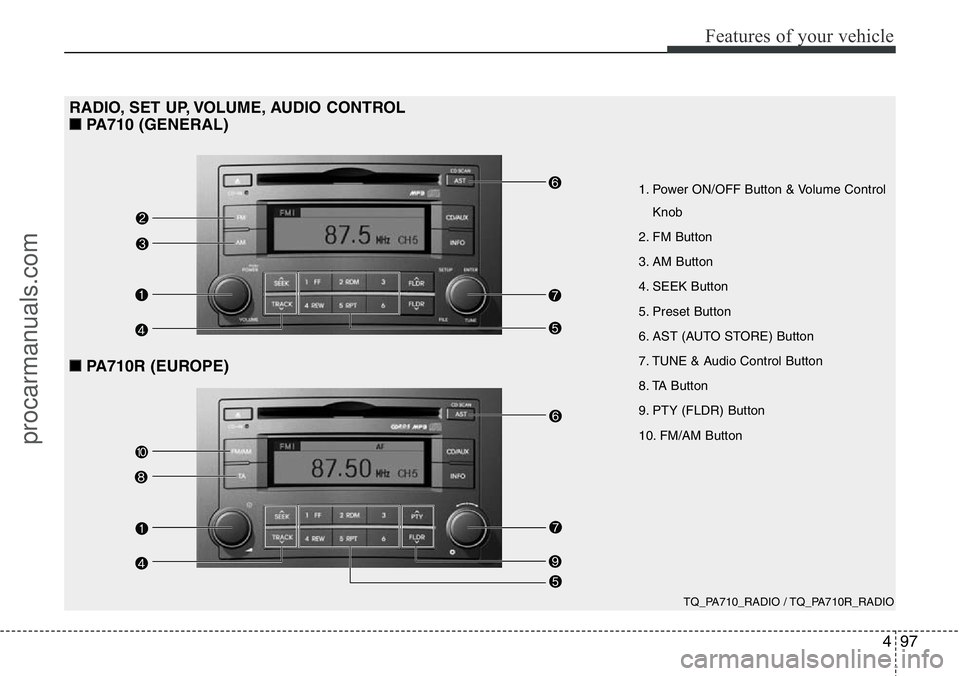
TQ_PA710_RADIO / TQ_PA710R_RADIO
1. Power ON/OFF Button & Volume Control
Knob
2. FM Button
3. AM Button
4. SEEK Button
5. Preset Button
6. AST (AUTO STORE) Button
7. TUNE & Audio Control Button
8. TA Button
9. PTY (FLDR) Button
10. FM/AM Button
RADIO, SET UP, VOLUME, AUDIO CONTROL
■PA710 (GENERAL)
■PA710R (EUROPE)
procarmanuals.com
Page 169 of 339
Features of your vehicle
98 4
Using RADIO, SETUP, VOLUME
and AUDIO CONTROL
1. Power ON/OFF Button & Volume
Control Button
Turns on/off the set when the IGNITION
SWITCH is on ACC or ON. If the button
is turned to the right, it increases the vol-
ume and left,decreases the volume.
• Press this button to turn the audio sys-
tem ON or OFF. (EUROPE MODEL
ONLY)
• Depending on the model if the ignition
switch is not on ACC or ON position.
The “Battery Discharge” warning
appears on LCD after 10 seconds of
power-up, and automatically turns off
after 1 hours of operation.
• Adjusts the volume of the car audio
system. Rotate clockwise to increase
the volume or counterclockwise to
decrease.
2. FM Button
Turns to FM mode and toggles FM1and
FM2 when the button is pressed each
time.
3. AM Button
Pressing the [AM] button selects the AM
band. AM Mode is displayed on the LCD.
4. SEEK Button
• When the [SEEK ] button is
pressed, it increases the band fre-
quency to automatically select a chan-
nel. Stops at the previous frequency if
no channel is found.
• When the [TRACK ] button is press-
ed, it reduces the band frequency to
automatically select a channel. Stops
at the previous frequency if no channel
is found.
5. Preset Button
Push [1]~[6] buttons less than 0.8 sec-
ond to play the channel saved in each
button. Push Preset button for 0.8 sec-
ond or longer to save current channel to
the respective button with a beep.
6. AST (AUTO STORE) Button
When the button is pressed, it automati-
cally selects and saves channels with
high reception rate to PRESET buttons
[1]~[6] and plays the channel saved in
PRESET1. If no channel is saved after
AST, it will play the previous channel.
7. TUNE & Audio Control Button
Manual Channel Selection knob
Turn this control while listening to a radio
channel to manually adjust frequency.
Turn clockwise to increase frequency
and counterclockwise to reduce frequen-
cy.
SETUP Button
• GENERAL MODEL
Press this button to turn to the SCROLL
adjustment mode. If no action is taken for
5 seconds after pressing the button, it will
return to the play mode. (After entering
SETUP mode, PUSH functions of the
[TUNE] button to adjust SCROLL.)
procarmanuals.com
Page 181 of 339
Features of your vehicle
110 4
✽NOTICE FOR USING THE
iPod®DEVICE
• Some iPod models might not support
the communication protocol and the
files will not be played.
Supported iPod models:
- iPod Mini
- iPod 4th (Photo) ~ 6th (Classic) gen-
eration
- iPod Nano 1st~4th generation
- iPod Touch 1st~2nd generation
• The order of search or playback of
songs in the iPod can be different
from the order searched in the audio
system.
• If the iPod crashes due to its own mal-
function, reset the iPod. (Reset: Refer
to iPod manual)
• An iPod may not operate normally on
low battery.
• Some iPod devices, such as the
iPhone, can be connected through the
Bluetooth
®Wireless Technology inter-
face. The device must have audio
Bluetooth
®Wireless Technology capa-
bility (such as for stereo headphone
Bluetooth
®Wireless Technology). The
device can play, but it will not be con-
trolled by the audio system.
(Continued)
• Deactivate (turn off) the equalizer
function of an iPod when adjust-
ing the audio system’s volume,
and turn off the equalizer of the
audio system when using the
equalizer of an iPod.
• When the iPod cable is connect-
ed, the system can be switched to
the AUX mode even without the
iPod device and may cause noise.
Disconnect the iPod cable when
you are not using the iPod device.
• When not using iPod with car
audio, detach the iPod cable from
iPod. Otherwise, the iPod may
remain in accessory mode, and
may not work properly.CAUTION IN USING THE
iPod®DEVICE
• The HYUNDAI iPod Power Cable
is needed in order to operate iPod
with the audio buttons on the
audio system. The USB cable pro-
vided by Apple may cause mal-
function and should not be used
for HYUNDAI vehicles.
❋The HYUNDAI iPod Power Cable
may be purchased through your
HYUNDAI Dealership.
Page 182 of 339
4111
Features of your vehicle
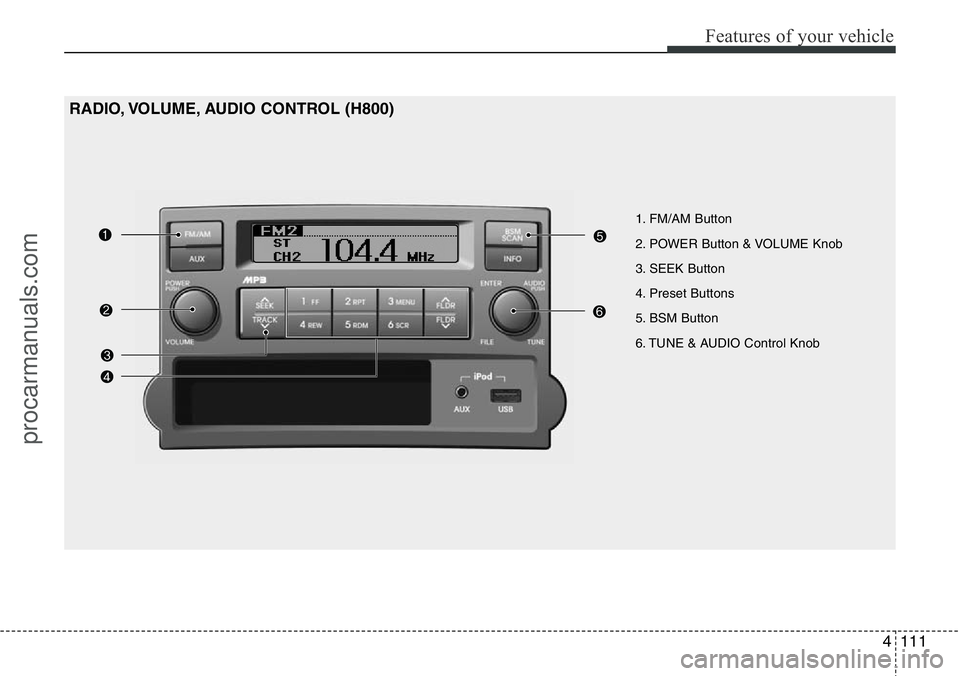
1. FM/AM Button
2. POWER Button & VOLUME Knob
3. SEEK Button
4. Preset Buttons
5. BSM Button
6. TUNE & AUDIO Control Knob
RADIO, VOLUME, AUDIO CONTROL (H800)
procarmanuals.com
Page 183 of 339
![HYUNDAI I800 2015 User Guide Features of your vehicle
112 4
RADIO, SET UP, VOLUME CON-
TROL
1. FM/AM Button
Pressing the [FM/AM] button selects the
FM/AM band and toggles in the order of
FM1
➟ FM2 ➟ AM ➟ ...➟ FM1... when](/img/35/57915/w960_57915-182.png "HYUNDAI I800 2015 User Guide Features of your vehicle
112 4
RADIO, SET UP, VOLUME CON-
TROL
1. FM/AM Button
Pressing the [FM/AM] button selects the
FM/AM band and toggles in the order of
FM1
➟ FM2 ➟ AM ➟ ...➟ FM1... when")
Features of your vehicle
112 4
RADIO, SET UP, VOLUME CON-
TROL
1. FM/AM Button
Pressing the [FM/AM] button selects the
FM/AM band and toggles in the order of
FM1
➟ FM2 ➟ AM ➟ ...➟ FM1... when
the button is pressed each time. FM/AM
Mode is displayed on the LCD.
2. POWER Button & Volume Knob
Turns the set on/off when the IGNITION
SWITCH is on ACC or ON.
If the button is turned to the right, it
increases the volume and left, decreases
the volume.
3. SEEK Button
• When the [SEEK ] button is
pressed, it increases the band fre-
quency to automatically select a chan-
nel. Stops at the previous frequency if
no channel is found.
• When the [TRACK ] button is
pressed, it reduces the band frequency
to automatically select a channel.
Stops at the previous frequency if no
channel is found.
4. Preset Buttons
Push [1]~[6] buttons less than 0.8 sec-
ond to play the channel saved in each
button. Push Preset button for 0.8 sec-
ond or longer to save current channel to
the respective button with a beep.
5. BSM Button
When the button is pressed, it automati-
cally selects and saves channels with
high reception rate to [PRESET] buttons
[1]~[6] and plays the channel saved in
PRESET1. If no channel is saved after
BSM, it will play the previous channel.
6. TUNE & AUDIO Control Knob
Turn this control while listening to a radio
channel to manually adjust frequency.
Turn clockwise to increase frequency
and counterclockwise to reduce frequen-
cy.
Pressing the button changes the BASS,
TREBLE, FADER and BALANCE TUNE
mode. The mode selected is shown on
the display.
After selecting each mode, rotate the
Audio control knob clockwise or counter-
clockwise.BASS Control
To increase the BASS, rotate the knob
clockwise, while to decrease the BASS,
rotate the knob counterclockwise.
TREBLE Control
To increase the TREBLE, rotate the knob
clockwise, while to decrease the TRE-
BLE, rotate the knob counterclockwise.
FADER Control
Turn the control knob clockwise to
emphasize rear speaker sound (front
speaker sound will be attenuated).
When the control knob is turned counter-
clockwise, front speaker sound will be
emphasized (rear speaker sound will be
attenuated).
BALANCE Control
Rotate the knob clockwise to emphasize
right speaker sound (left speaker sound
will be attenuated). When the control
knob is turned counter clockwise, left
speaker sound will be emphasized (right
speaker sound will be attenuated).
procarmanuals.com
Page 189 of 339
Features of your vehicle
118 4
USING iPod®
When the iPod is connected, the 'iPod'
icon will be displayed on the top left cor-
ner of the display screen.
1. iPod Button
If iPod is connected, it switches to the
iPod mode from the Radio mode to play
the song files stored in the iPod. If iPod is
not connected, it displays "NO Media" for
3 seconds and returns to the previous
mode.
2. TRACK Button
• Press the [TRACK ] button for less
than 0.8 second to play from the begin-
ning of the song currently played.
Press the button for less than 0.8 sec-
ond and press it again within 1 second
to move and play the previous track.
Press the button for 0.8 second or
longer to play the song in reverse
direction in fast speed.
• Press the [SEEK ] button for less
than 0.8 second to move to the next
track. Press the button for 0.8 second
or longer to play the song in forward
direction in fast speed.
3. RDM (RANDOM) Button
Press the button for less than 0.8 second
to activate or deactivate the random play-
back of the songs within the current cat-
egory. Press the button for longer than
0.8 second to randomly play all songs in
the entire album of the iPod.
Press the button once again to cancel
the mode.
4. RPT (REPEAT) Button
Repeats the song currently played.
5. MENU Button
Moves to the upper category from cur-
rently played category of the iPod.
To move to (play) the category (song)
displayed, MENU (preset6) You will be
able to search through the lower catego-
ry of the selected category.
The order of iPod's category is SONG,
ALBUMS, ARTISTS, GENRES, and
iPod.
6. INFO Button
Displays the information of the file cur-
rently played in the order of TITLE ➟
ARTIST ➟ALBUM ➟NORMAL DIS-
PLAY ➟TITLE ➟... (Displays no informa-
tion if the file has no song information.)
7. TUNE Knob & ENTER Button
When you turn the button clockwise, it
will display the songs (category) next to
the song currently played (category in
the same level).
Also, when you turn the button counter-
clockwise, it will display the songs (cate-
gory) before the song currently played
(category in the same level).
If you want to listen to the song displayed
in the song category, press the button,
then it will skip to the selected song and
play.
procarmanuals.com
Page 190 of 339
4119
Features of your vehicle
✽NOTICE FOR USING THE
iPod®DEVICE
• Some iPod models might not support
the communication protocol and the
files will not be played.
Supported iPod models:
- iPod Mini
- iPod 4th (Photo) ~ 6th (Classic) gen-
eration
- iPod Nano 1st ~ 4th generation
- iPod Touch 1st ~ 2nd generation
• The order of search or playback of
songs in the iPod can be different
from the order searched in the audio
system.
• If the iPod disabled due to its own
malfunction, reset the iPod. (Reset:
Refer to iPod manual)
• An iPod may not operate normally on
low battery.
• Some iPod devices, such as the
iPhone, can be connected through the
Bluetooth
®Wireless Technology inter-
face. The device must have audio
Bluetooth
®Wireless Technology capa-
bility (such as for stereo headphone
Bluetooth
®Wireless Technology). The
device can play, but it will not be con-
trolled by the audio system.
CAUTION IN USING THE
iPod®DEVICE
• The HYUNDAI iPod Power Cable
is needed in order to operate iPod
with the audio buttons on the
audio system. The USB cable pro-
vided by Apple may cause mal-
function and should not be used
for HYUNDAI vehicles.
❋The HYUNDAI iPod Power
Cable may be purchased
through your HYUNDAI Dealer.