bluetooth Hyundai Ioniq Electric 2019 Owner's Manual
[x] Cancel search | Manufacturer: HYUNDAI, Model Year: 2019, Model line: Ioniq Electric, Model: Hyundai Ioniq Electric 2019Pages: 555, PDF Size: 20.1 MB
Page 14 of 555
I
IN
N S
ST
T R
R U
U M
M E
EN
N T
T
P
P A
A N
N E
EL
L
O
O V
VE
ER
R V
V I
IE
E W
W
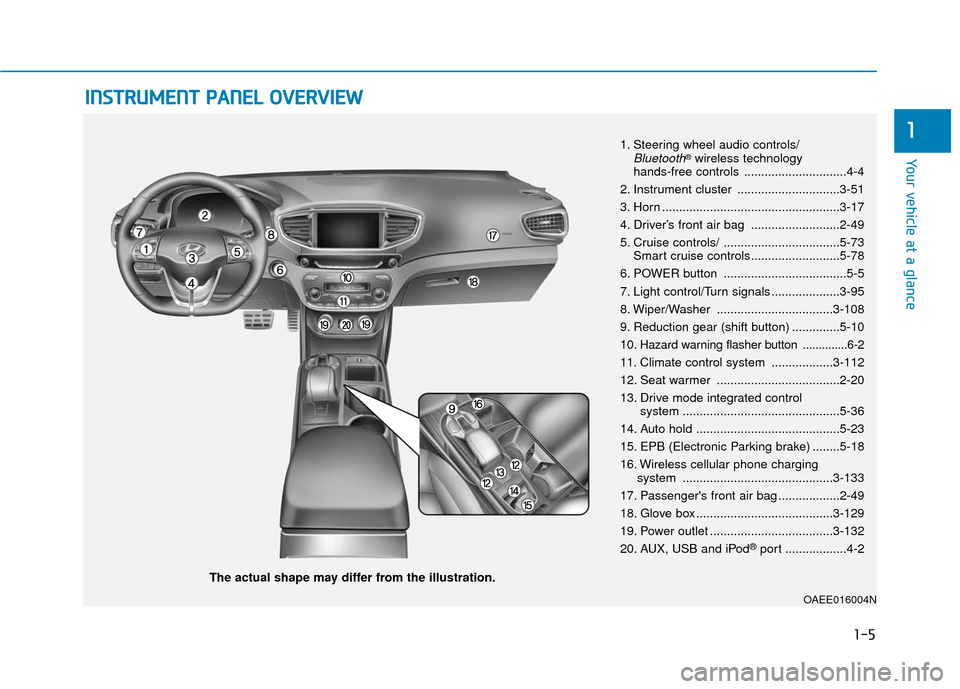
The actual shape may differ from the illustration.
1-5
Your vehicle at a glance
11. Steering wheel audio controls/Bluetooth®wireless technology
hands-free controls ..............................4-4
2. Instrument cluster ..............................3-51
3. Horn ....................................................3-17
4. Driver’s front air bag ..........................2-49
5. Cruise controls/ ..................................5-73 Smart cruise controls..........................5-78
6. POWER button ....................................5-5
7. Light control/Turn signals ....................3-95
8. Wiper/Washer ..................................3-108
9. Reduction gear (shift button) ..............5-10
10
. Hazard warning flasher button ..............6-2
11. Climate control system ..................3-112
12. Seat warmer ....................................2-20
13. Drive mode integrated control system ..............................................5-36
14. Auto hold ..........................................5-23
15. EPB (Electronic Parking brake) ........5-18
16. Wireless cellular phone charging system ............................................3-133
17. Passenger's front air bag ..................2-49
18. Glove box ........................................3-129
19. Power outlet ....................................3-132
20. AUX, USB and iPod
®port ..................4-2
OAEE016004N
Page 224 of 555
Multimedia System
Multimedia System.................................................4-2
AUX, USB and iPod®port ...............................................4-2
Antenna ........................................................................\
.......4-2
Steering Wheel Audio Controls ......................................4-3
Bluetooth®Wireless Technology Hands-Free ...........4-4
Audio (Display Audio) / Video /
Navigation System (AVN).................................................4-5
How Vehicle Audio Works ...............................................4-5
Features of Your Vehicle.................................................4-7
Audio (with Touch Screen) .................................4-10
Feature of Your Audio ...................................................4-11
Radio........................................................................\
...........4-16
SiriusXM ........................................................................\
....4-18
Media........................................................................\
..........4-19
Phone ........................................................................\
.........4-32
Setup ........................................................................\
..........4-41
Declaration of Conformity ..................................4-44
FCC ....................................................................\
.................4-44
4
Page 227 of 555
4-4
Multimedia System
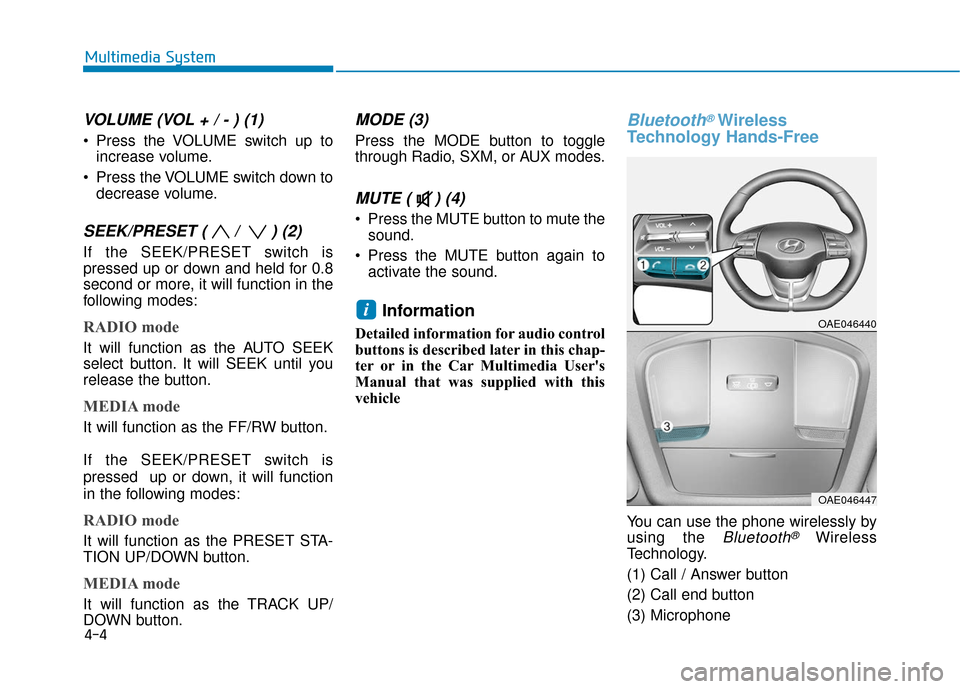
VOLUME (VOL + / - ) (1)
Press the VOLUME switch up toincrease volume.
Press the VOLUME switch down to decrease volume.
SEEK/PRESET ( / ) (2)
If the SEEK/PRESET switch is
pressed up or down and held for 0.8
second or more, it will function in the
following modes:
RADIO mode
It will function as the AUTO SEEK
select button. It will SEEK until you
release the button.
MEDIA mode
It will function as the FF/RW button.
If the SEEK/PRESET switch is
pressed up or down, it will function
in the following modes:
RADIO mode
It will function as the PRESET STA-
TION UP/DOWN button.
MEDIA mode
It will function as the TRACK UP/
DOWN button.
MODE (3)
Press the MODE button to toggle
through Radio, SXM, or AUX modes.
MUTE ( ) (4)
Press the MUTE button to mute thesound.
Press the MUTE button again to activate the sound.
Information
Detailed information for audio control
buttons is described later in this chap-
ter or in the Car Multimedia User's
Manual that was supplied with this
vehicle
Bluetooth®Wireless
Technology Hands-Free
You can use the phone wirelessly by
using the
Bluetooth®Wireless
Technology.
(1) Call / Answer button
(2) Call end button
(3) Microphone
iOAE046440
OAE046447
Page 228 of 555
Detailed information for the
Bluetooth®Wireless Technology
hands-free is described later in this
chapter or in the Car Multimedia
User's Manual.
Audio (Display Audio) / Video /
Navigation System (AVN)
(if equipped)
Detailed information for the AVN sys-
tem is described in the Car
Multimedia User's Manual.
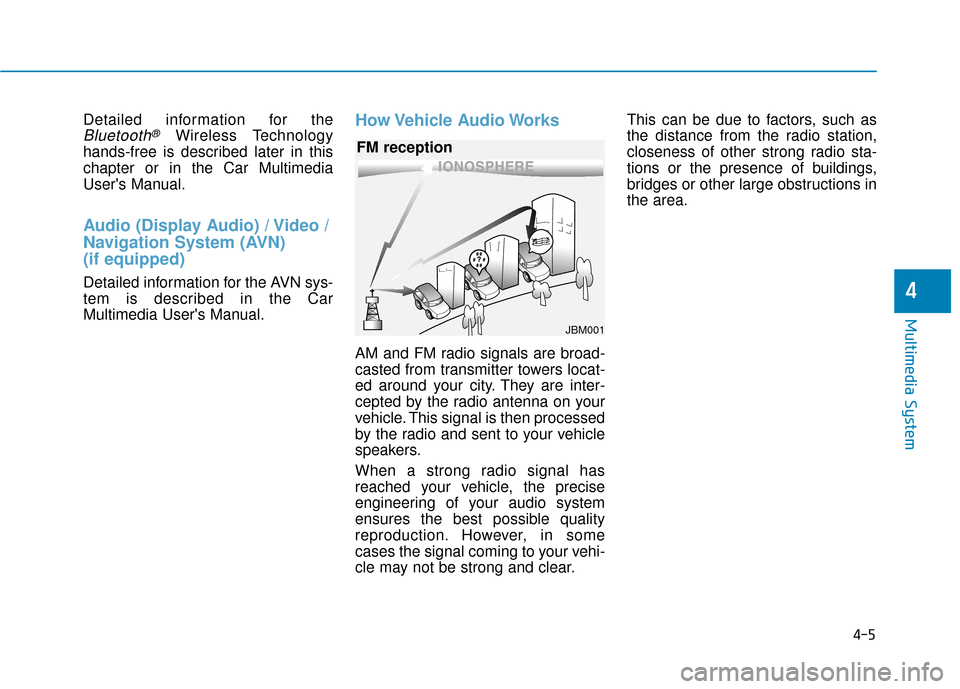
How Vehicle Audio Works
AM and FM radio signals are broad-
casted from transmitter towers locat-
ed around your city. They are inter-
cepted by the radio antenna on your
vehicle. This signal is then processed
by the radio and sent to your vehicle
speakers.
When a strong radio signal has
reached your vehicle, the precise
engineering of your audio system
ensures the best possible quality
reproduction. However, in some
cases the signal coming to your vehi-
cle may not be strong and clear. This can be due to factors, such as
the distance from the radio station,
closeness of other strong radio sta-
tions or the presence of buildings,
bridges or other large obstructions in
the area.
4-5
Multimedia System
4
JBM001
FM reception
Page 232 of 555
4-9
Multimedia System
4
iPod®
iPod®is a registered trademark of Apple Inc.
Bluetooth®Wireless Technology
The Bluetooth®word mark and logos are registered
trademarks owned by Bluetooth SIG, Inc. and any use of
such marks by HYUNDAI is under license.
Other trademarks and trade names are those of their
respective owners.
Pandora®
Pandora, the Pandora logo, and the Pandora trade dress
are trademarks or registered trademarks of Pandora
Media, Inc. Used with permission.
Pandora is only available in certain countries. Please visit
http://www.pandora.com/legal for more information.
Page 233 of 555
4-10
Multimedia System
G2H4G0000EU/G2H4G0001EU
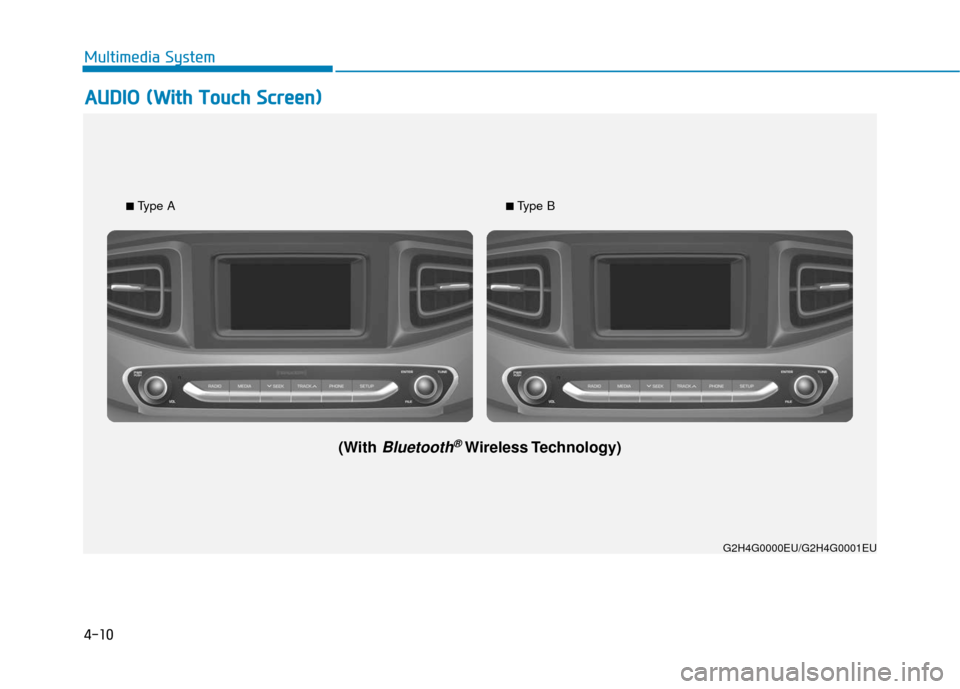
■
Type A
(With Bluetooth®Wireless Technology)
■ Type B
A
A
U
U D
DI
IO
O
(
( W
W i
it
t h
h
T
T o
ou
uc
ch
h
S
S c
cr
re
e e
en
n )
)
Page 234 of 555
4-11
Multimedia System
4
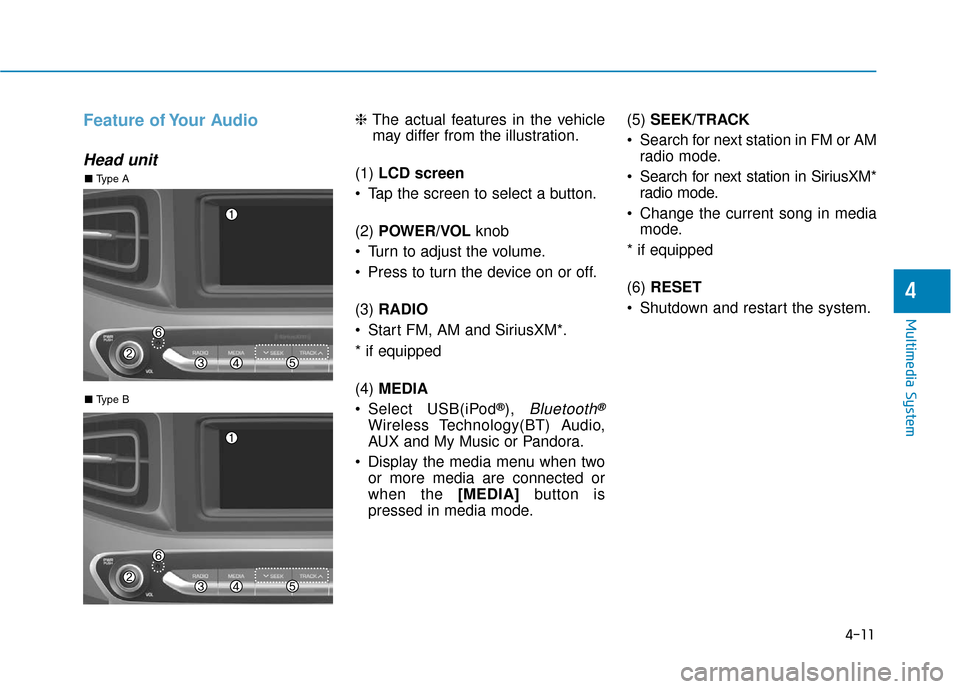
Feature of Your Audio
Head unit
❈The actual features in the vehicle
may differ from the illustration.
(1) LCD screen
Tap the screen to select a button.
(2) POWER/VOL knob
Turn to adjust the volume.
Press to turn the device on or off.
(3) RADIO
Start FM, AM and SiriusXM*.
* if equipped
(4) MEDIA
Select USB(iPod
®), Bluetooth®
Wireless Technology(BT) Audio,
AUX and My Music or Pandora.
Display the media menu when two or more media are connected or
when the [MEDIA] button is
pressed in media mode. (5)
SEEK/TRACK
Search for next station in FM or AM radio mode.
Search for next station in SiriusXM* radio mode.
Change the current song in media mode.
* if equipped
(6) RESET
Shutdown and restart the system.
■ Type B
■ Type A
Page 235 of 555
4-12
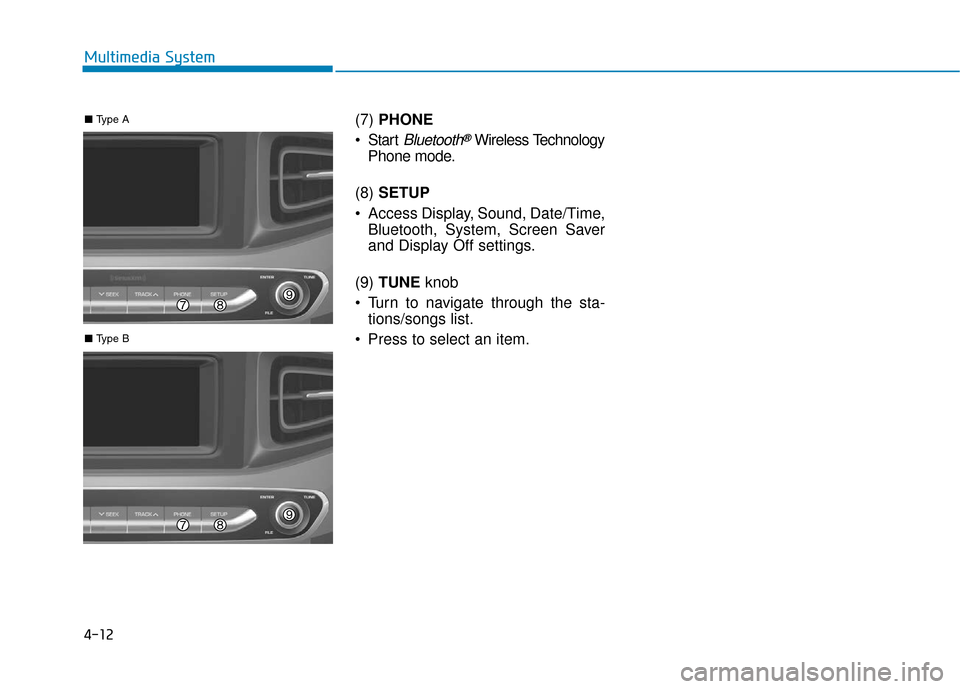
Multimedia System(7) PHONE
Start
Bluetooth®Wireless Technology
Phone mode.
(8) SETUP
Access Display, Sound, Date/Time, Bluetooth, System, Screen Saver
and Display Off settings.
(9) TUNE knob
Turn to navigate through the sta- tions/songs list.
Press to select an item.
■ Type B
■ Type A
Page 236 of 555
4-13
Multimedia System
4
Multimedia System
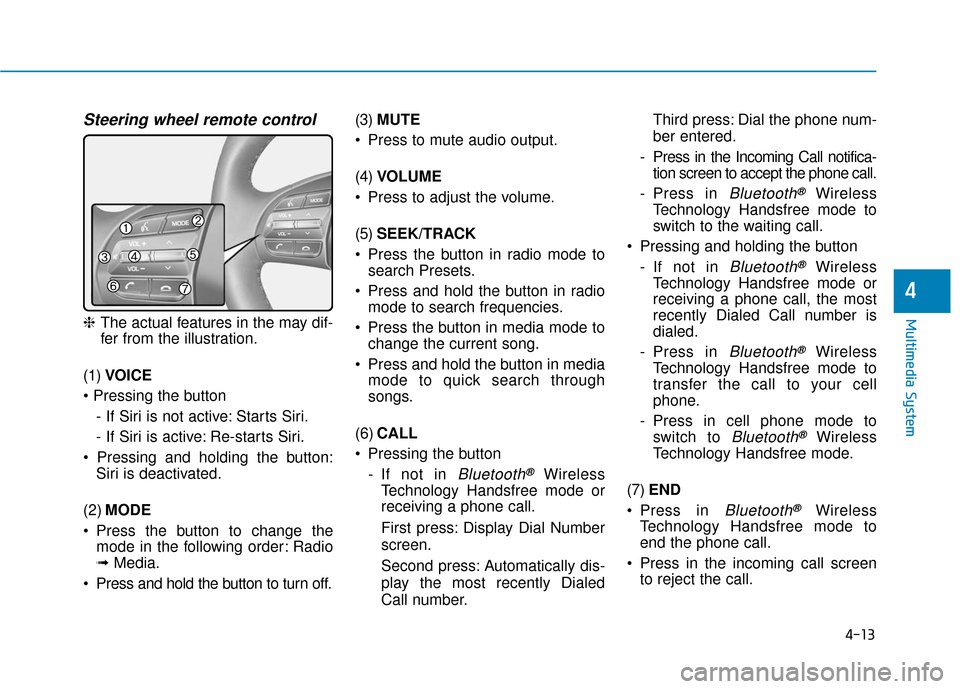
Steering wheel remote control
❈The actual features in the may dif-
fer from the illustration.
(1) VOICE
- If Siri is not active: Starts Siri.
- If Siri is active: Re-starts Siri.
Siri is deactivated.
(2) MODE
Press the button to change the mode in the following order: Radio
➟ Media.
Press and hold the button to turn off. (3)
MUTE
Press to mute audio output.
(4) VOLUME
Press to adjust the volume.
(5) SEEK/TRACK
Press the button in radio mode to search Presets.
Press and hold the button in radio mode to search frequencies.
Press the button in media mode to change the current song.
Press and hold the button in media mode to quick search through
songs.
(6) CALL
Pressing the button - If not in
Bluetooth®Wireless
Technology Handsfree mode or
receiving a phone call.
First press: Display Dial Number
screen.
Second press: Automatically dis-
play the most recently Dialed
Call number. Third press: Dial the phone num-
ber entered.
- Press in the Incoming Call notifica- tion screen to accept the phone call.
- Press in
Bluetooth®Wireless
Technology Handsfree mode to
switch to the waiting call.
Pressing and holding the button - If not in
Bluetooth®Wireless
Technology Handsfree mode or
receiving a phone call, the most
recently Dialed Call number is
dialed.
- Press in
Bluetooth®Wireless
Technology Handsfree mode to
transfer the call to your cell
phone.
- Press in cell phone mode to switch to
Bluetooth®Wireless
Technology Handsfree mode.
(7) END
Press in
Bluetooth®Wireless
Technology Handsfree mode to
end the phone call.
Press in the incoming call screen to reject the call.
Page 238 of 555
4-15
Multimedia System
4
Information
• If you want to change the position ofdevice installation, please inquire
with your place of purchase or serv-
ice maintenance center. Technical
expertise is required to install or dis-
assemble the device.
• Turn on the car ignition before using this device. Do not operate the
audio system for long periods of
time with the ignition turned off as
such operations may lead to battery
discharge. Do not subject the device to
severe shock or impact. Direct
pressure onto the front side of
the monitor may cause damage
to the LCD or touch screen.
When cleaning the device, make sure to turn off the device and
use a dry and smooth cloth.
Never use tough materials,
chemical cloths, or solvents
(alcohol, benzene, thinners, etc.)
As such materials may damage
the device panel or cause
color/quality deterioration.
Do not place beverages close to the audio system. Spilling bever-
ages may lead to system mal-
function.
Placing the audio system within an electromagnetic environment
may result in noise interference.
Information
In this case of product malfunction,
please contact your dealer or vehicle
service center.
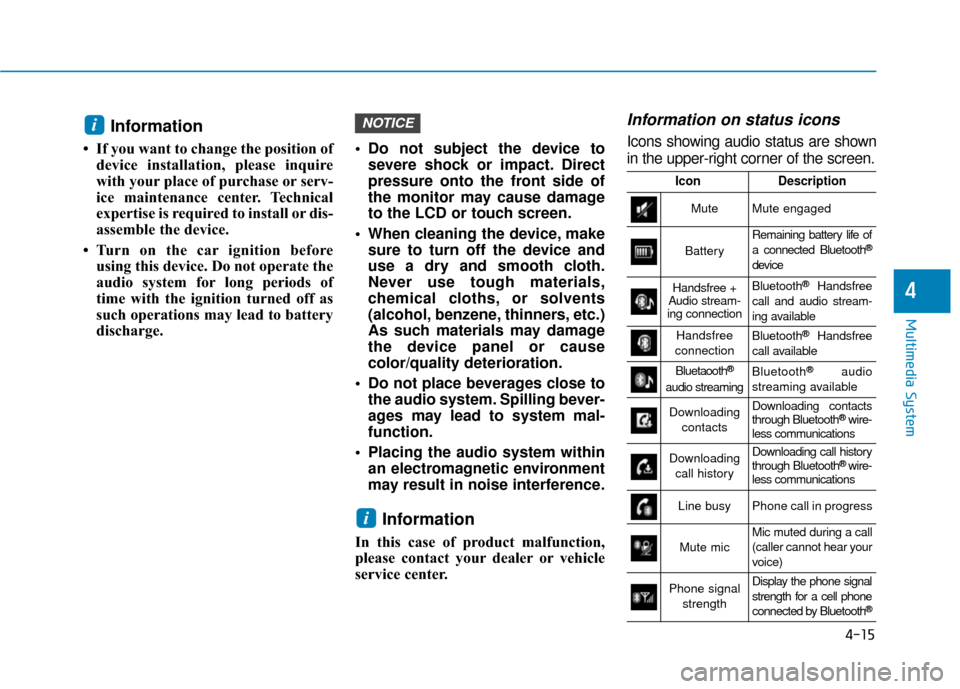
Information on status icons
Icons showing audio status are shown
in the upper-right corner of the screen.
i
NOTICEi
IconDescription
MuteMute engaged
Battery
Remaining battery life of
a connected Bluetooth®
device
Handsfree +
Audio stream-
ing connectionBluetooth®Handsfree
call and audio stream-
ing available
Handsfree
connectionBluetooth®Handsfree
call available
Bluetaooth®
audio streaming
Bluetooth®audio
streaming available
Downloading contactsDownloading contacts
through Bluetooth®wire-
less communications
Downloading
call historyDownloading call history
through Bluetooth® wire-
less communications
Line busyPhone call in progress
Mute micMic muted during a call
(caller cannot hear your
voice)
Phone signal
strengthDisplay the phone signal
strength for a cell phone
connected by Bluetooth
®