charge Hyundai Ioniq Plug-in Hybrid 2018 Owner's Guide
[x] Cancel search | Manufacturer: HYUNDAI, Model Year: 2018, Model line: Ioniq Plug-in Hybrid, Model: Hyundai Ioniq Plug-in Hybrid 2018Pages: 589, PDF Size: 21.53 MB
Page 242 of 589
3-150
Convenient features of your vehicle
To prevent damage to the Power
Outlets :
Use the power outlet only when the vehicle is in the ready ( )
mode and remove the accessory
plug after use. Using the acces-
sory plug for prolonged periods
of time with the vehicle off could
cause the battery to discharge.
Only use 12V electric acces- sories which are less than 180 W
(Watts) in electric capacity.
Adjust the air-conditioner or heater to the lowest operating
level when using the power outlet.
Close the cover when not in use. (Continued)(Continued)
Some electronic devices can
cause electronic interference
when plugged into a vehicle’s
power outlet. These devices may
cause excessive audio static
and malfunctions in other elec-
tronic systems or devices used
in your vehicle.
Push the plug in as far as it will go. If good contact is not made,
the plug may overheat and the
fuse may open.
Plug in battery equipped electri- cal/electronic devices with
reverse current protection. The
current from the battery may
flow into the vehicle’s electri-
cal/electronic system and cause
system malfunction.
USB Charger (if equipped)
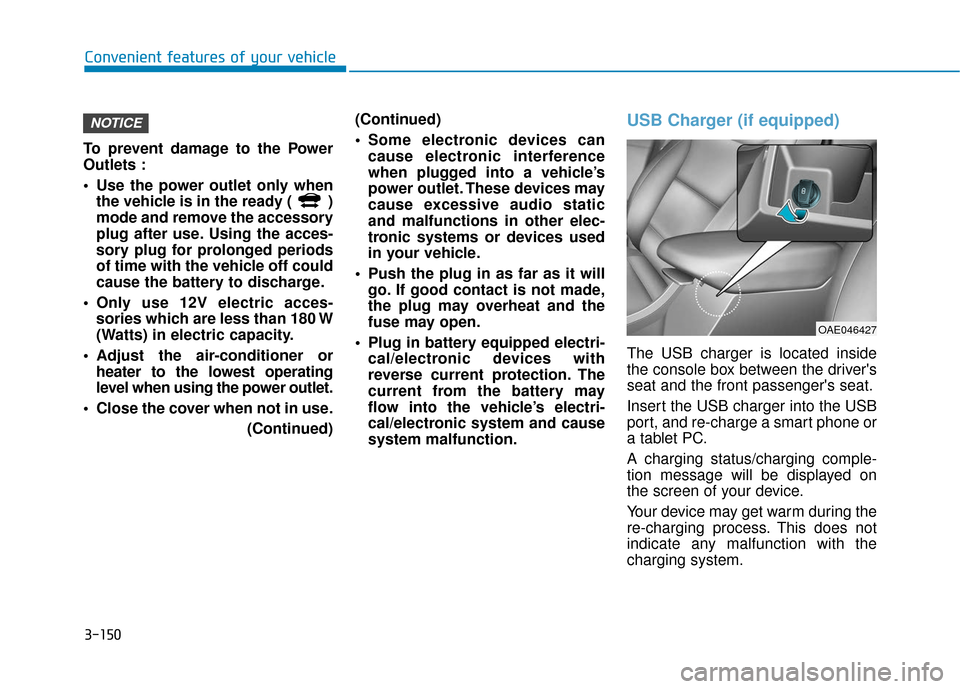
The USB charger is located inside
the console box between the driver's
seat and the front passenger's seat.
Insert the USB charger into the USB
port, and re-charge a smart phone or
a tablet PC.
A charging status/charging comple-
tion message will be displayed on
the screen of your device.
Your device may get warm during the
re-charging process. This does not
indicate any malfunction with the
charging system.
NOTICE
OAE046427
Page 243 of 589
3-151
Convenient features of your vehicle
3
A device that requires a specific re-
charging method may not properly
re-charge with this USB charger. If
this is the case, use the specified
charger for your device.
This USB charging terminal will not
allow you to play your media on the
AVN unit. To connect your media to
the AVN unit, use the USB port in the
multi box and follow steps in the Car
Multimedia User's Manual that is
supplied with the vehicle.Wireless Cellular Phone
Charging System (if equipped)
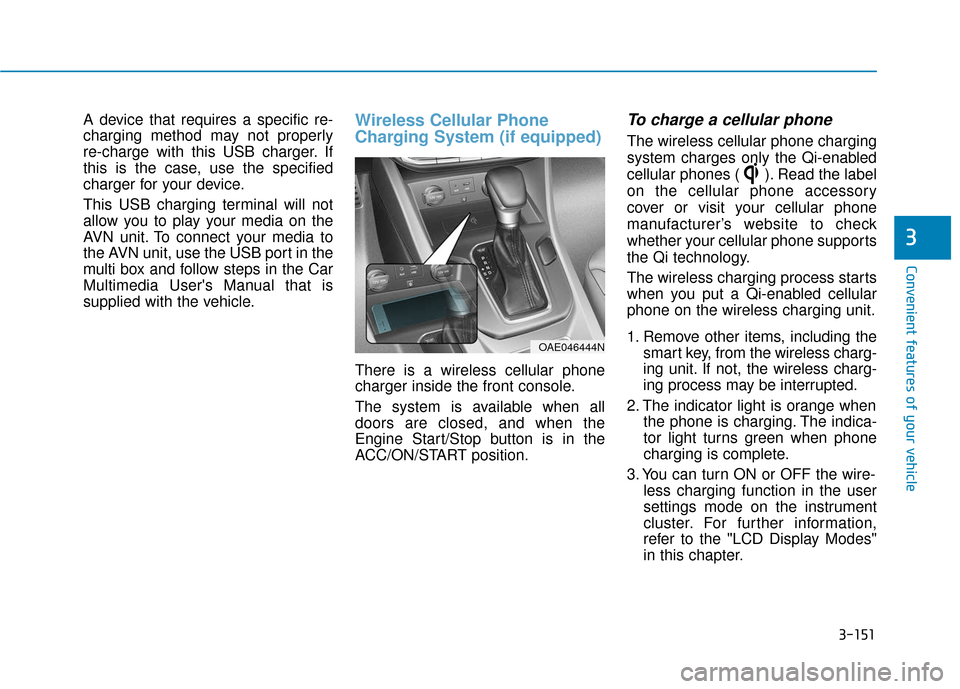
There is a wireless cellular phone
charger inside the front console.
The system is available when all
doors are closed, and when the
Engine Start/Stop button is in the
ACC/ON/START position.
To charge a cellular phone
The wireless cellular phone charging
system charges only the Qi-enabled
cellular phones ( ). Read the label
on the cellular phone accessory
cover or visit your cellular phone
manufacturer’s website to check
whether your cellular phone supports
the Qi technology.
The wireless charging process starts
when you put a Qi-enabled cellular
phone on the wireless charging unit.
1. Remove other items, including thesmart key, from the wireless charg-
ing unit. If not, the wireless charg-
ing process may be interrupted.
2. The indicator light is orange when the phone is charging. The indica-
tor light turns green when phone
charging is complete.
3. You can turn ON or OFF the wire- less charging function in the user
settings mode on the instrument
cluster. For further information,
refer to the "LCD Display Modes"
in this chapter.
OAE046444N
Page 244 of 589
3-152
Convenient features of your vehicle
If your phone is not charging:
- Slightly change the position of the cellular phone on the charging pad.
- Make sure the indicator light is orange.
Depending on the cellular phone type,
the indicator light may not turn green
even though the charging is complete.
The indicator light will blink orange for
10 seconds if there is a malfunction in
the wireless charging system.
In this case, temporarily stop the
charging process, and re-attempt to
wirelessly charge your cellular phone
again.
The system warns you with a message
on the LCD display if the cellular phone
is still on the wireless charging unit
after the Engine Start/Stop button is in
the OFF position and the front door is
opened.
The wireless cellular phone charging system may not sup-
port certain cellular phones,
which are not verified for the Qi
specification ( ).
(Continued)(Continued)
Locate your cell phone well in
the middle of the wireless cellu-
lar phone charging system.
Even when your cell phone
locates slightly to one side, the
charging speed may decrease.
The wireless charging process may temporarily stop, when a
smart key function operates (i.e.
starting the vehicle, opening the
doors, closing the doors).
For certain cell phones, the indi- cator color may not change to
green, even when the wireless
charging process is properly
completed.
The wireless charging process may temporarily stop, when tem-
perature abnormally increases
inside the wireless cellular
phone charging system. The
wireless charging process
restarts, when temperature falls
to a certain level.
The wireless charging process may temporarily stop when
there is any metallic item, such
as a coin, between the wireless
cellular phone charging system
and a cellular phone.
Clock
Vehicles with Audio system
Select the [SETUP] button on the
audio system ➟ Select [Date/Time].
Set time: Set the time displayed on the audio screen.
Time format: Choose between 12- hour and 24-hour time formats.
Vehicles with Navigation system
Select the Settings menu on the
Navigation system ➟Select
[Date/Time].
GPS time: Displays time according to the received GNSS time.
24-hour: Switches to 12 hour or 24 hour.
NOTICE
Do not adjust the clock while
driving, you may lose your
steering control and cause an
accident that results in severe
personal injury or death.
WARNING
Page 262 of 589
4-15
Multimedia System
4
Information
Turn on the car ignition before using
this device. Do not operate the audio
system for long periods of time with
the ignition turned off as such opera-
tions may lead to battery discharge. Do not subject the device to
severe shock or impact. Direct
pressure onto the front side of
the monitor may cause damage
to the LCD or touch screen.
When cleaning the device, make sure to turn off the device and
use a dry and smooth cloth.
Never use rough materials,
chemical cloths, or solvents
(alcohol, benzene, thinners,
etc.). As such materials may
damage the device panel or
cause color/quality deteriora-
tion.
Do not place beverages close to the audio system. Spilling bever-
ages may lead to system mal-
function.
Placing the audio system within an electromagnetic environment
may result in noise interference.
Information
In this case of product malfunction,
please contact your dealer or vehicle
service center.
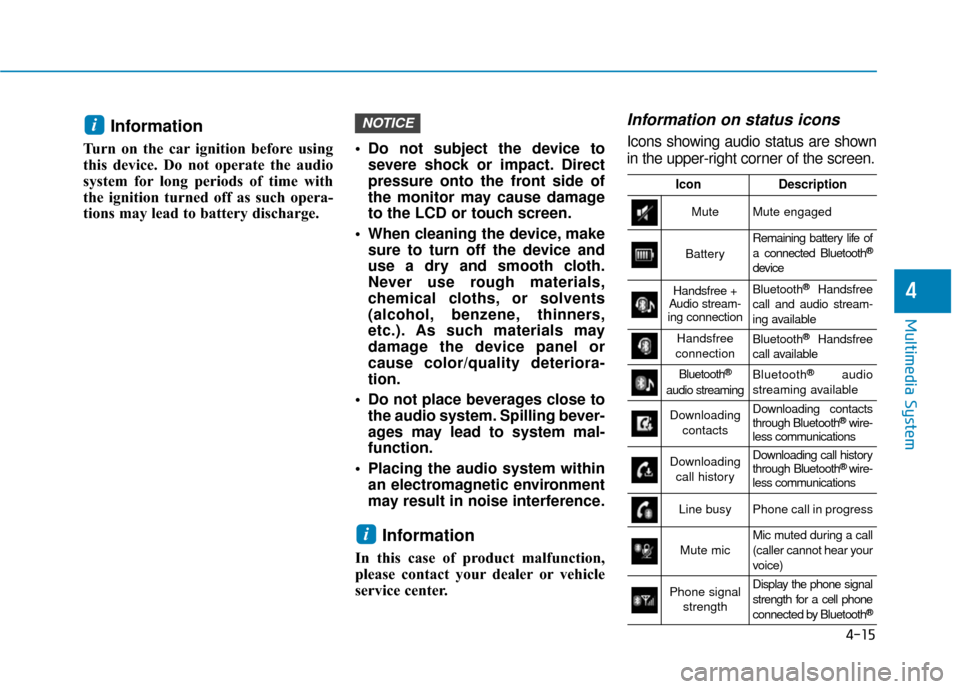
Information on status icons
Icons showing audio status are shown
in the upper-right corner of the screen.
i
NOTICEi
IconDescription
MuteMute engaged
Battery
Remaining battery life of
a connected Bluetooth®
device
Handsfree +
Audio stream-
ing connectionBluetooth®Handsfree
call and audio stream-
ing available
Handsfree
connectionBluetooth®Handsfree
call available
Bluetooth®
audio streaming
Bluetooth®audio
streaming available
Downloading contactsDownloading contacts
through Bluetooth®wire-
less communications
Downloading
call historyDownloading call history
through Bluetooth® wire-
less communications
Line busyPhone call in progress
Mute micMic muted during a call
(caller cannot hear your
voice)
Phone signal
strengthDisplay the phone signal
strength for a cell phone
connected by Bluetooth
®
Page 264 of 589
4-17
Multimedia System
4
Information- SiriusXM®
Satellite Radio information
(if equipped)
• Satellite Radio channels: Enjoy SiriusXM Satellite Radio with a
3-month trial subscription to the
Sirius Select package. You’ll get over
variable channels, including commer-
cial free music, plus all your favorite
sports, exclusive talk, entertainment,
and a selection of premium program-
ming. For more information and a
complete list of SiriusXM channels,
visit siriusxm.com in the United States,
siriusxm.ca in Canada, or call
SiriusXM at 1-888-539-7474.
• Satellite Radio reception factors: To receive the satellite signal, your
vehicle has been equipped with a
satellite radio antenna located on
the roof of your vehicle. The vehicle
roof provides the best location for
an unobstructed, open view of the
sky, a requirement of a satellite
radio system. Like AM/FM, there
are several factors that can affect
satellite radio reception perform-
ance: (Continued)(Continued)
- Antenna obstructions: For opti-mal reception performance, keep
the antenna clear of snow and ice
build-up and keep luggage and
other material as far away from
the antenna as possible.
• SiriusXM Satellite Radio service: SiriusXM is a subscription-based satel-
lite radio service that broadcasts music,
sports, news and entertainment pro-
gramming to radio receivers, which are
available for installation in motor vehi-
cles or factory installed, as well as for
the home, portable and wireless devices,
and through an Internet connection on
a personal computer.
Vehicles that are equipped with a
factory installed SiriusXM Satellite
Radio system include:
- Hardware and an introductorytrial subscription term, which
begins on the date of sale or lease
of the vehicle.
- For a small upgrade fee, access to SiriusXM music channels, and
other select channels over the
Internet using any computer con-
nected to the Internet (U.S. cus-
tomers only).
(Continued)(Continued)
• SiriusXM services require a sub-
scription sold separately, or as a
package, by Sirius XM Radio Inc. If
you decide to continue service after
your trial, the subscription plan you
choose will automatically renew
thereafter and you will be charged
according to your chosen payment
method at then-current rates. Fees
and taxes apply. To cancel you must
call SiriusXM at 1-866-635-2349.
See SiriusXM Customer Agreement
for complete terms at www.sir-
iusxm.com. SiriusXM U.S. satellite
and data services are available only
in the 48 contiguous states, DC and
Puerto Rico (with coverage limita-
tions). SiriusXM satellite service is
also available in Canada; see
www.siriusxm.ca. All fees and pro-
gramming subject to change. Sirius,
XM and all related marks and logos
are trademarks of Sirius XM Radio
Inc.
i
Page 268 of 589
4-21
Multimedia System
4
Information
-
Using the USB Devices
• Starting the vehicle while a USB device is connected can damage the
device. Please disconnect USB
devices before starting the vehicle.
• Starting the vehicle or stopping the engine while an external USB device
is connected can result in failure of
the external USB device to operate.
• Be cautious of static electricity when connecting/disconnecting external
USB devices.
• An encrypted MP3 player is not rec- ognized when connected as an exter-
nal device.
• External USB devices may not be recognized, depending on the state
of the external USB device.
• Only products with byte/sectors for- matted at 4 KB or lower are recog-
nized.
• Only USB devices in FAT12/16/32 format are recognized; NTFS and
ExFAT file systems are not recog-
nized.
(Continued)(Continued)
• Some USB devices are not recog-
nized due to compatibility issues.
• Do not touch the USB connections.
• Connecting and disconnecting USB devices rapidly over a short period
of time can cause equipment failure.
• Abnormal sounds may be audible when the USB device is disconnected.
• Turn the audio off before connecting or disconnecting external USB
devices.
• Recognition may take longer depending on the type, capacity or
file format of the external USB
device. This is not a product mal-
function.
• Use of USB devices for purposes other than playing music files is pro-
hibited.
• Image display and video playback are not supported.
(Continued)(Continued)
• Use of USB accessories, including
charge and heat though the USB I/F,
can lead to reduced product per-
formance or malfunctions. Do not
use USB devices or accessories for
these purposes.
• Use of aftermarket USB hubs and extension cables can result in the
vehicle’s audio system failing to rec-
ognize your USB device. Connect
the USB device directly to the multi-
media port of your vehicle.
• When using high-capacity USB devices with logical drive divisions,
only files saved on the highest level
logical drive can be played.
If applications are loaded on a USB
drive, file playback may fail.
• Some MP3 players, cell phones, dig- ital cameras, etc. (USB devices that
are not recognized as mobile stor-
age) may not operate normally
when connected.
• USB charging may not be supported by some mobile devices.
(Continued)
i
Page 271 of 589
![Hyundai Ioniq Plug-in Hybrid 2018 Owners Guide 4-24
Multimedia System
(4) Save: Save the selected file(s)
.
- Select the files you want to save, and select [Save]. This saves the
selected files to My Music.
- Saving is canceled if phone calls are](/img/35/16220/w960_16220-270.png "Hyundai Ioniq Plug-in Hybrid 2018 Owners Guide 4-24
Multimedia System
(4) Save: Save the selected file(s)
.
- Select the files you want to save, and select [Save]. This saves the
selected files to My Music.
- Saving is canceled if phone calls are")
4-24
Multimedia System
(4) Save: Save the selected file(s)
.
- Select the files you want to save, and select [Save]. This saves the
selected files to My Music.
- Saving is canceled if phone calls are received or made while saving.
- If Siri is activated, phone calls are received or made while sav-
ing, saving will be canceled.
- Up to 6,000 files can be saved.
- The currently playing file on the USB device cannot be changed
while saving.
- My Music cannot be used while saving.
- Up to 700 MB can be saved.
Information: Detailed information on the currently playing song is dis-
played.
Sound Settings: Audio sound set- tings can be changed.Information
-
Using the iPod®Devices
• To use the audio system’s iPod
®con-
trol function, use the dedicated
cable provided with your iPod
®.
• Connecting the iPod
®to the vehicle
during play may result in a loud
noise that lasts about one to two sec-
onds. Connect the iPod
®to the vehi-
cle after stopping or pausing play.
• Connect the iPod
®with the vehicle in
the ACC ON state to begin charging.
• When connecting the iPod
®cable,
be sure to fully push the cable into
the port.
• When EQ effects are enabled simul- taneously on external devices, such
as iPod
®s and the audio system, the
EQ effects may overlap, causing
sound quality deterioration or dis-
tortion. Deactivate the EQ function
for all external devices, if possible.
• Noise may occur when your iPod
®
or the AUX port is connected.
Disconnect and store separately
when not in use. (Continued)(Continued)
• There may be noise if the audio sys-
tem is used with an iPod
®or AUX
external device connected to the
power jack. In these cases, discon-
nect the iPod
®or external device
from the power jack.
• Play may be interrupted, or device malfunctions may occur depending
on the characteristics of your
iPod
®/iPhone®.
• Play may fail if your iPhone
®is con-
nected through both Bluetooth®
Wireless Technology and USB. In
this case, select Dock connector or
Bluetooth
®Wireless Technology on
your iPhone®to change the sound
output settings.
• If your software version does not support the communication proto-
col or your iPod
®is not recognized
due to device failure, anomalies or
defects, iPod
®mode cannot be used.
• iPod
®nano (5th generation) devices
may not be recognized if the battery
is low. Charge sufficiently before use.
(Continued)
i
Page 272 of 589
4-25
Multimedia System
4
(Continued)
• The search and song play order inthe iPod
®device may be different
from the search order in the audio
system.
• If the iPod
®has failed due to an
internal defect, please reset the
iPod
®(consult your iPod®manual).
• Depending on the software version, the iPod
®may fail to sync with the
system. If the media is removed or
disconnected before recognition, the
previous mode may not be restored
(iPad
®cannot be charged).
• Cables other than the 1-meter cable provided with iPod
®/iPhone®prod-
ucts may not be recognized.
• When other music apps are used on your iPod
®, the system sync func-
tion may fail due to malfunction of
the iPod
®application.
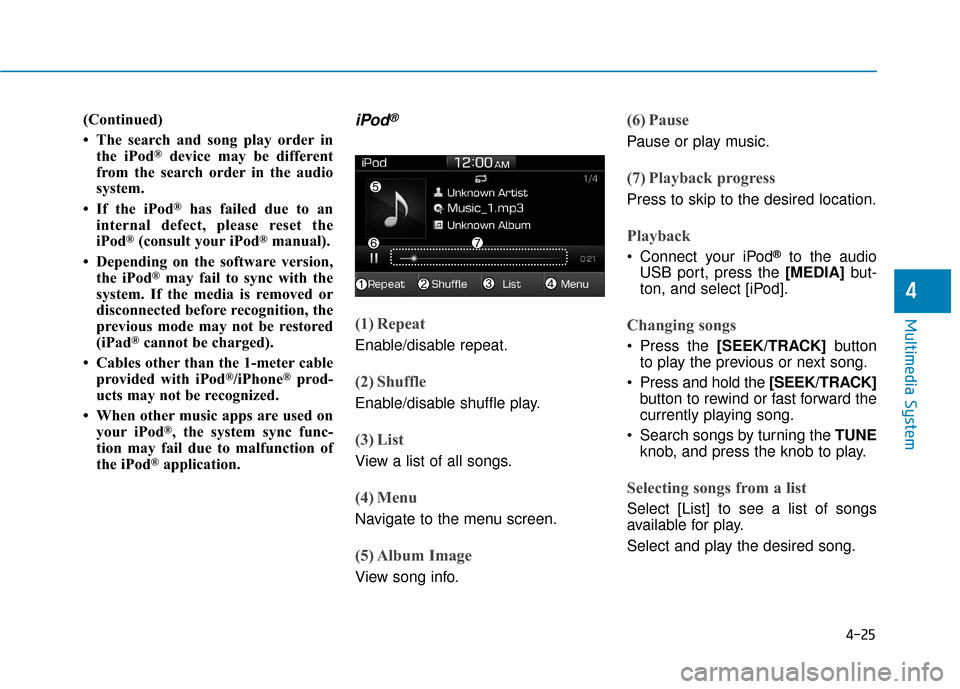
iPod®
(1) Repeat
Enable/disable repeat.
(2) Shuffle
Enable/disable shuffle play.
(3) List
View a list of all songs.
(4) Menu
Navigate to the menu screen.
(5) Album Image
View song info.
(6) Pause
Pause or play music.
(7) Playback progress
Press to skip to the desired location.
Playback
Connect your iPod®to the audio
USB port, press the [MEDIA] but-
ton, and select [iPod].
Changing songs
Press the [SEEK/TRACK] button
to play the previous or next song.
Press and hold the [SEEK/TRACK] button to rewind or fast forward the
currently playing song.
Search songs by turning the TUNE knob, and press the knob to play.
Selecting songs from a list
Select [List] to see a list of songs
available for play.
Select and play the desired song.
Page 315 of 589
5-24
Driving your vehicle
Do not depress the brake pedal
continuously without the " "
indicator ON. The battery may be
discharged.
Some noise and vibration may occur during braking. This is
normal.
In below cases, some electric brake pump noise and motor
vibration may occur temporarily.
This is normal operation.
- When the pedal is depressedvery quickly
- When the pedal is depressed multiple times in short inter-
vals
- When the ABS function is acti- vated during braking
Disc Brake Wear Indicator
When your brake pads are worn and
new pads are required, you will hear
a high pitched warning sound from
your front or rear brakes. You may
hear this sound come and go or it
may occur whenever you depress
the brake pedal.
Note that some driving conditions or
climates may cause a brake squeal
when you first apply (or lightly apply)
the brakes. This is normal and does
not indicate a problem with your
brakes.
To avoid costly brake repairs, do
not continue to drive with worn
brake pads.
Information
Always replace brake pads as com-
plete front or rear axle sets.
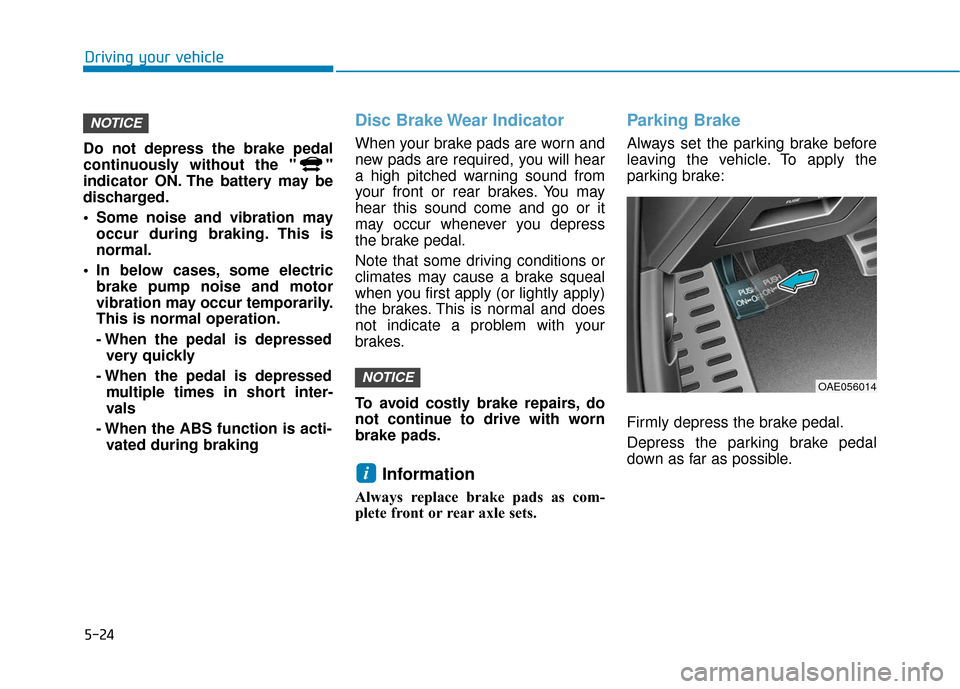
Parking Brake
Always set the parking brake before
leaving the vehicle. To apply the
parking brake:
Firmly depress the brake pedal.
Depress the parking brake pedal
down as far as possible.
i
NOTICE
NOTICE
OAE056014
Page 319 of 589
5-28
Driving your vehicle
Information
When you jump start your vehicle
because of a drained battery, the ABS
warning light ( ) may turn on at the
same time. This happens because of
the low battery voltage. It does not
mean your ABS is malfunctioning.
Have the battery recharged before
driving the vehicle.
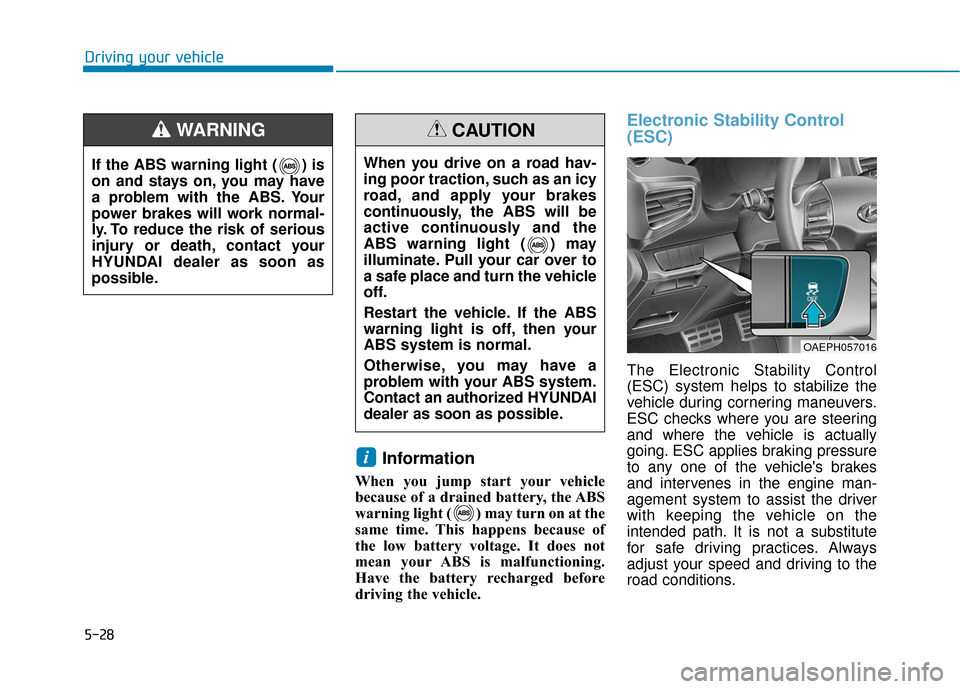
Electronic Stability Control
(ESC)
The Electronic Stability Control
(ESC) system helps to stabilize the
vehicle during cornering maneuvers.
ESC checks where you are steering
and where the vehicle is actually
going. ESC applies braking pressure
to any one of the vehicle's brakes
and intervenes in the engine man-
agement system to assist the driver
with keeping the vehicle on the
intended path. It is not a substitute
for safe driving practices. Always
adjust your speed and driving to the
road conditions.
i
When you drive on a road hav-
ing poor traction, such as an icy
road, and apply your brakes
continuously, the ABS will be
active continuously and the
ABS warning light ( ) may
illuminate. Pull your car over to
a safe place and turn the vehicle
off.
Restart the vehicle. If the ABS
warning light is off, then your
ABS system is normal.
Otherwise, you may have a
problem with your ABS system.
Contact an authorized HYUNDAI
dealer as soon as possible.
CAUTION
If the ABS warning light ( ) is
on and stays on, you may have
a problem with the ABS. Your
power brakes will work normal-
ly. To reduce the risk of serious
injury or death, contact your
HYUNDAI dealer as soon as
possible.
WARNING
OAEPH057016