change time Hyundai Ioniq Plug-in Hybrid 2019 - RHD (UK, Australia) Owner's Guide
[x] Cancel search | Manufacturer: HYUNDAI, Model Year: 2019, Model line: Ioniq Plug-in Hybrid, Model: Hyundai Ioniq Plug-in Hybrid 2019Pages: 599, PDF Size: 17.32 MB
Page 320 of 599
4-18
Multimedia System
Presets
Save up to 40 frequently used stations.
To listen to a preset, press the
desired station list.
Press and hold the desired slot from
1 through 40. This saves the current
station in the selected slot.
If the slot is empty, simply pressing
saves the station to the slot.
Menu
Press the [Menu], and select the
desired function.
Scan: All available stations areplayed for five seconds each.
Sound Settings: Audio sound set- tings can be changed.
Media
Information
- Using the Discs
• Do not clean discs with chemical solutions, such as record sprays,
antistatic sprays, antistatic liquids,
benzene, or thinners.
• After using a disc, put the disc back in its original case to prevent disc
scratches.
• Hold discs by their edges or within the centre hole to prevent damages
to disc surfaces.
• Do not introduce foreign substances into the disc insert/eject slot.
Introducing foreign substances
could damage the device interior.
• Do not insert two discs simultaneously. (Continued)(Continued)
• When using CD-R/CD-RW discs,
differences in disc reading and play-
ing times may occur depending on
the disc manufacturer, production
method and the recording method
as used by the user.
• Clean fingerprints and dust off the disc surface (coated side) with a soft
cloth.
• The use of CD-R/CD-RW discs attached with labels may result in
disc slot jams or difficulties in disc
removal. Such discs may also result
in noise whilst playing.
• Some CD-R/CD-RW discs may not properly operate depending on the
disc manufacturer, production
method and the record method as
used by the user. If problems persist,
trying using a different CD as con-
tinued use may result in malfunc-
tions.
• The performance of this product may differ depending on the CDRW
Drive Software.
(Continued)i
Page 322 of 599
![Hyundai Ioniq Plug-in Hybrid 2019 - RHD (UK, Australia) Owners Guide 4-20
Multimedia System
Repeat play
Press the [Repeat] to enable or dis-
able ‘Repeat all’, ‘Repeat current
song’.
Repeat all: All songs in theplaylist are repeated.
Repeat current song: Th](/img/35/16215/w960_16215-321.png "Hyundai Ioniq Plug-in Hybrid 2019 - RHD (UK, Australia) Owners Guide 4-20
Multimedia System
Repeat play
Press the [Repeat] to enable or dis-
able ‘Repeat all’, ‘Repeat current
song’.
Repeat all: All songs in theplaylist are repeated.
Repeat current song: Th")
4-20
Multimedia System
Repeat play
Press the [Repeat] to enable or dis-
able ‘Repeat all’, ‘Repeat current
song’.
Repeat all: All songs in theplaylist are repeated.
Repeat current song: The song that is currently playing is repeated.
Shuffle play
Press the [Shuffle] to enable/disable
‘Shuffle’ play.
Shuffle: Songs are played in arandom order.
Menu
Press the [Menu] and select the
desired function.
Information: Detailed informationon the song that is currently play-
ing is displayed.
Sound Settings: Audio sound set- tings can be changed
Information- Using MP3
Supported audio formats
File formats other than the formats
above may not be recognised or
playable. Information such as file-
name may not be displayed.
Range of supported compressed file
types
1. Bitrate range (Kbps)
BIT RATE(kbps)
MPEG1MPEG2MPEG2.5WMA
Layer3High Range
328848
40161664
48242480
56323296
644040128
804848160
965656192
1126464
1288080
1609696
192112112
224128128
256144144
320160160
NOTICE
File System
ISO 9660 Level 1
ISO 9660 Level 2
Romeo / Juliet (128 characters)
Compressed
audio formats
MPEG1 Audio Layer3
MPEG2 Audio Layer3
MPEG2.5 Audio Layer3
Windows Media Audio Ver 7.X
& 8.X
i
Page 324 of 599
![Hyundai Ioniq Plug-in Hybrid 2019 - RHD (UK, Australia) Owners Guide 4-22
Multimedia System
(6) Pause
Pause or play music.
(7) Playback progress
Press to skip to the desired location.
Playback
Press the [MEDIA]button and
select [Disc MP3].
When a disc is inserted in](/img/35/16215/w960_16215-323.png "Hyundai Ioniq Plug-in Hybrid 2019 - RHD (UK, Australia) Owners Guide 4-22
Multimedia System
(6) Pause
Pause or play music.
(7) Playback progress
Press to skip to the desired location.
Playback
Press the [MEDIA]button and
select [Disc MP3].
When a disc is inserted in")
4-22
Multimedia System
(6) Pause
Pause or play music.
(7) Playback progress
Press to skip to the desired location.
Playback
Press the [MEDIA]button and
select [Disc MP3].
When a disc is inserted in the audio system, disc playback
begins automatically.
Changing songs
Press the [SEEK/TRACK] button
to play the previous or next song.
Press and hold the [SEEK/TRACK] button to rewind or fast-forward the
song that is currently playing.
Search songs by turning the TUNE knob, and press the knob to play.
Selecting songs from a list
Press the [List] to view a list of songs
available to play.
Select and play the desired song.
Repeat play
Press the [Repeat] to enable or dis-
able ‘Repeat all’, ‘Repeat current
song’ or ‘Repeat folder’.
Repeat all: Repeat all songs inthe playlist.
Repeat current song: The song that is currently playing is repeated.
Repeat folder: All songs in the current folder are repeated.
Shuffle play
Press the [Shuffle] to enable/disable
‘Shuffle’, ‘Shuffle folder’ play.
Shuffle: Songs are played in arandom order.
Shuffle folder: Songs within the current folder are played in ran-
dom order.
Menu
Press the [Menu] and select the
desired function.
Information: Detailed informationon the song that is currently play-
ing is displayed.
Sound Settings: Audio sound set- tings can be changed.
Information
- Using the USB Devices
• Starting the vehicle whilst a USB device is connected can damage the
device. Please disconnect USB
devices before starting the vehicle.
• Starting the vehicle or stopping the engine whilst an external USB
device is connected can result in fail-
ure of the external USB device to
operate.
• Be cautious of static electricity when connecting/disconnecting external
USB devices.
• An encrypted MP3 player is not recognised when connected as an
external device.
• External USB devices may not be recognised, depending on the state
of the external USB device.
• Only products with byte/sectors for- matted at 4 KB or lower are recog-
nised.
• Only USB devices in FAT12/16/32 format are recognised; NTFS and
ExFAT file systems are not recog-
nised.
(Continued)
i
Page 327 of 599
![Hyundai Ioniq Plug-in Hybrid 2019 - RHD (UK, Australia) Owners Guide 4-25
Multimedia System
4
Information
The repeat folder function is available
only when songs are playing from the
[File] category under [List].
Shuffle play
Press the [Shuffle] to enable/disable
‘Sh](/img/35/16215/w960_16215-326.png "Hyundai Ioniq Plug-in Hybrid 2019 - RHD (UK, Australia) Owners Guide 4-25
Multimedia System
4
Information
The repeat folder function is available
only when songs are playing from the
[File] category under [List].
Shuffle play
Press the [Shuffle] to enable/disable
‘Sh")
4-25
Multimedia System
4
Information
The repeat folder function is available
only when songs are playing from the
[File] category under [List].
Shuffle play
Press the [Shuffle] to enable/disable
‘Shuffle’, ‘Shuffle folder’ or ‘Shuffle
category’ play.
Shuffle: Songs are played inrandom order.
Shuffle folder: Songs within the current folder are played in ran-
dom order
Shuffle category: Songs within the current category are played in
random order.
Menu
Press the [Menu], and select the
desired function.
Save to My Music: Songs on yourUSB device can be saved to My
Music.
(1) File: Select a file to save
.
(2) Mark all: Select all files.
(3) Unmark all: Deselect all files. (4) Save: Save the selected file(s)
.
- Select the files you want to save,
and press the [Save]. This saves
the selected files to My Music.
- Saving is cancelled if phone calls are received or made whilst saving.
- Up to 6,000 files can be saved.
- The currently playing file on the USB device cannot be changed
whilst saving.
- My Music cannot be used whilst saving.
- Up to 700 MB can be saved.
Information: Detailed information on the currently playing song is dis-
played.
Sound Settings: Audio sound set- tings can be changed.i
Page 328 of 599
4-26
Multimedia System
Information
- Using the iPod®Devices
• To use the audio system’s iPod
®con-
trol function, use the dedicated
cable provided with your iPod
®.
• Connecting the iPod
®to the vehicle
during play may result in a loud
noise that lasts about one to two sec-
onds. Connect the iPod
®to the vehi-
cle after stopping or pausing play.
• Connect the iPod
®with the vehicle in
the ACC ON state to begin charging.
• When connecting the iPod
®cable,
be sure to fully push the cable into
the port.
• When EQ effects are enabled simul- taneously on external devices, such
as iPod
®s and the audio system, the
EQ effects may overlap, causing
sound quality deterioration or dis-
tortion. Deactivate the EQ function
for all external devices, if possible.
• Noise may occur when your iPod
®
or the AUX port is connected.
Disconnect and store separately
when not in use. (Continued)(Continued)
• There may be noise if the audio sys-
tem is used with an iPod
®or AUX
external device connected to the
power jack. In these cases, discon-
nect the iPod
®or external device
from the power jack.
• Play may be interrupted, or device malfunctions may occur depending
on the characteristics of your
iPod
®/iPhone®.
• Play may fail if your iPhone
®is con-
nected through both Bluetooth®and
USB. In this case, select Dock con-
nector or Bluetooth
®on your
iPhone®to change the sound output
settings.
• If your software version does not support the communication proto-
col or your iPod
®is not recognised
due to device failure, anomalies or
defects, iPod
®mode cannot be used.
• iPod
®nano (5th generation) devices
may not be recognised if the battery is
low. Charge sufficiently before use.
(Continued)(Continued)
• The search and song play order in
the iPod
®device may be different
from the search order in the audio
system.
• If the iPod
®has failed due to an
internal defect, please reset the
iPod
®(consult your iPod®manual).
• Depending on the software version, the iPod
®may fail to sync with the
system. If the media is removed or
disconnected before recognition, the
previous mode may not be restored
(iPad
®cannot be charged).
• Cables other than the 1-meter cable provided with iPod
®/iPhone®prod-
ucts may not be recognised.
• When other music apps are used on your iPod
®, the system sync func-
tion may fail due to malfunction of
the iPod
®application.
i
Page 329 of 599
4-27
Multimedia System
4
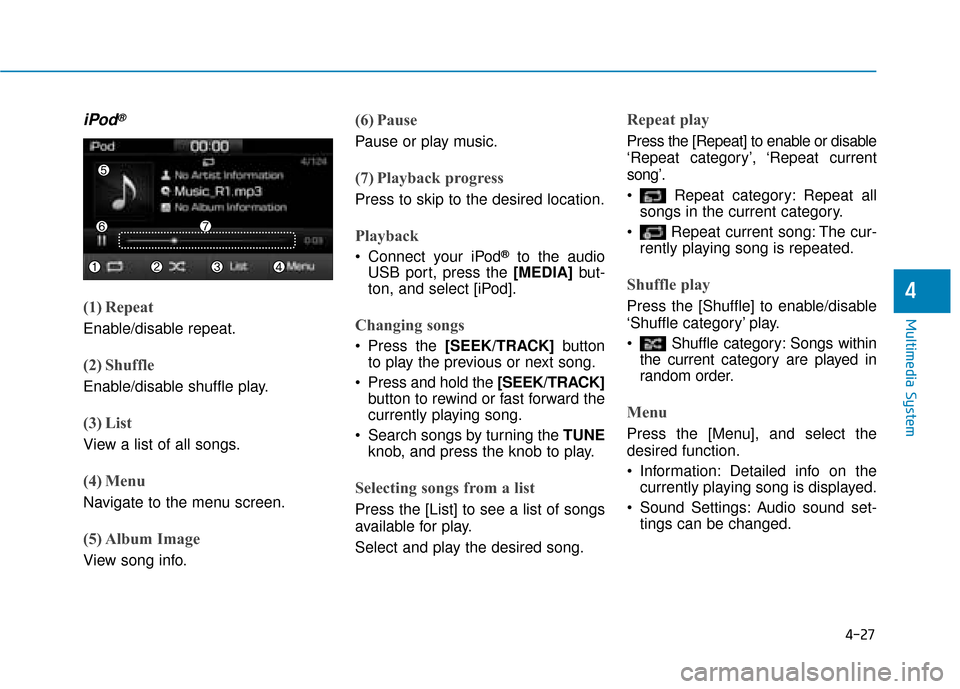
iPod®
(1) Repeat
Enable/disable repeat.
(2) Shuffle
Enable/disable shuffle play.
(3) List
View a list of all songs.
(4) Menu
Navigate to the menu screen.
(5) Album Image
View song info.
(6) Pause
Pause or play music.
(7) Playback progress
Press to skip to the desired location.
Playback
Connect your iPod®to the audio
USB port, press the [MEDIA] but-
ton, and select [iPod].
Changing songs
Press the [SEEK/TRACK] button
to play the previous or next song.
Press and hold the [SEEK/TRACK] button to rewind or fast forward the
currently playing song.
Search songs by turning the TUNE knob, and press the knob to play.
Selecting songs from a list
Press the [List] to see a list of songs
available for play.
Select and play the desired song.
Repeat play
Press the [Repeat] to enable or disable
‘Repeat category’, ‘Repeat current
song’.
Repeat category: Repeat allsongs in the current category.
Repeat current song: The cur- rently playing song is repeated.
Shuffle play
Press the [Shuffle] to enable/disable
‘Shuffle category’ play.
Shuffle category: Songs withinthe current category are played in
random order.
Menu
Press the [Menu], and select the
desired function.
Information: Detailed info on thecurrently playing song is displayed.
Sound Settings: Audio sound set- tings can be changed.
Page 332 of 599
![Hyundai Ioniq Plug-in Hybrid 2019 - RHD (UK, Australia) Owners Guide 4-30
Multimedia System
Information
The repeat play function is engaged,
depending on the operation of the con-
nected Bluetooth device.
Shuffle play
Press the [Shuffle] to enable/disable
‘Shuffleâ€](/img/35/16215/w960_16215-331.png "Hyundai Ioniq Plug-in Hybrid 2019 - RHD (UK, Australia) Owners Guide 4-30
Multimedia System
Information
The repeat play function is engaged,
depending on the operation of the con-
nected Bluetooth device.
Shuffle play
Press the [Shuffle] to enable/disable
‘Shuffleâ€")
4-30
Multimedia System
Information
The repeat play function is engaged,
depending on the operation of the con-
nected Bluetooth device.
Shuffle play
Press the [Shuffle] to enable/disable
‘Shuffle’, ‘Shuffle category’ play.
Shuffle: Songs are played inrandom order.
Shuffle category: Songs within the current category are played in
random order.
Information
The shuffle function is engaged,
depending on the operation of the con-
nected Bluetooth device.
Menu
Press the [Menu], and select the
desired function.
Connections: The currently connectedBluetooth
®device can be changed.
Information: Detailed information on the currently playing song is displayed.
Sound Settings: Audio sound set- tings can be changed.
AUX
Running AUX
Press the [MEDIA] button, and
select [AUX].
Connect the external device con- nection jack to the AUX terminal to
run AUX.
(1) Sound Settings: Audio sound set- tings can be changed.
My Music
(1) Repeat
Enable/disable repeat.
(2) Shuffle
Enable/disable shuffle play.
(3) List
View a list of all songs.
(4) Menu
Navigate to the menu screen.
(5) Album Image
View song info.
i
i
Page 334 of 599
![Hyundai Ioniq Plug-in Hybrid 2019 - RHD (UK, Australia) Owners Guide 4-32
Multimedia System
(4) Delete: Delete the selected file(s)
.
- Select the file to delete, then press the [Delete] to delete it.
- Delete is cancelled if phone calls are received or made during
del](/img/35/16215/w960_16215-333.png "Hyundai Ioniq Plug-in Hybrid 2019 - RHD (UK, Australia) Owners Guide 4-32
Multimedia System
(4) Delete: Delete the selected file(s)
.
- Select the file to delete, then press the [Delete] to delete it.
- Delete is cancelled if phone calls are received or made during
del")
4-32
Multimedia System
(4) Delete: Delete the selected file(s)
.
- Select the file to delete, then press the [Delete] to delete it.
- Delete is cancelled if phone calls are received or made during
delete.
Add to playlist: Frequently played songs can be paired in a [Playlist].
- Songs can be played from the[Playlist].
Information: Detailed info on the currently playing song is displayed.
Sound Settings: Audio sound set- tings can be changed.
Delete from playlist
When a song in the playlist is play-
ing, press the [Menu] and select
[Delete from playlist].
Select the song to delete, then press
[Delete].
Phone
Information
- Using the Bluetooth®
Wireless Technology Mobile
Phone
• Bluetooth
®is a near-field wireless
networking technology that uses the
2.4 GHz frequency to connect vari-
ous devices within a certain distance
wirelessly.
• The technology is used in PCs, peripherals, Bluetooth
®phones,
tablet PCs, household appliances
and automobiles. Devices support-
ing Bluetooth
®can exchange data at
high speeds without physical cable
connections.
• Bluetooth
®Handsfree devices enable
convenient access to phone functions
through cell phones equipped with
Bluetooth
®.
• Some Bluetooth
®devices may not
be supported by the Bluetooth®
Handsfree function.
(Continued)(Continued)
• When Bluetooth
®is connected and
calls are attempted through a con-
nected cell phone from outside the
vehicle, the call is connected
through the Bluetooth
®Handsfree
function of the vehicle.
• Please be sure to disconnect the Bluetooth
®Handsfree function through
your Bluetooth®device or the audio
screen.
i
Page 340 of 599
![Hyundai Ioniq Plug-in Hybrid 2019 - RHD (UK, Australia) Owners Guide 4-38
Multimedia System
Favourites
Select the [PHONE]button on the
audio system ➟ Select
[Favourites(Favorites)] ➟
Favourites(Favorites) list displayed.
(1) Favourites(Favorites) list: A list of p](/img/35/16215/w960_16215-339.png "Hyundai Ioniq Plug-in Hybrid 2019 - RHD (UK, Australia) Owners Guide 4-38
Multimedia System
Favourites
Select the [PHONE]button on the
audio system ➟ Select
[Favourites(Favorites)] ➟
Favourites(Favorites) list displayed.
(1) Favourites(Favorites) list: A list of p")
4-38
Multimedia System
Favourites
Select the [PHONE]button on the
audio system ➟ Select
[Favourites(Favorites)] ➟
Favourites(Favorites) list displayed.
(1) Favourites(Favorites) list: A list of paired favourites(favor ites) is dis-
played.
Connect a call when selected.
(2) Add to favourites(Favorites): Add a downloaded phone number to
favourites(favor ites).
(3) Delete: Delete a saved Favourites(Favorites).Information
• Up to 20 favourites can be pairedfor each paired Bluetooth®device.
• Favourites can be accessed when the Bluetooth
®device they were paired
from is connected.
• The audio system does not down- load favourites from Bluetooth
®
devices. Favourites must be newly
saved before use.
• To add to favourites, contacts must be downloaded first.
• Saved favourites are not updated even if the contacts of the connected
Bluetooth
®device are changed. In
this case, favourites need to be delet-
ed and added again.
Call history
Select the [PHONE] button on the
audio system ➟ Select [Call history]
➟ Call history is displayed.
(1) Call history: Display the down- loaded call history list.
Connect a call when selected.
(2) Sort by: Sort by all calls, dialed calls, received calls or missed
calls.
(3) Download: Download call history from connected Bluetooth
®devices.
Information
• Up to 50 dialed, received and missedcalls are saved.
• When the latest call history is received, the existing call history is
deleted.
i
i
Page 342 of 599
![Hyundai Ioniq Plug-in Hybrid 2019 - RHD (UK, Australia) Owners Guide 4-40
Multimedia System
(5) Call - Enter and select a phone num-ber to call.
- Select without entering a phone number to see the most recent
dialed call.
Settings
Select the [PHONE] button on the
audio](/img/35/16215/w960_16215-341.png "Hyundai Ioniq Plug-in Hybrid 2019 - RHD (UK, Australia) Owners Guide 4-40
Multimedia System
(5) Call - Enter and select a phone num-ber to call.
- Select without entering a phone number to see the most recent
dialed call.
Settings
Select the [PHONE] button on the
audio")
4-40
Multimedia System
(5) Call - Enter and select a phone num-ber to call.
- Select without entering a phone number to see the most recent
dialed call.
Settings
Select the [PHONE] button on the
audio ➟Select [Settings].
- For phone settings, refer to Setup page.
Setup
Access Display, Sound, Date/Time,
Bluetooth, System, Screensaver and
Display Off settings.
Select the [SETUP] button on the
audio system.
Display
Select the [SETUP] button on the
audio system ➟ Select [Display].
Dimming mode(Mode): Audio screen brightness can be adjusted to the
time of day.
Brightness(Illumination): The bright- ness of the audio screen can be
changed.
Text scroll*: If text is too long to be displayed on the screen, enable
the text scroll function.
* if equipped
Sound
Select the [SETUP] button on the
audio system ➟ Select [Sound].
Position: Sound balance and pan- ning can be adjusted.
Equaliser(Tone): Sound tone colour can be adjusted.
Speed dependent volume control: Automatically adjust volume based
on vehicle speed.
Beep: Select whether to play a beep sound when the screen is touched.