audio HYUNDAI IX20 2017 Owner's Manual
[x] Cancel search | Manufacturer: HYUNDAI, Model Year: 2017, Model line: IX20, Model: HYUNDAI IX20 2017Pages: 456, PDF Size: 9.46 MB
Page 211 of 456
![HYUNDAI IX20 2017 Owners Manual 4133
Features of your vehicle
Select [Phone List] Select mobile
phone through TUNE knob Select[Delete] ➀Select the desired mobile phone.
➁ Delete the selected mobile phone.
➂ Deletion comp](/img/35/57916/w960_57916-210.png "HYUNDAI IX20 2017 Owners Manual 4133
Features of your vehicle
Select [Phone List] Select mobile
phone through TUNE knob Select[Delete] ➀Select the desired mobile phone.
➁ Delete the selected mobile phone.
➂ Deletion comp")
4133
Features of your vehicle
Select [Phone List] Select mobile
phone through TUNE knob Select[Delete] ➀Select the desired mobile phone.
➁ Delete the selected mobile phone.
➂ Deletion completion is displayed.
❈ When attempting to delete a currently
connected phone, the phone is firstdisconnected. Phone book Download
This feature is used to download phone
book and call histories into the audio sys-tem.
Select [Phone book Download] Select
through TUNE knob
Auto Download
When connecting a mobile phone, it is
possible to automatically download new
phone book and Call Histories.
Select [Auto Download] Set /
through TUNE knob Audio Streaming
Songs (files) saved in your
Bluetooth®
Wireless Technology enabled
mobile
phone can be played through the audio system.
Select [Audio Streaming] Set / through TUNE knob
Outgoing Volume
This is used to set the volume of your
voice as heard by the other party whileon a
Bluetooth®Wireless Technology
enabled handsfree call.
Select [Outgoing Volume] Set volume through
TUNEknob
❈ Even while on a call, the volume can
be changed by using the
key.
SEEK
TRACK
OffOn
OffOn
CAUTION
The download feature may not be
supported in some mobile phones.
If a different operation is performed
while phone book is being down-loaded, downloading will be discon-
tinued. Phone book already down-loaded will be saved.
When downloading new phone book, delete all previously savedphone book before starting down- load.
CAUTION
The Bluetooth®Wireless Technologyaudio streaming feature may not besupported in some mobile phones.
CAUTION
When you delete a mobile phone,
the mobile phone phone book willalso be erased.
For stable Bluetooth®Wireless
Technology communication, delete the
mobile phone from the audio andalso delete the audio from your
mobile phone.
procarmanuals.com
Page 212 of 456
![HYUNDAI IX20 2017 Owners Manual Features of your vehicle
134
4
Bluetooth®Wireless Technology
System Off
This feature is used when you do not wish to use the
Bluetooth®Wireless
Technologysystem.
Select [Bluetooth System Off] Set](/img/35/57916/w960_57916-211.png "HYUNDAI IX20 2017 Owners Manual Features of your vehicle
134
4
Bluetooth®Wireless Technology
System Off
This feature is used when you do not wish to use the
Bluetooth®Wireless
Technologysystem.
Select [Bluetooth System Off] Set")
Features of your vehicle
134
4
Bluetooth®Wireless Technology
System Off
This feature is used when you do not wish to use the
Bluetooth®Wireless
Technologysystem.
Select [Bluetooth System Off] Set
through TUNE knob ❈ If a phone is already connected, dis- connect the currently connected
phone and turn the
Bluetooth®
Wireless Technology system off. Using the
Bluetooth®Wireless
Technology System
To use
Bluetooth®Wireless Technology
when the system is currently off, follow
these next steps.
Turning On
Bluetooth®Wireless
Technology through the key
Press the key Screen Guidance ❈ Moves to the screen where
Bluetooth®
Wireless Technology functions can be
used and displays guidance.
Turning On
Bluetooth®Wireless
Technology through the key
Press the key Select [Phone]
through TUNE knob or key ➀ A screen asking whether to turn on
Bluetooth®Wireless Technologywill be
displayed.
➁ On the screen, select to turn on
Bluetooth®Wireless Technology and
display guidance. ❈
If the
Bluetooth®Wireless Technology
system is turned on, the system will
automatically try to connect the mostrecently connected
Bluetooth®Wireless
Technology mobile phone.
YES
3
CAUTION
Bluetooth®Wireless Technology
connection may become intermit-
tently disconnected in some mobilephones. Follow these next steps to try again.
1) Turn the Bluetooth
®Wireless
Technology function within the
mobile phone ON/OFF and try toconnect again.
2) Turn the mobile phone power ON/OFF and try to connectagain.
3) Completely remove the mobile phone battery, reboot, and thentry to connect again.
4) Reboot the audio system and try to connect again
5) Delete all paired devices in your mobile phone and the audio sys-
tem and pair again for use.
procarmanuals.com
Page 213 of 456
![HYUNDAI IX20 2017 Owners Manual 4135
Features of your vehicle
System Settings
Press the key Select [System]
through tune knob or (Type A-1)
key / (Type A-2) keySelect menu
through TUNE knob Memory Information (if equipped)
D](/img/35/57916/w960_57916-212.png "HYUNDAI IX20 2017 Owners Manual 4135
Features of your vehicle
System Settings
Press the key Select [System]
through tune knob or (Type A-1)
key / (Type A-2) keySelect menu
through TUNE knob Memory Information (if equipped)
D")
4135
Features of your vehicle
System Settings
Press the key Select [System]
through tune knob or (Type A-1)
key / (Type A-2) keySelect menu
through TUNE knob Memory Information (if equipped)
Displays currently used memory and
total system memory.
Select [Memory Information] OK
The currently used memory is displayed on the left side while the total system
memory is displayed on the right side.
VRS Mode (if equipped)
This feature is used to change voice
command feedback between Normal and
Expert modes.
Select [VRS Mode] Set through TUNE knob
Normal : This mode is for beginner
users and provides detailed instructions
during voice command operation. Expert : This mode is for expert users
and omits some information during
voice command operation. (When using
Expert mode, guidance instructions can
be heard through the [Help] or [Menu]
commands.
❈ May differ depending on the selected
audio.
Language
This menu is used to set the display and
voice recognition language.
Select [Language] Set through TUNE knob ❈ The system will reboot after the lan-
guage is changed.
❈ Language support by region
-
34
procarmanuals.com
Page 216 of 456
Features of your vehicle
138
4
BASIC METHOD OF USE :
Audio CD / MP3 CD / USB /
iPod / My Music (if equipped)
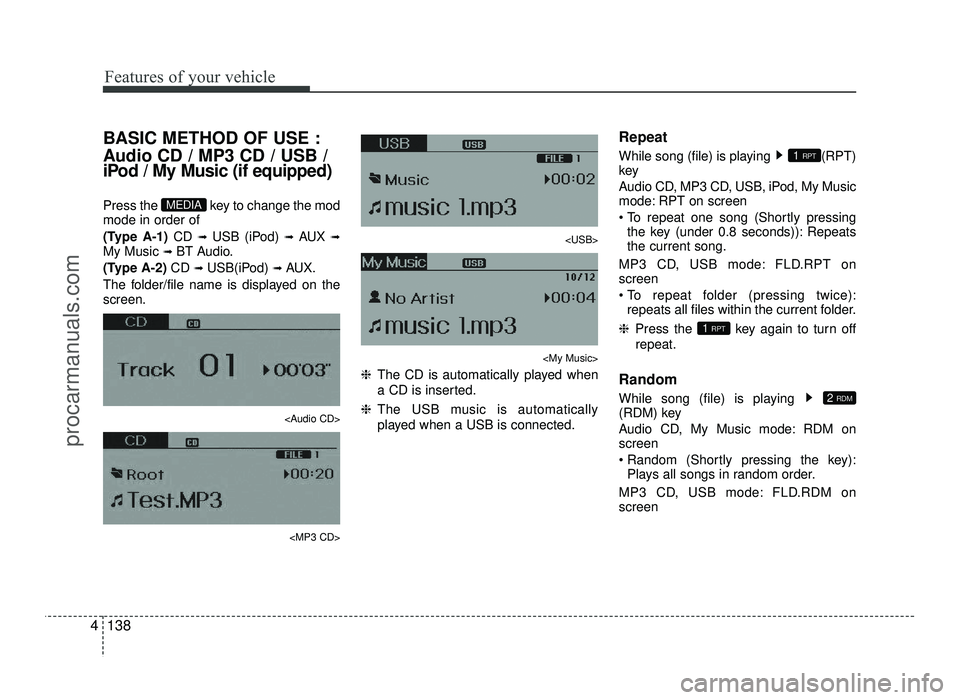
Press the key to change the mod mode in order of
(Type A-1) CD ➟
USB (iPod) ➟ AUX ➟
My Music ➟ BT Audio.
(Type A-2) CD ➟
USB(iPod) ➟ AUX.
The folder/file name is displayed on the screen.
Page 218 of 456
![HYUNDAI IX20 2017 Owners Manual Features of your vehicle
140
4
MENU : Audio CD
Press the CD MP3 mode key to
set the Repeat, Random, Information
features. Repeat
Press the key Set [ RPT] through the
TUNEknob or key to
repeat](/img/35/57916/w960_57916-217.png "HYUNDAI IX20 2017 Owners Manual Features of your vehicle
140
4
MENU : Audio CD
Press the CD MP3 mode key to
set the Repeat, Random, Information
features. Repeat
Press the key Set [ RPT] through the
TUNEknob or key to
repeat")
Features of your vehicle
140
4
MENU : Audio CD
Press the CD MP3 mode key to
set the Repeat, Random, Information
features. Repeat
Press the key Set [ RPT] through the
TUNEknob or key to
repeat the current song. ❈ Press RPT again to turn off.
Random
Press the key Set [ RDM] through the
TUNEknob or key to
randomly play songs within the current
folder. ❈ Press RDM again to turn off. Information
Press the key Set [ Info] through the
TUNEknob or key to
display information of the current song. ❈ Press the key to turn off info
display.
MENU : MP3 CD / USB
Press the CD MP3 mode key to
set the Repeat, Folder Random, Folder
Repeat, All Random, Information, and
Copy features. Repeat
Press the key Set [ RPT] through the
TUNEknob or key to
repeat the current song. ❈ Press RPT again to turn off. Folder Random
Press the key Set [ F.RDM] through the
TUNEknob or key to
randomly play songs within the current
folder. ❈ Press F.RDM again to turn off.
Folder Repeat
Press the key Set [ F.RPT] through the
TUNEknob or key
to repeat songs within the current folder. ❈ Press F.RPT again to turn off.
All Random
Press the key Set [ A.RDM] through the
TUNEknob or key to
randomly play all songs within the CD. ❈ Press A.RDM again to turn off.4
MENU
3
MENU
2 RDM
MENU
1 RPTMENU
MENU
MENU
3MENU
2 RDMMENU
1 RPTMENU
MENU
procarmanuals.com
Page 222 of 456
Features of your vehicle
144
4
Bluetooth®Wireless Technology
AUDIO (if equipped) What is
Bluetooth®Wireless
Technology
?
Bluetooth®Wireless Technology is a
wireless technology that allows multiple
devices to be connected in a short range,
low-powered devices like hands-free,stereo headset, wireless remote con-
troller, etc. For more information, visit the
Bluetooth®Wireless Technology website
at www.Bluetooth.com
Before using Bluetooth®Wireless
Technologyaudio features
Bluetooth®Wireless Technology audio
may not be supported depending on
the compatibility of your
Bluetooth®
Wireless Technology mobile phone.
In order to use
Bluetooth®Wireless
Technology audio, you must first pairand connect the
Bluetooth®Wireless
Technology mobile phone.
Bluetooth®Wireless Technology audio
can be used only when the [Audio
Streaming] of Phone is turned On. ❈
Setting
Bluetooth®Wireless
Technology Audio Streaming : Press
the key Select [Phone]
through the tune knob Select [Audio
Streaming] through the TUNE
knob Set /
Starting
Bluetooth®Wireless
Technology
Audio
Press the key to change the mode in order of CD ➟USB ➟AUX ➟
My Music ➟BT Audio.
If BT Audio is selected,
Bluetooth®
Wireless Technology audio will start
playing.
❈ Audio may not automatically start
playing in some mobile phones. Using the
Bluetooth®Wireless
Technologyaudio features
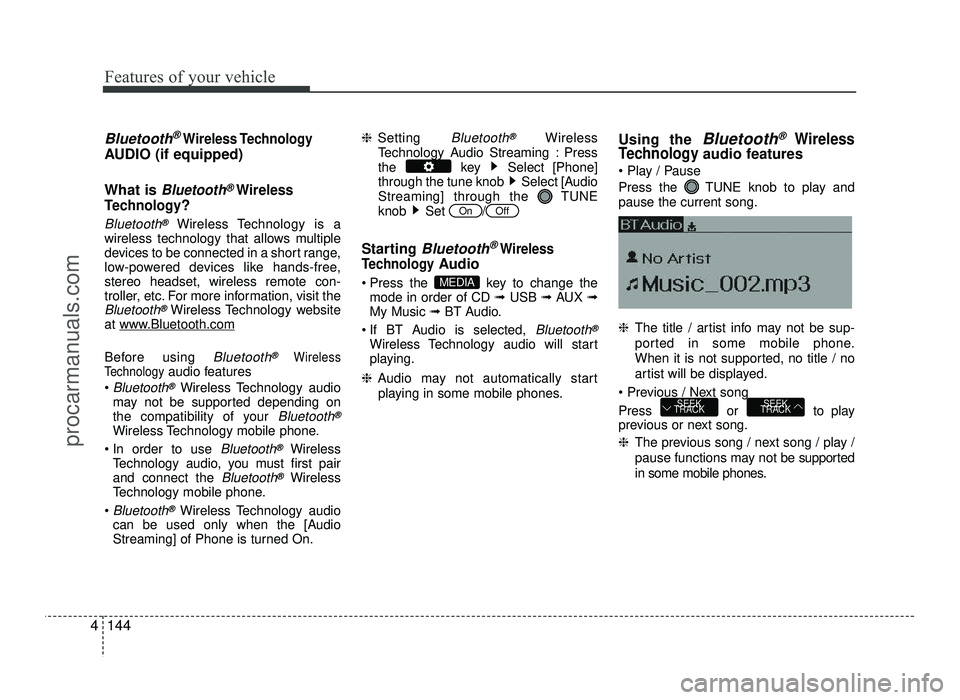
Press the TUNE knob to play and pause the current song. ❈ The title / artist info may not be sup-
ported in some mobile phone.
When it is not supported, no title / no
artist will be displayed.
Press or to play
previous or next song. ❈ The previous song / next song / play /
pause functions may not be supported
in some mobile phones.
SEEK
TRACKSEEK
TRACK
MEDIA
OffOn
procarmanuals.com
Page 226 of 456
Features of your vehicle
148
4
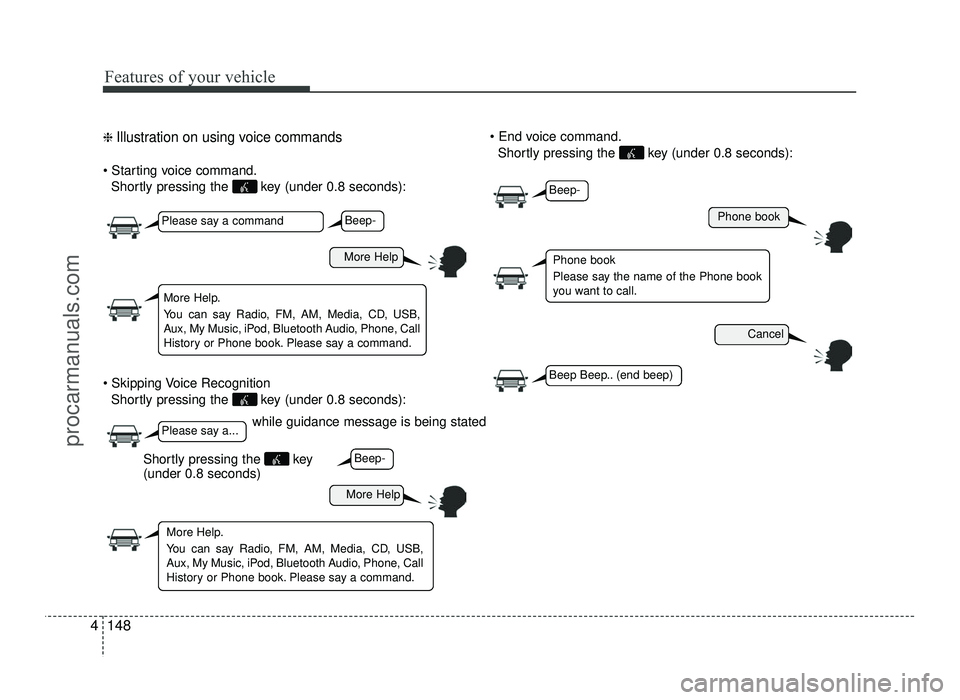
❈ Illustration on using voice commands
Shortly pressing the key (under 0.8 seconds):
Shortly pressing the key (under 0.8 seconds):
Shortly pressing the key (under 0.8 seconds):
while guidance message is being stated
More Help
Phone book
Cancel
More Help
Please say a command
Please say a...
More Help.
You can say Radio, FM, AM, Media, CD, USB,
Aux, My Music, iPod, Bluetooth Audio, Phone, Call
History or Phone book. Please say a command.
Phone book
Please say the name of the Phone book
you want to call.
More Help.
You can say Radio, FM, AM, Media, CD, USB,
Aux, My Music, iPod, Bluetooth Audio, Phone, Call
History or Phone book. Please say a command.
Beep-
Beep-
Beep-
Beep Beep.. (end beep)
Shortly pressing the key (under 0.8 seconds)
procarmanuals.com
Page 228 of 456
Features of your vehicle
150
4
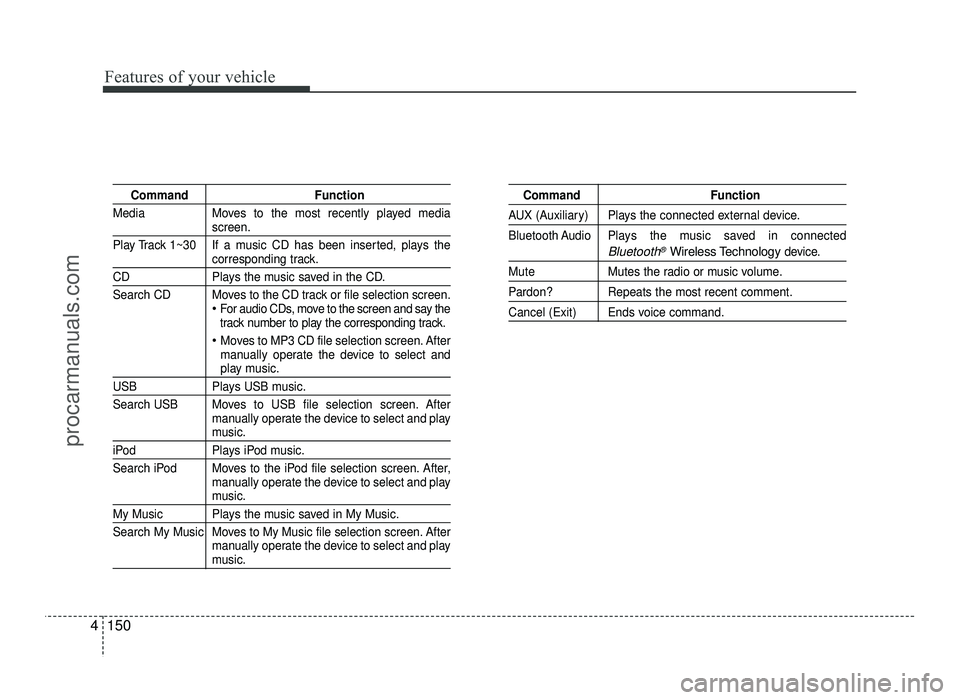
Command Function
Media Moves to the most recently played media
screen.
Play Track 1~30 If a music CD has been inserted, plays the
corresponding track.
CD Plays the music saved in the CD.
Search CD Moves to the CD track or file selection screen.
For audio CDs, move to the screen and say the
track number to play the corresponding track.
Moves to MP3 CD file selection screen. After
manually operate the device to select and
play music.
USB Plays USB music.
Search USB Moves to USB file selection screen. After manually operate the device to select and play
music.
iPod Plays iPod music.
Search iPod Moves to the iPod file selection screen. After,manually operate the device to select and play
music.
My Music Plays the music saved in My Music.
Search My Music Moves to My Music file selection screen. Aftermanually operate the device to select and play
music.
Command Function
AUX (Auxiliary) Plays the connected external device.
Bluetooth Audio Plays the music saved in connected
Bluetooth®Wireless Technologydevice.
Mute Mutes the radio or music volume.
Pardon? Repeats the most recent comment.
Cancel (Exit) Ends voice command.
procarmanuals.com
Page 229 of 456
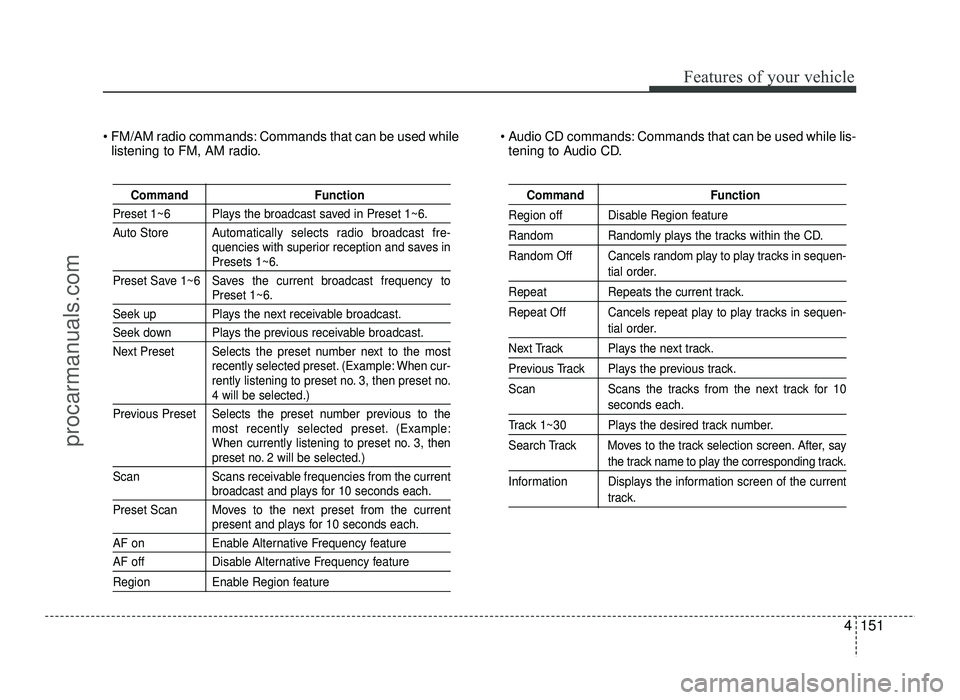
4151
Features of your vehicle
FM/AM radio commands: Commands that can be used whilelistening to FM, AM radio. Audio CD commands: Commands that can be used while lis-
tening to Audio CD.
Command Function
Preset 1~6 Plays the broadcast saved in Preset 1~6.
Auto Store A utomatically selects radio broadcast fre-
quencies with superior reception and saves in
Presets 1~6.
Preset Save 1~6 Saves the current broadcast frequency to
Preset 1~6.
Seek up Plays the next receivable broadcast.
Seek down Plays the previous receivable broadcast.
Next Preset Selects the preset number next to the most recently selected preset. (Example: When cur-
rently listening to preset no. 3, then preset no.
4 will be selected.)
Previous Preset Selects the preset number previous to the most recently selected preset. (Example:
When currently listening to preset no. 3, then
preset no. 2 will be selected.)
Scan Scans receivable frequencies from the current
broadcast and plays for 10 seconds each.
Preset Scan Moves to the next preset from the current
present and plays for 10 seconds each.
AF on Enable Alternative Frequency feature
AF off Disable Alternative Frequency feature
Region Enable Region feature
Command Function
Region off Disable Region feature
Random Randomly plays the tracks within the CD.
Random Off Cancels random play to play tracks in sequen-
tial order.
Repeat Repeats the current track.
Repeat Off Cancels repeat play to play tracks in sequen-
tial order.
Next Track Plays the next track.
Previous Track Plays the previous track.
Scan Scans the tracks from the next track for 10
seconds each.
Track 1~30 Plays the desired track number.
Search Track Moves to the track selection screen. After, say
the track name to play the corresponding track.
Information Displays the information screen of the current
track.
procarmanuals.com
Page 231 of 456
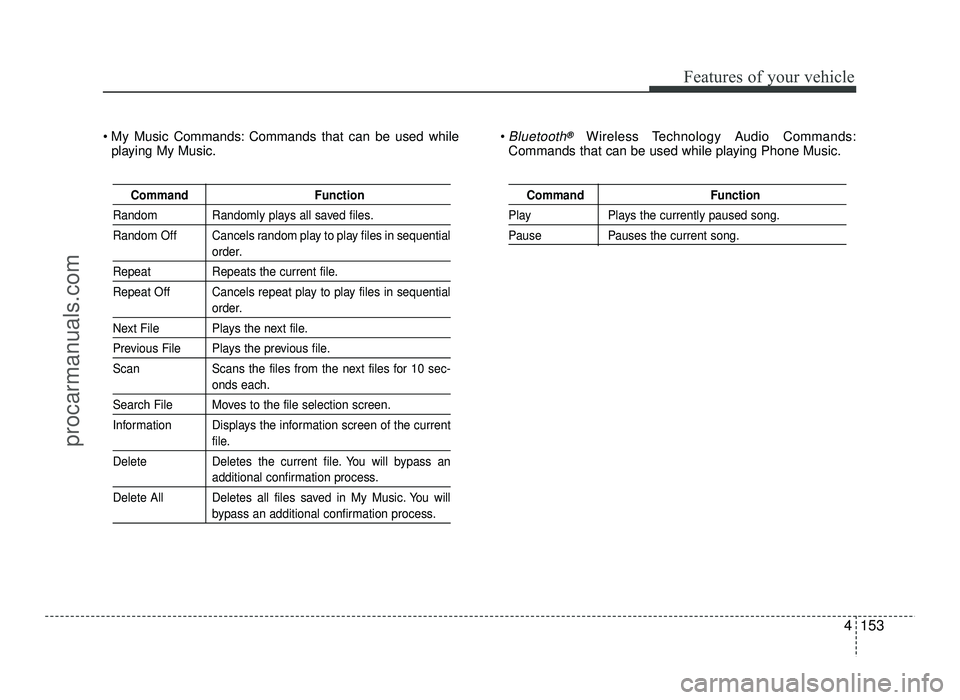
4153
Features of your vehicle
Command Function
Random Randomly plays all saved files.
Random Off Cancels random play to play files in sequential
order.
Repeat Repeats the current file.
Repeat Off Cancels repeat play to play files in sequential
order.
Next File Plays the next file.
Previous File Plays the previous file.
Scan Scans the files from the next files for 10 sec-
onds each.
Search File Moves to the file selection screen.
Information Displays the information screen of the current
file.
Delete Deletes the current file. You will bypass an
additional confirmation process.
Delete All Deletes all files saved in My Music. You will
bypass an additional confirmation process.
Command Function
Play Plays the currently paused song.
Pause Pauses the current song.
My Music Commands: Commands that can be used while playing My Music. Bluetooth®Wireless Technology Audio Commands:
Commands that can be used while playing Phone Music.
procarmanuals.com