Bluetooth HYUNDAI IX35 2012 Owner's Manual
[x] Cancel search | Manufacturer: HYUNDAI, Model Year: 2012, Model line: IX35, Model: HYUNDAI IX35 2012Pages: 560, PDF Size: 28.31 MB
Page 534 of 560
Features of your vehicle
122
4
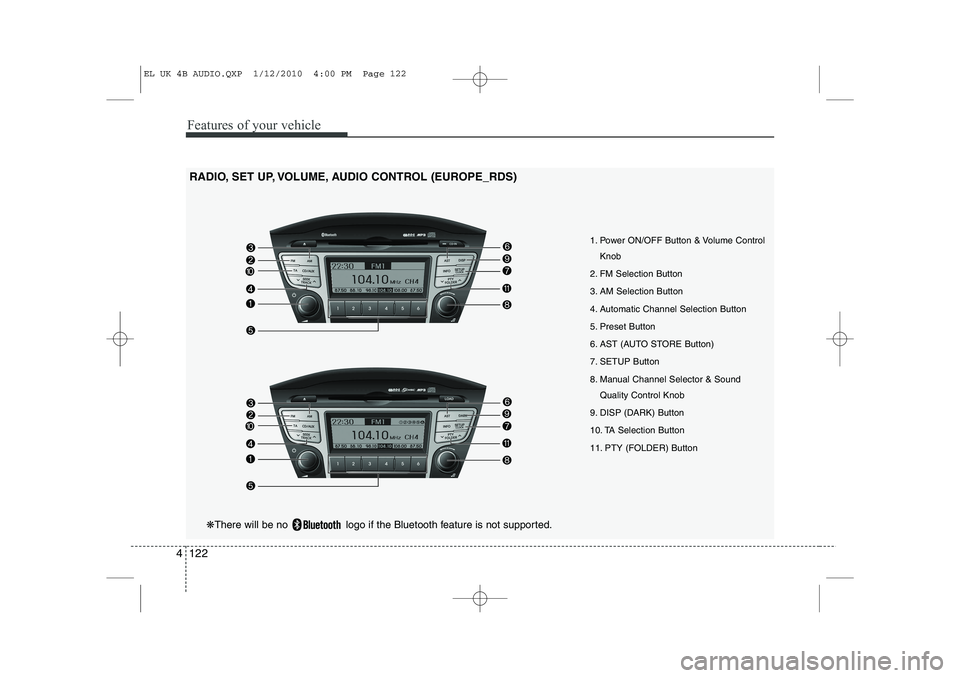
RADIO, SET UP, VOLUME, AUDIO CONTROL (EUROPE_RDS)
1. Power ON/OFF Button & Volume ControlKnob
2. FM Selection Button
3. AM Selection Button
4. Automatic Channel Selection Button
5. Preset Button
6. AST (AUTO STORE Button)
7. SETUP Button
8. Manual Channel Selector & Sound Quality Control Knob
9. DISP (DARK) Button
10. TA Selection Button
11. PTY (FOLDER) Button
❋ There will be no logo if the Bluetooth feature is not supported.
EL UK 4B AUDIO.QXP 1/12/2010 4:00 PM Page 122
Page 536 of 560
Features of your vehicle
124
4
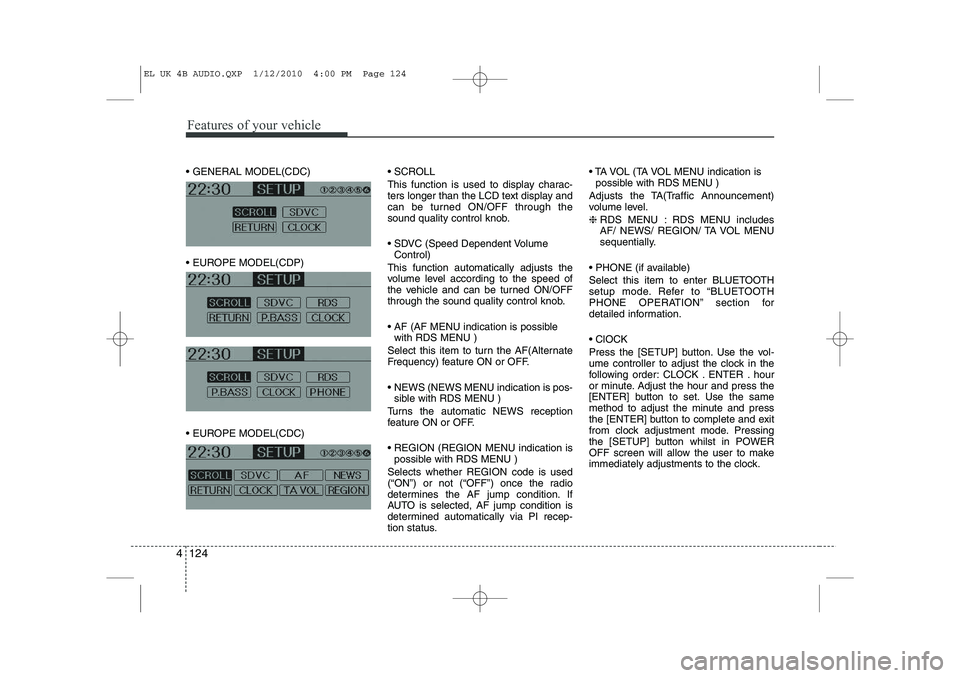
GENERAL MODEL(CDC)
EUROPE MODEL(CDP)
EUROPE MODEL(CDC) SCROLL
This function is used to display charac-
ters longer than the LCD text display and
can be turned ON/OFF through the
sound quality control knob.
SDVC (Speed Dependent Volume
Control)
This function automatically adjusts the
volume level according to the speed of
the vehicle and can be turned ON/OFF
through the sound quality control knob.
AF (AF MENU indication is possible with RDS MENU )
Select this item to turn the AF(Alternate
Frequency) feature ON or OFF.
NEWS (NEWS MENU indication is pos- sible with RDS MENU )
Turns the automatic NEWS reception
feature ON or OFF.
REGION (REGION MENU indication is possible with RDS MENU )
Selects whether REGION code is used
(“ON”) or not (“OFF”) once the radio
determines the AF jump condition. If
AUTO is selected, AF jump condition is
determined automatically via PI recep-
tion status. TA VOL (TA VOL MENU indication is
possible with RDS MENU )
Adjusts the TA(Traffic Announcement)
volume level. ❈ RDS MENU : RDS MENU includes
AF/ NEWS/ REGION/ TA VOL MENU
sequentially.
PHONE (if available)
Select this item to enter BLUETOOTH
setup mode. Refer to “BLUETOOTH
PHONE OPERATION” section for
detailed information. ClOCK
Press the [SETUP] button. Use the vol-
ume controller to adjust the clock in the
following order: CLOCK . ENTER . hour
or minute. Adjust the hour and press the
[ENTER] button to set. Use the same
method to adjust the minute and press
the [ENTER] button to complete and exit
from clock adjustment mode. Pressing
the [SETUP] button whilst in POWER
OFF screen will allow the user to make
immediately adjustments to the clock.
EL UK 4B AUDIO.QXP 1/12/2010 4:00 PM Page 124
Page 538 of 560
Features of your vehicle
126
4
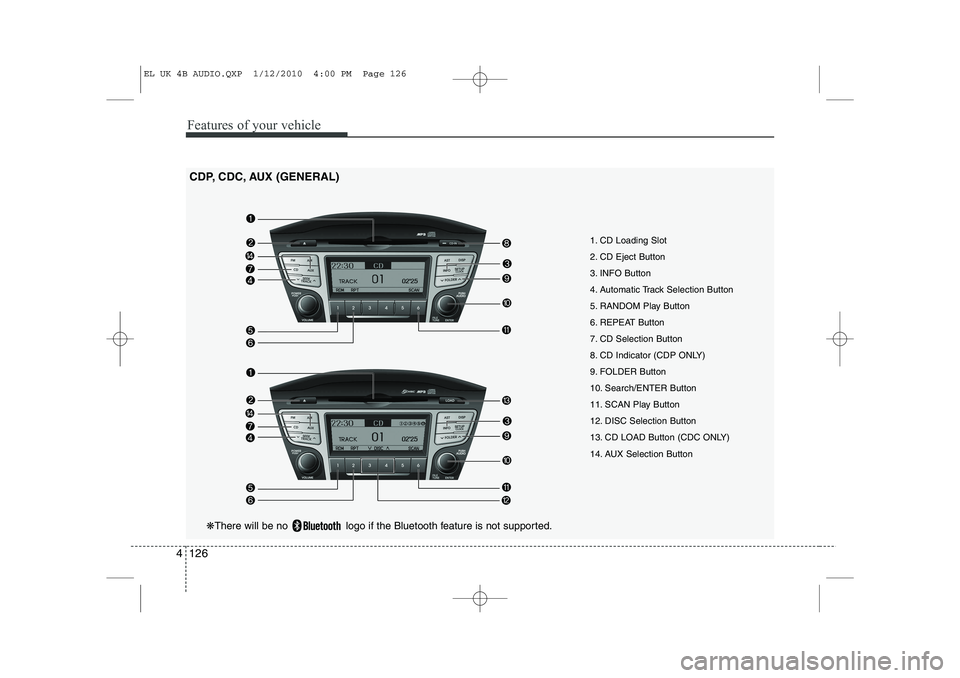
1. CD Loading Slot
2. CD Eject Button
3. INFO Button
4. Automatic Track Selection Button
5. RANDOM Play Button
6. REPEAT Button
7. CD Selection Button
8. CD Indicator (CDP ONLY)
9. FOLDER Button
10. Search/ENTER Button
11. SCAN Play Button
12. DISC Selection Button
13. CD LOAD Button (CDC ONLY)
14. AUX Selection Button
CDP, CDC, AUX (GENERAL)
❋
There will be no logo if the Bluetooth feature is not supported.
EL UK 4B AUDIO.QXP 1/12/2010 4:00 PM Page 126
Page 539 of 560
4 127
Features of your vehicle
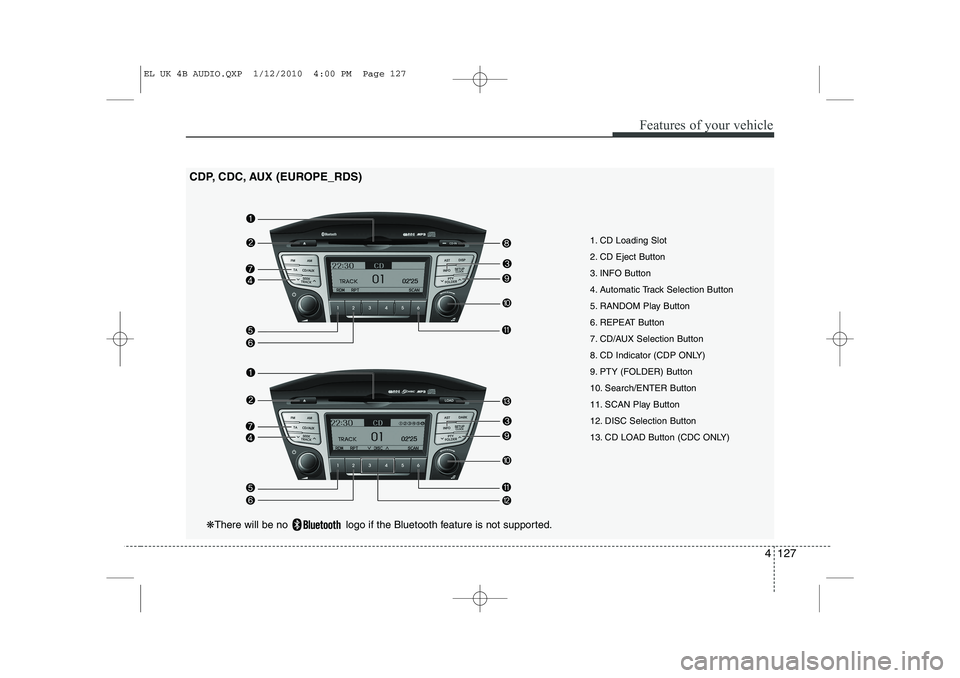
1. CD Loading Slot
2. CD Eject Button
3. INFO Button
4. Automatic Track Selection Button
5. RANDOM Play Button
6. REPEAT Button
7. CD/AUX Selection Button
8. CD Indicator (CDP ONLY)
9. PTY (FOLDER) Button
10. Search/ENTER Button
11. SCAN Play Button
12. DISC Selection Button
13. CD LOAD Button (CDC ONLY)
CDP, CDC, AUX (EUROPE_RDS)
❋
There will be no logo if the Bluetooth feature is not supported.
EL UK 4B AUDIO.QXP 1/12/2010 4:00 PM Page 127
Page 544 of 560
Features of your vehicle
132
4
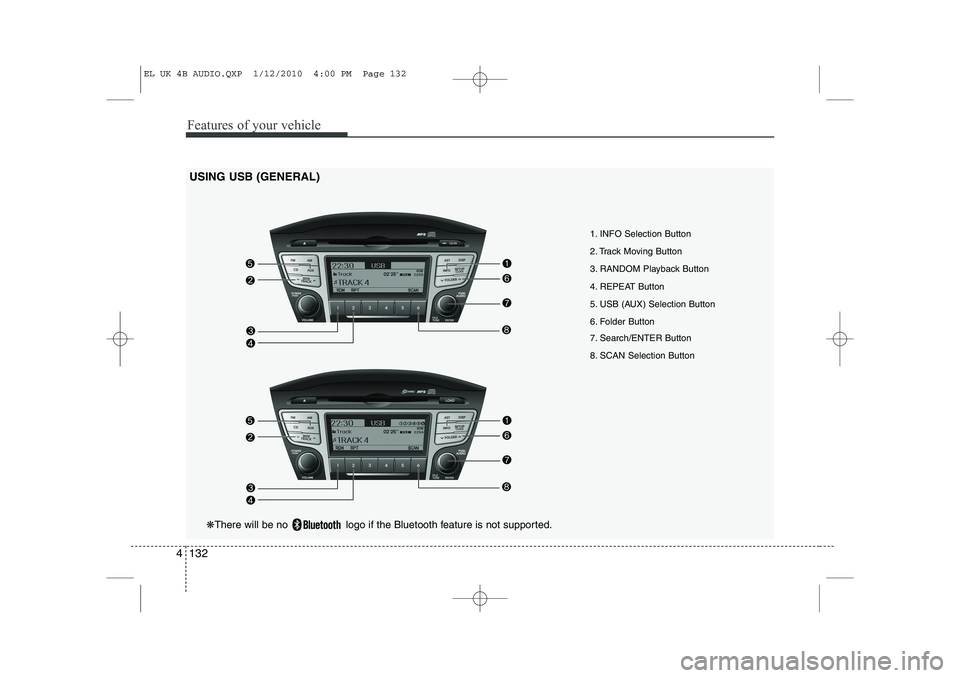
USING USB (GENERAL)
1. INFO Selection Button
2. Track Moving Button
3. RANDOM Playback Button
4. REPEAT Button
5. USB (AUX) Selection Button
6. Folder Button
7. Search/ENTER Button
8. SCAN Selection Button
❋There will be no logo if the Bluetooth feature is not supported.
EL UK 4B AUDIO.QXP 1/12/2010 4:00 PM Page 132
Page 545 of 560
4 133
Features of your vehicle
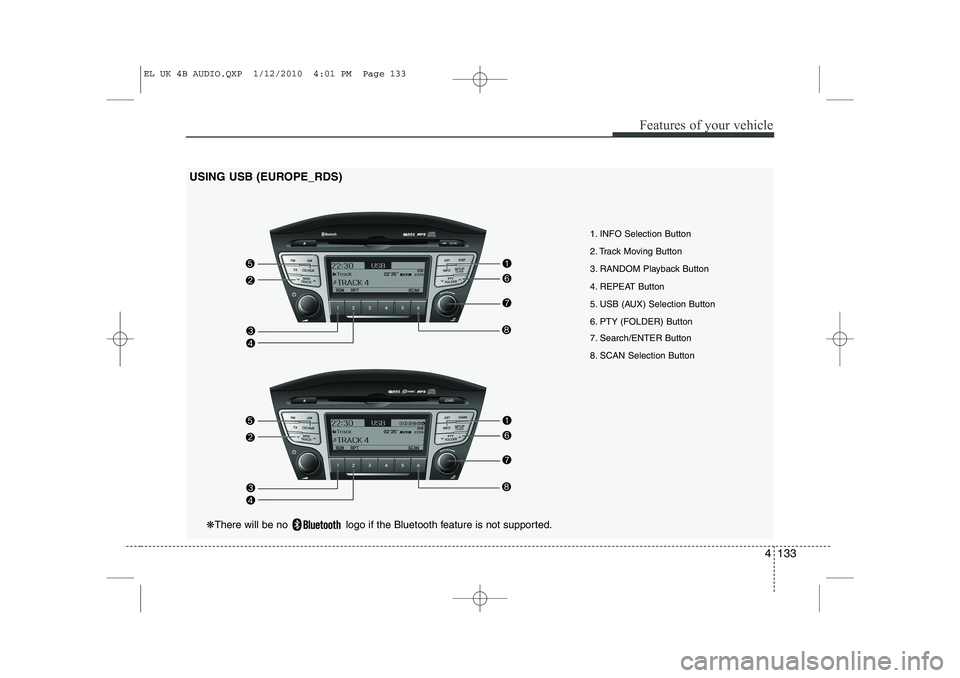
1. INFO Selection Button
2. Track Moving Button
3. RANDOM Playback Button
4. REPEAT Button
5. USB (AUX) Selection Button
6. PTY (FOLDER) Button
7. Search/ENTER Button
8. SCAN Selection Button
USING USB (EUROPE_RDS)
❋
There will be no logo if the Bluetooth feature is not supported.
EL UK 4B AUDIO.QXP 1/12/2010 4:01 PM Page 133
Page 547 of 560
4 135
Features of your vehicle
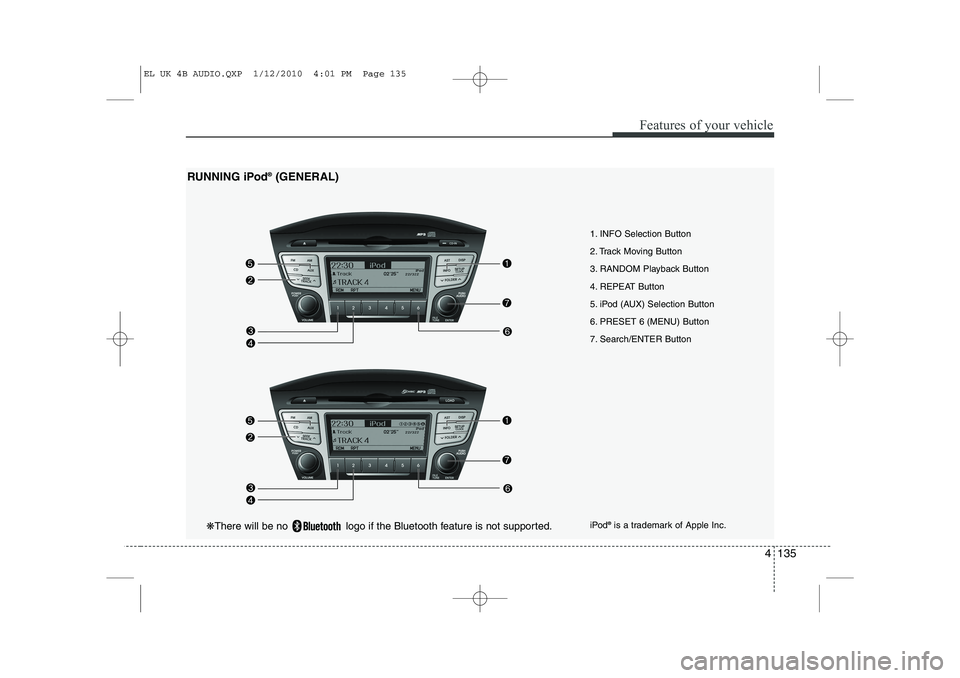
1. INFO Selection Button
2. Track Moving Button
3. RANDOM Playback Button
4. REPEAT Button
5. iPod (AUX) Selection Button
6. PRESET 6 (MENU) Button
7. Search/ENTER Button
RUNNING iPod
®
(GENERAL)
iPod®
is a trademark of Apple Inc.
❋ There will be no logo if the Bluetooth feature is not supported.
EL UK 4B AUDIO.QXP 1/12/2010 4:01 PM Page 135
Page 548 of 560
Features of your vehicle
136
4
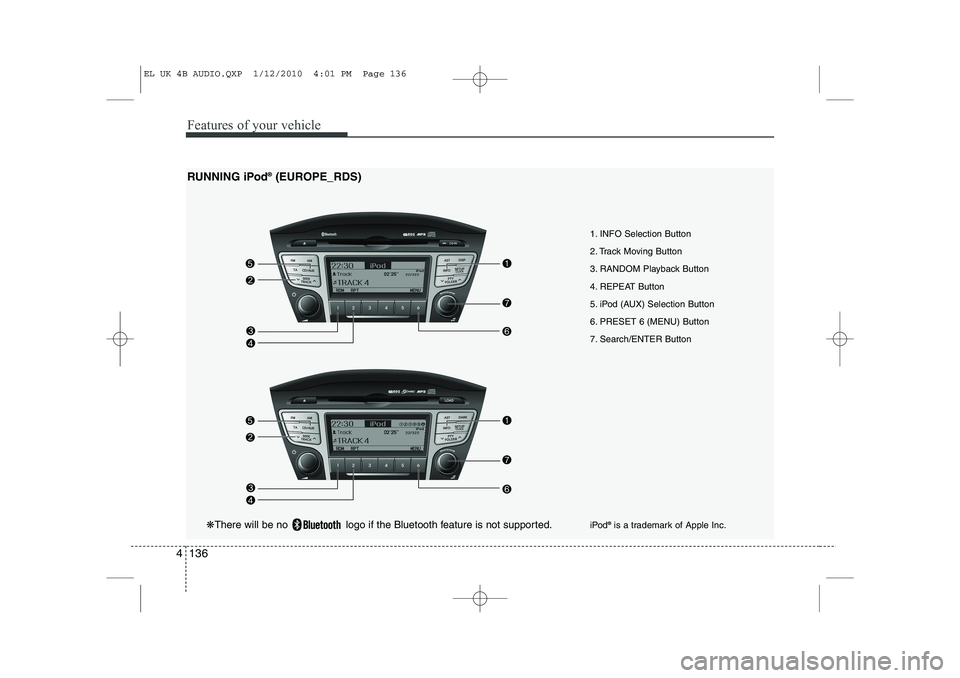
1. INFO Selection Button
2. Track Moving Button
3. RANDOM Playback Button
4. REPEAT Button
5. iPod (AUX) Selection Button
6. PRESET 6 (MENU) Button
7. Search/ENTER Button
RUNNING iPod
®
(EUROPE_RDS)
iPod®
is a trademark of Apple Inc.
❋ There will be no logo if the Bluetooth feature is not supported.
EL UK 4B AUDIO.QXP 1/12/2010 4:01 PM Page 136
Page 551 of 560
4 139
Features of your vehicle
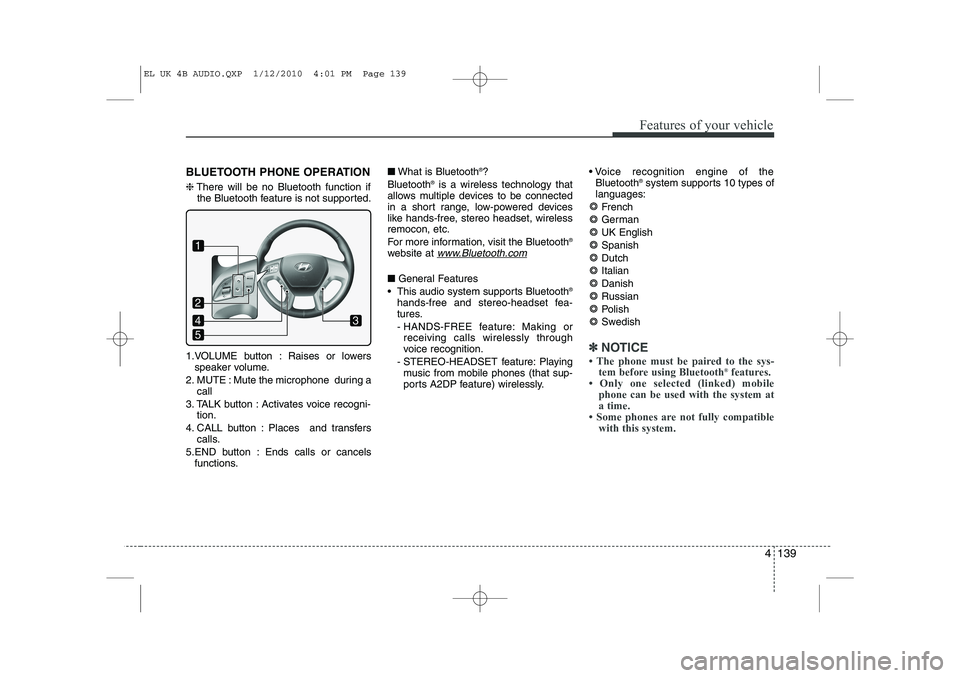
BLUETOOTH PHONE OPERATION ❈There will be no Bluetooth function if
the Bluetooth feature is not supported.
1.VOLUME button : Raises or lowers speaker volume.
2. MUTE : Mute the microphone during a call
3. TALK button : Activates voice recogni- tion.
4. CALL button : Places and transfers calls.
5.END button : Ends calls or cancels functions. ■
What is Bluetooth ®
?
Bluetooth ®
is a wireless technology that
allows multiple devices to be connected
in a short range, low-powered devices
like hands-free, stereo headset, wirelessremocon, etc.
For more information, visit the Bluetooth ®
website at
www.Bluetooth.com
■ General Features
This audio system supports Bluetooth ®
hands-free and stereo-headset fea-
tures.
- HANDS-FREE feature: Making or receiving calls wirelessly through
voice recognition.
- STEREO-HEADSET feature: Playing music from mobile phones (that sup-
ports A2DP feature) wirelessly. Voice recognition engine of the
Bluetooth ®
system supports 10 types of
languages:
French
GermanUK EnglishSpanishDutch
ItalianDanishRussian
Polish
Swedish
✽✽ NOTICE
Page 552 of 560
Features of your vehicle
140
4
CAUTION IN USING
BLUETOOTH ®
MOBILE
PHONE
Do not use a mobile phone or per- form Bluetooth ®
settings (e.g.
pairing a phone) whilst driving.
Some Bluetooth ®
-enabled phones
may not be recognized by the system or fully compatible withthe system.
Before using Bluetooth ®
related
features of the audio system, refer your phone’s User’s Manual for phone-side Bluetooth ®
opera-
tions.
The phone must be paired to the audio system to use Bluetooth ®
related features.
You will not be able to use hands- free feature when your phone(inthe car) is outside of the mobileservice area(e.g. in a tunnel, in a
underground, in a mountainous area, etc.)
If the mobile phone signal is poor or the vehicles interior noise istoo loud, it may be difficult to hear
the other person¡¯s voice during a call.
(Continued)
(continue) Do not place the phone near or inside metallic objects.
Communications with Bluetooth ®
system or mobile service stations can be disturbed.
Whilst a phone is connected through Bluetooth ®
your phone
may discharge quicker than usual for additional Bluetooth ®
-related
operations.
Some mobile phones or other devices may cause interferencenoise or malfunction to audio
system. In this case, store thedevice in a different location may resolve the situation.
EL UK 4B AUDIO.QXP 1/12/2010 4:01 PM Page 140