battery Hyundai Kona 2018 Owner's Guide
[x] Cancel search | Manufacturer: HYUNDAI, Model Year: 2018, Model line: Kona, Model: Hyundai Kona 2018Pages: 523, PDF Size: 33.6 MB
Page 194 of 523
3-111
Convenient features of your vehicle
3
Temperature control (2)
The temperature will increase by turn-
ing the knob to the right. The tempera-
ture will decrease by turning the knobto the left.
Air intake control (7)
This is used to select outside (fresh) air position or recirculated air position.
To change the air intake control posi-
tion, press the control button.
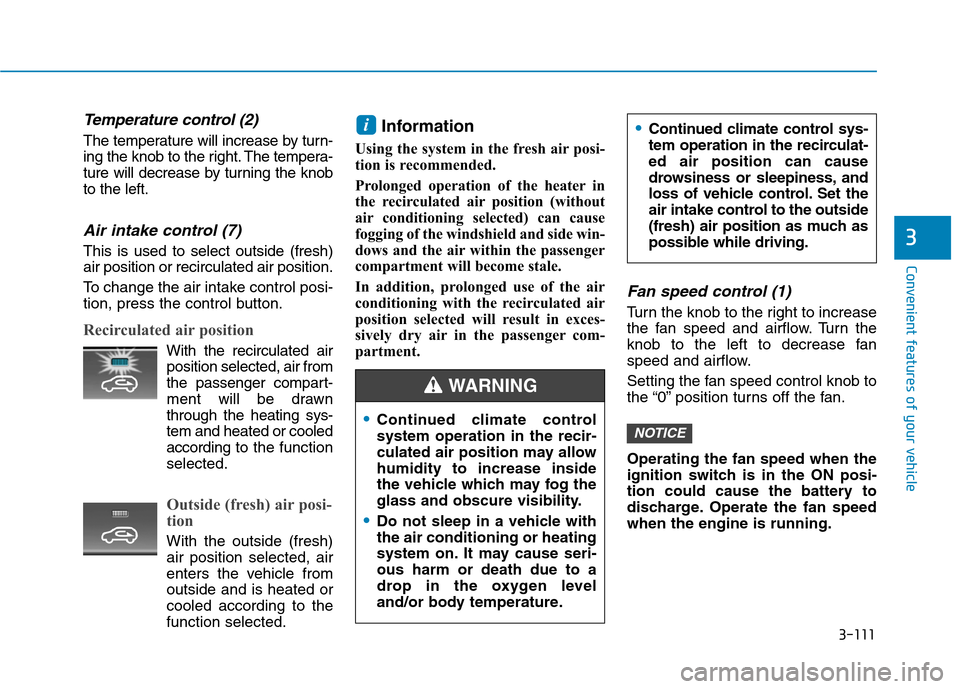
Recirculated air position
With the recirculated airposition selected, air from
the passenger compart-
ment will be drawnthrough the heating sys-tem and heated or cooled
according to the function
selected.
Outside (fresh) air posi-
tion
With the outside (fresh) air position selected, air
enters the vehicle from outside and is heated orcooled according to thefunction selected. Information
Using the system in the fresh air posi-
tion is recommended.
Prolonged operation of the heater in
the recirculated air position (without
air conditioning selected) can cause
fogging of the windshield and side win-
dows and the air within the passenger
compartment will become stale.
In addition, prolonged use of the air
conditioning with the recirculated air
position selected will result in exces-
sively dry air in the passenger com-
partment.
Fan speed control (1)
Turn the knob to the right to increase
the fan speed and airflow. Turn the
knob to the left to decrease fan
speed and airflow.
Setting the fan speed control knob to
the “0” position turns off the fan. Operating the fan speed when the
ignition switch is in the ON posi-
tion could cause the battery to
discharge. Operate the fan speedwhen the engine is running.
NOTICE
i
Continued climate control system operation in the recir-
culated air position may allowhumidity to increase inside
the vehicle which may fog the
glass and obscure visibility.
Do not sleep in a vehicle with the air conditioning or heating
system on. It may cause seri-ous harm or death due to a
drop in the oxygen level
and/or body temperature.
Continued climate control sys-
tem operation in the recirculat-ed air position can cause
drowsiness or sleepiness, and
loss of vehicle control. Set the
air intake control to the outside
(fresh) air position as much as
possible while driving.
WARNING
Page 203 of 523
3-120
Convenient features of your vehicle
Fan speed control (2)
The fan speed can be set as desired
by pushing the fan speed control but-ton.
More air is delivered with higher fan
speeds.
Pressing the OFF button turns off the
fan. Operating the fan when the ignition
switch is in the ON position could
cause the battery to discharge.Operate the fan when the engine isrunning.
Air conditioning (4)
Push the A/C button to turn the airconditioning system on (indicatorlight will illuminate).
Push the button again to turn the air
conditioning system off.
OFF mode (5)
Push the OFF button to turn the cli-
mate control system off. However,
you can still operate the mode and air
intake buttons as long as the ignition
switch is in the ON position.
System operation
Ventilation
1. Set the mode to the position.
2. Set the air intake control to theoutside (fresh) air position.
3. Set the temperature control to the desired position.
4. Set the fan speed control to the desired speed.
Heating
1. Set the mode to the position.
2. Set the air intake control to theoutside (fresh) air position.
3. Set the temperature control to the desired position.
4. Set the fan speed control to the desired speed.
5. If dehumidified heating is desired, turn the air conditioning system on.
If the windshield fogs up, set the mode to the or position.
NOTICE
Continued climate control system operation in the recir-
culated air position may allowhumidity to increase inside
the vehicle which may fog the
glass and obscure visibility.
Do not sleep in a vehicle with the air conditioning or heating
system on. It may cause seri-ous harm or death due to a
drop in the oxygen level
and/or body temperature.
Continued climate control sys-
tem operation in the recirculat-ed air position can cause
drowsiness or sleepiness, and
loss of vehicle control. Set the
air intake control to the outside
(fresh) air position as much as
possible while driving.
WARNING
Page 209 of 523
3-126
Auto defogging system
(only for automatic climate
control system, if equipped)
Auto defogging reduces the possibili-
ty of fogging up the inside of the wind-
shield by automatically sensing themoisture on inside the windshield.
The auto defogging system operates when the heater or air conditioning ison.Information
The auto defogging system may not
operate normally, when the outside
temperature is below -10 °C.
To cancel or set the Auto Defogging
System, keep the front defroster but-
ton pressed for 3 seconds. The “ADS
OFF” symbol will be shown in the cli-
mate display to inform you that the
system is deactivated. To re-activate
the auto defogging system, follow the
procedure mentioned above and the
“ADS OFF” symbol will disappear.
If the battery has been disconnected or discharged, it resets to the auto
defogging status. Information
For efficiency, do not select recirculat-
ed air position while the Auto defog-
ging system is operating.
Do not remove the sensor cover located on the upper end of thewindshield glass.
Damage to system parts could
occur and may not be covered by
your vehicle warranty.
NOTICE
i
i
Convenient features of your vehicle
Page 215 of 523
3-132
Convenient features of your vehicle
Sunvisor
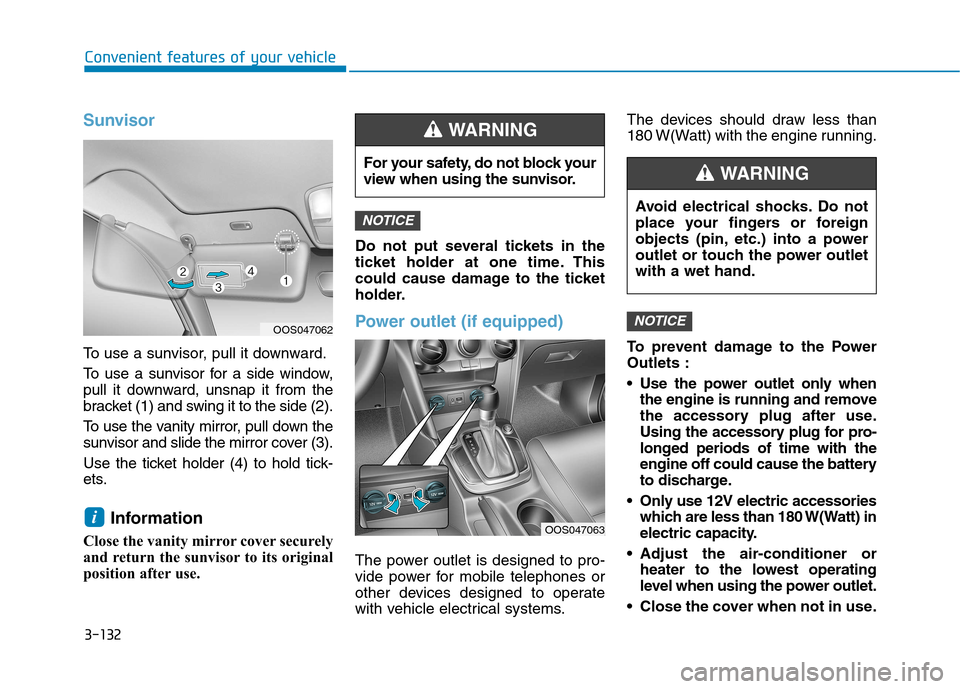
To use a sunvisor, pull it downward.
To use a sunvisor for a side window,
pull it downward, unsnap it from the
bracket (1) and swing it to the side (2).
To use the vanity mirror, pull down the
sunvisor and slide the mirror cover (3).
Use the ticket holder (4) to hold tick-
ets.Information
Close the vanity mirror cover securely
and return the sunvisor to its original
position after use. Do not put several tickets in the
ticket holder at one time. This
could cause damage to the ticket
holder.
Power outlet (if equipped)
The power outlet is designed to pro-
vide power for mobile telephones or
other devices designed to operate
with vehicle electrical systems.The devices should draw less than
180 W(Watt) with the engine running.
To prevent damage to the Power Outlets :
Use the power outlet only when
the engine is running and remove
the accessory plug after use.
Using the accessory plug for pro-
longed periods of time with the
engine off could cause the battery
to discharge.
Only use 12V electric accessories which are less than 180 W(Watt) in
electric capacity.
Adjust the air-conditioner or heater to the lowest operating
level when using the power outlet.
Close the cover when not in use.
NOTICE
NOTICE
i
For your safety, do not block your
view when using the sunvisor.
WARNING
OOS047062
OOS047063 Avoid electrical shocks. Do not
place your fingers or foreign
objects (pin, etc.) into a power
outlet or touch the power outletwith a wet hand.
WARNING
Page 216 of 523
3-133
Convenient features of your vehicle
3
Some electronic devices cancause electronic interference
when plugged into a vehicle’s
power outlet. These devices may
cause excessive audio staticand malfunctions in other elec-
tronic systems or devices used
in your vehicle.
Push the plug in as far as it will go. If good contact is not made,
the plug may overheat and the
fuse may open.
Plug in battery equipped electrical/ electronic devices with reverse
current protection. The current
from the battery may flow into the
vehicle's electrical/electronic sys-tem and cause system malfunc-tion.Wireless cellular phone charg- ing system (if equipped)
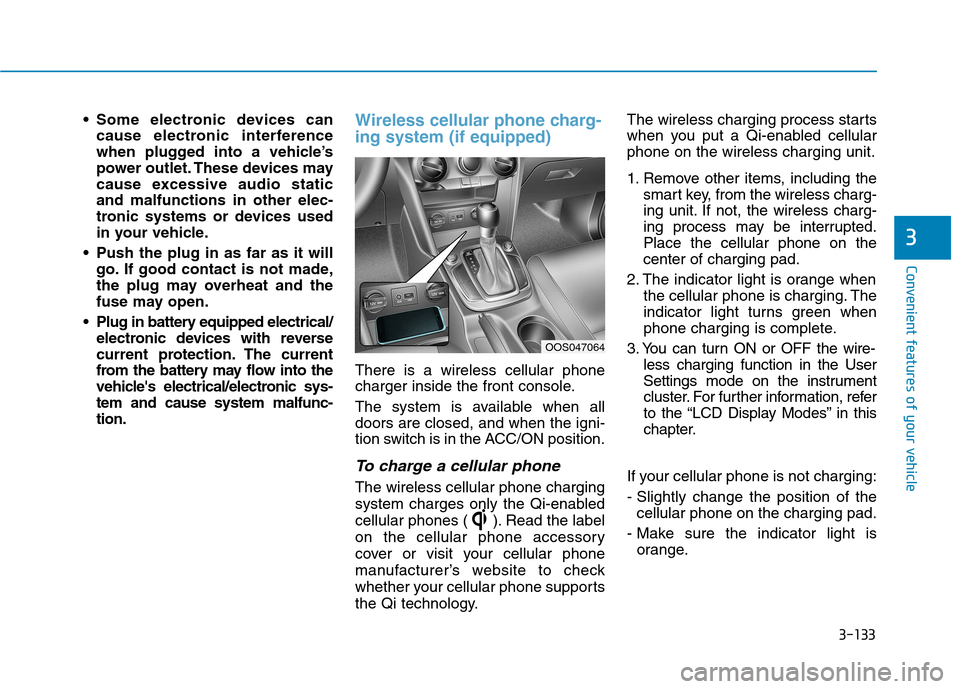
There is a wireless cellular phone
charger inside the front console.
The system is available when all doors are closed, and when the igni-
tion switch is in the ACC/ON position.
To charge a cellular phone
The wireless cellular phone charging
system charges only the Qi-enabled
cellular phones ( ). Read the label
on the cellular phone accessory
cover or visit your cellular phone
manufacturer’s website to check
whether your cellular phone supports
the Qi technology. The wireless charging process starts
when you put a Qi-enabled cellularphone on the wireless charging unit.
1. Remove other items, including the
smart key, from the wireless charg-
ing unit. If not, the wireless charg-
ing process may be interrupted.Place the cellular phone on thecenter of charging pad.
2. The indicator light is orange when the cellular phone is charging. The
indicator light turns green when
phone charging is complete.
3. You can turn ON or OFF the wire- less charging function in the User
Settings mode on the instrument
cluster. For further information, refer
to the “LCD Display Modes” in this
chapter.
If your cellular phone is not charging:
- Slightly change the position of the cellular phone on the charging pad.
- Make sure the indicator light is orange.
OOS047064
Page 232 of 523
4-11
Multimedia System
4
Do not stare at the screen
while driving. Staring at the
screen for prolonged periodsof time could lead to trafficaccidents.
Do not disassemble, assem-
ble, or modify the audio sys-
tem. Such acts could result in
accidents, fire, or electric
shock.
Using the phone while driving
may lead to a lack of attentionof traffic conditions andincrease the likelihood of
accidents. Use the phone fea-
ture after parking the vehicle.
Exercise caution not to spill
water or introduce foreign
objects into the device. Such
acts could lead to smoke, fire,
or product malfunction.
WARNINGPlease refrain from use if the
screen is blank or no sound
can be heard as these signs
may indicate product mal-
function. Continued use in
such conditions could lead to
accidents (fires, electric
shock) or product malfunc-tions.
Do not touch the antenna dur- ing thunder or lightening as
such acts may lead to light-
ning induced electric shock.
Do not stop or park in park- ing-restricted areas to operate
the product. Such acts couldlead to traffic accidents.
Use the system with the vehi-
cle engine turned on.
Prolonged use with the igni-
tion turned on only could
result in battery discharge.
Driving while distracted can
result in a loss of vehicle con-
trol that may lead to an acci-
dent, severe personal injury,
and death. The driver’s primary
responsibility is in the safe and
legal operation of a vehicle, and
use of any handheld devices,
other equipment, or vehicle sys-
tems which take the driver’s
eyes, attention and focus away
from the safe operation of a
vehicle or which are not permis-
sible by law should never beused during operation of the
vehicle.
WARNING
Page 233 of 523
4-12
Multimedia System
Operating the device while driv-ing could lead to accidents due
to a lack of attention to external
surroundings. First park the
vehicle before operating the
device.
Adjust the volume to levels that allow the driver to hear sounds
from outside of the vehicle.
Driving in a state where external
sounds cannot be heard maylead to accidents.
Pay attention to the volume set- ting when turning the device on.
A sudden output of extreme vol-
ume upon turning the device oncould lead to hearing impair-
ment. (Adjust the volume to a
suitable levels before turning off
the device.)
Turn on the car engine before using this device. Do not oper-
ate the audio system for long
periods of time only with the
ignition turned on as such oper-
ations may lead to battery dis-
charge. Do not subject the device to
severe shock or impact. Direct
pressure onto the front side of
the monitor may cause damage
to the LCD.
When cleaning the device, make sure to turn off the device and
use a dry and smooth cloth.
Never use tough materials, chem-
ical cloths, or solvents (alcohol,
benzene, thinners, etc.). As such
materials may damage the devicepanel or cause color/quality dete-rioration.
Do not place beverages close to the audio system. Spilling bever-
ages may lead to system mal-function.
In case of product malfunction, please contact your place of pur-
chase or After Service center.
Placing the audio system within an electromagnetic environment
may result in noise interference.
Prevent caustic solutions such as perfume and cosmetic oil
from contacting the dashboard
because they may cause dam-
age or discoloration.
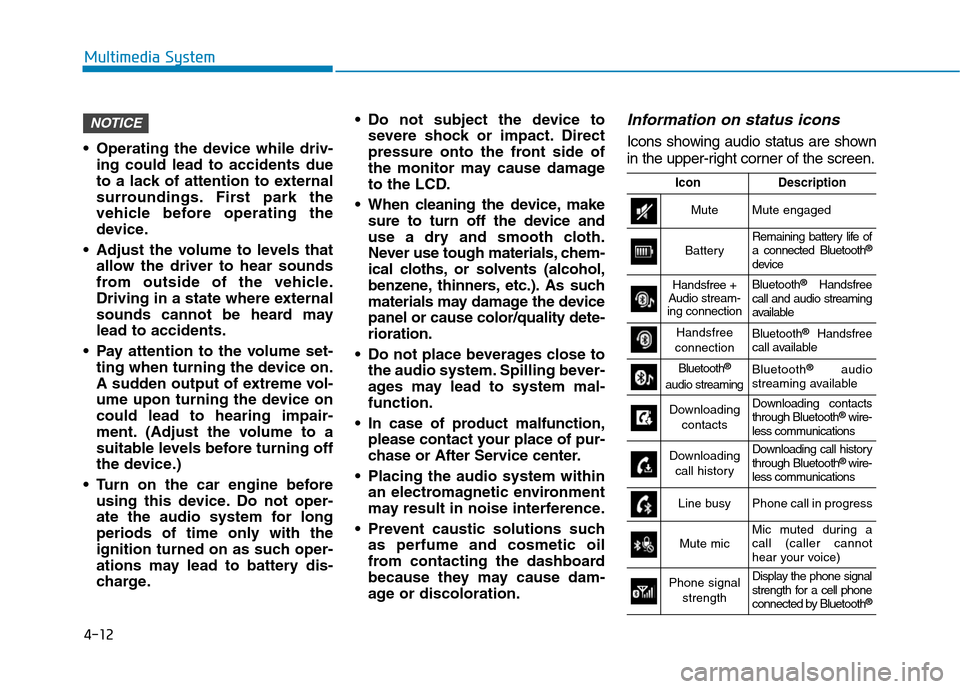
Information on status icons
Icons showing audio status are shown
in the upper-right corner of the screen.
NOTICE
IconDescription
MuteMute engaged
BatteryRemaining battery life of a connected Bluetooth ®
device
Handsfree +
Audio stream-
ing connectionBluetooth ®
Handsfree
call and audio streaming
available
Handsfree
connectionBluetooth ®
Handsfree
call available
Bluetooth ®
audio streamingBluetooth ®
audio
streaming available
Downloading
contactsDownloading contacts through Bluetooth ®
wire-
less communications
Downloading
call historyDownloading call history through Bluetooth ®
wire-
less communications
Line busyPhone call in progress
Mute micMic muted during a call (caller cannot
hear your voice)
Phone signal
strengthDisplay the phone signal
strength for a cell phone
connected by Bluetooth ®
Page 240 of 523
4-19
Multimedia System
4
There may be noise if the audio sys-tem is used with an iPod ®
or AUX
external device connected to the
power jack. In these cases, discon-
nect the iPod ®
or external device
from the power jack.
Play may be interrupted, or device malfunctions may occur depending
on the characteristics of your
iPod ®
/iPhone ®
.
Play may fail if your iPhone ®
is con-
nected through both Bluetooth ®
and
USB. In this case, select Dock con-
nector or Bluetooth ®
on your
iPhone ®
to change the sound output
settings.
If your software version does not support the communication proto-
col or your iPod ®
is not recognized
due to device failure, anomalies or
defects, iPod ®
mode cannot be used.
iPod ®
nano (5th generation) devices
may not be recognized if the battery
is low. Charge sufficiently before
use.
The search and song play order in the iPod ®
device may be different
from the search order in the audio
system. If the iPod
®
has failed due to an
internal defect, please reset the
iPod ®
(consult your iPod ®
manual).
Depending on the software version, the iPod ®
may fail to sync with the
system. If the media is removed or
disconnected before recognition, the
previous mode may not be restored
(iPad ®
cannot be charged).
Cables other than the 1-meter cable provided with iPod ®
/iPhone ®
prod-
ucts may not be recognized.
When other music apps are used on your iPod ®
, the system sync func-
tion may fail due to malfunction of
the iPod ®
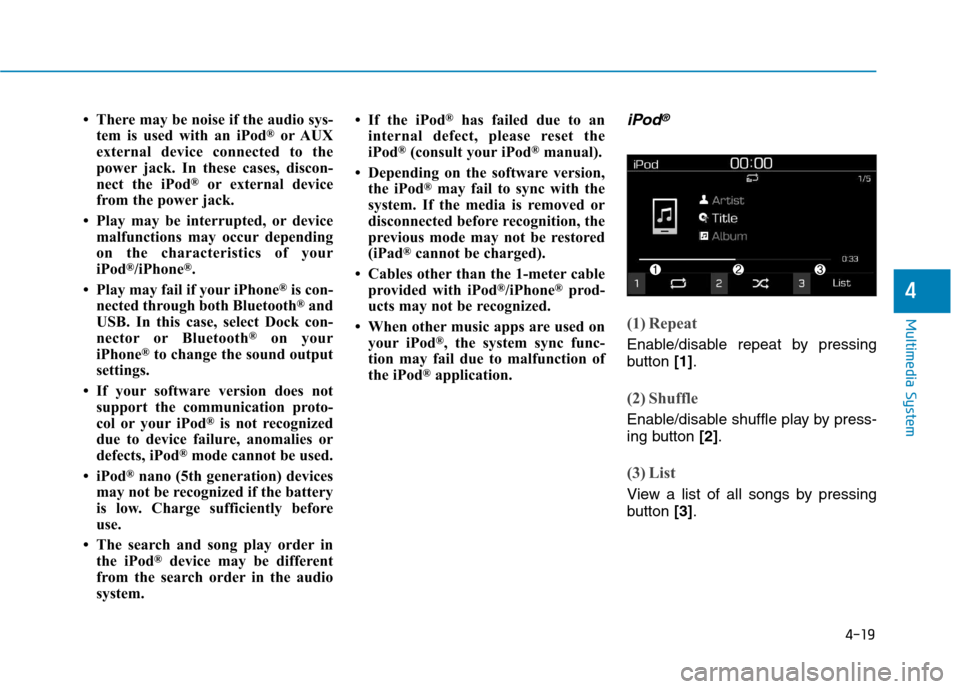
application.iPod®
(1) Repeat
Enable/disable repeat by pressing
button [1].
(2) Shuffle
Enable/disable shuffle play by press-
ing button [2].
(3) List
View a list of all songs by pressing
button [3].
Page 245 of 523
4-24
Multimedia System
Precautions when connecting
Bluetooth®
devices
The vehicle supports the following
Bluetooth ®
functions. Some
Bluetooth ®
devices may not sup-
port some functions.
1) Bluetooth ®
Handsfree phone
calls
2) Operations during a call (Private, Switch, Mic Vol. con- trols)
3) Download call history saved to the Bluetooth ®
device
4) Download contacts saved to the Bluetooth ®
device
5) Automatic contacts/call history download when Bluetooth ®
is
connected
6) Automatic Bluetooth ®
device
connection when the vehicle is
started
7) Bluetooth ®
audio streaming
playback
Before connecting the audio sys- tem to your device, make sure your
device supports Bluetooth ®
. Even if your device supports
Bluetooth ®
, a Bluetooth ®
connec-
tion cannot be established if the
device’s Bluetooth ®
function is
switched off. Search and connectwith the Bluetooth ®
function
enabled.
Pair or connect Bluetooth ®
devices
to the audio system with the vehi-cle at a standstill.
If a Bluetooth ®
connection is lost
due to abnormal conditions while aBluetooth ®
device is connected
(communication range exceeded,
device power OFF, communication
errors, etc.), the disconnectedBluetooth ®
device is searched for
and automatically reconnected.
If you want to disable the Bluetooth ®
device auto-connect
function, turn the Bluetooth ®
func-
tion OFF on your device. Consult
the user manuals for individual
devices to see whether Bluetooth ®
is supported.
Handsfree call quality and volume may vary depending on the type ofBluetooth ®
device. Some Bluetooth
®
devices are sub-
ject to intermittent Bluetooth ®
con-
nection failures. In this case, use
the following method.
1) Turn the Bluetooth ®
function off
on your Bluetooth ®
device ➟
Turn it on and try again.
2) Delete the paired device from both the audio system and Bluetooth ®
device, then pair
again.
3) Power down your Bluetooth ®
device ➟Turn it on and try
again.
4) Completely remove the battery from your Bluetooth ®
device;
reinsert it, reboot, and attemptconnection.
5) Restart the vehicle and reat- tempt connection.
Page 255 of 523
Driving your vehicle
Before driving.........................................................5-4Before entering the vehicle ...........................................5-4
Before starting...................................................................5-4
Ignition switch ........................................................5-6 Key ignition switch ............................................................5-6
Engine Start/Stop button ................................................5-9
Manual transmission............................................5-16 Manual transmission operation ...................................5-16
Good driving practices ...................................................5-18
Dual clutch transmission .....................................5-19 Dual clutch transmission operation ............................5-19
Parking ...............................................................................5-26
Good driving practices ...................................................5-26
Braking system.....................................................5-28 Power brakes ...................................................................5-28
Disc brakes wear indicator ...........................................5-29
Parking brake ...................................................................5-29
Anti-lock Brake System (ABS) ....................................5-31
Electronic Stability Control (ESC)................................5-33
Vehicle Stability Management......................................5-36
Hill-Start Assist Control (HAC) ....................................5-37
Emergency Stop Signal (ESS) ......................................5-37
Downhill Brake Control (DBC) ......................................5-38
Good braking practices..................................................5-40 Four wheel drive (4WD) ......................................5-41
4WD operation .................................................................5-42
Emergency precautions .................................................5-45
ISG (Idle Stop and Go) system ...........................5-47 To activate the ISG system ...........................................5-47
To deactivate the ISG system ......................................5-51
ISG system malfunction .................................................5-51
The battery sensor deactivation .................................5-52
Drive mode integrated control system .............5-53
Blind-spot collision warning (BCW) system ....5-55 BCW ....................................................................................5-56
RCCW (Rear Cross-Traffic Collision Warning) .........5-58
Detecting sensor .............................................................5-60
Limitations of the system .............................................5-61
Forward Collision-avoidance Assist (FCA)system-sensor fusion type
(Front radar + Front camera) ............................5-63 System setting and activation......................................5-63
FCA warning message and system control ..............5-65
FCA sensor........................................................................5-67
System malfunction ........................................................5-69
Limitations of the system .............................................5-70
5