engine Hyundai Kona 2018 Manual PDF
[x] Cancel search | Manufacturer: HYUNDAI, Model Year: 2018, Model line: Kona, Model: Hyundai Kona 2018Pages: 523, PDF Size: 33.6 MB
Page 200 of 523
3-117
Convenient features of your vehicle
3
Automatic heating and air con- ditioning
The Automatic Climate Control
System is controlled by setting the
desired temperature.
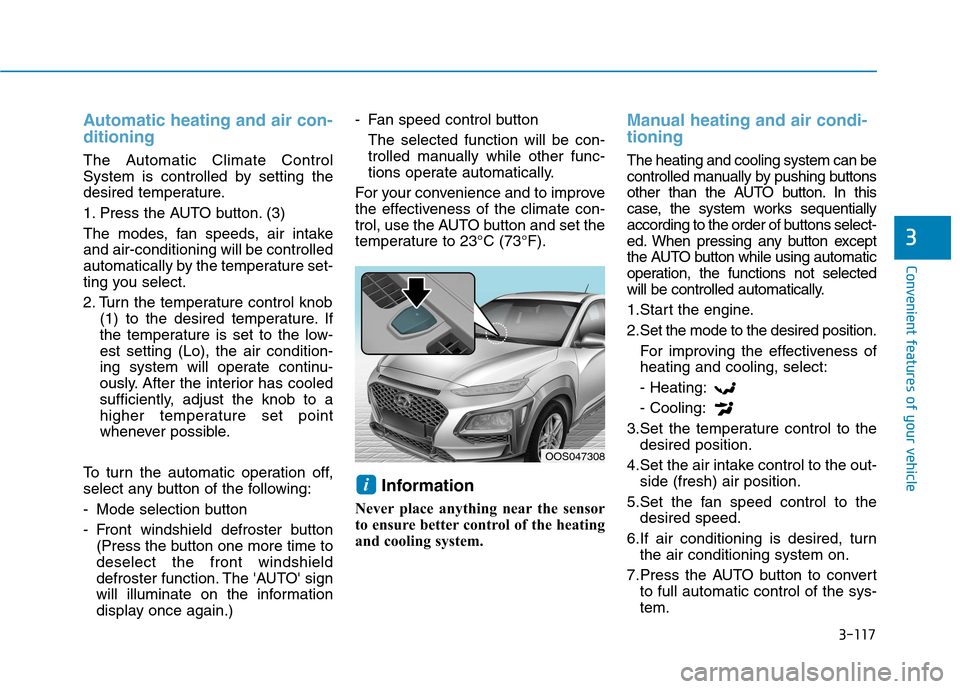
1. Press the AUTO button. (3)
The modes, fan speeds, air intake and air-conditioning will be controlled
automatically by the temperature set-
ting you select.
2. Turn the temperature control knob(1) to the desired temperature. If
the temperature is set to the low-est setting (Lo), the air condition-
ing system will operate continu-
ously. After the interior has cooled
sufficiently, adjust the knob to a
higher temperature set point
whenever possible.
To turn the automatic operation off,
select any button of the following:
- Mode selection button
- Front windshield defroster button (Press the button one more time to deselect the front windshield
defroster function. The 'AUTO' sign
will illuminate on the information
display once again.) - Fan speed control button
The selected function will be con-
trolled manually while other func-
tions operate automatically.
For your convenience and to improve
the effectiveness of the climate con-
trol, use the AUTO button and set the
temperature to 23°C (73°F).
Information
Never place anything near the sensor
to ensure better control of the heating
and cooling system.
Manual heating and air condi- tioning
The heating and cooling system can be
controlled manually by pushing buttons
other than the AUTO button. In this
case, the system works sequentially
according to the order of buttons select-
ed. When pressing any button except
the AUTO button while using automatic
operation, the functions not selected
will be controlled automatically.
1.Start the engine.
2.Set the mode to the desired position. For improving the effectiveness of heating and cooling, select: - Heating:- Cooling:
3.Set the temperature control to the desired position.
4.Set the air intake control to the out- side (fresh) air position.
5.Set the fan speed control to the desired speed.
6.If air conditioning is desired, turn the air conditioning system on.
7.Press the AUTO button to convert to full automatic control of the sys- tem.
i
OOS047308
Page 203 of 523
3-120
Convenient features of your vehicle
Fan speed control (2)
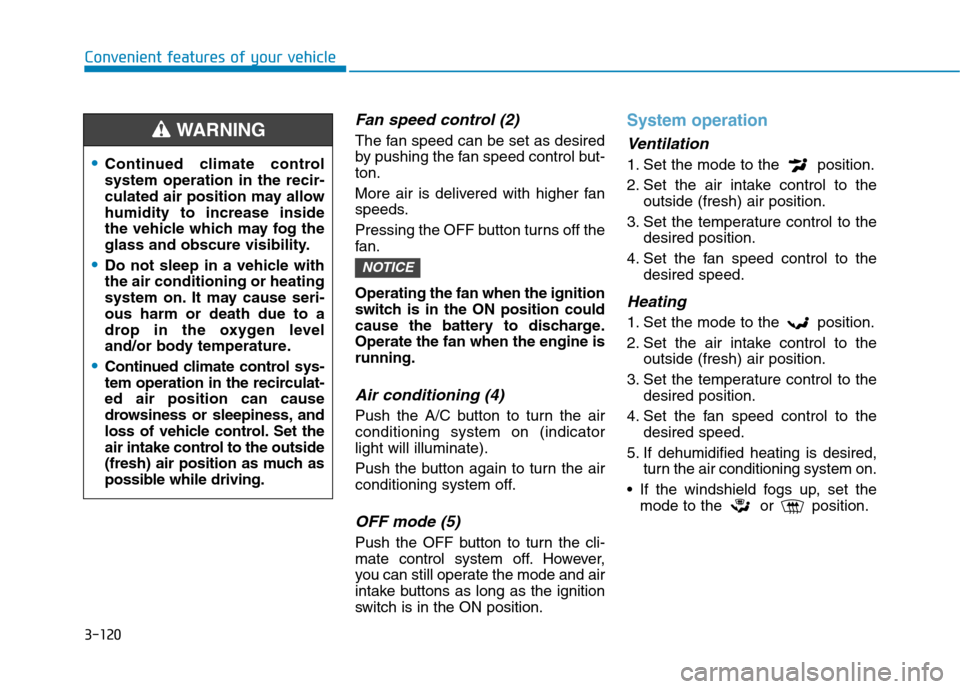
The fan speed can be set as desired
by pushing the fan speed control but-ton.
More air is delivered with higher fan
speeds.
Pressing the OFF button turns off the
fan. Operating the fan when the ignition
switch is in the ON position could
cause the battery to discharge.Operate the fan when the engine isrunning.
Air conditioning (4)
Push the A/C button to turn the airconditioning system on (indicatorlight will illuminate).
Push the button again to turn the air
conditioning system off.
OFF mode (5)
Push the OFF button to turn the cli-
mate control system off. However,
you can still operate the mode and air
intake buttons as long as the ignition
switch is in the ON position.
System operation
Ventilation
1. Set the mode to the position.
2. Set the air intake control to theoutside (fresh) air position.
3. Set the temperature control to the desired position.
4. Set the fan speed control to the desired speed.
Heating
1. Set the mode to the position.
2. Set the air intake control to theoutside (fresh) air position.
3. Set the temperature control to the desired position.
4. Set the fan speed control to the desired speed.
5. If dehumidified heating is desired, turn the air conditioning system on.
If the windshield fogs up, set the mode to the or position.
NOTICE
Continued climate control system operation in the recir-
culated air position may allowhumidity to increase inside
the vehicle which may fog the
glass and obscure visibility.
Do not sleep in a vehicle with the air conditioning or heating
system on. It may cause seri-ous harm or death due to a
drop in the oxygen level
and/or body temperature.
Continued climate control sys-
tem operation in the recirculat-ed air position can cause
drowsiness or sleepiness, and
loss of vehicle control. Set the
air intake control to the outside
(fresh) air position as much as
possible while driving.
WARNING
Page 204 of 523
3-121
Convenient features of your vehicle
3
Operation Tips
To keep dust or unpleasant fumesfrom entering the vehicle through
the ventilation system, temporarily
set the air intake control to the
recirculated air position. Be sure to
return the control to the fresh air
position when the irritation has
passed to keep fresh air in the
vehicle. This will help keep the driv-
er alert and comfortable.
To prevent interior fog on the wind- shield, set the air intake control to the
fresh air position and fan speed to
the desired position, turn on the airconditioning system, and adjust the
temperature control to the desired
temperature.
Air conditioning
HYUNDAI Air Conditioning Systemsare filled with R-134a or R-1234yf
refrigerant.
1. Start the engine. Push the air con- ditioning button.
2. Set the mode to the position.
3. Set the air intake control to the out- side air or recirculated air position. 4. Adjust the fan speed control and
temperature control to maintain
maximum comfort.
Information
Your vehicle is filled with R-134a or
R-1234yf according to the regulation
in your country at the time of produc-
tion. You can find out which air condi-
tioning refrigerant is applied to your
vehicle on the label located inside of
the hood. Refer to chapter 8 for the
location of the air conditioning refrig-
erant label.
The refrigerant system should only be serviced by trained and
certified technicians to insure
proper and safe operation.
The refrigerant system should be serviced in a well-ventilated
place.
The air conditioning evaporator (cooling coil) shall never berepaired or replaced with one
removed from a used or salvaged
vehicle and new replacement
MAC evaporators shall be certi- fied (and labeled) as meeting SAE
Standard J2842.
When using the air conditioning system, monitor the temperature
gauge closely while driving up
hills or in heavy traffic when out-
side temperatures are high. Airconditioning system operation
may cause engine overheating.
Continue to use the fan but turnthe air conditioning system off if
the temperature gauge indicates
engine overheating.
When opening the windows in humid weather air conditioning
may create water droplets inside
the vehicle. Since excessive
water droplets may cause dam-
age to electrical equipment, air
conditioning should only be
used with the windows closed.
NOTICE
NOTICE
i
Page 207 of 523
3-124
WWIINN DDSSHH IIEE LLDD DD EEFFRR OO SSTT IINN GG AA NN DD DD EEFFOO GGGGIINN GG
Convenient features of your vehicle
For maximum windshield defrost-
ing, set the temperature control
knob to the highest temperature
setting and the fan control knob to
the highest fan speed. Select the
front defrost button on the climate
control display. After the engine
warm-up period, warm air will bedirected to the front windshield.
If warm air to the floor is desired while defrosting or defogging, set themode to the floor-defrost position.
Before driving, clear all snow and ice from the windshield, rear win-
dow, outside rear view mirrors, and
all side windows.
Clear all snow and ice from the hood and air inlet in the cowl grill to
improve heater and defroster effi-ciency and to reduce the probability
of fogging up inside of the wind-shield.
Information
If the engine temperature is still cold
after starting, then a brief engine warm
up period may be required for the
vented air flow to become warm or hot.Manual climate control system
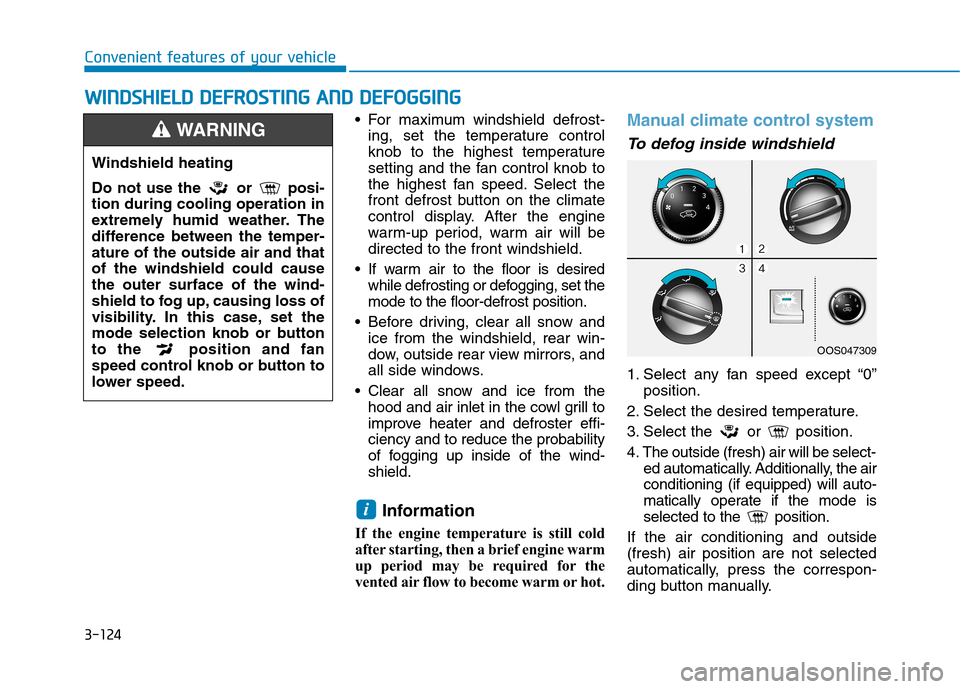
To defog inside windshield
1. Select any fan speed except “0” position.
2. Select the desired temperature.
3. Select the or position.
4. The outside (fresh) air will be select- ed automatically. Additionally, the air conditioning (if equipped) will auto-
matically operate if the mode is
selected to the position.
If the air conditioning and outside(fresh) air position are not selected
automatically, press the correspon-
ding button manually.
i
Windshield heating
Do not use the or posi- tion during cooling operation in
extremely humid weather. The
difference between the temper-ature of the outside air and thatof the windshield could causethe outer surface of the wind-
shield to fog up, causing loss of
visibility. In this case, set the
mode selection knob or button
to the position and fan
speed control knob or button to
lower speed.
WARNING
OOS047309
Page 215 of 523
3-132
Convenient features of your vehicle
Sunvisor
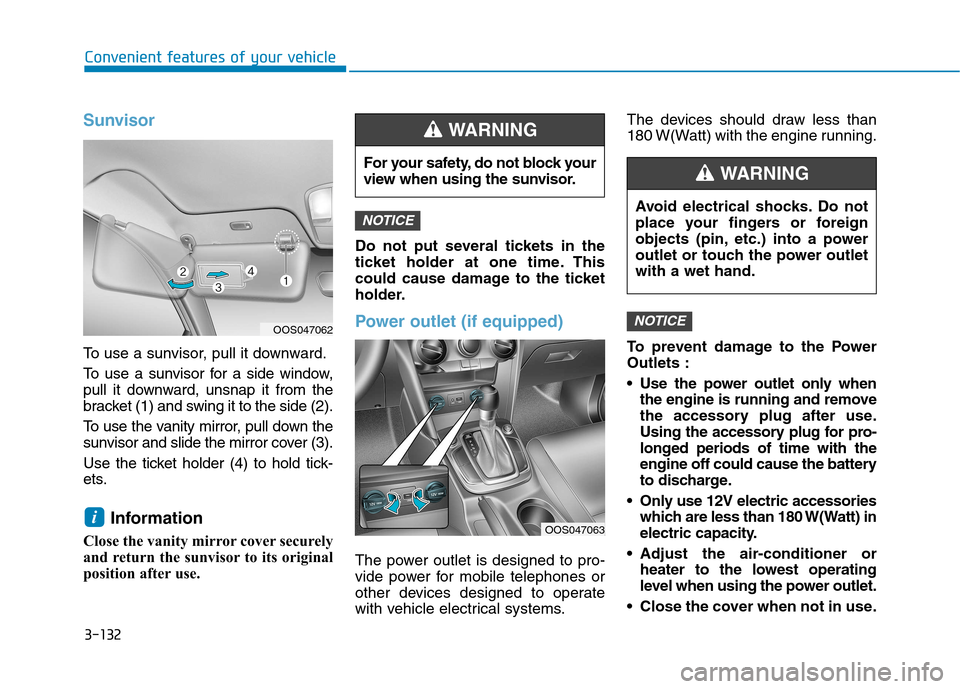
To use a sunvisor, pull it downward.
To use a sunvisor for a side window,
pull it downward, unsnap it from the
bracket (1) and swing it to the side (2).
To use the vanity mirror, pull down the
sunvisor and slide the mirror cover (3).
Use the ticket holder (4) to hold tick-
ets.Information
Close the vanity mirror cover securely
and return the sunvisor to its original
position after use. Do not put several tickets in the
ticket holder at one time. This
could cause damage to the ticket
holder.
Power outlet (if equipped)
The power outlet is designed to pro-
vide power for mobile telephones or
other devices designed to operate
with vehicle electrical systems.The devices should draw less than
180 W(Watt) with the engine running.
To prevent damage to the Power Outlets :
Use the power outlet only when
the engine is running and remove
the accessory plug after use.
Using the accessory plug for pro-
longed periods of time with the
engine off could cause the battery
to discharge.
Only use 12V electric accessories which are less than 180 W(Watt) in
electric capacity.
Adjust the air-conditioner or heater to the lowest operating
level when using the power outlet.
Close the cover when not in use.
NOTICE
NOTICE
i
For your safety, do not block your
view when using the sunvisor.
WARNING
OOS047062
OOS047063 Avoid electrical shocks. Do not
place your fingers or foreign
objects (pin, etc.) into a power
outlet or touch the power outletwith a wet hand.
WARNING
Page 217 of 523
3-134
Convenient features of your vehicle
The indicator light will blink orange
for 10 seconds if there is a malfunc-tion in the wireless charging system.
In this case, temporarily stop the
charging process, and re-attempt to
wirelessly charge your cellular phoneagain.
The system warns you with a mes-
sage on the LCD display if the cellularphone is still on the wireless charging
unit after the engine is turned OFFand the front door is opened.
The wireless cellular phonecharging system may not sup-
port certain cellular phones,
which are not verified for the Qi
specification ( ).
Locate your cellular phone well in the middle of the wireless cel-
lular phone charging system.
Even when your cellular phone
locates slightly to one side, the
charging speed may decrease
and the phone may heat when
charging. The wireless charging process
may temporarily stop, when a
smart key function operates (i.e.
starting the engine, opening the
doors, closing the doors).
For certain cellular phone, the indicator color may not change to
green, even when the wireless
charging process is properlycompleted.
The wireless charging process may temporarily stop, when tempera-
ture abnormally increases inside
the wireless cellular phone charg-
ing system. The wireless charging
process restarts, when tempera-
ture falls to a certain level.
The wireless charging process may temporarily stop when there
is any metallic item, such as a
coin, between the wireless cellu-
lar phone charging system and a
cellular phone.
For certain cellular phones with their own protection, the wireless
charging speed may decrease
and the wireless charging maystop. If the cellular phone has a thick
cover, the wireless charging may
not be possible.
If the cellular phone is not fully contacted into the wireless
charging pad, the wireless charg-
ing may not be possible.
Some magnetic item (credit cards, phone cards, passbook
and tickets) may be damaged
while wireless charging process.
NOTICE
Page 225 of 523
Bluetooth®Wireless Technology
hands-free
You can use the phone wirelessly by using the
Bluetooth®Wireless
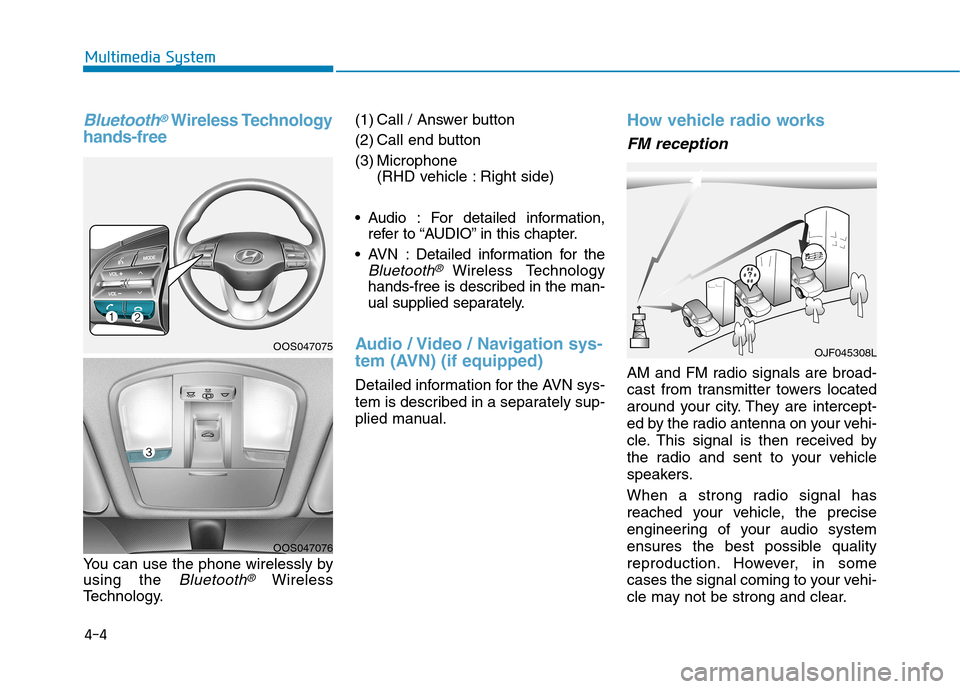
Technology. (1) Call / Answer button
(2) Call end button
(3) Microphone
(RHD vehicle : Right side)
Audio : For detailed information, refer to “AUDIO” in this chapter.
AVN : Detailed information for the
Bluetooth® Wireless Technology
hands-free is described in the man-
ual supplied separately.
Audio / Video / Navigation sys-
tem (AVN) (if equipped)
Detailed information for the AVN sys-
tem is described in a separately sup-
plied manual.
How vehicle radio works
FM reception
AM and FM radio signals are broad-
cast from transmitter towers located
around your city. They are intercept-
ed by the radio antenna on your vehi-
cle. This signal is then received by
the radio and sent to your vehicle
speakers.
When a strong radio signal has
reached your vehicle, the precise
engineering of your audio system
ensures the best possible quality
reproduction. However, in some
cases the signal coming to your vehi-
cle may not be strong and clear.
OJF045308L
4-4
Multimedia System
OOS047075
OOS047076
Page 232 of 523
4-11
Multimedia System
4
Do not stare at the screen
while driving. Staring at the
screen for prolonged periodsof time could lead to trafficaccidents.
Do not disassemble, assem-
ble, or modify the audio sys-
tem. Such acts could result in
accidents, fire, or electric
shock.
Using the phone while driving
may lead to a lack of attentionof traffic conditions andincrease the likelihood of
accidents. Use the phone fea-
ture after parking the vehicle.
Exercise caution not to spill
water or introduce foreign
objects into the device. Such
acts could lead to smoke, fire,
or product malfunction.
WARNINGPlease refrain from use if the
screen is blank or no sound
can be heard as these signs
may indicate product mal-
function. Continued use in
such conditions could lead to
accidents (fires, electric
shock) or product malfunc-tions.
Do not touch the antenna dur- ing thunder or lightening as
such acts may lead to light-
ning induced electric shock.
Do not stop or park in park- ing-restricted areas to operate
the product. Such acts couldlead to traffic accidents.
Use the system with the vehi-
cle engine turned on.
Prolonged use with the igni-
tion turned on only could
result in battery discharge.
Driving while distracted can
result in a loss of vehicle con-
trol that may lead to an acci-
dent, severe personal injury,
and death. The driver’s primary
responsibility is in the safe and
legal operation of a vehicle, and
use of any handheld devices,
other equipment, or vehicle sys-
tems which take the driver’s
eyes, attention and focus away
from the safe operation of a
vehicle or which are not permis-
sible by law should never beused during operation of the
vehicle.
WARNING
Page 233 of 523
4-12
Multimedia System
Operating the device while driv-ing could lead to accidents due
to a lack of attention to external
surroundings. First park the
vehicle before operating the
device.
Adjust the volume to levels that allow the driver to hear sounds
from outside of the vehicle.
Driving in a state where external
sounds cannot be heard maylead to accidents.
Pay attention to the volume set- ting when turning the device on.
A sudden output of extreme vol-
ume upon turning the device oncould lead to hearing impair-
ment. (Adjust the volume to a
suitable levels before turning off
the device.)
Turn on the car engine before using this device. Do not oper-
ate the audio system for long
periods of time only with the
ignition turned on as such oper-
ations may lead to battery dis-
charge. Do not subject the device to
severe shock or impact. Direct
pressure onto the front side of
the monitor may cause damage
to the LCD.
When cleaning the device, make sure to turn off the device and
use a dry and smooth cloth.
Never use tough materials, chem-
ical cloths, or solvents (alcohol,
benzene, thinners, etc.). As such
materials may damage the devicepanel or cause color/quality dete-rioration.
Do not place beverages close to the audio system. Spilling bever-
ages may lead to system mal-function.
In case of product malfunction, please contact your place of pur-
chase or After Service center.
Placing the audio system within an electromagnetic environment
may result in noise interference.
Prevent caustic solutions such as perfume and cosmetic oil
from contacting the dashboard
because they may cause dam-
age or discoloration.
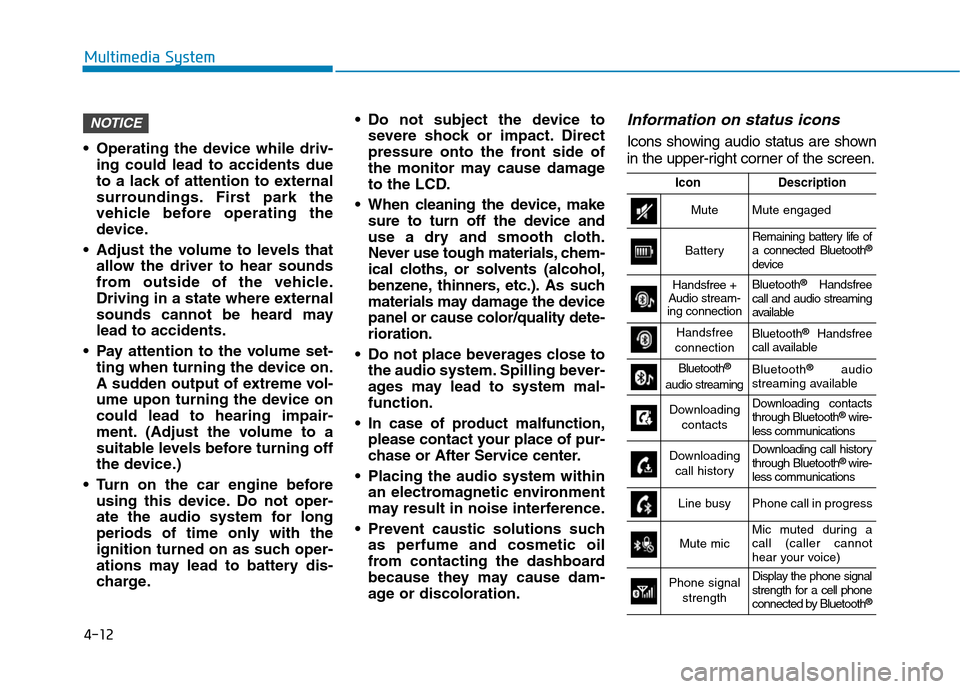
Information on status icons
Icons showing audio status are shown
in the upper-right corner of the screen.
NOTICE
IconDescription
MuteMute engaged
BatteryRemaining battery life of a connected Bluetooth ®
device
Handsfree +
Audio stream-
ing connectionBluetooth ®
Handsfree
call and audio streaming
available
Handsfree
connectionBluetooth ®
Handsfree
call available
Bluetooth ®
audio streamingBluetooth ®
audio
streaming available
Downloading
contactsDownloading contacts through Bluetooth ®
wire-
less communications
Downloading
call historyDownloading call history through Bluetooth ®
wire-
less communications
Line busyPhone call in progress
Mute micMic muted during a call (caller cannot
hear your voice)
Phone signal
strengthDisplay the phone signal
strength for a cell phone
connected by Bluetooth ®
Page 237 of 523
4-16
Multimedia System
Information
- Usingthe USB Devices
Starting the vehicle while a USB device is connected can damage the
device. Please disconnect USB
devices before starting the vehicle.
Starting the vehicle or stopping the engine while an external USB device
is connected can result in failure of
the external USB device to operate.
Be cautious of static electricity when connecting/disconnecting external
USB devices.
An encrypted MP3 player is not rec- ognized when connected as an exter-
nal device.
External USB devices may not be recognized, depending on the state
of the external USB device.
Only products with byte/sectors for- matted at 4 KB or lower are recog-
nized.
Only USB devices in FAT12/16/32 format are recognized; NTFS and
ExFAT file systems are not recog-
nized.
Some USB devices are not recog- nized due to compatibility issues. Do not touch the USB connections.
Connecting and disconnecting USB
devices rapidly over a short period
of time can cause equipment failure.
Abnormal sounds may be audible when the USB device is disconnect-
ed.
Turn the audio off before connecting or disconnecting external USB
devices.
Recognition may take longer depending on the type, capacity or
file format of the external USB
device. This is not a product mal-
function.
Use of USB devices for purposes other than playing music files is pro-
hibited.
Image display and video playback are not supported.
Use of USB accessories, including charge and heat though the USB I/F,
can lead to reduced product per-
formance or malfunctions. Do not
use USB devices or accessories for
these purposes. Use of aftermarket USB hubs and
extension cables can result in the
vehicle’s audio system failing to rec-
ognize your USB device. Connect
the USB device directly to the multi-
media port of your vehicle.
When using high-capacity USB devices with logical drive divisions,
only files saved on the highest level
logical drive can be played.
If applications are loaded on a USB
drive, file playback may fail.
Some MP3 players, cell phones, dig- ital cameras, etc. (USB devices that
are not recognized as mobile stor-
age) may not operate normally
when connected.
USB charging may not be supported by some mobile devices.
Operation is guaranteed only for standard (Metal Cover Type) USB
Memory drives.i