language Hyundai Kona 2019 Owner's Manual - RHD (UK, Australia)
[x] Cancel search | Manufacturer: HYUNDAI, Model Year: 2019, Model line: Kona, Model: Hyundai Kona 2019Pages: 526, PDF Size: 15.68 MB
Page 152 of 526
3-70
Convenient features of your vehicle
User settings mode
In this mode, you can change the
settings of the instrument cluster,
doors, lamps, etc.
1. Head-up display (if equipped)
2. Driver assistance
3. Door
4. Lights
5. Sound
6. Convenience
7. Service interval
8. Other features
9. Languages
10. Reset
The information provided may dif-
fer depending on which functions
are applicable to your vehicle.
1. Head up display (if equipped)
Display height- Adjust the height of the HUDimage on the display.
Rotation - Adjust the angle of the image. Brightness
- Adjust the intensity of the HUDillumination.
Content select - Tu r n b y Tu r n
- Traffic information
- Cruise control
- Lane keeping assist (LKA) sys-tem
- Blind-spot Collision Warning (BCW) system
Speedometer size - Choose the speedometer fontsize of the HUD. (Large, Medium,
Small)
Speedometer colour - Choose the speedometer fontcolour of the HUD. (White,
Orange, Green) 2. Driver assistance
DAW (Driver Attention Warning)
- High sensitivity/Normal sensitivity/Off
To adjust the sensitivity of the Driver
Attention Warning (DAW).
For more information, refer to the
"Driver Attention Warning (DAW)
system " in chapter 5.
Lane Safety - Lane Departure Warning
- Standard LKA
- Active LKA
To adjust the Lane Keeping Assist
(LKA) function.
For more information, refer to the
"Lane Keeping Assist (LKA) sys-
tem " in chapter 5.
FCA (Forward Collision-Avoidance Assist)
To activate or deactivate the Forward
Collision-Avoidance Assist (FCA).
For more information, refer to the
"Forward Collision-Avoidance
Assist (FCA) system" in chapter 5.
Page 155 of 526
3-73
Convenient features of your vehicle
3
7. Service interval
To activate or deactivate the service
interval function.
If the service interval menu is acti-
vated, you may adjust the time and
distance.
Information
To use the service interval menu, con-
sult a HYUNDAI authorised repairer.
If the service interval is activated and
the time and distance is adjusted,
messages are displayed in the fol-
lowing situations each time the vehi-
cle is turned on.
- Service in: Displayed to inform the driver theremaining mileage and days to
service.
- Service required : Displayed when the mileage anddays to service has been reached
or passed.
Information
If any of the following conditions
occur, the mileage and number of days
to service may be incorrect.
- The battery cable is disconnected.
- The fuse switch is turned off.
- The battery is discharged.
8. Other features
- Off: The average fuel economy will not reset automatically whenever
refuelling.
- After ignition: When the engine has been OFF for 4 hours or longer the
average fuel economy will reset
automatically.
- After refuelling: The average fuel economy will reset automatically
after adding 6 litres (1.3 lmp. gal.)
of fuel or more and after driving
speed exceeds 1 mph (1 km/h).
For more information, refer to
"Trip Computer" in this chapter.
To select the fuel economy unit.
(UK gallon, US gallon)
To select the temperature unit.
(°C,°F)
To select the tyre pressure unit.
(psi, kPa, bar)
9. Language
Choose the language.
10. Reset
You can reset the menus in the User
Settings Mode. All menus in the User
Settings Mode are initialised, except
language and service interval.
i
i
Page 237 of 526
4-15
Multimedia System
4
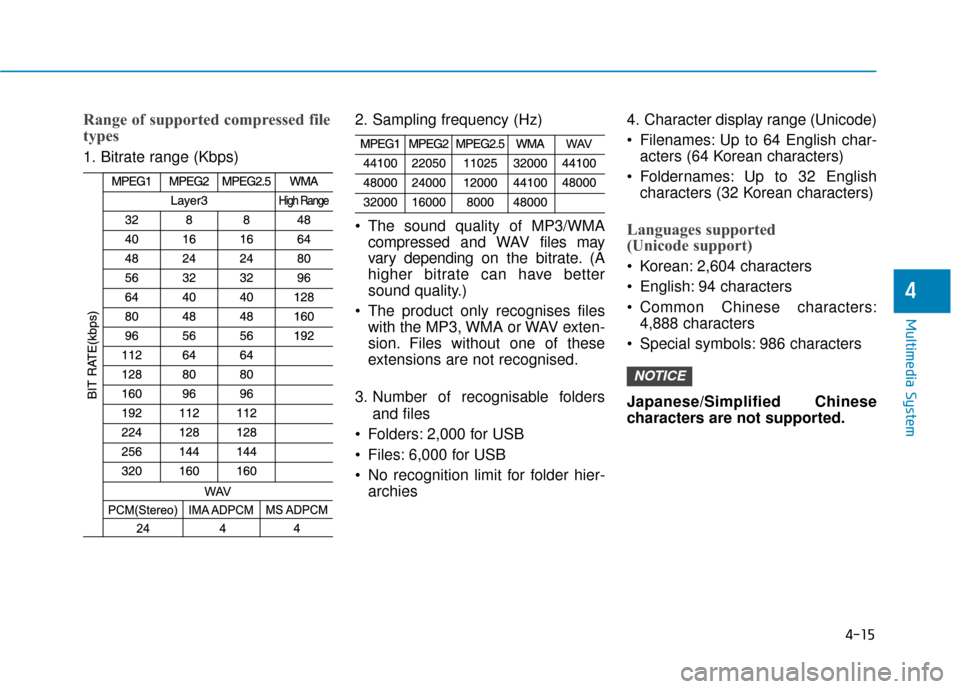
Range of supported compressed file
types
1. Bitrate range (Kbps)2. Sampling frequency (Hz)
The sound quality of MP3/WMA
compressed and WAVfiles may
vary depending on the bitrate. (A
higher bitrate can have better
sound quality.)
The product only recognises files with the MP3, WMA or WAV exten-
sion. Files without one of these
extensions are not recognised.
3. Number of recognisable folders and files
Folders: 2,000 for USB
Files: 6,000 for USB
No recognition limit for folder hier- archies 4. Character display range (Unicode)
Filenames: Up to 64 English char-
acters (64 Korean characters)
Foldernames: Up to 32 English characters (32 Korean characters)
Languages supported
(Unicode support)
Korean: 2,604 characters
English: 94 characters
Common Chinese characters:4,888 characters
Special symbols: 986 characters
Japanese/Simplified Chinese
characters are not supported.
NOTICE
Page 254 of 526
![Hyundai Kona 2019 Owners Manual - RHD (UK, Australia) 4-32
Multimedia System
Bluetooth
Press the [SETUP/CLOCK]button
➟ Select [Bluetooth].
Connections: Control pairing, dele- tion, connection and disconnection
of Bluetooth
®devices.
Auto connection](/img/35/16225/w960_16225-253.png "Hyundai Kona 2019 Owners Manual - RHD (UK, Australia) 4-32
Multimedia System
Bluetooth
Press the [SETUP/CLOCK]button
➟ Select [Bluetooth].
Connections: Control pairing, dele- tion, connection and disconnection
of Bluetooth
®devices.
Auto connection")
4-32
Multimedia System
Bluetooth
Press the [SETUP/CLOCK]button
➟ Select [Bluetooth].
Connections: Control pairing, dele- tion, connection and disconnection
of Bluetooth
®devices.
Auto connection priority: Set the connection priority of Bluetooth
®
devices when the vehicle is started.
Update contacts: Contacts can be
downloaded from connected
Bluetooth
®devices.
Bluetooth voice guidance: Play or mute voice prompts for Bluetooth
®
device pairing, connection and
errors.
Information
• When paired devices are deleted,the call history and contacts of the
device saved to the audio system are
deleted.
• For Bluetooth
®connections with
low connection priority, some time
may be required for the connection
to be established.
• Contacts can be downloaded only from the currently connected
Bluetooth
®device.
• If no Bluetooth
®device is connected,
the Download Contacts button is
disabled.
• If the language setting is Slovakian or Hungarian, Bluetooth voice guid-
ance is not supported.
System
Press the [SETUP/CLOCK] button
on the audio system ➟Select
[System].
Language: Change the user lan- guage.
Default: Reset the audio system.
Information
The system resets to the default val-
ues, and all saved data and settings
are lost.
Display Off
To prevent glare, the screen can be
turned off with the audio system in
operation.
Press the [SETUP/CLOCK] button
on the audio system ➟Select
[Display Off].
Information
Use ‘Screensaver’ to set the informa-
tion to be displayed when the screen is
turned off.
i
i
i