Wireless Charging HYUNDAI KONA 2022 Owners Manual
[x] Cancel search | Manufacturer: HYUNDAI, Model Year: 2022, Model line: KONA, Model: HYUNDAI KONA 2022Pages: 579, PDF Size: 35.31 MB
Page 130 of 579
04
4-37
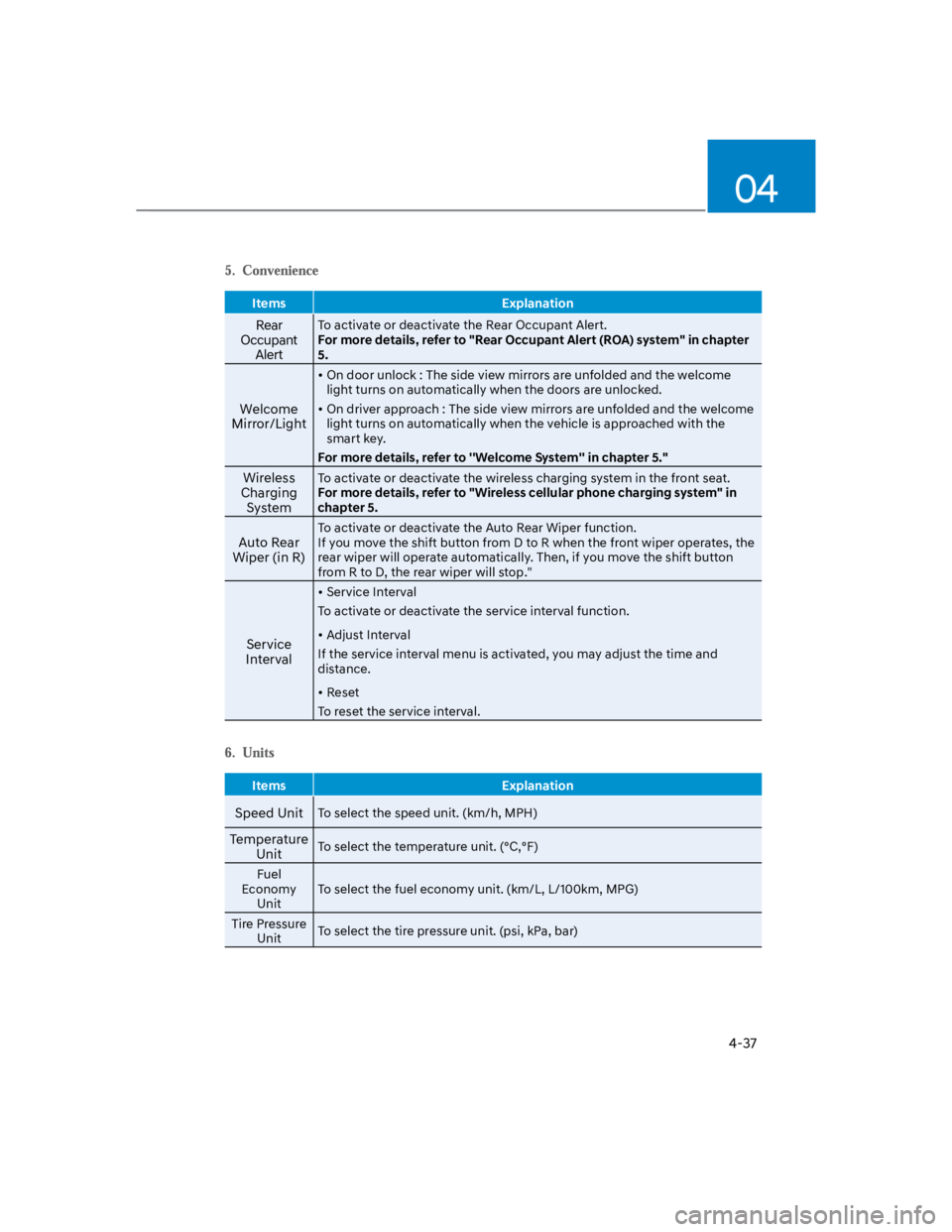
Items Explanation
Rear
Occupant
Alert
To activate or deactivate the Rear Occupant Alert.
For more details, refer to "Rear Occupant Alert (ROA) system" in chapter
5.
Welcome
Mirror/Light
On door unlock : The side view mirrors are unfolded and the welcome
light turns on automatically when the doors are unlocked.
On driver approach : The side view mirrors are unfolded and the welcome
light turns on automatically when the vehicle is approached with the
smart key.
For more details, refer to ''Welcome System'' in chapter 5."
Wireless
Charging
System
To activate or deactivate the wireless charging system in the front seat.
For more details, refer to "Wireless cellular phone charging system" in
chapter 5.
Auto Rear
Wiper (in R)
To activate or deactivate the Auto Rear Wiper function.
If you move the shift button from D to R when the front wiper operates, the
rear wiper will operate automatically. Then, if you move the shift button
from R to D, the rear wiper will stop."
Service
Interval
Service Interval
To activate or deactivate the service interval function.
Adjust Interval
If the service interval menu is activated, you may adjust the time and
distance.
Reset
To reset the service interval.
Items Explanation
Speed UnitTo select the speed unit. (km/h, MPH)
Temperature
UnitTo select the temperature unit. (°C,°F)
Fuel
Economy
Unit
To select the fuel economy unit. (km/L, L/100km, MPG)
Tire Pressure
UnitTo select the tire pressure unit. (psi, kPa, bar)
Page 137 of 579
5
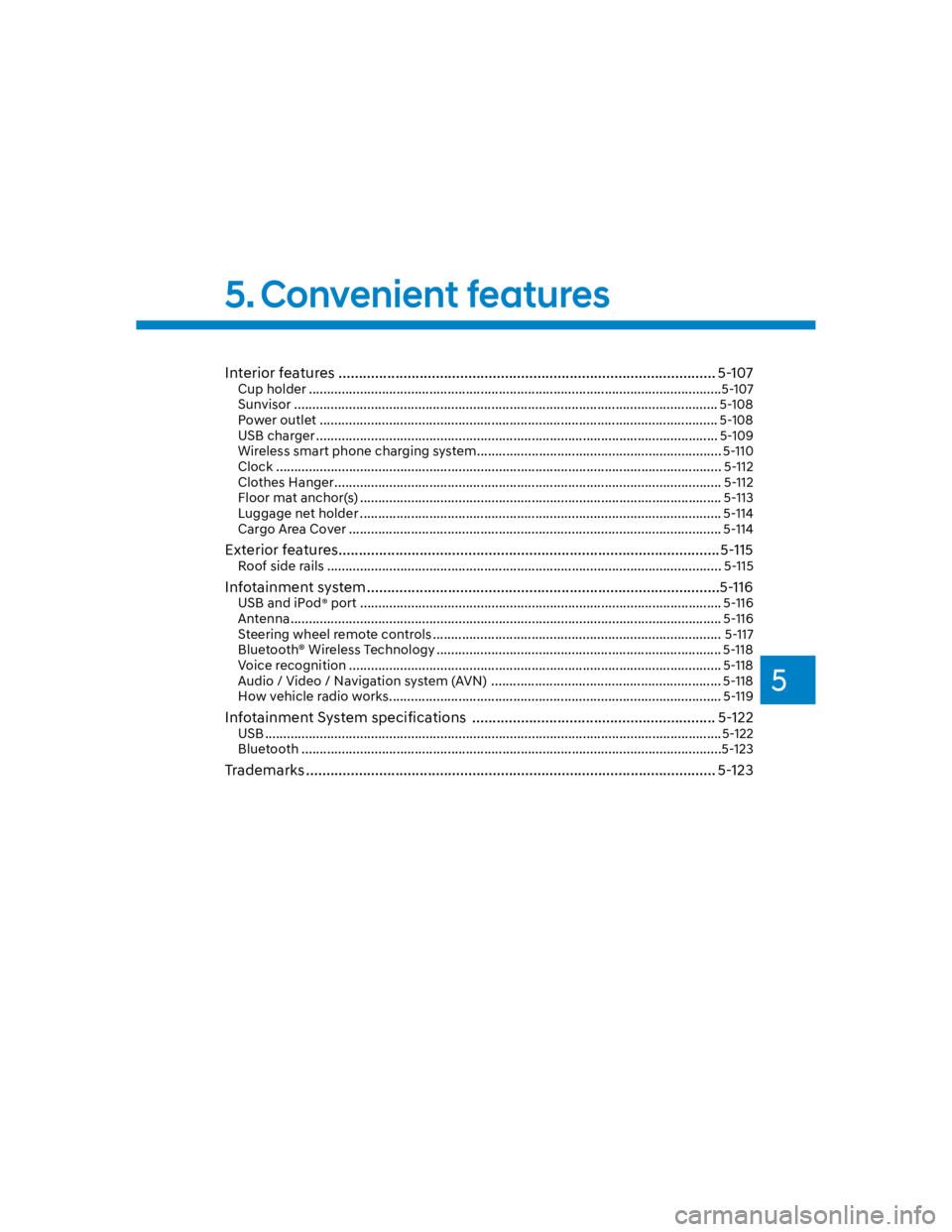
Interior features ............................................................................................. 5-107
Cup holder .................................................................................................................5-107
Sunvisor .................................................................................................................... 5-108
Power outlet ............................................................................................................. 5-108
USB charger .............................................................................................................. 5-109
Wireless smart phone charging system ................................................................... 5-110
Clock .......................................................................................................................... 5-112
Clothes Hanger .......................................................................................................... 5-112
Floor mat anchor(s) ................................................................................................... 5-113
Luggage net holder ................................................................................................... 5-114
Cargo Area Cover ...................................................................................................... 5-114
Exterior features ..............................................................................................5-115
Roof side rails ............................................................................................................ 5-115
Infotainment system .......................................................................................5-116
USB and iPod® port ................................................................................................... 5-116
Antenna ...................................................................................................................... 5-116
Steering wheel remote controls ............................................................................... 5-117
Bluetooth® Wireless Technology .............................................................................. 5-118
Voice recognition ...................................................................................................... 5-118
Audio / Video / Navigation system (AVN) ............................................................... 5-118
How vehicle radio works ........................................................................................... 5-119
Infotainment System specifications ............................................................ 5-122
USB .............................................................................................................................5-122
Bluetooth ...................................................................................................................5-123
Trademarks ..................................................................................................... 5-123
5. Convenient features
Page 150 of 579
Convenient features
5-16
Digital key (smartphone)
1. Turn the vehicle on with the Smart key
and make sure to keep the smart key
inside the vehicle during digital key
registration.
2. Register your Digital key from the
vehicle user setting menu as follows.
With Navigation screen :
From the infotainment screen menu,
go to [Setup] - [Vehicle] - [Digital Key]
- [Smart Phone Key] then select the
[Save] from submenu.
Without navigation screen :
From cluster menu, go to [Digital Key]
- [Smart Phone Key] and select [Save].
Information
3. Select the vehicle to save on your
Digital key application and activate
the save mode.
Save mode is available only on
the vehicle owner’s Digital key
application.
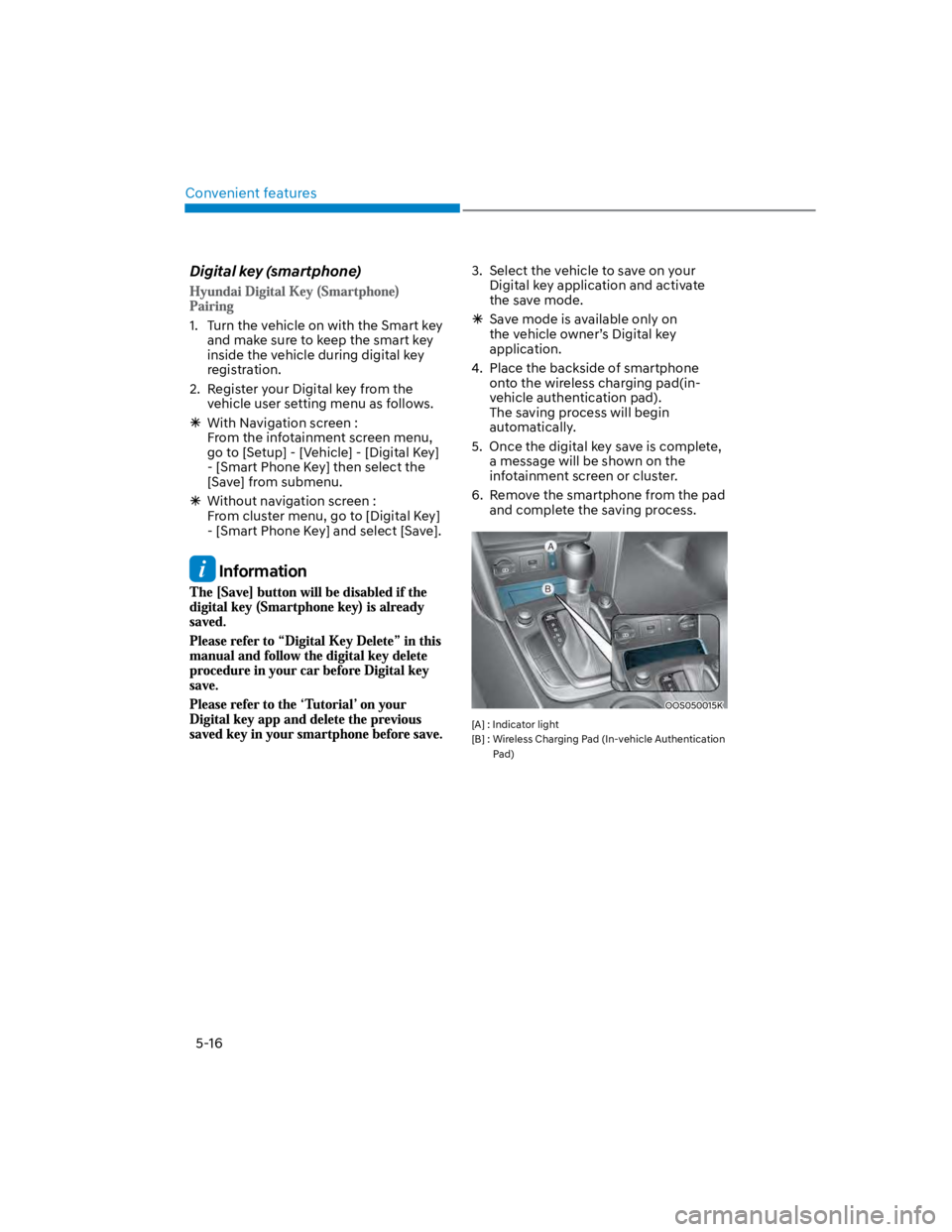
4. Place the backside of smartphone
onto the wireless charging pad(in-
vehicle authentication pad).
The saving process will begin
automatically.
5. Once the digital key save is complete,
a message will be shown on the
infotainment screen or cluster.
6. Remove the smartphone from the pad
and complete the saving process.
OOS050015K
[A] : Indicator light
[B] : Wireless Charging Pad (In-vehicle Authentication
Pad)
Page 152 of 579
Convenient features
5-18
You can manage multiple digital keys
from the Digital key app. From the list of
digital keys you own, select the vehicle
you want to make your priority vehicle.
For more information, please refer to
the ‘Tutorial’ on your Digital key app.
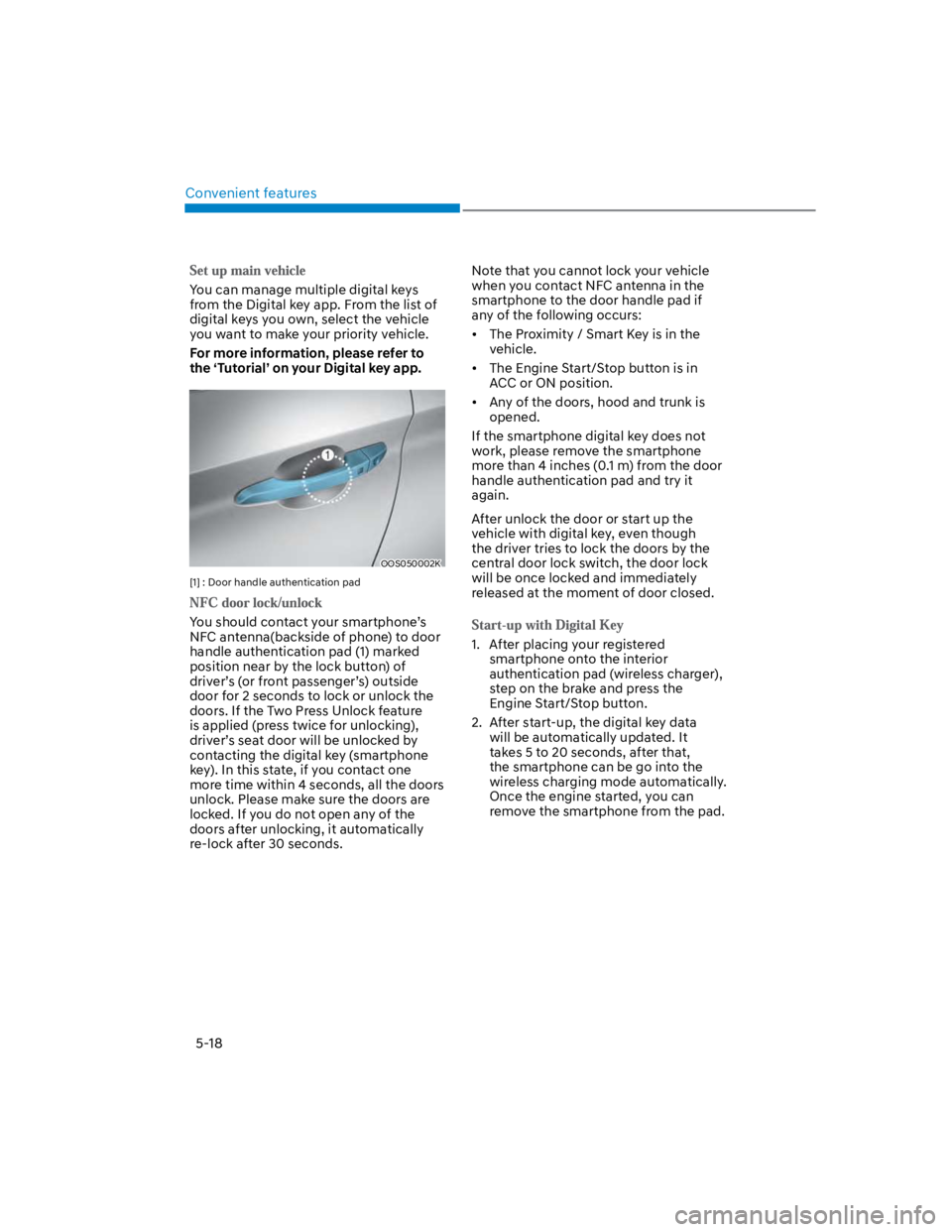
OOS050002K
[1] : Door handle authentication pad
You should contact your smartphone’s
NFC antenna(backside of phone) to door
handle authentication pad (1) marked
position near by the lock button) of
driver’s (or front passenger’s) outside
door for 2 seconds to lock or unlock the
doors. If the Two Press Unlock feature
is applied (press twice for unlocking),
driver’s seat door will be unlocked by
contacting the digital key (smartphone
key). In this state, if you contact one
more time within 4 seconds, all the doors
unlock. Please make sure the doors are
locked. If you do not open any of the
doors after unlocking, it automatically
re-lock after 30 seconds.
Note that you cannot lock your vehicle
when you contact NFC antenna in the
smartphone to the door handle pad if
any of the following occurs:
The Proximity / Smart Key is in the
vehicle.
The Engine Start/Stop button is in
ACC or ON position.
Any of the doors, hood and trunk is
opened.
If the smartphone digital key does not
work, please remove the smartphone
more than 4 inches (0.1 m) from the door
handle authentication pad and try it
again.
After unlock the door or start up the
vehicle with digital key, even though
the driver tries to lock the doors by the
central door lock switch, the door lock
will be once locked and immediately
released at the moment of door closed.
1. After placing your registered
smartphone onto the interior
authentication pad (wireless charger),
step on the brake and press the
Engine Start/Stop button.
2. After start-up, the digital key data
will be automatically updated. It
takes 5 to 20 seconds, after that,
the smartphone can be go into the
wireless charging mode automatically.
Once the engine started, you can
remove the smartphone from the pad.
Page 153 of 579
![HYUNDAI KONA 2022 Owners Manual 05
5-19
OOS050015K
[A] : Indicator light
[B] : Wireless Charging Pad (In-vehicle Authentication
Pad)
Information
CAUTION
The engine can be turned on if the
registered smartphone or card key is](/img/35/41169/w960_41169-152.png "HYUNDAI KONA 2022 Owners Manual 05
5-19
OOS050015K
[A] : Indicator light
[B] : Wireless Charging Pad (In-vehicle Authentication
Pad)
Information
CAUTION
The engine can be turned on if the
registered smartphone or card key is")
05
5-19
OOS050015K
[A] : Indicator light
[B] : Wireless Charging Pad (In-vehicle Authentication
Pad)
Information
CAUTION
The engine can be turned on if the
registered smartphone or card key is
placed on the interior authentication
pad (wireless charger). Do not leave
unsupervised children or people who
are not aware of the system since it
can result in serious injury or death.
Always have the registered digital key
(smartphone) or card key with you to
prevent vehicle theft when leaving the
vehicle.
For more information, refer to the
Engine Start/Stop button in chapter 6.
Page 163 of 579
05
5-29
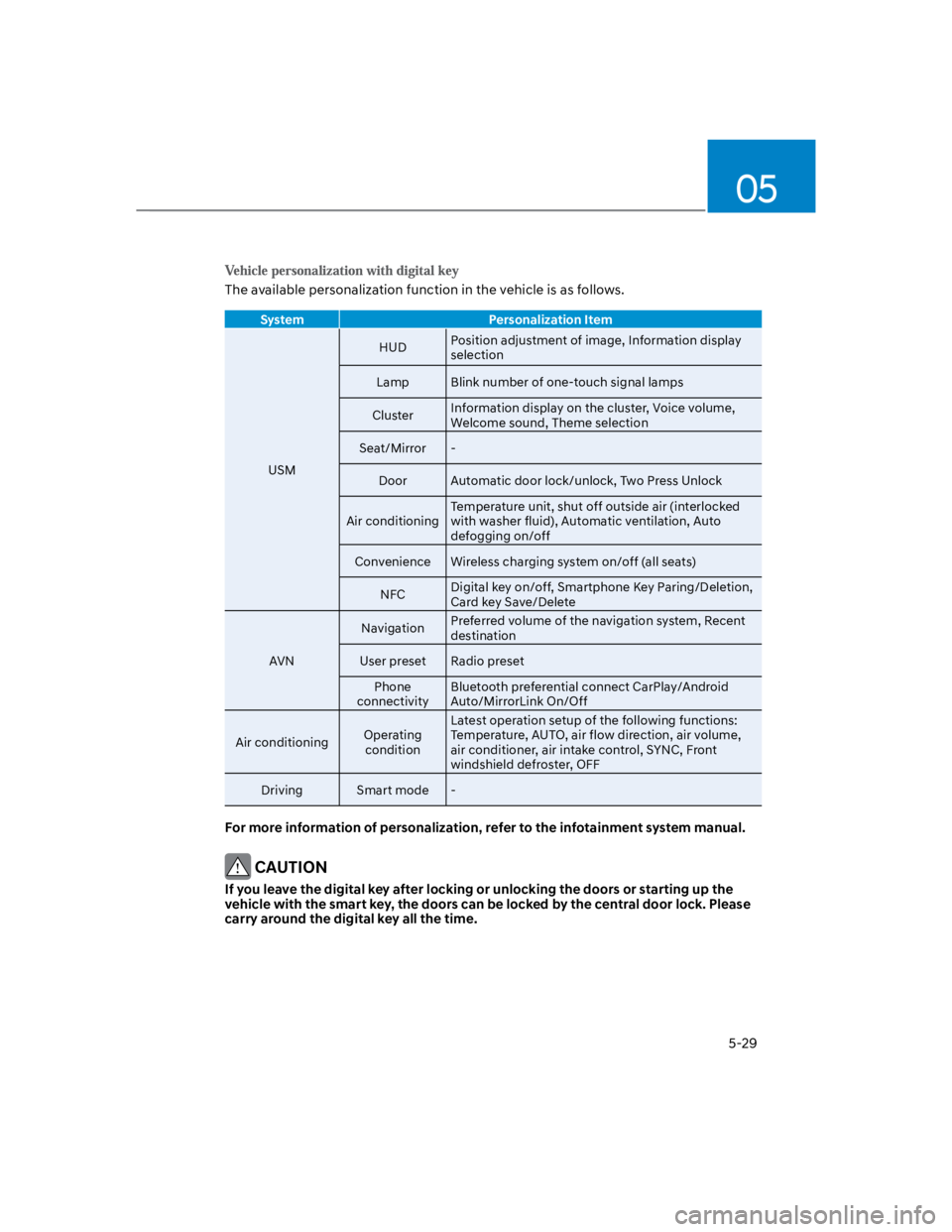
The available personalization function in the vehicle is as follows.
System Personalization Item
USM
HUDPosition adjustment of image, Information display
selection
Lamp Blink number of one-touch signal lamps
ClusterInformation display on the cluster, Voice volume,
Welcome sound, Theme selection
Seat/Mirror -
Door Automatic door lock/unlock, Two Press Unlock
Air conditioning
Temperature unit, shut off outside air (interlocked
with washer fluid), Automatic ventilation, Auto
defogging on/off
Convenience Wireless charging system on/off (all seats)
NFCDigital key on/off, Smartphone Key Paring/Deletion,
Card key Save/Delete
AVN
NavigationPreferred volume of the navigation system, Recent
destination
User preset Radio preset
Phone
connectivity
Bluetooth preferential connect CarPlay/Android
Auto/MirrorLink On/Off
Air conditioningOperating
condition
Latest operation setup of the following functions:
Temperature, AUTO, air flow direction, air volume,
air conditioner, air intake control, SYNC, Front
windshield defroster, OFF
Driving Smart mode -
For more information of personalization, refer to the infotainment system manual.
CAUTION
If you leave the digital key after locking or unlocking the doors or starting up the
vehicle with the smart key, the doors can be locked by the central door lock. Please
carry around the digital key all the time.
Page 244 of 579
![HYUNDAI KONA 2022 Owners Manual Convenient features
5-110
Wireless smart phone charging
system (if equipped)
OOS050015K
[A] : Indicator light, [B] : Charging pad
On certain models, the vehicle comes
equipped with a wireless smart](/img/35/41169/w960_41169-243.png "HYUNDAI KONA 2022 Owners Manual Convenient features
5-110
Wireless smart phone charging
system (if equipped)
OOS050015K
[A] : Indicator light, [B] : Charging pad
On certain models, the vehicle comes
equipped with a wireless smart")
Convenient features
5-110
Wireless smart phone charging
system (if equipped)
OOS050015K
[A] : Indicator light, [B] : Charging pad
On certain models, the vehicle comes
equipped with a wireless smart phone
charger.
The system is available when all doors
are closed, and when the Engine Start/
Stop button is in the ACC or ON (or
START) position.
To charge a cellular phone
The wireless smart phone charging
system charges only the Qi-enabled
smart phones (). Read the label on
the smart phone accessory cover or
visit your smart phone manufacturer’s
website to check whether your smart
phone supports the Qi technology.
The wireless charging process starts
when you put a Qi-enabled smart phone
on the wireless charging unit.
1. Remove other items, including the
smart key, from the wireless charging
unit. If not, the wireless charging
process may be interrupted. Place
the smart phone on the center of the
charging pad.
2. The indicator light is orange when the
smart phone is charging. The indicator
light will turn blue when phone
charging is complete.
3. You can turn ON or OFF the wireless
charging function from the Settings
menu on the instrument cluster.
Select:
-
If your smart phone is not charging:
- Slightly change the position of the
smart phone on the charging pad.
- Make sure the indicator light is
orange.
The indicator light will blink orange for 10
seconds if there is a malfunction in the
wireless charging system.
In this case, temporarily stop the
charging process, and re-attempt to
charge your smart phone again.
The system warns you with a message on
the LCD display if the smart phone is still
on the wireless charging unit after the
vehicle is turned OFF and the front door
is opened.
For some manufacturer’s smart phones,
the system may not warn you even
though the smart phone is left on the
wireless charging unit. This is due to the
particular characteristic of the smart
phone and not a malfunction of the
wireless charging.
Information
Page 245 of 579
05
5-111
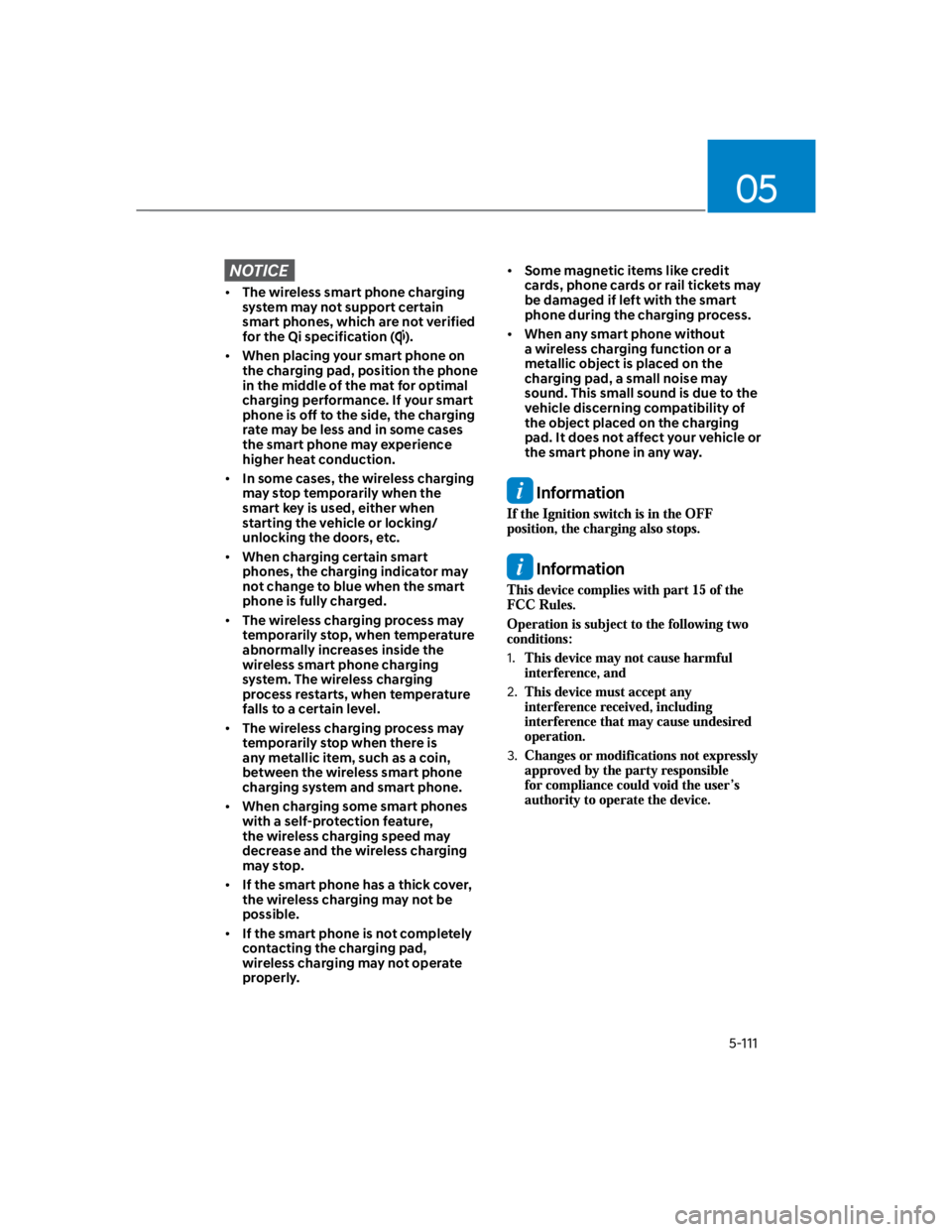
NOTICE
The wireless smart phone charging
system may not support certain
smart phones, which are not verified
for the Qi specification ().
When placing your smart phone on
the charging pad, position the phone
in the middle of the mat for optimal
charging performance. If your smart
phone is off to the side, the charging
rate may be less and in some cases
the smart phone may experience
higher heat conduction.
In some cases, the wireless charging
may stop temporarily when the
smart key is used, either when
starting the vehicle or locking/
unlocking the doors, etc.
When charging certain smart
phones, the charging indicator may
not change to blue when the smart
phone is fully charged.
The wireless charging process may
temporarily stop, when temperature
abnormally increases inside the
wireless smart phone charging
system. The wireless charging
process restarts, when temperature
falls to a certain level.
The wireless charging process may
temporarily stop when there is
any metallic item, such as a coin,
between the wireless smart phone
charging system and smart phone.
When charging some smart phones
with a self-protection feature,
the wireless charging speed may
decrease and the wireless charging
may stop.
If the smart phone has a thick cover,
the wireless charging may not be
possible.
If the smart phone is not completely
contacting the charging pad,
wireless charging may not operate
properly.
Some magnetic items like credit
cards, phone cards or rail tickets may
be damaged if left with the smart
phone during the charging process.
When any smart phone without
a wireless charging function or a
metallic object is placed on the
charging pad, a small noise may
sound. This small sound is due to the
vehicle discerning compatibility of
the object placed on the charging
pad. It does not affect your vehicle or
the smart phone in any way.
Information
Information
1.
2.
3.
Page 574 of 579

Index
I-8
Interior features.................................................................................................. 5-107
Cargo Area Cover ........................................................................................... 5-114
Clock .............................................................................................................. 5-112
Clothes Hanger ............................................................................................... 5-112
Cup holder ...................................................................................................... 5-107
Floor mat anchor(s) ........................................................................................ 5-113
Luggage net holder......................................................................................... 5-114
Power outlet.................................................................................................... 5-108
Sunvisor.......................................................................................................... 5-108
USB charger ................................................................................................... 5-109
Wireless smart phone charging system .......................................................... 5-110
Interior overview (I) .............................................................................................. 2-6
Interior overview (II) ............................................................................................. 2-7
J
Jump starting.......................................................................................................... 8-4
L
Lane Following Assist (LFA) ............................................................................. 7-88
Lane Following Assist malfunction and limitation .......................................... 7-91
Lane Following Assist operation...................................................................... 7-89
Lane Following Assist settings......................................................................... 7-88
Lane Keeping Assist (LKA) ............................................................................... 7-29
Lane Keeping Assist malfunction and limitations............................................ 7-33
Lane Keeping Assist operation......................................................................... 7-31
Lane Keeping Assist settings ........................................................................... 7-29
LCD display......................................................................................................... 4-28
LCD display control ......................................................................................... 4-28
Trip computer (Type A).................................................................................... 4-38
Trip computer (Type B).................................................................................... 4-40
User settings mode ........................................................................................... 4-32
View modes ...................................................................................................... 4-29