navigation HYUNDAI NEXO 2021 User Guide
[x] Cancel search | Manufacturer: HYUNDAI, Model Year: 2021, Model line: NEXO, Model: HYUNDAI NEXO 2021Pages: 561, PDF Size: 48.42 MB
Page 227 of 561
3-140
Convenient features of your vehicle
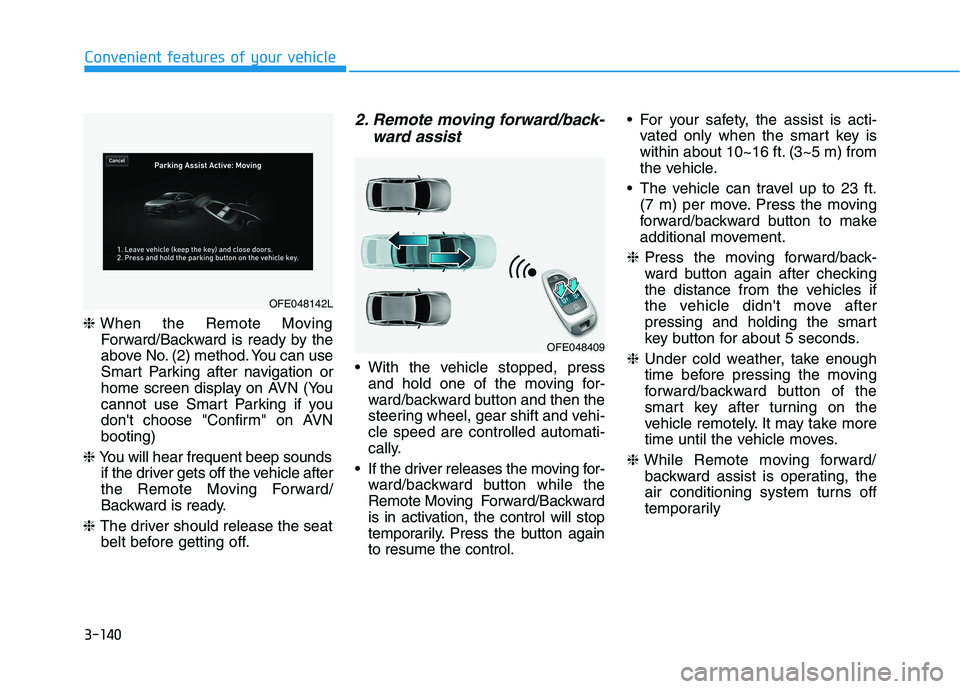
❈When the Remote Moving
Forward/Backward is ready by the
above No. (2) method. You can use
Smart Parking after navigation or
home screen display on AVN (You
cannot use Smart Parking if you
don't choose "Confirm" on AVN
booting)
❈You will hear frequent beep sounds
if the driver gets off the vehicle after
the Remote Moving Forward/
Backward is ready.
❈The driver should release the seat
belt before getting off.
2. Remote moving forward/back-
ward assist
With the vehicle stopped, press
and hold one of the moving for-
ward/backward button and then the
steering wheel, gear shift and vehi-
cle speed are controlled automati-
cally.
If the driver releases the moving for-
ward/backward button while the
Remote Moving Forward/Backward
is in activation, the control will stop
temporarily. Press the button again
to resume the control. For your safety, the assist is acti-
vated only when the smart key is
within about 10~16 ft. (3~5 m) from
the vehicle.
The vehicle can travel up to 23 ft.
(7 m) per move. Press the moving
forward/backward button to make
additional movement.
❈Press the moving forward/back-
ward button again after checking
the distance from the vehicles if
the vehicle didn't move after
pressing and holding the smart
key button for about 5 seconds.
❈Under cold weather, take enough
time before pressing the moving
forward/backward button of the
smart key after turning on the
vehicle remotely. It may take more
time until the vehicle moves.
❈While Remote moving forward/
backward assist is operating, the
air conditioning system turns off
temporarily
OFE048409
OFE048142L
Page 257 of 561
3-170
Convenient features of your vehicle
To charge a cellular phone
The wireless cellular phone charging
system charges only the Qi-enabled
cellular phones ( ). Read the label
on the cellular phone accessory
cover or visit your cellular phone
manufacturer's website to check
whether your cellular phone supports
the Qi technology.
The wireless charging process starts
when you put a Qi-enabled cellular
phone on the wireless charging unit.
1. Remove other items, including the
smart key, from the wireless charg-
ing unit. If not, the wireless charg-
ing process may be interrupted.
Place the cellular phone on the
center of the charging pad ( ).
2. The indicator light is orange when
the cellular phone is charging. The
indicator light turns green when
phone charging is complete.
3. You can turn ON or OFF the wire-
less charging function in the
Vehicle Settings mode on the AVN
screen. For further information,
refer to the separately supplied
"Navigation manual".If your cellular phone is not charging:
- Slightly change the position of the
cellular phone on the charging
pad.
- Make sure the indicator light is
orange.
The indicator light will blink orange for
10 seconds if there is a malfunction in
the wireless charging system.
In this case, temporarily stop the
charging process, and re-attempt to
charge your cellular phone again.
The system warns you with a mes-
sage on the LCD display if the cellular
phone is still on the wireless charging
unit after the POWER button is in the
OFF position and the front door is
opened.
Information
For some manufacturer's cellular
phones, the system may not warn you
even though the cellular phone is left
on the wireless charging unit. This is
due to the particular characteristic of
the cellular phone and not a malfunc-
tion of the wireless charging. The wireless cellular phone
charging system may not sup-
port certain cellular phones,
which are not verified for the Qi
specification ( ).
When placing your cellular
phone on the charging mat,
position the phone in the middle
of the mat for optimal charging
performance. If your cell phone
is off to the side, the charging
rate may be less and in some
cases the cell phone may experi-
ence higher heat conduction.
In some cases, the wireless
charging may stop temporarily
when the Smart Key is used,
either when starting the vehicle or
locking/unlocking the doors, etc.
When charging certain cellular
phones, the charging indicator
may not change to green when
the cell phone is fully charged.
NOTICE
i
Page 258 of 561
3-171
Convenient features of your vehicle
3
The wireless charging process
may temporarily stop, when tem-
perature abnormally increases
inside the wireless cellular phone
charging system. Stop the charg-
ing cellular phone and wait until
temperature falls to a certain level.
The wireless charging process
may temporarily stop when there
is any metallic item, such as a
coin, between the wireless cellular
phone charging system and the
cellular phone.
When charging some cellular
phones with a self-protection fea-
ture, the wireless charging speed
may decrease and the wireless
charging may stop.
If the cellular phone has a thick
cover, the wireless charging may
not be possible.
If the cell phone is not completely
contacting the charging pad, wire-
less charging may not operate
properly.
Some magnetic items like credit
cards, phone cards or rail tickets
may be damaged if left with the
cellular phone during the charging
process. When any cellular phone without a
wireless charging function or a
metallic object is placed on the
charging pad, a small noise may
sound. This small sound is due to
the vehicle discerning compatibil-
ity of the object placed on the
charging pad. It does not affect
your vehicle or the cellular phone
in any way.
Information
If the POWER button is in the OFF
position, the charging also stops.
Information
This device complies with part 15 of
the FCC Rules.
Operation is subject to the following
two conditions:
1. This device may not cause harmful
interference, and
2. This device must accept any inter-
ference received, including interfer-
ence that may cause undesired
operation.
Clock
Select the Vehicle Settings menu on
the AVN screen➟Select [Date/Time].
GPS time: Displays time according
to the received GNSS time.
Daylight saving time : The clock is
adjusted forward one hour.
Time format : Switches to 12 hour
or 24 hour.
For more details, refer to the sepa-
rately supplied Navigation manual.
i
i
Do not attempt to adjust the
clock while driving. Doing so
may result in distracted driving
which may lead to an accident
involving personal injury or
death.
WARNING
Page 264 of 561
Multimedia System
Multimedia system .................................................4-2
USB and iPod®port..........................................................4-2
Antenna ...............................................................................4-2
Steering wheel audio controls .......................................4-3
Bluetooth®Wireless Technology ..................................4-4
Blue Link®center .............................................................4-4
Audio / Video / Navigation system (AVN) ..................4-4
4
Page 267 of 561
Bluetooth®Wireless
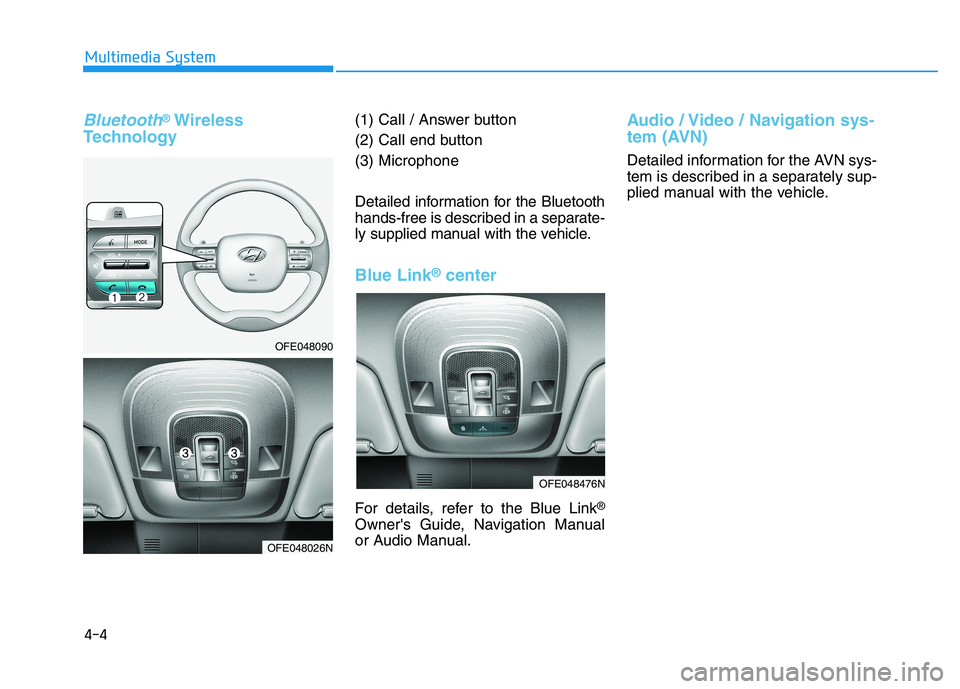
Technology(1) Call / Answer button
(2) Call end button
(3) Microphone
Detailed information for the Bluetooth
hands-free is described in a separate-
ly supplied manual with the vehicle.
Blue Link®center
For details, refer to the Blue Link®
Owner's Guide, Navigation Manual
or Audio Manual.
Audio / Video / Navigation sys-
tem (AVN)
Detailed information for the AVN sys-
tem is described in a separately sup-
plied manual with the vehicle.
4-4
Multimedia System
OFE048090
OFE048026N
OFE048476N
Page 323 of 561
5-56
Driving your vehicle
The driver can select the warning
volume of Blind-Spot Collision
Warning in the Vehicle Settings in
the AVN screen by selecting
'Vehicle Settings →Driver
Assistance →Warning Volume →
High/Medium/Low'.
For more information refer to the
separately supplied Navigation
manual.
Information
If you change the warning volume, the
warning volume of other systems may
change. Always be aware before
changing the warning volume.
Operating Conditions
The system enters the ready status,
when 'Active assistance' or 'Warning
Only' is selected and the following
conditions are satisfied:
Active assistance
1) The Blind-Spot Collision-
Avoidance Assist system will acti-
vate when :
- Vehicle speed is between 40
mph and 110 mph (60 km/h and
180 km/h).
- The system detects both of the
lane lines.
- An approaching vehicle is
detected next to or behind your
vehicle.
2) The Blind-Spot Collision Warning
system will activate when
The vehicle speed is above
approximately 20 mph (30 km/h). Warning Only
1) The Blind-Spot Collision Warning
system will activate when :
- The vehicle speed is approxi-
mately 20 mph (30 km/h).
❈The Blind-Spot Collision-Avoidance
Assist system is not activated.
i
Page 335 of 561
5-68
Driving your vehicle
System Setting and Activation
System setting
The driver can activate the sys-
tems by placing the power button
to the ON position and by selecting
"Vehicle settings →Driver assis-
tance →Blind-spot safety →Rear
Cross-Traffic Safety" on AVN
screen. The RCCA and RCCW
turn on and get ready to be activat-
ed when 'Rear Cross-Traffic Safety'
is selected.
When the vehicle is turned off then
on again, the systems are always
ready to be activated.
When the system is initially turned
on and when the vehicle is turned
off then on again, the warning light
will illuminate for 3 seconds on the
outer side view mirror.The driver can select the initial warn-
ing activation time in the User
Settings in the AVN screen by select-
ing 'Vehicle settings →Driver
Assistance →Warning Timing'. The
options for the initial Rear Cross-
Traffic Collision Warning includes the
following:
- Normal:
When this condition is selected, the
initial Rear Cross-Traffic Collision
Warning is activated normally. If this
setting feels sensitive, change the
option to 'Later'.
The warning activation time may feel
late if the a vehicle at the side or rear
abruptly accelerates.
- Later:
Select this warning activation time
when the traffic is light and you are
driving in a low speed.
Information
If you change the warning timing, the
warning time of other systems may
change. Always be aware before
changing the warning timing.The driver can select the warning
volume of the Rear Cross-Traffic
Collision Warning in the Vehicle
Settings in the AVN screen by select-
ing 'Vehicle settings →Driver
Assistance →Warning Volume →
High/Medium/ Low'.
For more information refer to the
separately supplied Navigation
manual.
Information
If you change the warning volume, the
warning volume of other systems may
change. Always be aware before
changing the warning volume.
i
i
Page 409 of 561
6-11
What to do in an emergency
6
T TI
IR
RE
E
P
PR
RE
ES
SS
SU
UR
RE
E
M
MO
ON
NI
IT
TO
OR
RI
IN
NG
G
S
SY
YS
ST
TE
EM
M
(
(T
TP
PM
MS
S)
)
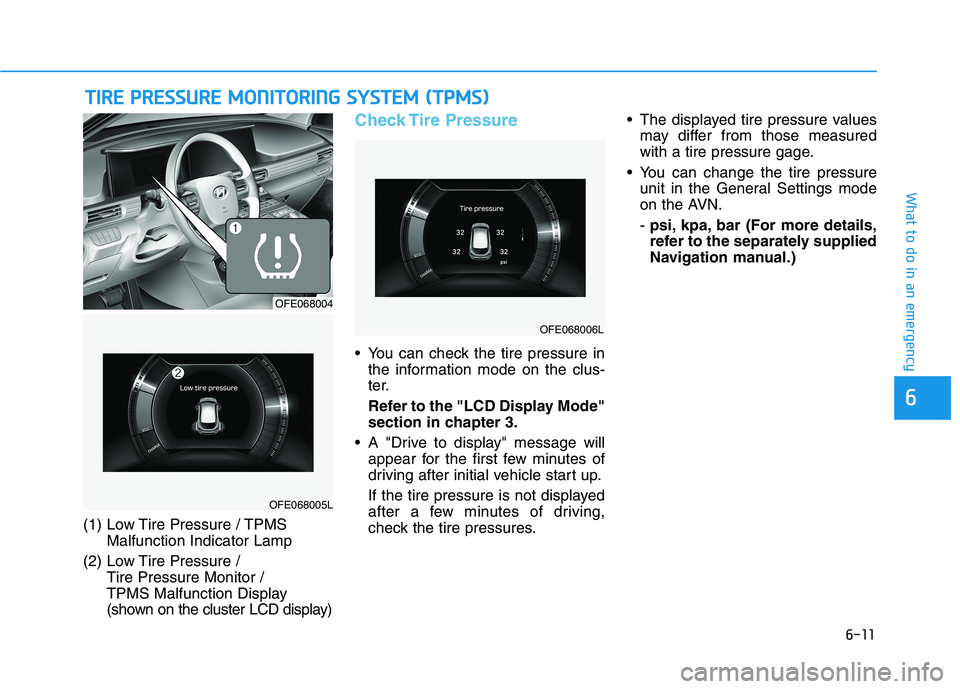
(1) Low Tire Pressure / TPMS
Malfunction Indicator Lamp
(2) Low Tire Pressure /
Tire Pressure Monitor /
TPMS Malfunction Display
(shown on the cluster LCD display)
Check Tire Pressure
You can check the tire pressure in
the information mode on the clus-
ter.
Refer to the "LCD Display Mode"
section in chapter 3.
A "Drive to display" message will
appear for the first few minutes of
driving after initial vehicle start up.
If the tire pressure is not displayed
after a few minutes of driving,
check the tire pressures. The displayed tire pressure values
may differ from those measured
with a tire pressure gage.
You can change the tire pressure
unit in the General Settings mode
on the AVN.
- psi, kpa, bar (For more details,
refer to the separately supplied
Navigation manual.)
OFE068005L
OFE068004
OFE068006L
Page 413 of 561
6-15
What to do in an emergency
6
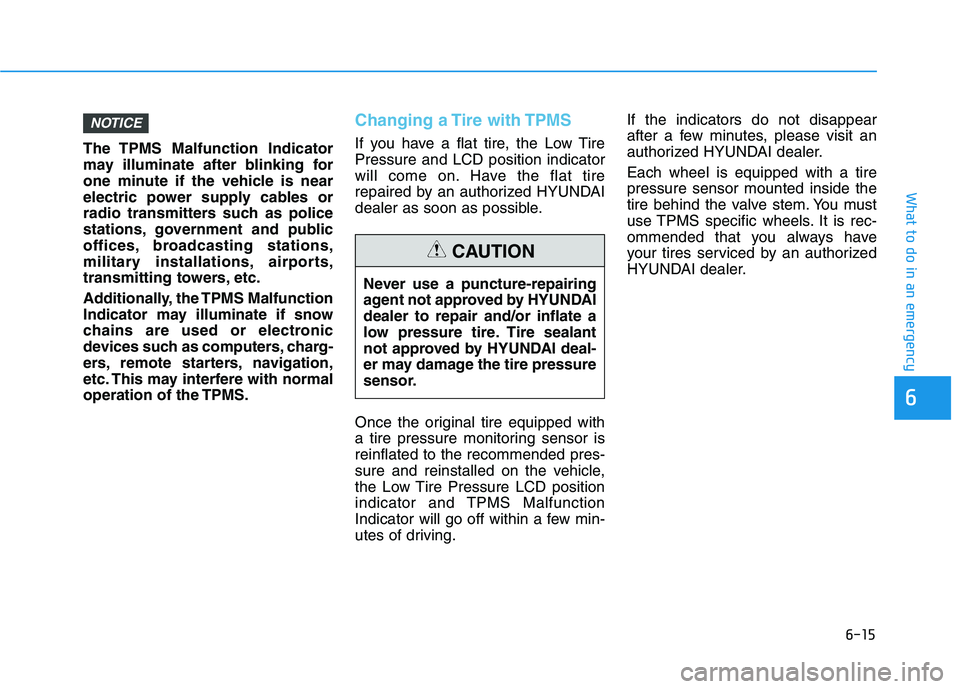
The TPMS Malfunction Indicator
may illuminate after blinking for
one minute if the vehicle is near
electric power supply cables or
radio transmitters such as police
stations, government and public
offices, broadcasting stations,
military installations, airports,
transmitting towers, etc.
Additionally, the TPMS Malfunction
Indicator may illuminate if snow
chains are used or electronic
devices such as computers, charg-
ers, remote starters, navigation,
etc. This may interfere with normal
operation of the TPMS.
Changing a Tire with TPMS
If you have a flat tire, the Low Tire
Pressure and LCD position indicator
will come on. Have the flat tire
repaired by an authorized HYUNDAI
dealer as soon as possible.
Once the original tire equipped with
a tire pressure monitoring sensor is
reinflated to the recommended pres-
sure and reinstalled on the vehicle,
the Low Tire Pressure LCD position
indicator and TPMS Malfunction
Indicator will go off within a few min-
utes of driving.If the indicators do not disappear
after a few minutes, please visit an
authorized HYUNDAI dealer.
Each wheel is equipped with a tire
pressure sensor mounted inside the
tire behind the valve stem. You must
use TPMS specific wheels. It is rec-
ommended that you always have
your tires serviced by an authorized
HYUNDAI dealer.
NOTICE
Never use a puncture-repairing
agent not approved by HYUNDAI
dealer to repair and/or inflate a
low pressure tire. Tire sealant
not approved by HYUNDAI deal-
er may damage the tire pressure
sensor.
CAUTION
Page 475 of 561
7-50
Maintenance
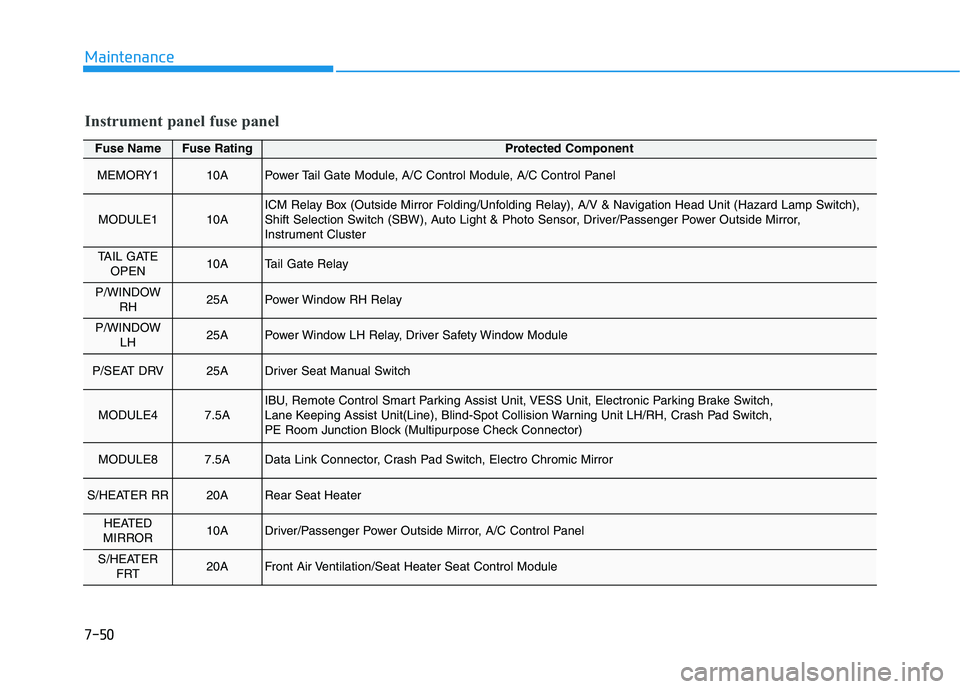
Fuse NameFuse RatingProtected Component
MEMORY110APower Tail Gate Module, A/C Control Module, A/C Control Panel
MODULE110AICM Relay Box (Outside Mirror Folding/Unfolding Relay), A/V & Navigation Head Unit (Hazard Lamp Switch),
Shift Selection Switch (SBW), Auto Light & Photo Sensor, Driver/Passenger Power Outside Mirror,
Instrument Cluster
TAIL GATEOPEN10ATail Gate Relay
P/WINDOW RH25APower Window RH Relay
P/WINDOW LH25APower Window LH Relay, Driver Safety Window Module
P/SEAT DRV25ADriver Seat Manual Switch
MODULE47.5AIBU, Remote Control Smart Parking Assist Unit, VESS Unit, Electronic Parking Brake Switch,
Lane Keeping Assist Unit(Line), Blind-Spot Collision Warning Unit LH/RH, Crash Pad Switch,
PE Room Junction Block (Multipurpose Check Connector)
MODULE87.5AData Link Connector, Crash Pad Switch, Electro Chromic Mirror
S/HEATER RR20ARear Seat Heater
HEATED
MIRROR10ADriver/Passenger Power Outside Mirror, A/C Control Panel
S/HEATER FRT20AFront Air Ventilation/Seat Heater Seat Control Module
Instrument panel fuse panel