Tire Hyundai Palisade 2020 User Guide
[x] Cancel search | Manufacturer: HYUNDAI, Model Year: 2020, Model line: Palisade, Model: Hyundai Palisade 2020Pages: 611, PDF Size: 18.86 MB
Page 193 of 611
3-97
Convenient features of your vehicle
3
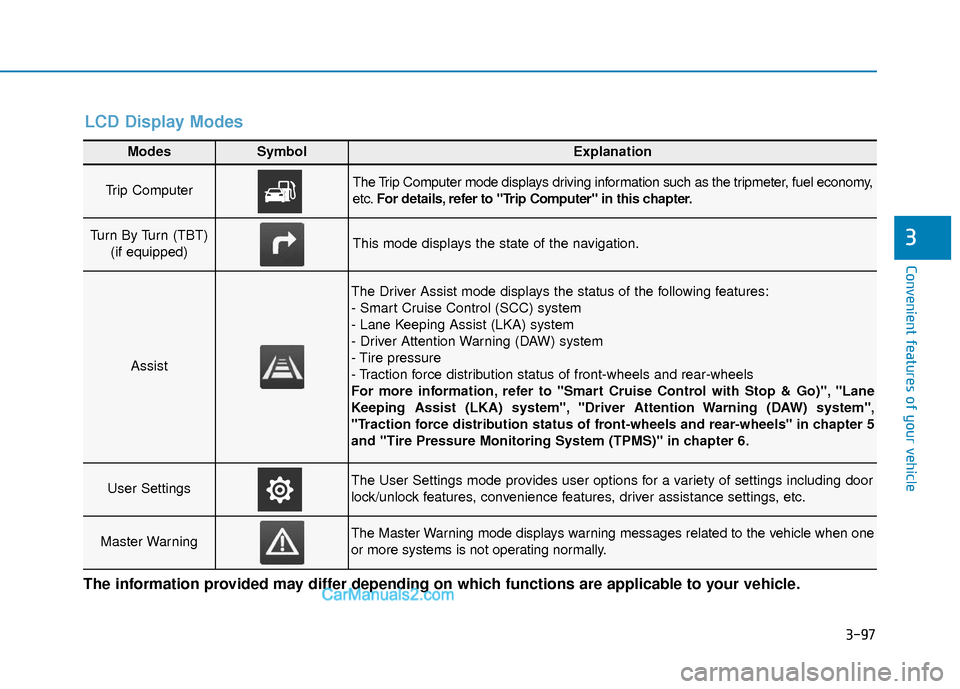
Modes SymbolExplanation
Trip Computer The Trip Computer mode displays driving information such as the tripmeter, fuel economy,
etc.For details, refer to "Trip Computer" in this chapter.
Turn By Turn (TBT)
(if equipped)This mode displays the state of the navigation.
Assist
The Driver Assist mode displays the status of the following features:
- Smart Cruise Control (SCC) system
- Lane Keeping Assist (LKA) system
- Driver Attention Warning (DAW) system
- Tire pressure
- Traction force distribution status of front-wheels and rear-wheels
For more information, refer to "Smart Cruise Control with Stop & Go)", "Lane
Keeping Assist (LKA) system", "Driver Attention Warning (DAW) system",
"Traction force distribution status of front-wheels and rear-wheels" in chapter 5
and "Tire Pressure Monitoring System (TPMS)" in chapter 6.
User SettingsThe User Settings mode provides user options for a variety of settings including door
lock/unlock features, convenience features, driver assistance settings, etc.
Master WarningThe Master Warning mode displays warning messages related to the vehicle when one
or more systems is not operating normally.
The information provided may differ depending on which functions are applicable to your vehicle.
LCD Display Modes
Page 195 of 611
3-99
Convenient features of your vehicle
3
Tire Pressure
This mode displays information relat-
ed to Tire Pressure.
For more details, refer to "Tire
Pressure Monitoring System
(TPMS)" in chapter 6.
Driving force distribution (AWD)
This mode displays information relat-
ed to AWD driving force.
For more details, refer to the "All
Wheel Drive" in the chapter 5.
Master warning mode
This warning light informs the driver
the following situations.
- LED headlamp malfunction(if equipped)
- Forward Collision-Avoidance Assist system malfunction
(if equipped)
- Forward Collision-Avoidance Assist radar blocked (if equipped)
- Blind-Spot Collision Warning system malfunction (if equipped)
- Blind-Spot Collision Warning radar blocked (if equipped)
- Smart Cruise Control with Stop & Go malfunction (if equipped)
- Smart Cruise Control with Stop & Go radar blocked (if equipped)
- Lamp malfunction
- High Beam Assist malfunction (if equipped)
- Tire Pressure Monitoring System (TPMS) malfunction
OLX2048120LOLX2048121
Page 205 of 611
3-109
Convenient features of your vehicle
3
ItemsExplanation
Fuel Economy Reset
The average fuel economy will not reset automatically whenever refueling.
When the engine has been OFF for 4 hours or longer the average fuel economywill reset automatically.
The average fuel economy will reset automatically after adding 1.6 gallons (6 liters) of fuel or more and after driving speed exceeds 1 mph (1 km/h).
For more details, refer to "Trip Computer" in this chapter.
Fuel Economy Unit
To select the fuel economy unit.
Temperature Unit
To select the temperature unit.
Tire Pressure Unit
To select the tire pressure unit.
8. Other
ItemsExplanation
LanguageTo select language.
9. Language
ItemsExplanation
ResetYou can reset the menus in the User Settings mode. All menus in the User Settings mode are
reset to factory settings, except language and service interval.
10. Reset
❈ The information provided may differ depending on which functions are applicable to your vehicle.
Page 212 of 611
3-116
Convenient features of your vehicle
Utility View Mode
The utility view mode displays infor-
mation related to vehicle driving
parameters including fuel economy
and trip distance information.
Utility Items
The utility items appear as well in trip
computer mode, driving assist mode
and turn by turn mode.
The information provided may differ
depending on which functions are
applicable to your vehicle.
Fuel Economy Information
The average fuel economy and
instant fuel economy are displayed.- Manual reset: Press and hold OKbutton to initialize set up
- Automatic reset: Automatically reset the average fuel economy
when the set-up conditions are
satisfied in User Settings menu.
Driving Information
The trip distance for each ignition
cycle, fuel economy (undisplayed
item in fuel economy: driving speed),
trip time are shown. Press and hold
OK button to initialize set up. When
the engine has been OFF for 4 hours
or longer the average fuel economy
will reset automatically.
Information after Refueling
The vehicle information such as trip
distance, fuel economy (undisplayed
item in fuel economy: driving speed)
and trip time is displayed after refuel-
ing. Press and hold OK button to ini-
tialize set up.
Accumulated Information
The vehicle information such as trip
distance, fuel economy (undisplayed
item in fuel economy: driving speed)
and trip time is displayed after manu-
al initialization.
Digital Speed Display
It shows current vehicle speed.
AUTO STOP
The cumulative time is show when
the engine is off. Press and hold OK
button to initialize set up.
Driver Attention Warning
Display the status of the Driver
Attention Warning system. When the
engine is off or the vehicle comes to
a stop, the system is reset. Press
and hold OK button to initialize set
up.
Smart Shift
Tire Pressure
Digital RPM
Page 225 of 611
3-129
Convenient features of your vehicle
3
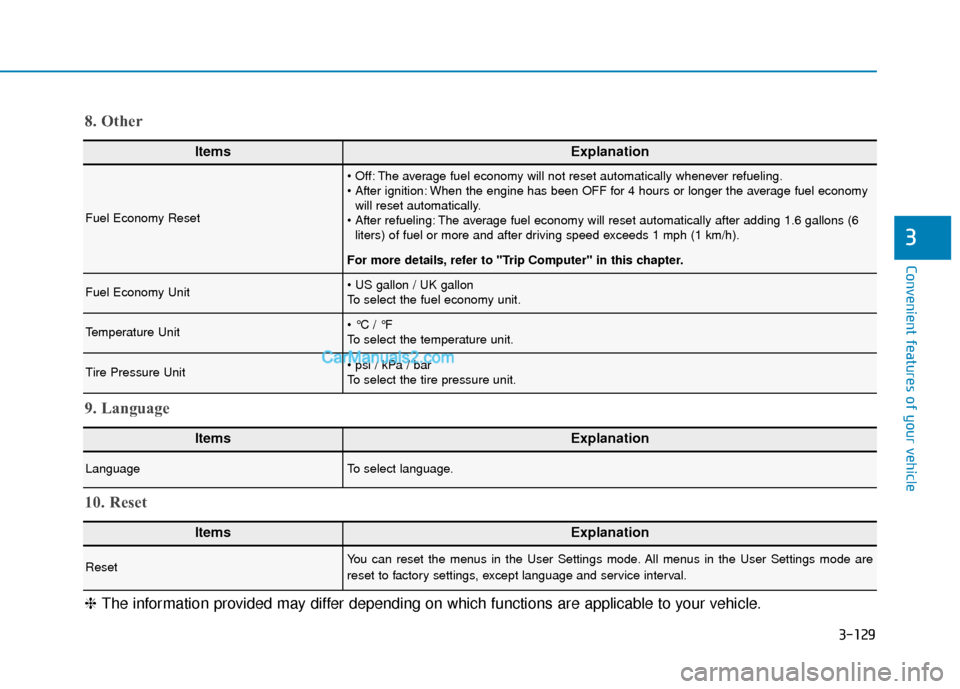
ItemsExplanation
Fuel Economy Reset
The average fuel economy will not reset automatically whenever refueling.
When the engine has been OFF for 4 hours or longer the average fuel economywill reset automatically.
The average fuel economy will reset automatically after adding 1.6 gallons (6 liters) of fuel or more and after driving speed exceeds 1 mph (1 km/h).
For more details, refer to "Trip Computer" in this chapter.
Fuel Economy Unit
To select the fuel economy unit.
Temperature Unit
To select the temperature unit.
Tire Pressure Unit
To select the tire pressure unit.
8. Other
ItemsExplanation
LanguageTo select language.
9. Language
ItemsExplanation
ResetYou can reset the menus in the User Settings mode. All menus in the User Settings mode are
reset to factory settings, except language and service interval.
10. Reset
❈ The information provided may differ depending on which functions are applicable to your vehicle.
Page 232 of 611
3-136
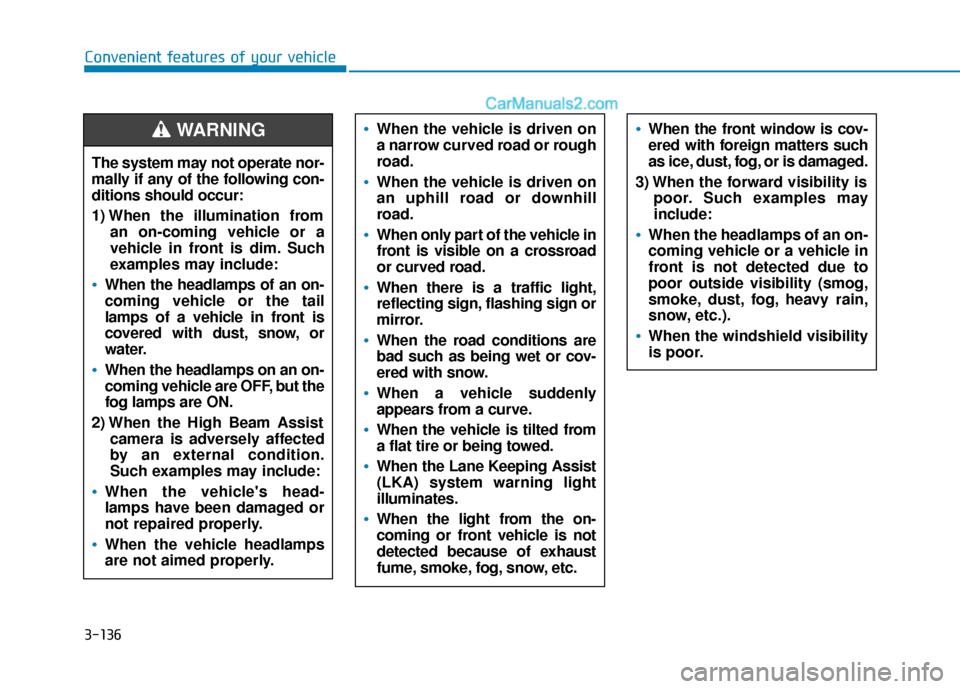
Convenient features of your vehicleThe system may not operate nor-
mally if any of the following con-
ditions should occur:
1) When the illumination from an on-coming vehicle or a
vehicle in front is dim. Such
examples may include:
When the headlamps of an on-
coming vehicle or the tail
lamps of a vehicle in front is
covered with dust, snow, or
water.
When the headlamps on an on-
coming vehicle are OFF, but the
fog lamps are ON.
2) When the High Beam Assist camera is adversely affected
by an external condition.
Such examples may include:
When the vehicle's head-
lamps have been damaged or
not repaired properly.
When the vehicle headlamps
are not aimed properly.
When the vehicle is driven on
a narrow curved road or rough
road.
When the vehicle is driven on
an uphill road or downhill
road.
When only part of the vehicle in
front is visible on a crossroad
or curved road.
When there is a traffic light,
reflecting sign, flashing sign or
mirror.
When the road conditions are
bad such as being wet or cov-
ered with snow.
When a vehicle suddenly
appears from a curve.
When the vehicle is tilted from
a flat tire or being towed.
When the Lane Keeping Assist
(LKA) system warning light
illuminates.
When the light from the on-
coming or front vehicle is not
detected because of exhaust
fume, smoke, fog, snow, etc.
When the front window is cov-
ered with foreign matters such
as ice, dust, fog, or is damaged.
3) When the forward visibility is poor. Such examples may
include:
When the headlamps of an on-
coming vehicle or a vehicle in
front is not detected due to
poor outside visibility (smog,
smoke, dust, fog, heavy rain,
snow, etc.).
When the windshield visibility
is poor.
WARNING
Page 312 of 611
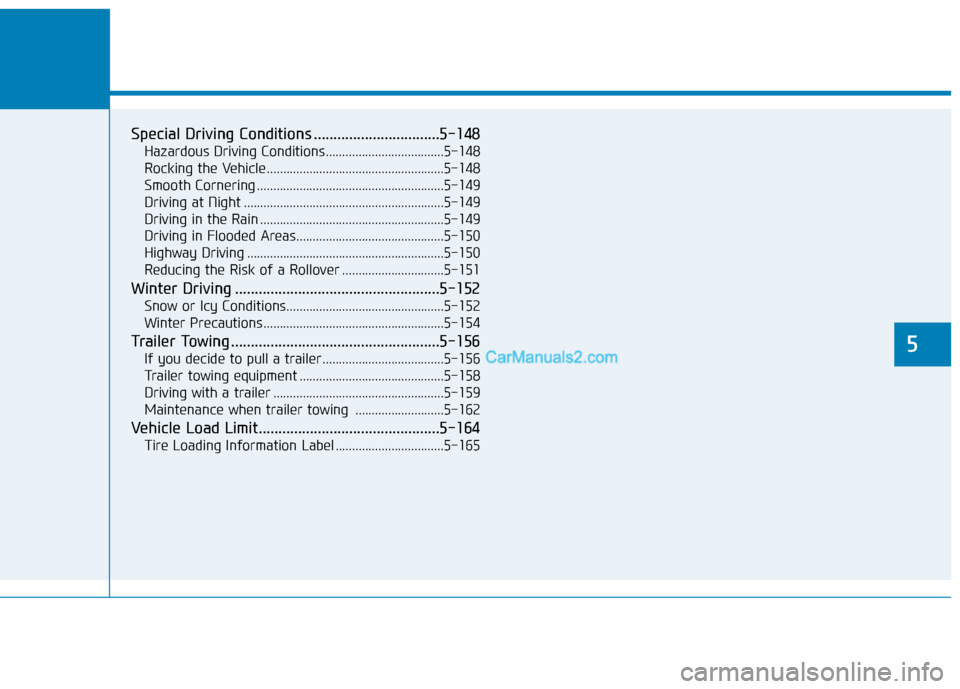
Special Driving Conditions ................................5-148
Hazardous Driving Conditions....................................5-148
Rocking the Vehicle ......................................................5-148
Smooth Cornering .........................................................5-149
Driving at Night .............................................................5-149
Driving in the Rain ........................................................5-149
Driving in Flooded Areas.............................................5-150
Highway Driving ............................................................5-150
Reducing the Risk of a Rollover ...............................5-151
Winter Driving ....................................................5-152
Snow or Icy Conditions................................................5-152
Winter Precautions .......................................................5-154
Trailer Towing .....................................................5-156
If you decide to pull a trailer .....................................5-156
Trailer towing equipment ............................................5-158
Driving with a trailer ....................................................5-159
Maintenance when trailer towing ...........................5-162
Vehicle Load Limit..............................................5-164
Tire Loading Information Label .................................5-165
5
Page 314 of 611
5-5
Driving your vehicle
5
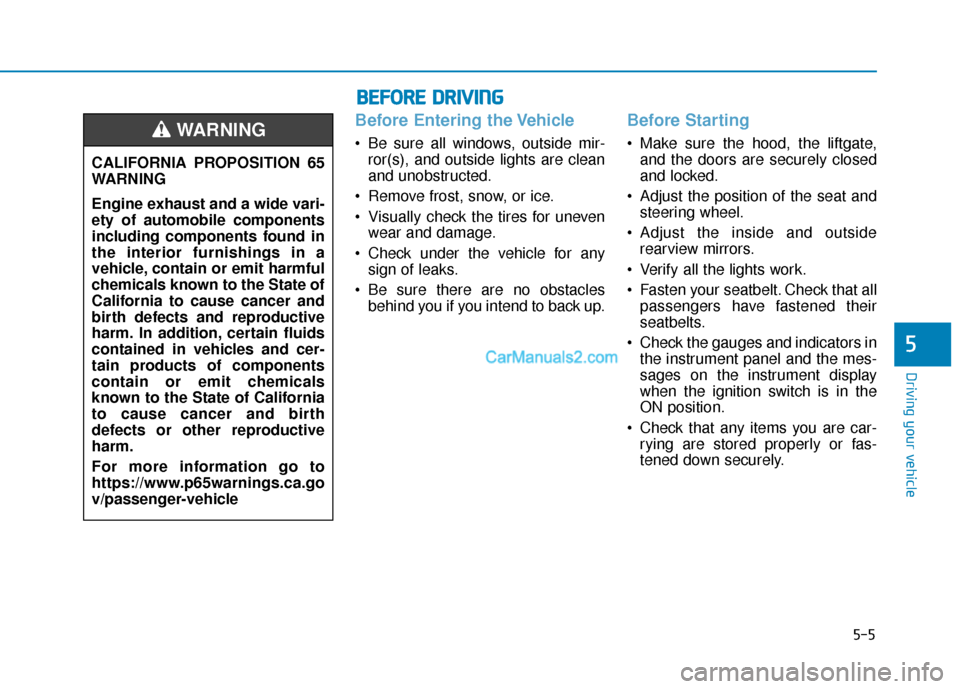
Before Entering the Vehicle
• Be sure all windows, outside mir-ror(s), and outside lights are clean
and unobstructed.
Remove frost, snow, or ice.
Visually check the tires for uneven wear and damage.
Check under the vehicle for any sign of leaks.
Be sure there are no obstacles behind you if you intend to back up.
Before Starting
Make sure the hood, the liftgate,and the doors are securely closed
and locked.
Adjust the position of the seat and steering wheel.
Adjust the inside and outside rearview mirrors.
Verify all the lights work.
Fasten your seatbelt. Check that all passengers have fastened their
seatbelts.
Check the gauges and indicators in the instrument panel and the mes-
sages on the instrument display
when the ignition switch is in the
ON position.
Check that any items you are car- rying are stored properly or fas-
tened down securely.
CALIFORNIA PROPOSITION 65
WARNING
Engine exhaust and a wide vari-
ety of automobile components
including components found in
the interior furnishings in a
vehicle, contain or emit harmful
chemicals known to the State of
California to cause cancer and
birth defects and reproductive
harm. In addition, certain fluids
contained in vehicles and cer-
tain products of components
contain or emit chemicals
known to the State of California
to cause cancer and birth
defects or other reproductive
harm.
For more information go to
https://www.p65warnings.ca.go
v/passenger-vehicleWARNING
B B
E
EF
FO
O R
RE
E
D
D R
RI
IV
V I
IN
N G
G
Page 342 of 611
![Hyundai Palisade 2020 User Guide 5-33
Driving your vehicle
5
AUTO HOLD conditions not met.
Close door and hood.
When you press the [AUTO HOLD]
switch, if the drivers door and engine
hood are not closed, a warning will
sound and a me](/img/35/16309/w960_16309-341.png "Hyundai Palisade 2020 User Guide 5-33
Driving your vehicle
5
AUTO HOLD conditions not met.
Close door and hood.
When you press the [AUTO HOLD]
switch, if the drivers door and engine
hood are not closed, a warning will
sound and a me")
5-33
Driving your vehicle
5
AUTO HOLD conditions not met.
Close door and hood.
When you press the [AUTO HOLD]
switch, if the driver's door and engine
hood are not closed, a warning will
sound and a message will appear on
the cluster LCD display.
Press the [AUTO HOLD] switch after
closing the driver's door and hood.
Anti-lock Brake System (ABS)
ABS is an electronic braking system
that helps prevent a braking skid.
ABS allows the driver to steer and
brake at the same time.
An Anti-Lock Braking System
(ABS) or an Electronic Stability
Control (ESC) system will not
prevent accidents due to
improper or dangerous driving
maneuvers. Even though vehi-
cle control is improved during
emergency braking, always
maintain a safe distance
between you and objects ahead
of you. Vehicle speeds should
always be reduced during
extreme road conditions. The
braking distance for cars
equipped with ABS or ESC may
be longer than for those without
these systems in the following
road conditions.
Drive your vehicle at reduced
speeds during the following
conditions:
Rough, gravel or snow-cov-
ered roads.
On roads where the road sur-
face is pitted or has different
surface height.
WARNING
OTM058159L
Tire chains are installed on
your vehicle.
The safety features of an ABS
or ESC equipped vehicle should
not be tested by high speed
driving or cornering. This could
endanger the safety of yourself
or others.
Page 346 of 611
5-37
Driving your vehicle
5Driving with wheels and tires with
different sizes may cause the ESC
system to malfunction. Before
replacing tires, make sure all four
tires and wheels are the same
size. Never drive the vehicle with
different sized wheels and tires
installed.
ESC OFF usage
When Driving
The ESC OFF mode should only be
used briefly to help free the vehicle if
stuck in snow or mud by temporarily
stopping operation of the ESC to
maintain wheel torque.
To turn ESC off while driving, press
the ESC OFF button while driving on
a flat road surface.
To prevent damage to the trans-
mission:
Do not allow wheel(s) of oneaxle to spin excessively while
the ESC, ABS, and parking brake
warning lights are displayed.
The repairs would not be cov-
ered by the vehicle warranty.
Reduce engine power and do
not spin the wheel(s) excessive-
ly while these lights are dis-
played.
When operating the vehicle on a dynamometer, make sure the
ESC is turned off (ESC OFF light
illuminated).
Information
Turning the ESC off does not affect ABS
or standard brake system operation.
i
NOTICENOTICE
When the ESC is blinking, this
indicates the ESC is active:
Drive slowly and NEVER attempt
to accelerate. NEVER turn the
ESC off while the ESC indicator
light is blinking or you may lose
control of the vehicle resulting in
an accident.
WARNING