engine HYUNDAI PALISADE 2021 Owners Manual
[x] Cancel search | Manufacturer: HYUNDAI, Model Year: 2021, Model line: PALISADE, Model: HYUNDAI PALISADE 2021Pages: 612, PDF Size: 33.36 MB
Page 379 of 612
5-70
Driving your vehicle
Warning message and warning
light
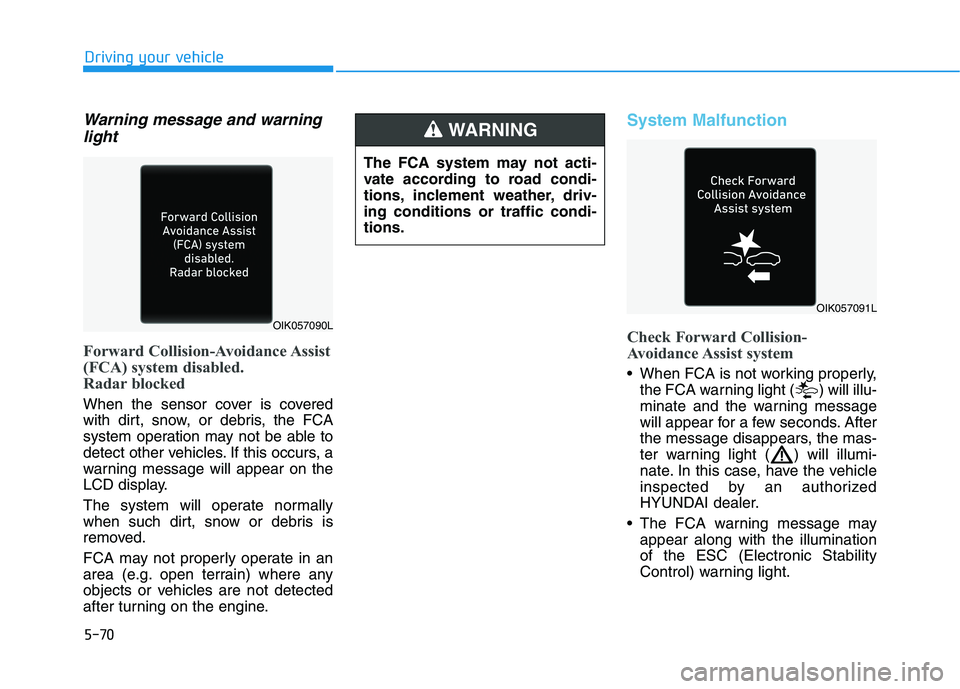
Forward Collision-Avoidance Assist
(FCA) system disabled.
Radar blocked
When the sensor cover is covered
with dirt, snow, or debris, the FCA
system operation may not be able to
detect other vehicles. If this occurs, a
warning message will appear on the
LCD display.
The system will operate normally
when such dirt, snow or debris is
removed.
FCA may not properly operate in an
area (e.g. open terrain) where any
objects or vehicles are not detected
after turning on the engine.
System Malfunction
Check Forward Collision-
Avoidance Assist system
When FCA is not working properly,
the FCA warning light ( ) will illu-
minate and the warning message
will appear for a few seconds. After
the message disappears, the mas-
ter warning light ( ) will illumi-
nate. In this case, have the vehicle
inspected by an authorized
HYUNDAI dealer.
The FCA warning message may
appear along with the illumination
of the ESC (Electronic Stability
Control) warning light.
The FCA system may not acti-
vate according to road condi-
tions, inclement weather, driv-
ing conditions or traffic condi-
tions.
WARNING
OIK057090L
OIK057091L
Page 382 of 612
5-73
Driving your vehicle
5
Detecting vehicles
The sensor may be limited when:
The system may not operate for 15
seconds after the engine is started
or the camera is initialized
The radar sensor or camera is cov-
ered with a foreign object or debris
The camera lens is contaminated
due to tinted, filmed or coated
windshield, damaged glass, or
stuck of foreign matter (sticker,
bug, etc.) on the glass
Inclement weather such as heavy
rain or snow obscures the field of
view of the radar sensor or camera
There is interference by electro-
magnetic waves
There is severe irregular reflection
from the radar sensor
The radar/camera sensor recogni-
tion is limited
The vehicle in front is too small to
be detected (for example a motor-
cycle or a bicycle, etc.) The vehicle in front is an oversize
vehicle or trailer that is too big to
be detected by the camera recog-
nition system (for example a tractor
trailer, etc.)
The camera's field of view is not
well illuminated (either too dark or
too much reflection or too much
backlight that obscures the field of
view)
The vehicle in front does not have
their rear lights properly turned ON
or their rear lights are located
unusually
The outside brightness changes
suddenly, for example when enter-
ing or exiting a tunnel
Light coming from a street light or
an oncoming vehicle is reflected on
a wet road surface such as a pud-
dle in the road
The field of view in front is obstruct-
ed by sun glare
The windshield glass is fogged up;
a clear view of the road is obstruct-
ed
The vehicle in front is driving errati-
cally The vehicle is on unpaved or
uneven rough surfaces, or road
with sudden gradient changes
The vehicle is driven near areas
containing metal substances as a
construction zone, railroad, etc.
The vehicle drives inside a building,
such as a basement parking lot
The camera does not recognize
the entire vehicle in front
The camera is damaged
The brightness outside is too low
such as when the headlamps are
not on at night or the vehicle is
going through a tunnel
The shadow is on the road by a
median strip, trees, etc.
The vehicle drives through a toll-
gate.
The rear part of the vehicle in front
is not normally visible (the vehicle
turns in other direction or the vehi-
cle is overturned.)
The adverse road conditions cause
excessive vehicle vibrations while
driving
Page 389 of 612
5-80
Driving your vehicle
- BCW turns on and is ready to be
operated when 'Warning Only' is
selected. Then, if a vehicle
approaches the driver's blind spot
area a warning sounds but brak-
ing is not applied.
- The system is deactivated and
the indicator on the BCW/BCA
button is turned off when 'Off' is
selected.
If you press the BCW/BCA switch
while 'Active Assist' or 'Warning
Only' is selected the indicator on
the switch will turn off and the sys-
tem will deactivate.
If you press the BCW/BCA switch
while the system is canceled the
indicator on the button illuminates
and the system activates.
When the system is initially turned
on and when the engine is turned
off then on again while the system
is in activation, the warning light
will illuminate for 3 seconds on the
outer side view mirror. If the engine is turned off then on
again, the system maintains the
last setting.
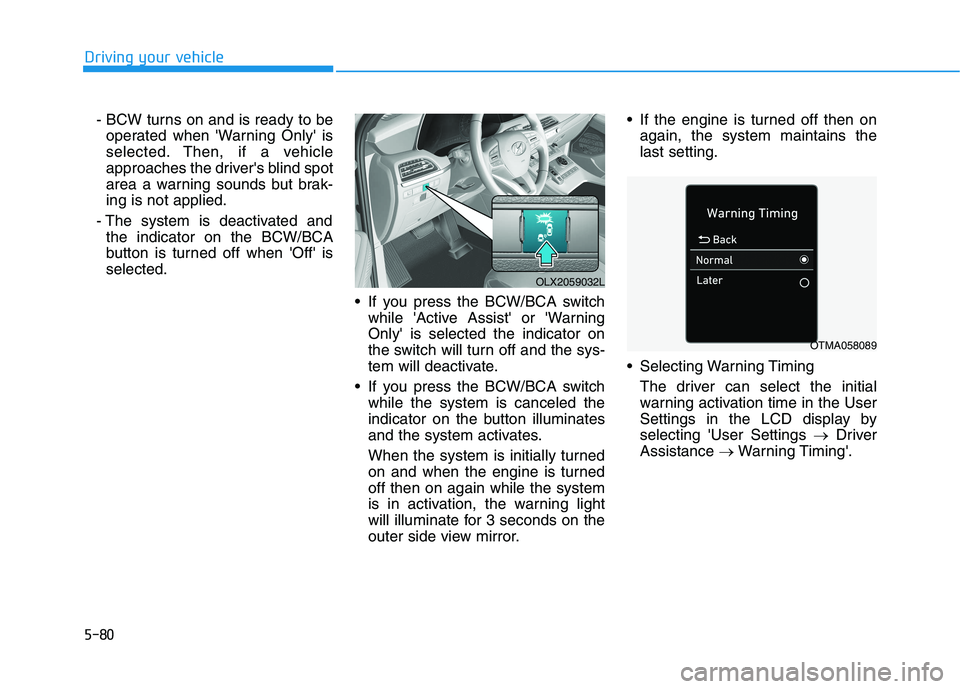
Selecting Warning Timing
The driver can select the initial
warning activation time in the User
Settings in the LCD display by
selecting 'User Settings →Driver
Assistance →Warning Timing'.
OLX2059032L
OTMA058089
Page 403 of 612
5-94
Driving your vehicle
System Setting and Operation
System setting
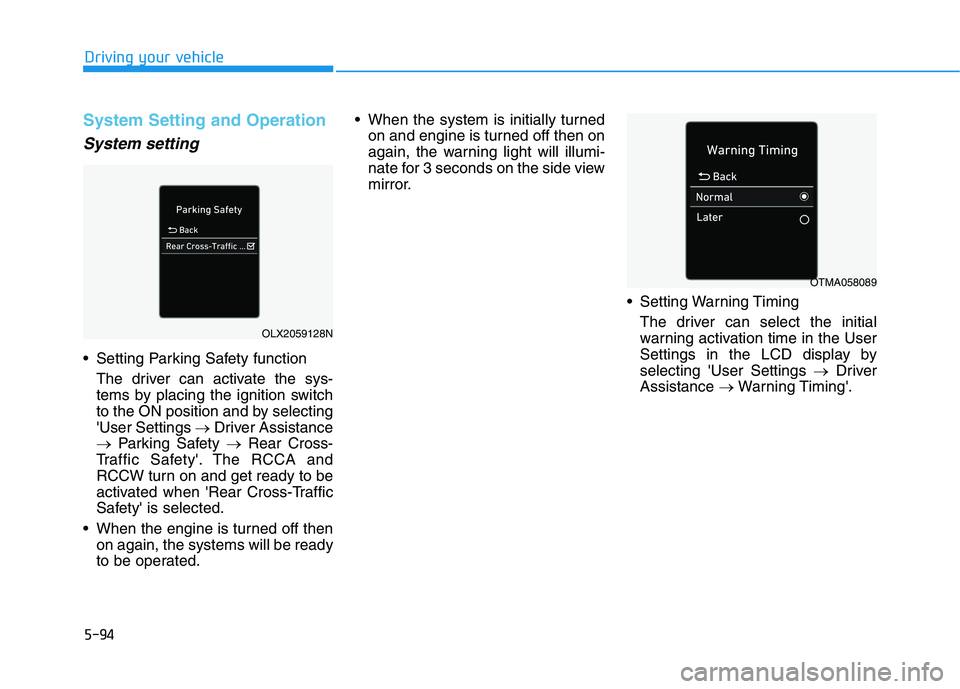
Setting Parking Safety function
The driver can activate the sys-
tems by placing the ignition switch
to the ON position and by selecting
'User Settings →Driver Assistance
→Parking Safety →Rear Cross-
Traffic Safety'. The RCCA and
RCCW turn on and get ready to be
activated when 'Rear Cross-Traffic
Safety' is selected.
When the engine is turned off then
on again, the systems will be ready
to be operated. When the system is initially turned
on and engine is turned off then on
again, the warning light will illumi-
nate for 3 seconds on the side view
mirror.
Setting Warning Timing
The driver can select the initial
warning activation time in the User
Settings in the LCD display by
selecting 'User Settings →Driver
Assistance →Warning Timing'.
OLX2059128N
OTMA058089
Page 414 of 612
5-105
Driving your vehicle
5
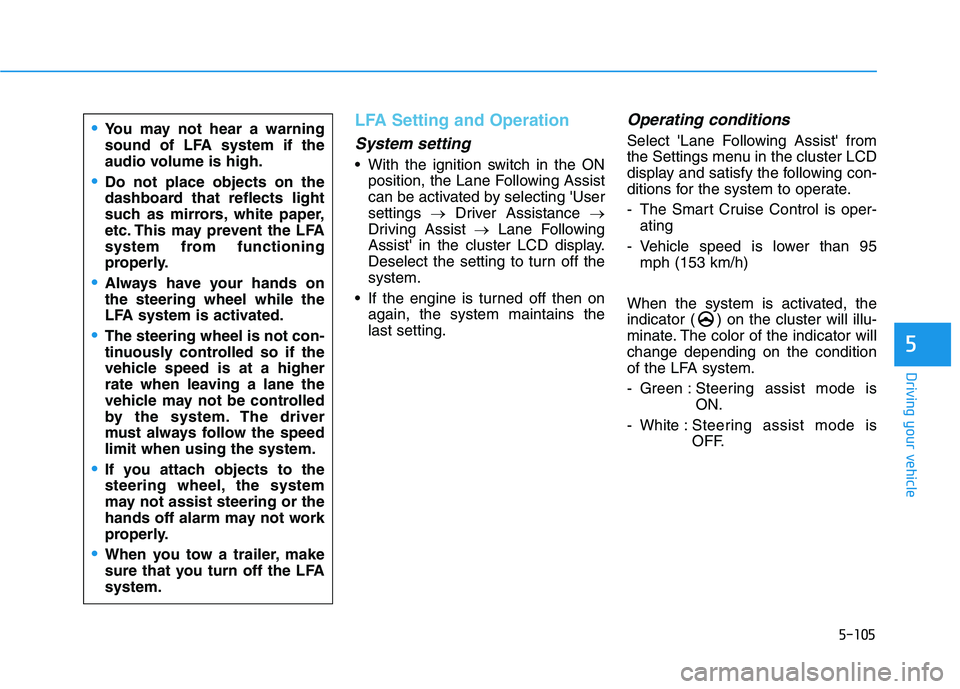
LFA Setting and Operation
System setting
With the ignition switch in the ON
position, the Lane Following Assist
can be activated by selecting 'User
settings →Driver Assistance →
Driving Assist →Lane Following
Assist' in the cluster LCD display.
Deselect the setting to turn off the
system.
If the engine is turned off then on
again, the system maintains the
last setting.
Operating conditions
Select 'Lane Following Assist' from
the Settings menu in the cluster LCD
display and satisfy the following con-
ditions for the system to operate.
- The Smart Cruise Control is oper-
ating
- Vehicle speed is lower than 95
mph (153 km/h)
When the system is activated, the
indicator ( ) on the cluster will illu-
minate. The color of the indicator will
change depending on the condition
of the LFA system.
- Green : Steering assist mode is
ON.
- White :Steering assist mode is
OFF.You may not hear a warning
sound of LFA system if the
audio volume is high.
Do not place objects on the
dashboard that reflects light
such as mirrors, white paper,
etc. This may prevent the LFA
system from functioning
properly.
Always have your hands on
the steering wheel while the
LFA system is activated.
The steering wheel is not con-
tinuously controlled so if the
vehicle speed is at a higher
rate when leaving a lane the
vehicle may not be controlled
by the system. The driver
must always follow the speed
limit when using the system.
If you attach objects to the
steering wheel, the system
may not assist steering or the
hands off alarm may not work
properly.
When you tow a trailer, make
sure that you turn off the LFA
system.
Page 417 of 612
5-108
Driving your vehicle
The LFA system will not be in the
ENABLED state and/or the steering
wheel will not be assisted when:
The turn signal is turned on before
changing a lane. If you change
lanes without the turn signal on,
the steering wheel might be con-
trolled.
The vehicle is not driven in the mid-
dle of the lane when the system is
turned on or right after changing a
lane.
ESC (Electronic Stability Control) or
VSM (Vehicle Stability Management)
is activated.
The vehicle is driven on a sharp
curve.
Vehicle speed is over 95 mph (153
km/h).
The vehicle makes sharp lane
changes.
The vehicle brakes suddenly.
Only one lane marker is detected. The lane is very wide or narrow.
There are more than two lane
markers on the road (e.g. construc-
tion area).
Radius of a curve is too small.
The vehicle is driven on a steep
incline.
The steering wheel is turned sud-
denly.
The system may not operate for 15
seconds after the engine is started
or the camera is initialized.
Limitations of the System
The LFA system may operate prema-
turely even if the vehicle does not
depart from the intended lane, OR,
the LFA system may not assist your
steering or warn you if the vehicle
leaves the intended lane under the
following circumstances:
When the lane and road condi-
tions are poor
It is difficult to distinguish the lane
marking from the road surface or
the lane marking is faded or not
clearly marked.
It is difficult to distinguish the color
of the lane marker from the road.
There are markings on the road
surface that look like a lane marker
that is inadvertently being detected
by the camera.
The lane marker is indistinct or
damaged.
The lane marker is merged or
divided. (e.g. tollgate)
The lane number increases or
decreases or the lane marker are
crossing complicatedly.
Page 424 of 612
5-115
Driving your vehicle
5
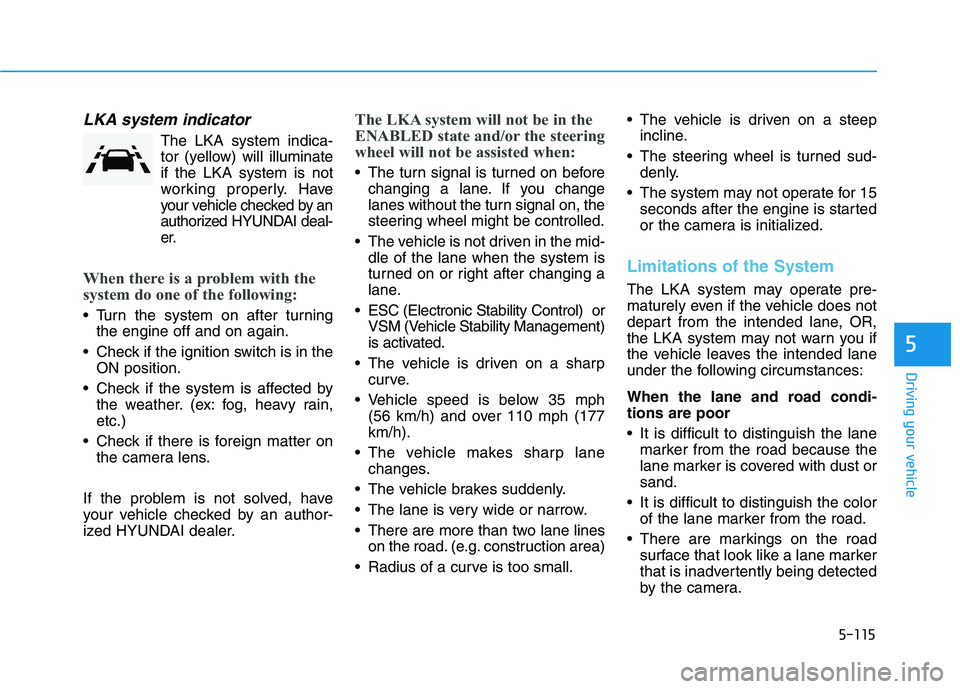
LKA system indicator
The LKA system indica-
tor (yellow) will illuminate
if the LKA system is not
working properly. Have
your vehicle checked by an
authorized HYUNDAI deal-
er.
When there is a problem with the
system do one of the following:
Turn the system on after turning
the engine off and on again.
Check if the ignition switch is in the
ON position.
Check if the system is affected by
the weather. (ex: fog, heavy rain,
etc.)
Check if there is foreign matter on
the camera lens.
If the problem is not solved, have
your vehicle checked by an author-
ized HYUNDAI dealer.
The LKA system will not be in the
ENABLED state and/or the steering
wheel will not be assisted when:
The turn signal is turned on before
changing a lane. If you change
lanes without the turn signal on, the
steering wheel might be controlled.
The vehicle is not driven in the mid-
dle of the lane when the system is
turned on or right after changing a
lane.
ESC (Electronic Stability Control) or
VSM (Vehicle Stability Management)
is activated.
The vehicle is driven on a sharp
curve.
Vehicle speed is below 35 mph
(56 km/h) and over 110 mph (177
km/h).
The vehicle makes sharp lane
changes.
The vehicle brakes suddenly.
The lane is very wide or narrow.
There are more than two lane lines
on the road. (e.g. construction area)
Radius of a curve is too small. The vehicle is driven on a steep
incline.
The steering wheel is turned sud-
denly.
The system may not operate for 15
seconds after the engine is started
or the camera is initialized.
Limitations of the System
The LKA system may operate pre-
maturely even if the vehicle does not
depart from the intended lane, OR,
the LKA system may not warn you if
the vehicle leaves the intended lane
under the following circumstances:
When the lane and road condi-
tions are poor
It is difficult to distinguish the lane
marker from the road because the
lane marker is covered with dust or
sand.
It is difficult to distinguish the color
of the lane marker from the road.
There are markings on the road
surface that look like a lane marker
that is inadvertently being detected
by the camera.
Page 427 of 612
5-118
Driving your vehicle
D DR
RI
IV
VE
ER
R
A
AT
TT
TE
EN
NT
TI
IO
ON
N
W
WA
AR
RN
NI
IN
NG
G
(
(D
DA
AW
W)
)
S
SY
YS
ST
TE
EM
M
(
(I
IF
F
E
EQ
QU
UI
IP
PP
PE
ED
D)
)
The Driver Attention Warning (DAW)
system is designed as a safety fea-
ture to help reduce drowsy or inat-
tentive driving. The DAW displays a
bar graph that is intended to repre-
sent the driver's attention and fatigue
level while driving.
System Setting and Operation
System setting
The Driver Attention Warning can be
activated from the User Settings
menu in the cluster LCD display by
following the procedure below.
1. Set the ignition switch to the ON
position.
2. Select 'User Settings →Driver
Assistance →Driver Attention
Warning' in the cluster LCD dis-
play.
The system stops operation when
the setting is deactivated. However, if
the engine is turned off then on
again, the system maintains the pre-
vious state.
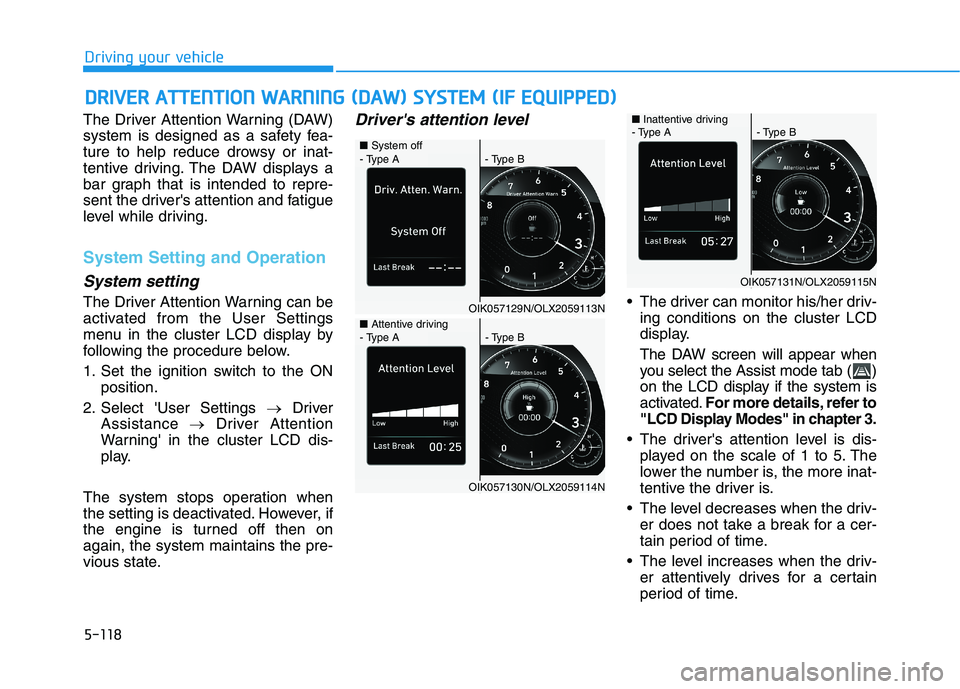
Driver's attention level
The driver can monitor his/her driv-
ing conditions on the cluster LCD
display.
The DAW screen will appear when
you select the Assist mode tab ( )
on the LCD display if the system is
activated.For more details, refer to
"LCD Display Modes" in chapter 3.
The driver's attention level is dis-
played on the scale of 1 to 5. The
lower the number is, the more inat-
tentive the driver is.
The level decreases when the driv-
er does not take a break for a cer-
tain period of time.
The level increases when the driv-
er attentively drives for a certain
period of time.
■System off - Type A- Type B
■Attentive driving
OIK057129N/OLX2059113N
- Type A- Type B
OIK057130N/OLX2059114N
- Type A- Type B
OIK057131N/OLX2059115N
■Inattentive driving
Page 428 of 612
5-119
Driving your vehicle
5
When the driver turns on the sys-
tem while driving, it displays 'Last
Break time' and level.
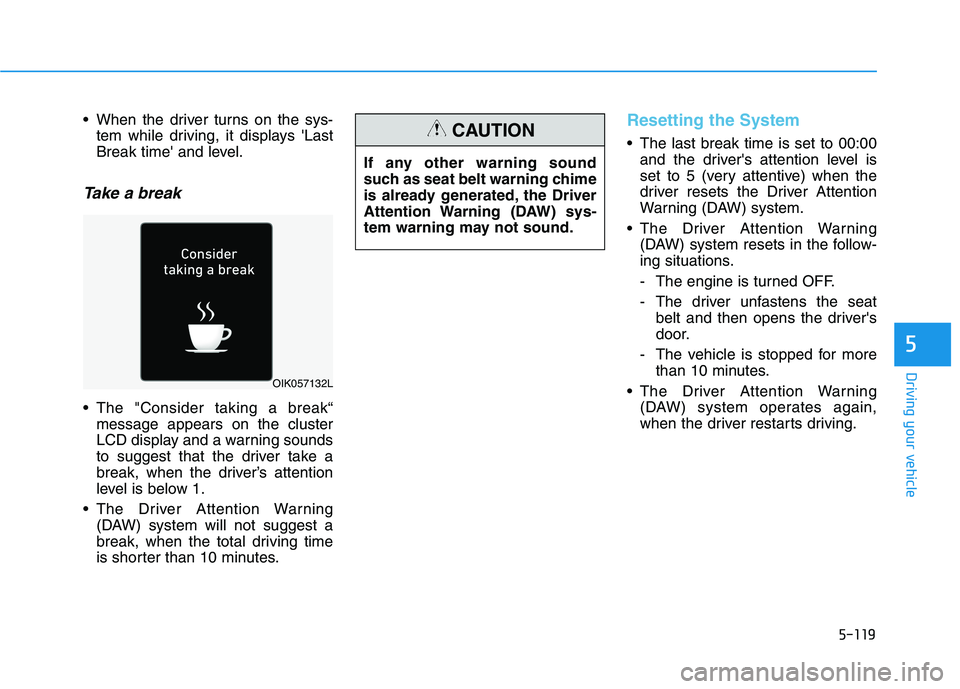
Take a break
The "Consider taking a break“
message appears on the cluster
LCD display and a warning sounds
to suggest that the driver take a
break, when the driver’s attention
level is below 1.
The Driver Attention Warning
(DAW) system will not suggest a
break, when the total driving time
is shorter than 10 minutes.
Resetting the System
The last break time is set to 00:00
and the driver's attention level is
set to 5 (very attentive) when the
driver resets the Driver Attention
Warning (DAW) system.
The Driver Attention Warning
(DAW) system resets in the follow-
ing situations.
- The engine is turned OFF.
- The driver unfastens the seat
belt and then opens the driver's
door.
- The vehicle is stopped for more
than 10 minutes.
The Driver Attention Warning
(DAW) system operates again,
when the driver restarts driving.
OIK057132L
If any other warning sound
such as seat belt warning chime
is already generated, the Driver
Attention Warning (DAW) sys-
tem warning may not sound.
CAUTION
Page 431 of 612
5-122
Driving your vehicle
The Highway Driving Assist (HDA)
system helps keep the vehicle
between lanes, maintain a distance
with the vehicle ahead, and automat-
ically adjusts the vehicle speed to the
speed limit while driving on the high-
way.
Information
• The Highway Driving Assist (HDA)
system is available only on con-
trolled access road of certain high-
ways.
❈ ❈
Controlled access road indicates
roads with limited entrances and
exits that allow uninterrupted
high speed traffic flow. Only pas-
senger cars and motorcycles are
allowed on controlled access
roads.
• Additional highways may be
expanded by navigation updates.
System Setting and Operation
System setting
With the Engine Start/Stop button
in the ON or START position, the
Highway Driving Assist can be acti-
vated by selecting 'All menus →
Setup →Vehicle →Driver
Assistance →Highway Driving
Assist' from the Settings menu in
the infotainment system screen.
Deselect the setting to turn off the
system.
If the engine is turned off then on
again, the system maintains the
last setting.
i
H HI
IG
GH
HW
WA
AY
Y
D
DR
RI
IV
VI
IN
NG
G
A
AS
SS
SI
IS
ST
T
(
(H
HD
DA
A)
)
S
SY
YS
ST
TE
EM
M
(
(I
IF
F
E
EQ
QU
UI
IP
PP
PE
ED
D)
)
The Highway Driving Assist
(HDA) system is not a substi-
tute for safe driving practices,
but a convenience function. It
is the responsibility of the
driver to always be aware of
the surroundings and drive
safely.
The Highway Driving Assist
(HDA) system relies entirely
on the road information pro-
vided by the navigation sys-
tem. It is the responsibility of
the driver to follow traffic laws
and avoid accidents.
For your safety, please read
the owner's manual before
using the system.
WARNING
Available highway
(Controlled access road)
USAInterstate Highway
CanadaSelect Provincial and
Territorial Highways