steering HYUNDAI PALISADE 2021 Workshop Manual
[x] Cancel search | Manufacturer: HYUNDAI, Model Year: 2021, Model line: PALISADE, Model: HYUNDAI PALISADE 2021Pages: 612, PDF Size: 33.36 MB
Page 423 of 612
5-114
Driving your vehicle
Information
• Even though the steering is assisted
by the system, the driver can still
steer to control the steering wheel.
• The steering wheel may feel heavier
when the steering wheel is assisted
by the system than when it is not.
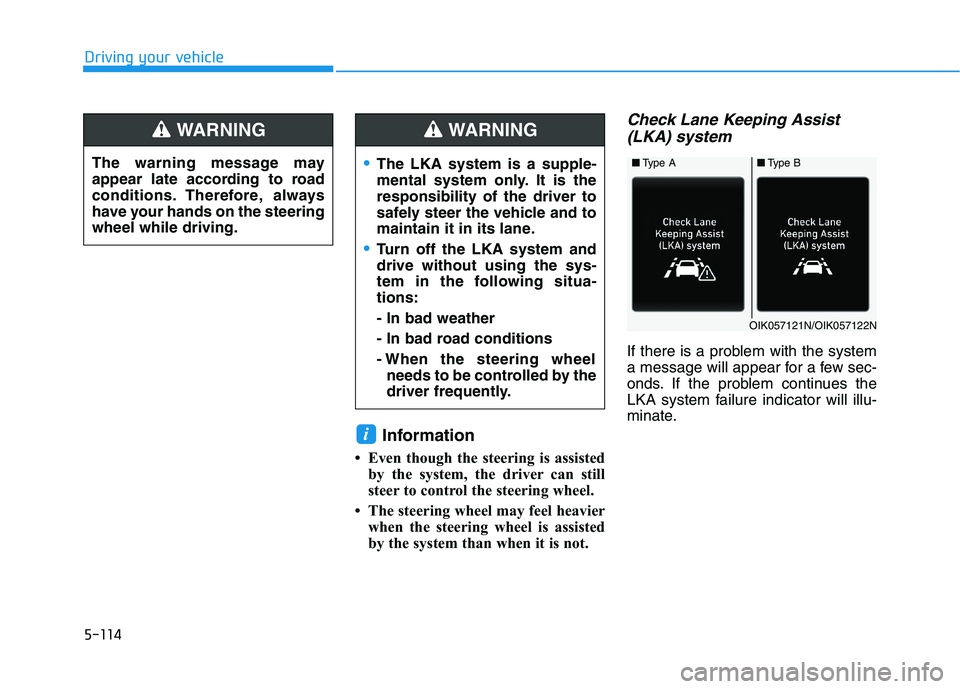
Check Lane Keeping Assist
(LKA) system
If there is a problem with the system
a message will appear for a few sec-
onds. If the problem continues the
LKA system failure indicator will illu-
minate.
i
The warning message may
appear late according to road
conditions. Therefore, always
have your hands on the steering
wheel while driving.
WARNING
The LKA system is a supple-
mental system only. It is the
responsibility of the driver to
safely steer the vehicle and to
maintain it in its lane.
Turn off the LKA system and
drive without using the sys-
tem in the following situa-
tions:
- In bad weather
- In bad road conditions
- When the steering wheel
needs to be controlled by the
driver frequently.
WARNING
■Type A■Type B
OIK057121N/OIK057122N
Page 424 of 612
5-115
Driving your vehicle
5
LKA system indicator
The LKA system indica-
tor (yellow) will illuminate
if the LKA system is not
working properly. Have
your vehicle checked by an
authorized HYUNDAI deal-
er.
When there is a problem with the
system do one of the following:
Turn the system on after turning
the engine off and on again.
Check if the ignition switch is in the
ON position.
Check if the system is affected by
the weather. (ex: fog, heavy rain,
etc.)
Check if there is foreign matter on
the camera lens.
If the problem is not solved, have
your vehicle checked by an author-
ized HYUNDAI dealer.
The LKA system will not be in the
ENABLED state and/or the steering
wheel will not be assisted when:
The turn signal is turned on before
changing a lane. If you change
lanes without the turn signal on, the
steering wheel might be controlled.
The vehicle is not driven in the mid-
dle of the lane when the system is
turned on or right after changing a
lane.
ESC (Electronic Stability Control) or
VSM (Vehicle Stability Management)
is activated.
The vehicle is driven on a sharp
curve.
Vehicle speed is below 35 mph
(56 km/h) and over 110 mph (177
km/h).
The vehicle makes sharp lane
changes.
The vehicle brakes suddenly.
The lane is very wide or narrow.
There are more than two lane lines
on the road. (e.g. construction area)
Radius of a curve is too small. The vehicle is driven on a steep
incline.
The steering wheel is turned sud-
denly.
The system may not operate for 15
seconds after the engine is started
or the camera is initialized.
Limitations of the System
The LKA system may operate pre-
maturely even if the vehicle does not
depart from the intended lane, OR,
the LKA system may not warn you if
the vehicle leaves the intended lane
under the following circumstances:
When the lane and road condi-
tions are poor
It is difficult to distinguish the lane
marker from the road because the
lane marker is covered with dust or
sand.
It is difficult to distinguish the color
of the lane marker from the road.
There are markings on the road
surface that look like a lane marker
that is inadvertently being detected
by the camera.
Page 426 of 612
5-117
Driving your vehicle
5
LKA System Function Change
The driver can change LKA to Lane
Departure Warning from the LCD
display. Go to the 'User Settings →
Driver Assistance →Lane Safety →
Lane Keeping Assist (LKA)/Lane
Departure Warning (LDW)/Off'.
The system is automatically set to
Lane Keeping Assist(LKA) if a func-
tion is not selected.
- Lane Keeping Assist
Lane Keeping Assist guides the
driver to help keep the vehicle with-
in the lanes. It rarely controls the
steering wheel, when the vehicle
drives well inside the lanes.
However, it starts to control the
steering wheel, when the vehicle is
about to deviate out of the lane.
- Lane Departure Warning
Lane Departure Warning alerts the
driver with a visual warning and a
warning alarm when the system
detects the vehicle departing the
lane. The steering wheel will not be
controlled.-Off
If you select 'off', the LKA system is
deactivated.
Page 432 of 612
5-123
Driving your vehicle
5
Operating conditions
Select 'Highway Driving Assist' from
the Settings menu in the infotain-
ment system screen and satisfy the
following conditions for the system to
operate.
Driving on the highway main line
Smart Cruise Control is operating
- If the Smart Cruise Control is in
the READY state the Highway
Driving Assist will be in the
READY state. The indi-
cator on the cluster will illuminate
white.
Vehicle speed is under 95 mph
(153 km/h)
If all the mentioned conditions are
satisfied, the system is ENABLED
and the indicator on the
cluster will illuminate green.
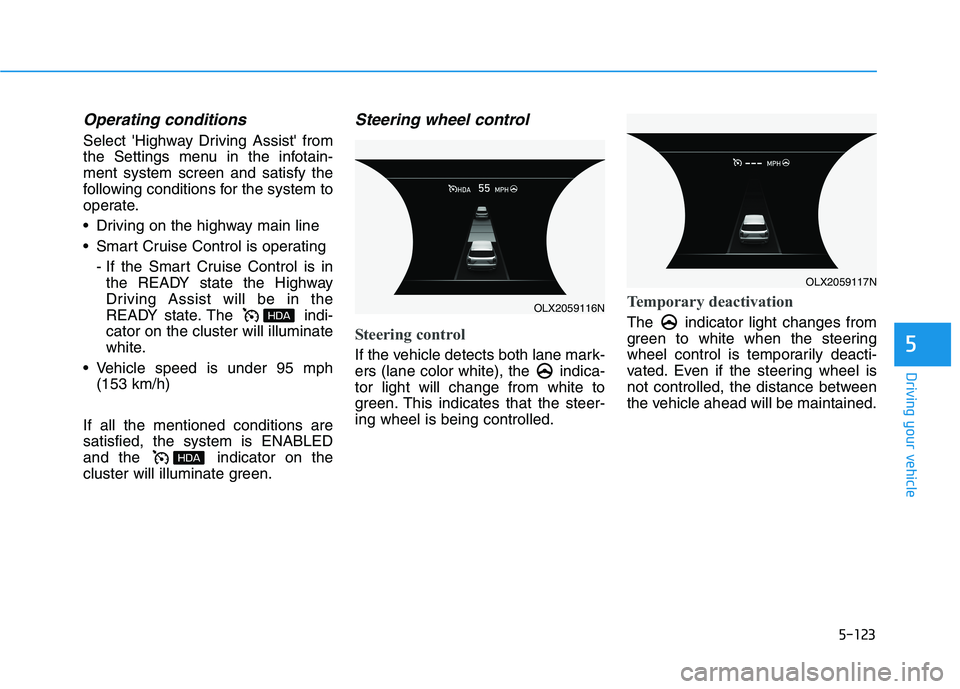
Steering wheel control
Steering control
If the vehicle detects both lane mark-
ers (lane color white), the indica-
tor light will change from white to
green. This indicates that the steer-
ing wheel is being controlled.
Temporary deactivation
The indicator light changes from
green to white when the steering
wheel control is temporarily deacti-
vated. Even if the steering wheel is
not controlled, the distance between
the vehicle ahead will be maintained.
OLX2059116N
OLX2059117N
Page 433 of 612
5-124
Driving your vehicle
Speed setting
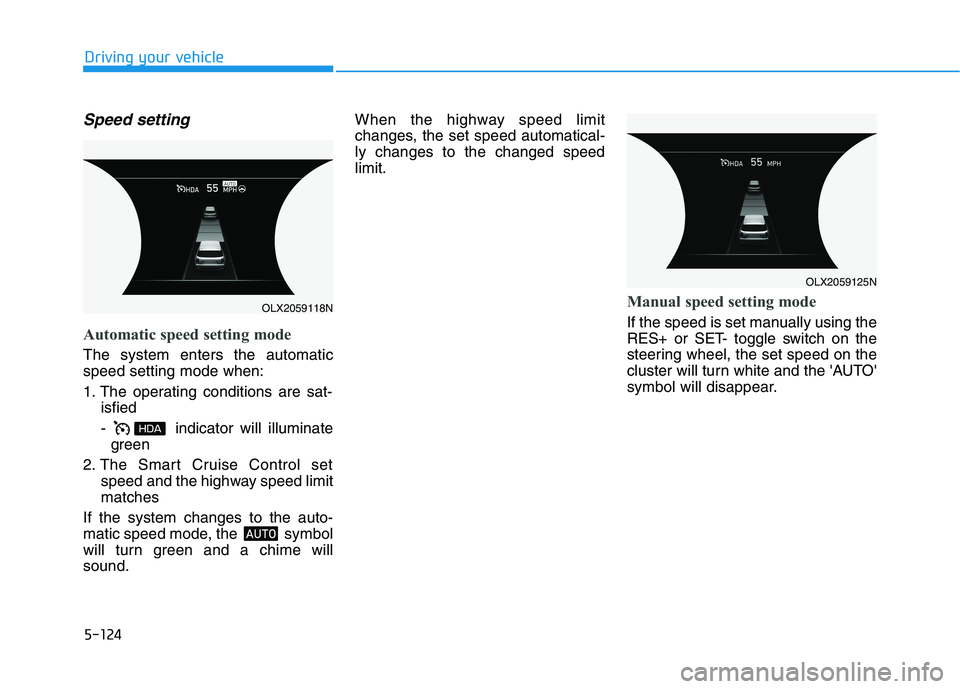
Automatic speed setting mode
The system enters the automatic
speed setting mode when:
1. The operating conditions are sat-
isfied
- indicator will illuminate
green
2. The Smart Cruise Control set
speed and the highway speed limit
matches
If the system changes to the auto-
matic speed mode, the symbol
will turn green and a chime will
sound.When the highway speed limit
changes, the set speed automatical-
ly changes to the changed speed
limit.
Manual speed setting mode
If the speed is set manually using the
RES+ or SET- toggle switch on the
steering wheel, the set speed on the
cluster will turn white and the 'AUTO'
symbol will disappear.
OLX2059125N
OLX2059118N
Page 434 of 612
5-125
Driving your vehicle
5
Warning Message
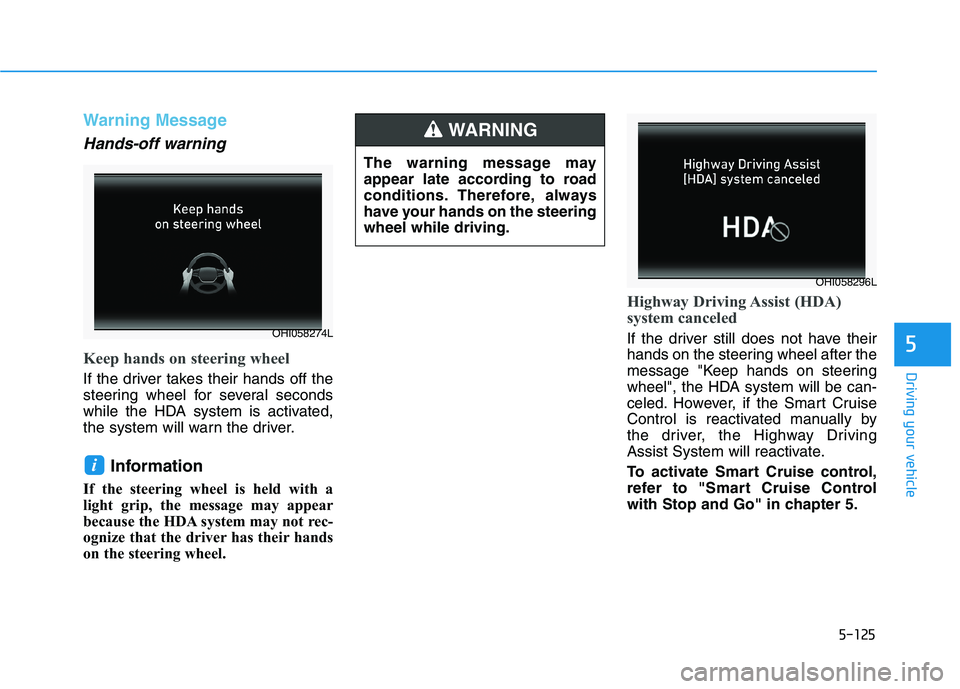
Hands-off warning
Keep hands on steering wheel
If the driver takes their hands off the
steering wheel for several seconds
while the HDA system is activated,
the system will warn the driver.
Information
If the steering wheel is held with a
light grip, the message may appear
because the HDA system may not rec-
ognize that the driver has their hands
on the steering wheel.
Highway Driving Assist (HDA)
system canceled
If the driver still does not have their
hands on the steering wheel after the
message "Keep hands on steering
wheel", the HDA system will be can-
celed. However, if the Smart Cruise
Control is reactivated manually by
the driver, the Highway Driving
Assist System will reactivate.
To activate Smart Cruise control,
refer to "Smart Cruise Control
with Stop and Go" in chapter 5.
i
The warning message may
appear late according to road
conditions. Therefore, always
have your hands on the steering
wheel while driving.
WARNING
OHI058296L
OHI058274L
Page 435 of 612
5-126
Driving your vehicle
The HDA system will not be in the
ENABLED state and/or the steer-
ing wheel will not be assisted
when:
The turn signal is turned on before
changing a lane. If you change
lanes without the turn signal on,
the steering wheel might be con-
trolled.
The vehicle is not driven in the mid-
dle of the lane when the system is
turned on or right after changing a
lane.
ESC (Electronic Stability Control)
or VSM (Vehicle Stability
Management) is activated.
The vehicle is driven on a sharp
curve.
Vehicle speed is over 95 mph (153
km/h).
The vehicle makes sharp lane
changes.
The vehicle brakes suddenly.
Only one lane marker is detected.
The lane is very wide or narrow.
There are more than two lane
markers on the road (e.g. construc-
tion area). Radius of a curve is too small.
The vehicle is driven on a steep
incline.
The steering wheel is turned sud-
denly.
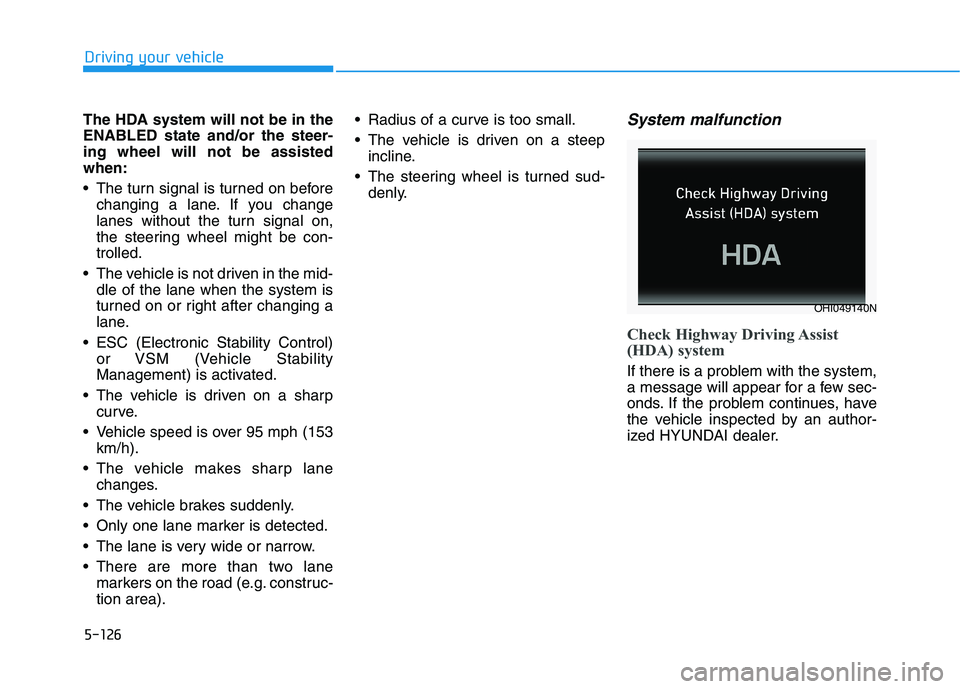
System malfunction
Check Highway Driving Assist
(HDA) system
If there is a problem with the system,
a message will appear for a few sec-
onds. If the problem continues, have
the vehicle inspected by an author-
ized HYUNDAI dealer.
OHI049140N
Page 437 of 612
5-128
Driving your vehicle
Information
• For information's on vehicle to vehi-
cle distance control and the front
radar, refer to "Smart Cruise
Control (Stop & Go)" in this chap-
ter.
• For information's on steering con-
trol and distance control and the
front camera, refer to "Lane
Following Assist (LFA)" in this
chapter.
Information
This device complies with Part 15 of
the FCC rules.
Operation is subject to the following
three conditions:
1. This device may not cause harmful
interference, and
2. This device must accept any inter-
ference received, including interfer-
ence that may cause undesired
operation.
3. Changes or modifications not
expressly approved by the party
responsible for compliance could
void the user's authority to operate
the device.
Information
Radio frequency radiation exposure
information:
This equipment complies with FCC
radiation exposure limits set forth for
an uncontrolled environment.
This equipment should be installed
and operated with minimum distance
of 8 in. (20 cm) between the radiator
(antenna) and your body.
This transmitter must not be co-locat-
ed or operating in conjunction with
any other antenna or transmitter.
ii
i
The navigation cannot detect
the current vehicle position
(ex: elevated roads including
overpass adjacent to general
roads or nearby roads exist in
a parallel way).
The navigation is being updat-
ed while driving.
The navigation is being reset
while driving.
The road is slippery due to
bad weather such as rain or
snow.
Page 440 of 612
5-131
Driving your vehicle
5
Normal:
Vehicle speed following the front
vehicle to maintain the set distance
is normal.
Slow:
Vehicle speed following the front
vehicle to maintain the set distance
is slower than normal speed.
Information
The last selected speed sensitivity of
the smart cruise control is remained in
the system.
To Convert to Cruise Control
Mode
The driver may choose to switch to
use the conventional Cruise Control
mode (speed only control function)
by following these steps:
1. Push the CRUISE button on the
steering wheel to turn the system
on. The cruise ( ) indi-
cator will illuminate.
2. Push and hold the Vehicle-to-
Vehicle Distance button for more
than 2 seconds.
3. Choose between "Smart Cruise
Control" and "Cruise Control".
When the system is canceled using
the CRUISE button or the CRUISE
button is used after the engine is
turned on, the Smart Cruise Control
mode will turn on.
i
When using the conventional
Cruise Control mode, you must
manually adjust the distance to
other vehicles by depressing
the brake pedal. The system
does not automatically adjust
the distance to vehicles in front
of you.
WARNING
Page 441 of 612
5-132
Driving your vehicle
Smart Cruise Control Speed
To set Smart Cruise Control
speed
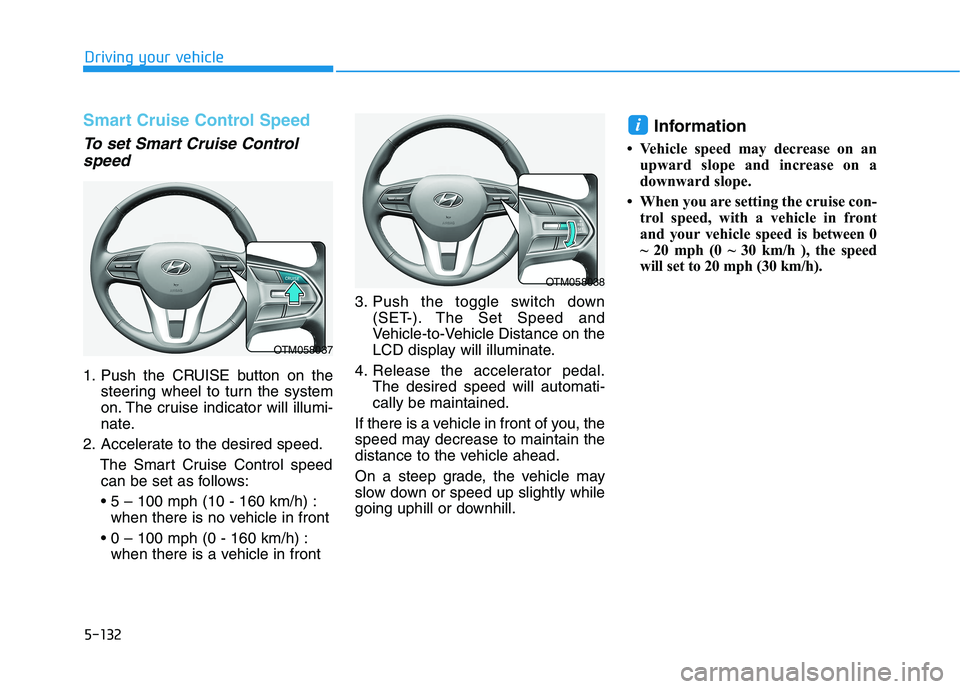
1. Push the CRUISE button on the
steering wheel to turn the system
on. The cruise indicator will illumi-
nate.
2. Accelerate to the desired speed.
The Smart Cruise Control speed
can be set as follows:
when there is no vehicle in front
when there is a vehicle in front3. Push the toggle switch down
(SET-). The Set Speed and
Vehicle-to-Vehicle Distance on the
LCD display will illuminate.
4. Release the accelerator pedal.
The desired speed will automati-
cally be maintained.
If there is a vehicle in front of you, the
speed may decrease to maintain the
distance to the vehicle ahead.
On a steep grade, the vehicle may
slow down or speed up slightly while
going uphill or downhill.
Information
• Vehicle speed may decrease on an
upward slope and increase on a
downward slope.
• When you are setting the cruise con-
trol speed, with a vehicle in front
and your vehicle speed is between 0
~ 20 mph (0 ~ 30 km/h ), the speed
will set to 20 mph (30 km/h).
i
OTM058037
OTM058038