audio Hyundai Santa Fe 2011 Owner's Guide
[x] Cancel search | Manufacturer: HYUNDAI, Model Year: 2011, Model line: Santa Fe, Model: Hyundai Santa Fe 2011Pages: 408, PDF Size: 8.63 MB
Page 216 of 408
4137
Features of your vehicle
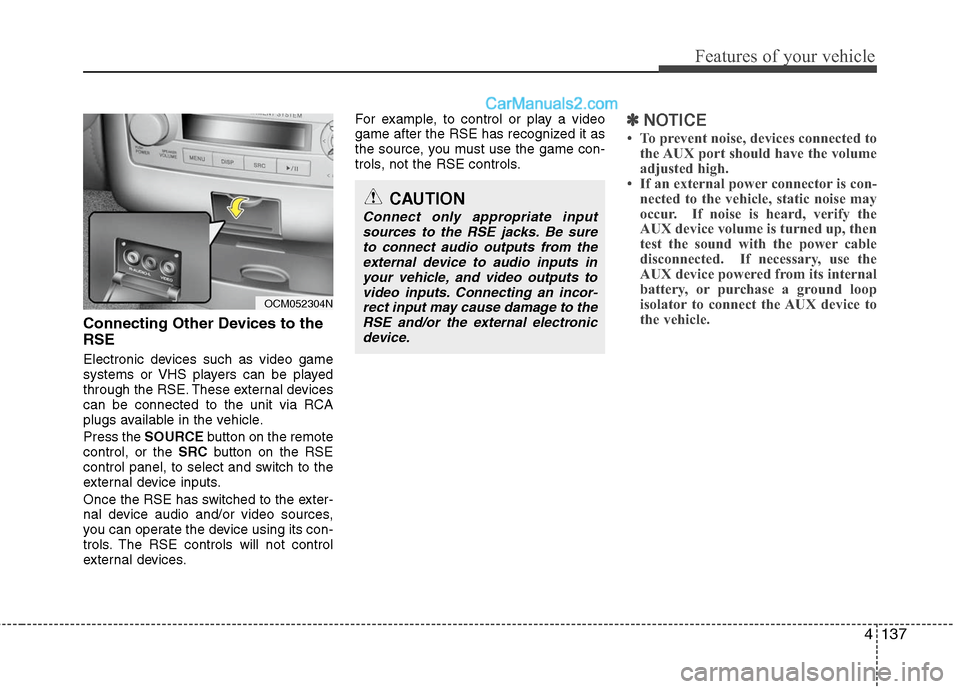
Connecting Other Devices to the
RSE
Electronic devices such as video game
systems or VHS players can be played
through the RSE. These external devices
can be connected to the unit via RCA
plugs available in the vehicle.
Press the SOURCE button on the remote
control, or the SRCbutton on the RSE
control panel, to select and switch to the
external device inputs.
Once the RSE has switched to the exter-
nal device audio and/or video sources,
you can operate the device using its con-
trols. The RSE controls will not control
external devices. For example, to control or play a video
game after the RSE has recognized it as
the source, you must use the game con-
trols, not the RSE controls.
✽ ✽
NOTICE
• To prevent noise, devices connected to
the AUX port should have the volume
adjusted high.
• If an external power connector is con- nected to the vehicle, static noise may
occur. If noise is heard, verify the
AUX device volume is turned up, then
test the sound with the power cable
disconnected. If necessary, use the
AUX device powered from its internal
battery, or purchase a ground loop
isolator to connect the AUX device to
the vehicle.
OCM052304N
CAUTION
Connect only appropriate input
sources to the RSE jacks. Be sureto connect audio outputs from theexternal device to audio inputs in your vehicle, and video outputs tovideo inputs. Connecting an incor- rect input may cause damage to theRSE and/or the external electronicdevice.
Page 217 of 408
Features of your vehicle
138
4
RSE Lock Function
Front seat passengers can use the RSE
Lock function to prevent rear seat pas-
sengers from operating the RSE. To lock
the RSE, press and hold the CD/AUX
button on the vehicle radio for more than
2 seconds.
"Lock" will appear on the RSE LCD dis-
play, as well as on the RSE control panel.
None of the RSE control panel or remote
controller buttons will function while the
RSE is locked. Rear seat passengers will
still be able to eject or insert a disc in the
player, as well as power on/off the sys-
tem.
Press and hold the CD/AUX button again
to turn off the RSE lock.
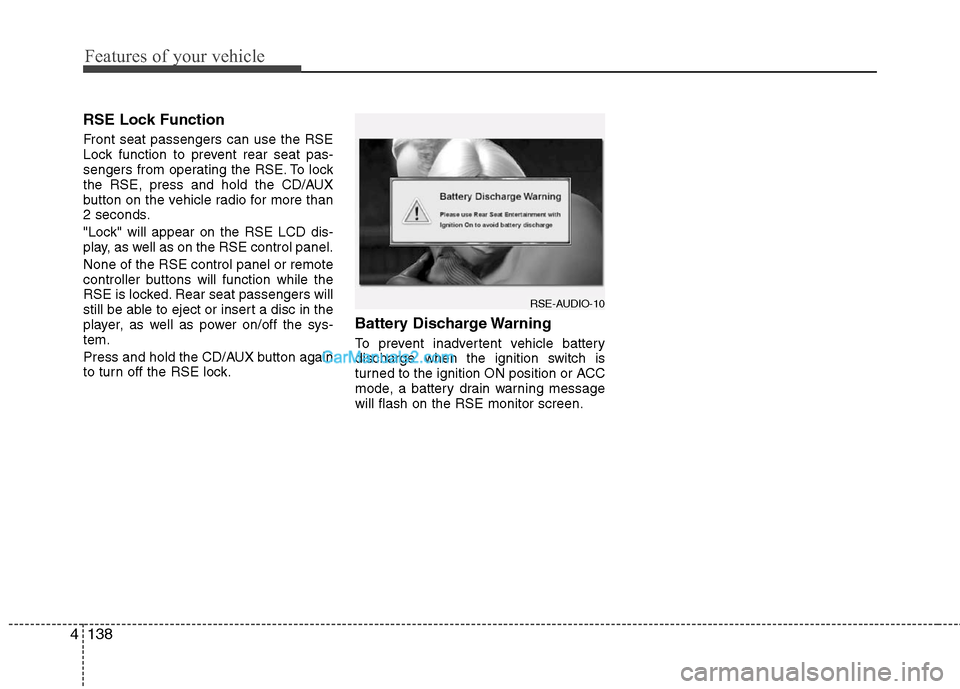
Battery Discharge Warning
To prevent inadvertent vehicle battery
discharge when the ignition switch is
turned to the ignition ON position or ACC
mode, a battery drain warning message
will flash on the RSE monitor screen.
RSE-AUDIO-10
Page 224 of 408
4145
Features of your vehicle
Stop a Disc
The disc will automatically stop when any
other source (e.g. the vehicle radio or an
external game) is selected. When you
switch back to the DVD, it will begin play-
ing at the point where it stopped.
While the player is running, press the
RSE control panel POWER/VOLUME
knob, or the POWER ON/OFF button
on the remote control, to stop a
disc and turn off the RSE system and the
DVD player. When the RSE is turned on
again, the disc will begin playing at the
point where it stopped.
Eject a Disc
To eject a disc press the button. A
disc can be ejected even when the unit is
not turned on.
✽ ✽ NOTICE
The player has an Auto-Reload Disc
Protection feature to protect discs from
accidental damage. If a disc is not
removed within 12 seconds after being
ejected, it will be pulled back into the
player.
CD Player Operation
The RSE will play audio CDs in both
standard (12 cm) and mini-disc (8 cm)
format.
✽ ✽NOTICE
While the player will accept DVD ROM
and CD ROM discs, the RSE cannot
play discs in these formats.
Page 225 of 408
Features of your vehicle
146
4
Volume Control
You can adjust the volume of the audio
heard in the vehicle speakers from the
RSE control panel or the remote control.
From the RSE control panel, rotate the
POWER/VOLUME knob. From the
remote control, press " VOL +" to
increase and " VOL -" to decrease the
volume.
Adjusting the volume in this way will not
adjust the wireless headphone volume.
To adjust the headphones, roll the VOL
control wheel.
Play/Pause
When a CD is inserted, the RSE will
automatically begin playing the first track.
Press the PLAY/PAUSE button to
pause the CD. Press the button again to
resume play. While paused, the elapsed
time in the status display at the top of the
monitor will blink. The RSE control will
display "PAUSE."
When the player reaches the end of the
disc, the player will automatically return
to the first track and continue playing.
Fast Forward / Reverse
Press and hold the FF >or < REW but-
ton and the player will fast forward or
reverse at 10 times the normal speed.
Release the button to return to normal
speed play.
The audio is muted while the player fast
forwards or fast reverses.
Previous/Next Track
While a CD is playing, press the
PREV button to jump to the beginning of
the current track. If less than 10 seconds
has elapsed on the current track, press-
ing PREVwill go to the previous
track. Press the button repeatedly to con-
tinue moving through previous tracks.
Press the NEXTbutton to jump to the
beginning of the next track. Press the
button repeatedly to continue moving
through the following tracks.
Instead of using the PREV /
NEXT buttons, you can also enter the
track number using the numbers on the
remote control. While a CD is playing,
press the number button(s) that corre-
spond to the desired track and press
ENTER .
The current track number is shown in the
Status Display at the top of the monitor.
Stop
The CD will automatically stop when any
other source (e.g. the vehicle radio or an
external game) is selected. When you
switch back to the CD, it will begin play-
ing at the point where it stopped.
While a CD is playing, you can stop the
CD by pressing the POWER ON/OFF
button on the remote control or the
POWER/VOLUME knob on the RSE
control panel. When the RSE is turned on
again, it will automatically begin playing
the CD at the point where it was stopped.
Turning the vehicle off, or selecting a dif-
ferent RSE Source, will also stop playing
the CD.
Eject
Press the EJECTbutton to eject the
CD. Discs can be ejected even when the
unit is not turned on.
Page 226 of 408
4147
Features of your vehicle
Using the MP3 Player
Most RSE functions work the same for
audio CDs and MP3 discs. The major dif-
ference is that audio CDs are organized
by "tracks," while MP3 discs are organ-
ized using folders and files. Therefore,
the navigation functions are somewhat
different for MP3 discs.
✽ ✽NOTICE
While the player will accept DVD ROM
and CD ROM discs, the RSE cannot
play discs in these formats.
Pause/Play
When an MP3 disc is inserted, the RSE
will automatically begin playing the first
file in the disc. Press the PLAY/PAUSE
button to pause the file. Press the
button again to resume play. While
paused, the elapsed time in the status
display at the top of the monitor will blink.
The RSE control panel will display
"PAUSE."
At the end of the disc, the player will
automatically return to the first file and
continue playing.
Fast Forward/Reverse
Press and hold the FF >or < REW but-
ton and the player will fast forward or
reverse at 10 times the normal speed.
Release the button to return to normal
speed play.
The audio is muted while the player fast
forwards or fast reverses.
Song List : Navigating Folders and Files
MP3 discs are organized by named fold-
ers, with each folder containing a collec-
tion of named music files. You can quick-
ly navigate through the folders and files
using the Song List function.
Press the MENUbutton on the RSE con-
trol panel or remote control to display the
song list. The focused song will be high-
lighted. And the music note icon appears
to left of the song currently playing.
To navigate through the folders, press
the < REW or FF > button to highlight the
FOLDER UP, FOLDER DOWN, or
HOME buttons on the monitor, the press
ENTER to move up or down the folders.
Press ENTER repeatedly to move
through all the folders.
When you reach the desired folder, press
the PREVor NEXTbuttons to
scroll through the list of files in that folder
and press ENTERto select the desired
file. The player will switch to the selected
folder and begin playing the desired file.
Page 230 of 408
4151
Features of your vehicle
AM, FM1 and FM2 Selection
When you press the SOURCEbutton,
the Source Selection UI will come out,
along with the current available mode.
You can select the Radio mode by the
remote controller. After pressing the
ENTER button, both RSE and front
Radio will play your selection station at
the same time.
All of the RSE control panel and remote
controller navigation functions can be
used to control the front radio when the
vehicle front radio is also playing the
same radio mode.
Viewing Front CD and MP3
Programs
The RSE can be used to control discs
that are loaded and playing in the vehicle
radio. To control these discs, you must
first select the vehicle radio as the
source. Press the SOURCEbutton on
the remote control, or the SRCbutton on
the RSE control panel, Meanwhile, the
Source Change UI will bring out. Use the
four direction arrow buttons to select the
source of vehicle radio. And press the
ENTER button for completing the selec-
tion.
CD/CD-MP3 Control
While the vehicle radio is playing a CD or
MP3 audio disc, all of the RSE control
panel and remote control navigation
functions can be used to control the vehi-
cle radio. This includes:
• Pause/Play
Fast Forward/Reverse
Previous/Next Track (CD) and Previous/Next File (MP3)
See these sections of the Users Manual
for information on using these functions.
All of the RSE control panel and remote
control navigation functions can be used
to control the front radio when the vehicle
front radio is also playing the CD or CD-
MP3 mode.
AUX Audio and Video Input
Controls
This allows you to display the video out-
put on the RSE monitor, and listen to the
audio through the wireless headsets and
the vehicle speakers.
To switch to an external auxiliary device,
press the SOURCE button on the remote
control or SRCon the RSE control panel,
then select the AUX icon button. And
press the ENTERbutton for completing.
Page 232 of 408
4153
Features of your vehicle
1. POWER On/Off
Press the RSE control panel POWER
button or the POWER ON/OFF button
on the remote control to turn the
RSE on or off. If a disc is loaded and
playing when the RSE is turned off, when
the RSE is turned back on the disc will
automatically resume playback at the
point where it was stopped.
2. Mute
Press the MUTEbutton to mute the
audio in the vehicle speakers. The MUTE
button has no effect on the wireless
headphones.
While muted, the RSE control panel,
vehicle radio and RSE monitor will all dis-
play " MUTE ." Press the button again, or
adjust the volume at RSE control panel
or vehicle radio, to un-mute the audio.
3. Number Buttons ~
The number buttons ( 0 through 9) can
be used to directly enter information such
as chapters in a DVD, track or file num-
bers for audio CDs, and preset radio.
To select a DVD or VCD chapter, while a
DVD/VCD is playing, press the number
button(s) that correspond to the desired
chapter and press ENTER.
To select a CD track, while a CD is play-
ing press the number button(s) that cor-
respond to the track and press ENTER.
To select an MP3 file, while an MP3 disc
is playing, press the number button(s)
that correspond to the desired file and
press ENTER.
To select a radio station preset, while the
desired band (AM, FM1 or FM2) is
selected, press the numbered button that
corresponds to the preset on the vehicle
radio. There is no need to press ENTER.
4. Source
Pressing this SOURCEbutton will bring
out the Source Change selection opera-
tion. You can select any available mode
by using the four direction arrow buttons
and press the ENTERbutton for com-
pleting the selection.
The RSE control panel will display
"REAR" if the current source is the RSE
player, and will display "FRONT" if the
current source is the vehicle radio.
5. A.LANG - Alternate Language Folder -
Where alternate languages are available
on a DVD, pressing the A.LANGbutton
will allow you to select your preferred lan-
guage. Press the button repeatedly to
cycle through the available languages.
When the desired language is displayed,
press ENTER .
Pressing the A.LANG(or FOLD- ) button
during MP3 normal play will immediately
bring the player to the first file of the pre-
vious folder.
Pressing the A.LANG(or FOLD- ) button
during CD or VCD play will do nothing.
Page 233 of 408
Features of your vehicle
154
4
6. S.Title - Subtitles, Folders +
The S.TITLE button allows you to display
or remove language subtitles while play-
ing DVDs. If no language subtitles are
available, the display will show an invalid
icon. Press the S. TITLEbutton repeat-
edly to cycle through all of the available
languages.
Pressing the S. TITLE(or FOLD+ ) button
during MP3 normal play will immediately
bring the player to the first file of the next
folder.
Pressing the S. TITLE(or FOLD+ ) button
during CD or VCD play will do nothing.
7. Menu
Pressing the MENUbutton during DVD
play will present the DVD menu.
Pressing the MENUbutton during MP3
disc play will display the Song List on the
monitor.
Pressing the MENUbutton during CD or
VCD play has no effect.
Press the button again to return to the
program. After five seconds with no but-
ton press, the menu will automatically
close and the program begin playing.
8. Title/PBC
While viewing a DVD, press the TITLE
button on the remote control to jump to
the top menu. Press the < REW / FF >or
PREV / NEXT buttons to highlight
the desired selection, then press ENTER
to make your selection.
Press TITLE again to return to the DVD.
While viewing a VCD, pressing the
TITLE/PBC button will switch the PBC
function on and off.
9. Return
While viewing any operation, pressing
the RETURN button will exit the current
operation on screen display and resume
last play.
10. Speaker Volume "VOL +" and "VOL -"
If the audio from the RSE is being played
through the vehicle speakers, you can
adjust the volume of the speakers with
the " VOL + " and " VOL -" buttons.
Adjusting the volume in this way will not
adjust the wireless headphone volume.
To adjust the headphones, roll the VOL
control wheel.
Batteries
The remote control requires a CR2025
battery (included).
Page 234 of 408
4155
Features of your vehicle
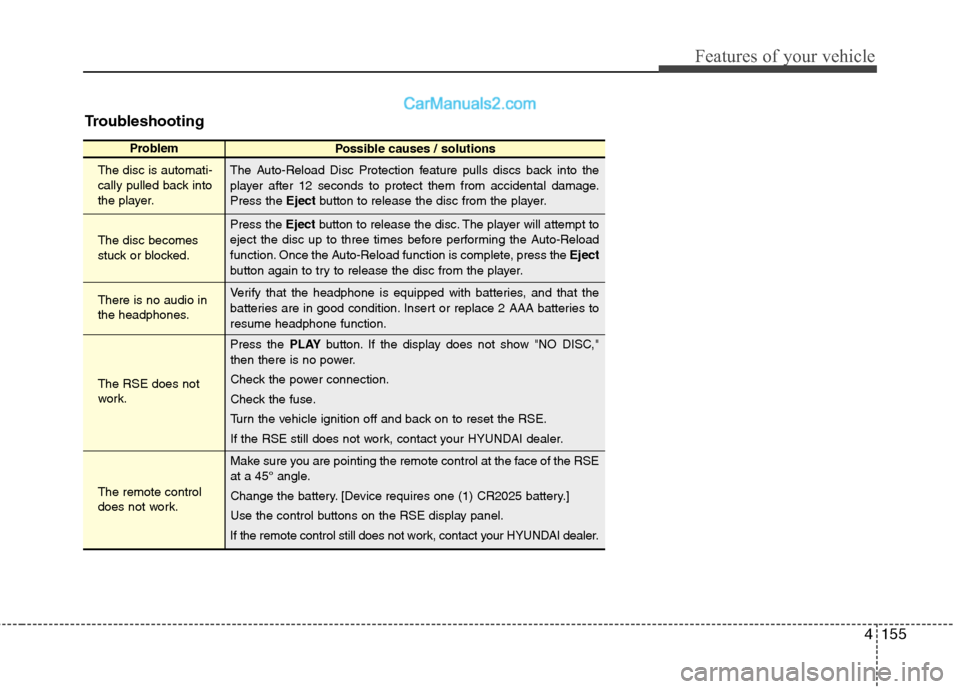
Troubleshooting
ProblemPossible causes / solutions
The disc is automati-
cally pulled back into
the player.
The disc becomes
stuck or blocked.
There is no audio in
the headphones.
The RSE does not
work.
The remote control
does not work. The Auto-Reload Disc Protection feature pulls discs back into the
player after 12 seconds to protect them from accidental damage.
Press the
Ejectbutton to release the disc from the player.
Press the Ejectbutton to release the disc. The player will attempt to
eject the disc up to three times before performing the Auto-Reload
function. Once the Auto-Reload function is complete, press the Eject
button again to try to release the disc from the player.
Verify that the headphone is equipped with batteries, and that the
batteries are in good condition. Insert or replace 2 AAA batteries to
resume headphone function.
Press the PLAYbutton. If the display does not show "NO DISC,"
then there is no power.
Check the power connection.
Check the fuse.
Turn the vehicle ignition off and back on to reset the RSE.
If the RSE still does not work, contact your HYUNDAI dealer.
Make sure you are pointing the remote control at the face of the RSE
at a 45° angle.
Change the battery. [Device requires one (1) CR2025 battery.]
Use the control buttons on the RSE display panel.
If the remote control still does not work, contact your HYUNDAI dealer.
Page 350 of 408
731
Maintenance
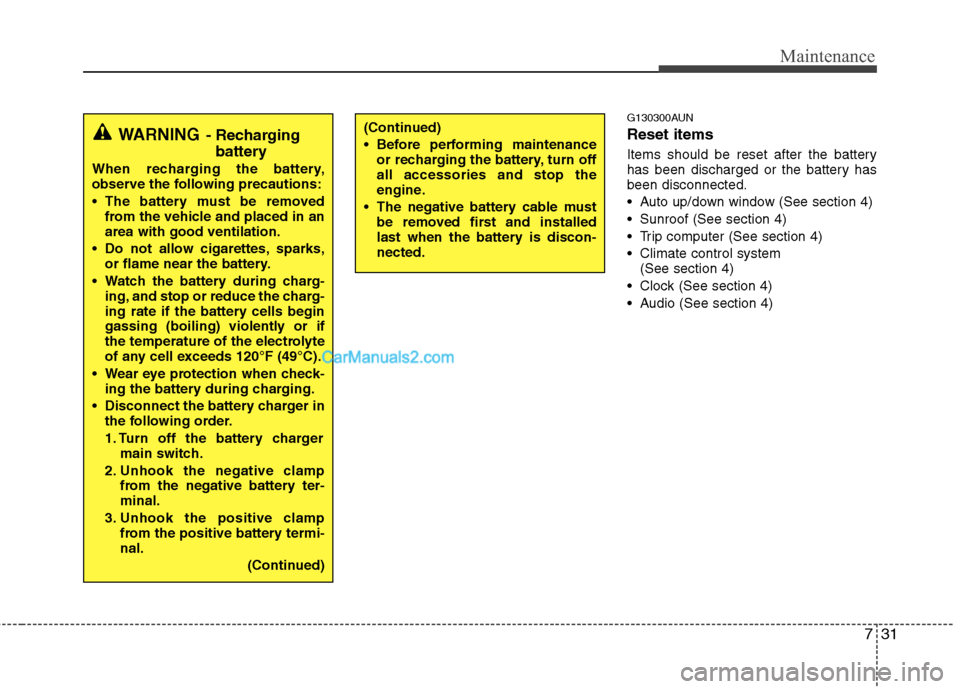
G130300AUN
Reset items
Items should be reset after the battery
has been discharged or the battery has
been disconnected.
Auto up/down window (See section 4)
Sunroof (See section 4)
Trip computer (See section 4)
Climate control system (See section 4)
Clock (See section 4)
Audio (See section 4)
(Continued)
Before performing maintenance or recharging the battery, turn off
all accessories and stop the
engine.
The negative battery cable must be removed first and installed
last when the battery is discon-
nected.WARNING- Rechargingbattery
When recharging the battery,
observe the following precautions:
The battery must be removed
from the vehicle and placed in an
area with good ventilation.
Do not allow cigarettes, sparks, or flame near the battery.
Watch the battery during charg- ing, and stop or reduce the charg-
ing rate if the battery cells begin
gassing (boiling) violently or if
the temperature of the electrolyte
of any cell exceeds 120°F (49°C).
Wear eye protection when check- ing the battery during charging.
Disconnect the battery charger in the following order.
1. Turn off the battery charger main switch.
2. Unhook the negative clamp from the negative battery ter-
minal.
3. Unhook the positive clamp from the positive battery termi-
nal.
(Continued)