message Hyundai Santa Fe 2015 Owner's Guide
[x] Cancel search | Manufacturer: HYUNDAI, Model Year: 2015, Model line: Santa Fe, Model: Hyundai Santa Fe 2015Pages: 786, PDF Size: 36.84 MB
Page 479 of 786
![Hyundai Santa Fe 2015 Owners Guide Features of your vehicle
382
4
VOICE RECOGNITION
Using Voice Recognition
Starting Voice Recognition
Shortly press the key on the
steering wheel. Say a command. If prompt feedback is in [ON], then
t](/img/35/16350/w960_16350-478.png "Hyundai Santa Fe 2015 Owners Guide Features of your vehicle
382
4
VOICE RECOGNITION
Using Voice Recognition
Starting Voice Recognition
Shortly press the key on the
steering wheel. Say a command. If prompt feedback is in [ON], then
t")
Features of your vehicle
382
4
VOICE RECOGNITION
Using Voice Recognition
Starting Voice Recognition
Shortly press the key on the
steering wheel. Say a command. If prompt feedback is in [ON], then
the system will say “Please say a
command after the beep (BEEP)”
mode, then the system will only say
“(BEEP)”
[On]/[Off], go to [System] [Prompt Feedback]
✽ ✽ NOTICE
For proper recognition, say the com-
mand after the voice instruction and
beep tone.
Contact List Best Practices
1) Do not store single-name entries
(e.g., “Bob”, “Mom”, “Kim”, etc.).
Instead, always use full names
(including first and last names) for
all contacts (e.g., use “Jacob
Stevenson” instead of “Dad”).
2) Do not use abbreviations (i.e., use “Lieutenant” instead of “Lt.” or
“Sergeant” instead of “Sgt.”).
3) Do not use acronyms (i.e., use “County Finance Department”
instead of “CFD”). 4) Do not use special characters
(e.g., “@”, “hyphen -”, “asterisk *”,
“ampersand &”).
5) If a name is not recognized from the contact list, change it to a
more descriptive name (e.g., use
“Grandpa Joseph” instead of “Pa
Joe”).
Skipping Prompt Messages
While prompt message is being stat-
ed Shortly press the key on the
steering remote controller
The prompt message is immediately
ended and the beep tone will sound.
After the “beep”, say the voice com-
mand.
Re-starting Voice Recognition
While system waits for a command
Shortly press the key on the
steering remote controller
The command wait state is immedi-
ately ended and the beep will sound.
After the “beep”, say the voice com-
mand.
SETUP
Page 481 of 786

Features of your vehicle
384
4
Illustration on using voice commands
Shortly pressing the key (under 0.8 seconds):
Shortly pressing the key (under 0.8 seconds):
Shortly pressing the key (under 0.8 seconds):
while guidance message is being stated
More Help
Contacts
Cancel
More Help
Please say a command after
the beep (BEEP)
Please say a...
Contacts.
Please say the name of the contact you want
to call.
(BEEP)Beep Beep.. (end beep)Shortly pressing the
key (under 0.8 seconds)
Beep~
More Help
Here are some examples of mode commands.
You can say a radio type like 'FM', 'AM', or 'Satellite'.
You can also say a media source like 'USB', 'My
Music', or 'iPod
®'.
Additionally, there are phone commands like
"Contacts', 'Call History', or 'Dial Number".
You can find more detailed commands in the user's
manual.
Please say a command after the beep.
More Help
Here are some examples of mode commands.
You can say a radio type like 'FM', 'AM', or 'Satellite'.
You can also say a media source like 'USB', 'My
Music', or 'iPod
®'.
Additionally, there are phone commands like
"Contacts', 'Call History', or 'Dial Number".
You can find more detailed commands in the user's
manual.
Please say a command after the beep.
Please say a command after
the beep (BEEP)
Page 489 of 786

Features of your vehicle
392
4
2. Save Destination
“Save Destination” VR command is
used to assign a voice tag to the last
downloaded destination and store it
in a destination directory.
✽ ✽
NOTICE
The Turn by Turn(TBT) feature
supports the store of ten(10) destina-
tions in the TBT destinations direc-
tory.
3. Route Preview
“Route Preview” VR command allows
the user to preview the route instruc-
tions (upcoming maneuver instruc-
tions) at any time during the route
guidance.
4. Destinations List
“Destinations List” VR command
allows the user to preview and delete
the stored destinations with their
associated voice tags in the Turn by
Turn destinations directory. 5. Voice Guidance
“Voice Guidance” VR command
allows the user to mute/unmute the
Turn by Turn(TBT) direction
announcements.
6. Suspend Route
“Suspend Route” VR command
allows the user to suspend and
pause Turn by Turn(TBT) route guid-
ance while in the guidance mode.
7. Resume Route
“Resume Route” VR command
allows the user to resume Turn by
Turn(TBT) route guidance.
➂
(Blue Link
®for SOS)
In the case of an emergency,
requests for help to the Blue Link
®
center.
Call is connected to the Blue Link
®
emergency rescue center. Pressing
the key again will end the call.
If you are already on a Bluetooth
®
phone call, the call will end to connect
you to the Blue Link®Emergency
Rescue Center.
CAUTION
You cannot talk simultaneous-
ly on the Bluetooth®phone
call and a Blue Link®services
phone all.
While on a Bluetooth
®call,
pressing the key or key will display a messageindicating that you are cur-rently on a call.
A message will be displayed if you receive a Bluetooth
®call
while already on a Blue Link®
call. To answer the incoming call, press the button onthe steering wheel controls.You will not hear a ring to alertyou that there is an incomingcall.
Page 502 of 786

4405
Features of your vehicle
XM RADIO™MODE
Features of your vehicle
Satellite radio reception
You may experience difficulties in
receiving XM satellite™ radio signals
in the following situations.
If you are driving in a tunnel or acovered parking area.
If you are driving beneath the top level of a multi-level freeway.
If you are driving under a bridge.
If you are driving next to a tall vehi- cle (such as a truck or a bus) that
blocks the signal. If you are driving in a valley where
the surrounding hills or peaks
block the signal from the satellite.
If you are driving on a mountain road where is the signal blocked by
mountains.
If you are driving in an area with tall trees that block the signal (30 ft.
/10m or more), for example on an
road that goes through a dense for-
est.
The signal can become weak in some areas that are not covered
by the XM repeater network.
✽ ✽ NOTICE
There may also be additional
unforeseen circumstances leading to
reception problems with the XM
satellite™ radio signal.
Advisory Messages, such as ‘CH
Unavailable’ may occur when start-
ing XM Radio™.
SATELLITE2
SATELLITE1
Page 546 of 786
4449
Features of your vehicle
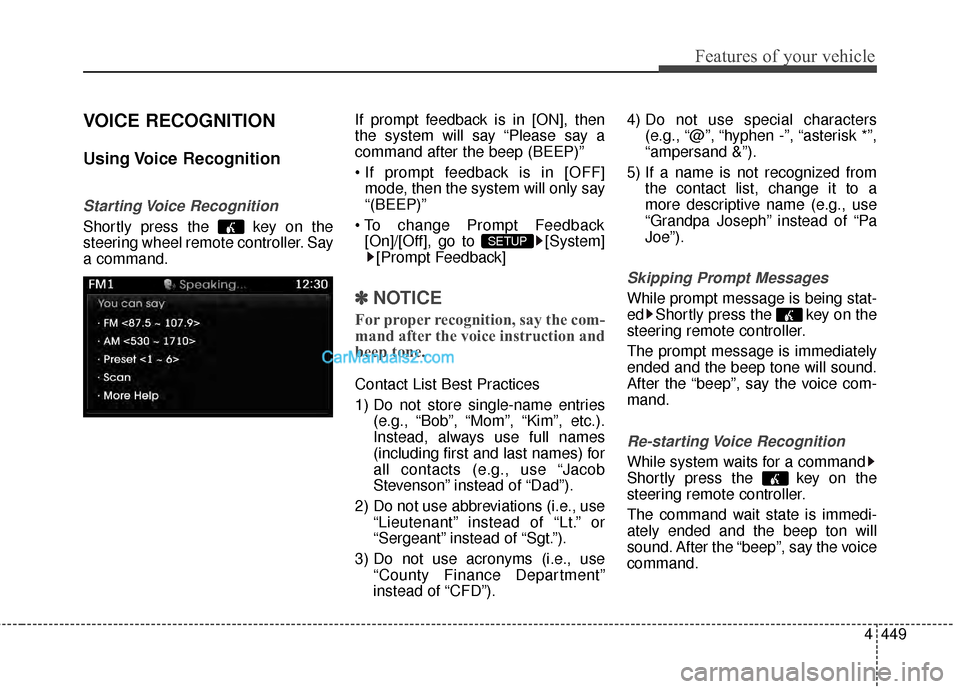
VOICE RECOGNITION
Using Voice Recognition
Starting Voice Recognition
Shortly press the key on the
steering wheel remote controller. Say
a command.If prompt feedback is in [ON], then
the system will say “Please say a
command after the beep (BEEP)”
mode, then the system will only say
“(BEEP)”
[On]/[Off], go to [System] [Prompt Feedback]
✽ ✽ NOTICE
For proper recognition, say the com-
mand after the voice instruction and
beep tone.
Contact List Best Practices
1) Do not store single-name entries
(e.g., “Bob”, “Mom”, “Kim”, etc.).
Instead, always use full names
(including first and last names) for
all contacts (e.g., use “Jacob
Stevenson” instead of “Dad”).
2) Do not use abbreviations (i.e., use “Lieutenant” instead of “Lt.” or
“Sergeant” instead of “Sgt.”).
3) Do not use acronyms (i.e., use “County Finance Department”
instead of “CFD”). 4) Do not use special characters
(e.g., “@”, “hyphen -”, “asterisk *”,
“ampersand &”).
5) If a name is not recognized from the contact list, change it to a
more descriptive name (e.g., use
“Grandpa Joseph” instead of “Pa
Joe”).
Skipping Prompt Messages
While prompt message is being stat-
ed Shortly press the key on the
steering remote controller.
The prompt message is immediately
ended and the beep tone will sound.
After the “beep”, say the voice com-
mand.
Re-starting Voice Recognition
While system waits for a command
Shortly press the key on the
steering remote controller.
The command wait state is immedi-
ately ended and the beep ton will
sound. After the “beep”, say the voice
command.
SETUP
Page 561 of 786
Features of your vehicle
464
4
2. Save Destination
“Save Destination” VR command is
used to assign a voice tag to the last
downloaded destination and store it
in a destination directory.
✽ ✽
NOTICE
The Turn by Turn(TBT) feature
supports the store of ten(10) destina-
tions in the TBT destinations direc-
tory.
3. Route Preview
“Route Preview” VR command allows
the user to preview the route instruc-
tions (upcoming maneuver instruc-
tions) at any time during the route
guidance.
4. Destinations List
“Destinations List” VR command
allows the user to preview and delete
the stored destinations with their
associated voice tags in the Turn by
Turn destinations directory. 5. Voice Guidance
“Voice Guidance” VR command
allows the user to mute/unmute the
Turn by Turn(TBT) direction
announcements.
6. Suspend Route
“Suspend Route” VR command
allows the user to suspend and
pause Turn by Turn(TBT) route guid-
ance while in the guidance mode.
7. Resume Route
“Resume Route” VR command
allows the user to resume Turn by
Turn(TBT) route guidance.
➂
(Blue Link
®for SOS)
In the case of an emergency,
requests for help to the Blue Link
®
center.
Call is connected to the Blue Link
®
emergency rescue center. Pressing
the key again will end the call.
If you are already on a Bluetooth
®
phone call, the call will end to connect
you to the Blue Link®Emergency
Rescue Center.
CAUTION
You cannot talk simultaneous-
ly on the Bluetooth®phone
call and a Blue Link®services
phone all.
While on a Bluetooth
®call,
pressing the key or key will display a messageindicating that you are cur-rently on a call.
A message will be displayed if you receive a Bluetooth
®call
while already on a Blue Link®
call. To answer the incoming call, press the button onthe steering wheel controls.You will not hear a ring to alertyou that there is an incomingcall.
Page 575 of 786

Driving your vehicle
12
5
Starting the engine
1. Carry the smart key or leave it
inside the vehicle.
2. Make sure the parking brake is firmly applied.
3. Place the transaxle shift lever in P (Park). Depress the brake pedal
fully.
You can also start the engine when
the shift lever is in the N (Neutral)position.
4. Press the engine start/stop button.
It should be started without depress-
ing the accelerator pedal. 5.Do not wait for the engine to warm
up while the vehicle remains sta-
tionary.
Start driving at moderate engine
speeds. (Steep accelerating and
decelerating should be avoided.) Even if the smart key is in the vehi-
cle, if it is far away from you, the
engine may not start.
When the engine start/stop button is in the ACC position or above, if
any door is opened, the system
checks for the smart key. If the
smart key is not in the vehicle, the
“ ” indicator and a message
“Key is not in the vehicle” will appear
on the instrument cluster and LCD
display. And if all doors are closed,
the chime will sound for 5 seconds.
The indicator or warning will turn off
while the vehicle is moving. Always
have the smart key with you.
WARNING
The engine will start, only when
the smart key is in the vehicle.
Never allow children or any per-
son who is unfamiliar with the
vehicle to press the engine
start/stop button or related parts.
WARNING
Always wear appropriate shoes
when operating your vehicle.
Unsuitable shoes (high heels,
ski boots,etc.) may interfere with
your ability to use the brake,
accelerator pedal.
Page 616 of 786

553
Driving your vehicle
Warning message
If the detecting sensor performance
is low or overheated by foreign sub-
stances on the rear bumper, the
message will appear to notify the
driver. Also, a warning message may
appear when there is heavy rain or in
a large area with nothing to detect. If
this occurs, inspect the rear bumper
for any debris or dirt which may
affect the operation of the BSD sen-
sor. If the system does not activate
normally after removing the sub-
stances on the rear bumper, consult
an authorized HYUNDAI dealer.If there is a problem with BSD, a warn-
ing message will appear to notify the
driver. If this occurs, have a vehicle
checked by an authorized HYUNDAI
dealer.
Rear cross traffic alert
When your vehicle moves backwards
from a parking position, the sensor
detects approaching vehicles to the
left or right side direction and gives
information to the driver.
OVI053131ONC043074N
ONC043075N
Page 661 of 786

What to do in an emergency
14
6
TIRE PRESSURE MONITORING SYSTEM (TPMS) - TYPE B
(1) Low Tire Pressure Telltale/
TPMS Malfunction Indicator
(2) Low tire pressure position telltale and tire pressure telltale
(Shown on the LCD display)
Check tire pressure
You can check the tire pressure inthe information mode on the clus-
ter.
- Refer to “User settings mode” inchapter 4.
Tire pressure is displayed 1~2 min- utes later after driving.
If tire pressure is not displayed when the vehicle is stopped, “Drive
to display” message displays. After
driving, check the tire pressure. You can change the tire pressure
unit in the user settings mode on
the cluster.
- psi, kpa, bar (Refer to “User set-tings mode” in chapter 4).
ODM062002
ODM064023L/ODM064020L
■Type A■Type B
ODM064024L/ODM064021L
■Type A■Type B