ECU Hyundai Santa Fe 2015 Service Manual
[x] Cancel search | Manufacturer: HYUNDAI, Model Year: 2015, Model line: Santa Fe, Model: Hyundai Santa Fe 2015Pages: 786, PDF Size: 36.84 MB
Page 310 of 786

4213
Features of your vehicle
Voice Command List
Common Commands: These commands can be used in most operations. (However a few commands may not beavailable during certain operations)
Command Function
More Help Provides guidance on commands that can be
used anywhere in the system.
Help Provides guidance on commands that can be
used within the current mode.
Call
Ex) Call John Smith
Phone Provides guidance on Phone related com- mands. After saying this command, say
“Favorites”,“Call History”, “Contacts” or ”Dial
Number” execute corresponding functions.
Favorites Display the Favorite screen.
Call History Displays the Call History screen.
Contacts Displays the Contacts screen. After sayingthis command, say the name of a contact
saved in the Contacts to automatically con-
nect the call.
Dial Number Display the Dial number screen. After saying this command, you can say the number that
you want to call.
RedialConnects the most recently called number.
Tutorial Pro vide guidance on how to use voice
recognition and Bluetooth®connections.
Command Function
When listening to the radio, displays the
next radio screen. (FM1➟FM2➟AM➟XM1➟XM2➟XM3➟FM1)
Radio
When listening to a different mode, displays
the most recently played radio screen.
When currently listening to the FM radio,
maintains the current state.
When listening to a different mode, displaysthe most recently played FM screen.
FM1(FM One) Displays the FM1 screen.
FM2(FM Two) Displays the FM2 screen.
AM Displays the AM screen.
FM Preset 1~6 Plays the most recently played broadcast
saved in FM Preset 1~6.
AM Preset 1~6 Plays the broadcast saved in AM Preset 1~6.
FM 87.5~107.9 Plays the FM broadcast of the corresponding
frequency.
AM 530~1710 Plays the AM broadcast of the corresponding
frequency.
XM (Satellite)
When currently listening to the XM, main-
tains the current state.
When listening to a different mode, displaysthe most recently played XM screen.
(Call by Name)
Page 316 of 786

4219
Features of your vehicle
Pairing Key / Key
on the Steering Remote
Controller
When No Devices have beenPaired
1. Press the key or the key on the steering remote con-
troller. The following screen is dis-
played. 2. Select [OK] button to enter the
Pair Phone screen.
1) Car Name : Name of device as shown when searching from your
Bluetooth® Wireless Technology
device
2) Passkey : Passkey used to pair the device
3. From your
Bluetooth®Wireless
Technology device (i.e. Mobile
Phone), search and select your
car audio system. [Non SSP supported device]
(SSP: Secure Simple Pairing)
4. After a few moments, a screen is
displayed where the passkey is
entered.
Hear, enter the passkey “0000” to
pair your
Bluetooth®Wireless
Technology device with the car
audio system.
[SSP supported device]
4. After a few moments, a screen is displayed 6 digits passkey.
Hear, check the passkey on your
Bluetooth®Wireless Technology
device and confirm.
5. Once pairing is complete, the fol- lowing screen is displayed.
PHONE
PHONE
Page 331 of 786

Features of your vehicle
234
4
Voice Command List
Common Commands: These commands can be used in most operations. (However a few commands may not be
available during certain operations)
Command Function
More Help Provides guidance on commands that can be
used anywhere in the system.
Help Provides guidance on commands that can be
used within the current mode.
Call
Ex) Call “John Smith”
Phone Provides guidance on Phone related com- mands. After saying this command, say
“Favorites”,“Call History”, “Contacts” or ”Dial
Number” execute corresponding functions.
Favorites Display the Favorite screen.
Call History Displays the Call History screen.
Contacts Displays the Contacts screen. After sayingthis command, say the name of a contact
saved in the Contacts to automatically con-
nect the call.
Dial Number Display the Dial number screen. After saying this command, you can say the number that
you want to call.
RedialConnects the most recently called number.
Tutorial Pro vide guidance on how to use voice
recognition and Bluetooth®connections.
Command Function
When listening to the radio, displays the
next radio screen. (FM1➟FM2➟AM➟XM1➟XM2➟XM3➟FM1)
Radio
When listening to a different mode, displays
the most recently played radio screen.
When currently listening to the FM radio,
maintains the current state.
When listening to a different mode, displaysthe most recently played FM screen.
FM1(FM One) Displays the FM1 screen.
FM2(FM Two) Displays the FM2 screen.
AM Displays the AM screen.
FM Preset 1~6 Plays the most recently played broadcast
saved in FM Preset 1~6.
AM Preset 1~6 Plays the broadcast saved in AM Preset 1~6.
FM 87.5~107.9 Plays the FM broadcast of the corresponding
frequency.
AM 530~1710 Plays the AM broadcast of the corresponding
frequency.
XM (Satellite)
When currently listening to the XM, main-
tains the current state.
When listening to a different mode, displaysthe most recently played XM screen.
(Call by Name)
Page 396 of 786

4299
Features of your vehicle
CommandFunction
More Help Provides guidance on commands that can be
used anywhere in the system.
Help Provides guidance on commands that can be
used within the current mode.
Call
Ex) Call John Smith
Phone Provides guidance on Phone related com- mands. After saying this command, say
“Favorites”,“Dial Number”, “Call History” or
“Contacts” execute corresponding functions.
Favorites Display the Favorite screen.
Call History Displays the Call History screen.
Contacts Displays the Contacts screen. After sayingthis command, say the name of a contact
saved in the Contacts to automatically con-
nect the call.
Dial Number Display the Dial number screen. After saying this command, you can say the number that
you want to call.
RedialConnects the most recently called number.
Tutorial Pro vide guidance on how to use voice
recognition and Bluetooth®connections.
Command Function
When listening to the radio, displays the
next radio screen. (FM1➟FM2➟AM➟XM1➟XM2➟XM3➟FM1)
Radio
When listening to a different mode, displays
the most recently played radio screen.
When currently listening to the FM radio,
maintains the current state.
When listening to a different mode, displaysthe most recently played FM screen.
FM1(FM One) Displays the FM1 screen.
FM2(FM Two) Displays the FM2 screen.
AM Displays the AM screen.
FM Preset 1~6 Plays the most recently played broadcast
saved in FM Preset 1~6.
AM Preset 1~6 Plays the broadcast saved in AM Preset 1~6.
FM 87.5~107.9 Plays the FM broadcast of the corresponding
frequency.
AM 530~1710 Plays the AM broadcast of the corresponding
frequency.
XM (Satellite)
When currently listening to the XM, main-
tains the current state.
When listening to a different mode, displaysthe most recently played XM screen.
(Call by Name)
Voice Command List
Common Commands: These commands can be used in most operations. (However a few commands may not be
available during certain operations)
Page 402 of 786
![Hyundai Santa Fe 2015 Service Manual 4305
Features of your vehicle
[Non SSP supported device]
(SSP: Secure Simple Pairing)
4. After a few moments, a screen isdisplayed where the passkey is
entered.
Hear, enter the passkey “0000” to
p](/img/35/16350/w960_16350-401.png "Hyundai Santa Fe 2015 Service Manual 4305
Features of your vehicle
[Non SSP supported device]
(SSP: Secure Simple Pairing)
4. After a few moments, a screen isdisplayed where the passkey is
entered.
Hear, enter the passkey “0000” to
p")
4305
Features of your vehicle
[Non SSP supported device]
(SSP: Secure Simple Pairing)
4. After a few moments, a screen isdisplayed where the passkey is
entered.
Hear, enter the passkey “0000” to
pair your
Bluetooth®Wireless
Technology device with the car
audio system.
[SSP supported device]
4. After a few moments, a screen is displayed 6 digits passkey.
Hear, check the passkey on your
Bluetooth®Wireless Technology
device and confirm.
5. Once pairing is complete, the fol- lowing screen is displayed.
✽ ✽NOTICE
If Bluetooth®Wireless Technology
devices are paired but none are cur-
rently connected, pressing the key or the key on the
steering wheel displays the following
screen. Press the [Pair] button to
pair a new device or press the
[Connect] to connect a previously
paired device.
Pairing through [PHONE]
Setup
Press the key Select
[Phone] Select [Pair Phone]
Select TUNE knob
1. The following steps are the same
as those described in the section
"When No Devices have been
Paired" on the previous page.SETUP
PHONE
Page 417 of 786

Features of your vehicle
320
4
Command Function
More Help Provides guidance on commands that can be
used anywhere in the system.
Help Provides guidance on commands that can be
used within the current mode.
Call
Ex) Call “John Smith”
Phone Provides guidance on Phone related com- mands. After saying this command, say
“Favorites”,“Dial Number”, “Call History” or
“Contacts” execute corresponding functions.
Favorites Display the Favorite screen.
Call History Displays the Call History screen.
Contacts Displays the Contacts screen. After sayingthis command, say the name of a contact
saved in the Contacts to automatically con-
nect the call.
Dial Number Display the Dial number screen. After saying this command, you can say the number that
you want to call.
RedialConnects the most recently called number.
Tutorial Pro vide guidance on how to use voice
recognition and Bluetooth®connections.
Command Function
When listening to the radio, displays the
next radio screen. (FM1➟FM2➟AM➟XM1➟XM2➟XM3➟FM1)
Radio
When listening to a different mode, displays
the most recently played radio screen.
When currently listening to the FM radio,
maintains the current state.
When listening to a different mode, displaysthe most recently played FM screen.
FM1(FM One) Displays the FM1 screen.
FM2(FM Two) Displays the FM2 screen.
AM Displays the AM screen.
FM Preset 1~6 Plays the most recently played broadcast
saved in FM Preset 1~6.
AM Preset 1~6 Plays the broadcast saved in AM Preset 1~6.
FM 87.5~107.9 Plays the FM broadcast of the corresponding
frequency.
AM 530~1710 Plays the AM broadcast of the corresponding
frequency.
XM (Satellite)
When currently listening to the XM, main-
tains the current state.
When listening to a different mode, displaysthe most recently played XM screen.
(Call by Name)
Voice Command List
Common Commands: These commands can be used in most operations. (However a few commands may not be
available during certain operations)
Page 467 of 786

Features of your vehicle
370
4
Pairing Key / Key
on the Steering Remote
Controller
When No Devices have been
Paired
1. Press the key or the key on the steering remote con-
troller. The following screen is dis-
played. 2. Select [OK] button to enter the
Pair Phone screen.
1) Car Name : Name of device as shown when searching from your
Bluetooth® Wireless Technology
device
2) Passkey : Passkey used to pair the device
3. From your
Bluetooth®Wireless
Technology device (i.e. Mobile
Phone), search and select your
car audio system. [Non SSP supported device]
(SSP: Secure Simple Pairing)
4. After a few moments, a screen is
displayed where the passkey is
entered.
Hear, enter the passkey “0000” to
pair your
Bluetooth®Wireless
Technology device with the car
audio system.
[SSP supported device]
4. After a few moments, a screen is displayed 6 digits passkey.
Hear, check the passkey on your
Bluetooth®Wireless Technology
device and confirm.
5. Once pairing is complete, the fol- lowing screen is displayed.
PHONE
PHONE
Page 482 of 786

4385
Features of your vehicle
Voice Command List
These commands can be used in most operations. (However a few commands may not beavailable during certain operations)
Command Function
More Help Provides guidance on commands that can be
used anywhere in the system.
Help Provides guidance on commands that can be
used within the current mode.
Call
Ex) Call “John Smith”
Call
Ex) Call "John Smith" on Mobile
Call
Ex) Call "John Smith" in Office
Call
Ex) Call "John Smith" at Home
Call
Ex) Call "John Smith" on Other
Phone Provides guidance on Phone related com- mands. After saying this command, say
“Favorites”,“Call History”, “Contacts” or ”Dial
Number” execute corresponding functions.
Favorites Display the Favorite screen.
Call History Displays the Call History screen.
Command Function
Contacts Displays the Contacts screen. After saying this command, say the name of a contact
saved in the Contacts to automatically con-
nect the call.
Dial Number Display the Dial number screen. After saying this command, you can say the number that
you want to call.
RedialConnects the most recently called number.
Tutorial Pro vide guidance on how to use voice
recognition and Bluetooth®connections.
When listening to the radio, displays the
next radio screen. (FM1➟FM2➟AM➟XM1➟XM2➟XM3➟FM1)
Radio
When listening to a different mode, displays
the most recently played radio screen.
When currently listening to the FM radio,
maintains the current state.
When listening to a different mode, displaysthe most recently played FM screen.
FM1(FM One) Displays the FM1 screen.
FM2(FM Two) Displays the FM2 screen.
AM Displays the AM screen.
(Call by Name)
on Mobile
in Officeat Home
on Other
Page 534 of 786
![Hyundai Santa Fe 2015 Service Manual 4437
Features of your vehicle
[Non SSP supported device]
(SSP: Secure Simple Pairing)
4. After a few moments, a screen isdisplayed where the passkey is
entered.
Hear, enter the passkey “0000” to
p](/img/35/16350/w960_16350-533.png "Hyundai Santa Fe 2015 Service Manual 4437
Features of your vehicle
[Non SSP supported device]
(SSP: Secure Simple Pairing)
4. After a few moments, a screen isdisplayed where the passkey is
entered.
Hear, enter the passkey “0000” to
p")
4437
Features of your vehicle
[Non SSP supported device]
(SSP: Secure Simple Pairing)
4. After a few moments, a screen isdisplayed where the passkey is
entered.
Hear, enter the passkey “0000” to
pair your
Bluetooth®Wireless
Technology device with the car
audio system.
[SSP supported device]
4. After a few moments, a screen is displayed 6 digits passkey.
Hear, check the passkey on your
Bluetooth®Wireless Technology
device and confirm.
5. Once pairing is complete, the fol- lowing screen is displayed.
✽ ✽NOTICE
If Bluetooth®Wireless Technology
devices are paired but none are cur-
rently connected, pressing the key or the key on the
steering wheel displays the following
screen. Press the [Pair] button to
pair a new device or press the
[Connect] to connect a previously
paired device.
Pairing through [PHONE]
Setup
Press the key Select
[Phone] Select [Pair Phone]
Select TUNE knob
The following steps are the same as
those described in the section
"When No Devices have been
Paired" on the previous page.SETUP
PHONE
Page 548 of 786
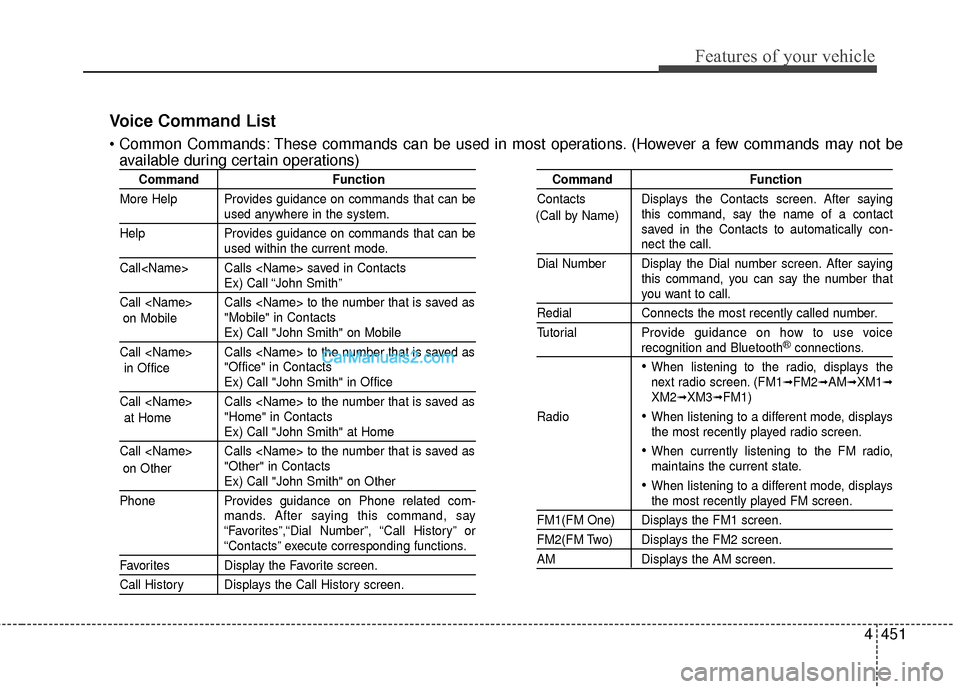
4451
Features of your vehicle
CommandFunction
More Help Provides guidance on commands that can be
used anywhere in the system.
Help Provides guidance on commands that can be
used within the current mode.
Call
Ex) Call “John Smith”
Call
Ex) Call "John Smith" on Mobile
Call
Ex) Call "John Smith" in Office
Call
Ex) Call "John Smith" at Home
Call
Ex) Call "John Smith" on Other
Phone Provides guidance on Phone related com- mands. After saying this command, say
“Favorites”,“Dial Number”, “Call History” or
“Contacts” execute corresponding functions.
Favorites Display the Favorite screen.
Call History Displays the Call History screen.
Command Function
Contacts Displays the Contacts screen. After saying this command, say the name of a contact
saved in the Contacts to automatically con-
nect the call.
Dial Number Display the Dial number screen. After saying this command, you can say the number that
you want to call.
RedialConnects the most recently called number.
Tutorial Pro vide guidance on how to use voice
recognition and Bluetooth®connections.
When listening to the radio, displays the
next radio screen. (FM1➟FM2➟AM➟XM1➟XM2➟XM3➟FM1)
Radio
When listening to a different mode, displays
the most recently played radio screen.
When currently listening to the FM radio,
maintains the current state.
When listening to a different mode, displaysthe most recently played FM screen.
FM1(FM One) Displays the FM1 screen.
FM2(FM Two) Displays the FM2 screen.
AM Displays the AM screen.
(Call by Name)
Voice Command List
These commands can be used in most operations. (However a few commands may not be
available during certain operations)
on Mobile
in Officeat Home
on Other