display Hyundai Santa Fe 2016 Owners Manual
[x] Cancel search | Manufacturer: HYUNDAI, Model Year: 2016, Model line: Santa Fe, Model: Hyundai Santa Fe 2016Pages: 759, PDF Size: 29.36 MB
Page 377 of 759
Features of your vehicle
280
4
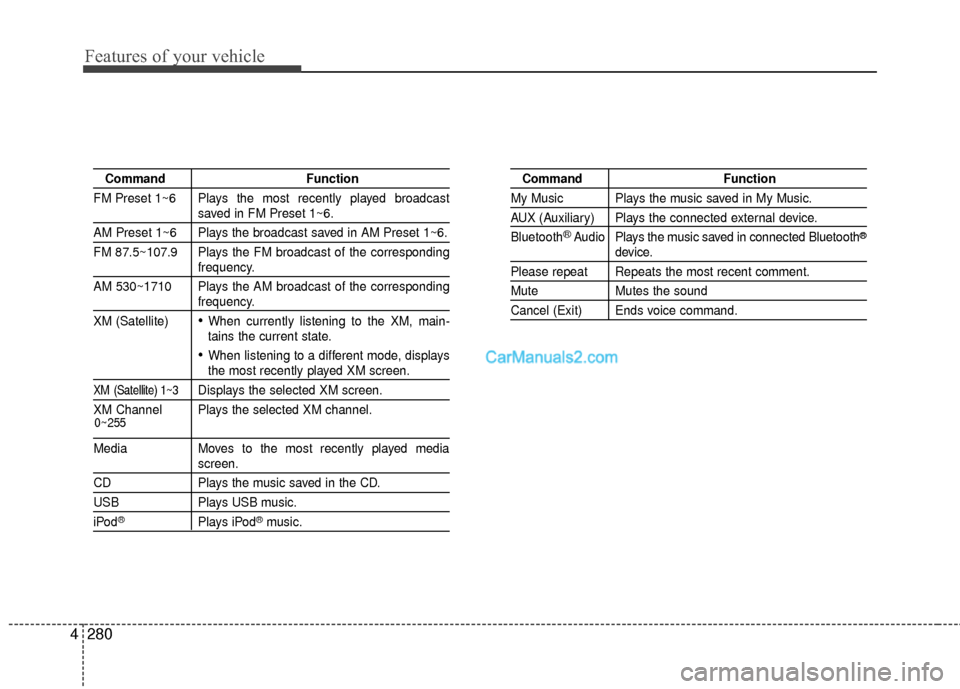
Command Function
FM Preset 1~6 Plays the most recently played broadcast
saved in FM Preset 1~6.
AM Preset 1~6 Plays the broadcast saved in AM Preset 1~6.
FM 87.5~107.9 Plays the FM broadcast of the corresponding
frequency.
AM 530~1710 Plays the AM broadcast of the corresponding
frequency.
XM (Satellite)
When currently listening to the XM, main-
tains the current state.
When listening to a different mode, displaysthe most recently played XM screen.
XM (Satellite) 1~3Displays the selected XM screen.
XM Channel Plays the selected XM channel.
Media Moves to the most recently played mediascreen.
CD Plays the music saved in the CD.
USBPlays USB music.
iPod®Plays iPod®music.
Command Function
My Music Plays the music saved in My Music.
AUX (Auxiliary) Plays the connected external device.
Bluetooth
®Audio Plays the music saved in connected Bluetooth®
device.
Please repeat Repeats the most recent comment.
Mute Mutes the sound
Cancel (Exit) Ends voice command.
0~255
Page 378 of 759
4281
Features of your vehicle
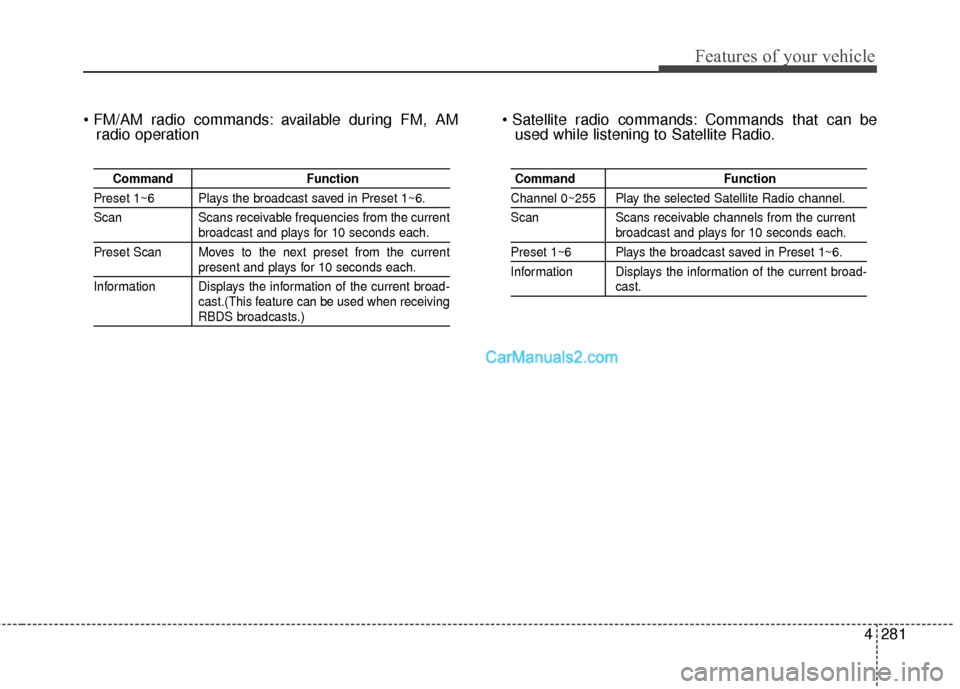
available during FM, AMradio operation Commands that can be
used while listening to Satellite Radio.
Command Function
Preset 1~6 Plays the broadcast saved in Preset 1~6.
Scan Scans receivable frequencies from the current
broadcast and plays for 10 seconds each.
Preset Scan Moves to the next preset from the current
present and plays for 10 seconds each.
Information Displays the information of the current broad- cast.(This feature can be used when receiving
RBDS broadcasts.)
Command Function
Channel 0~255 Play the selected Satellite Radio channel.
Scan Scans receivable channels from the current
broadcast and plays for 10 seconds each.
Preset 1~6 Plays the broadcast saved in Preset 1~6.
Information Displays the information of the current broad-
cast.
Page 381 of 759
![Hyundai Santa Fe 2016 Owners Manual Features of your vehicle
284
4
SETUP
Starting Mode
Press the key to display the
Setup screen.
You can select and control options
related to [Display], [Sound],
[Clock/Calendar], [Phone] and
[System].](/img/35/16331/w960_16331-380.png "Hyundai Santa Fe 2016 Owners Manual Features of your vehicle
284
4
SETUP
Starting Mode
Press the key to display the
Setup screen.
You can select and control options
related to [Display], [Sound],
[Clock/Calendar], [Phone] and
[System].")
Features of your vehicle
284
4
SETUP
Starting Mode
Press the key to display the
Setup screen.
You can select and control options
related to [Display], [Sound],
[Clock/Calendar], [Phone] and
[System].
Display Settings
Adjusting the Brightness
Press the key Select
[Display] Select [Brightness]
Use the , buttons to adjust the
screen brightness or set the
Brightness on Automatic, Daylight, or
Night mode.
Press the button to reset.
1) Automatic : Adjusts the brightness
automatically
2) Daylight : Always maintains the brightness on high
3) Night : Always maintains the
brightness on low
Mode Pop-up
Press the key Select
[Display] Select [Mode Pop up]
This feature is used to display the
Mode Pop-up screen when entering
radio and media modes.
When this feature is turned on,
pressing the or key
will display the Mode Pop-up screen.
✽ ✽ NOTICE
The media Mode Pop-up screen can
be displayed only when two or more
media modes have been connected.
MEDIA RADIO
SETUP
Default
SETUP SETUP
Page 382 of 759
![Hyundai Santa Fe 2016 Owners Manual 4285
Features of your vehicle
MP3 Information Display
Press the key Select
[Display] Select [Media Display]
This feature is used to change the
information displayed within USB
and MP3 CD modes.
1) Fo](/img/35/16331/w960_16331-381.png "Hyundai Santa Fe 2016 Owners Manual 4285
Features of your vehicle
MP3 Information Display
Press the key Select
[Display] Select [Media Display]
This feature is used to change the
information displayed within USB
and MP3 CD modes.
1) Fo")
4285
Features of your vehicle
MP3 Information Display
Press the key Select
[Display] Select [Media Display]
This feature is used to change the
information displayed within USB
and MP3 CD modes.
1) Folder File : Displays file nameand folder name
2) Album Artist Song : Displays album name/artist name/song
Sound Settings
Sound Settings
Press the key Select
[Sound] Select [Sound Setting] Use the , , , buttons to
adjust the Fader/Balance settings.
Use the , buttons to adjust the
Bass/Middle/Treble settings.
Press the button to reset.DefaultSETUP
SETUP
Page 385 of 759
![Hyundai Santa Fe 2016 Owners Manual Features of your vehicle
288
4
Calendar Setting
Press the key Select
[Clock/Calendar] Select [Calendar
Settings]
Use the , buttons to set the
Month, Day and Year setting.
Time Format
Press the key](/img/35/16331/w960_16331-384.png "Hyundai Santa Fe 2016 Owners Manual Features of your vehicle
288
4
Calendar Setting
Press the key Select
[Clock/Calendar] Select [Calendar
Settings]
Use the , buttons to set the
Month, Day and Year setting.
Time Format
Press the key")
Features of your vehicle
288
4
Calendar Setting
Press the key Select
[Clock/Calendar] Select [Calendar
Settings]
Use the , buttons to set the
Month, Day and Year setting.
Time Format
Press the key Select
[Clock/Calendar] Select [Time Format]
This feature is used to change the
clock format between 12hr or 24hr.
Clock Display
Press the key Select
[Clock/Calendar] Select [Clock
Display (Power off)]
This feature is used to display a clock
on the screen when the audio sys-
tem is turned off.SETUP SETUP SETUP
Page 387 of 759
![Hyundai Santa Fe 2016 Owners Manual Features of your vehicle
290
4
Memory Information
Press the key Select
[System] Select [Memory Information]
This feature displays information
related to system memory.
1) Using : Displays capacity cu](/img/35/16331/w960_16331-386.png "Hyundai Santa Fe 2016 Owners Manual Features of your vehicle
290
4
Memory Information
Press the key Select
[System] Select [Memory Information]
This feature displays information
related to system memory.
1) Using : Displays capacity cu")
Features of your vehicle
290
4
Memory Information
Press the key Select
[System] Select [Memory Information]
This feature displays information
related to system memory.
1) Using : Displays capacity currently in use
2) Capacity : Displays total capacity
REAR VIEW CAMERA
(if equipped)
The system has been equipped with a rear view camera for user
safety by allowing a wider rear
range of vision.
The rear view camera will automat- ically operate when the ignition key
is turned ON and the transmission
shift lever is positioned into reverse
(R).
The rear view camera will automat- ically stop operating when set to a
the transmission shift lever is posi-
tioned to another gear.
SETUP
CAUTION
The rear view camera has beenequipped with an optical lens toprovide a wider range of visionand may appear different fromthe actual distance. For safety,directly check the rear andleft/right sides.
Page 389 of 759
Features of your vehicle
292
4
2. Save Destination
“Save Destination” VR command is
used to assign a voice tag to the last
downloaded destination and store it
in a destination directory.
✽ ✽
NOTICE
The Turn by Turn(TBT) feature
supports the store of ten(10) destina-
tions in the TBT destinations direc-
tory.
3. Route Preview
“Route Preview” VR command allows
the user to preview the route instruc-
tions (upcoming maneuver instruc-
tions) at any time during the route
guidance.
4. Destinations List
“Destinations List” VR command
allows the user to preview and delete
the stored destinations with their
associated voice tags in the Turn by
Turn destinations directory. 5. Voice Guidance
“Voice Guidance” VR command
allows the user to mute/unmute the
Turn by Turn(TBT) direction
announcements.
6. Suspend Route
“Suspend Route” VR command
allows the user to suspend and
pause Turn by Turn(TBT) route guid-
ance while in the guidance mode.
7. Resume Route
“Resume Route” VR command
allows the user to resume Turn by
Turn(TBT) route guidance.
➂
(Blue Link
®for SOS)
In the case of an emergency,
requests for help to the Blue Link
®
center.
Call is connected to the Blue Link
®
emergency rescue center. Pressing
the key again will end the call.
If you are already on a Bluetooth
®
phone call, the call will end to connect
you to the Blue Link®Emergency
Rescue Center.
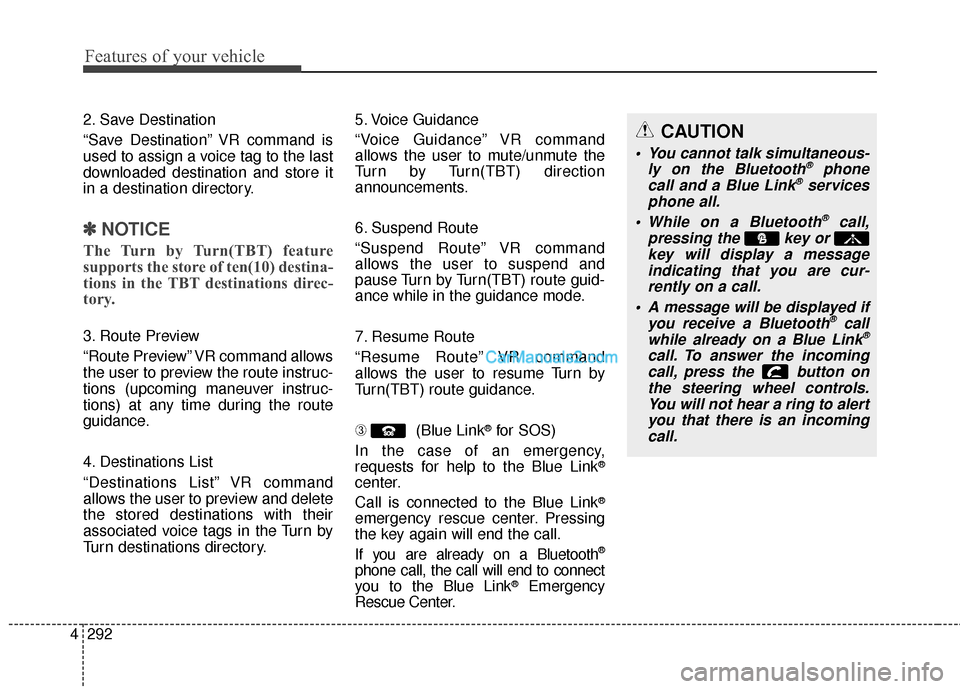
CAUTION
You cannot talk simultaneous-
ly on the Bluetooth®phone
call and a Blue Link®services
phone all.
While on a Bluetooth
®call,
pressing the key or key will display a messageindicating that you are cur-rently on a call.
A message will be displayed if you receive a Bluetooth
®call
while already on a Blue Link®
call. To answer the incoming call, press the button onthe steering wheel controls.You will not hear a ring to alertyou that there is an incomingcall.
Page 395 of 759
Features of your vehicle
298
4
✽
✽
NOTICE
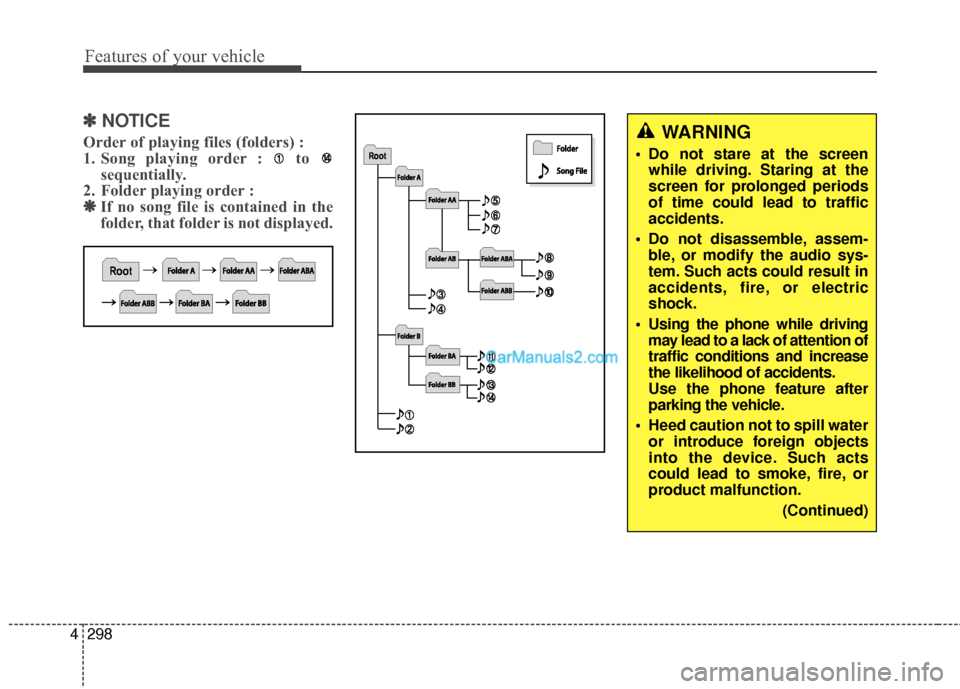
Order of playing files (folders) :
1. Song playing order : to
sequentially.
2. Folder playing order : ❋ ❋ If no song file is contained in the
folder, that folder is not displayed.WARNING
• Do not stare at the screen
while driving. Staring at the
screen for prolonged periods
of time could lead to traffic
accidents.
Do not disassemble, assem- ble, or modify the audio sys-
tem. Such acts could result in
accidents, fire, or electric
shock.
Using the phone while driving may lead to a lack of attention of
traffic conditions and increase
the likelihood of accidents.
Use the phone feature after
parking the vehicle.
Heed caution not to spill water or introduce foreign objects
into the device. Such acts
could lead to smoke, fire, or
product malfunction.
(Continued)
Page 404 of 759
4307
Features of your vehicle
SYSTEM CONTROLLERS
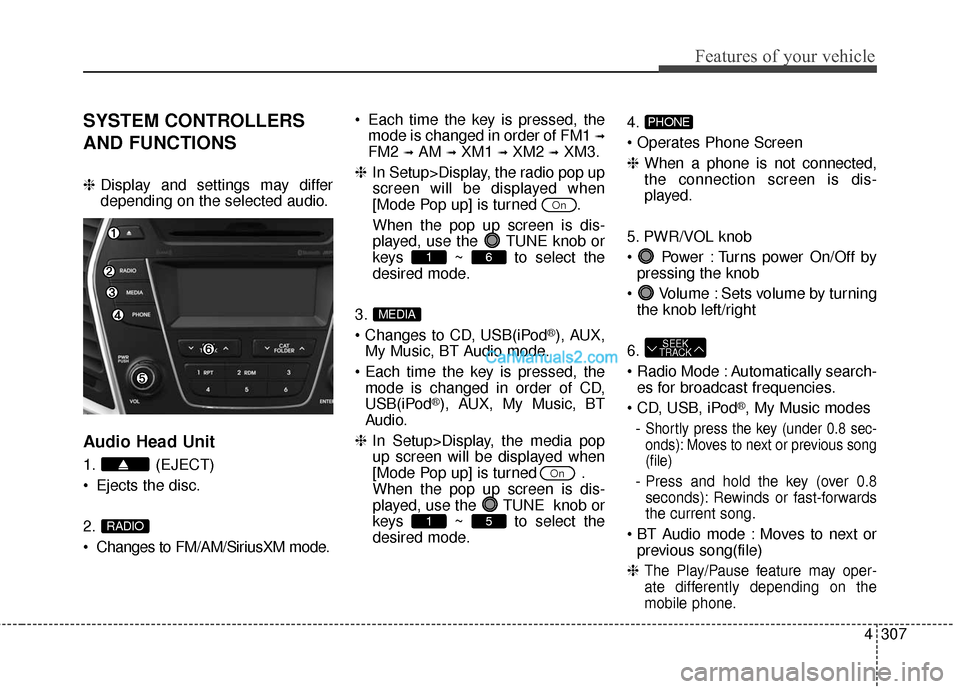
AND FUNCTIONS
❈Display and settings may differ
depending on the selected audio.
Audio Head Unit
1. (EJECT)
Ejects the disc.
2.
Changes to FM/AM/SiriusXM mode. Each time the key is pressed, the
mode is changed in order of FM1
➟
FM2 ➟AM ➟XM1 ➟XM2 ➟XM3.
❈ In Setup>Display, the radio pop up
screen will be displayed when
[Mode Pop up] is turned .
When the pop up screen is dis-
played, use the TUNE knob or
keys ~ to select the
desired mode.
3.
®), AUX,
My Music, BT Audio mode.
mode is changed in order of CD,
USB(iPod
®), AUX, My Music, BT
Audio.
❈ In Setup>Display, the media pop
up screen will be displayed when
[Mode Pop up] is turned .
When the pop up screen is dis-
played, use the TUNE knob or
keys ~ to select the
desired mode. 4.
❈
When a phone is not connected,
the connection screen is dis-
played.
5. PWR/VOL knob
Power : Turns power On/Off by pressing the knob
Volume : Sets volume by turning the knob left/right
6.
Automatically search- es for broadcast frequencies.
®, My Music modes
-
Shortly press the key (under 0.8 sec-
onds): Moves to next or previous song
(file)
- Press and hold the key (over 0.8
seconds): Rewinds or fast-forwards
the current song.
Moves to next or previous song(file)
❈
The Play/Pause feature may oper- ate differently depending on the
mobile phone.
SEEK
TRACK
PHONE
51
On
MEDIA
61
On
RADIO
Page 405 of 759
Features of your vehicle
308
4
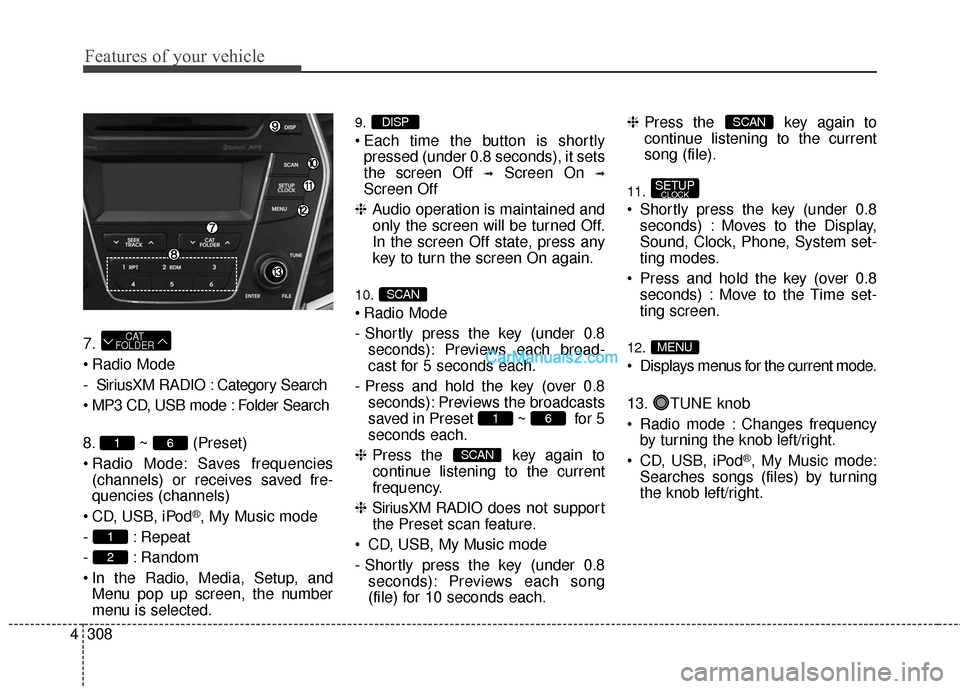
7.
Radio Mode
- SiriusXM RADIO : Category Search
MP3 CD, USB mode : Folder Search
8. ~ (Preset)
Radio Mode: Saves frequencies
(channels) or receives saved fre-
quencies (channels)
CD, USB, iPod
®, My Music mode
- : Repeat
- : Random
In the Radio, Media, Setup, and Menu pop up screen, the number
menu is selected.
9.
Each time the button is shortlypressed (under 0.8 seconds), it sets
the screen Off
➟Screen On ➟
Screen Off
❈ Audio operation is maintained and
only the screen will be turned Off.
In the screen Off state, press any
key to turn the screen On again.
10.
Radio Mode
- Shortly press the key (under 0.8 seconds): Previews each broad-
cast for 5 seconds each.
- Press and hold the key (over 0.8 seconds): Previews the broadcasts
saved in Preset ~ for 5
seconds each.
❈ Press the key again to
continue listening to the current
frequency.
❈ SiriusXM RADIO does not support
the Preset scan feature.
CD, USB, My Music mode
- Shortly press the key (under 0.8 seconds): Previews each song
(file) for 10 seconds each. ❈
Press the key again to
continue listening to the current
song (file).
11.
Shortly press the key (under 0.8 seconds) : Moves to the Display,
Sound, Clock, Phone, System set-
ting modes.
Press and hold the key (over 0.8 seconds) : Move to the Time set-
ting screen.
12.
Displays menus for the current mode.
13. TUNE knob
Radio mode : Changes frequencyby turning the knob left/right.
CD, USB, iPod
®, My Music mode:
Searches songs (files) by turning
the knob left/right.
MENU
SETUPCLOCK
SCAN
SCAN
61
SCAN
DISP
2
1
61
CAT
FOLDER