Emergency Hyundai Santa Fe 2016 User Guide
[x] Cancel search | Manufacturer: HYUNDAI, Model Year: 2016, Model line: Santa Fe, Model: Hyundai Santa Fe 2016Pages: 759, PDF Size: 29.36 MB
Page 132 of 759
435
Features of your vehicle
✽
✽NOTICE
• The Smart Liftgate (Smart
Tailgate) function will not work if
any of the following occurs:
- The smart key is close to a radiotransmitter such as a radio sta-
tion or an airport which can
interfere with normal operation
of the transmitter.
- The smart key is near a mobile two way radio system or a cellu-
lar phone.
- Another vehicle's smart key is being operated close to your
vehicle.
• The detecting range may decrease or increase when :
- One side of the tire is raised toreplace a tire or to inspect the
vehicle.
- The vehicle is slantingly parked on a slope or unpaved road, etc.
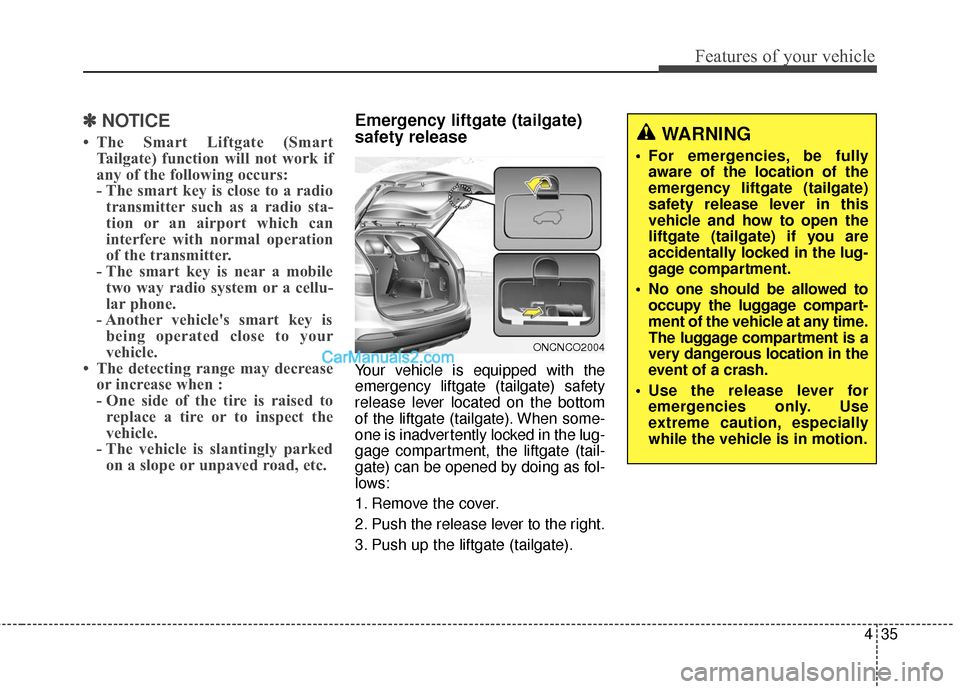
Emergency liftgate (tailgate)
safety release
Your vehicle is equipped with the
emergency liftgate (tailgate) safety
release lever located on the bottom
of the liftgate (tailgate). When some-
one is inadvertently locked in the lug-
gage compartment, the liftgate (tail-
gate) can be opened by doing as fol-
lows:
1. Remove the cover.
2. Push the release lever to the right.
3. Push up the liftgate (tailgate).
WARNING
For emergencies, be fully
aware of the location of the
emergency liftgate (tailgate)
safety release lever in this
vehicle and how to open the
liftgate (tailgate) if you are
accidentally locked in the lug-
gage compartment.
No one should be allowed to occupy the luggage compart-
ment of the vehicle at any time.
The luggage compartment is a
very dangerous location in the
event of a crash.
Use the release lever for emergencies only. Use
extreme caution, especially
while the vehicle is in motion.
ONCNCO2004
Page 141 of 759
Features of your vehicle
44
4
WARNING - Refueling
If pressurized fuel sprays out, it can cover your clothes or
skin and thus subject you to
the risk of fire and burns.
Always remove the fuel cap
carefully and slowly. If the cap
is venting fuel or if you hear a
hissing sound, wait until the
condition stops before com-
pletely removing the cap.
Do not "top off" after the noz- zle automatically shuts off
when refueling.
Tighten the cap until it clicks one time, otherwise the
Malfunction Indicator Light
will illuminate.
Always check that the fuel cap is installed securely to pre-
vent fuel spillage in the event
of an accident.WARNING - Refueling
dangers
Automotive fuels are flammable
materials. When refueling, please
note the following guidelines
carefully. Failure to follow these
guidelines may result in severe
personal injury, severe burns or
death by fire or explosion.
Read and follow all warnings posted at the gas station facility.
Before refueling, note the location of the Emergency
Gasoline Shut-Off, if available,
at the gas station facility.
Before touching the fuel noz- zle, you should eliminate
potentially dangerous static
electricity discharge by touch-
ing another metal part of the
vehicle, a safe distance away
from the fuel filler neck, noz-
zle, or other gas source.
(Continued)(Continued)
Do not get back into a vehicleonce you have begun refuel-
ing since you can generate
static electricity by touching,
rubbing or sliding against any
item or fabric (polyester, satin,
nylon, etc.) capable of produc-
ing static electricity. Static
electricity discharge can
ignite fuel vapors resulting in
rapid burning. If you must re-
enter the vehicle, you should
once again eliminate poten-
tially dangerous static elec-
tricity discharge by touching a
metal part of the vehicle, away
from the fuel filler neck, noz-
zle or other gasoline source.
(Continued)
Page 143 of 759
Features of your vehicle
46
4
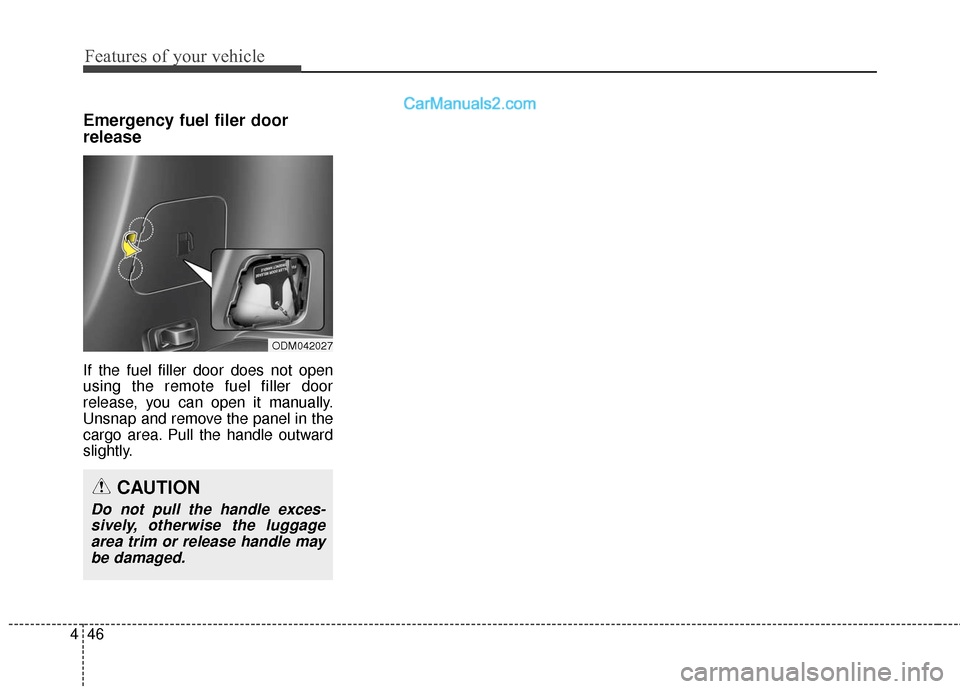
Emergency fuel filer door
release
If the fuel filler door does not open
using the remote fuel filler door
release, you can open it manually.
Unsnap and remove the panel in the
cargo area. Pull the handle outward
slightly.
ODM042027
CAUTION
Do not pull the handle exces-
sively, otherwise the luggagearea trim or release handle maybe damaged.
Page 207 of 759
Features of your vehicle
110
4
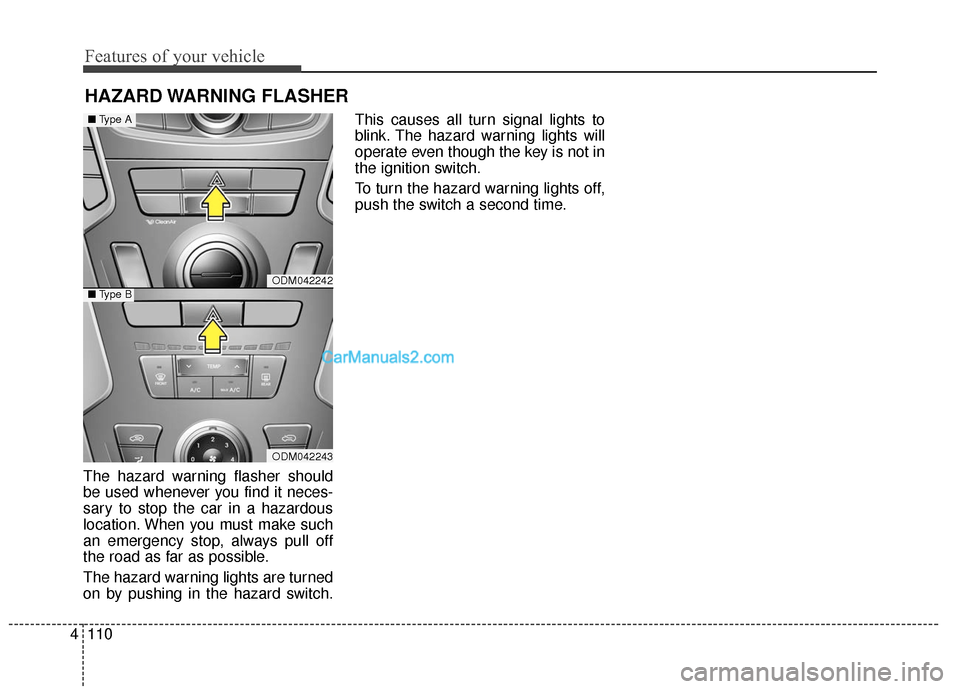
HAZARD WARNING FLASHER
The hazard warning flasher should
be used whenever you find it neces-
sary to stop the car in a hazardous
location. When you must make such
an emergency stop, always pull off
the road as far as possible.
The hazard warning lights are turned
on by pushing in the hazard switch. This causes all turn signal lights to
blink. The hazard warning lights will
operate even though the key is not in
the ignition switch.
To turn the hazard warning lights off,
push the switch a second time.
ODM042242
ODM042243
■
Type A
■Type B
Page 316 of 759
4219
Features of your vehicle
Blue Link®
Hyundai aims to offer differentiated
customer values through a
‘Connected Car Life,’ which provides
consumers with fast and reliable IT
technology. As consumers’ lifestyles
become more and more mobile in
thanks to remarkable advances in
smart phones, tablet PCs and overall
wireless telecommunication, new
lifestyle patterns demand seamless
connection between one’s office,
home, outdoors and automobiles.
Blue Link
®is Hyundai's innovative
telematics solution that combines
safety, service, and infotainment into
a complete package. It works to both
help simplify Hyundai owners' lives
and reduce distracted driving. The
Blue Link
®" " button offers
access to a voice-response menu of
services. The Blue Link
®button offers
access to enhanced navigation serv-
ices. The " " button offers
immediate contact to SOS
Emergency Assistance. A detailed
list of commands is available in the
Blue Link User's Manual.
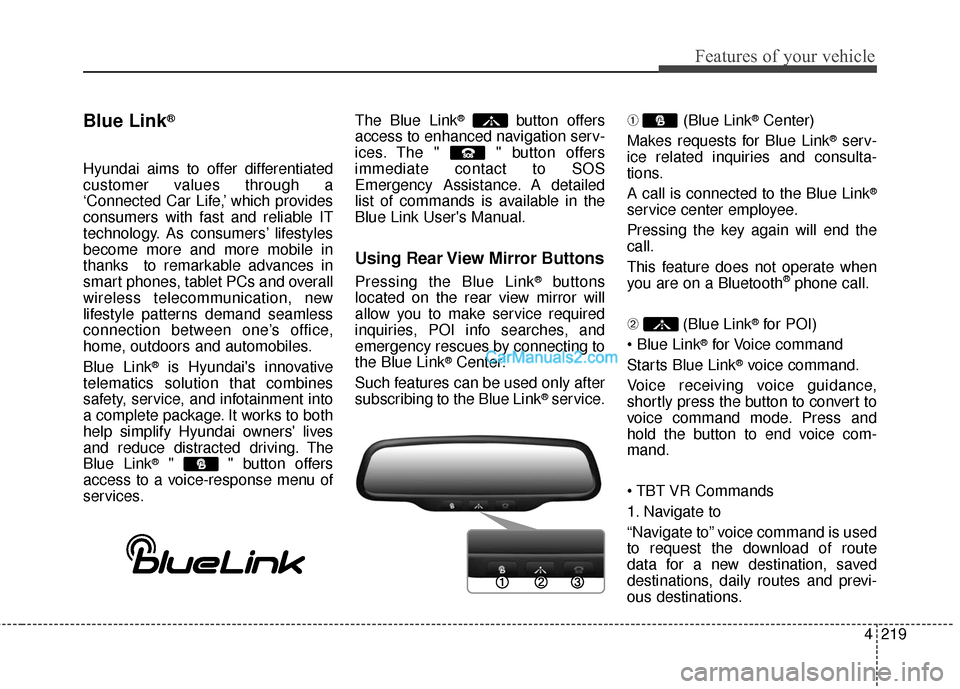
Using Rear View Mirror Buttons
Pressing the Blue Link®buttons
located on the rear view mirror will
allow you to make service required
inquiries, POI info searches, and
emergency rescues by connecting to
the Blue Link
®Center.
Such features can be used only after
subscribing to the Blue Link
®service. ➀
(Blue Link
®Center)
Makes requests for Blue Link
®serv-
ice related inquiries and consulta-
tions.
A call is connected to the Blue Link
®
service center employee.
Pressing the key again will end the
call.
This feature does not operate when
you are on a Bluetooth
®phone call.
\b (Blue Link
®for POI)
®for Voice command
Starts Blue Link
®voice command.
Voice receiving voice guidance,
shortly press the button to convert to
voice command mode. Press and
hold the button to end voice com-
mand.
1. Navigate to
“Navigate to” voice command is used
to request the download of route
data for a new destination, saved
destinations, daily routes and previ-
ous destinations.
Page 317 of 759
Features of your vehicle
220
4
2. Save Destination
“Save Destination” VR command is
used to assign a voice tag to the last
downloaded destination and store it
in a destination directory.
✽ ✽
NOTICE
The Turn by Turn(TBT) feature
supports the store of ten(10) destina-
tions in the TBT destinations direc-
tory.
3. Route Preview
“Route Preview” VR command allows
the user to preview the route instruc-
tions (upcoming maneuver instruc-
tions) at any time during the route
guidance.
4. Destinations List
“Destinations List” VR command
allows the user to preview and delete
the stored destinations with their
associated voice tags in the Turn by
Turn destinations directory. 5. Voice Guidance
“Voice Guidance” VR command
allows the user to mute/unmute the
Turn by Turn(TBT) direction
announcements.
6. Suspend Route
“Suspend Route” VR command
allows the user to suspend and
pause Turn by Turn(TBT) route guid-
ance while in the guidance mode.
7. Resume Route
“Resume Route” VR command
allows the user to resume Turn by
Turn(TBT) route guidance.
➂
(Blue Link
®for SOS)
In the case of an emergency,
requests for help to the Blue Link
®
center.
Call is connected to the Blue Link
®
emergency rescue center. Pressing
the key again will end the call.
If you are already on a Bluetooth
®
phone call, the call will end to connect
you to the Blue Link®Emergency
Rescue Center.
CAUTION
You cannot talk simultaneous-
ly on the Bluetooth®phone
call and a Blue Link®services
phone all.
While on a Bluetooth
®call,
pressing the key or key will display a messageindicating that you are cur-rently on a call.
A message will be displayed if you receive a Bluetooth
®call
while already on a Blue Link®
call. To answer the incoming call, press the button onthe steering wheel controls.You will not hear a ring to alertyou that there is an incomingcall.
Page 388 of 759
4291
Features of your vehicle
Blue Link®
Hyundai aims to offer differentiated
customer values through a
‘Connected Car Life,’ which provides
consumers with fast and reliable IT
technology. As consumers’ lifestyles
become more and more mobile in
thanks to remarkable advances in
smart phones, tablet PCs and overall
wireless telecommunication, new
lifestyle patterns demand seamless
connection between one’s office,
home, outdoors and automobiles.
Blue Link
®is Hyundai's innovative
telematics solution that combines
safety, service, and infotainment into
a complete package. It works to both
help simplify Hyundai owners' lives
and reduce distracted driving. The
Blue Link
®" " button offers
access to a voice-response menu of
services. The Blue Link
®button offers
access to enhanced navigation serv-
ices. The " " button offers imme-
diate contact to SOS Emergency
Assistance. A detailed list of com-
mands is available in the Blue Link
User's Manual.
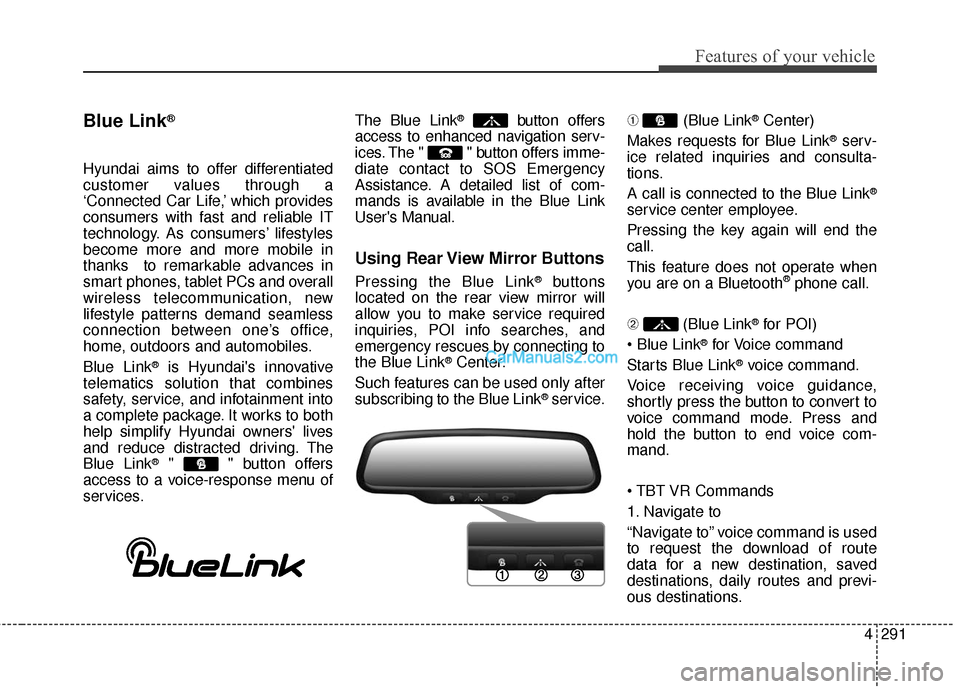
Using Rear View Mirror Buttons
Pressing the Blue Link®buttons
located on the rear view mirror will
allow you to make service required
inquiries, POI info searches, and
emergency rescues by connecting to
the Blue Link
®Center.
Such features can be used only after
subscribing to the Blue Link
®service. ➀
(Blue Link
®Center)
Makes requests for Blue Link
®serv-
ice related inquiries and consulta-
tions.
A call is connected to the Blue Link
®
service center employee.
Pressing the key again will end the
call.
This feature does not operate when
you are on a Bluetooth
®phone call.
\b (Blue Link
®for POI)
®for Voice command
Starts Blue Link
®voice command.
Voice receiving voice guidance,
shortly press the button to convert to
voice command mode. Press and
hold the button to end voice com-
mand.
1. Navigate to
“Navigate to” voice command is used
to request the download of route
data for a new destination, saved
destinations, daily routes and previ-
ous destinations.
Page 389 of 759
Features of your vehicle
292
4
2. Save Destination
“Save Destination” VR command is
used to assign a voice tag to the last
downloaded destination and store it
in a destination directory.
✽ ✽
NOTICE
The Turn by Turn(TBT) feature
supports the store of ten(10) destina-
tions in the TBT destinations direc-
tory.
3. Route Preview
“Route Preview” VR command allows
the user to preview the route instruc-
tions (upcoming maneuver instruc-
tions) at any time during the route
guidance.
4. Destinations List
“Destinations List” VR command
allows the user to preview and delete
the stored destinations with their
associated voice tags in the Turn by
Turn destinations directory. 5. Voice Guidance
“Voice Guidance” VR command
allows the user to mute/unmute the
Turn by Turn(TBT) direction
announcements.
6. Suspend Route
“Suspend Route” VR command
allows the user to suspend and
pause Turn by Turn(TBT) route guid-
ance while in the guidance mode.
7. Resume Route
“Resume Route” VR command
allows the user to resume Turn by
Turn(TBT) route guidance.
➂
(Blue Link
®for SOS)
In the case of an emergency,
requests for help to the Blue Link
®
center.
Call is connected to the Blue Link
®
emergency rescue center. Pressing
the key again will end the call.
If you are already on a Bluetooth
®
phone call, the call will end to connect
you to the Blue Link®Emergency
Rescue Center.
CAUTION
You cannot talk simultaneous-
ly on the Bluetooth®phone
call and a Blue Link®services
phone all.
While on a Bluetooth
®call,
pressing the key or key will display a messageindicating that you are cur-rently on a call.
A message will be displayed if you receive a Bluetooth
®call
while already on a Blue Link®
call. To answer the incoming call, press the button onthe steering wheel controls.You will not hear a ring to alertyou that there is an incomingcall.
Page 448 of 759
4351
Features of your vehicle
Blue Link®
Hyundai aims to offer differentiated
customer values through a
‘Connected Car Life,’ which provides
consumers with fast and reliable IT
technology. As consumers’ lifestyles
become more and more mobile in
thanks to remarkable advances in
smart phones, tablet PCs and overall
wireless telecommunication, new
lifestyle patterns demand seamless
connection between one’s office,
home, outdoors and automobiles.
Blue Link
®is Hyundai's innovative
telematics solution that combines
safety, service, and infotainment into
a complete package. It works to both
help simplify Hyundai owners' lives
and reduce distracted driving. The
Blue Link
®" " button offers
access to a voice-response menu of
services. The Blue Link
®button offers
access to enhanced navigation serv-
ices. The " " button offers
immediate contact to SOS
Emergency Assistance. A detailed
list of commands is available in the
Blue Link User's Manual.
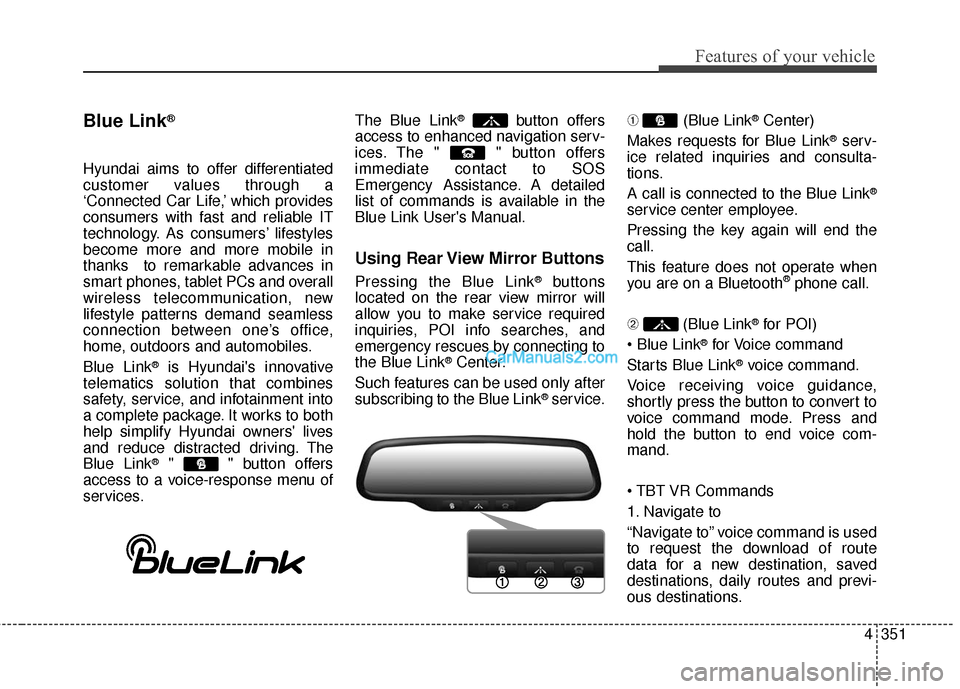
Using Rear View Mirror Buttons
Pressing the Blue Link®buttons
located on the rear view mirror will
allow you to make service required
inquiries, POI info searches, and
emergency rescues by connecting to
the Blue Link
®Center.
Such features can be used only after
subscribing to the Blue Link
®service. ➀
(Blue Link
®Center)
Makes requests for Blue Link
®serv-
ice related inquiries and consulta-
tions.
A call is connected to the Blue Link
®
service center employee.
Pressing the key again will end the
call.
This feature does not operate when
you are on a Bluetooth
®phone call.
\b (Blue Link
®for POI)
®for Voice command
Starts Blue Link
®voice command.
Voice receiving voice guidance,
shortly press the button to convert to
voice command mode. Press and
hold the button to end voice com-
mand.
1. Navigate to
“Navigate to” voice command is used
to request the download of route
data for a new destination, saved
destinations, daily routes and previ-
ous destinations.
Page 449 of 759
Features of your vehicle
352
4
2. Save Destination
“Save Destination” VR command is
used to assign a voice tag to the last
downloaded destination and store it
in a destination directory.
✽ ✽
NOTICE
The Turn by Turn(TBT) feature
supports the store of ten(10) destina-
tions in the TBT destinations direc-
tory.
3. Route Preview
“Route Preview” VR command allows
the user to preview the route instruc-
tions (upcoming maneuver instruc-
tions) at any time during the route
guidance.
4. Destinations List
“Destinations List” VR command
allows the user to preview and delete
the stored destinations with their
associated voice tags in the Turn by
Turn destinations directory. 5. Voice Guidance
“Voice Guidance” VR command
allows the user to mute/unmute the
Turn by Turn(TBT) direction
announcements.
6. Suspend Route
“Suspend Route” VR command
allows the user to suspend and
pause Turn by Turn(TBT) route guid-
ance while in the guidance mode.
7. Resume Route
“Resume Route” VR command
allows the user to resume Turn by
Turn(TBT) route guidance.
➂
(Blue Link
®for SOS)
In the case of an emergency,
requests for help to the Blue Link
®
center.
Call is connected to the Blue Link
®
emergency rescue center. Pressing
the key again will end the call.
If you are already on a Bluetooth
®
phone call, the call will end to connect
you to the Blue Link®Emergency
Rescue Center.
CAUTION
You cannot talk simultaneous-
ly on the Bluetooth®phone
call and a Blue Link®services
phone all.
While on a Bluetooth
®call,
pressing the key or key will display a messageindicating that you are cur-rently on a call.
A message will be displayed if you receive a Bluetooth
®call
while already on a Blue Link®
call. To answer the incoming call, press the button onthe steering wheel controls.You will not hear a ring to alertyou that there is an incomingcall.