smart Hyundai Santa Fe 2019 Owner's Guide
[x] Cancel search | Manufacturer: HYUNDAI, Model Year: 2019, Model line: Santa Fe, Model: Hyundai Santa Fe 2019Pages: 557, PDF Size: 14.8 MB
Page 184 of 557
3-95
Convenient features of your vehicle
3
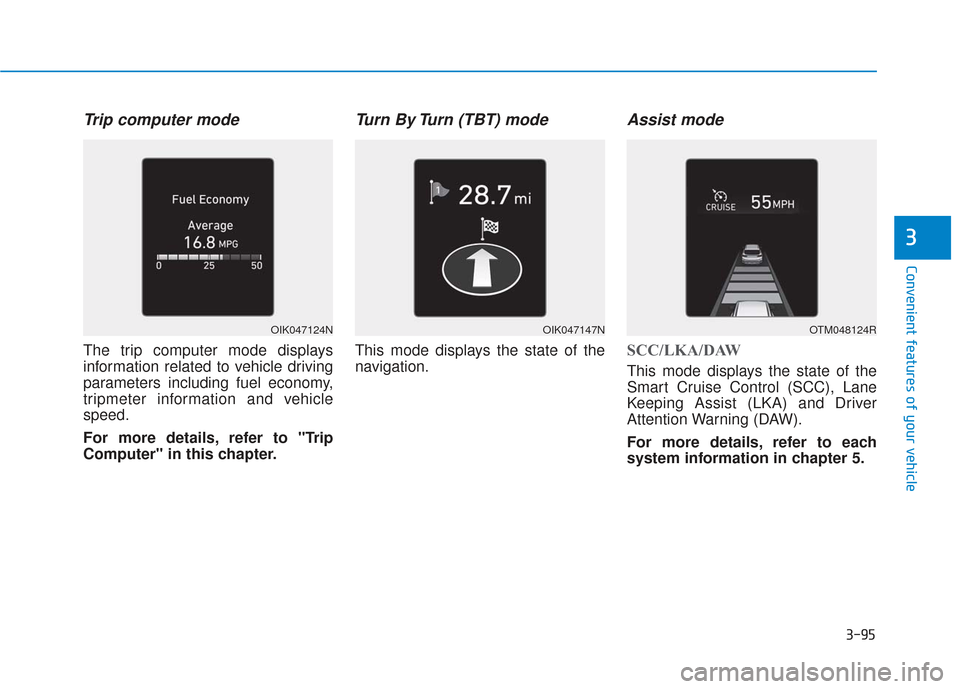
Trip computer mode
The trip computer mode displays
information related to vehicle driving
parameters including fuel economy,
tripmeter information and vehicle
speed.
For more details, refer to "Trip
Computer" in this chapter.
Turn By Turn (TBT) mode
This mode displays the state of the
navigation.
Assist mode
SCC/LKA/DAW
This mode displays the state of the
Smart Cruise Control (SCC), Lane
Keeping Assist (LKA) and Driver
Attention Warning (DAW).
For more details, refer to each
system information in chapter 5.
OIK047124NOIK047147NOTM048124R
Page 185 of 557
3-96
Convenient features of your vehicle
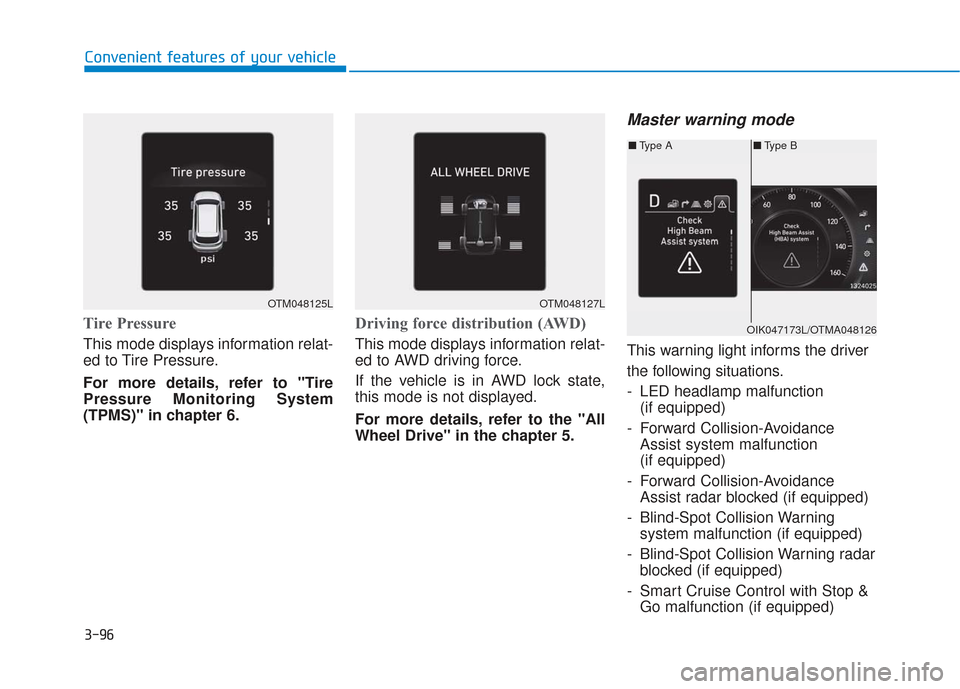
Tire Pressure
This mode displays information relat-
ed to Tire Pressure.
For more details, refer to "Tire
Pressure Monitoring System
(TPMS)" in chapter 6.
Driving force distribution (AWD)
This mode displays information relat-
ed to AWD driving force.
If the vehicle is in AWD lock state,
this mode is not displayed.
For more details, refer to the "All
Wheel Drive" in the chapter 5.
Master warning mode
This warning light informs the driver
the following situations.
- LED headlamp malfunction(if equipped)
- Forward Collision-Avoidance Assist system malfunction
(if equipped)
- Forward Collision-Avoidance Assist radar blocked (if equipped)
- Blind-Spot Collision Warning system malfunction (if equipped)
- Blind-Spot Collision Warning radar blocked (if equipped)
- Smart Cruise Control with Stop & Go malfunction (if equipped)
OTM048125LOTM048127L
■ Type B
■ Type A
OIK047173L/OTMA048126
Page 186 of 557
3-97
Convenient features of your vehicle
3
- Smart Cruise Control with Stop &Go radar blocked (if equipped)
- Lamp malfunction
- High Beam Assist malfunction (if equipped)
- Tire Pressure Monitoring System (TPMS) malfunction
The Master Warning Light illumi-
nates if one or more of the above
warning situations occur. At this time,
the LCD Modes Icon will change
from ( ) to ( ).
If the warning situation is solved, the
master warning light will be turned
off and the LCD Modes Icon will be
changed back to its previous icon
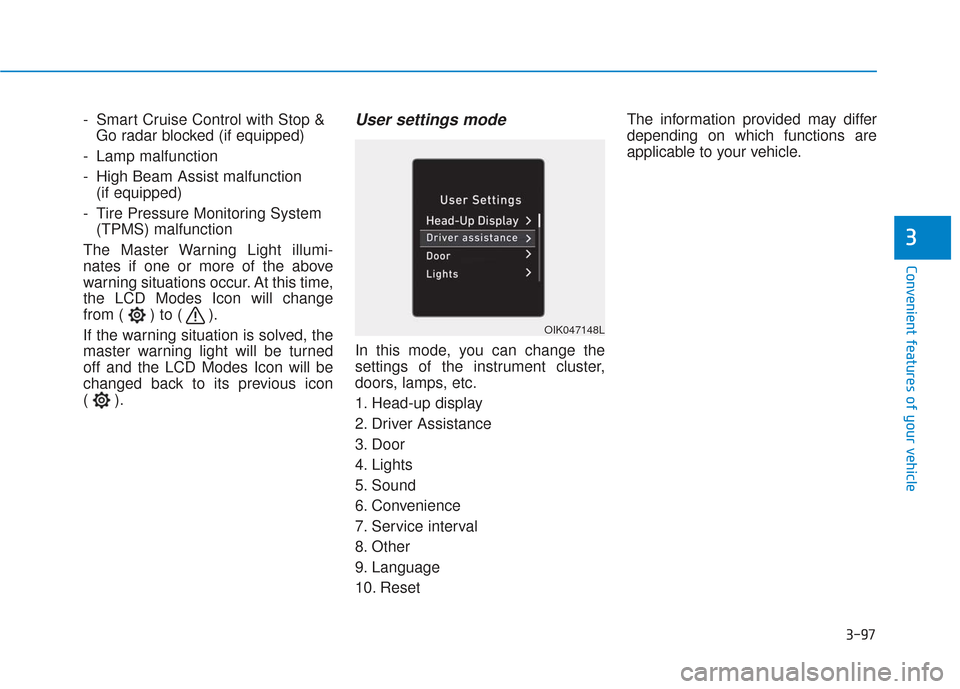
().User settings mode
In this mode, you can change the
settings of the instrument cluster,
doors, lamps, etc.
1. Head-up display
2. Driver Assistance
3. Door
4. Lights
5. Sound
6. Convenience
7. Service interval
8. Other
9. Language
10. Reset The information provided may differ
depending on which functions are
applicable to your vehicle.
OIK047148L
Page 189 of 557
3-100
Convenient features of your vehicle
ItemsExplanation
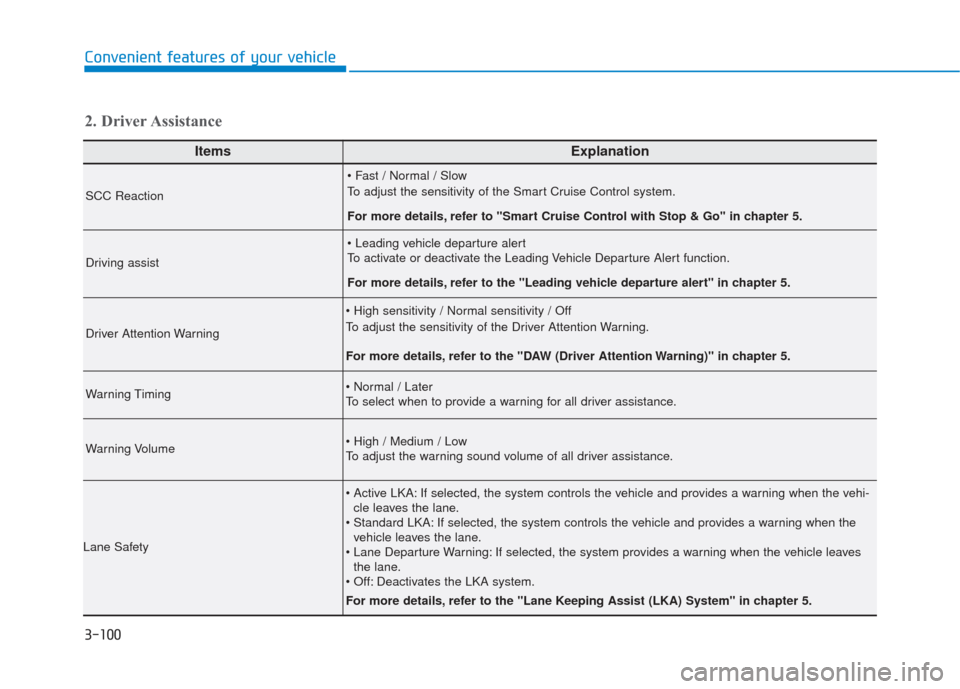
SCC Reaction
To adjust the sensitivity of the Smart Cruise Control system.
For more details, refer to ''Smart Cruise Control with Stop & Go'' in chapter 5.
Driving assist
To activate or deactivate the Leading Vehicle Departure Alert function.
For more details, refer to the "Leading vehicle departure alert" in chapter 5.
Driver Attention Warning
To adjust the sensitivity of the Driver Attention Warning.
For more details, refer to the "DAW (Driver Attention Warning)" in chapter 5.
Warning Timing
To select when to provide a warning for all driver assistance.
Warning Volume
To adjust the warning sound volume of all driver assistance.
Lane Safety
If selected, the system controls the vehicle and provides a warning when the vehi-cle leaves the lane.
If selected, the system controls the vehicle and provides a warning when the vehicle leaves the lane.
If selected, the system provides a warning when the vehicle leaves the lane.
Deactivates the LKA system.
For more details, refer to the "Lane Keeping Assist (LKA) System" in chapter 5.
2. Driver Assistance
Page 191 of 557
3-102
Convenient features of your vehicle
ItemsExplanation
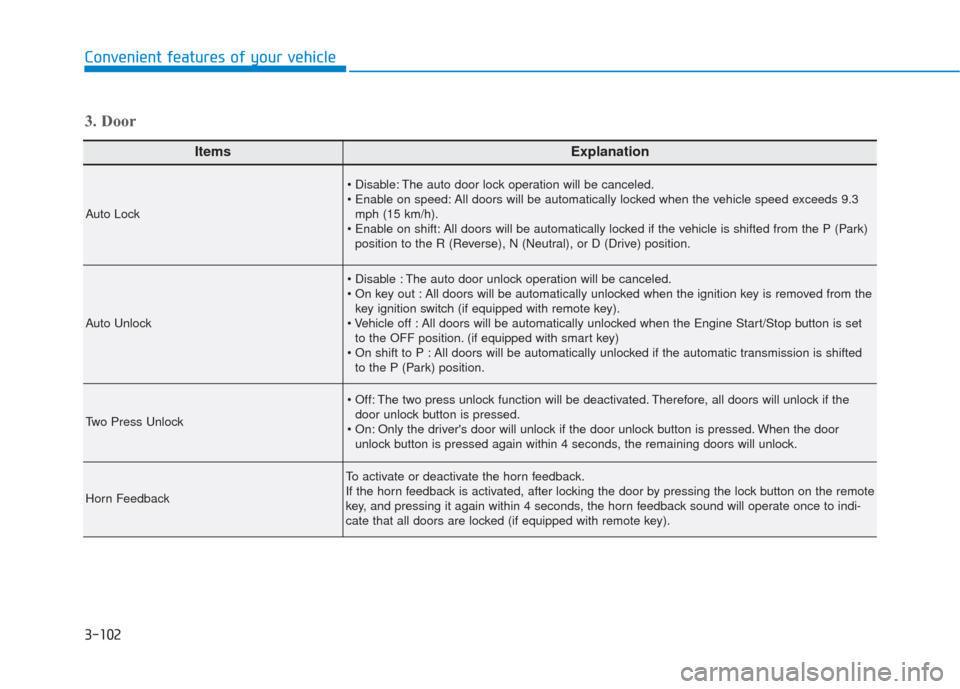
Auto Lock
The auto door lock operation will be canceled.
All doors will be automatically locked when the vehicle speed exceeds 9.3mph (15 km/h).
All doors will be automatically locked if the vehicle is shifted from the P (Park) position to the R (Reverse), N (Neutral), or D (Drive) position.
Auto Unlock
The auto door unlock operation will be canceled.
All doors will be automatically unlocked when the ignition key is removed from thekey ignition switch (if equipped with remote key).
All doors will be automatically unlocked when the Engine Start/Stop button is set to the OFF position. (if equipped with smart key)
All doors will be automatically unlocked if the automatic transmission is shifted to the P (Park) position.
Two Press Unlock
The two press unlock function will be deactivated. Therefore, all doors will unlock if thedoor unlock button is pressed.
Only the driver's door will unlock if the door unlock button is pressed. When the door unlock button is pressed again within 4 seconds, the remaining doors will unlock.
Horn Feedback
To activate or deactivate the horn feedback.
If the horn feedback is activated, after locking the door by pressing the lock button on the remote
key, and pressing it again within 4 seconds, the horn feedback sound will operate once to indi-
cate that all doors are locked (if equipped with remote key).
3. Door
Page 192 of 557
3-103
Convenient features of your vehicle
3
ItemsExplanation
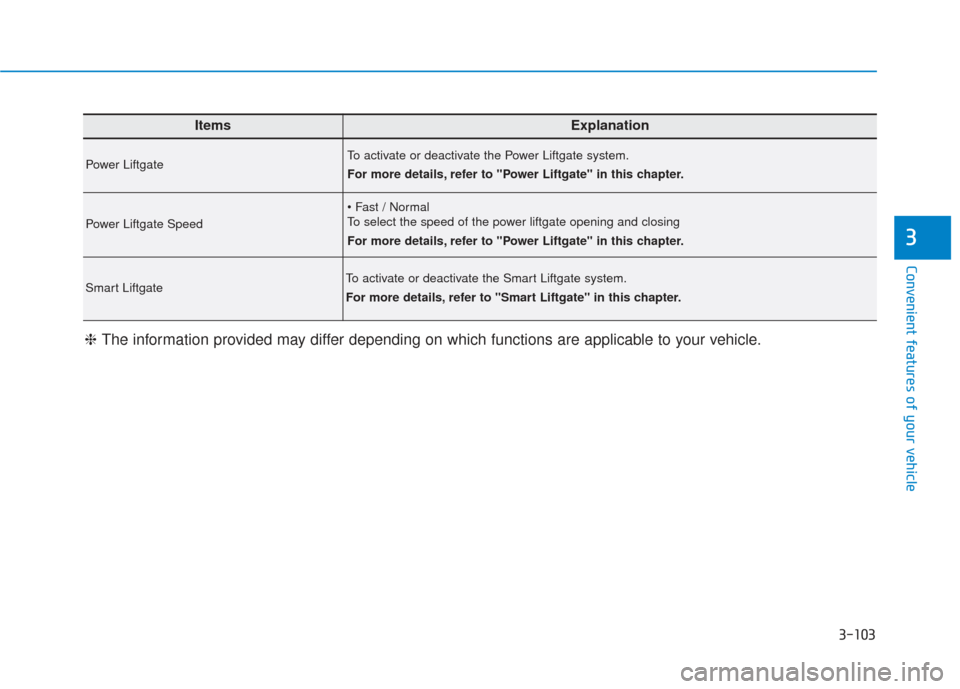
Power LiftgateTo activate or deactivate the Power Liftgate system.
For more details, refer to "Power Liftgate" in this chapter.
Power Liftgate Speed
To select the speed of the power liftgate opening and closing
For more details, refer to "Power Liftgate" in this chapter.
Smart LiftgateTo activate or deactivate the Smart Liftgate system.
For more details, refer to "Smart Liftgate" in this chapter.
❈The information provided may differ depending on which functions are applicable to your vehicle.
Page 194 of 557
3-105
Convenient features of your vehicle
3
ItemsExplanation
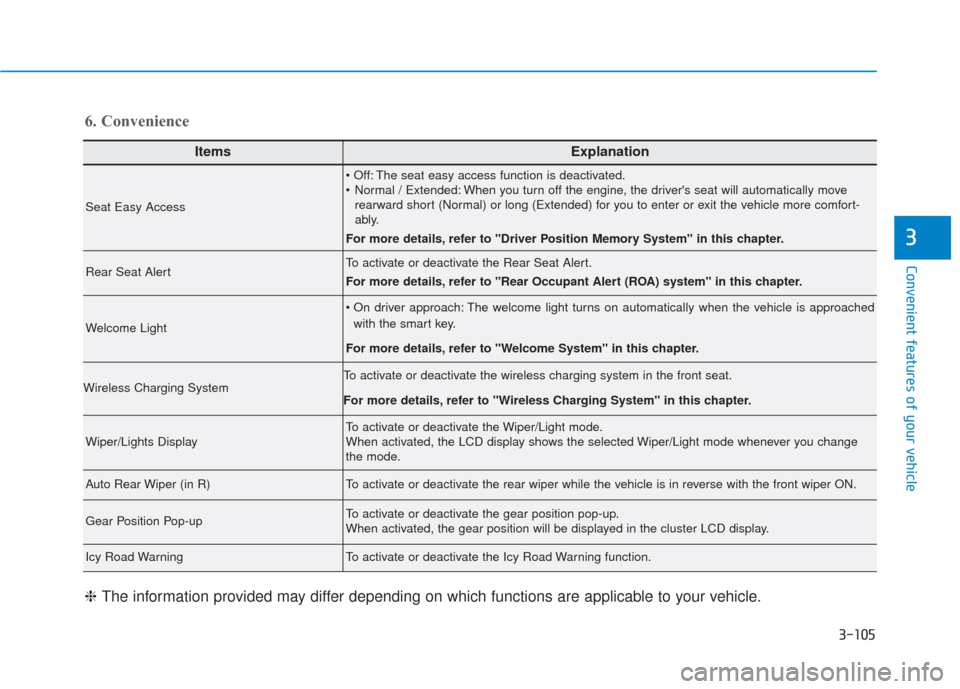
Seat Easy Access
The seat easy access function is deactivated.
Normal / Extended: When you turn off the engine, the driver's seat will automatically moverearward short (Normal) or long (Extended) for you to enter or exit the vehicle more comfort-
ably.
For more details, refer to "Driver Position Memory System" in this chapter.
Rear Seat AlertTo activate or deactivate the Rear Seat Alert.
For more details, refer to "Rear Occupant Alert (ROA) system" in this chapter.
Welcome Light
The welcome light turns on automatically when the vehicle is approached with the smart key.
For more details, refer to ''Welcome System'' in this chapter.
Wireless Charging SystemTo activate or deactivate the wireless charging system in the front seat.
For more details, refer to "Wireless Charging System" in this chapter.
Wiper/Lights DisplayTo activate or deactivate the Wiper/Light mode.
When activated, the LCD display shows the selected Wiper/Light mode whenever you change
the mode.
Auto Rear Wiper (in R)To activate or deactivate the rear wiper while the vehicle is in reverse with the front wiper ON.
Gear Position Pop-upTo activate or deactivate the gear position pop-up.
When activated, the gear position will be displayed in the cluster LCD display.
Icy Road WarningTo activate or deactivate the Icy Road Warning function.
6. Convenience
❈ The information provided may differ depending on which functions are applicable to your vehicle.
Page 197 of 557
3-108
Convenient features of your vehicle
The trip computer is a microcomput-
er-controlled driver information sys-
tem that displays information related
to driving.
Information
Some driving information stored in the
trip computer (for example Average
Vehicle Speed) resets if the battery is
disconnected.
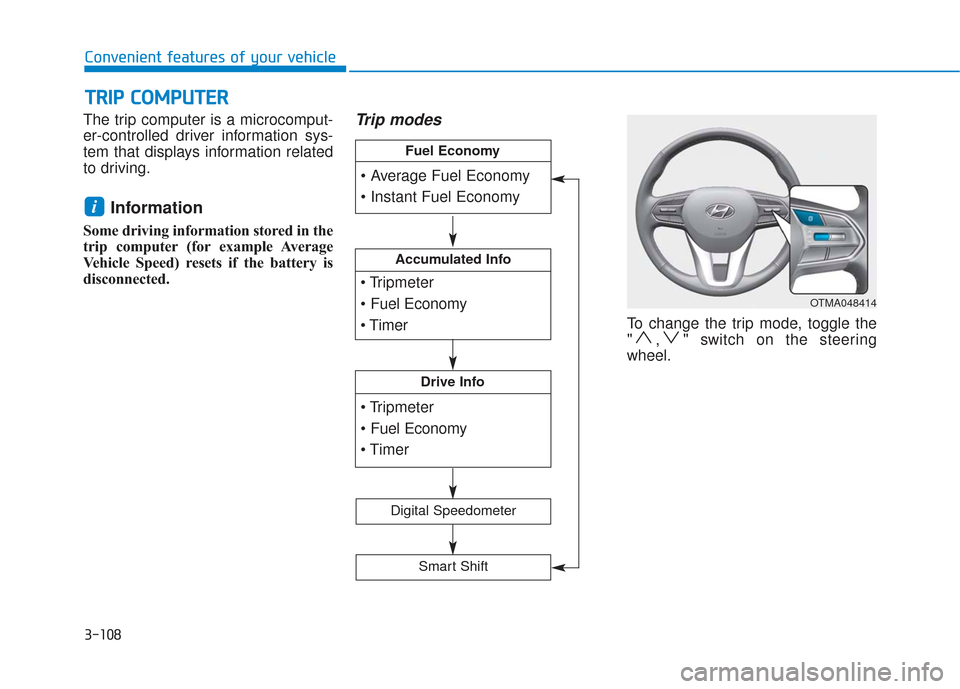
Trip modes
To change the trip mode, toggle the
" , " switch on the steering
wheel.
i
T
T R
R I
IP
P
C
C O
O M
M P
PU
U T
TE
ER
R
OTMA048414
Accumulated Info
Drive Info
Fuel Economy
Digital Speedometer
Smart Shift
Page 200 of 557
3-111
Convenient features of your vehicle
3
The driving information will continue to
be counted while the engine is still run-
ning (for example, when the vehicle is
in traffic or stopped at a stop light).
Information
The vehicle must be driven for a mini-
mum of 0.19 miles (300 meters) since the
last ignition key cycle before the average
fuel economy will be recalculated.
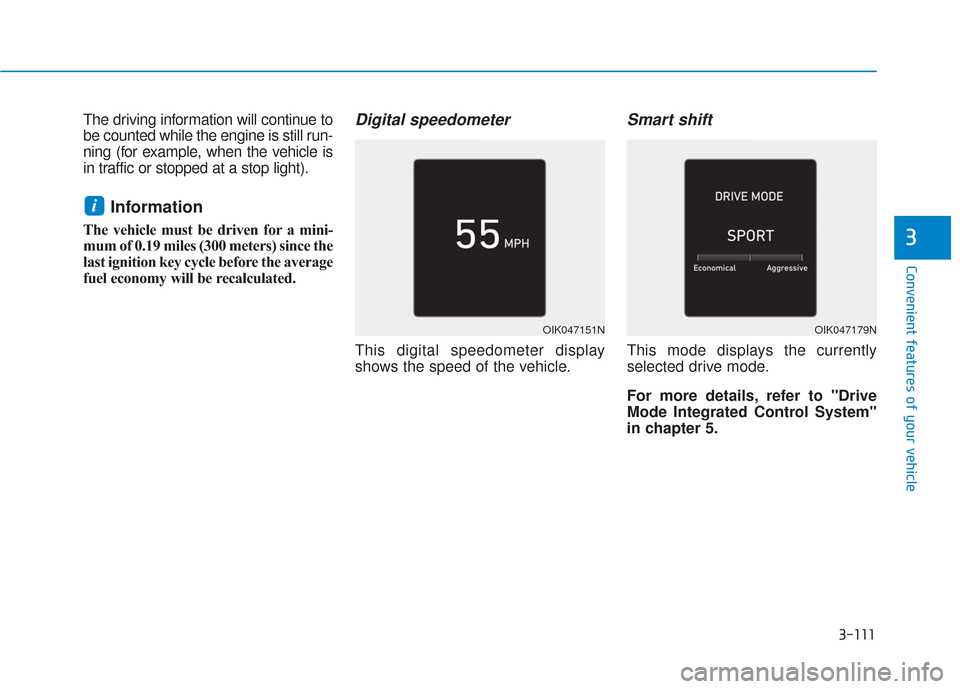
Digital speedometer
This digital speedometer display
shows the speed of the vehicle.
Smart shift
This mode displays the currently
selected drive mode.
For more details, refer to "Drive
Mode Integrated Control System''
in chapter 5.
i
OIK047151NOIK047179N
Page 202 of 557
3-113
Convenient features of your vehicle
3
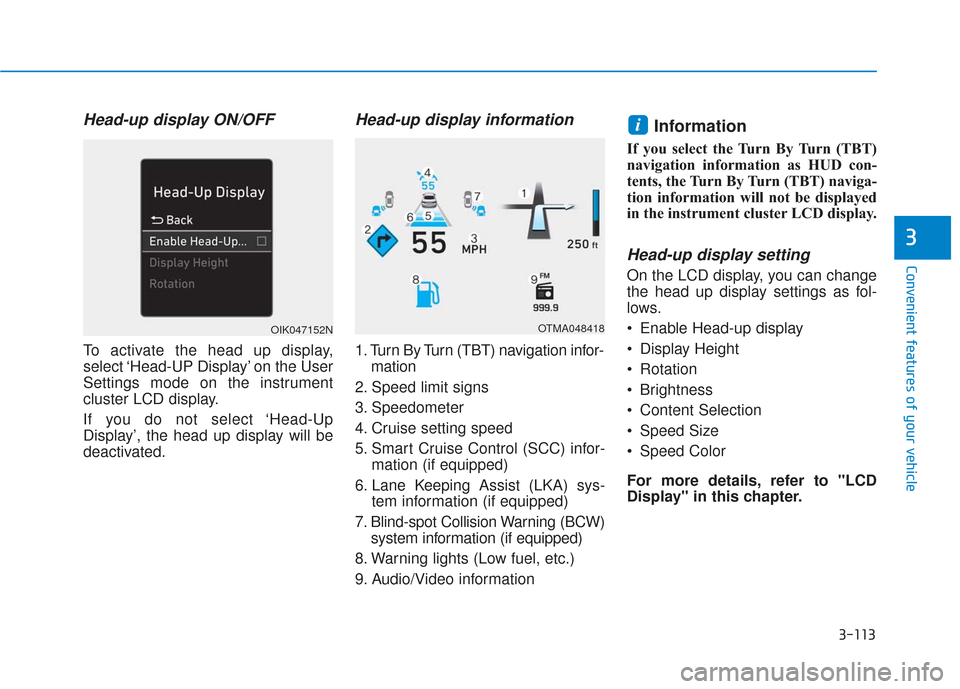
Head-up display ON/OFF
To activate the head up display,
select ‘Head-UP Display’ on the User
Settings mode on the instrument
cluster LCD display.
If you do not select ‘Head-Up
Display’, the head up display will be
deactivated.
Head-up display information
1. Turn By Turn (TBT) navigation infor-mation
2. Speed limit signs
3. Speedometer
4. Cruise setting speed
5. Smart Cruise Control (SCC) infor- mation (if equipped)
6. Lane Keeping Assist (LKA) sys- tem information (if equipped)
7. Blind-spot Collision Warning (BCW) system information (if equipped)
8. Warning lights (Low fuel, etc.)
9. Audio/Video information
Information
If you select the Turn By Turn (TBT)
navigation information as HUD con-
tents, the Turn By Turn (TBT) naviga-
tion information will not be displayed
in the instrument cluster LCD display.
Head-up display setting
On the LCD display, you can change
the head up display settings as fol-
lows.
Enable Head-up display
Display Height
Rotation
Brightness
Content Selection
Speed Size
Speed Color
For more details, refer to "LCD
Display" in this chapter.
i
OTMA048418OIK047152N