Audio system Hyundai Santa Fe 2019 Owner's Manual
[x] Cancel search | Manufacturer: HYUNDAI, Model Year: 2019, Model line: Santa Fe, Model: Hyundai Santa Fe 2019Pages: 557, PDF Size: 14.8 MB
Page 16 of 557
I
IN
N S
ST
T R
R U
U M
M E
EN
N T
T
P
P A
A N
N E
EL
L
O
O V
VE
ER
R V
V I
IE
E W
W
(
( I
I)
)
The actual shape may differ from the illustration.
1-5
Your vehicle at a glance
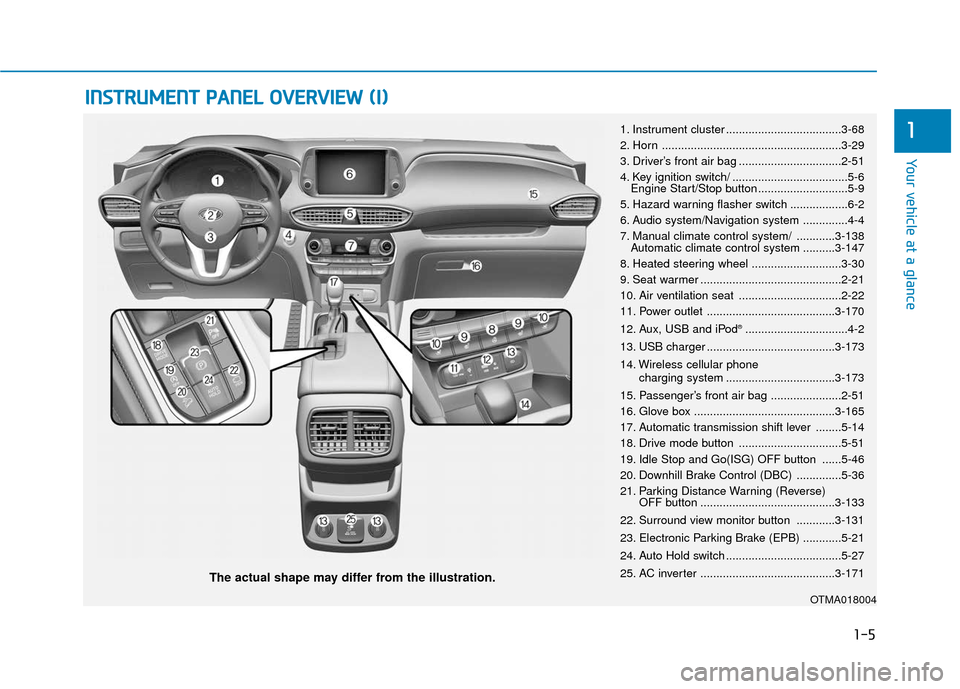
11. Instrument cluster ....................................3-68
2. Horn ........................................................3-29
3. Driver’s front air bag ................................2-51
4. Key ignition switch/ ....................................5-6
Engine Start/Stop button ............................5-9
5. Hazard warning flasher switch ..................6-2
6. Audio system/Navigation system ..............4-4
7. Manual climate control system/ ............3-138 Automatic climate control system ..........3-147
8. Heated steering wheel ............................3-30
9. Seat warmer ............................................2-21
10. Air ventilation seat ................................2-22
11. Power outlet ........................................3-170
12. Aux, USB and iPod
®................................4-2
13. USB charger ........................................3-173
14. Wireless cellular phone charging system ..................................3-173
15. Passenger’s front air bag ......................2-51
16. Glove box ............................................3-165
17. Automatic transmission shift lever ........5-14
18. Drive mode button ................................5-51
19. Idle Stop and Go(ISG) OFF button ......5-46
20. Downhill Brake Control (DBC) ..............5-36
21. Parking Distance Warning (Reverse) OFF button ..........................................3-133
22. Surround view monitor button ............3-131
23. Electronic Parking Brake (EPB) ............5-21
24. Auto Hold switch ....................................5-27
25. AC inverter ..........................................3-171
OTMA018004
Page 121 of 557
3-32
Convenient features of your vehicle
Blue Link®center (if equipped)
For details, refer to the Blue Link®
Owner's Guide, Navigation Manual
or Audio Manual.
Electrochromic mirror (ECM) withHomeLink®system, compass
and Blue Link®(if equipped)
Your vehicle may be equipped with a
Gentex Automatic-Dimming Mirror
with a Z-Nav™ Electronic Compass
Display and an Integrated
HomeLink
®Wireless Control
System. During nighttime driving,
this feature will automatically detect
and reduce rearview mirror glare
while the compass indicates the
direction the vehicle is traveling. The
HomeLink
®Universal Transceiver
allows you to activate your garage
door(s), electric gate, home lighting,
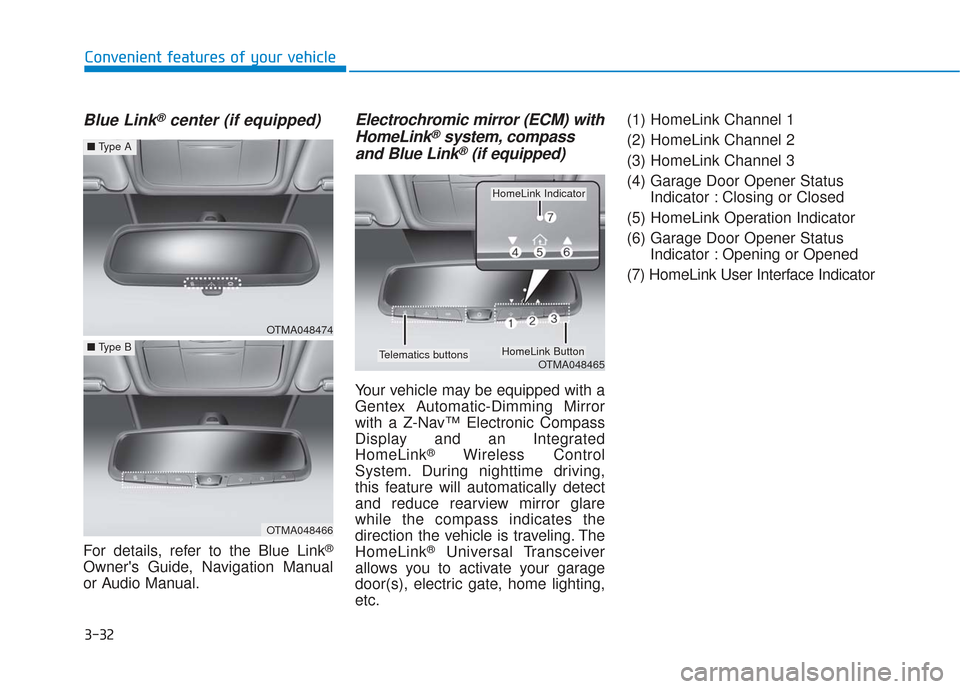
etc. (1) HomeLink Channel 1
(2) HomeLink Channel 2
(3) HomeLink Channel 3
(4) Garage Door Opener Status
Indicator : Closing or Closed
(5) HomeLink Operation Indicator
(6) Garage Door Opener Status Indicator : Opening or Opened
(7) HomeLink User Interface Indicator
OTMA048474
■ Type A
OTMA048466
■Type B
OTMA048465
HomeLink Indicator
HomeLink ButtonTelematics buttons
Page 202 of 557
3-113
Convenient features of your vehicle
3
Head-up display ON/OFF
To activate the head up display,
select ‘Head-UP Display’ on the User
Settings mode on the instrument
cluster LCD display.
If you do not select ‘Head-Up
Display’, the head up display will be
deactivated.
Head-up display information
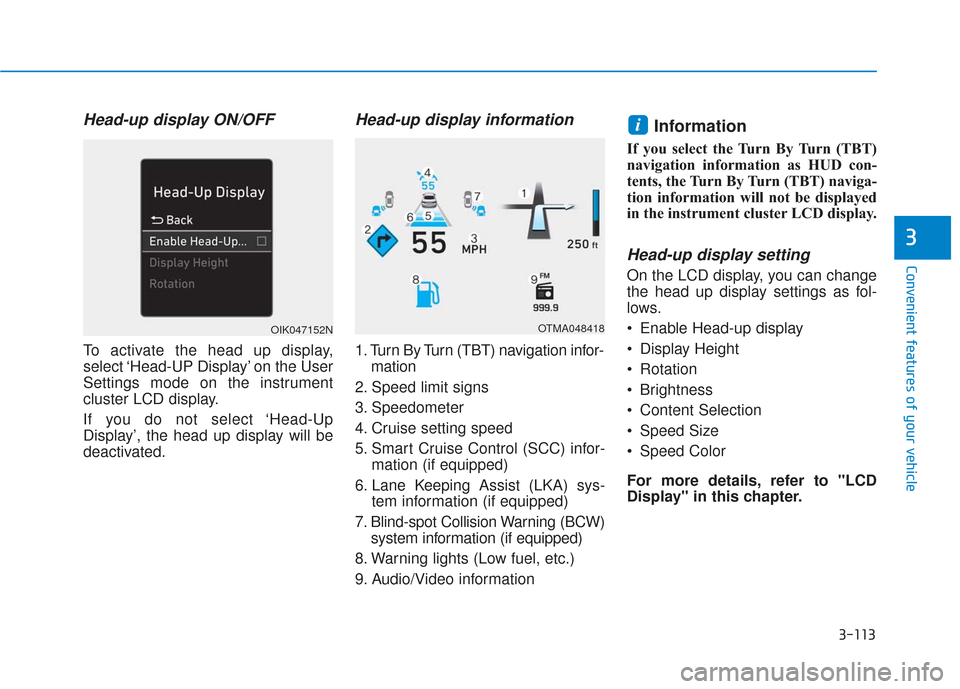
1. Turn By Turn (TBT) navigation infor-mation
2. Speed limit signs
3. Speedometer
4. Cruise setting speed
5. Smart Cruise Control (SCC) infor- mation (if equipped)
6. Lane Keeping Assist (LKA) sys- tem information (if equipped)
7. Blind-spot Collision Warning (BCW) system information (if equipped)
8. Warning lights (Low fuel, etc.)
9. Audio/Video information
Information
If you select the Turn By Turn (TBT)
navigation information as HUD con-
tents, the Turn By Turn (TBT) naviga-
tion information will not be displayed
in the instrument cluster LCD display.
Head-up display setting
On the LCD display, you can change
the head up display settings as fol-
lows.
Enable Head-up display
Display Height
Rotation
Brightness
Content Selection
Speed Size
Speed Color
For more details, refer to "LCD
Display" in this chapter.
i
OTMA048418OIK047152N
Page 219 of 557
3-130
Convenient features of your vehicle
Rear View Monitor
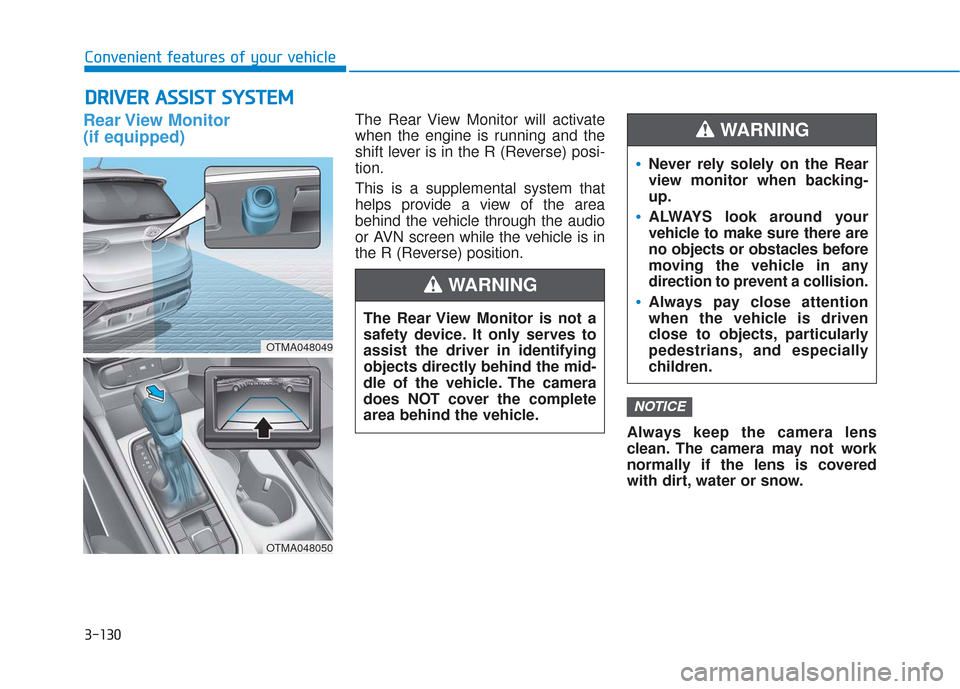
(if equipped)The Rear View Monitor will activate
when the engine is running and the
shift lever is in the R (Reverse) posi-
tion.
This is a supplemental system that
helps provide a view of the area
behind the vehicle through the audio
or AVN screen while the vehicle is in
the R (Reverse) position.Always keep the camera lens
clean. The camera may not work
normally if the lens is covered
with dirt, water or snow.
NOTICE
D DR
RI
IV
V E
ER
R
A
A S
SS
SI
IS
S T
T
S
S Y
Y S
ST
T E
EM
M
The Rear View Monitor is not a
safety device. It only serves to
assist the driver in identifying
objects directly behind the mid-
dle of the vehicle. The camera
does NOT cover the complete
area behind the vehicle.
WARNING
Never rely solely on the Rear
view monitor when backing-
up.
ALWAYS look around your
vehicle to make sure there are
no objects or obstacles before
moving the vehicle in any
direction to prevent a collision.
Always pay close attention
when the vehicle is driven
close to objects, particularly
pedestrians, and especially
children.
WARNING
OTMA048049
OTMA048050
Page 221 of 557
3-132
Convenient features of your vehicle
Always keep the camera lens
clean. The camera may not work
normally if the lens is covered
with foreign material.
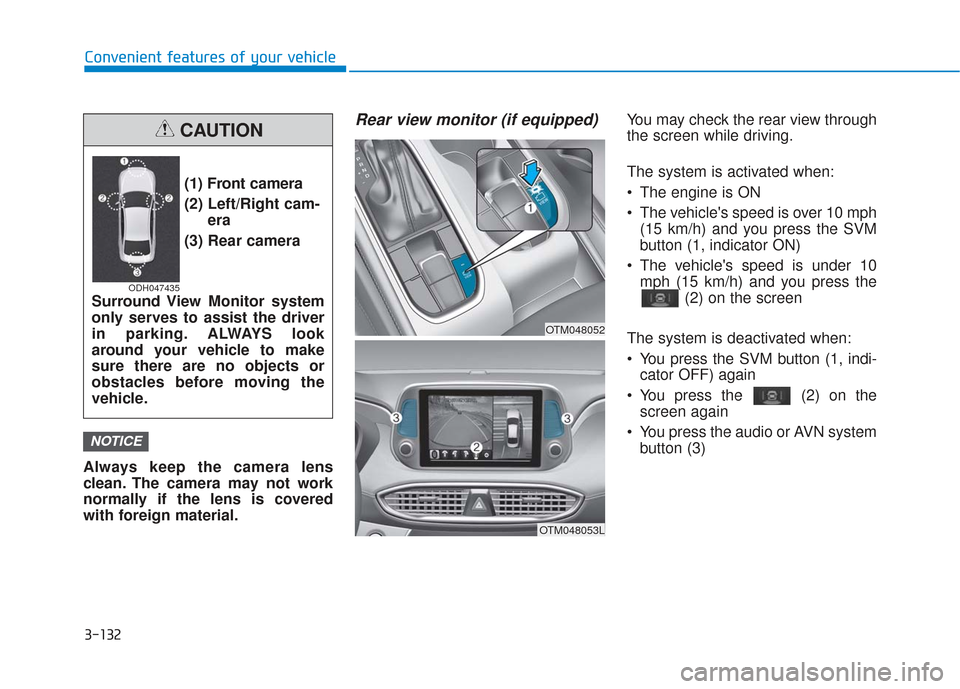
Rear view monitor (if equipped)You may check the rear view through
the screen while driving.
The system is activated when:
The engine is ON
The vehicle's speed is over 10 mph (15 km/h) and you press the SVM
button (1, indicator ON)
The vehicle's speed is under 10 mph (15 km/h) and you press the (2) on the screen
The system is deactivated when:
You press the SVM button (1, indi- cator OFF) again
You press the (2) on the screen again
You press the audio or AVN system button (3)
NOTICE
(1) Front camera
(2) Left/Right cam- era
(3) Rear camera
Surround View Monitor system
only serves to assist the driver
in parking. ALWAYS look
around your vehicle to make
sure there are no objects or
obstacles before moving the
vehicle.
CAUTION
ODH047435
OTM048053L
OTM048052
Page 260 of 557
3-171
Convenient features of your vehicle
3
Adjust the air-conditioner orheater to the lowest operating
level when using the power outlet.
Close the cover when not in use.
Some electronic devices can cause electronic interference
when plugged into a vehicle's
power outlet. These devices may
cause excessive audio static
and malfunctions in other elec-
tronic systems or devices used
in your vehicle.
Push the plug in as far as it will go. If good contact is not made,
the plug may overheat and the
fuse may open.
Plug in battery equipped electri- cal/electronic devices with
reverse current protection. The
current from the battery may
flow into the vehicle's electri-
cal/electronic system and cause
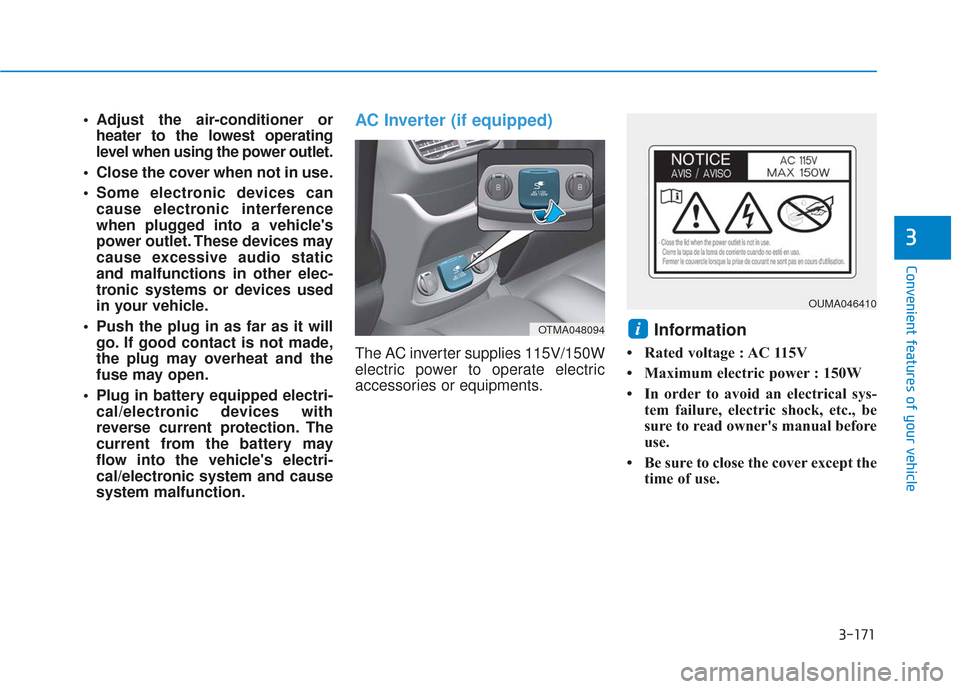
system malfunction.AC Inverter (if equipped)
The AC inverter supplies 115V/150W
electric power to operate electric
accessories or equipments.
Information
• Rated voltage : AC 115V
• Maximum electric power : 150W
• In order to avoid an electrical sys- tem failure, electric shock, etc., be
sure to read owner's manual before
use.
• Be sure to close the cover except the time of use.
iOTMA048094
OUMA046410
Page 261 of 557
3-172
Convenient features of your vehicle
To reduce a risk of serious or
fatal injuries:
Do not use a heated electric
device such as a coffeepot,
toaster, heater, iron, etc.
Do not insert foreign objects
into the outlet and do not
touch the outlet as you may
get shocked.
Do not let children touch the
AC inverter.
WARNING
To prevent the battery from beingdischarged, do not use the AC
inverter while the engine is not
running.
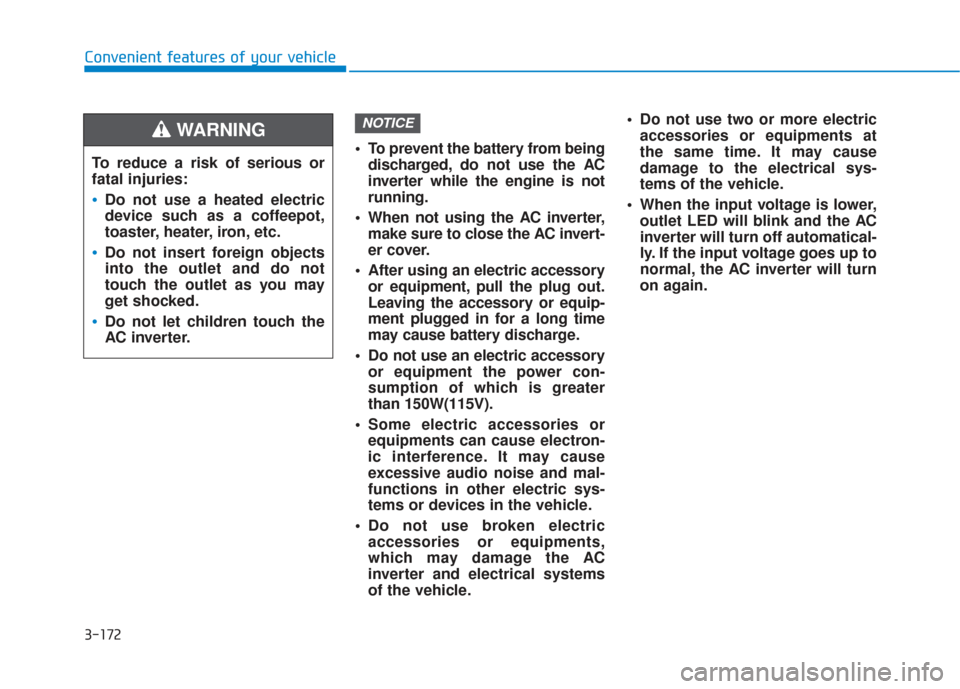
When not using the AC inverter, make sure to close the AC invert-
er cover.
After using an electric accessory or equipment, pull the plug out.
Leaving the accessory or equip-
ment plugged in for a long time
may cause battery discharge.
Do not use an electric accessory or equipment the power con-
sumption of which is greater
than 150W(115V).
Some electric accessories or equipments can cause electron-
ic interference. It may cause
excessive audio noise and mal-
functions in other electric sys-
tems or devices in the vehicle.
Do not use broken electric accessories or equipments,
which may damage the AC
inverter and electrical systems
of the vehicle. Do not use two or more electric
accessories or equipments at
the same time. It may cause
damage to the electrical sys-
tems of the vehicle.
When the input voltage is lower, outlet LED will blink and the AC
inverter will turn off automatical-
ly. If the input voltage goes up to
normal, the AC inverter will turn
on again.
NOTICE
Page 262 of 557
3-173
Convenient features of your vehicle
3
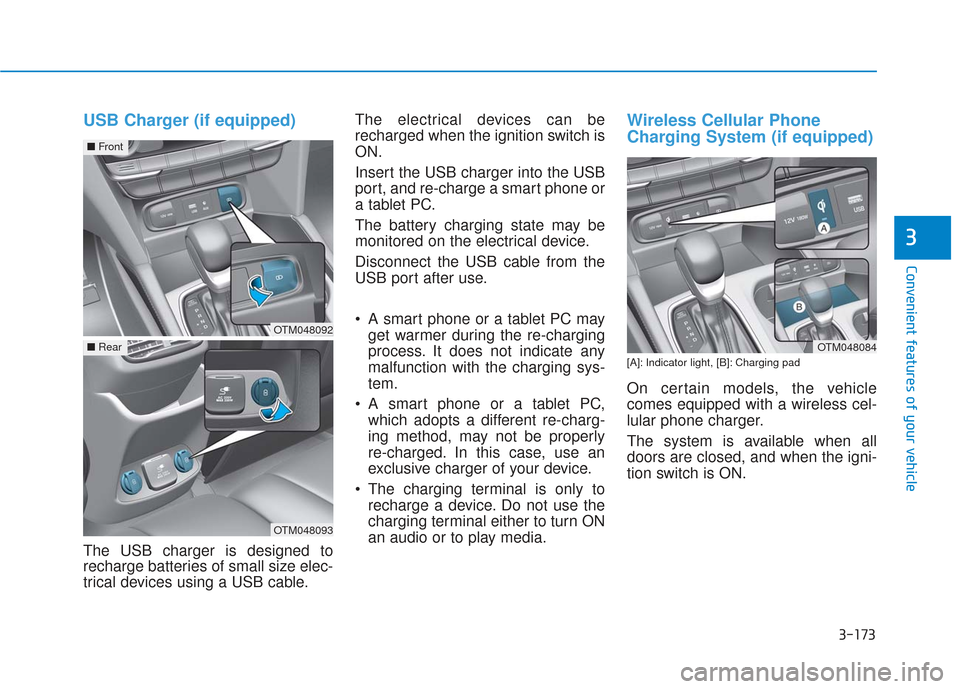
USB Charger (if equipped)
The USB charger is designed to
recharge batteries of small size elec-
trical devices using a USB cable.The electrical devices can be
recharged when the ignition switch is
ON.
Insert the USB charger into the USB
port, and re-charge a smart phone or
a tablet PC.
The battery charging state may be
monitored on the electrical device.
Disconnect the USB cable from the
USB port after use.
A smart phone or a tablet PC may
get warmer during the re-charging
process. It does not indicate any
malfunction with the charging sys-
tem.
A smart phone or a tablet PC, which adopts a different re-charg-
ing method, may not be properly
re-charged. In this case, use an
exclusive charger of your device.
The charging terminal is only to recharge a device. Do not use the
charging terminal either to turn ON
an audio or to play media.
Wireless Cellular Phone
Charging System (if equipped)
[A]: Indicator light, [B]: Charging pad
On certain models, the vehicle
comes equipped with a wireless cel-
lular phone charger.
The system is available when all
doors are closed, and when the igni-
tion switch is ON.
OTM048084
OTM048092
■ Front
OTM048093
■Rear
Page 264 of 557
3-175
Convenient features of your vehicle
3
The wireless charging processmay temporarily stop, when tem-
perature abnormally increases
inside the wireless cellular phone
charging system. Stop the charg-
ing cellular phone and wait until
temperature falls to a certain level.
The wireless charging process may temporarily stop when there
is any metallic item, such as a
coin, between the wireless cellular
phone charging system and the
cellular phone.
When charging some cellular phones with a self-protection fea-
ture, the wireless charging speed
may decrease and the wireless
charging may stop.
If the cellular phone has a thick cover, the wireless charging may
not be possible.
If the cell phone is not completely contacting the charging pad, wire-
less charging may not operate
properly.
Some magnetic items like credit cards, phone cards or rail tickets
may be damaged if left with the
cellular phone during the charging
process. When any cellular phone without a
wireless charging function or a
metallic object is placed on the
charging pad, a small noise may
sound. This small sound is due to
the vehicle discerning compatibil-
ity of the object placed on the
charging pad. It does not affect
your vehicle or the cellular phone
in any way.
Information
If the ignition switch is in the OFF
position, the charging also stops.
Information
This device complies with part 15 of
the FCC Rules.
Operation is subject to the following
two conditions:
1. This device may not cause harmful interference, and
2. This device must accept any inter- ference received, including inter-
ference that may cause undesired
operation.
Clock
Vehicles with Audio system
Select the [SETUP] button on the
audio system ➟ Select [Date/Time].
Set time: Set the time displayed on the audio screen.
Time format: Choose between 12- hour and 24-hour time formats.
Vehicles with Navigation system
Select the Settings menu on the
Navigation system ➟Select
[Date/Time].
GPS time: Displays time accord- ing to the received GNSS time.
24-hour: Switches to 12 hour or 24 hour.
i
i
Do not attempt to adjust the
clock while driving. Doing so
may result in distracted driving
which may lead to an accident
involving personal injury or
death.
WARNING
Page 271 of 557
Multimedia System
Multimedia System.................................................4-2
AUX, USB and iPod®Port ...............................................4-2
Antenna ........................................................................\
.......4-2
Steering Wheel Audio Controls ......................................4-3
Bluetooth®Wireless Technology ..................................4-4
Audio (Display Audio) / Video /
Navigation System (AVN).................................................4-4
4