user settings HYUNDAI SANTA FE 2021 User Guide
[x] Cancel search | Manufacturer: HYUNDAI, Model Year: 2021, Model line: SANTA FE, Model: HYUNDAI SANTA FE 2021Pages: 636, PDF Size: 81.2 MB
Page 168 of 636
Convenient features
5-24
Ã
3.
Regis
ter the NFC card key on the
User’s Settings menu after turning on
the vehicle.
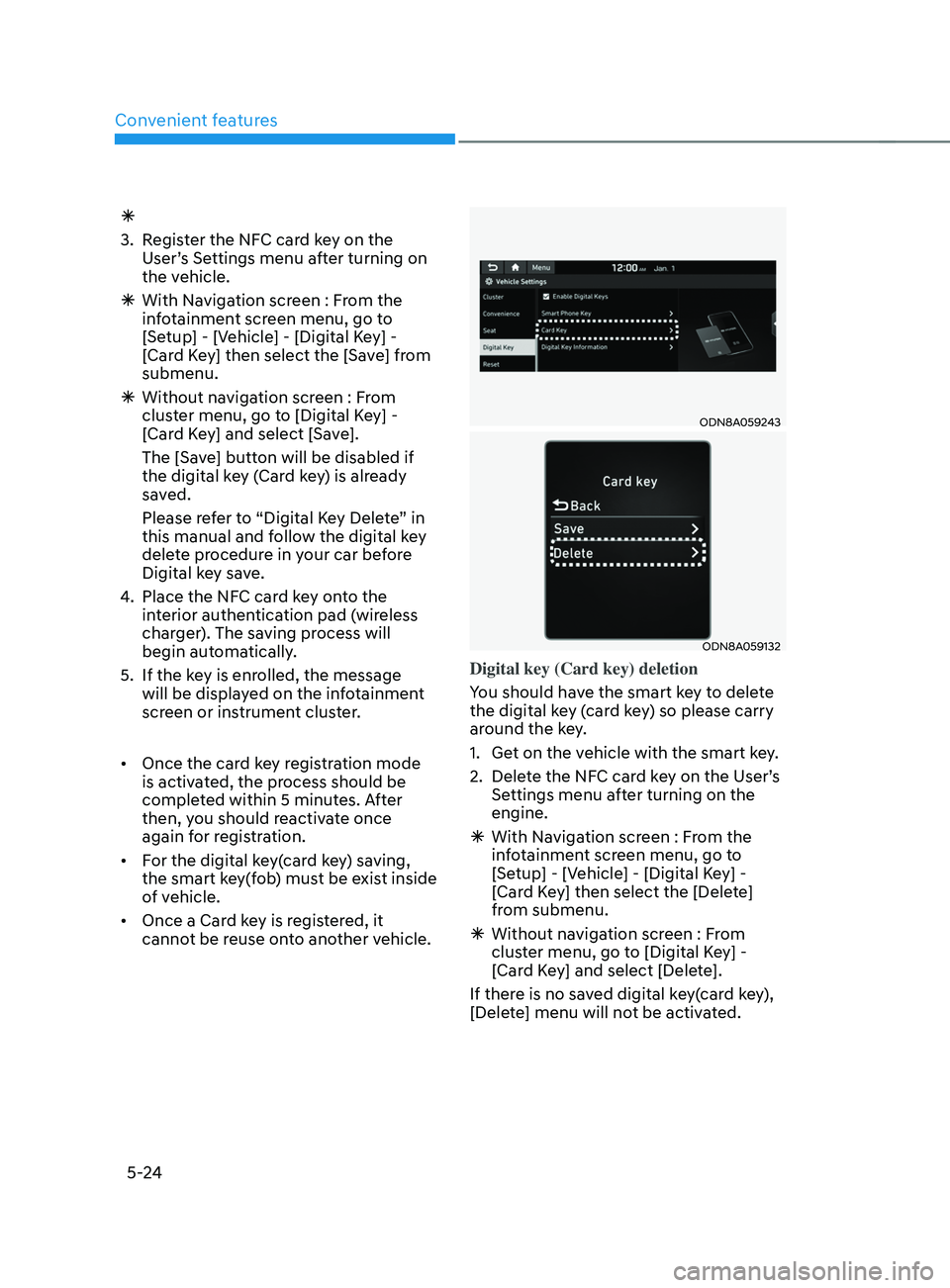
à With Naviga
tion screen : From the
infotainment screen menu, go to
[Setup] - [Vehicle] - [Digital Key] -
[Card Key] then select the [Save] from
submenu.
à Without naviga
tion screen : From
cluster menu, go to [Digital Key] -
[Card Key] and select [Save].
The [Save] button will be disabled if
the digital key (Card key) is already
saved.
Please refer to “Digital Key Delete” in
this manual and follow the digital key
delete procedure in your car before
Digital key save.
4.
Place the NFC car
d key onto the
interior authentication pad (wireless
charger). The saving process will
begin automatically.
5.
If the ke
y is enrolled, the message
will be displayed on the infotainment
screen or instrument cluster.
• Once the card key registration mode
is activated, the process should be
completed within 5 minutes. After
then, you should reactivate once
again for registration.
• For the digital key(card key) saving,
the smart key(fob) must be exist inside
of vehicle.
• Once a Card key is registered, it
cannot be reuse onto another vehicle.
ODN8A059243
ODN8A059132
Digital key (Card key) deletion
You should have the smart key to delete
the digital key (card key) so please carry
around the key.
1.
Get on the v
ehicle with the smart key.
2.
Delet
e the NFC card key on the User’s
Settings menu after turning on the
engine.
à With Naviga
tion screen : From the
infotainment screen menu, go to
[Setup] - [Vehicle] - [Digital Key] -
[Card Key] then select the [Delete]
from submenu.
à Without naviga
tion screen : From
cluster menu, go to [Digital Key] -
[Card Key] and select [Delete].
If there is no saved digital key(card key),
[Delete] menu will not be activated.
Page 171 of 636
05
5-27
„„Type A
ODN8A059133
„„Type B
ODN8A059247
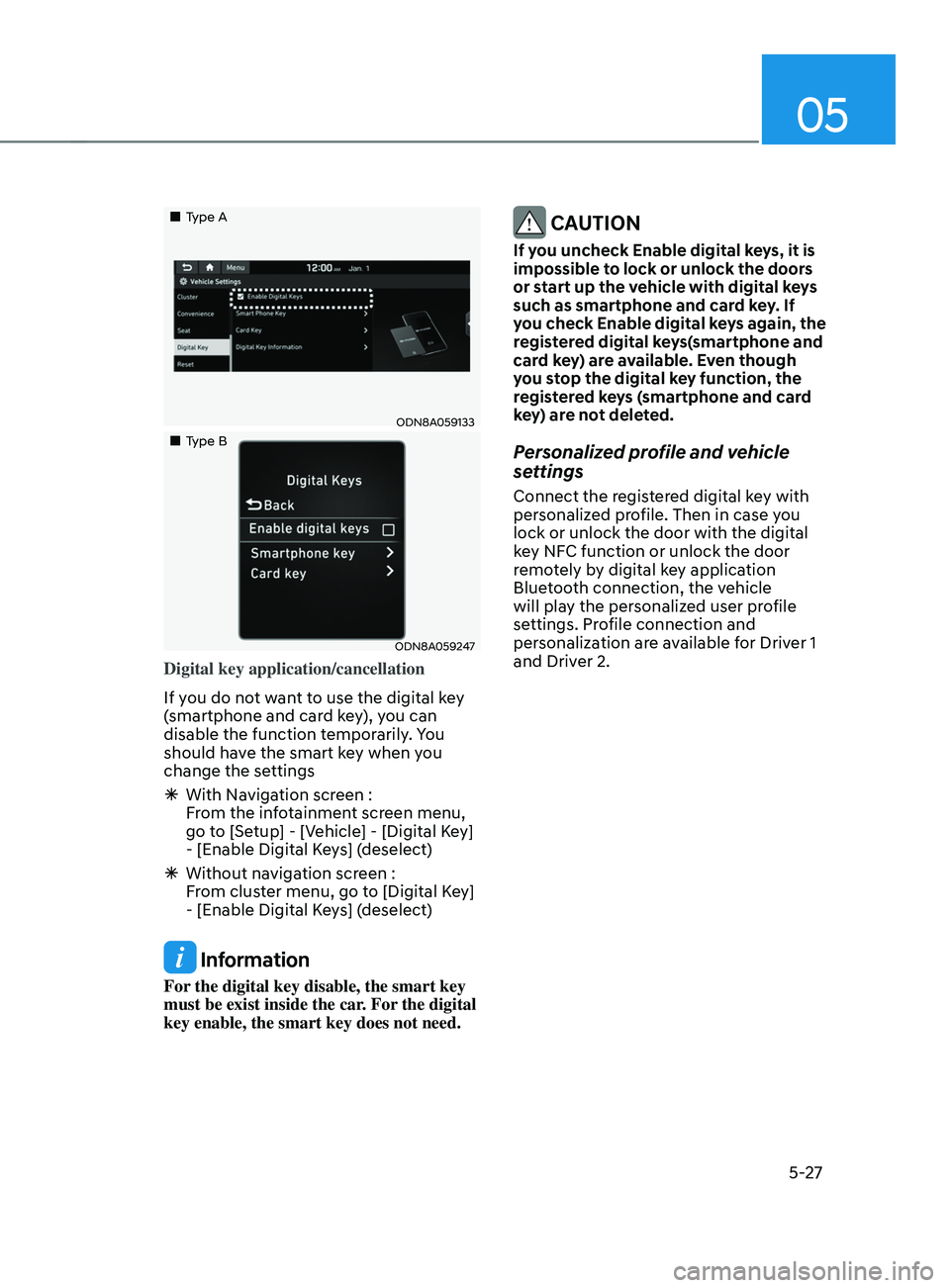
Digital key application/cancellation
If you do not want to use the digital key
(smartphone and card key), you can
disable the function temporarily. You
should have the smart key when you
change the settings
ÃWith Naviga
tion screen :
From the infotainment screen menu,
go to [Setup] - [Vehicle] - [Digital Key]
- [Enable Digital Keys] (deselect)
à Without naviga
tion screen :
From cluster menu, go to [Digital Key]
- [Enable Digital Keys] (deselect)
Information
For the digital key disable, the smart key
must be exist inside the car. For the digital
key enable, the smart key does not need.
CAUTION
If you uncheck Enable digital keys, it is
impossible to lock or unlock the doors
or start up the vehicle with digital keys
such as smartphone and card key. If
you check Enable digital keys again, the
registered digital keys(smartphone and
card key) are available. Even though
you stop the digital key function, the
registered keys (smartphone and card
key) are not deleted.
Personalized profile and vehicle
settings
Connect the registered digital key with
personalized profile. Then in case you
lock or unlock the door with the digital
key NFC function or unlock the door
remotely by digital key application
Bluetooth connection, the vehicle
will play the personalized user profile
settings. Profile connection and
personalization are available for Driver 1
and Driver 2.
Page 172 of 636
Convenient features
5-28
Profile link/unlinked
Profile link
1.
Select
Se
tup
→ U
ser
Pr
ofile
→ Pro
file
Se
ttings
→ Link Digital K
ey
(Smartphone
) on the infotainment
system menu.
2.
Unlock and place your smartphone on
the wir
eless charger according to a
message and it automatically starts to
interwork.
3.
It begins the pro
file link with a
message.
4.
If you select Link, the r
egistered
phone number’s digital key and the
user’s profile are linked.
5.
The int
erconnection process is
completed with a message.
Profile unlink
1.
Select Digital Ke
y information on
infotainment Vehicle Settings menu. It
is possible to unlink only if the profile
is interconnected.
2.
Pro
file unlink is completed with a
message.
Information
If you connect both Driver 1 and Driver 2
with a single smartphone, the smartphone
digital key always works as Driver 1.
If you unlink the Driver 1, personalization
function will operate as Driver 2. PRECAUTION for vehicle profile link and
unlink
When you link or unlink the profile of
digital key, you should be careful of the
following.
•
Profile link is possible to use with the
digital key. (Infotainment Vehicle
Settings
M
ode
→ Digital K
ey
→ E
nable
Digital Ke
ys)
• Profile link information remains even
when you set the digital key function
disable.
• Only the smart phone with digital key
app enables you to link your profile.
(Impossible to link with NFC card)
• Profile link works only when the
smart phone and the digital key are
registered to the vehicle. The smart
phone with another vehicle’s digital
key cannot link profile.
• If you remove the smart phone
from the wireless charger before
completing the profile link, it does not
work.
• To unlink the profile, the smart phone
does not need to be on the wireless
charger.
Page 174 of 636
Convenient features
5-30
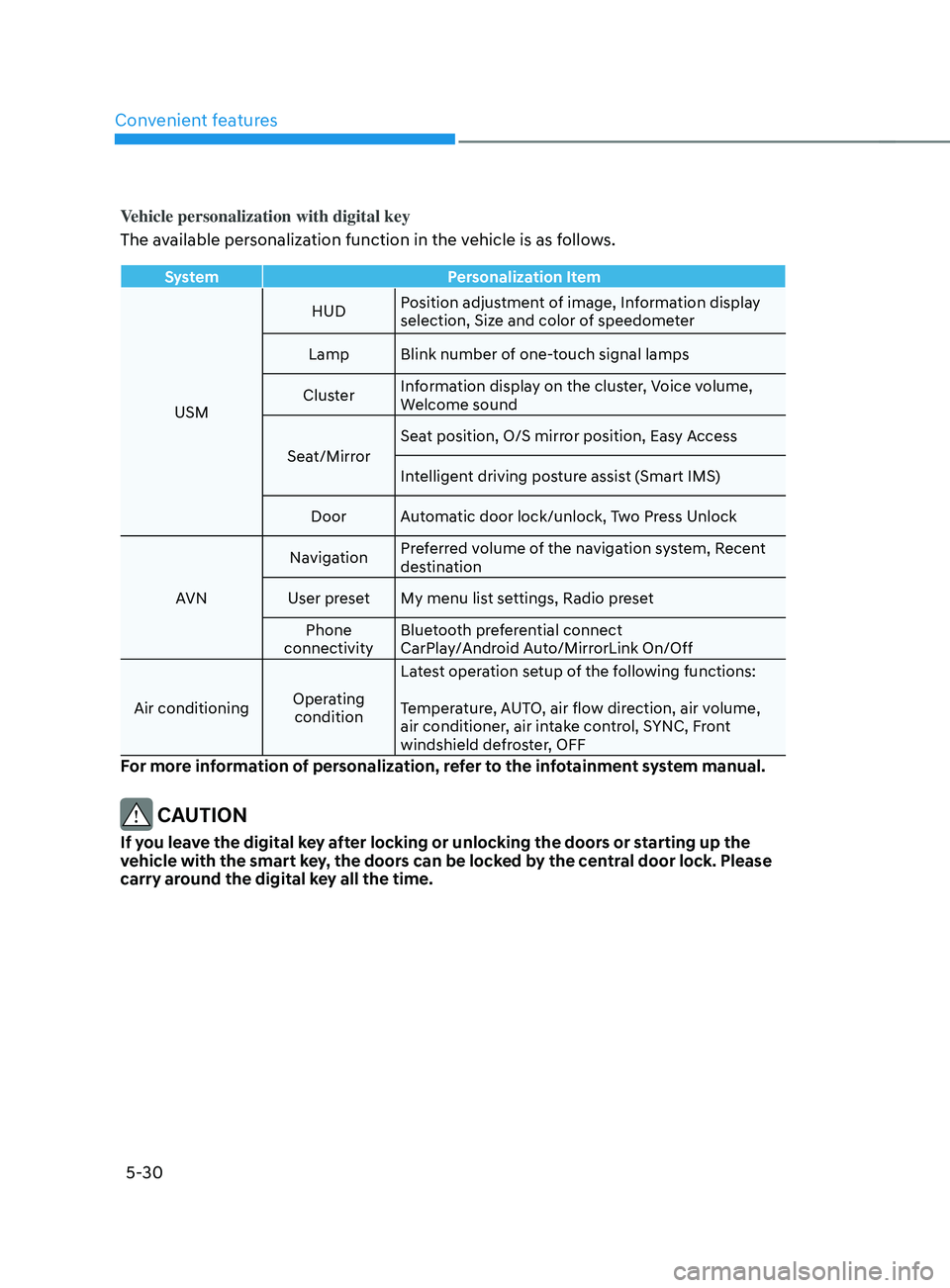
Vehicle personalization with digital key
The available personalization function in the vehicle is as follows.
SystemPersonalization Item
USM HUD
Position adjustment of image, Information display
selection, Size and color of speedometer
Lamp Blink number of one-touch signal lamps
Cluster Information display on the cluster, Voice volume,
Welcome sound
Seat/Mirror Seat position, O/S mirror position, Easy Access
Intelligent driving posture assist (Smart IMS)
Door Automatic door lock/unlock, Two Press Unlock
AVN Navigation
Preferred volume of the navigation system, Recent
destination
User preset My menu list settings, Radio preset Phone
connectivity Bluetooth preferential connect
CarPlay/Android Auto/MirrorLink On/Off
Air conditioning Operating
condition Latest operation setup of the following functions:
Temperature, AUTO, air flow direction, air volume,
air conditioner, air intake control, SYNC, Front
windshield defroster, OFF
For more information of personalization, refer to the infotainment system manual.
CAUTION
If you leave the digital key after locking or unlocking the doors or starting up the
vehicle with the smart key, the doors can be locked by the central door lock. Please
carry around the digital key all the time.
Page 185 of 636
05
5-41
NOTICE
• While integrated memory system
is being reset, if the resetting
and notification sound stops
incompletely, restart the resetting
procedure again.
• Make sure that there is no objects
around the driver’s seat in advance
of resetting the integrated memory
system.
Easy access function
The system will move the driver’s seat
automatically as follows:
• With remote key
- It will mov
e the driver’s seat
rearward when the ignition key is
removed.
- It will mov
e the driver’s seat forward
when the ignition key is inserted.
• With smart key
- It will mov
e the driver’s seat
rearward when the Engine Start/
Stop button is pressed to the OFF
position.
- It will mov
e the driver’s seat forward
when the Engine Start/Stop button
is pressed to the ACC or START
position.
You can activate or deactivate the Easy
Access Function from the User Settings
mode on the LCD display. ‘Convenience
→
Sea
t
E
asy
A
ccess
→ Off/N
ormal/
Extended’.
For more details, refer to “LCD Display”
In chapter 4.
CAUTION
Driver should be cautious when using
this function to assure no injury to
passenger or child on the back seat.
In case of emergency the driver has to
stop movement of front seat (when easy
access feature is activated) by pressing
SET button or any of the driver seat
control switches.
Page 217 of 636
05
5-73
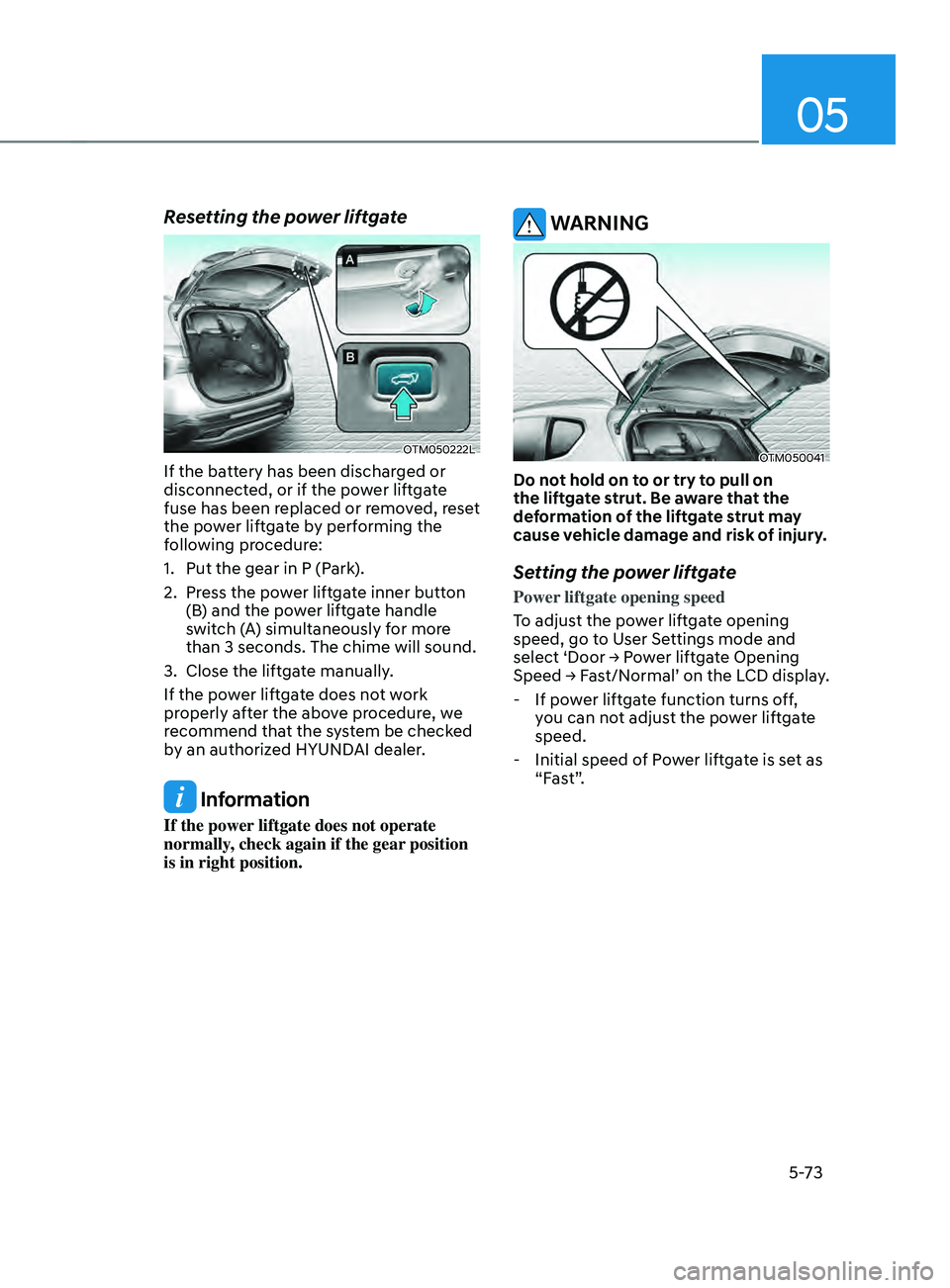
Resetting the power liftgate
OTM050222L
If the battery has been discharged or
disconnected, or if the power liftgate
fuse has been replaced or removed, reset
the power liftgate by performing the
following procedure:
1.
Put the gear in P (Park
).
2.
Press the po
wer liftgate inner button
(B) and the power liftgate handle
switch (A) simultaneously for more
than 3 seconds. The chime will sound.
3.
Close the liftga
te manually.
If the power liftgate does not work
properly after the above procedure, we
recommend that the system be checked
by an authorized HYUNDAI dealer.
Information
If the power liftgate does not operate
normally, check again if the gear position
is in right position.
WARNING
OTM050041
Do not hold on to or try to pull on
the liftgate strut. Be aware that the
deformation of the liftgate strut may
cause vehicle damage and risk of injury.
Setting the power liftgate
Power liftgate opening speed
To adjust the power liftgate opening
speed, go to User Settings mode and
select
‘Door → P
ower
lift
gate
Opening Speed → Fas
t/Normal’
on the LCD display
.
- If pow
er liftgate function turns off,
you can not adjust the power liftgate
speed.
- Initial speed of P
ower liftgate is set as
“Fast”.
Page 219 of 636
05
5-75
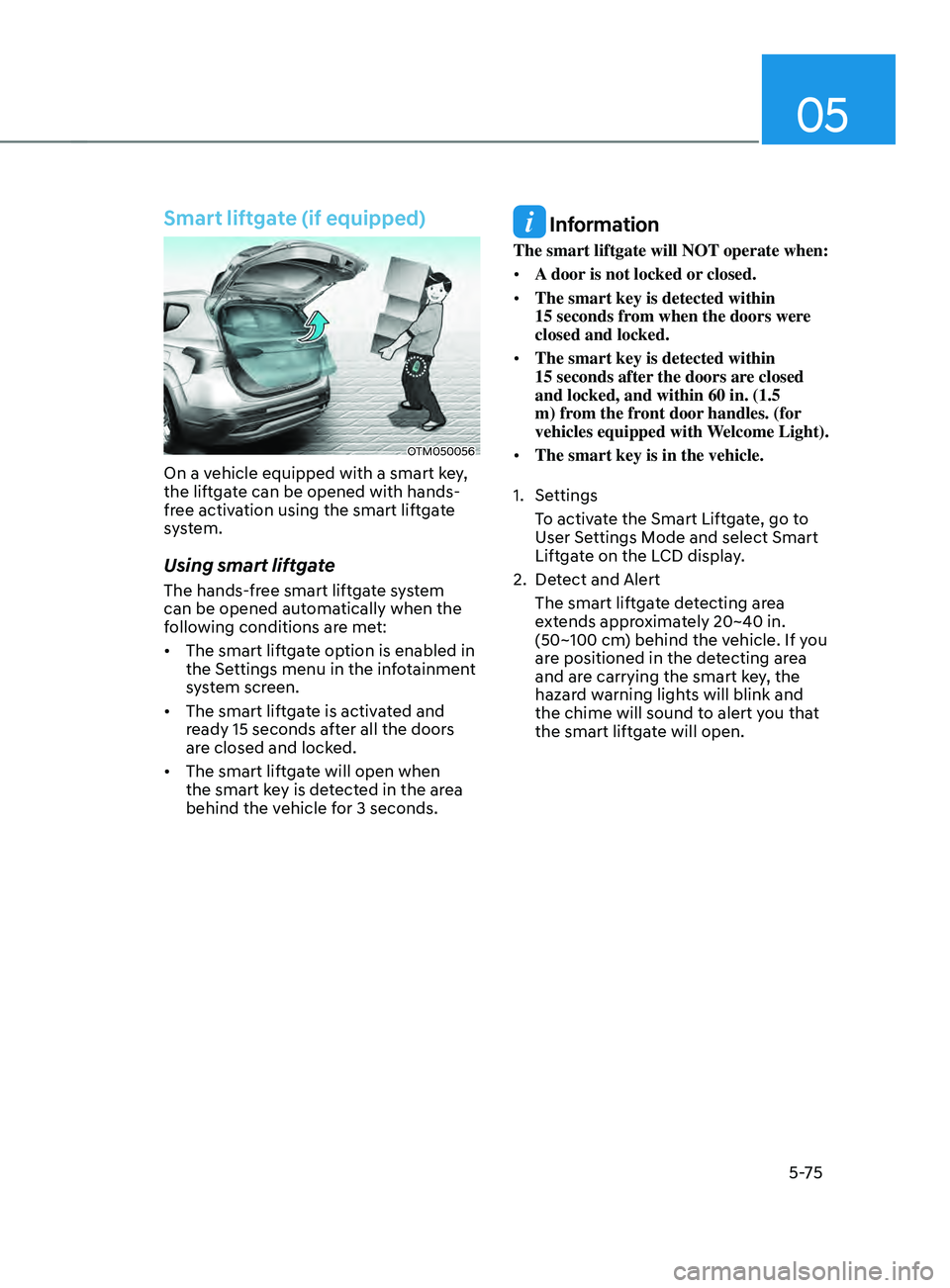
Smart liftgate (if equipped)
OTM050056
On a vehicle equipped with a smart key,
the liftgate can be opened with hands-
free activation using the smart liftgate
system.
Using smart liftgate
The hands-free smart liftgate system
can be opened automatically when the
following conditions are met:
• The smart liftgate option is enabled in
the Settings menu in the infotainment
system screen.
• The smart liftgate is activated and
ready 15 seconds after all the doors
are closed and locked.
• The smart liftgate will open when
the smart key is detected in the area
behind the vehicle for 3 seconds.
Information
The smart liftgate will NOT operate when:
• A door is not locked or closed.
• The smart key is detected within
15
seconds fr
om when the doors were
closed and locked.
• The smart key is detected within
15
seconds after
the doors are closed
and locked, and within 60 in. (1.5
m) from the front door handles. (for
vehicles equipped with Welcome Light).
• The smart key is in the vehicle.
1.
Settings
T
o activate the Smart Liftgate, go to
User Settings Mode and select Smart
Liftgate on the LCD display.
2.
Det
ect and Alert
The smart liftgate detecting area
extends approximately 20~40 in.
(50~100 cm) behind the vehicle. If you
are positioned in the detecting area
and are carrying the smart key, the
hazard warning lights will blink and
the chime will sound to alert you that
the smart liftgate will open.
Page 224 of 636
Convenient features
5-80
OTMA050019
The Head-Up Display is an optional
feature that allows the driver to view
information projected onto a transparent
screen while still keeping your eyes
safely on the road ahead while driving.
Head-up display settings
OIK047152N
• Head-up display can be enabled from
the Settings menu in the User Settings
mode on the instrument cluster LCD
display. Select:
-Setup → H
ead-Up
Displa
y
→ E
nable
Head-Up Displa
y
• After turning on the head-up
display, you can change the settings
of ‘Display Height’ and ‘Content
Selection’ of the Head-Up Display.
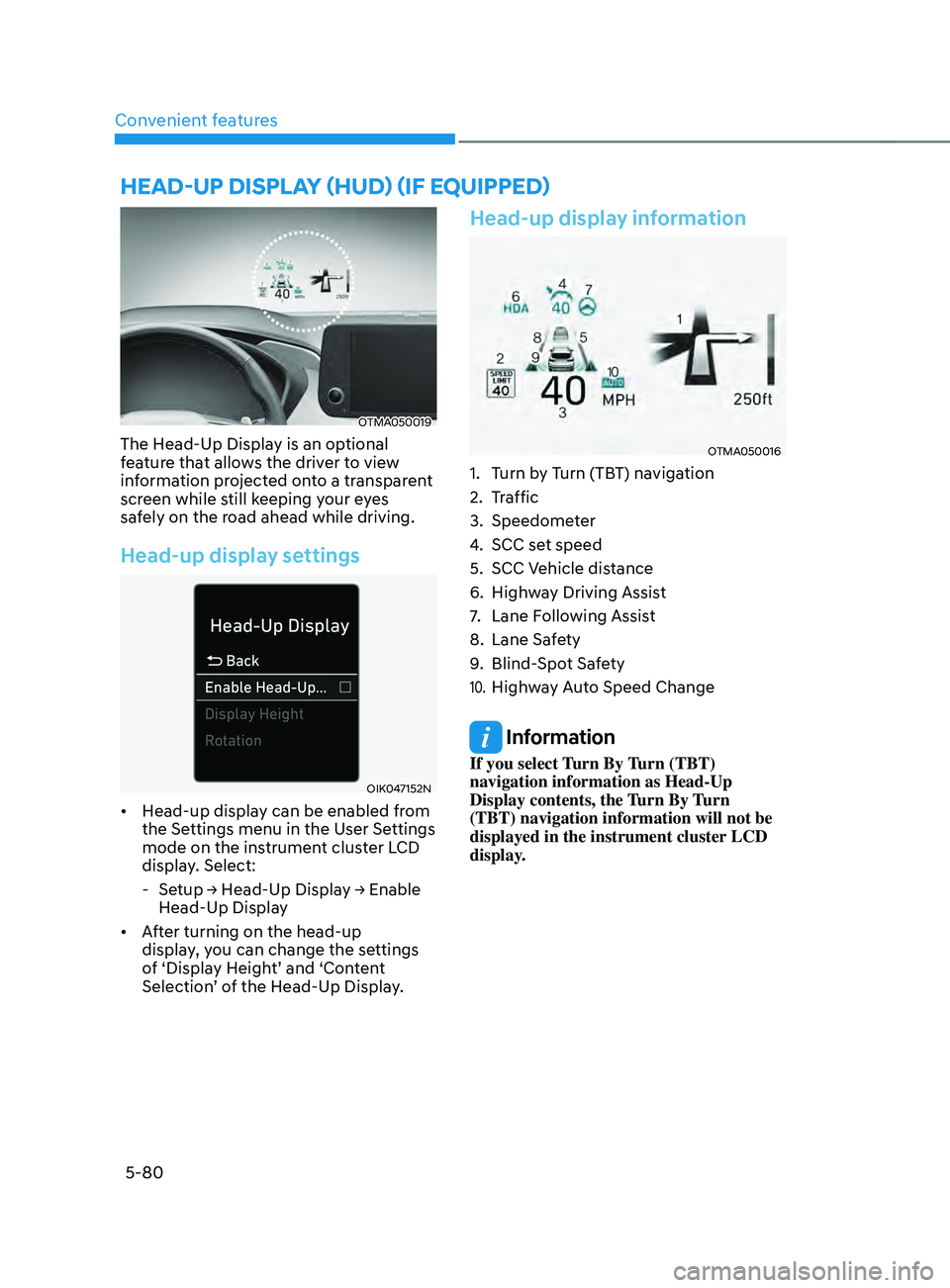
Head-up display information
OTMA050016
1. Turn by Turn (TBT) navigation
2.
Tr
affic
3.
Speedomet
er
4.
SCC set speed
5.
SCC Vehicle dis
tance
6.
Highw
ay Driving Assist
7.
Lane Follo
wing Assist
8.
Lane Saf
ety
9.
Blind-Spo
t Safety
10. Highway Auto Speed Change
Information
If you select Turn By Turn (TBT)
navigation information as Head-Up
Display contents, the Turn By Turn
(TBT) navigation information will not be
displayed in the instrument cluster LCD
display.
hEAD-Up DIspLAY (hUD) (IF EQUIppED)
Page 229 of 636
05
5-85
Headlamp delay function
(if equipped)
If you place the ignition switch to the
ACC position or the OFF position with
the headlamps ON, the headlamps (and/
or position lamps) remain on for about
5 minutes. However, if the driver’s door
is opened and closed, the headlamps
are turned off after 15 seconds. Also,
with the vehicle off if the driver’s door is
opened and closed, the headlamps (and/
or position lamps) are turned off after 15
seconds.
The headlamps (and/or position lamps)
can be turned off by pressing the lock
button on the remote key or smart key
twice or turning the headlamp switch to
the OFF or AUTO position.
You can enable the headlamp delay
function
b
y
selecting ‘Se
tup
→ U
ser
Settings → Ligh
ts
→ H
eadlight
Dela
y.
NOTICE
If the driver exits the vehicle through
another door besides the driver
door, the battery saver function
does not operate and the headlamp
delay function does not turn OFF
automatically.
This may cause the battery to
discharge. To avoid battery discharge,
turn OFF the headlamps manually from
the headlamp switch before exiting the
vehicle.
Traffic change (if equipped)
The low beam light distribution is
asymmetric. If you go abroad to a
country with opposite traffic direction,
this asymmetric part will dazzle
oncoming car driver.
To prevent dazzle, ECE regulation
demand several technical solutions (ex.
automatic change system, adhesive
sheet, down aiming). These headlamps
are designed not to dazzle opposite
drivers.
You can activate or deactivate the Traffic
Change feature from the User Settings
mode
on the L
CD
displa
y.
Go t
o
‘Ligh
ts
→ Tr
avel Mode’.
For more details, refer to “LCD Display”
In chapter 4.
Page 236 of 636
Convenient features
5-92
Welcome system
OTM050075
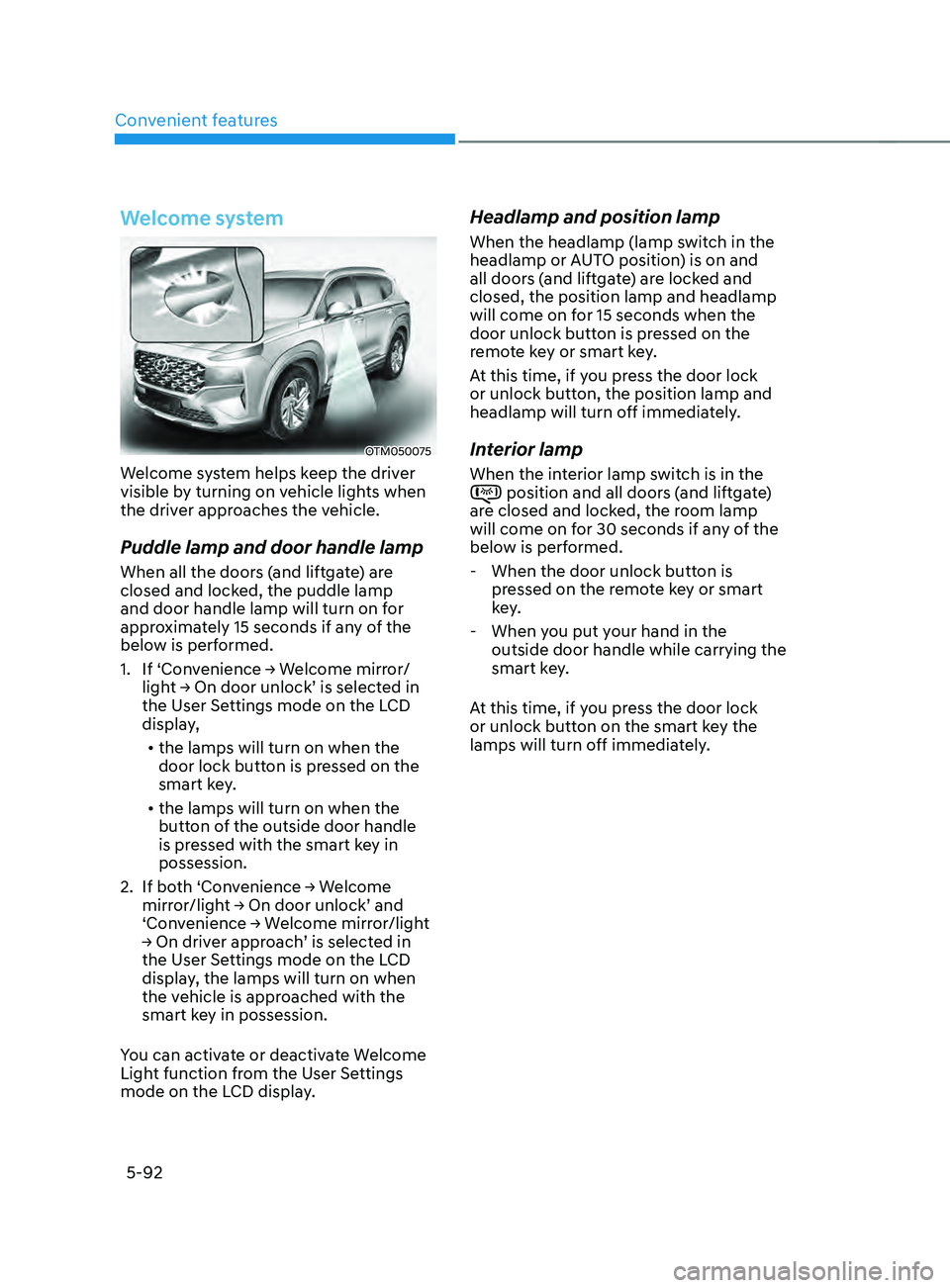
Welcome system helps keep the driver
visible by turning on vehicle lights when
the driver approaches the vehicle.
Puddle lamp and door handle lamp
When all the doors (and liftgate) are
closed and locked, the puddle lamp
and door handle lamp will turn on for
approximately 15 seconds if any of the
below is performed.
1.
If ‘Con
venience
→ W
elcome
mirr
or/
light
→ On door unlock’ is select
ed
in the User Se
ttings mode on the LCD
display,
• the lamps will turn on when the
door lock button is pressed on the
smart key.
• the lamps will turn on when the
button of the outside door handle
is pressed with the smart key in
possession.
2.
If bo
th
‘Con
venience
→ W
elcome
mirror/ligh
t
→ On door unlock’ and ‘Conv
enience
→ W
elcome
mirr
or/light
→ On driv
er
appr
oach’
is select
ed
in the User Se
ttings mode on the LCD
display, the lamps will turn on when
the vehicle is approached with the
smart key in possession.
You can activate or deactivate Welcome
Light function from the User Settings
mode on the LCD display.
Headlamp and position lamp
When the headlamp (lamp switch in the
headlamp or AUTO position) is on and
all doors (and liftgate) are locked and
closed, the position lamp and headlamp
will come on for 15 seconds when the
door unlock button is pressed on the
remote key or smart key.
At this time, if you press the door lock
or unlock button, the position lamp and
headlamp will turn off immediately.
Interior lamp
When the interior lamp switch is in the position and all doors (and liftgate)
are closed and locked, the room lamp
will come on for 30 seconds if any of the
below is performed.
- When the door unlock button is pr
essed on the remote key or smart
key.
- When you put y
our hand in the
outside door handle while carrying the
smart key.
At this time, if you press the door lock
or unlock button on the smart key the
lamps will turn off immediately.