button HYUNDAI SANTA FE 2021 Workshop Manual
[x] Cancel search | Manufacturer: HYUNDAI, Model Year: 2021, Model line: SANTA FE, Model: HYUNDAI SANTA FE 2021Pages: 636, PDF Size: 81.2 MB
Page 164 of 636
Convenient features
5-20
Remote Control with Digital Key
To use the remote control function with
your android smartphone, Bluetooth
must be turned on.
Remote Control Connection with Digital
Key
1.
Open Hyundai digital ke
y application
on the smartphone. Select the
vehicle to activate the remote control
function as a main vehicle.
2.
Approach with the activ
ated
smartphone app to your vehicle
and you can check whether the
connection is available. If it enables
your smartphone to connect, connect
with your vehicle by pressing the
connect button. The remote control
function is activated after completing
the process.
Remote Control Operation with Digital
Key
You can execute the remote control
operation including door lock/unlock,
panic on/off, remote start / remote
stop and trunk opening. The icon for
each function will be highlighted and
alarm/vibration also provided when the
operation is performed.
Note that you cannot lock your vehicle
using the Hyundai digital key app if any
of the following occurs:
• The POWER button is in ACC or ON
position.
• Any doors are open.
When the smartphone and the vehicle
are connected by the Bluetooth function
but the remote control command
cannot be received over 5 minutes, the
remote control connection is cancelled
automatically. CAUTION
• If metallic window tint was applied
to your vehicle, it may cause
bad Bluetooth connection or
performance degradation of the
digital key.
• If multiple users operate the remote
control function simultaneously, the
connection between the digital key
and the vehicle might result in failed
commands. Please connect and
operate the remote control function
only the necessary user.
• When using the remote control
operation, the driver (the remote
control user) should leave the vehicle
after confirming the door lock (the
chime sounds once and the hazard
warning lights blink).
• The remote functions of the Digital
Key app enables the vehicle to be
controlled from a set distance. If
the digital key or the vehicle goes
beyond the operable distance, the
remote control function might be
disconnected or cancelled.
• If the digital key (smartphone) is
connected with the vehicle for the
remote control, the driver with the
key goes far away from the vehicle,
the function might not work.
• If the remote control operation
is executed where the mobile
connection is weak, Bluetooth
connection is poor due to several
Bluetooth devices or there is an
object such as metal or concrete, it
might be delayed or the operable
distance might decrease. You should
not cover the smartphone with your
hand or place other devices which
can cause frequency interference. It
may result in poor performance.
• If the remote control function is not
available, please use NFC function to
lock or unlock the doors.
Page 165 of 636
05
5-21
Remote Start with Digital Key
• When the shift button of your vehicle
is in P (Park) and all of the doors
including trunk and hood is locked
and the vehicle is off, press the Door
Lock button in the Hyundai Digital
Key app then press the Remote Start
button within 4 seconds.
You can confirm the engine is on if the
hazard warning lights blinks two times
and the chime sounds.
• If you want to turn off the engine,
press Remote Engine Stop. Air
Conditioner / Heating system
maintains the same status as when
you last used the vehicle.
• Unless you put the registered digital
key(smartphone) on the interior
authentication pad (wireless charger)
when the remote start function is on,
the engine will turn off.
• If you do not get on the vehicle within
10 minutes after the engine turns on,
the vehicle will turn off.
For more information, refer to the Engine
Start/Stop button in chapter 6.
Vehicle information Display
The digital key application displays
the vehicle information such as
driving or door conditions through the
communication with the vehicle.
• How to check : Select the vehicle
what you want to check and touch
the vehicle image, then vehicle
information display page will be
shown.
• Contents : accumulated odometer,
latest fuel economy, driving range,
fuel remaining, tire pressure, doors
lock/unlock status and last data
updated time.
ÃDisplay
ed vehicle date could be
differed from the current vehicle
condition.
à For mor
e information, please refer to
the ‘Tutorial’ on your Digital key app. Smartphone change/App deletion
If you change your smartphone or delete
the Hyundai Digital Key App, please refer
to the following to set up your Digital
Key:
Smartphone Change/ Reset
If you change or reset the smartphone,
the registered digital key in your previous
smartphone may not be used. Please
refer to following procedure to use the
digital key.
1.
Install the digital k
ey application and
log in.
2.
If you ar
e the owner, retry the Digital
key save process.
3.
If you ar
e the sharer, need to re-share
the key from owner.
App delete & reinstall/ Delete App data
You can re-download the digital key
from server in these cases as follow
procedure.
1.
Reins
tall the application and log in.
2.
Input the PIN number for user
v
erification.
3.
If PIN is correct, digital k
ey data
will be re-downloaded to your
smartphone and you can use it
without any further registration or
sharing.
Smartphone operability with Digital Key
The digital key application may not
be available to old type smartphones.
Please check the available smartphone
models with your dealer. NFC antenna
position on the smartphone can be
confirmed on each smartphone’s manual
or contact to customer service center of
the smartphone manufacture.
Page 166 of 636
Convenient features
5-22
CAUTION
• Do not leave the registered digital
key (smartphone) and card key in
your vehicle. Please carry around
your keys all the times.
• If you happen to lose your digital
key (smartphone) or card key
registered as a main user’s key, you
should immediately delete the key
on the vehicle’s key menu. For more
information, refer to the Digital Key
Deletion in this chapter.
• If you registered your digital key
(smartphone) or card key in the
vehicle, a message appears on the
instrument cluster and let you know
the key is registered.
(Message: Digital key(s) active.)
• If you buy a used vehicle, you should
confirm the message and delete the
registered smartphone key and card
key. In this case, you should carry
your smart key.
• If you keep place the NFC card
of the digital key on the interior
authentication pad (wireless
charger) while driving, it may cause a
malfunction of the NFC card.
• You should remove your NFC card
of the digital key on the interior
authentication pad after turning on
the engine.
• Hyundai digital key app may not
work properly when the NFC or
Bluetooth communication between
smartphone and car is not good.
• If the remote control operation
is executed where the mobile
connection is weak, Bluetooth
connection is poor due to lots of
Bluetooth devices or there is an
object such as metal or concrete, it
might be delayed or the operable
distance might decrease. Especially,
you should not cover the smartphone
with your hand or place other
devices which can cause frequency
interference. It may result in poor
performance. •
If the remote control function is not
activated, please use NFC function to
lock or unlock the doors
• You should be careful not to
press the remote control button
on the digital key (smartphone)
accidentally.
• If the digital key (smartphone) is
discharged or defective or you
cannot use the digital key since the
vehicle battery is discharged, use the
inside door lock button to lock all of
the doors.
CAUTION
• Hyundai digital key app on the
smartphone and card key may not
work if any of the following occurs:
-Hyundai digital ke
y app on the
smartphone is deleted. (Required
to reinstall the app)
- Ac
count log in information of
Hyundai digital key app is expired.
(Required to re-log in)
- When you try t
o log in to another
smartphone instead of the
registered smartphone with same
user account.
- Smartphone roo
ting or app
hacking is detected.
- Smartphone batt
ery or the vehicle
battery is discharged.
- Smartphone’
s screen is off or
locked.
- NFC or Blue
tooth is turned off on
the smartphone settings.
- Smartphone’
s mobile network
setting is off or airplane mode is
activated.
- A credit car
d is overlapped in the
back of your smartphone or metal
or thick case is used.
- Use the car
d key with insert it
into the wallet or card holder or
overlapping with other cards.
Page 167 of 636
05
5-23
-If you use a smart phone cover that
uses wir
eless communication or is
made of metal, the digital key NFC
function may not work properly.
Remove the smart phone cover
before using the digital key NFC
function.
• The vehicle may not be controlled by
the smartphone if any of the following
occurs:
- Basic and necessary functions o f
the smartphone manufacturer are
operating. (General call, urgent
call, audio or NFC payment)
- Wireless earphone is oper
ating.
(General call, urgent call or audio)
- The digital ke
y app function such
as basic setting or app launching
is limited by prior policy according
to the manufacturer while using a
smartphone produced by domestic
and foreign manufactures.
à If y
ou change the smartphone
number, you should modify the user
account information on the HYUNDAI
customer web site to use the digital
key app.
à If the v
ehicle owner changes
the smartphone device, the new
smartphone should be registered in
the car after deleting the registered
digital key(smartphone).
à If a shar
er changes or reset the
smartphone, the key should be re-
shared from owner.
à Some of the old smartphone ma
y
not work properly. Please check the
available smartphone models with
your dealer.
à NFC an
tenna position on the
smartphone can be confirmed
on each smartphone’s manual or
contact to customer service center
of the smartphone manufacture.
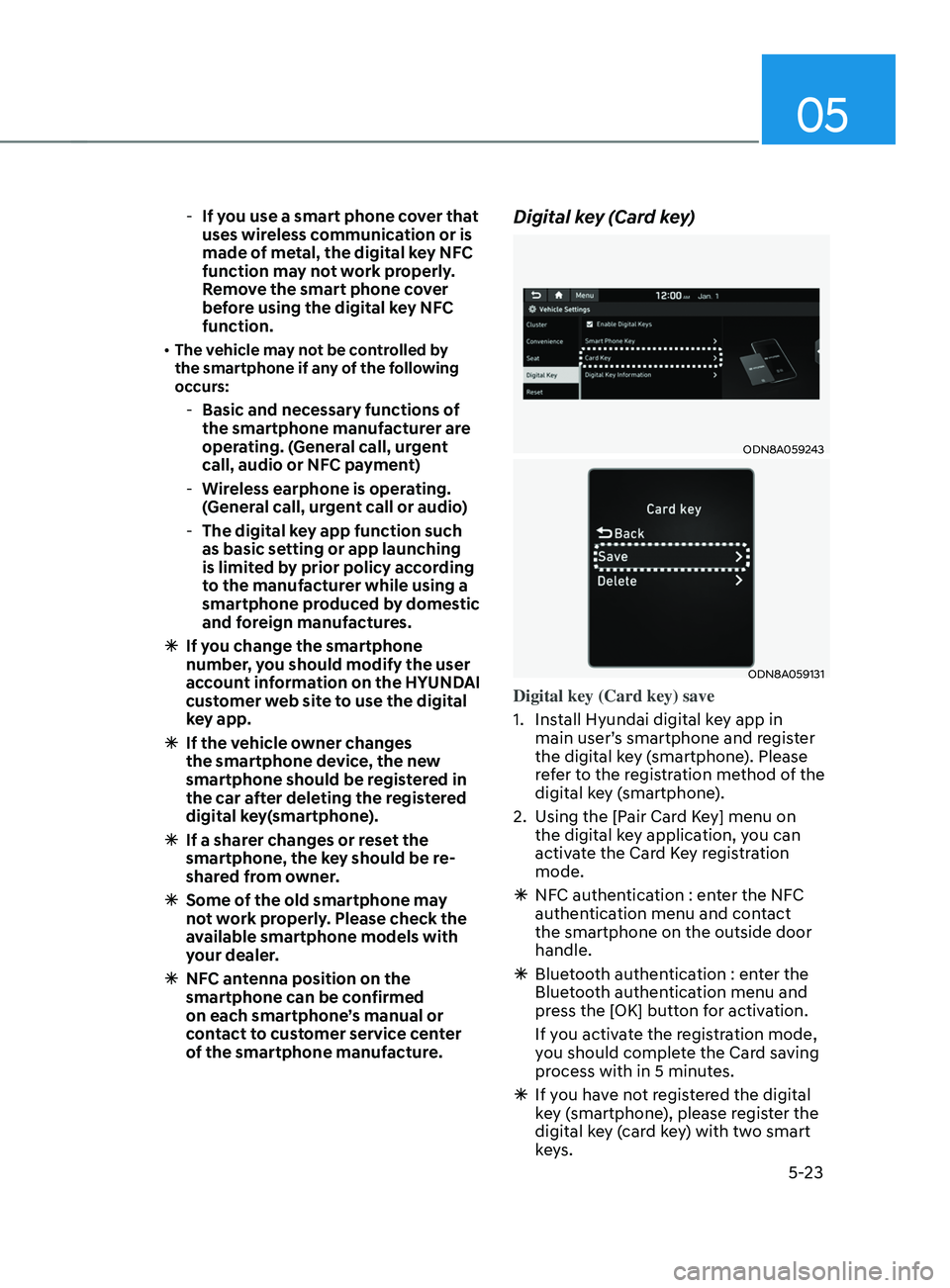
Digital key (Card key)
ODN8A059243
ODN8A059131
Digital key (Card key) save
1.
Install Hyundai digital k
ey app in
main user’s smartphone and register
the digital key (smartphone). Please
refer to the registration method of the
digital key (smartphone).
2.
Using the [P
air Card Key] menu on
the digital key application, you can
activate the Card Key registration
mode.
à NFC authen
tication : enter the NFC
authentication menu and contact
the smartphone on the outside door
handle.
à Bluet
ooth authentication : enter the
Bluetooth authentication menu and
press the [OK] button for activation.
If you activate the registration mode,
you should complete the Card saving
process with in 5 minutes.
à If you ha
ve not registered the digital
key (smartphone), please register the
digital key (card key) with two smart
keys.
Page 168 of 636
Convenient features
5-24
Ã
3.
Regis
ter the NFC card key on the
User’s Settings menu after turning on
the vehicle.
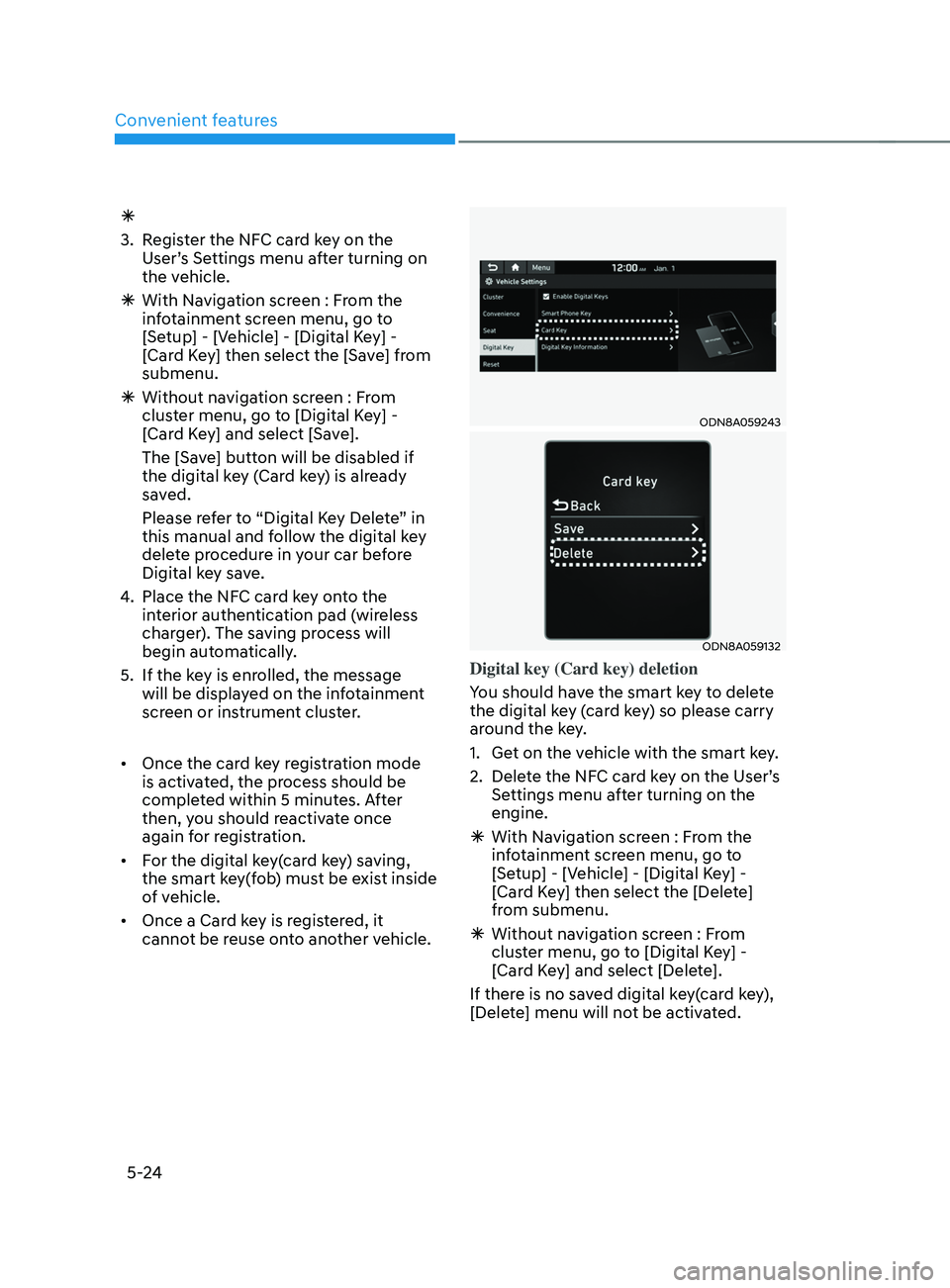
à With Naviga
tion screen : From the
infotainment screen menu, go to
[Setup] - [Vehicle] - [Digital Key] -
[Card Key] then select the [Save] from
submenu.
à Without naviga
tion screen : From
cluster menu, go to [Digital Key] -
[Card Key] and select [Save].
The [Save] button will be disabled if
the digital key (Card key) is already
saved.
Please refer to “Digital Key Delete” in
this manual and follow the digital key
delete procedure in your car before
Digital key save.
4.
Place the NFC car
d key onto the
interior authentication pad (wireless
charger). The saving process will
begin automatically.
5.
If the ke
y is enrolled, the message
will be displayed on the infotainment
screen or instrument cluster.
• Once the card key registration mode
is activated, the process should be
completed within 5 minutes. After
then, you should reactivate once
again for registration.
• For the digital key(card key) saving,
the smart key(fob) must be exist inside
of vehicle.
• Once a Card key is registered, it
cannot be reuse onto another vehicle.
ODN8A059243
ODN8A059132
Digital key (Card key) deletion
You should have the smart key to delete
the digital key (card key) so please carry
around the key.
1.
Get on the v
ehicle with the smart key.
2.
Delet
e the NFC card key on the User’s
Settings menu after turning on the
engine.
à With Naviga
tion screen : From the
infotainment screen menu, go to
[Setup] - [Vehicle] - [Digital Key] -
[Card Key] then select the [Delete]
from submenu.
à Without naviga
tion screen : From
cluster menu, go to [Digital Key] -
[Card Key] and select [Delete].
If there is no saved digital key(card key),
[Delete] menu will not be activated.
Page 169 of 636
05
5-25
• To delete the saved digital key (card
key), the smart key must be exist
inside the vehicle.
• The deleted digital key (card key) can
be re-registered before registering a
new digital key (card key).
• If you try to register a new digital key
(card key), the previously registered
digital key (card key) cannot be used
again.
OTMA050020
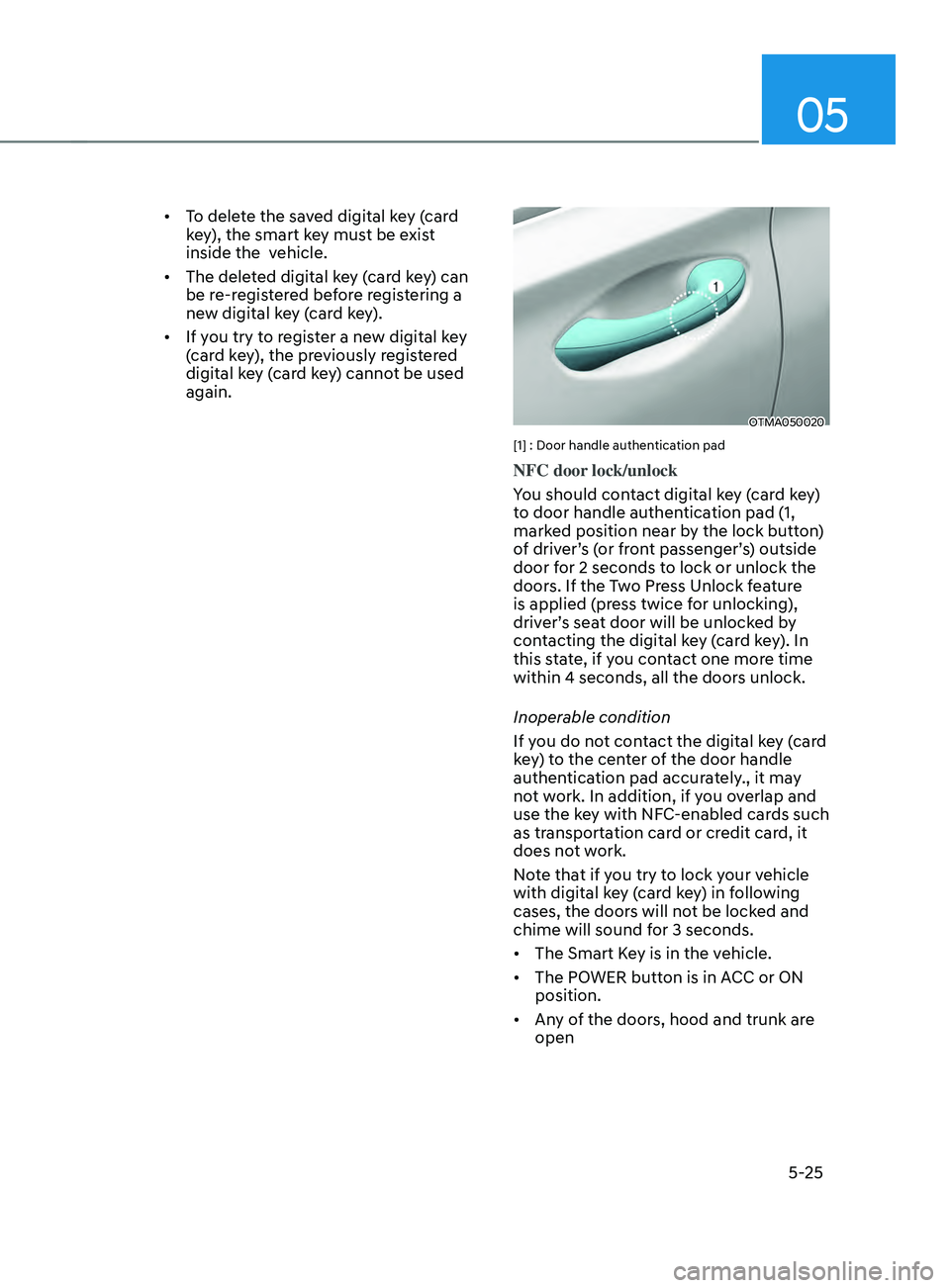
[1] : Door handle authentication pad
NFC door lock/unlock
You should contact digital key (card key)
to door handle authentication pad (1,
marked position near by the lock button)
of driver’s (or front passenger’s) outside
door for 2 seconds to lock or unlock the
doors. If the Two Press Unlock feature
is applied (press twice for unlocking),
driver’s seat door will be unlocked by
contacting the digital key (card key). In
this state, if you contact one more time
within 4 seconds, all the doors unlock.
Inoperable condition
If you do not contact the digital key (card
key) to the center of the door handle
authentication pad accurately., it may
not work. In addition, if you overlap and
use the key with NFC-enabled cards such
as transportation card or credit card, it
does not work.
Note that if you try to lock your vehicle
with digital key (card key) in following
cases, the doors will not be locked and
chime will sound for 3 seconds.
• The Smart Key is in the vehicle.
• The POWER button is in ACC or ON
position.
• Any of the doors, hood and trunk are
open
Page 170 of 636
Convenient features
5-26
If the digital key (card key) does not
work, please detach the key around
4 inches (0.1 m) from the handle
authentication pad and retry to contact.
The card key may be damaged by the
impact. It would not work properly if
the key is damaged. You should buy a
new card and register again. Long-time
exposure to high temperature may cause
the card key to malfunction. Please be
careful not to expose the key to direct
sunlight or high temperature.
After unlock the door or start up the
vehicle with digital key, even though
the driver tries to lock the doors by the
central door lock switch, the door lock
will be once locked and immediately
released at the moment of door closed.Start-up with Card key
After placing your registered card key
onto the interior authentication pad
(wireless charger), step on the brake and
press the Engine Start/Stop button.
WARNING
•
If you do not place the digital key
(card key) onto the center of the
interior authentication pad (wireless
charger) exactly, the card key may
not be recognized. If the engine is
not turned on, adjust and place the
key again.
• If you overlap and use the key
with NFC-enabled cards such as
transportation card or credit card,
the card key may not be recognized.
• If the digital key (card key) does not
work, please detach the key around
4 inches (0.1 m) from the handle
authentication pad and retry to
contact.
• The card key may be damaged due to
impact. It would not work properly if
the key is damaged. You should buy a
new card and register again.
For more information, refer to the
Engine Start/Stop button in chapter 6.
Page 175 of 636
![HYUNDAI SANTA FE 2021 Workshop Manual 05
5-31
Operating door locks from
outside the vehicle
Mechanical key
„„Remote key
OTM048001L
„„Smart key
OTM050083[A] : Unlock, [B] : Lock
First, pull the outside door handle (1)](/img/35/41163/w960_41163-174.png "HYUNDAI SANTA FE 2021 Workshop Manual 05
5-31
Operating door locks from
outside the vehicle
Mechanical key
„„Remote key
OTM048001L
„„Smart key
OTM050083[A] : Unlock, [B] : Lock
First, pull the outside door handle (1)")
05
5-31
Operating door locks from
outside the vehicle
Mechanical key
„„Remote key
OTM048001L
„„Smart key
OTM050083[A] : Unlock, [B] : Lock
First, pull the outside door handle (1)
and push the hook (2) located inside
of outside door handle by using the
mechanical key. And remove the cover
(3).
Turn the key toward the rear of the
vehicle to lock and toward the front of
the vehicle to unlock.
If you lock/unlock the driver’s door with
a key, a driver’s door will lock/unlock.
Once the doors are unlocked, they may
be opened by pulling the door handle.
When closing the door, push the door by
hand. Make sure that doors are closed
securely.
Remote key
OTMA050015MX
To lock the doors, press the Door Lock
button (1) on the remote key.
To unlock the doors, press the Door
Unlock button (2) on the remote key.
Once the doors are unlocked, they may
be opened by pulling the door handle.
When closing the door, push the door by
hand. Make sure that doors are closed
securely.
DOOR LOCKS
Page 176 of 636
Convenient features
5-32
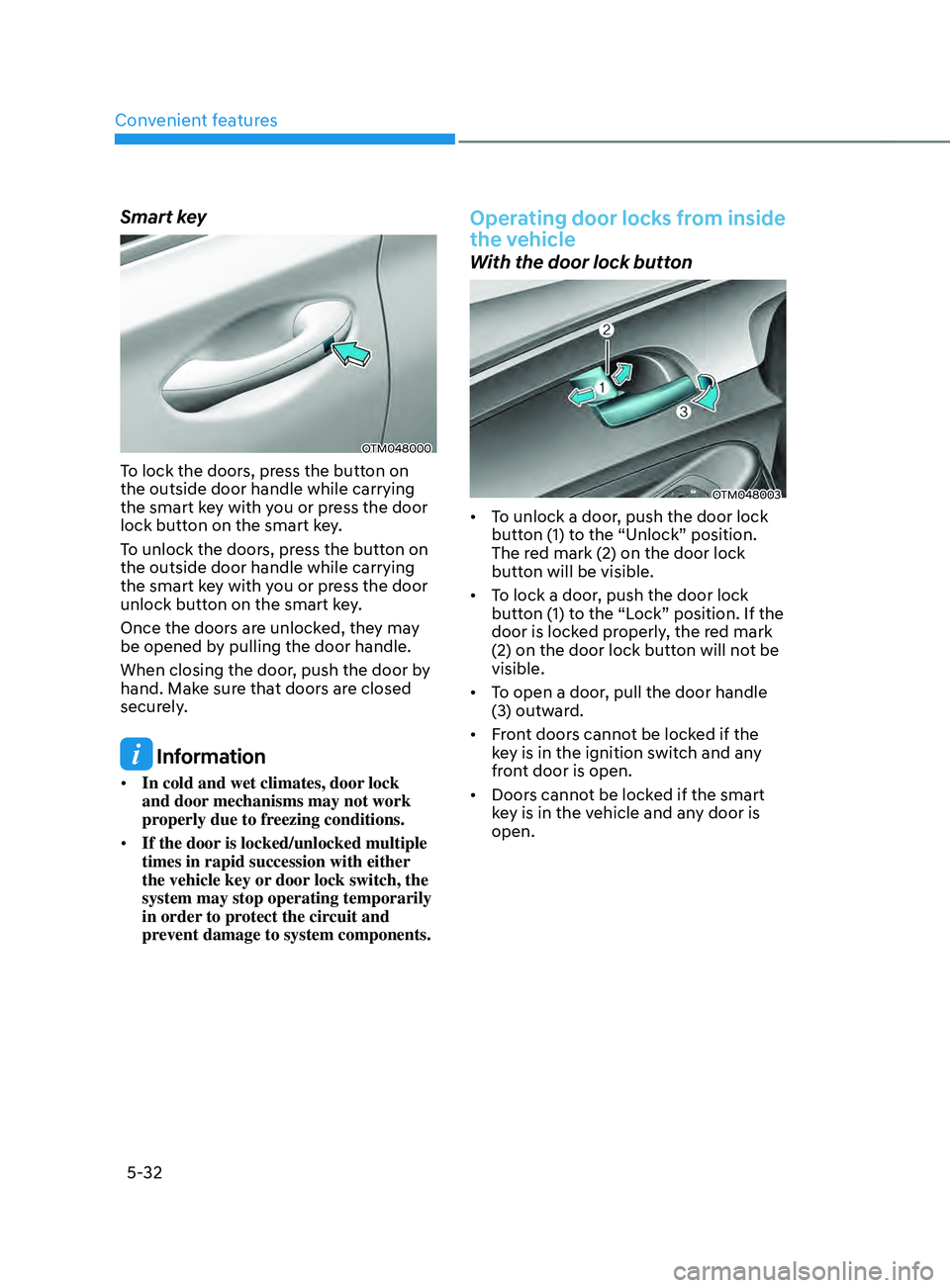
Smart key
OTM048000
To lock the doors, press the button on
the outside door handle while carrying
the smart key with you or press the door
lock button on the smart key.
To unlock the doors, press the button on
the outside door handle while carrying
the smart key with you or press the door
unlock button on the smart key.
Once the doors are unlocked, they may
be opened by pulling the door handle.
When closing the door, push the door by
hand. Make sure that doors are closed
securely.
Information
• In cold and wet climates, door lock
and door mechanisms may not work
properly due to freezing conditions.
• If the door is locked/unlocked multiple
times in rapid succession with either
the vehicle key or door lock switch, the
system may stop operating temporarily
in order to protect the circuit and
prevent damage to system components.
Operating door locks from inside
the vehicle
With the door lock button
OTM048003
• To unlock a door, push the door lock
button (1) to the “Unlock” position.
The red mark (2) on the door lock
button will be visible.
• To lock a door, push the door lock
button (1) to the “Lock” position. If the
door is locked properly, the red mark
(2) on the door lock button will not be
visible.
• To open a door, pull the door handle
(3) outward.
• Front doors cannot be locked if the
key is in the ignition switch and any
front door is open.
• Doors cannot be locked if the smart
key is in the vehicle and any door is
open.
Page 177 of 636
05
5-33
Information
If a power door lock ever fails to function
while you are in the vehicle try one or
more of the following techniques to exit:
Operate the door unlock feature
repeatedly (both electronic and manual)
while simultaneously pulling on the door
handle.
Operate the other door locks and handles.
Lower a front window and use the
mechanical key to unlock the door from
outside.
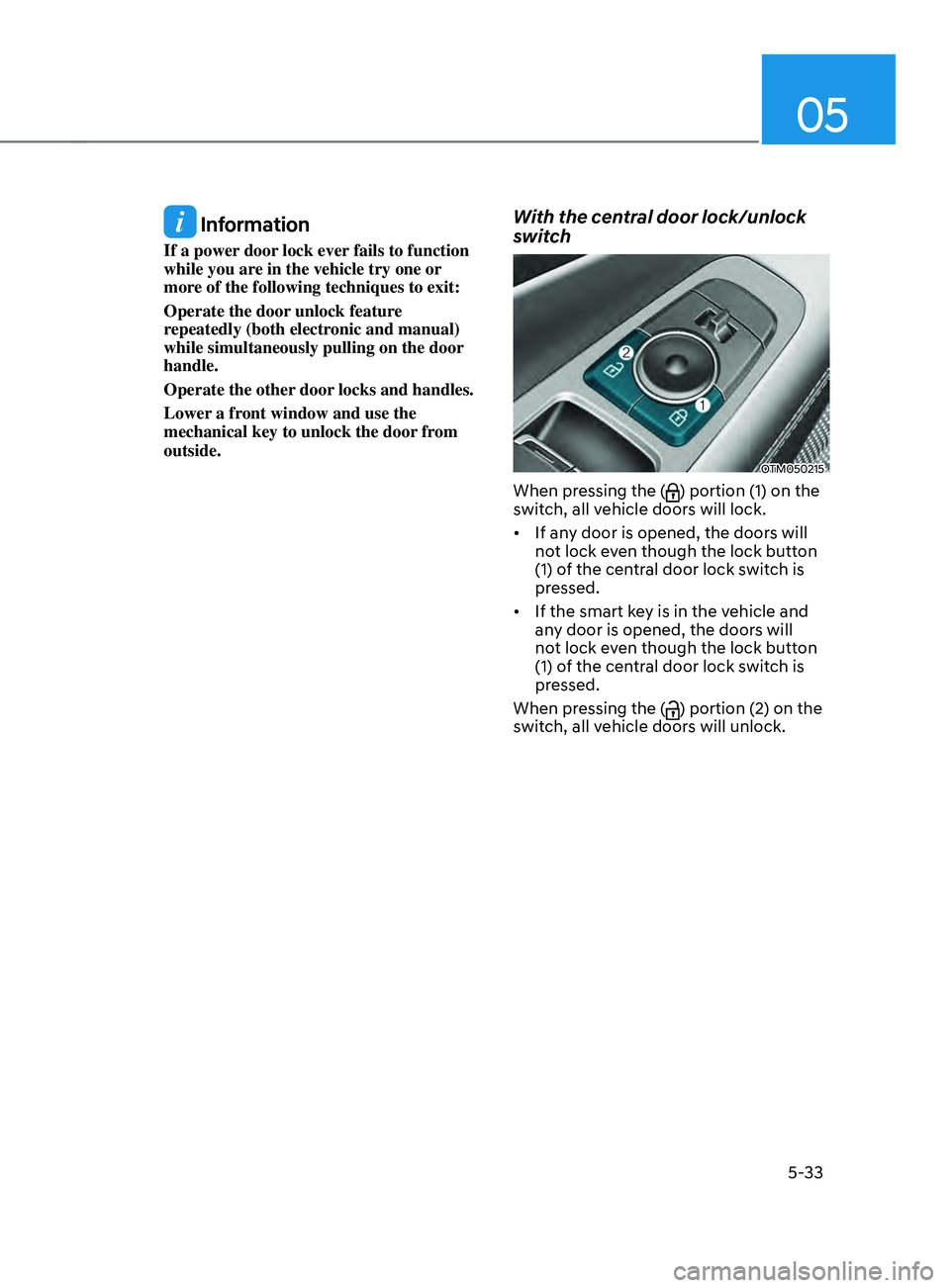
With the central door lock/unlock
switch
OTM050215
When pressing the () portion (1) on the
switch, all vehicle doors will lock.
• If any door is opened, the doors will
not lock even though the lock button
(1) of the central door lock switch is
pressed.
• If the smart key is in the vehicle and
any door is opened, the doors will
not lock even though the lock button
(1) of the central door lock switch is
pressed.
When pressing the (
) portion (2) on the
switch, all vehicle doors will unlock.