display HYUNDAI SANTA FE CALLIGRAPHY 2021 Workshop Manual
[x] Cancel search | Manufacturer: HYUNDAI, Model Year: 2021, Model line: SANTA FE CALLIGRAPHY, Model: HYUNDAI SANTA FE CALLIGRAPHY 2021Pages: 636, PDF Size: 81.2 MB
Page 229 of 636
05
5-85
Headlamp delay function
(if equipped)
If you place the ignition switch to the
ACC position or the OFF position with
the headlamps ON, the headlamps (and/
or position lamps) remain on for about
5 minutes. However, if the driver’s door
is opened and closed, the headlamps
are turned off after 15 seconds. Also,
with the vehicle off if the driver’s door is
opened and closed, the headlamps (and/
or position lamps) are turned off after 15
seconds.
The headlamps (and/or position lamps)
can be turned off by pressing the lock
button on the remote key or smart key
twice or turning the headlamp switch to
the OFF or AUTO position.
You can enable the headlamp delay
function
b
y
selecting ‘Se
tup
→ U
ser
Settings → Ligh
ts
→ H
eadlight
Dela
y.
NOTICE
If the driver exits the vehicle through
another door besides the driver
door, the battery saver function
does not operate and the headlamp
delay function does not turn OFF
automatically.
This may cause the battery to
discharge. To avoid battery discharge,
turn OFF the headlamps manually from
the headlamp switch before exiting the
vehicle.
Traffic change (if equipped)
The low beam light distribution is
asymmetric. If you go abroad to a
country with opposite traffic direction,
this asymmetric part will dazzle
oncoming car driver.
To prevent dazzle, ECE regulation
demand several technical solutions (ex.
automatic change system, adhesive
sheet, down aiming). These headlamps
are designed not to dazzle opposite
drivers.
You can activate or deactivate the Traffic
Change feature from the User Settings
mode
on the L
CD
displa
y.
Go t
o
‘Ligh
ts
→ Tr
avel Mode’.
For more details, refer to “LCD Display”
In chapter 4.
Page 231 of 636
05
5-87
System operation
Display and control
• After selecting ‘High Beam Assist’
in the Settings menu, High Beam
Assist will operate by following the
procedure below.
- Place the headlamp switch in the AUTO position and push
the headlamp lever towards the
instrument cluster. The High Beam
Assist (
) indicator light will
illuminate on the cluster and the
system will be enabled.
- When the system is enabled, high beam will turn on when vehicle
speed is above 25mph (40km/h).
When vehicle speed is below 15mph
(25km/h), high beam will not turn
on.
- The High Beam (
) indicator light
will illuminate on the cluster when
high beam is on.
• When High Beam Assist is operating, if
the headlamp lever or switch is used,
the system operates as follow:
- If the headlamp lever is pulled towards you when the high beam
is off, the high beam will turn on
without High Beam Assist canceled.
When you let go of the headlamp
lever, the lever will move to the
middle and the high beam will turn
off.
- If the headlamp lever is pulled towards you when the high beam is
on by High Beam Assist, low beam
will be on and the system will turn
off.
- If the headlamp switch is placed from AUTO to another position
(headlamp/position/off), High
Beam Assist will turn off and the
corresponding lamp will turn on. •
When High Beam Assist is operating,
high beam switches to low beam if
any of the following conditions occur:
- When the headlamp of an oncoming vehicle is detected.
- When the tail lamp of a vehicle in front is detected.
- When the headlamp or tail lamp of a motorcycle or a bicycle is detected.
- When the surrounding ambient light is bright enough that high beams
are not required.
- When streetlights or other lights are detected.
System malfunction and
limitations
System malfunction
„„Type A „„Type B
OTM050218NOTM050218L
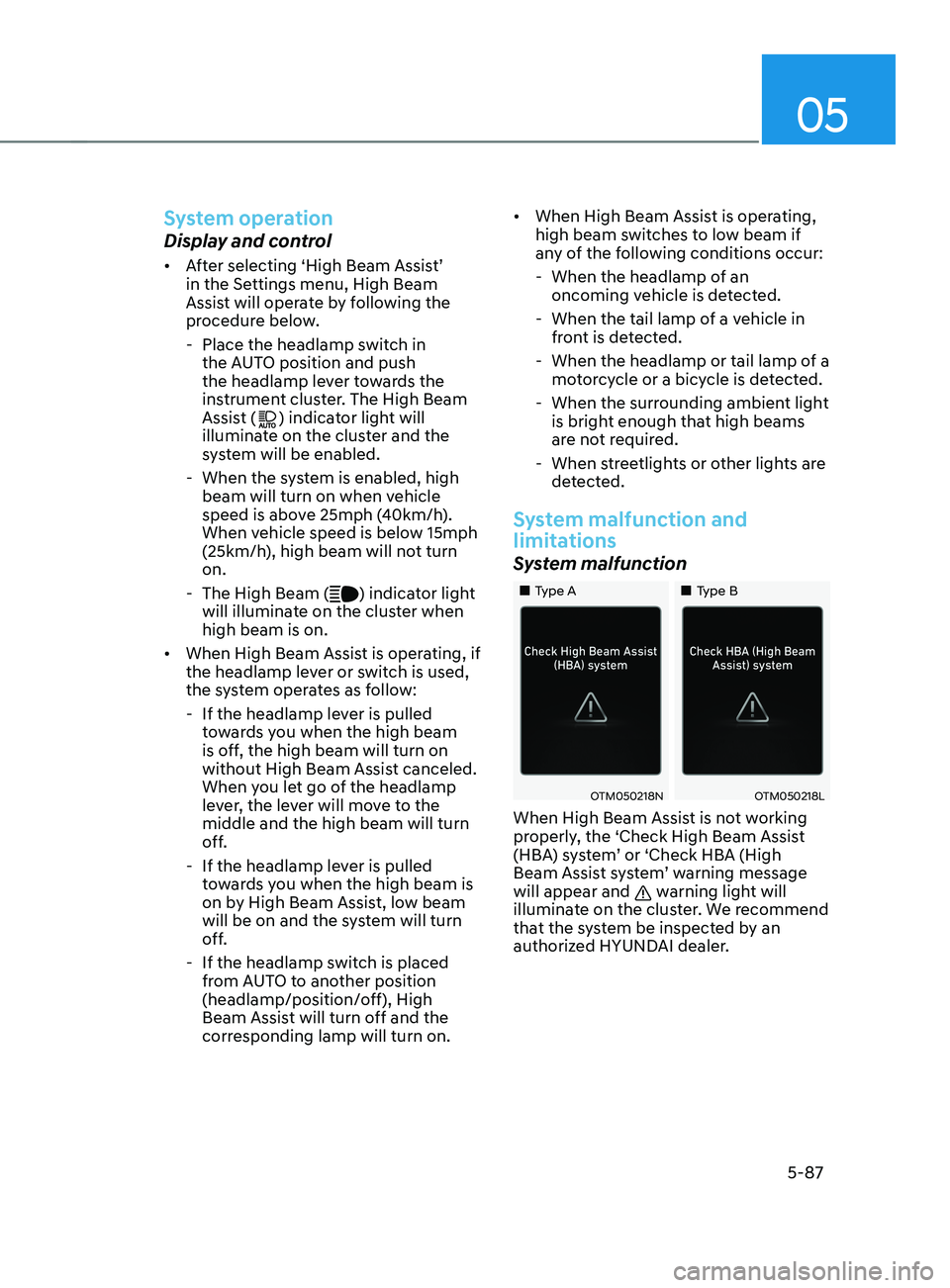
When High Beam Assist is not working
properly, the ‘Check High Beam Assist
(HBA) system’ or ‘Check HBA (High
Beam Assist system’ warning message
will appear and
warning light will
illuminate on the cluster. We recommend
that the system be inspected by an
authorized HYUNDAI dealer.
Page 236 of 636
Convenient features
5-92
Welcome system
OTM050075
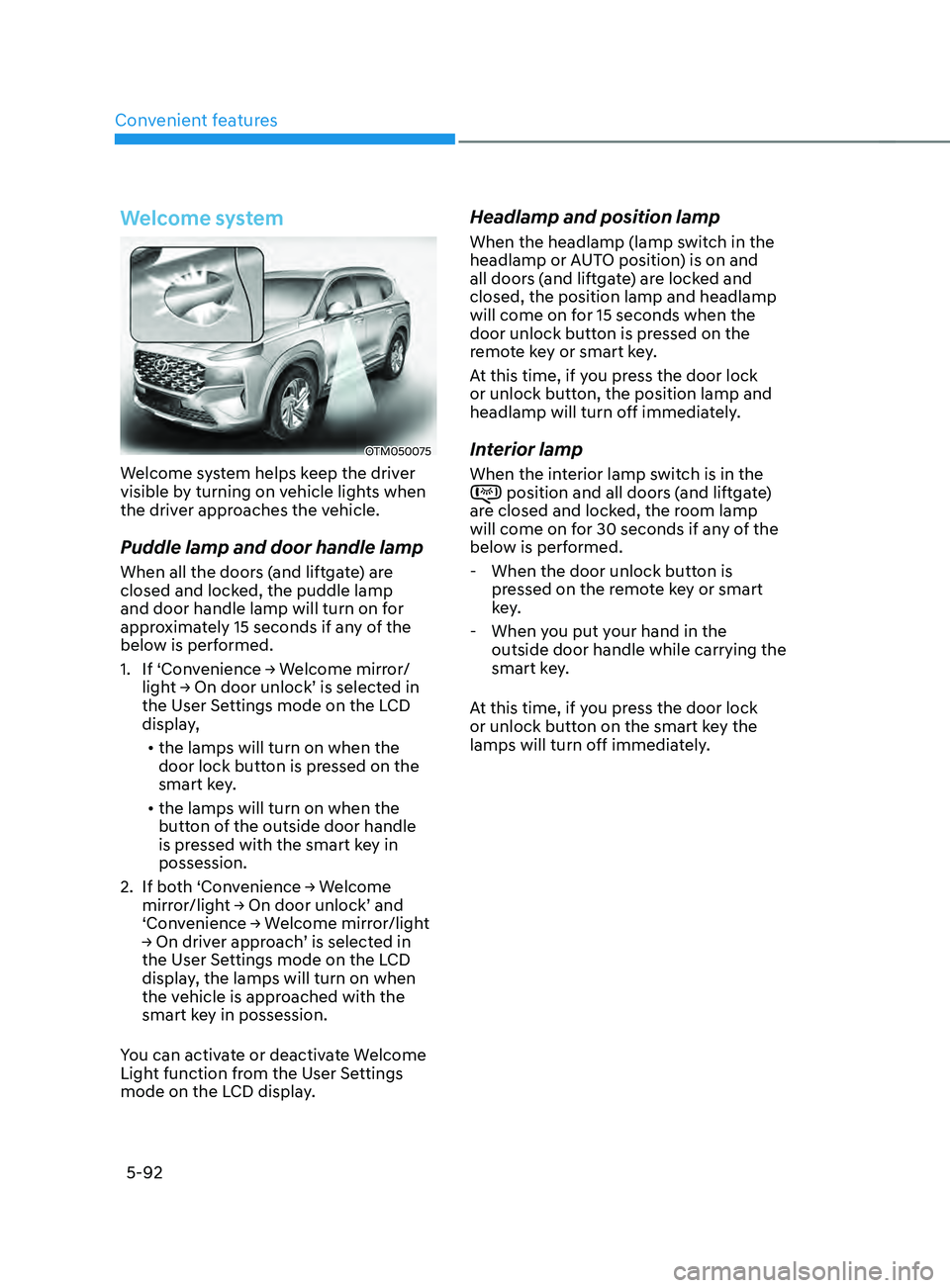
Welcome system helps keep the driver
visible by turning on vehicle lights when
the driver approaches the vehicle.
Puddle lamp and door handle lamp
When all the doors (and liftgate) are
closed and locked, the puddle lamp
and door handle lamp will turn on for
approximately 15 seconds if any of the
below is performed.
1.
If ‘Con
venience
→ W
elcome
mirr
or/
light
→ On door unlock’ is select
ed
in the User Se
ttings mode on the LCD
display,
• the lamps will turn on when the
door lock button is pressed on the
smart key.
• the lamps will turn on when the
button of the outside door handle
is pressed with the smart key in
possession.
2.
If bo
th
‘Con
venience
→ W
elcome
mirror/ligh
t
→ On door unlock’ and ‘Conv
enience
→ W
elcome
mirr
or/light
→ On driv
er
appr
oach’
is select
ed
in the User Se
ttings mode on the LCD
display, the lamps will turn on when
the vehicle is approached with the
smart key in possession.
You can activate or deactivate Welcome
Light function from the User Settings
mode on the LCD display.
Headlamp and position lamp
When the headlamp (lamp switch in the
headlamp or AUTO position) is on and
all doors (and liftgate) are locked and
closed, the position lamp and headlamp
will come on for 15 seconds when the
door unlock button is pressed on the
remote key or smart key.
At this time, if you press the door lock
or unlock button, the position lamp and
headlamp will turn off immediately.
Interior lamp
When the interior lamp switch is in the position and all doors (and liftgate)
are closed and locked, the room lamp
will come on for 30 seconds if any of the
below is performed.
- When the door unlock button is pr
essed on the remote key or smart
key.
- When you put y
our hand in the
outside door handle while carrying the
smart key.
At this time, if you press the door lock
or unlock button on the smart key the
lamps will turn off immediately.
Page 240 of 636
Convenient features
5-96
Rear window wiper and washer
OTLE045165
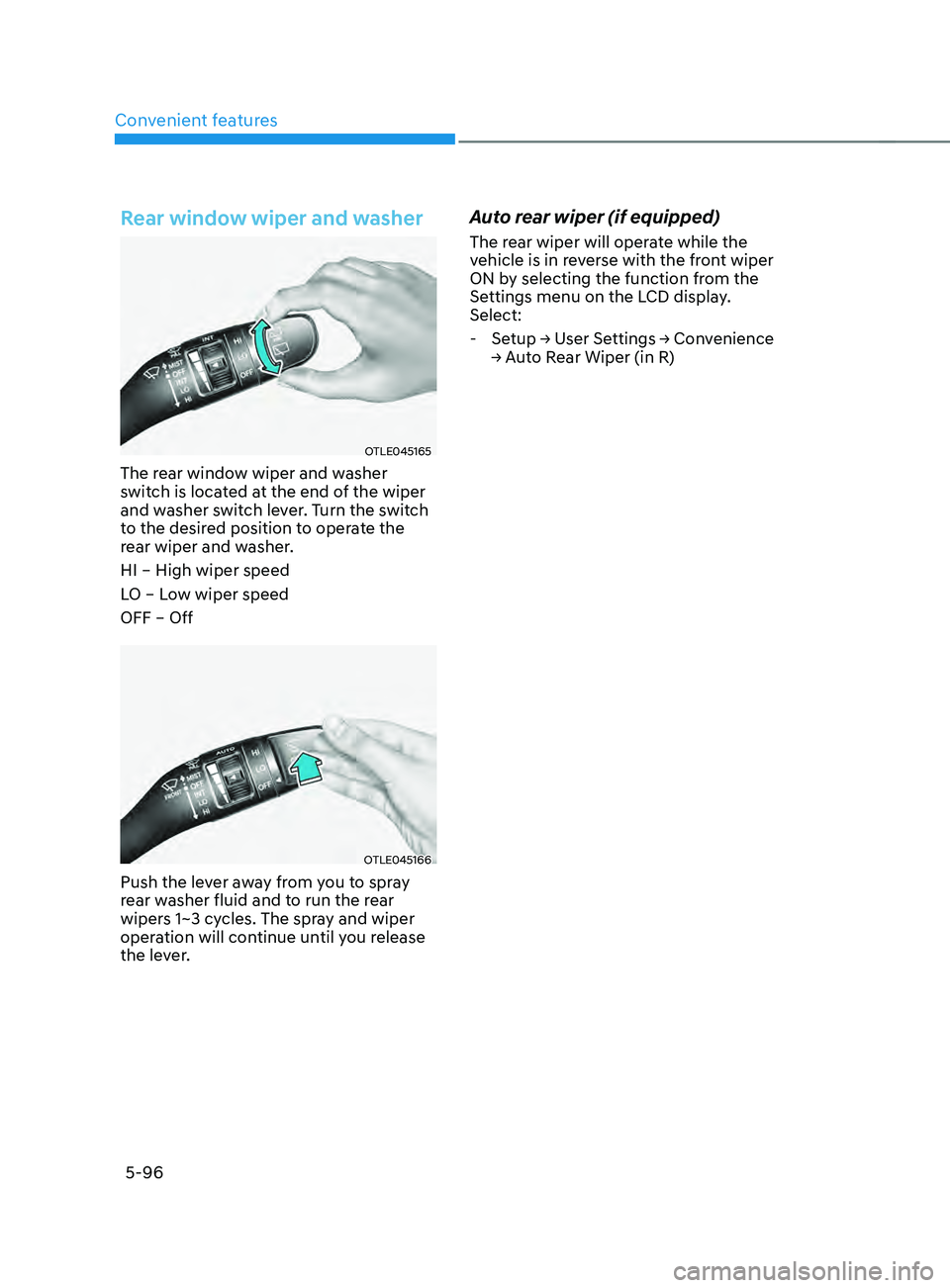
The rear window wiper and washer
switch is located at the end of the wiper
and washer switch lever. Turn the switch
to the desired position to operate the
rear wiper and washer.
HI – High wiper speed
LO – Low wiper speed
OFF – Off
OTLE045166
Push the lever away from you to spray
rear washer fluid and to run the rear
wipers 1~3 cycles. The spray and wiper
operation will continue until you release
the lever.
Auto rear wiper (if equipped)
The rear wiper will operate while the
vehicle is in reverse with the front wiper
ON by selecting the function from the
Settings menu on the LCD display.
Select:
-Setup → U
ser
Se
ttings
→ Con
venience
→ A
uto
R
ear
Wiper (in R)
Page 250 of 636
Convenient features
5-106
Automatic heating and air
conditioning
The Automatic Climate Control System
is controlled by setting the desired
temperature.
1.
Press the A
UTO button. (3)
The modes, fan speeds, air intake and
air-conditioning will be controlled
automatically by the temperature
setting you select.
2.
Turn the t
emperature control knob
(1, 2) to the desired temperature. If
the temperature is set to the lowest
setting (Lo), the air conditioning
system will operate continuously.
After the interior has cooled
sufficiently, adjust the knob to
a higher temperature set point
whenever possible.
To turn the automatic operation off,
select any button of the following:
- Mode selection butt
on
- Fr
ont windshield defroster button
(Press the button one more time
to deselect the front windshield
defroster function. The ‘AUTO’ sign
will illuminate on the information
display once again.)
- Fan speed con
trol button
The selected function will be
controlled manually while other
functions operate automatically.
For your convenience and to improve
the effectiveness of the climate control,
use the AUTO button and set the
temperature to 73°F (23°C).
OTM050052
Information
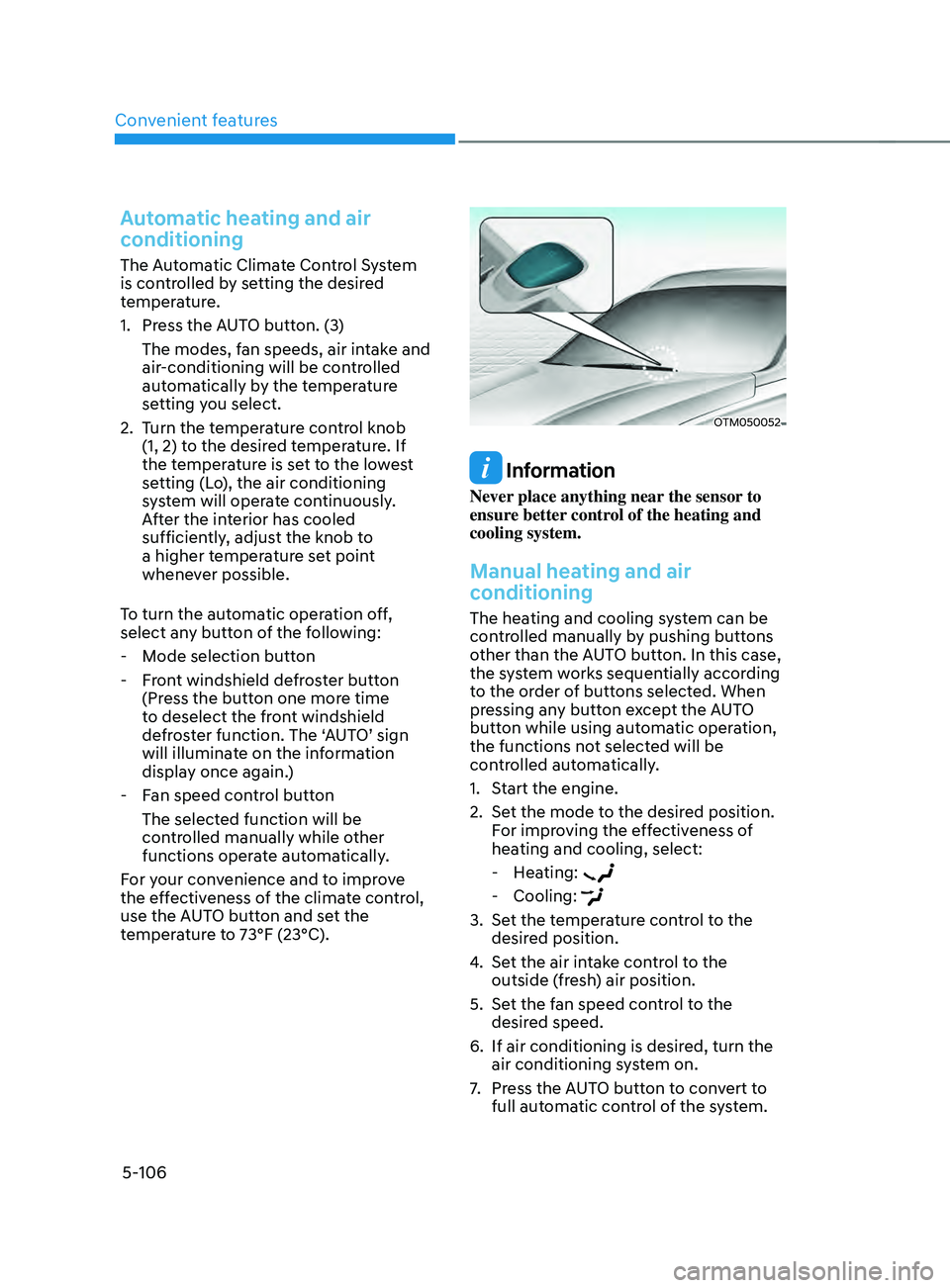
Never place anything near the sensor to
ensure better control of the heating and
cooling system.
Manual heating and air
conditioning
The heating and cooling system can be
controlled manually by pushing buttons
other than the AUTO button. In this case,
the system works sequentially according
to the order of buttons selected. When
pressing any button except the AUTO
button while using automatic operation,
the functions not selected will be
controlled automatically.
1.
Start the engine.
2.
Set the mode t
o the desired position.
For improving the effectiveness of
heating and cooling, select:
- Hea
ting:
- Cooling:
3. Set the temperature control to the
desired position.
4.
Set the air in
take control to the
outside (fresh) air position.
5.
Set the f
an speed control to the
desired speed.
6.
If air conditioning is desired, turn the
air conditioning s
ystem on.
7.
Press the A
UTO button to convert to
full automatic control of the system.
Page 253 of 636
05
5-109
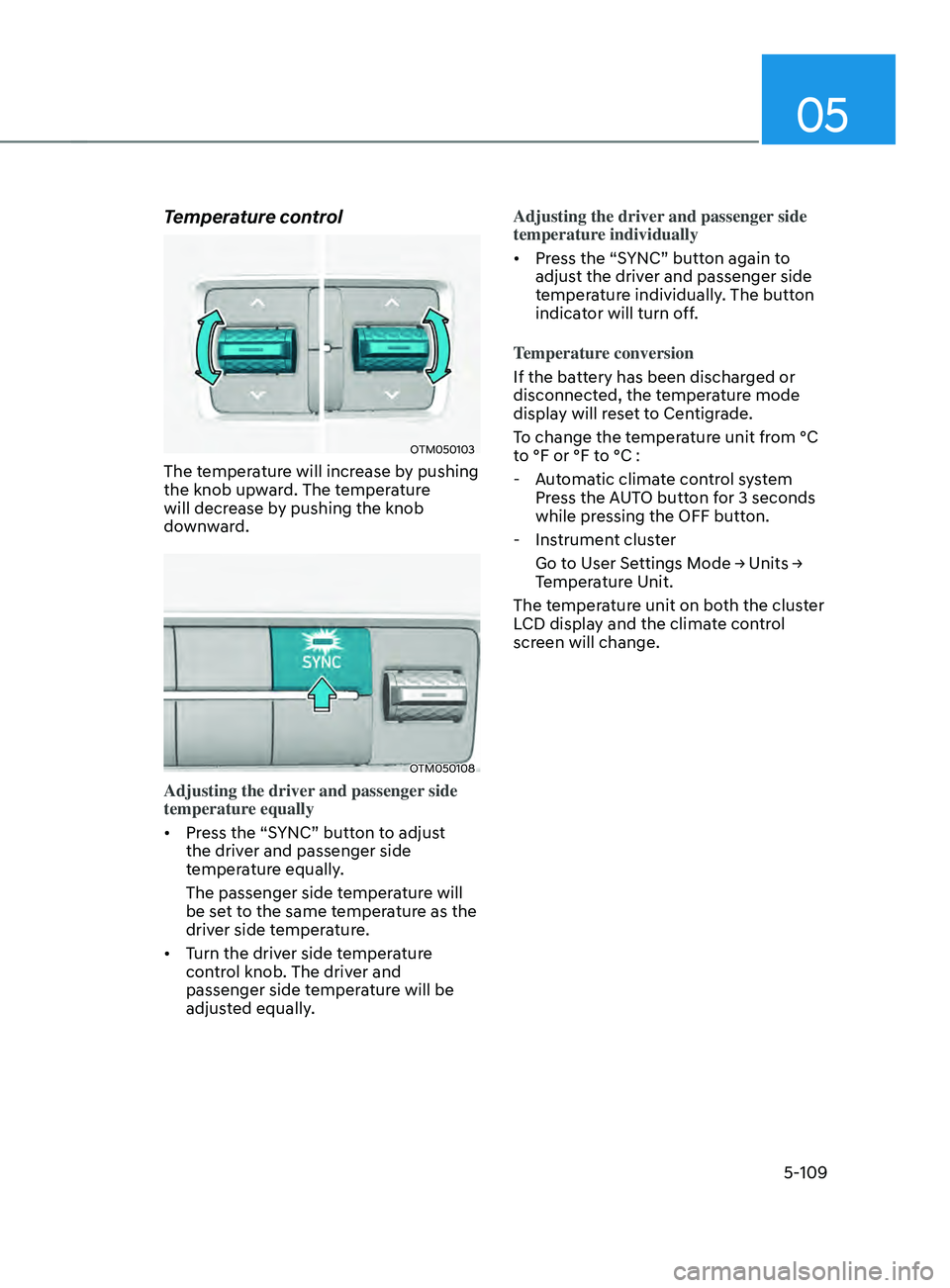
Temperature control
OTM050103
The temperature will increase by pushing
the knob upward. The temperature
will decrease by pushing the knob
downward.
OTM050108
Adjusting the driver and passenger side
temperature equally
• Press the “SYNC” button to adjust
the driver and passenger side
temperature equally.
The passenger side temperature will
be set to the same temperature as the
driver side temperature.
• Turn the driver side temperature
control knob. The driver and
passenger side temperature will be
adjusted equally. Adjusting the driver and passenger side
temperature individually
•
Press the “SYNC” button again to
adjust the driver and passenger side
temperature individually. The button
indicator will turn off.
Temperature conversion
If the battery has been discharged or
disconnected, the temperature mode
display will reset to Centigrade.
To change the temperature unit from °C
to °F or °F to °C :
- Aut
omatic climate control system
Press the AUTO button for 3 seconds
while pressing the OFF button.
- Instrumen
t cluster
Go
t
o
U
ser
Se
ttings
M
ode
→ Units → Temper
ature Unit.
The temperature unit on both the cluster
LCD display and the climate control
screen will change.
Page 261 of 636
05
5-117
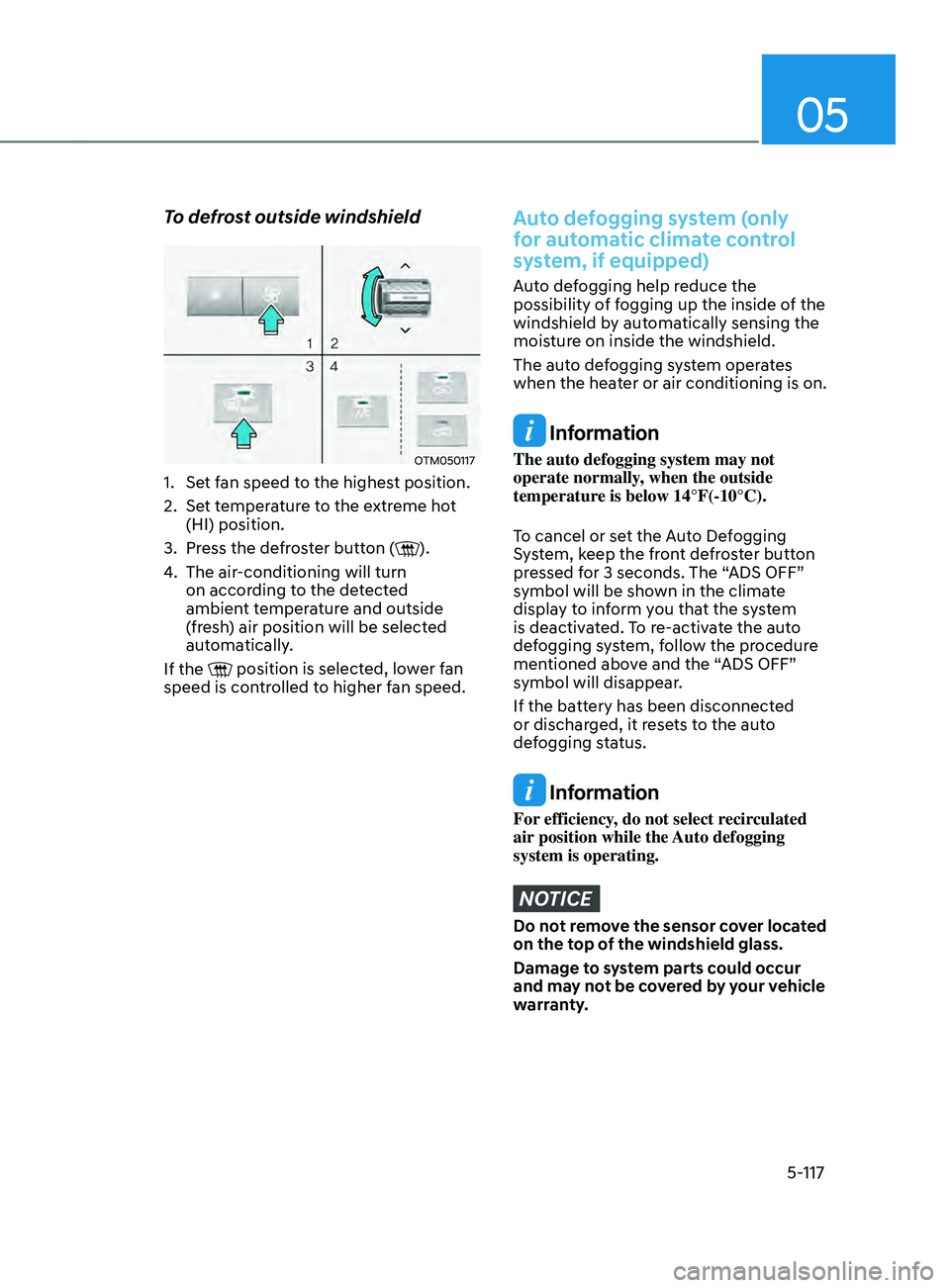
To defrost outside windshield
OTM050117
1. Set fan speed to the highest position.
2.
Set t
emperature to the extreme hot
(HI) position.
3.
Press the de
froster button (
).
4.
The air-conditioning will turn
on accor
ding to the detected
ambient temperature and outside
(fresh) air position will be selected
automatically.
If the
position is selected, lower fan
speed is controlled to higher fan speed.
Auto defogging system (only
for automatic climate control
system, if equipped)
Auto defogging help reduce the
possibility of fogging up the inside of the
windshield by automatically sensing the
moisture on inside the windshield.
The auto defogging system operates
when the heater or air conditioning is on.
Information
The auto defogging system may not
operate normally, when the outside
temperature is below 14°F(-10°C).
To cancel or set the Auto Defogging
System, keep the front defroster button
pressed for 3 seconds. The “ADS OFF”
symbol will be shown in the climate
display to inform you that the system
is deactivated. To re-activate the auto
defogging system, follow the procedure
mentioned above and the “ADS OFF”
symbol will disappear.
If the battery has been disconnected
or discharged, it resets to the auto
defogging status.
Information
For efficiency, do not select recirculated
air position while the Auto defogging
system is operating.
NOTICE
Do not remove the sensor cover located
on the top of the windshield glass.
Damage to system parts could occur
and may not be covered by your vehicle
warranty.
Page 264 of 636
Convenient features
5-120
Turning the Auto Defogging System
ON or OFF
Climate control system
Press the front windshield defroster
button for 3 seconds when the Engine
Start/Stop button is in the ON position.
When the Auto Defogging System is
turned off, the ADS OFF symbol will blink
3 times and ADS OFF will be displayed on
the climate control information screen.
When the Auto Defogging System is
turned on, the ADS OFF symbol will blink
6 times without a signal.
Infotainment system
Auto Defogging System can be turned
on
and o
ff
b
y
selecting ‘Se
tup
→ Vehicle Se
ttings
→ Clima
te
→ De
fog/
Defrost
Op
tions
→ A
uto
De
fog’
fr
om
the inf
otainment system screen.
For detailed information, refer to the
separately supplied infotainment
system manual.
Information
• When the air conditioning is turned
on by Auto Defogging System, if you
try to turn off the air conditioning, the
indicator will blink 3 times and the air
conditioning will not be turned off.
• To maintain the effectiveness and
efficiency of the Auto Defogging
System, do not select Recirculation
mode while the system is operating.
• When Auto Defogging System is
operating, fan speed adjustment,
temperature adjustment, and air intake
control selection are all disabled.
NOTICE
Do not remove the sensor cover located
on the upper end of the windshield
glass.
Damage to system parts could occur
and may not be covered by your vehicle
warranty.
Auto dehumidify (if equipped)
To increase cabin air quality and reduce
windshield misting, recirculation mode
switches off automatically after about 5
to 30 minutes, depending on the outside
temperature, and the air intake will
change to fresh mode.
Turning Auto Dehumidify ON or OFF
Climate control system
To turn the Auto Dehumidify feature
on or off, select Face level (
) mode
and press the air intake control ()
button at least five times within three
seconds. When Auto Dehumidify is
turned on, the air intake control button
indicator will blink 6 times. When turned
off, the indicator will blink 3 times.
Infotainment system
Auto Dehumidify can be turned on and
off
b
y
selecting ‘Se
tup
→ V
ehicle
Se
ttings
→ Clima
te
→ A
utomatic
V
entilation
→ Aut
o Dehumidify’ from the infotainment
system screen.
For detailed information, refer to the
separately supplied infotainment
system manual.
Page 274 of 636
Convenient features
5-130
The indicator light will blink orange for 10
seconds if there is a malfunction in the
wireless charging system.
In this case, temporarily stop the
charging process, and re-attempt to
charge your smart phone again.
The system warns you with a message on
the LCD display if the smart phone is still
on the wireless charging unit after the
vehicle is turned OFF and the front door
is opened.
For some manufacturer’s smart phones,
the system may not warn you even
though the smart phone is left on the
wireless charging unit. This is due to the
particular characteristic of the smart
phone and not a malfunction of the
wireless charging.
Information
For some manufacturers’ cellular phones,
the system may not warn you even though
the cellular phone is left on the wireless
charging unit. This is due to the particular
characteristic of the cellular phone and
not a malfunction of the wireless charging.
NOTICE
• The wireless smart phone charging
system may not support certain
smart phones, which are not verified
for the Qi specification (
).
• When placing your smart phone on
the charging pad, position the phone
in the middle of the mat for optimal
charging performance. If your smart
phone is off to the side, the charging
rate may be less and in some cases
the smart phone may experience
higher heat conduction.
• In some cases, the wireless charging
may stop temporarily when the
smart key is used, either when
starting the vehicle or locking/
unlocking the doors, etc.
• When charging certain smart
phones, the charging indicator may
not change to blue when the smart
phone is fully charged.
• The wireless charging process may
temporarily stop, when temperature
abnormally increases inside the
wireless smart phone charging
system. The wireless charging
process restarts, when temperature
falls to a certain level.
• The wireless charging process may
temporarily stop when there is
any metallic item, such as a coin,
between the wireless smart phone
charging system and smart phone.
Page 287 of 636
05
5-143
USB
Supported audio formats
• Audio file specification
- WA
Veform audio format
- MPEG1/2/2.5 A
udio Layer3
- Window
s Media Audio Ver 7.X/8.X
• Bit rates
- MPEG1 (La
yer3):
32/40/48/56/64/80/96/112/128/160
/192/224/256/320 kbps
- MPEG2 (La
yer3):
8/16/24/32/40/48/56/64/80/96/112
/128/144/160 kbps
- MPEG2.5 (La
yer3):
8/16/24/32/40/48/56/64/80/96/112
/128/144/160 kbps
- WMA (High Range): 48/64/80/96/128/160/192 kbps
• Bits P
er Sample
- WA
V (PCM(Stereo)): 24 bit
- WA
V (IMA ADPCM): 4 bit
- WA
V (MS ADPCM): 4 bit
• Sampling frequency
- MPEG1: 44
100/48000/32000 Hz
- MPEG2: 22050/2
4000/16000 Hz
- MPEG2.5: 11025/12000/8000 Hz
- WMA: 32000/44100/48000 Hz
- WA
V: 44100/48000 Hz
• Maximum length of folder/file names
(Based on Unicode): 40 English or
Korean characters
• Supported characters for folder/
file names (Unicode support): 2,604
Korean characters, 94 alphanumeric
characters, 4,888 Chinese characters
in common use, 986 special
characters
• Maximum number of folders: 1,000
• Maximum number of files: 5,000
NOTICE
• Files that are not in a supported
format may not be recognised or
played, or information about them,
such as the file name, may not be
displayed properly.
• Only files with .mp3/.wma/.wav
extensions can be recognised by the
system. If the file is not in supported
format, change the file format by
using the latest encoding software.
• The device will not support files
locked by DRM (Digital Rights
Management).
• For MP3/WMA compression files and
WAV file, differences in sound quality
will occur depending on the bitrate.
(Music files with a higher bitrate
have a better sound quality.)
• Japanese or Simplified Chinese
characters in folder or file names
may not be displayed properly.
INFOTAINMENT SYS TEM SPE CIFICATIONS