lock Hyundai Sonata
[x] Cancel search | Manufacturer: HYUNDAI, Model Year: , Model line: , Model:Pages: 363, PDF Size: 30.3 MB
Page 172 of 363
Features of your vehicle
100
4
These compartments can be used to
store small items required by the driver
or passengers.
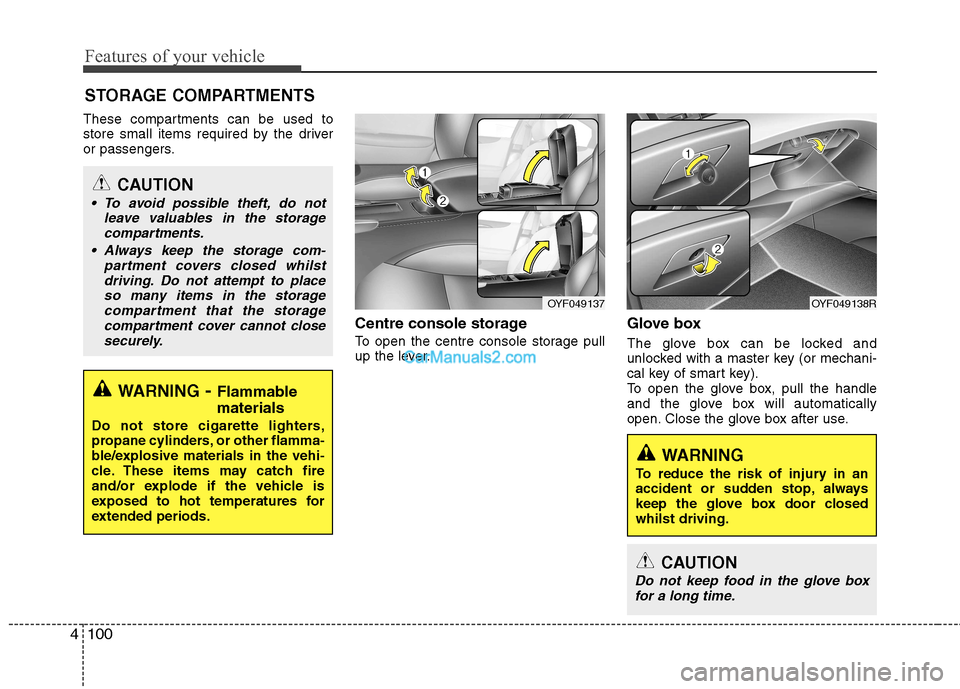
Centre console storage
To open the centre console storage pull
up the lever.Glove box
The glove box can be locked and
unlocked with a master key (or mechani-
cal key of smart key).
To open the glove box, pull the handle
and the glove box will automatically
open. Close the glove box after use.
STORAGE COMPARTMENTS
WARNING
- Flammable
materials
Do not store cigarette lighters,
propane cylinders, or other flamma-
ble/explosive materials in the vehi-
cle. These items may catch fire
and/or explode if the vehicle is
exposed to hot temperatures for
extended periods.
CAUTION
To avoid possible theft, do not leave valuables in the storagecompartments.
Always keep the storage com- partment covers closed whilstdriving. Do not attempt to placeso many items in the storagecompartment that the storage
compartment cover cannot close securely.
OYF049138ROYF049137
WARNING
To reduce the risk of injury in an
accident or sudden stop, always
keep the glove box door closedwhilst driving.
CAUTION
Do not keep food in the glove box for a long time.
Page 173 of 363
4101
Features of your vehicle
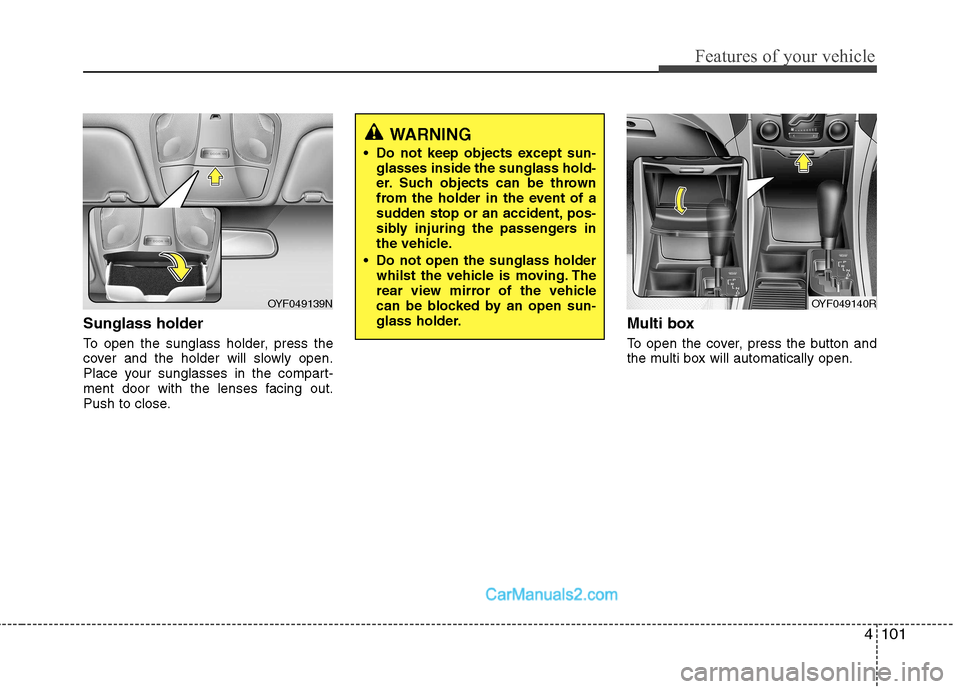
Sunglass holder
To open the sunglass holder, press the
cover and the holder will slowly open.
Place your sunglasses in the compart-
ment door with the lenses facing out.
Push to close.Multi box
To open the cover, press the button and
the multi box will automatically open.
OYF049139N
WARNING
Do not keep objects except sun- glasses inside the sunglass hold-
er. Such objects can be thrown
from the holder in the event of a
sudden stop or an accident, pos-
sibly injuring the passengers in
the vehicle.
Do not open the sunglass holder whilst the vehicle is moving. The
rear view mirror of the vehicle
can be blocked by an open sun-
glass holder.
OYF049140R
Page 177 of 363
4105
Features of your vehicle
Digital clock (if equipped)
Whenever the battery terminals or relat-
ed fuses are disconnected, you must
reset the time.
When the ignition switch is in the ACC or
ON position, the clock buttons operate as
follows:
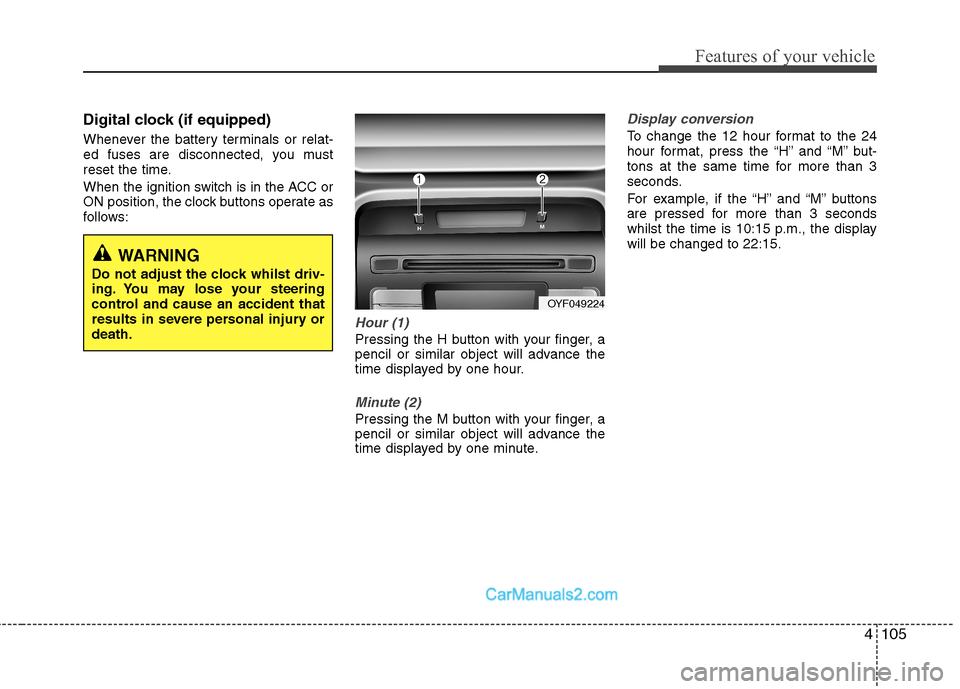
Hour (1)
Pressing the H button with your finger, a
pencil or similar object will advance the
time displayed by one hour.
Minute (2)
Pressing the M button with your finger, a
pencil or similar object will advance the
time displayed by one minute.
Display conversion
To change the 12 hour format to the 24
hour format, press the “H” and “M” but-
tons at the same time for more than 3
seconds.
For example, if the “H” and “M” buttons
are pressed for more than 3 seconds
whilst the time is 10:15 p.m., the displaywill be changed to 22:15.
WARNING
Do not adjust the clock whilst driv-
ing. You may lose your steering
control and cause an accident that
results in severe personal injury ordeath.
OYF049224
Page 182 of 363
Features of your vehicle
110
4
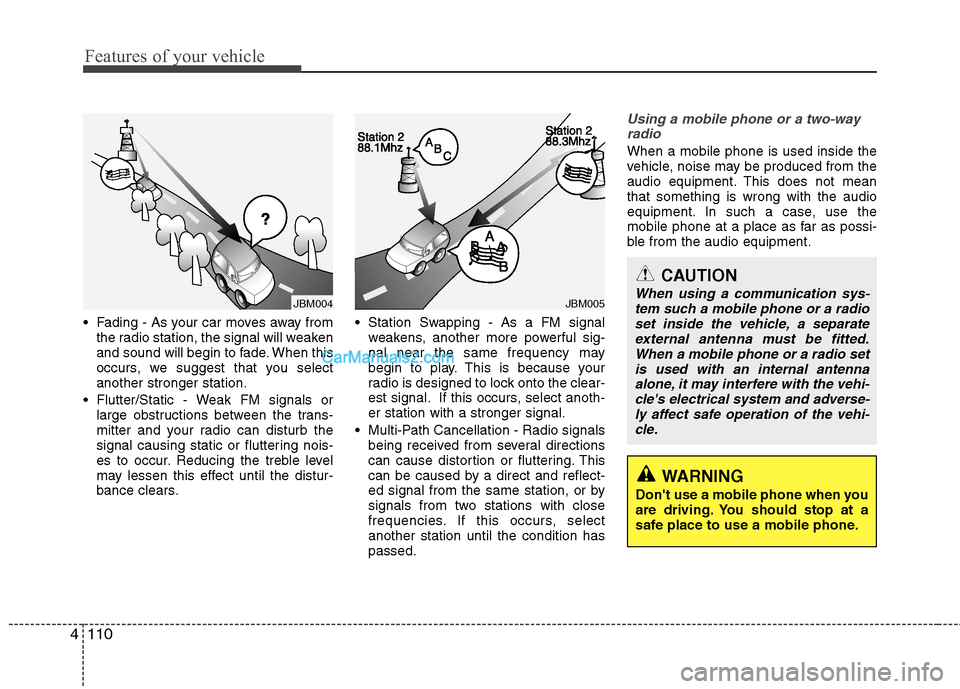
Fading - As your car moves away from
the radio station, the signal will weaken
and sound will begin to fade. When this
occurs, we suggest that you selectanother stronger station.
Flutter/Static - Weak FM signals or large obstructions between the trans-
mitter and your radio can disturb the
signal causing static or fluttering nois-
es to occur. Reducing the treble level
may lessen this effect until the distur-
bance clears. Station Swapping - As a FM signal
weakens, another more powerful sig-
nal near the same frequency may
begin to play. This is because your
radio is designed to lock onto the clear-
est signal. If this occurs, select anoth-er station with a stronger signal.
Multi-Path Cancellation - Radio signals being received from several directions
can cause distortion or fluttering. This
can be caused by a direct and reflect-
ed signal from the same station, or by
signals from two stations with close
frequencies. If this occurs, selectanother station until the condition haspassed.
Using a mobile phone or a two-way
radio
When a mobile phone is used inside the
vehicle, noise may be produced from the
audio equipment. This does not meanthat something is wrong with the audio
equipment. In such a case, use the
mobile phone at a place as far as possi-
ble from the audio equipment.
JBM005
CAUTION
When using a communication sys- tem such a mobile phone or a radioset inside the vehicle, a separate
external antenna must be fitted.When a mobile phone or a radio set is used with an internal antennaalone, it may interfere with the vehi- cle's electrical system and adverse-
ly affect safe operation of the vehi- cle.
WARNING
Don't use a mobile phone when you
are driving. You should stop at a
safe place to use a mobile phone.
JBM004
Page 185 of 363
![Hyundai Sonata 4113
Features of your vehicle
1. AM Selection Button
Pressing the [AM] button selects the AM
band. AM Mode is displayed on the LCD.
2. FM Selection Button
Turns to FM mode and toggles FM1and
FM2](/img/35/16811/w960_16811-184.png "Hyundai Sonata 4113
Features of your vehicle
1. AM Selection Button
Pressing the [AM] button selects the AM
band. AM Mode is displayed on the LCD.
2. FM Selection Button
Turns to FM mode and toggles FM1and
FM2")
4113
Features of your vehicle
1. AM Selection Button
Pressing the [AM] button selects the AM
band. AM Mode is displayed on the LCD.
2. FM Selection Button
Turns to FM mode and toggles FM1and
FM2 when the button is pressed each
time.
3. Automatic Channel SelectionButton
When the [SEEK ] button is pressed, it increases the band fre- quency to automatically select chan-
nel. Stops at the previous frequency if
no channel is found.
When the [TRACK ] button is press- ed, it reduces the band frequency to
automatically select channel. Stops at
the previous frequency if no channel is
found. 4. Power ON/OFF Button &
Volume Control Button
Turns on/off the set when the IGNITION
SWITCH is on ACC or ON. If the button
is turned to the right, it increases the vol-
ume and left,decreases the volume.
Adjusts the volume of the car audio system. Rotate clockwise to increase
the volume or counterclockwise to
decrease.
5. Preset Button
Push [1]~[6] buttons less than 0.8 sec-
ond to play the channel saved in each
button. Push Preset button for 0.8 sec-
ond or longer to save current channel to
the respective button with a beep.
6. AST(AUTO STORE Button)
When the button is pressed, it automati-
cally selects and saves channels with
high reception rate to PRESET buttons
[1]~[6] and plays the channel saved in
PRESET1. If no channel is saved after
AST, it will play the previous channel. 7. SETUP Button ■
PA710YFG
Press this button to turn to the SCROLL
option and the other adjustment mode.
If no action is taken for 5 seconds after
pressing the button, it will return to the
play mode. (After entering SETUP mode,
move between items using the left, rightand PUSH functions of the [TUNE]
knob.) The setup changes in the order of
TEXT SCROLL ➟ AV C
■ PA760YFG
The setup Change in the order of TONE➟ POSITION ➟ AVC ➟ CLOCK ➟
SCROLL ➟ RETURN
This function is used to display charac-
ters longer than the LCD text display and
can be turned ON/OFF through the [
FOLDER ] button.
This function automatically adjusts the
volume level according to the speed of
the vehicle and can be turned ON/OFF
through the [ FOLDER ] button.
Page 186 of 363
![Hyundai Sonata Features of your vehicle
114
4
Pressing the [ENTER] button to adjust
the sound the following order : BASS,
MIDDLE, TREBLE. Adjust the BASS and
press the [ FOLDER ] button to set. Use the same metho](/img/35/16811/w960_16811-185.png "Hyundai Sonata Features of your vehicle
114
4
Pressing the [ENTER] button to adjust
the sound the following order : BASS,
MIDDLE, TREBLE. Adjust the BASS and
press the [ FOLDER ] button to set. Use the same metho")
Features of your vehicle
114
4
Pressing the [ENTER] button to adjust
the sound the following order : BASS,
MIDDLE, TREBLE. Adjust the BASS and
press the [ FOLDER ] button to set. Use the same method to adjust MIDDLE,
TREBLE and press the [ENTER] button
to complete and exit from TONE adjust-
ment mode.
Pressing the [ENTER] button to adjust
the POSITION the following order :
FADER, BALANCE. Adjust the FADER
and press the [ FOLDER ] button toset. Use the same method to adjust the BAL-
ANCE and press the [ENTER] button to
complete and exit from POSITION
adjustment mode.
Pressing the [ FOLDER ] button to
adjust the clock in the following order :
CLOCK SET, TIME FORMAT,
RETURN. Adjust the CLOCK SET and
press the [ENTER] button to set.
Use the same method to adjust TIME
FORMAT. Adjust the RETURN and press
the [ENTER] button to complete and exit
from clock adjustment mode.
8. Manual Channel Selector &
Sound Quality Control Knob
Turn this control whilst listening to a radio
channel to manually adjust frequency.
Turn clockwise to increase frequency
and counterclockwise to reduce frequen-
cy.
Pressing the button changes the BASS,
MIDDLE, TREBLE, FADER and BAL-
ANCE TUNE mode. The mode selected
is shown on the display. After selecting
each mode, rotate the Audio control knob
clockwise or counterclockwise. BASS Control
To increase the BASS, rotate the knob
clockwise, whilst to decrease the BASS,
rotate the knob counterclockwise. MIDDLE Control
To increase the MIDDLE, rotate the knob
clockwise, whilst to decrease the MID-
DLE, rotate the knob counterclockwise. TREBLE Control
To increase the TREBLE, rotate the knob
clockwise, whilst to decrease the TRE-
BLE, rotate the knob counterclockwise.
FADER Control
Turn the control knob clockwise to
emphasize rear speaker sound(front
speaker sound will be attenuated).
When the control knob is turned counter-
clockwise, front speaker sound will be
emphasized(rear speaker sound will be
attenuated). BALANCE Control
Rotate the knob clockwise to emphasize
right speaker sound(left speaker sound
will be attenuated).
When the control knob is turned counter
clockwise, left speaker sound will be
emphasized(right speaker sound will be
attenuated).
Page 190 of 363
Features of your vehicle
118
4
9. INFO Button
Displays the information of the current
CD TRACK(FILE) as below when the
button is pressed each time.
CDDA : DISC TITLE ➟ DISC ARTIST
➟ TRACK TITLE ➟ TRACK ARTIST ➟
TOTAL TRACK...
MP3/WMA : FILE NAME ➟ TITLE ➟
ARTIST ➟ ALBUM ➟ FOLDER ➟
TOTAL FILE... (not displayed if the
information is not available on the
DISC.)
10. Folder Moving Button
Press the [FOLDER ] button to move to child folder of the current fold-
er and displays the first song in the
folder. Press TUNE/ENTER knob(for
PA760YFG, press [ENTER] button) to
move to the folder displayed. It will play
the first song in the folder.
Press the [FOLDER ] button to
move to parent folder of the current
folder and displays the first song in the
folder.
Press TUNE/ENTER knob(for
PA760YFG, press [ENTER] button) to
move the folder displayed. 11. Search/ENTER Button
Turn this button clockwise to display the
songs next to the currently played song.
Turn the button counterclockwise to dis-
play the songs before the currently
played song. Press the button to skip and
play the selected song.
12. Search Button
Press the [TUNE ] button to display
the songs next to the currently playedsong.
Press the [ TUNE] button to display
the songs before to the currently playedsong.
13. ENTER Button
Press the [ENTER] button to play the selected song.
14. CD LOAD Button
Push [LOAD] button to load CDs to avail-
able CDC deck (from 1~6). Push [LOAD]
button for more than 2 seconds to load
into all available decks. The last CD will
play. 10 seconds idle status will disable
loading process. 15. DISC Selection Button
[DISC ] Change Button Changes
disc to the previous disc.
[DISC ] Change Button Changes disc to the next disc.
Page 195 of 363
4123
Features of your vehicle
8. Search/ENTER Button
Turn this button clockwise to display the
songs next to the currently played song.
Turn the button counterclockwise to dis-
play the songs before the currently
played song. Press the button to skip and
play the selected song.
9. ENTER Button
Press the [ENTER] button to play the selected song.
10. Search Button
Press the [TUNE ] button to display
the songs next to the currently played
song. Press the [ TUNE] button to dis-
play the songs before to the currently
played song.
Page 197 of 363
4125
Features of your vehicle
1. iPod Selection Button
If iPod is connected, it switches to iPod
mode from the CD mode to play the song
files stored in iPod. If no CD and auxiliary
device is not connected, it displays "NO
Media" for 3 seconds and returns to the
previous mode.
2. Track Moving Button
Press the [TRACK ] button for lessthan 0.8 second to play from the begin-
ning of the song currently played.
Press the button for less than 0.8 sec-ond and press it again within 1 second
to move and play the previous track.
Press the button for 0.8 second or
longer to play the song in reverse
direction in fast speed.
Press the [SEEK ] button for less than 0.8 second to move to the next
track. Press the button for 0.8 second
or longer to play the song in forward
direction in fast speed. 3. RANDOM Playback Button
Press the button for less than 0.8 second
to activate or deactivate the random play-
back of the songs within the current cat-
egory. Press the button for longer than
0.8 second to randomly play all songs in
the entire album of iPod.
Press the button once again to cancel
the mode.
4. REPEAT Button
Repeats the song currently played.
5. INFO Selection Button
Displays the information of the file cur-
rently played in the order of TITLE
➟
ARTIST ➟ ALBUM ➟ NORMAL DIS-
PLAY ➟ TITLE ➟ ... (Displays no infor-
mation if the file has no song informa-tion.)
6. Category Selection Button
Press [CAT FOLDER / ] button to
move the category and display the first
song in the category. Press [ENTER] but-
ton to move to the category displayed.
It will play the first song in the folder.
(PLAYLISTS ➟ ARTISTS ➟ ALBUMS ➟
GENRES ➟ SONGS ➟ COMPOSERS
PLAYLISTS ➟ ...) 7. Search/ENTER Button
When you turn the button clockwise, it
will display the songs(category) next to
the song currently played(category in the
same level). Also, when you turn the but-
ton counterclockwise, it will display the
songs(category) before the song current-
ly played (category in the same level).
If you want to listen to the song displayed
in the song category, press the button,then it will skip to the selected song and
play.
8. Search Button
Press the [TUNE ] button to display
the songs(category) next to the song
currently played (category in the same
level). Press the [ TUNE] button to dis-
play the songs(category) before to the
song currently played(category in the
same level)
9. ENTER Button
Press the [ENTER] button to play the selected song.
Page 201 of 363
53
Driving your vehicle
Before entering vehicle
• Be sure that all windows, outside mir-ror(s), and outside lights are clean.
Check the condition of the tyres.
Check under the vehicle for any sign of leaks.
Be sure there are no obstacles behind you if you intend to back up. Necessary inspections
Fluid levels, such as engine oil, engine
coolant, brake fluid, and washer fluid
should be checked on a regular basis,
with the exact interval depending on the
fluid. Further details are provided in sec-
tion 7, “Maintenance”.
Before starting
Close and lock all doors.
Position the seat so that all controls are
easily reached.
Adjust the inside and outside rearview mirrors.
Be sure that all lights work.
Check all gauges.
Check the operation of warning lights when the ignition switch is turned to the ON position.
Release the parking brake and make sure the brake warning light goes out.
For safe operation, be sure you are famil-
iar with your vehicle and its equipment.
BEFORE DRIVING
WARNING
All passengers must be properly
belted whenever the vehicle is mov-
ing. Refer to “Seat belts” in section
3 for more information on their
proper use.
WARNING
Always check the surrounding
areas near your vehicle for people,
especially children, before putting a
car into D (Drive) or R (Reverse).
WARNING
Driving whilst distracted can result
in a loss of vehicle control, that
may lead to an accident, severe
personal injury, and death. The dri-
ver’s primary responsibility is in
the safe and legal operation of a
vehicle, and use of any handheld
devices, other equipment, or vehi-
cle systems which take the driver’s
eyes, attention and focus away
from the safe operation of a vehicle
or which are not permissible by law
should never be used during oper-
ation of the vehicle.