change Hyundai Sonata 2012 Owner's Guide
[x] Cancel search | Manufacturer: HYUNDAI, Model Year: 2012, Model line: Sonata, Model: Hyundai Sonata 2012Pages: 411, PDF Size: 8.68 MB
Page 191 of 411
4 109
Features of your vehicle
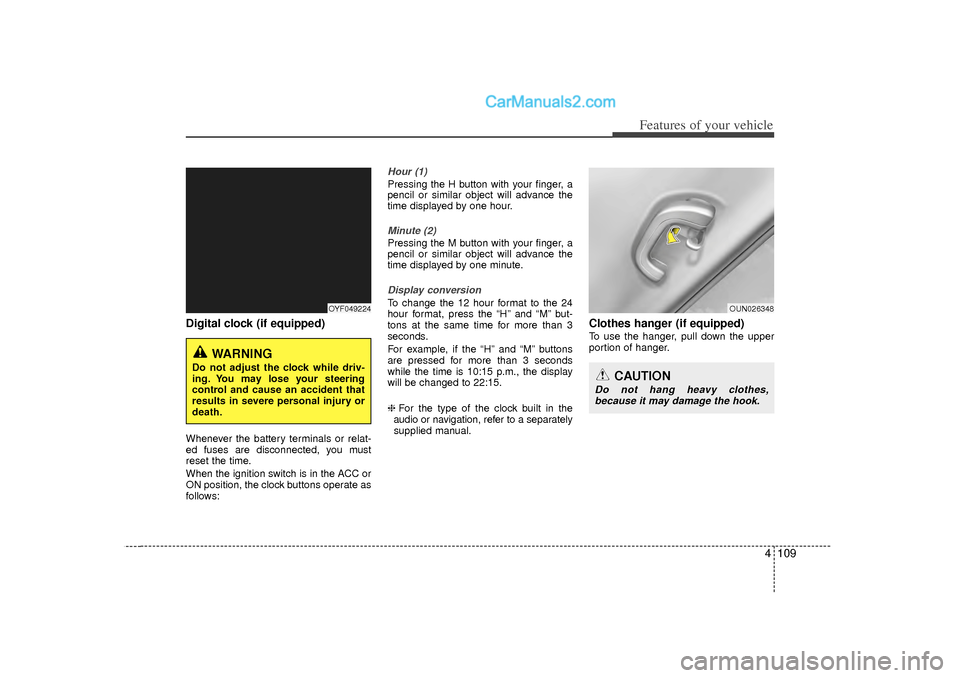
Digital clock (if equipped)Whenever the battery terminals or relat-
ed fuses are disconnected, you must
reset the time.
When the ignition switch is in the ACC or
ON position, the clock buttons operate as
follows:
Hour (1)Pressing the H button with your finger, a
pencil or similar object will advance the
time displayed by one hour.Minute (2)Pressing the M button with your finger, a
pencil or similar object will advance the
time displayed by one minute.Display conversionTo change the 12 hour format to the 24
hour format, press the “H” and “M” but-
tons at the same time for more than 3
seconds.
For example, if the “H” and “M” buttons
are pressed for more than 3 seconds
while the time is 10:15 p.m., the display
will be changed to 22:15.
❈For the type of the clock built in the
audio or navigation, refer to a separately supplied manual.
Clothes hanger (if equipped)To use the hanger, pull down the upper
portion of hanger.
OYF049224
WARNING
Do not adjust the clock while driv-
ing. You may lose your steering
control and cause an accident that
results in severe personal injury or
death.
OUN026348
CAUTION
Do not hang heavy clothes, because it may damage the hook.
Page 195 of 411
4 113
Features of your vehicle
SYSTEM CONTROLLERS AND
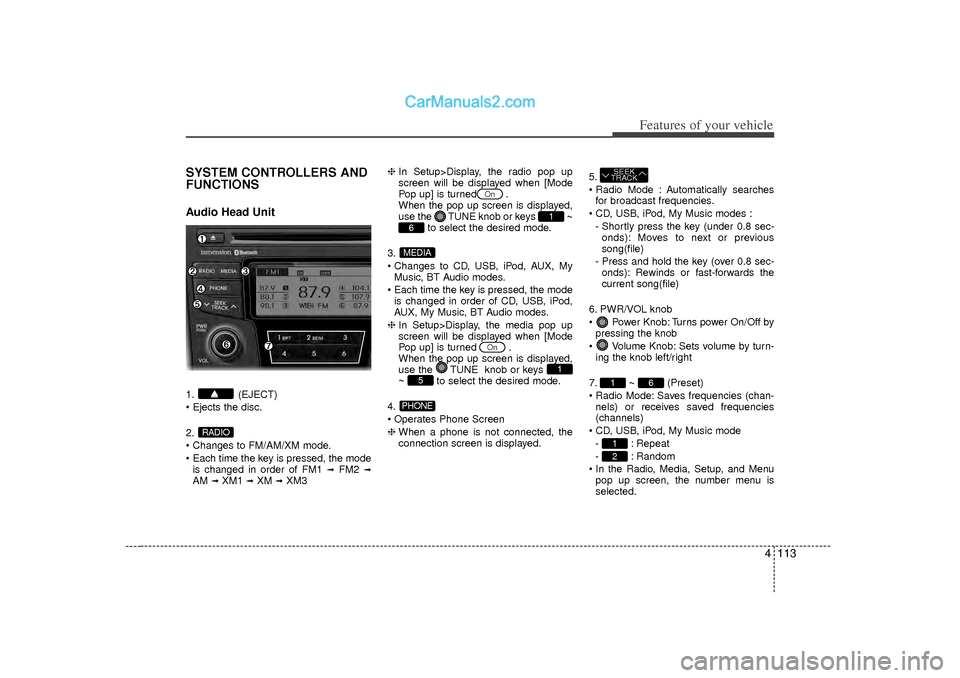
FUNCTIONSAudio Head Unit1. (EJECT)
Ejects the disc.
2.
Changes to FM/AM/XM mode.
Each time the key is pressed, the modeis changed in order of FM1
➟
FM2
➟
AM
➟XM1
➟XM
➟XM3 ❈
In Setup>Display, the radio pop up
screen will be displayed when [Mode
Pop up] is turned .
When the pop up screen is displayed,
use the TUNE knob or keys
~
to select the desired mode.
3.
Changes to CD, USB, iPod, AUX, My Music, BT Audio modes.
Each time the key is pressed, the mode is changed in order of CD, USB, iPod,
AUX, My Music, BT Audio modes.
❈ In Setup>Display, the media pop up
screen will be displayed when [Mode
Pop up] is turned .
When the pop up screen is displayed,
use the TUNE knob or keys
~ to select the desired mode.
4.
Operates Phone Screen
❈ When a phone is not connected, the
connection screen is displayed. 5.
Radio Mode : Automatically searches
for broadcast frequencies.
CD, USB, iPod, My Music modes : - Shortly press the key (under 0.8 sec-onds): Moves to next or previous
song(file)
- Press and hold the key (over 0.8 sec- onds): Rewinds or fast-forwards the
current song(file)
6. PWR/VOL knob
Power Knob: Turns power On/Off by pressing the knob
Volume Knob: Sets volume by turn- ing the knob left/right
7. ~ (Preset)
Radio Mode: Saves frequencies (chan- nels) or receives saved frequencies
(channels)
CD, USB, iPod, My Music mode - : Repeat
- : Random
In the Radio, Media, Setup, and Menu pop up screen, the number menu is
selected.
21
6
1SEEK
TRACK
PHONE
5
1
On
MEDIA6
1
On
RADIO
Page 196 of 411
Features of your vehicle114
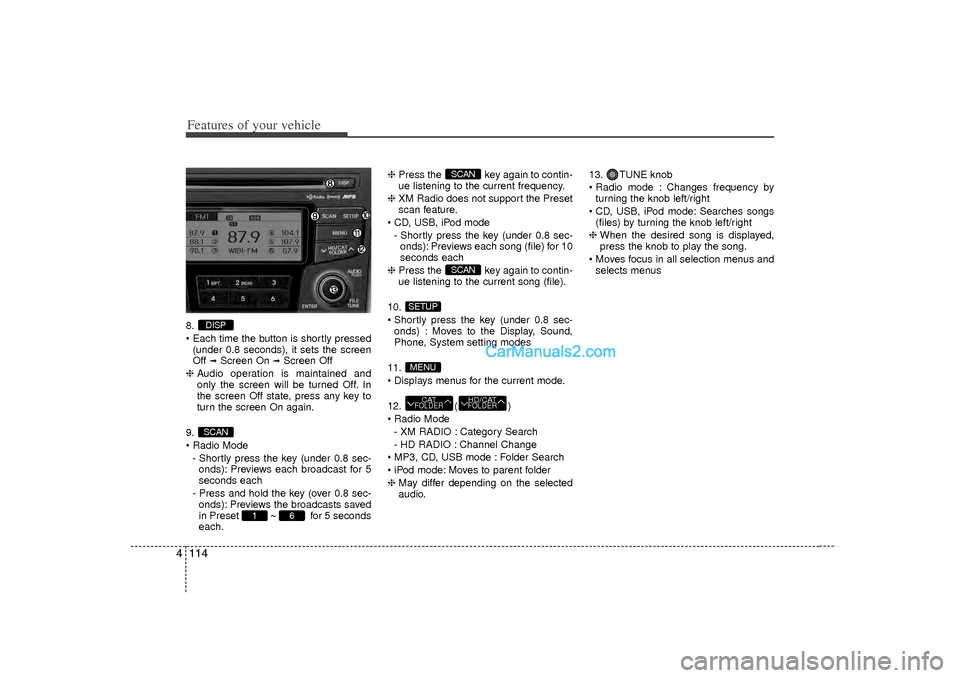
48.
Each time the button is shortly pressed
(under 0.8 seconds), it sets the screen
Off
➟Screen On
➟Screen Off
❈ Audio operation is maintained and
only the screen will be turned Off. In
the screen Off state, press any key to
turn the screen On again.
9.
Radio Mode - Shortly press the key (under 0.8 sec-onds): Previews each broadcast for 5
seconds each
- Press and hold the key (over 0.8 sec- onds): Previews the broadcasts saved
in Preset ~ for 5 seconds
each. ❈
Press the key again to contin-
ue listening to the current frequency.
❈ XM Radio does not support the Preset
scan feature.
CD, USB, iPod mode - Shortly press the key (under 0.8 sec-onds): Previews each song (file) for 10
seconds each
❈ Press the key again to contin-
ue listening to the current song (file).
10.
Shortly press the key (under 0.8 sec- onds) : Moves to the Display, Sound,
Phone, System setting modes
11.
Displays menus for the current mode.
12. ( )
Radio Mode - XM RADIO : Category Search
- HD RADIO : Channel Change
MP3, CD, USB mode : Folder Search
iPod mode: Moves to parent folder
❈ May differ depending on the selected
audio. 13. TUNE knob
Radio mode : Changes frequency by
turning the knob left/right
CD, USB, iPod mode: Searches songs (files) by turning the knob left/right
❈ When the desired song is displayed,
press the knob to play the song.
Moves focus in all selection menus and selects menus
HD/CATFOLDER
CATFOLDERMENUSETUP
SCANSCAN
6
1
SCANDISP
Page 197 of 411
![Hyundai Sonata 2012 Owners Guide 4 115
Features of your vehicle
DISPLAY SETTINGSPress the key Select [Display]
through TUNE knob or key
Select menu through TUNE knobMode Pop up
[Mode Pop up] Changes /
selection mode During On s](/img/35/16810/w960_16810-196.png "Hyundai Sonata 2012 Owners Guide 4 115
Features of your vehicle
DISPLAY SETTINGSPress the key Select [Display]
through TUNE knob or key
Select menu through TUNE knobMode Pop up
[Mode Pop up] Changes /
selection mode During On s")
4 115
Features of your vehicle
DISPLAY SETTINGSPress the key Select [Display]
through TUNE knob or key
Select menu through TUNE knobMode Pop up
[Mode Pop up] Changes /
selection mode During On state, press the orkey to display the mode
change pop up screen.
Text Scroll
[Text Scroll] Set / : Maintains scroll
: Scrolls only one (1) time.Media DisplayWhen playing an MP3 file, select the
desired display info from ‘Folder/File’ or
‘Album/Artist/Song’.
OffOn
Off
On
MEDIA
RADIO
Off
On1
SETUP
Page 201 of 411
![Hyundai Sonata 2012 Owners Guide 4 119
Features of your vehicle
Phone ListThe names of up to 5 paired phones will
be displayed.
A [ ] is displayed in front of the currently
connected phone.
Select the desired name to setup the
select](/img/35/16810/w960_16810-200.png "Hyundai Sonata 2012 Owners Guide 4 119
Features of your vehicle
Phone ListThe names of up to 5 paired phones will
be displayed.
A [ ] is displayed in front of the currently
connected phone.
Select the desired name to setup the
select")
4 119
Features of your vehicle
Phone ListThe names of up to 5 paired phones will
be displayed.
A [ ] is displayed in front of the currently
connected phone.
Select the desired name to setup the
selected phone. Connecting a phoneSelect [Phone List] Select mobile
phone through TUNE knob Select
[Connect Phone]➀
Select a mobile phone that is not cur-
rently connected.
➁
Connect the selected mobile phone.
➂
Connection completion is displayed.
❈ If a phone is already connected, dis-
connect the currently connected
phone and select a new phone to con-
nect.
Disconnecting a connected phoneSelect [Phone List] Select mobile
phone through TUNE knob Select
[Disconnect Phone]➀
Select the currently connected mobile
phone.
➁
Disconnect the selected mobile
phone.
➂
Disconnection completion is dis-
played.
Changing connection sequence
(Priority)This is used to change the order (priori-
ty) of automatic connection for the paired
mobile phones.Select [Phone List] Select [Priority]
through TUNE knob Select No. 1
Priority mobile phone➀
Select [Priority].
➁
From the paired phones, select the
phone desired for No.1 priority.
➂
The changed priority sequence is dis-
played.
❈ Once the connection sequence (priori-
ty) is changed, the new no. 1 priority
mobile phone will be connected.
- when the no. 1 priority cannot be con- nected: Automatically attempts to con-
nect the most recently connected
phone.
- Cases when the most recently con- nected phone cannot be connected:
Attempts to connect in the order in
which paired phones are listed.
- The connected phone will automati- cally be changed to No. 1 priority.
Page 202 of 411
Features of your vehicle120
4
CAUTION
When you delete a mobile phone,
the mobile phone contacts willalso be erased.
For stable Bluetooth
®communi-
cation, delete the mobile phone from the audio and also delete theaudio from your mobile phone.
DeleteSelect [Phone List] Select mobile
phone through TUNE knob Select
[Delete]➀
Select the desired mobile phone.
➁
Delete the selected mobile phone.
➂
Deletion completion is displayed.
❈ When attempting to delete a currently
connected phone, the phone is first
disconnected.
Contacts DownloadThis feature is used to download con-
tacts and call histories into the audio sys-
tem.Select [Contacts Download] Select
through
TUNE
knob
Auto Download
When connecting a mobile phone, it is
possible to automatically download new
Contacts and Call Histories.Select [Auto Download] Set
/
through TUNE knob
Audio StreamingSongs (files) saved in your Bluetooth
®
mobile phone can be played through the
audio system.Select [Audio Streaming] Set / through TUNE knobOutgoing VolumeThis is used to set the volume of your
voice as heard by the other party while
on a Bluetooth
®handsfree call.
Select [Outgoing Volume] Set vol-
ume through
TUNE
knob
❈ Even while on a call, the volume can
be changed by using the
key.
SEEK
TRACK
Off
On
Off
On
CAUTION
The download feature may not be
supported in some mobilephones.
If a different operation is per- formed while Contacts are beingdownloaded, downloading will bediscontinued. Contacts already downloaded will be saved.
When downloading new Contacts, delete all previously savedContacts before starting down- load.
CAUTION
The Bluetooth
®
audio streaming
feature may not be supported in some mobile phones.
Page 204 of 411
![Hyundai Sonata 2012 Owners Guide Features of your vehicle122
4SYSTEM SETTINGSPress the key Select [System]
through tune knob or key Select
menu through TUNE knob
Memory InformationDisplays currently used memory and
total system me](/img/35/16810/w960_16810-203.png "Hyundai Sonata 2012 Owners Guide Features of your vehicle122
4SYSTEM SETTINGSPress the key Select [System]
through tune knob or key Select
menu through TUNE knob
Memory InformationDisplays currently used memory and
total system me")
Features of your vehicle122
4SYSTEM SETTINGSPress the key Select [System]
through tune knob or key Select
menu through TUNE knob
Memory InformationDisplays currently used memory and
total system memory.Select [Memory Information] OKThe currently used memory is displayed
on the left side while the total system
memory is displayed on the right side.Prompt FeedbackThis feature is used to change voice
command feedback between Normal and
Expert modes.Select [Prompt Feedback] Set
through
TUNE
knob
Normal : This mode is for beginner
users and provides detailed instructions
during voice command operation.
Expert : This mode is for expert users and omits some information during
voice command operation. (When using
Expert mode, guidance instructions can
be heard through the [Help] or [Menu]
commands.
LanguageThis menu is used to set the display and
voice recognition language.Select [Language] Set through TUNE
knob❈ The system will reboot after the lan-
guage is changed.
❈ Language support by region
- English, Francais, Espanol
4
SETUP
Page 210 of 411
Features of your vehicle128
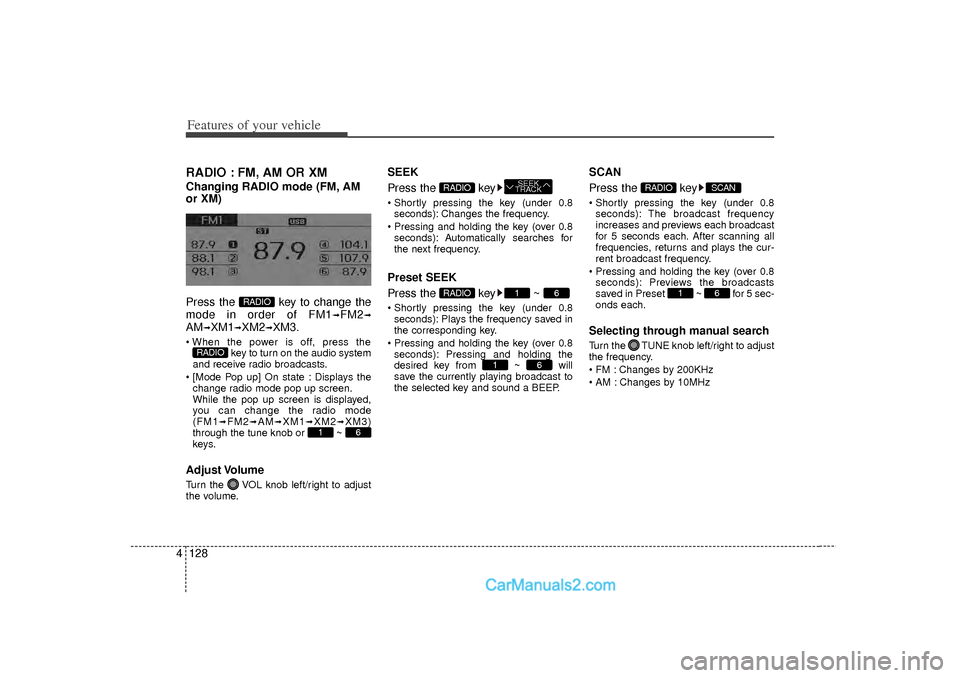
4RADIO : FM, AM OR XMChanging RADIO mode (FM, AM
or XM)
Press the key to change the
mode in order of FM1
➟FM2
➟
AM
➟XM1
➟XM2
➟XM3.
When the power is off, press the
key to turn on the audio system
and receive radio broadcasts.
[Mode Pop up] On state : Displays the change radio mode pop up screen.
While the pop up screen is displayed,
you can change the radio mode
(FM1
➟FM2
➟AM
➟XM1
➟XM2
➟XM3)
through the tune knob or ~
keys.
Adjust VolumeTurn the VOL knob left/right to adjust
the volume.
SEEK
Press the key Shortly pressing the key (under 0.8 seconds): Changes the frequency.
Pressing and holding the key (over 0.8 seconds): Automatically searches for
the next frequency.Preset SEEK
Press the key ~ Shortly pressing the key (under 0.8seconds): Plays the frequency saved in
the corresponding key.
Pressing and holding the key (over 0.8 seconds): Pressing and holding the
desired key from ~ will
save the currently playing broadcast to
the selected key and sound a BEEP.
SCAN
Press the key Shortly pressing the key (under 0.8seconds): The broadcast frequency
increases and previews each broadcast
for 5 seconds each. After scanning all
frequencies, returns and plays the cur-
rent broadcast frequency.
Pressing and holding the key (over 0.8 seconds): Previews the broadcasts
saved in Preset ~ for 5 sec-
onds each.Selecting through manual searchTurn the TUNE knob left/right to adjust
the frequency.
FM : Changes by 200KHz
AM : Changes by 10MHz
6
1
SCAN
RADIO
6
1
6
1
RADIO
SEEK
TRACK
RADIO
6
1
RADIO
RADIO
Page 212 of 411
Features of your vehicle130
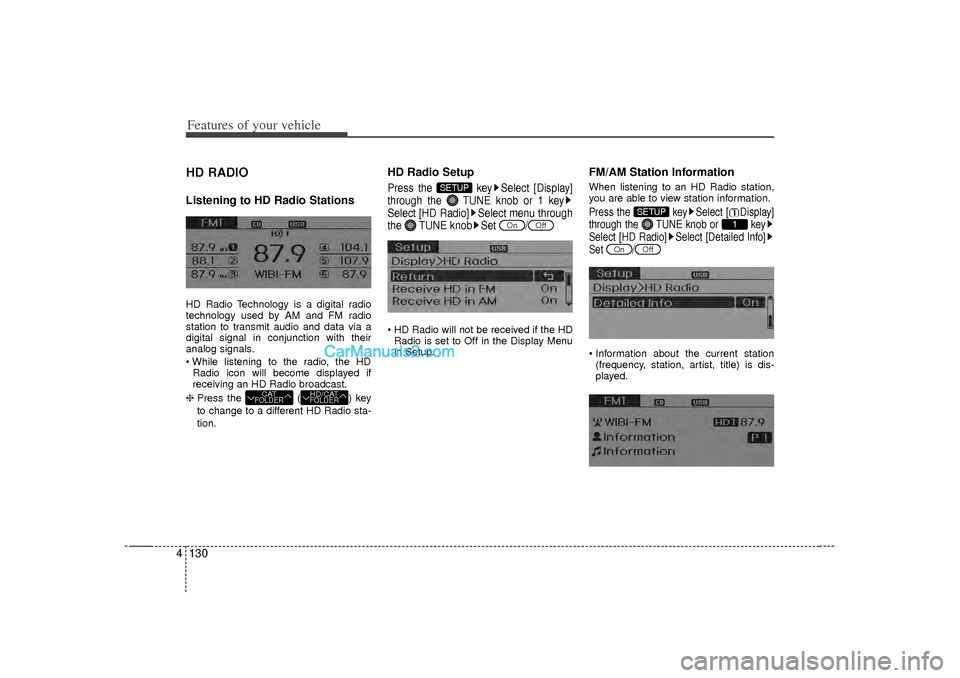
4HD RADIOListening to HD Radio StationsHD Radio Technology is a digital radio
technology used by AM and FM radio
station to transmit audio and data via a
digital signal in conjunction with their
analog signals.
While listening to the radio, the HD
Radio icon will become displayed if
receiving an HD Radio broadcast.
❈ Press the ( ) key
to change to a different HD Radio sta-
tion.
HD Radio SetupPress the key Select [Display]
through the TUNE knob or 1 key
Select [HD Radio] Select menu through
the TUNE knob Set / HD Radio will not be received if the HD
Radio is set to Off in the Display Menu
in Setup.
FM/AM Station InformationWhen listening to an HD Radio station,
you are able to view station information.Press the key Select [ Display]
through the TUNE knob or key
Select [HD Radio] Select [Detailed Info]
Set / Information about the current station(frequency, station, artist, title) is dis-
played.
Off
On
1
SETUP
Off
On
SETUP
HD/CATFOLDER
CATFOLDER
Page 213 of 411
4 131
Features of your vehicle
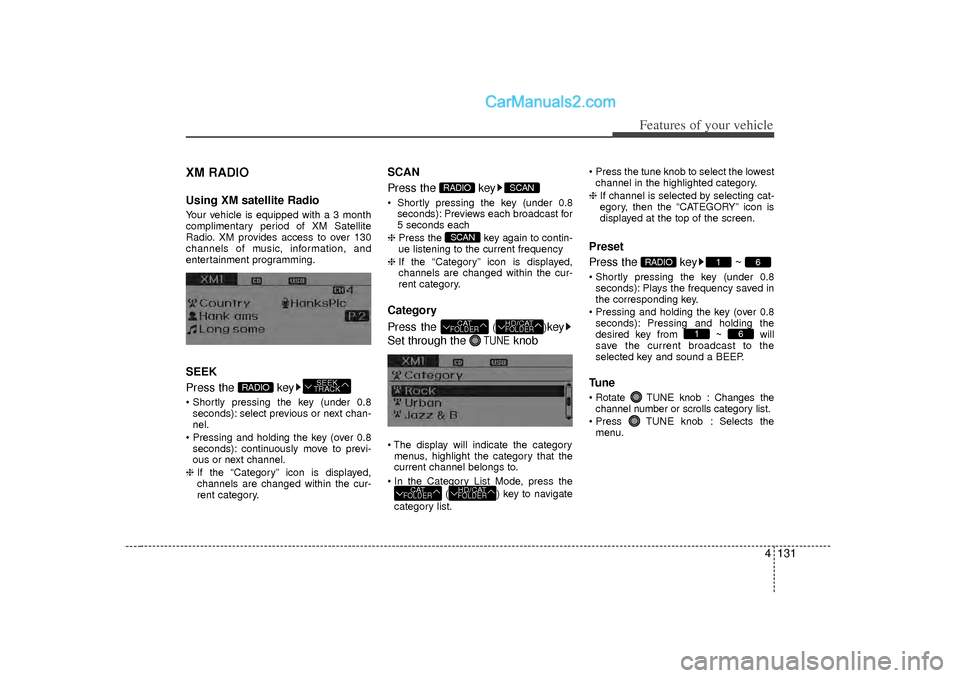
XM RADIOUsing XM satellite RadioYour vehicle is equipped with a 3 month
complimentary period of XM Satellite
Radio. XM provides access to over 130
channels of music, information, and
entertainment programming.SEEK
Press the key Shortly pressing the key (under 0.8seconds): select previous or next chan-
nel.
Pressing and holding the key (over 0.8 seconds): continuously move to previ-
ous or next channel.
❈ If the “Category” icon is displayed,
channels are changed within the cur-
rent category.
SCAN
Press the key Shortly pressing the key (under 0.8
seconds): Previews each broadcast for
5 seconds each
❈ Press the key again to contin-
ue listening to the current frequency
❈ If the “Category” icon is displayed,
channels are changed within the cur-
rent category.Category
Press the
()
key
Set through the
TUNE
knob
The display will indicate the category menus, highlight the category that the
current channel belongs to.
In the Category List Mode, press the ( ) key to navigate
category list. Press the tune knob to select the lowest
channel in the highlighted category.
❈ If channel is selected by selecting cat-
egory, then the “CATEGORY” icon is
displayed at the top of the screen.
Preset
Press the key ~ Shortly pressing the key (under 0.8
seconds): Plays the frequency saved in
the corresponding key.
Pressing and holding the key (over 0.8 seconds): Pressing and holding the
desired key from ~ will
save the current broadcast to the
selected key and sound a BEEP.Tune Rotate TUNE knob : Changes thechannel number or scrolls category list.
Press TUNE knob : Selects the menu.
6
1
6
1
RADIO
HD/CATFOLDER
CATFOLDER
HD/CATFOLDER
CATFOLDERSCAN
SCAN
RADIO
SEEK
TRACK
RADIO