phone Hyundai Sonata 2014 Owners Manual
[x] Cancel search | Manufacturer: HYUNDAI, Model Year: 2014, Model line: Sonata, Model: Hyundai Sonata 2014Pages: 665, PDF Size: 17.43 MB
Page 433 of 665
4-175
Multimedia System
4
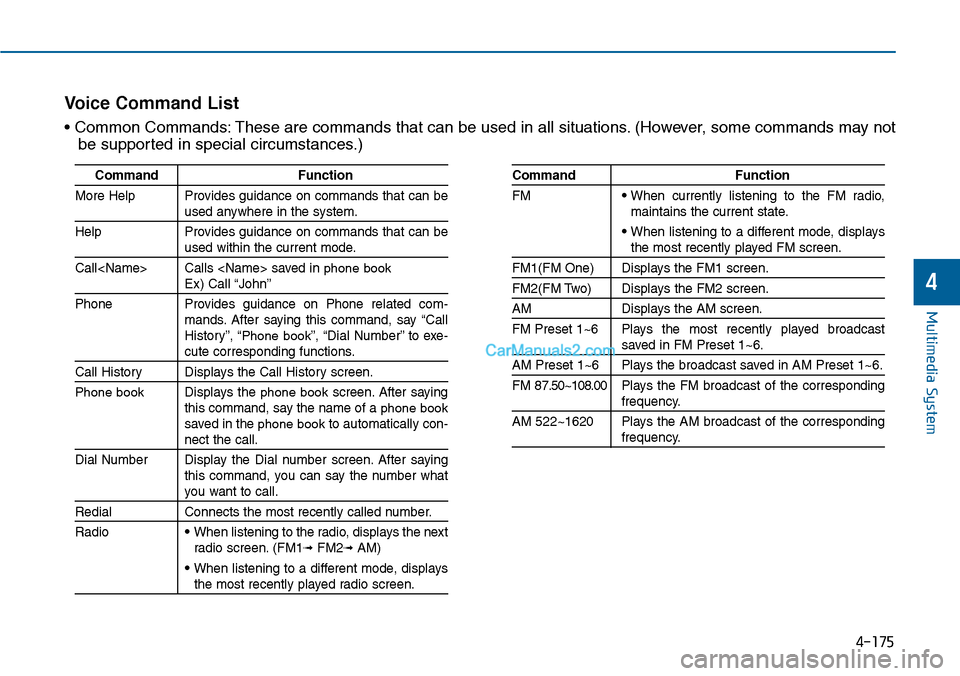
Command Function
More Help Provides guidance on commands that can beused anywhere in the system.
Help Provides guidance on commands that can beused within the current mode.
Call
Phone Provides guidance on Phone related com-mands. After saying this command, say “CallHistory”, “Phone book”, “Dial Number” to exe-cute corresponding functions.
Call History Displays the Call History screen.
Phone bookDisplays the phone bookscreen. After sayingthis command, say the name of a phone booksaved in the phone bookto automatically con-nect the call.
Dial Number Display the Dial number screen. After sayingthis command, you can say the number whatyou want to call.
Redial Connects the most recently called number.
Radio• When listening to the radio, displays the nextradio screen. (FM1➟FM2➟AM)
• When listening to a different mode, displaysthe most recently played radio screen.
Command Function
FM• When currently listening to the FM radio,maintains the current state.
• When listening to a different mode, displaysthe most recently played FM screen.
FM1(FM One) Displays the FM1 screen.
FM2(FM Two) Displays the FM2 screen.
AM Displays the AM screen.
FM Preset 1~6 Plays the most recently played broadcastsaved in FM Preset 1~6.
AM Preset 1~6 Plays the broadcast saved in AM Preset 1~6.
FM 87.50~108.00 Plays the FM broadcast of the correspondingfrequency.
AM 522~1620 Plays the AM broadcast of the correspondingfrequency.
Vo i c e C o m m a n d L i s t
• Common Commands: These are commands that can be used in all situations. (However, some commands may not
be supported in special circumstances.)
Page 437 of 665
4-179
Multimedia System
4
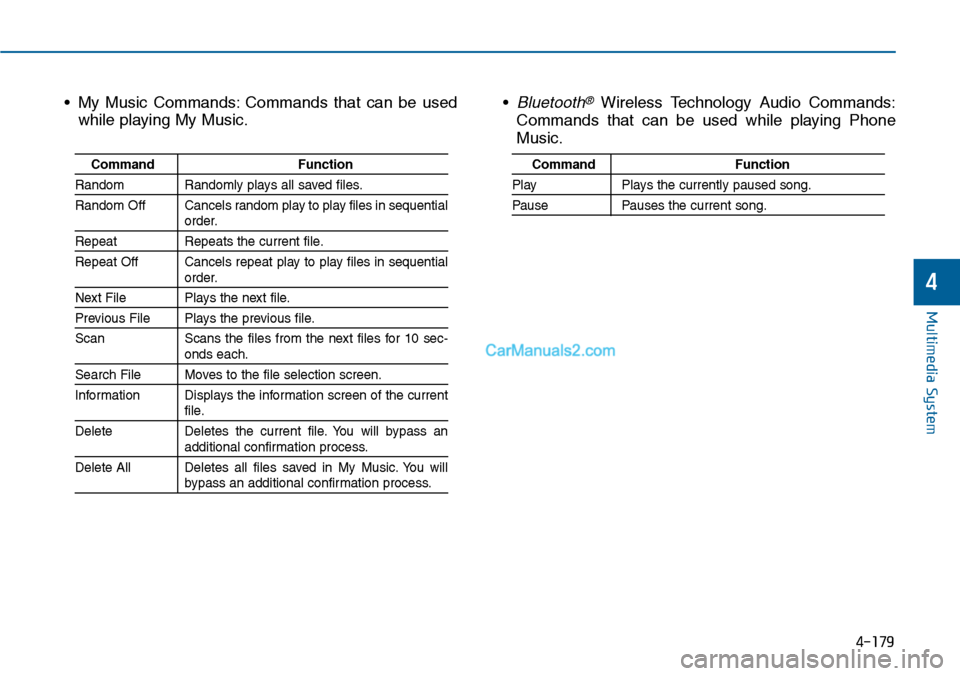
• My Music Commands: Commands that can be used
while playing My Music.
• Bluetooth®Wireless Technology Audio Commands:
Commands that can be used while playing Phone
Music.
Command Function
Random Randomly plays all saved files.
Random Off Cancels random play to play files in sequentialorder.
Repeat Repeats the current file.
Repeat Off Cancels repeat play to play files in sequentialorder.
Next File Plays the next file.
Previous File Plays the previous file.
Scan Scans the files from the next files for 10 sec-onds each.
Search File Moves to the file selection screen.
Information Displays the information screen of the currentfile.
Delete Deletes the current file. You will bypass anadditional confirmation process.
Delete All Deletes all files saved in My Music. You willbypass an additional confirmation process.
Command Function
Play Plays the currently paused song.
Pause Pauses the current song.
Page 438 of 665
SETUP
(for Bluetooth®Wireless
Technology equipped model)
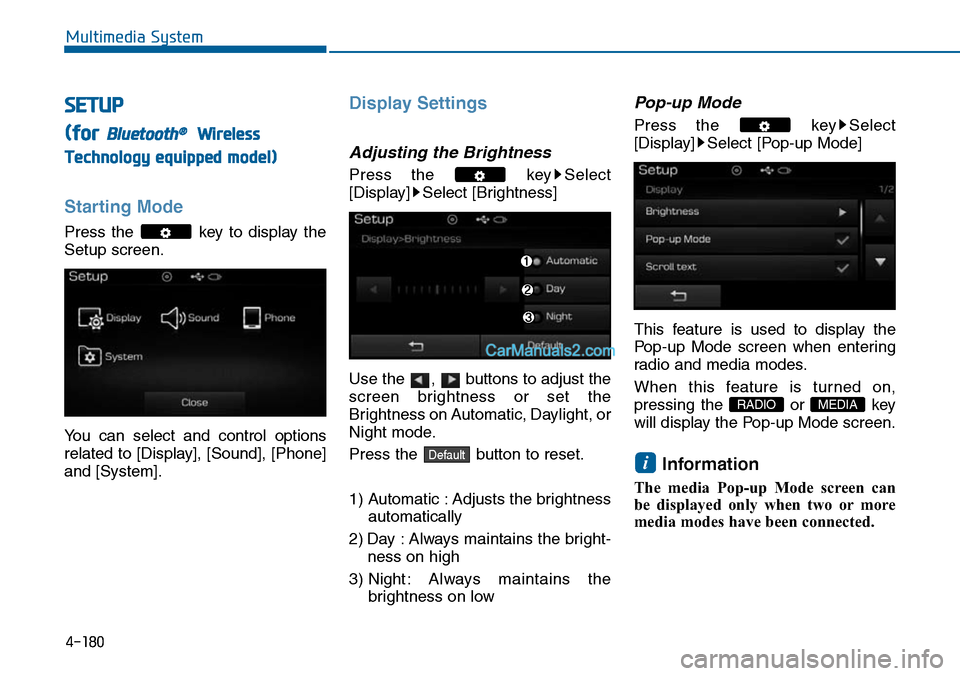
Starting Mode
Press the key to display the
Setup screen.
Yo u c a n s e l e c t a n d c o n t r o l o p t i o n s
related to [Display], [Sound], [Phone]
and [System].
Display Settings
Adjusting the Brightness
Press the key Select
[Display] Select [Brightness]
Use the , buttons to adjust the
screen brightness or set the
Brightness on Automatic, Daylight, or
Night mode.
Press the button to reset.
1) Automatic : Adjusts the brightness
automatically
2) Day : Always maintains the bright-
ness on high
3) Night : Always maintains the
brightness on low
Pop-up Mode
Press the key Select
[Display] Select [Pop-up Mode]
This feature is used to display the
Pop-up Mode screen when enter ing
radio and media modes.
When this feature is turned on,
pressing the or key
will display the Pop-up Mode screen.
Information
The media Pop-up Mode screen can
be displayed only when two or more
media modes have been connected.
i
MEDIA RADIO
Default
4-180
Multimedia System
Page 441 of 665
![Hyundai Sonata 2014 Owners Manual Bluetooth®Wireless
Technology Setting
Pairing a New Device
Press the key Select
[Phone] Select [Pair Phone]
Bluetooth®Wireless Technology
devices can be paired with the audio
system.
For more](/img/35/16805/w960_16805-440.png "Hyundai Sonata 2014 Owners Manual Bluetooth®Wireless
Technology Setting
Pairing a New Device
Press the key Select
[Phone] Select [Pair Phone]
Bluetooth®Wireless Technology
devices can be paired with the audio
system.
For more")
Bluetooth®Wireless
Technology Setting
Pairing a New Device
Press the key Select
[Phone] Select [Pair Phone]
Bluetooth®Wireless Technology
devices can be paired with the audio
system.
For more infor mation, refer to the
“Pairing through Phone Setup” sec-
tion within Bluetooth®Wireless
Technology.
Viewing Paired Phone List
Press the key Select
[Phone] Select [Paired Phone List]
This feature is used to view mobile
phones that have been paired with
the audio system. Upon selecting a
paired phone, the setup menu is dis-
played.
For more infor mation, refer to the
“Setting Bluetooth®Wireless
Te c h n o l o g y C o n n e c t i o n ” s e c t i o n w i t h -
in Bluetooth®Wireless Technology.
1) : Moves to the previous
screen
2) Connect/Disconnect Phone :
Connect/disconnects currently
selected phone
3) Delete : Deletes the currently
selected phone
4) Change Priority : Sets currently
selected phone to highest connec-
tion priority
Information
- BEFORE DOWNLOADING
Phone books
• Only Phone books within connected
phones can be downloaded. Also
check to see that your mobile phone
supports the download feature.
• To learn more about whether your
mobile phone supports Phone books
downloads, refer to your mobile
phone user’s manual.
• The Phone books for only the con-
nected phone can be downloaded.
Before downloading, check to see
whether your phone supports the
download feature.
i
4-183
Multimedia System
4
Page 442 of 665
![Hyundai Sonata 2014 Owners Manual Downloading Phone books
Press the key Select
[Phone] Select [Phonebooks Download]
The Phone books is downloaded
from the mobile phone and the
download progress is displayed.
Information
â€](/img/35/16805/w960_16805-441.png "Hyundai Sonata 2014 Owners Manual Downloading Phone books
Press the key Select
[Phone] Select [Phonebooks Download]
The Phone books is downloaded
from the mobile phone and the
download progress is displayed.
Information
â€")
Downloading Phone books
Press the key Select
[Phone] Select [Phonebooks Download]
The Phone books is downloaded
from the mobile phone and the
download progress is displayed.
Information
• Up to 1,000 Phone books entries can
be copied into car Phone books.
• Up to 1,000 Phone books entries can
be saved for each paired device.
•Upon downloading Phone books
data, previously saved Phone books
data will be deleted. However,
Phone books entries saved to other
paired phones are not deleted.
Auto Download (Phone books)
Press the key Select
[Phone] Select [Auto Download]
This feature is used to automatically
download mobile contacts entries
once a Bluetooth®Wireless
Technology phone is connected.
Information
•The Auto Download feature will
download mobile phone books
entries every time the phone is con-
nected. The download time may dif-
fer depending on the number of
saved contacts entries and the com-
munication state.
• When downloading a Phone books,
first check to see that your mobile
phone supports the Phone books
download feature.
Audio Streaming
Press the key Select
[Phone] Select [Audio Streaming]
When Streaming Audio is turned on,
you can play music files saved in
your Bluetooth®Wireless Technology
device from the car.
ii
4-184
Multimedia System
Page 443 of 665
![Hyundai Sonata 2014 Owners Manual Outgoing Volume
Press the key Select
[Phone] Select [Outgoing Volume]
Use the , buttons to adjust the
outgoing volume level.
Turning Bluetooth System Off
Press the key Select
[Phone] Select [Blu](/img/35/16805/w960_16805-442.png "Hyundai Sonata 2014 Owners Manual Outgoing Volume
Press the key Select
[Phone] Select [Outgoing Volume]
Use the , buttons to adjust the
outgoing volume level.
Turning Bluetooth System Off
Press the key Select
[Phone] Select [Blu")
Outgoing Volume
Press the key Select
[Phone] Select [Outgoing Volume]
Use the , buttons to adjust the
outgoing volume level.
Turning Bluetooth System Off
Press the key Select
[Phone] Select [Bluetooth System
Off]
Once Bluetooth®Wireless Technology
is turned off, Bluetooth®Wireless
Te c h n o l o g y r e l a t e d f e a t u r e s w i l l n o t b e
supported within the audio system.
Information
To t u r n Bluetooth®Wireless
Technology back on, go to
[Phone] and press “Yes”.
System Setting
Memory Information
Press the key Select
[System] Select [Memory Information]
This feature displays information
related to system memory.
1) Using : Displays capacity currently
in use
2) Capacity : Displays total capacity
i
4-185
Multimedia System
4
Page 446 of 665
4-188
Multimedia System
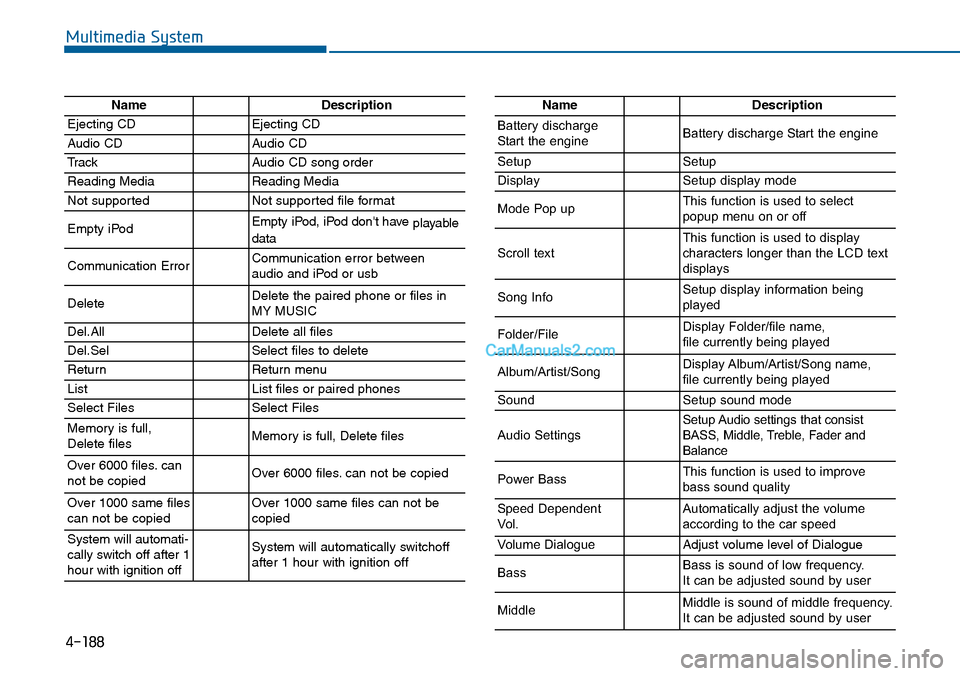
NameDescription
Ejecting CDEjecting CD
Audio CDAudio CD
TrackAudio CD song order
Reading MediaReading Media
Not supportedNot supported file format
Empty iPodEmpty iPod, iPod don't have playabledata
Communication ErrorCommunication error between audio and iPod or usb
DeleteDelete the paired phone or files in MY MUSIC
Del.AllDelete all files
Del.SelSelect files to delete
ReturnReturn menu
ListList files or paired phones
Select FilesSelect Files
Memory is full,Delete files Memory is full, Delete files
Over 6000 files. cannot be copied Over 6000 files. can not be copied
Over 1000 same filescan not be copied Over 1000 same files can not becopied
System will automati-cally switch off after 1hour with ignition off
System will automatically switchoffafter 1 hour with ignition off
NameDescription
Battery dischargeStart the engineBattery discharge Start the engine
SetupSetup
DisplaySetup display mode
Mode Pop upThis function is used to selectpopup menu on or off
Scroll textThis function is used to display characters longer than the LCD textdisplays
Song InfoSetup display information beingplayed
Folder/FileDisplay Folder/file name, file currently being played
Album/Artist/SongDisplay Album/Artist/Song name, file currently being played
SoundSetup sound mode
Audio SettingsSetup Audio settings that consistBASS, Middle, Treble, Fader andBalance
Power BassThis function is used to improvebass sound quality
Speed DependentVo l .Automatically adjust the volume according to the car speed
Vo l u m e D i a l o g u eAdjust volume level of Dialogue
BassBass is sound of low frequency. It can be adjusted sound by user
MiddleMiddle is sound of middle frequency. It can be adjusted sound by user
Page 447 of 665
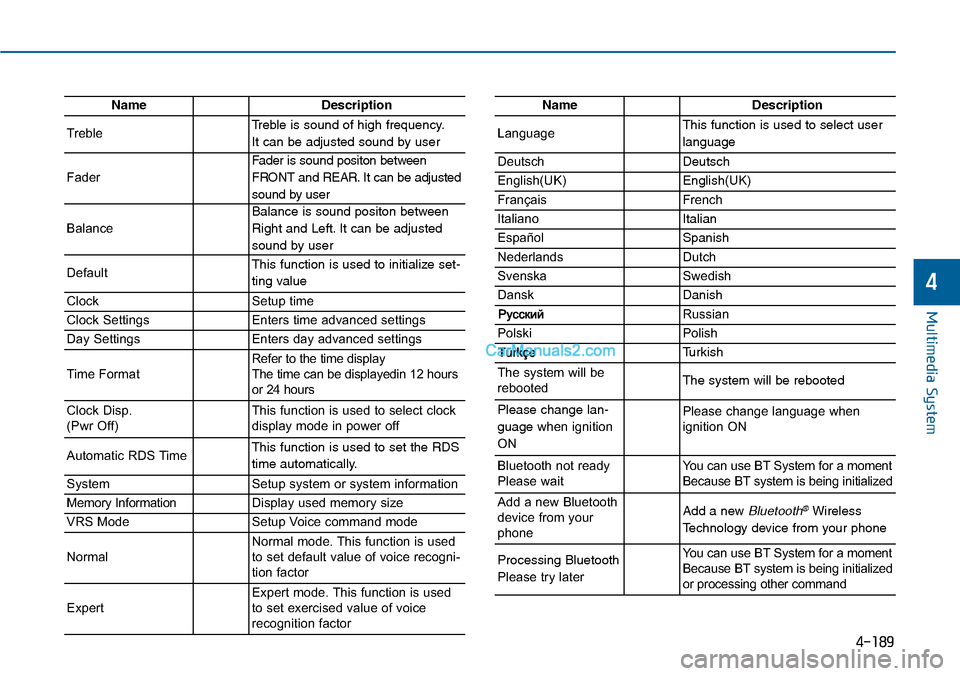
4-189
Multimedia System
4
NameDescription
TrebleTreble is sound of high frequency.
It can be adjusted sound by user
Fader
Fader is sound positon between
FRONT and REAR. It can be adjusted
sound by user
Balance
Balance is sound positon between
Right and Left. It can be adjusted
sound by user
DefaultThis function is used to initialize set-
ting value
ClockSetup time
Clock SettingsEnters time advanced settings
Day SettingsEnters day advanced settings
Time FormatRefer to the time display The time can be displayedin 12 hoursor 24 hours
Clock Disp.(Pwr Off)This function is used to select clockdisplay mode in power off
Automatic RDS TimeThis function is used to set the RDS
time automatically.
SystemSetup system or system information
Memory InformationDisplay used memory size
VRS ModeSetup Voice command mode
NormalNormal mode. This function is usedto set default value of voice recogni-tion factor
ExpertExpert mode. This function is usedto set exercised value of voicerecognition factor
NameDescription
LanguageThis function is used to select user
language
DeutschDeutsch
English(UK)English(UK)
FrançaisFrench
Italiano Italian
EspañolSpanish
NederlandsDutch
SvenskaSwedish
DanskDanish
Russian
PolskiPolish
Turkish
The system will berebootedThe system will be rebooted
Please change lan-
guage when ignition
ON
Please change language when ignition ON
Bluetooth not readyPlease waitYo u c a n u s e B T S y s t e m f o r a m o m e n tBecause BT system is being initialized
Add a new Bluetoothdevice from yourphone
Add a new Bluetooth®Wireless
Technology device from your phone
Processing Bluetooth
Please try later
Yo u c a n u s e B T S y s t e m f o r a m o m e n tBecause BT system is being initializedor processing other command
Page 448 of 665
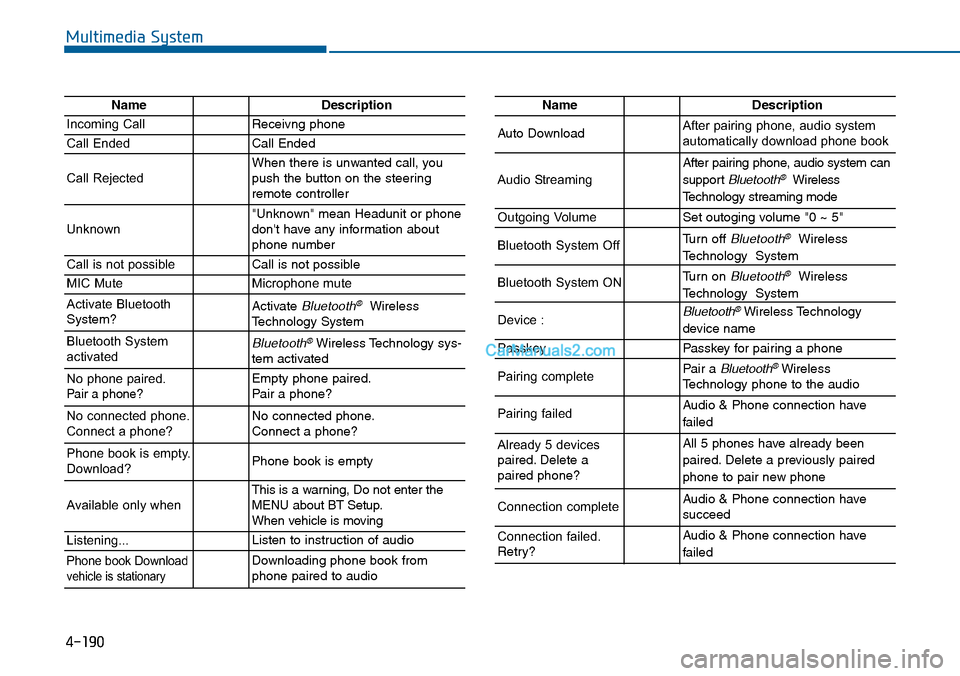
4-190
Multimedia System
NameDescription
Incoming CallReceivng phone
Call EndedCall Ended
Call RejectedWhen there is unwanted call, youpush the button on the steeringremote controller
Unknown"Unknown" mean Headunit or phonedon't have any information aboutphone number
Call is not possibleCall is not possible
MIC MuteMicrophone mute
Activate BluetoothSystem?Activate Bluetooth®WirelessTechnology System
Bluetooth SystemactivatedBluetooth®Wireless Technology sys-tem activated
No phone paired. Pair a phone?Empty phone paired.Pair a phone?
No connected phone.Connect a phone?No connected phone.Connect a phone?
Phone book is empty.Download?Phone book is empty
Available only when This is a warning, Do not enter theMENU about BT Setup.When vehicle is moving
Listening...Listen to instruction of audio
Phone book Downloadvehicle is stationaryDownloading phone book fromphone paired to audio
NameDescription
Auto DownloadAfter pairing phone, audio systemautomatically download phone book
Audio Streaming
After pairing phone, audio system can
support Bluetooth®Wireless
Te c h n o l o g y s t r e a m i n g m o d e
Outgoing VolumeSet outoging volume "0 ~ 5"
Bluetooth System OffTurn off Bluetooth®Wireless
Technology System
Bluetooth System ONTurn on Bluetooth®Wireless
Technology System
Device : Bluetooth®Wireless Technology
device name
PasskeyPasskey for pair ing a phone
Pairing completePair a Bluetooth®WirelessTechnology phone to the audio
Pairing failedAudio & Phone connection have
failed
Already 5 devicespaired. Delete apaired phone?
All 5 phones have already been
paired. Delete a previously paired
phone to pair new phone
Connection completeAudio & Phone connection have succeed
Connection failed.Retry?
Audio & Phone connection have
failed
Page 449 of 665
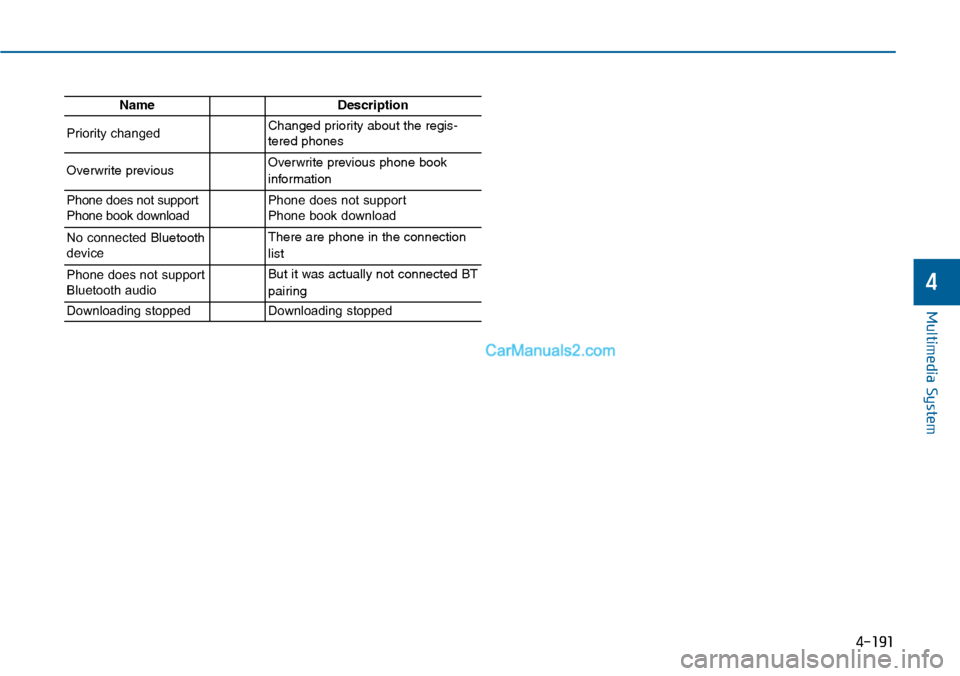
4-191
Multimedia System
4
NameDescription
Priority changedChanged priority about the regis-tered phones
Overwrite previous Overwrite previous phone book
information
Phone does not supportPhone book downloadPhone does not support Phone book download
No connected Bluetoothdevice
There are phone in the connection
list
Phone does not supportBluetooth audio
But it was actually not connected BT
pairing
Downloading stoppedDownloading stopped