support Hyundai Sonata 2014 Workshop Manual
[x] Cancel search | Manufacturer: HYUNDAI, Model Year: 2014, Model line: Sonata, Model: Hyundai Sonata 2014Pages: 665, PDF Size: 17.43 MB
Page 429 of 665
4-171
Multimedia System
4
Information
• Up to 1,000 phone book entries can
be copied into car phone book.
• Upon downloading phone book data,
previously saved phone book data
will be deleted.
• Downloading is not possible if the
phone book download feature is
turned off within the Bluetooth®
Wireless Technology device. Also,
some devices may require device
authorization upon attempting to
download. If downloading cannot be
normally conducted, check the
Bluetooth®Wireless Technology
device setting or the screen state.
• Caller ID information will not be
displayed for unsaved callers.
• The download feature may not be
supported in some mobile phones.
Check to see that the Bluetooth®
Wireless Technology device sup-
ports the download feature.
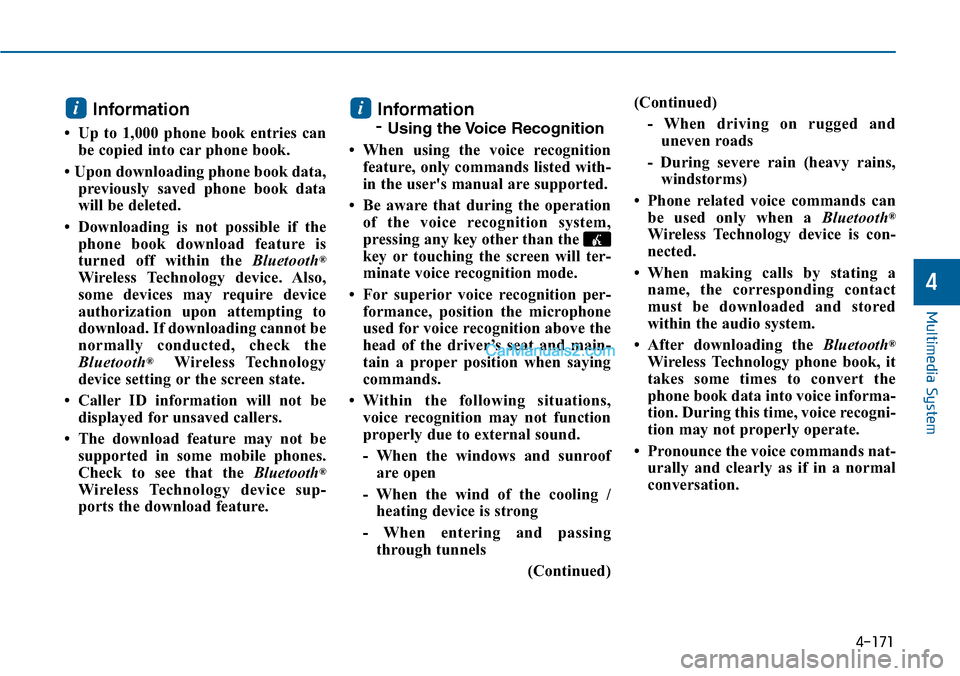
Information
- Using the Voice Recognition
• When using the voice recognition
feature, only commands listed with-
in the user's manual are supported.
• Be aware that during the operation
of the voice recognition system,
pressing any key other than the
key or touching the screen will ter-
minate voice recognition mode.
• For superior voice recognition per-
formance, position the microphone
used for voice recognition above the
head of the driver’s seat and main-
tain a proper position when saying
commands.
•Within the following situations,
voice recognition may not function
properly due to external sound.
- When the windows and sunroof
are open
- When the wind of the cooling /
heating device is strong
- When entering and passing
through tunnels
(Continued)
(Continued)
- When driving on rugged and
uneven roads
- During severe rain (heavy rains,
windstorms)
• Phone related voice commands can
be used only when a Bluetooth®
Wireless Technology device is con-
nected.
•When making calls by stating a
name, the corresponding contact
must be downloaded and stored
within the audio system.
• After downloading the Bluetooth®
Wireless Technology phone book, it
takes some times to convert the
phone book data into voice informa-
tion. During this time, voice recogni-
tion may not properly operate.
• Pronounce the voice commands nat-
urally and clearly as if in a normal
conversation.
ii
Page 433 of 665
4-175
Multimedia System
4
Command Function
More Help Provides guidance on commands that can beused anywhere in the system.
Help Provides guidance on commands that can beused within the current mode.
Call
Phone Provides guidance on Phone related com-mands. After saying this command, say “CallHistory”, “Phone book”, “Dial Number” to exe-cute corresponding functions.
Call History Displays the Call History screen.
Phone bookDisplays the phone bookscreen. After sayingthis command, say the name of a phone booksaved in the phone bookto automatically con-nect the call.
Dial Number Display the Dial number screen. After sayingthis command, you can say the number whatyou want to call.
Redial Connects the most recently called number.
Radio• When listening to the radio, displays the nextradio screen. (FM1➟FM2➟AM)
• When listening to a different mode, displaysthe most recently played radio screen.
Command Function
FM• When currently listening to the FM radio,maintains the current state.
• When listening to a different mode, displaysthe most recently played FM screen.
FM1(FM One) Displays the FM1 screen.
FM2(FM Two) Displays the FM2 screen.
AM Displays the AM screen.
FM Preset 1~6 Plays the most recently played broadcastsaved in FM Preset 1~6.
AM Preset 1~6 Plays the broadcast saved in AM Preset 1~6.
FM 87.50~108.00 Plays the FM broadcast of the correspondingfrequency.
AM 522~1620 Plays the AM broadcast of the correspondingfrequency.
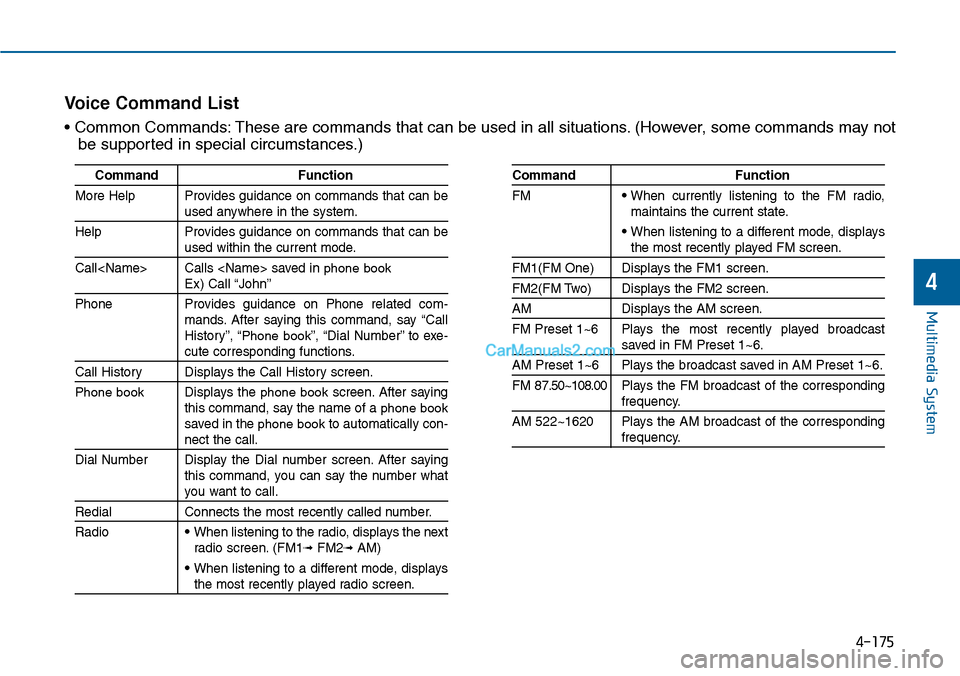
Vo i c e C o m m a n d L i s t
• Common Commands: These are commands that can be used in all situations. (However, some commands may not
be supported in special circumstances.)
Page 441 of 665
![Hyundai Sonata 2014 Workshop Manual Bluetooth®Wireless
Technology Setting
Pairing a New Device
Press the key Select
[Phone] Select [Pair Phone]
Bluetooth®Wireless Technology
devices can be paired with the audio
system.
For more](/img/35/16805/w960_16805-440.png "Hyundai Sonata 2014 Workshop Manual Bluetooth®Wireless
Technology Setting
Pairing a New Device
Press the key Select
[Phone] Select [Pair Phone]
Bluetooth®Wireless Technology
devices can be paired with the audio
system.
For more")
Bluetooth®Wireless
Technology Setting
Pairing a New Device
Press the key Select
[Phone] Select [Pair Phone]
Bluetooth®Wireless Technology
devices can be paired with the audio
system.
For more infor mation, refer to the
“Pairing through Phone Setup” sec-
tion within Bluetooth®Wireless
Technology.
Viewing Paired Phone List
Press the key Select
[Phone] Select [Paired Phone List]
This feature is used to view mobile
phones that have been paired with
the audio system. Upon selecting a
paired phone, the setup menu is dis-
played.
For more infor mation, refer to the
“Setting Bluetooth®Wireless
Te c h n o l o g y C o n n e c t i o n ” s e c t i o n w i t h -
in Bluetooth®Wireless Technology.
1) : Moves to the previous
screen
2) Connect/Disconnect Phone :
Connect/disconnects currently
selected phone
3) Delete : Deletes the currently
selected phone
4) Change Priority : Sets currently
selected phone to highest connec-
tion priority
Information
- BEFORE DOWNLOADING
Phone books
• Only Phone books within connected
phones can be downloaded. Also
check to see that your mobile phone
supports the download feature.
• To learn more about whether your
mobile phone supports Phone books
downloads, refer to your mobile
phone user’s manual.
• The Phone books for only the con-
nected phone can be downloaded.
Before downloading, check to see
whether your phone supports the
download feature.
i
4-183
Multimedia System
4
Page 442 of 665
![Hyundai Sonata 2014 Workshop Manual Downloading Phone books
Press the key Select
[Phone] Select [Phonebooks Download]
The Phone books is downloaded
from the mobile phone and the
download progress is displayed.
Information
â€](/img/35/16805/w960_16805-441.png "Hyundai Sonata 2014 Workshop Manual Downloading Phone books
Press the key Select
[Phone] Select [Phonebooks Download]
The Phone books is downloaded
from the mobile phone and the
download progress is displayed.
Information
â€")
Downloading Phone books
Press the key Select
[Phone] Select [Phonebooks Download]
The Phone books is downloaded
from the mobile phone and the
download progress is displayed.
Information
• Up to 1,000 Phone books entries can
be copied into car Phone books.
• Up to 1,000 Phone books entries can
be saved for each paired device.
•Upon downloading Phone books
data, previously saved Phone books
data will be deleted. However,
Phone books entries saved to other
paired phones are not deleted.
Auto Download (Phone books)
Press the key Select
[Phone] Select [Auto Download]
This feature is used to automatically
download mobile contacts entries
once a Bluetooth®Wireless
Technology phone is connected.
Information
•The Auto Download feature will
download mobile phone books
entries every time the phone is con-
nected. The download time may dif-
fer depending on the number of
saved contacts entries and the com-
munication state.
• When downloading a Phone books,
first check to see that your mobile
phone supports the Phone books
download feature.
Audio Streaming
Press the key Select
[Phone] Select [Audio Streaming]
When Streaming Audio is turned on,
you can play music files saved in
your Bluetooth®Wireless Technology
device from the car.
ii
4-184
Multimedia System
Page 443 of 665
![Hyundai Sonata 2014 Workshop Manual Outgoing Volume
Press the key Select
[Phone] Select [Outgoing Volume]
Use the , buttons to adjust the
outgoing volume level.
Turning Bluetooth System Off
Press the key Select
[Phone] Select [Blu](/img/35/16805/w960_16805-442.png "Hyundai Sonata 2014 Workshop Manual Outgoing Volume
Press the key Select
[Phone] Select [Outgoing Volume]
Use the , buttons to adjust the
outgoing volume level.
Turning Bluetooth System Off
Press the key Select
[Phone] Select [Blu")
Outgoing Volume
Press the key Select
[Phone] Select [Outgoing Volume]
Use the , buttons to adjust the
outgoing volume level.
Turning Bluetooth System Off
Press the key Select
[Phone] Select [Bluetooth System
Off]
Once Bluetooth®Wireless Technology
is turned off, Bluetooth®Wireless
Te c h n o l o g y r e l a t e d f e a t u r e s w i l l n o t b e
supported within the audio system.
Information
To t u r n Bluetooth®Wireless
Technology back on, go to
[Phone] and press “Yes”.
System Setting
Memory Information
Press the key Select
[System] Select [Memory Information]
This feature displays information
related to system memory.
1) Using : Displays capacity currently
in use
2) Capacity : Displays total capacity
i
4-185
Multimedia System
4
Page 446 of 665
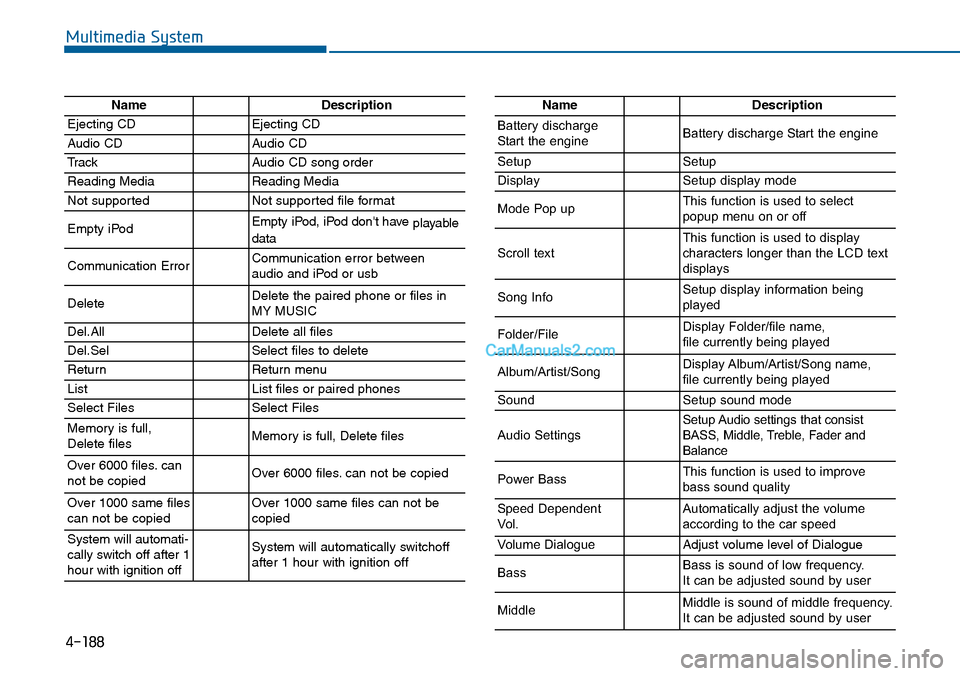
4-188
Multimedia System
NameDescription
Ejecting CDEjecting CD
Audio CDAudio CD
TrackAudio CD song order
Reading MediaReading Media
Not supportedNot supported file format
Empty iPodEmpty iPod, iPod don't have playabledata
Communication ErrorCommunication error between audio and iPod or usb
DeleteDelete the paired phone or files in MY MUSIC
Del.AllDelete all files
Del.SelSelect files to delete
ReturnReturn menu
ListList files or paired phones
Select FilesSelect Files
Memory is full,Delete files Memory is full, Delete files
Over 6000 files. cannot be copied Over 6000 files. can not be copied
Over 1000 same filescan not be copied Over 1000 same files can not becopied
System will automati-cally switch off after 1hour with ignition off
System will automatically switchoffafter 1 hour with ignition off
NameDescription
Battery dischargeStart the engineBattery discharge Start the engine
SetupSetup
DisplaySetup display mode
Mode Pop upThis function is used to selectpopup menu on or off
Scroll textThis function is used to display characters longer than the LCD textdisplays
Song InfoSetup display information beingplayed
Folder/FileDisplay Folder/file name, file currently being played
Album/Artist/SongDisplay Album/Artist/Song name, file currently being played
SoundSetup sound mode
Audio SettingsSetup Audio settings that consistBASS, Middle, Treble, Fader andBalance
Power BassThis function is used to improvebass sound quality
Speed DependentVo l .Automatically adjust the volume according to the car speed
Vo l u m e D i a l o g u eAdjust volume level of Dialogue
BassBass is sound of low frequency. It can be adjusted sound by user
MiddleMiddle is sound of middle frequency. It can be adjusted sound by user
Page 448 of 665
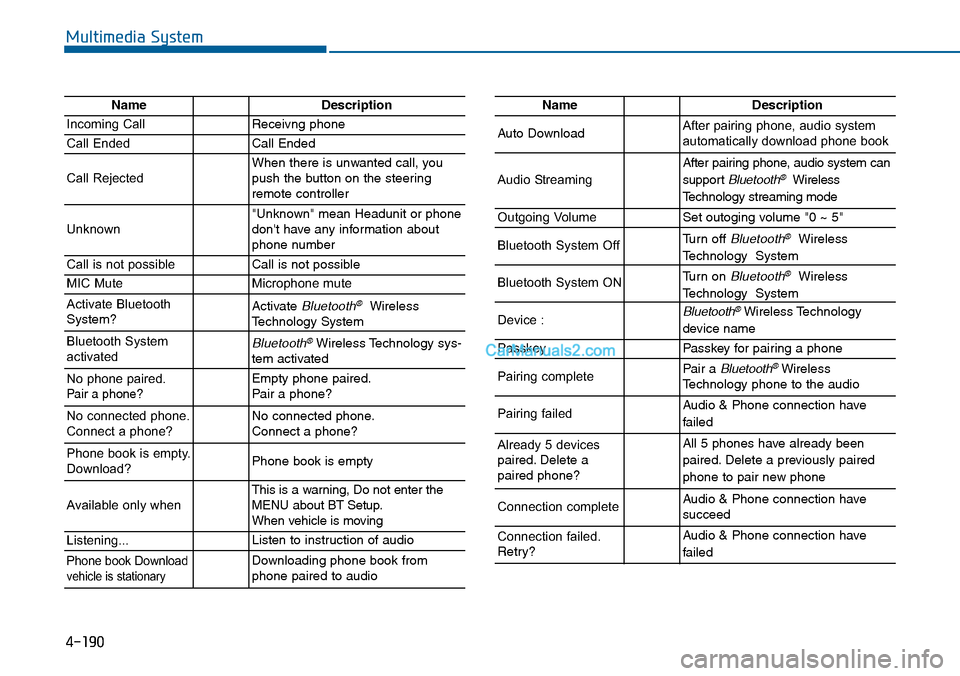
4-190
Multimedia System
NameDescription
Incoming CallReceivng phone
Call EndedCall Ended
Call RejectedWhen there is unwanted call, youpush the button on the steeringremote controller
Unknown"Unknown" mean Headunit or phonedon't have any information aboutphone number
Call is not possibleCall is not possible
MIC MuteMicrophone mute
Activate BluetoothSystem?Activate Bluetooth®WirelessTechnology System
Bluetooth SystemactivatedBluetooth®Wireless Technology sys-tem activated
No phone paired. Pair a phone?Empty phone paired.Pair a phone?
No connected phone.Connect a phone?No connected phone.Connect a phone?
Phone book is empty.Download?Phone book is empty
Available only when This is a warning, Do not enter theMENU about BT Setup.When vehicle is moving
Listening...Listen to instruction of audio
Phone book Downloadvehicle is stationaryDownloading phone book fromphone paired to audio
NameDescription
Auto DownloadAfter pairing phone, audio systemautomatically download phone book
Audio Streaming
After pairing phone, audio system can
support Bluetooth®Wireless
Te c h n o l o g y s t r e a m i n g m o d e
Outgoing VolumeSet outoging volume "0 ~ 5"
Bluetooth System OffTurn off Bluetooth®Wireless
Technology System
Bluetooth System ONTurn on Bluetooth®Wireless
Technology System
Device : Bluetooth®Wireless Technology
device name
PasskeyPasskey for pair ing a phone
Pairing completePair a Bluetooth®WirelessTechnology phone to the audio
Pairing failedAudio & Phone connection have
failed
Already 5 devicespaired. Delete apaired phone?
All 5 phones have already been
paired. Delete a previously paired
phone to pair new phone
Connection completeAudio & Phone connection have succeed
Connection failed.Retry?
Audio & Phone connection have
failed
Page 449 of 665
4-191
Multimedia System
4
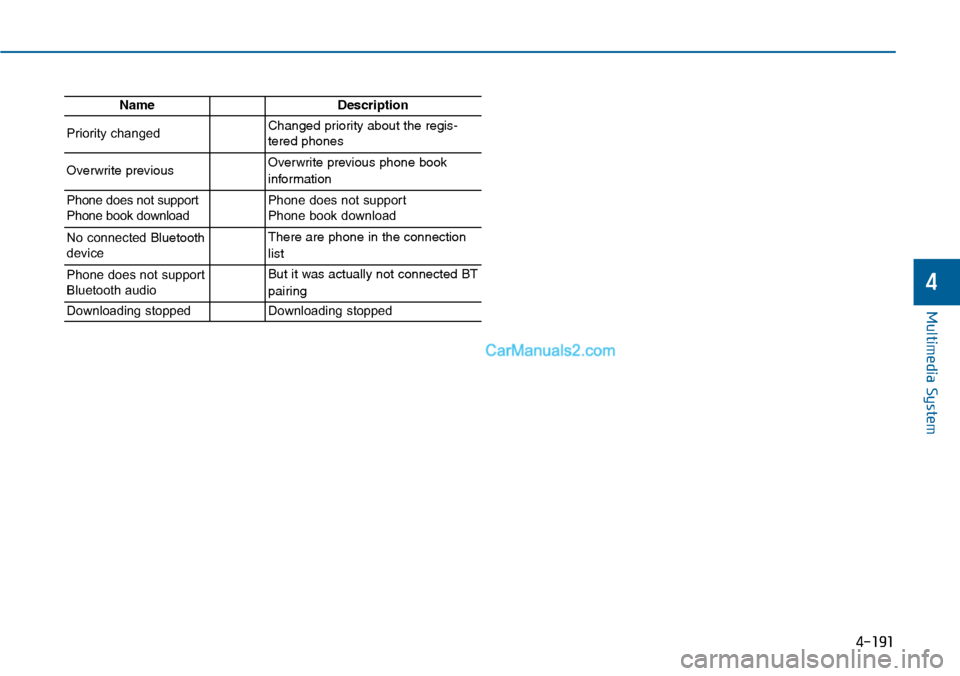
NameDescription
Priority changedChanged priority about the regis-tered phones
Overwrite previous Overwrite previous phone book
information
Phone does not supportPhone book downloadPhone does not support Phone book download
No connected Bluetoothdevice
There are phone in the connection
list
Phone does not supportBluetooth audio
But it was actually not connected BT
pairing
Downloading stoppedDownloading stopped
Page 545 of 665
6-11
What to do in an emergency
6
Changing tiresFollow these steps to change your
vehicle’s tire:
1. Park on a level, firm surface.
2. Move the shift lever into P (Park,
for automatic transaxle vehicle) or
neutral (for manual transaxle
vehicle), apply the parking brake,
and place the ignition switch in the
LOCK/OFF position.
3. Press the hazard warning flasher
button.
4. Remove the wheel lug nut wrench,
jack, jack handle, and spare tire
from the vehicle.
A vehicle can slip or roll off of a
jack causing serious injury or
death to you or those nearby.
Take the following safety pre-
cautions:
•Do not get under a vehicle
that is supported by a jack.
•NEVER attempt to change a
tire in the lane of traffic.
ALWAYS move the vehicle
completely off the road on
level, firm ground away from
traffic before trying to change
a tire. If you cannot find a
level, firm place off the road,
call a towing service for assis-
tance.
•Be sure to use the jack pro-
vided with the vehicle.
(Continued)
WARNING
(Continued)
•ALWAYS place the jack on the
designated jacking positions
on the vehicle and NEVER on
the bumpers or any other part
of the vehicle for jacking sup-
port.
•Do not start or run the engine
while the vehicle is on the
jack.
•Do not allow anyone to remain
in the vehicle while it is on the
jack.
•Keep children away from the
road and the vehicle.
Page 551 of 665
6-17
What to do in an emergency
6
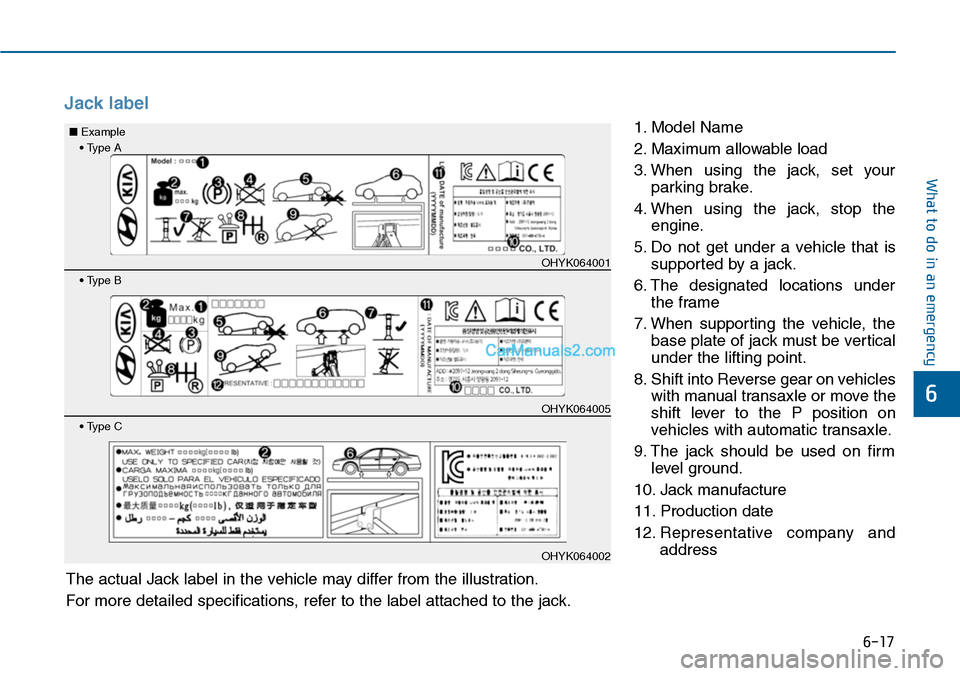
Jack label
1. Model Name
2. Maximum allowable load
3. When using the jack, set your
parking brake.
4. When using the jack, stop the
engine.
5. Do not get under a vehicle that is
supported by a jack.
6. The designated locations under
the frame
7. When supporting the vehicle, the
base plate of jack must be vertical
under the lifting point.
8. Shift into Reverse gear on vehicles
with manual transaxle or move the
shift lever to the P position on
vehicles with automatic transaxle.
9. The jack should be used on firm
level ground.
10. Jack manufacture
11. Production date
12. Representative company and
address
The actual Jack label in the vehicle may differ from the illustration.
For more detailed specifications, refer to the label attached to the jack.
• Type A ■Example
• Type B
• Type C
OHYK064001
OHYK064005
OHYK064002