ECO mode Hyundai Sonata 2016 Workshop Manual
[x] Cancel search | Manufacturer: HYUNDAI, Model Year: 2016, Model line: Sonata, Model: Hyundai Sonata 2016Pages: 603, PDF Size: 16.3 MB
Page 325 of 603
4-72
Multimedia System
M
MY
Y
M
M U
US
SI
IC
C
M
M O
OD
DE
E
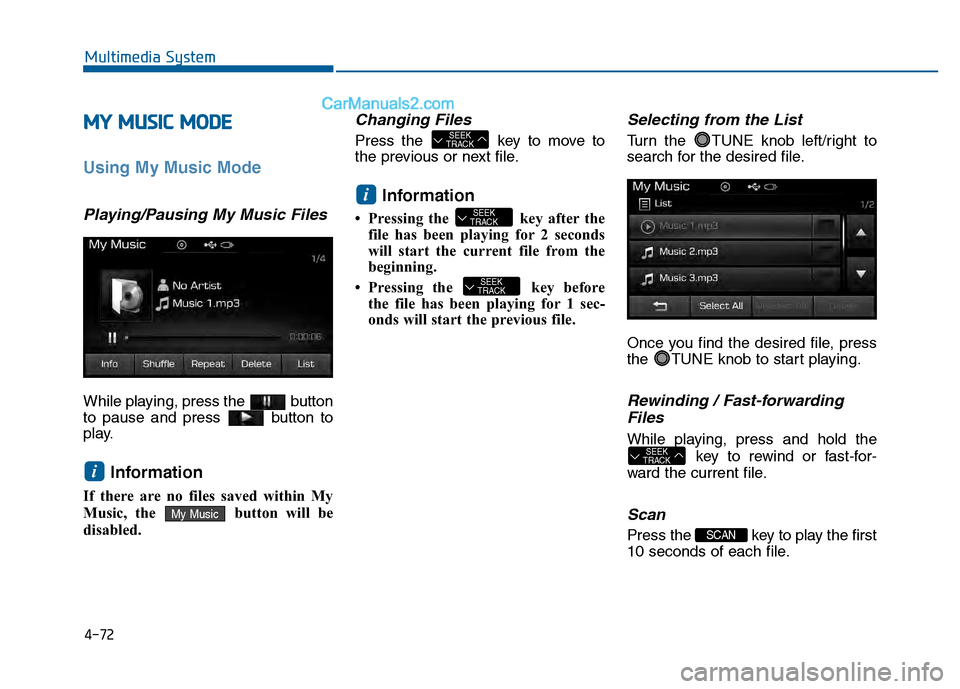
Using My Music Mode
Playing/Pausing My Music Files
While playing, press the button
to pause and press button to
play.
Information
If there are no files saved within My
Music, the button will be
disabled.
Changing Files
Press the key to move to
the previous or next file.
Information
• Pressing the key after the
file has been playing for 2 seconds
will start the current file from the
beginning.
• Pressing the key before the file has been playing for 1 sec-
onds will start the previous file.
Selecting from the List
Turn the TUNE knob left/right to
search for the desired file.
Once you find the desired file, press
the TUNE knob to start playing.
Rewinding / Fast-forwardingFiles
While playing, press and hold the
key to rewind or fast-for-
ward the current file.
Scan
Press the key to play the first
10 seconds of each file.SCAN
SEEK
TRACK
SEEK
TRACK
SEEK
TRACK
i
SEEK
TRACK
My Music
i
Page 326 of 603
4-73
Multimedia System
4
My Music Mode Menu
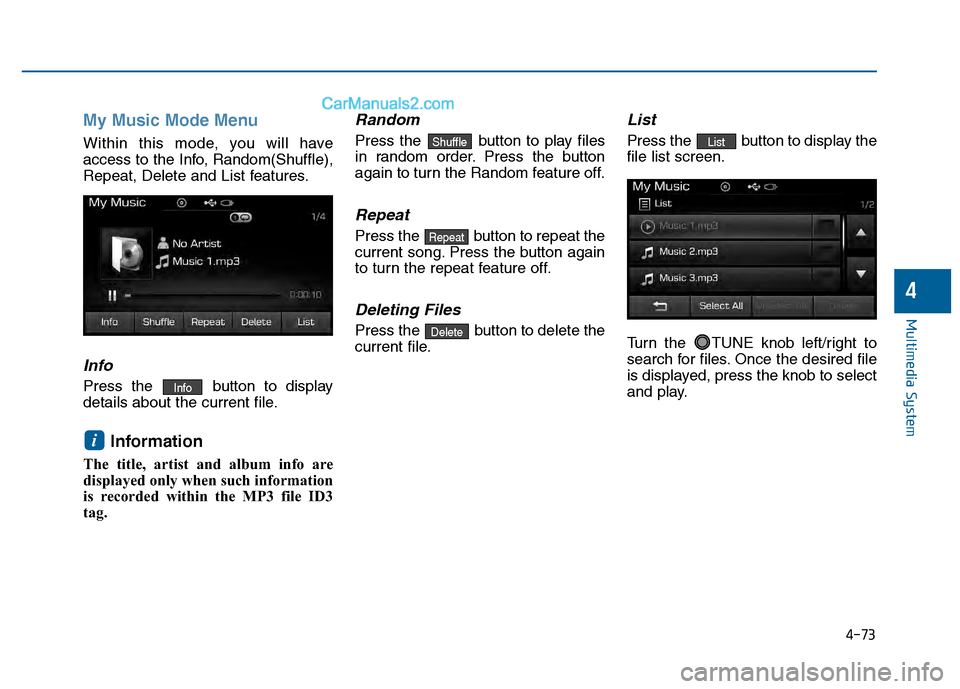
Within this mode, you will have
access to the Info, Random(Shuffle),
Repeat, Delete and List features.
Info
Press the button to display
details about the current file.
Information
The title, artist and album info are
displayed only when such information
is recorded within the MP3 file ID3
tag.
Random
Press the button to play files
in random order. Press the button
again to turn the Random feature off.
Repeat
Press the button to repeat the
current song. Press the button again
to turn the repeat feature off.
Deleting Files
Press the button to delete the
current file.
List
Press the button to display the
file list screen.
Turn the TUNE knob left/right to
search for files. Once the desired file
is displayed, press the knob to select
and play.List
Delete
Repeat
Shuffle
i
Info
Page 329 of 603
4-76
Multimedia System
Information
The play/pause feature may operate
differently depending on the mobile
phone.
Changing Files
Press the key to move to
the previous or next file.
Setting Connection
If a Bluetooth®Wireless Technology
device has not been connected, press
the key [Phone] button to
display the
Bluetooth®Wireless
Technology connection screen.
It is possible to use the pair phone,
connect/disconnect and delete fea-
tures from your
Bluetooth®Wireless
Technology phone.
Information
• If the Bluetooth®Wireless Technology
audio is not operating properly,
check whether the feature is turned
off at [Phone] [Streaming
Audio]. If the feature is off, turn back
on and try again.
• If music is not yet playing from your mobile device after converting to
Bluetooth
®Wireless Technology
Audio mode, pressing the play but-
ton once may start playing the mode.
Check to see that music is playing
from the Bluetooth
®Wireless
Technology device after converting
to Bluetooth
®Wireless Technology
Audio Mode.
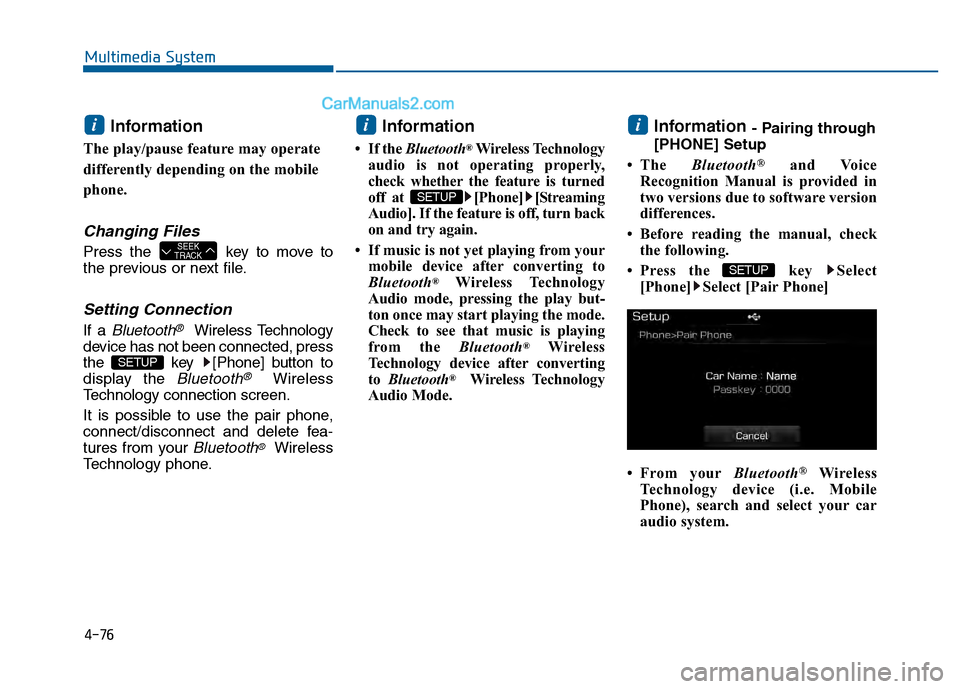
Information - Pairing through
[PHONE] Setup
• The Bluetooth
®and Voice
Recognition Manual is provided in
two versions due to software version
differences.
• Before reading the manual, check the following.
• Press the key Select [Phone] Select [Pair Phone]
• From your Bluetooth
®Wireless
Technology device (i.e. Mobile
Phone), search and select your car
audio system.
SETUP
i
SETUP
i
SETUP
SEEK
TRACK
i
Page 344 of 603
4-91
Multimedia System
4
V
VO
O I
IC
C E
E
R
R E
EC
CO
O G
GN
N I
IT
T I
IO
O N
N
Using Voice Recognition
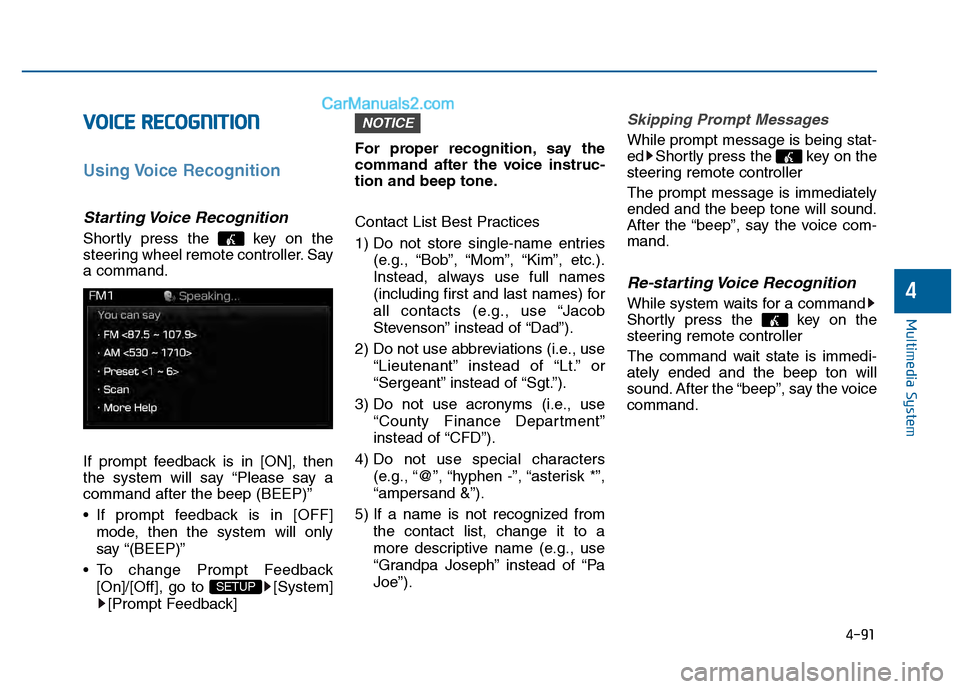
Starting Voice Recognition
Shortly press the key on the
steering wheel remote controller. Say
a command.
If prompt feedback is in [ON], then
the system will say “Please say a
command after the beep (BEEP)”
If prompt feedback is in [OFF]
mode, then the system will only
say “(BEEP)”
To change Prompt Feedback [On]/[Off], go to [System][Prompt Feedback] For proper recognition, say the
command after the voice instruc-
tion and beep tone.
Contact List Best Practices
1) Do not store single-name entries
(e.g., “Bob”, “Mom”, “Kim”, etc.).
Instead, always use full names
(including first and last names) for
all contacts (e.g., use “Jacob
Stevenson” instead of “Dad”).
2) Do not use abbreviations (i.e., use “Lieutenant” instead of “Lt.” or
“Sergeant” instead of “Sgt.”).
3) Do not use acronyms (i.e., use “County Finance Department”
instead of “CFD”).
4) Do not use special characters (e.g., “@”, “hyphen -”, “asterisk *”,
“ampersand &”).
5) If a name is not recognized from the contact list, change it to a
more descriptive name (e.g., use
“Grandpa Joseph” instead of “Pa
Joe”).
Skipping Prompt Messages
While prompt message is being stat-
ed Shortly press the key on the
steering remote controller
The prompt message is immediately
ended and the beep tone will sound.
After the “beep”, say the voice com-
mand.
Re-starting Voice Recognition
While system waits for a command
Shortly press the key on the
steering remote controller
The command wait state is immedi-
ately ended and the beep ton will
sound. After the “beep”, say the voice
command.
NOTICE
SETUP
Page 345 of 603
4-92
Multimedia System
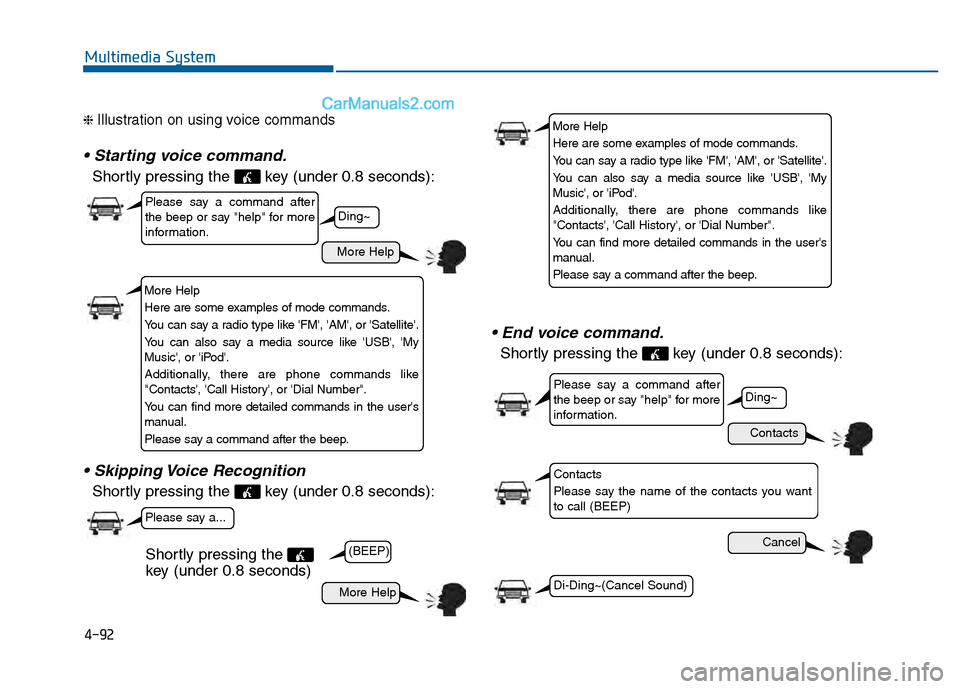
❈ Illustration on using voice commands
Shortly pressing the key (under 0.8 seconds):
Shortly pressing the key (under 0.8 seconds):
Shortly pressing the key (under 0.8 seconds):
More Help
Contacts
Cancel
More Help
Please say a command after
the beep or say "help" for more
information.
Please say a command after
the beep or say "help" for more
information.
Please say a...
Contacts
Please say the name of the contacts you want
to call (BEEP)
Ding~
(BEEP)
Ding~
Di-Ding~(Cancel Sound)
Shortly pressing the
key (under 0.8 seconds)
More Help
Here are some examples of mode commands.
You can say a radio type like 'FM', 'AM', or 'Satellite'.
You can also say a media source like 'USB', 'My
Music', or 'iPod'.
Additionally, there are phone commands like
"Contacts', 'Call History', or 'Dial Number".
You can find more detailed commands in the user's
manual.
Please say a command after the beep.
More Help
Here are some examples of mode commands.
You can say a radio type like 'FM', 'AM', or 'Satellite'.
You can also say a media source like 'USB', 'My
Music', or 'iPod'.
Additionally, there are phone commands like
"Contacts', 'Call History', or 'Dial Number".
You can find more detailed commands in the user's
manual.
Please say a command after the beep.
Page 346 of 603
4-93
Multimedia System
4
CommandFunction
More Help Provides guidance on commands that can be
used anywhere in the system.
Help Provides guidance on commands that can be
used within the current mode.
Call
Ex) Call “John Smith”
Phone Provides guidance on Phone related com- mands. After saying this command, say
“Favorites”,“Dial Number”, “Call History” or
“Contacts” execute corresponding functions.
Favorites Display the Favorite screen.
Call History Displays the Call History screen.
Contacts Displays the Contacts screen. After sayingthis command, say the name of a contact
saved in the Contacts to automatically con-
nect the call.
Dial Number Display the Dial number screen. After saying this command, you can say the number that
you want to call.
RedialConnects the most recently called number.
Tutorial Pro vide guidance on how to use voice
recognition and Bluetooth®connections.
Command Function
When listening to the radio, displays the
next radio screen. (FM1➟FM2➟AM➟XM1➟XM2➟XM3➟FM1)
Radio
When listening to a different mode, displays
the most recently played radio screen.
When currently listening to the FM radio,
maintains the current state.
When listening to a different mode, displaysthe most recently played FM screen.
FM1(FM One) Displays the FM1 screen.
FM2(FM Two) Displays the FM2 screen.
AM Displays the AM screen.
FM Preset 1~6 Plays the most recently played broadcast
saved in FM Preset 1~6.
AM Preset 1~6 Plays the broadcast saved in AM Preset 1~6.
FM 87.5~107.9 Plays the FM broadcast of the corresponding
frequency.
AM 530~1701 Plays the AM broadcast of the corresponding
frequency.
XM
™(Satellite)When currently listening to the SiriusXMTM,
maintains the current state.
When listening to a different mode, displaysthe most recently played SiriusXMTMscreen.
(Call by Name)
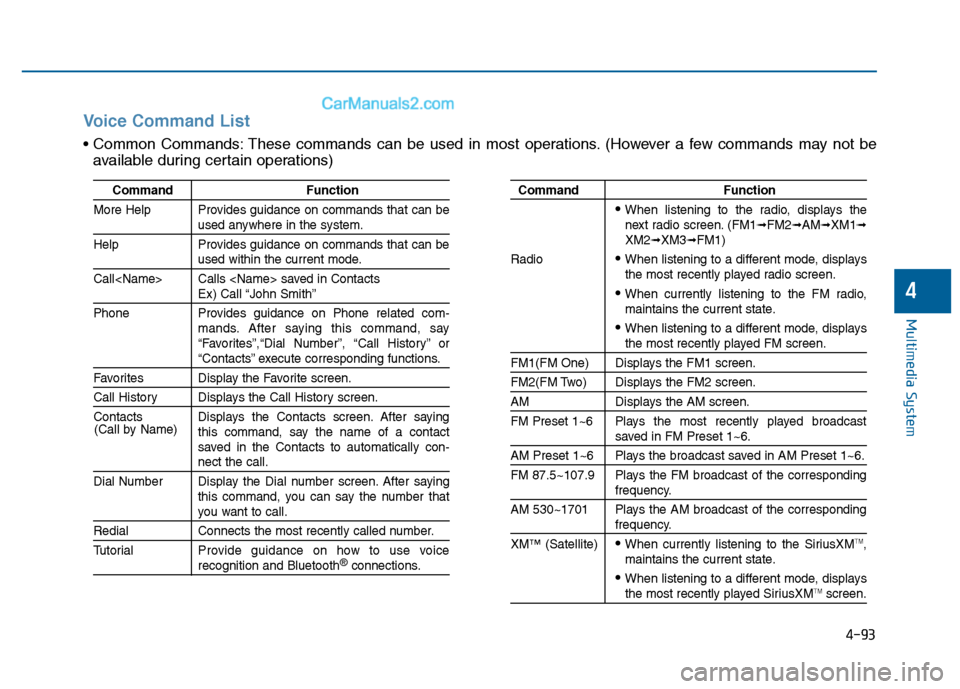
Voice Command List
These commands can be used in most operations. (However a few commands may not be
available during certain operations)
Page 357 of 603
4-104
Multimedia System
6. Suspend Route
“Suspend Route” VR command
allows the user to suspend and
pause Turn by Turn(TBT) route guid-
ance while in the guidance mode.
7. Resume Route
“Resume Route” VR command
allows the user to resume Turn by
Turn(TBT) route guidance.
➂ (Blue Link
®for SOS)
In the case of an emergency,
requests for help to the Blue Link
®
center.
Call is connected to the Blue Link
®
emergency rescue center. Re-press-
ing the key will end the call.
If already on a Bluetooth
®phone call,
the call will end to connect you to the
Blue Link
®Emergency Rescue
Center.
Information
• You cannot talk simultaneously on the Bluetooth®phone and Blue
Link®phone.
• While on a Bluetooth®call, pressing
the key or key will dis-
play a message indicating that you
are currently on a call.
• A message will be displayed if you receive a Bluetooth
®Bluetooth®
Wireless Technology call while already
on a Blue Link®call. At this time,
press the key on the steering
wheel remote controller to accept the
call. The phone bell will not ring.
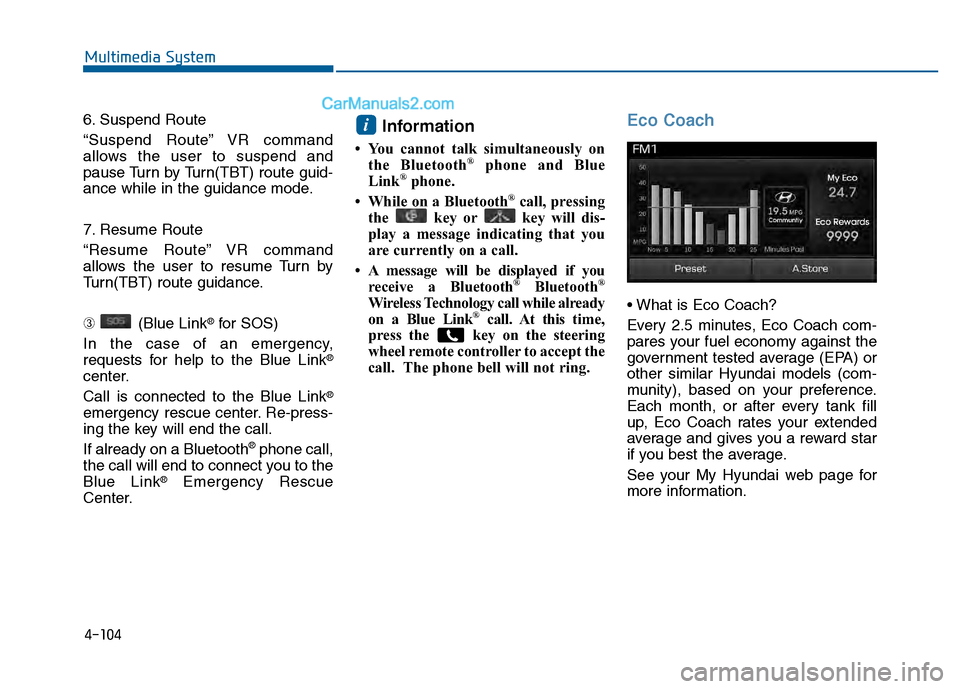
Eco Coach
Every 2.5 minutes, Eco Coach com-
pares your fuel economy against the
government tested average (EPA) or
other similar Hyundai models (com-
munity), based on your preference.
Each month, or after every tank fill
up, Eco Coach rates your extended
average and gives you a reward star
if you best the average.
See your My Hyundai web page for
more information.
i
Page 366 of 603
5-8
Starting the engine
1. Make sure the parking brake isapplied.
2. Make sure the shift lever is in P (Park).
3. Depress the brake pedal.
4. Turn the ignition switch to the START position. Hold the key
(maximum of 10 seconds) until the
engine starts and release it.
Information
• Do not wait for the engine to warmup while the vehicle remains station-
ary. Start driving at moderate
engine speeds. (Steep accelerating
and decelerating should be avoided.)
• Whether the engine is cold or warm, always start the vehicle with your
foot on the brake pedal. Do not
depress the accelerator while start-
ing the vehicle. Do not race the
engine while warming it up. To prevent damage to the vehicle:
Do not hold the ignition key in
the START position for more
than 10 seconds. Wait 5 to 10
seconds before trying again.
If traffic and road conditions permit, you may put the shift
lever in the N (Neutral) position
while the vehicle is still moving
and turn the ignition switch to
the START position in an
attempt to restart the engine.
Do not push or tow your vehicle to start the engine.
NOTICEi
Driving your vehicle
Always wear appropriate shoes
when operating your vehicle.
Unsuitable shoes, such as high
heels, ski boots, sandals, flip-
flops, etc., may interfere with
your ability to use the brake and
accelerator pedals.
WARNING
Page 370 of 603
5-12
Driving your vehicle
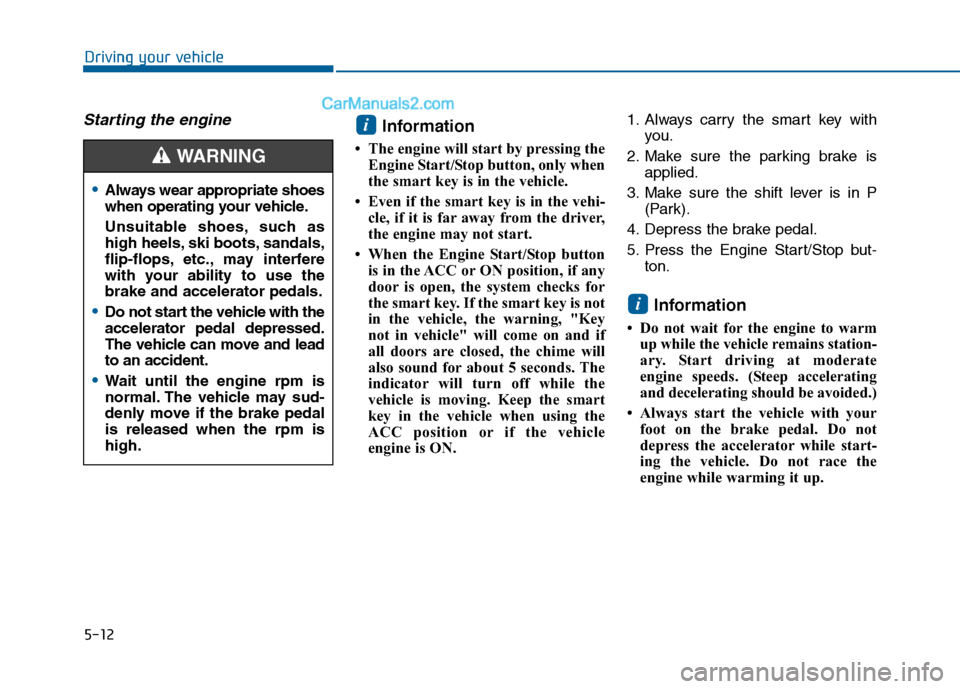
Always wear appropriate shoes
when operating your vehicle.
Unsuitable shoes, such as
high heels, ski boots, sandals,
flip-flops, etc., may interfere
with your ability to use the
brake and accelerator pedals.
Do not start the vehicle with the
accelerator pedal depressed.
The vehicle can move and lead
to an accident.
Wait until the engine rpm is
normal. The vehicle may sud-
denly move if the brake pedal
is released when the rpm is
high.
WARNING
Starting the engine Information
• The engine will start by pressing theEngine Start/Stop button, only when
the smart key is in the vehicle.
• Even if the smart key is in the vehi- cle, if it is far away from the driver,
the engine may not start.
• When the Engine Start/Stop button is in the ACC or ON position, if any
door is open, the system checks for
the smart key. If the smart key is not
in the vehicle, the warning, "Key
not in vehicle" will come on and if
all doors are closed, the chime will
also sound for about 5 seconds. The
indicator will turn off while the
vehicle is moving. Keep the smart
key in the vehicle when using the
ACC position or if the vehicle
engine is ON. 1. Always carry the smart key with
you.
2. Make sure the parking brake is applied.
3. Make sure the shift lever is in P (Park).
4. Depress the brake pedal.
5. Press the Engine Start/Stop but- ton.
Information
• Do not wait for the engine to warmup while the vehicle remains station-
ary. Start driving at moderate
engine speeds. (Steep accelerating
and decelerating should be avoided.)
• Always start the vehicle with your foot on the brake pedal. Do not
depress the accelerator while start-
ing the vehicle. Do not race the
engine while warming it up.
i
i
Page 374 of 603
5-16
Driving your vehicle
R (Reverse)
Use this position to drive the vehicle
backward.
N (Neutral)
The wheels and transmission are not
engaged.
Use N (Neutral) if you need to restart
a stalled engine, or if it is necessary
to stop with the engine ON. Shift into
P (Park) if you need to leave your
vehicle for any reason.
Always depress the brake pedal
when you are shifting from N
(Neutral) to another gear.
D (Drive)
This is the normal driving position.
The transmission will automatically
shift through a six-gear sequence,
providing the best fuel economy and
power.
For extra power when passing anoth-
er vehicle or driving uphill depress
the accelerator pedal further until
you feel the transmission downshift
to a lower gear.
The DRIVE MODE switch, located
on the shift lever console, allows the
driver to switch from NORMAL mode
to SPORT or ECO mode.
For more information, refer to
"Drive Mode Integrated Control
System" later in this chapter.
Always come to a complete
stop before shifting into or out
of R (Reverse); you may dam-
age the transmission if you shift
into R (Reverse) while the vehi-
cle is in motion.
CAUTION
Do not shift into gear unless
your foot is firmly on the brake
pedal. Shifting into gear when
the engine is running at high
speed can cause the vehicle to
move very rapidly. You could
lose control of the vehicle and
hit people or objects.
WARNING