trip computer Hyundai Sonata 2019 Owner's Manual
[x] Cancel search | Manufacturer: HYUNDAI, Model Year: 2019, Model line: Sonata, Model: Hyundai Sonata 2019Pages: 522, PDF Size: 15.66 MB
Page 86 of 522

Convenient features of your vehicle
Accessing your vehicle .........................................3-4
Remote Key........................................................................\
.3-4
Smart Key ........................................................................\
....3-8
Immobilizer System .........................................................3-12
Door locks .............................................................3-14
Outside the Vehicle.........................................................3-14
Inside the Vehicle ............................................................3-15
Auto Door Lock/Unlock Features ...............................3-17
Child-Protector Rear Door locks ................................3-18
Theft-alarm system.............................................3-19
Driver position memory system .........................3-20
Storing Positions into Memory ....................................3-20
Easy Access Function ....................................................3-21
Steering wheel......................................................3-22
Electric Power Steering (EPS) .....................................3-22
Tilt Steering / Telescope Steering ..............................3-23
Heated Steering Wheel ..................................................3-23
Horn ........................................................................\
............3-24
Mirrors ...................................................................3-25
Inside Rearview Mirror ..................................................3-25
Side view Mirrors ............................................................3-40
Reverse Parking Aid Function......................................3-43
Windows ................................................................3-44
Power Windows ...............................................................3-45
Sunroof..................................................................3-48
Sunroof opening and closing .......................................3-49
Sliding the sunroof .........................................................3-49
Tilting the sunroof ..........................................................3-50
Sunshade ........................................................................\
...3-50
Resetting the sunroof ....................................................3-51
Exterior features .................................................3-52
Hood ........................................................................\
...........3-52
Trunk ........................................................................\
..........3-53
Smart Trunk ......................................................................3-\
56
Fuel Filler Door ................................................................3-59
Instrument cluster................................................3-63
Instrument Cluster Control............................................3-65
LCD Display Control ........................................................3-66
LCD Display ...........................................................3-72
LCD Modes ........................................................................\
3-72
Warning Messages..........................................................3-80
Trip computer .......................................................3-85
Trip modes ........................................................................\
3-85
3
Page 148 of 522
3-63
Convenient features of your vehicle
3
I
IN
N S
ST
T R
R U
U M
M E
EN
N T
T
C
C L
LU
U S
ST
T E
ER
R
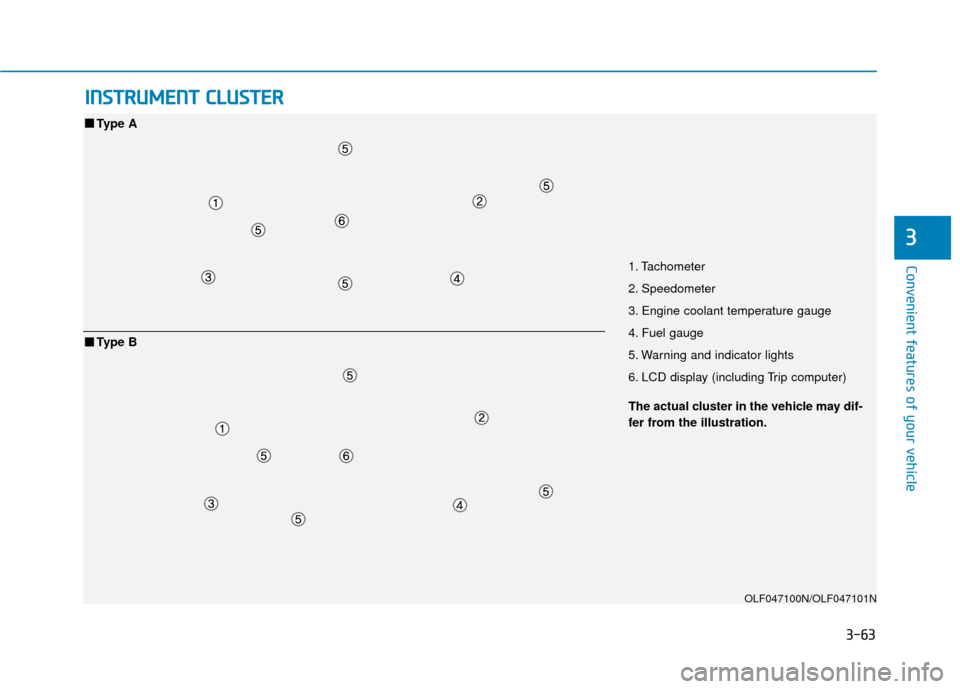
1. Tachometer
2. Speedometer
3. Engine coolant temperature gauge
4. Fuel gauge
5. Warning and indicator lights
6. LCD display (including Trip computer)
OLF047100N/OLF047101N
■
■
Type A
The actual cluster in the vehicle may dif-
fer from the illustration.
■
■Type B
Page 149 of 522
3-64
Convenient features of your vehicle
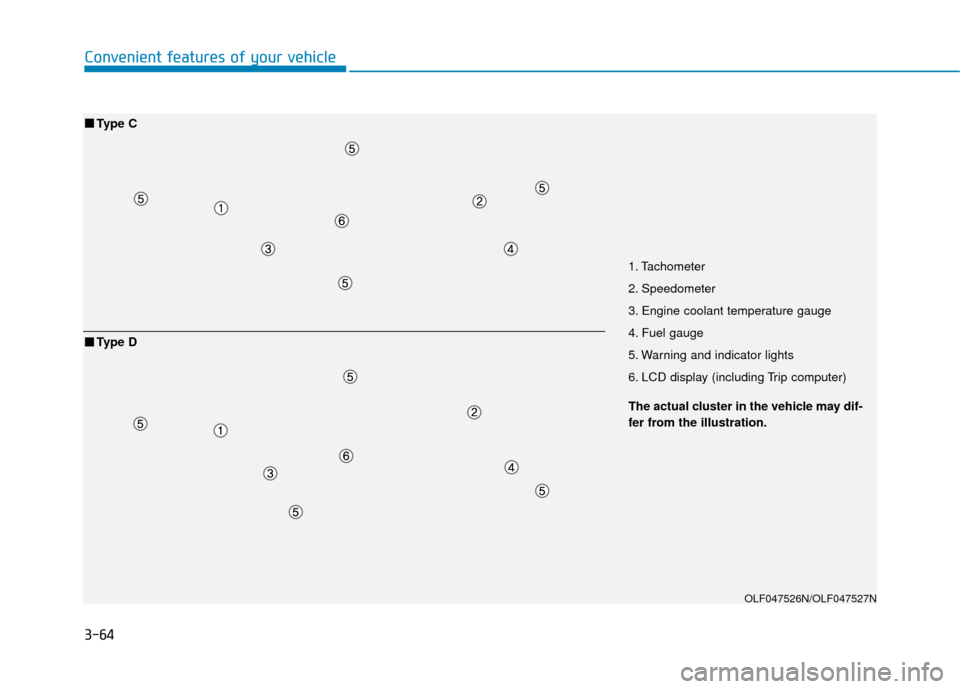
1. Tachometer
2. Speedometer
3. Engine coolant temperature gauge
4. Fuel gauge
5. Warning and indicator lights
6. LCD display (including Trip computer)
OLF047526N/OLF047527N
■
■Type C
The actual cluster in the vehicle may dif-
fer from the illustration.
■
■Type D
Page 157 of 522
3-72
Convenient features of your vehicle
LCD Modes
L
LC
C D
D
D
D I
IS
S P
P L
LA
A Y
Y
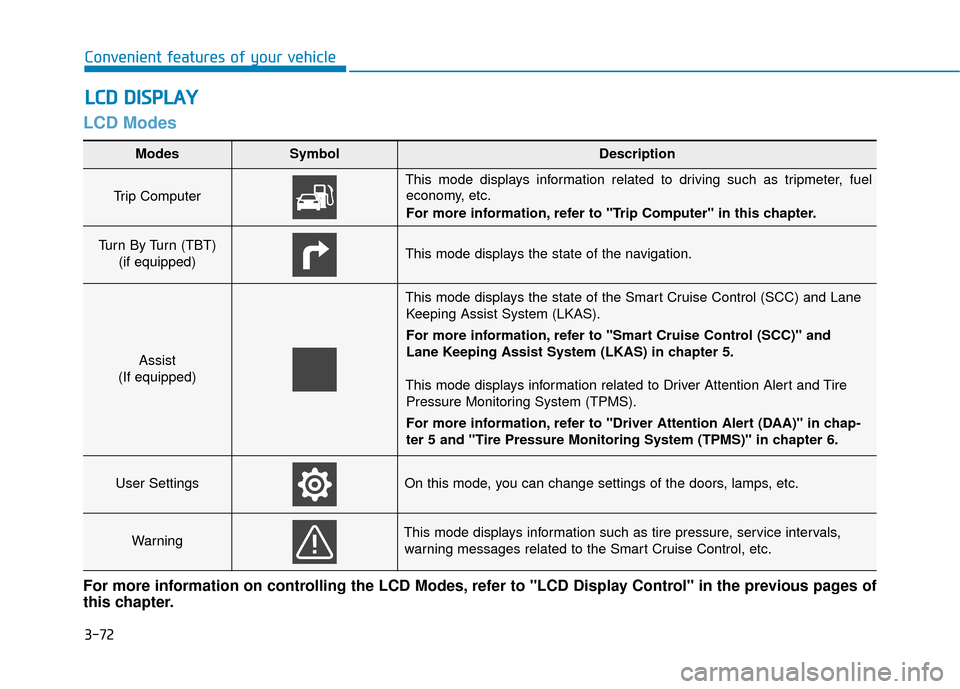
Modes SymbolDescription
Trip Computer
This mode displays information related to driving such as tripmeter, fuel
economy, etc.
For more information, refer to "Trip Computer" in this chapter.
Turn By Turn (TBT)
(if equipped)This mode displays the state of the navigation.
Assist
(If equipped)
This mode displays the state of the Smart Cruise Control (SCC) and Lane Keeping Assist System (LKAS).
For more information, refer to "Smart Cruise Control (SCC)" and
Lane Keeping Assist System (LKAS) in chapter 5.
This mode displays information related to Driver Attention Alert and Tire Pressure Monitoring System (TPMS).
For more information, refer to "Driver Attention Alert (DAA)" in chap-
ter 5 and "Tire Pressure Monitoring System (TPMS)" in chapter 6.
User SettingsOn this mode, you can change settings of the doors, lamps, etc.
WarningThis mode displays information such as tire pressure, service intervals,warning messages related to the Smart Cruise Control, etc.
For more information on controlling the LCD Modes, refer to "LCD Display Control" in the previous pages of
this chapter.
Page 158 of 522
3-73
Convenient features of your vehicle
3
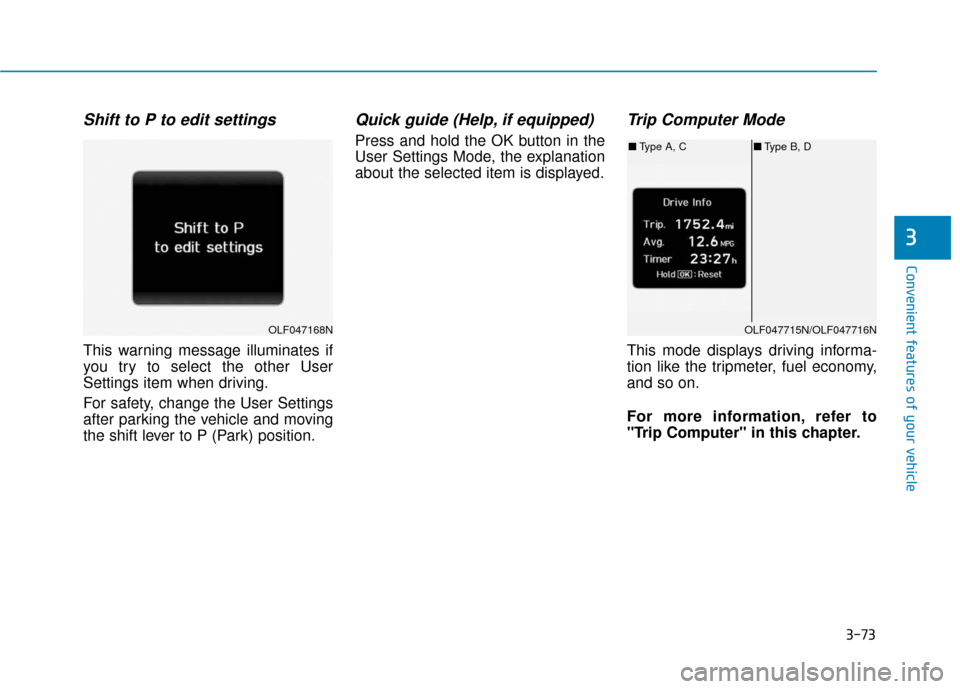
Shift to P to edit settings
This warning message illuminates if
you try to select the other User
Settings item when driving.
For safety, change the User Settings
after parking the vehicle and moving
the shift lever to P (Park) position.
Quick guide (Help, if equipped)
Press and hold the OK button in the
User Settings Mode, the explanation
about the selected item is displayed.
Trip Computer Mode
This mode displays driving informa-
tion like the tripmeter, fuel economy,
and so on.
For more information, refer to
"Trip Computer" in this chapter.
OLF047168NOLF047715N/OLF047716N
■Type A, C ■Type B, D
Page 164 of 522
3-79
Convenient features of your vehicle
If the service interval is activated and
the time and distance is adjusted,
messages are displayed in the fol-
lowing situations each time the vehi-
cle is turned on.
- Service in: Displayed to inform the driver theremaining mileage and days to
service.
- Service required : Displayed when the mileage anddays to service has been reached
or passed.
Information
If any of the following conditions
occur, the mileage and number of days
to service may be incorrect.
- The battery cable is disconnected.
- The fuse switch is turned off.
- The battery is discharged. 7. Other Features
Fuel Economy Auto Reset
- Off: The average fuel economy will
not reset automatically whenever
refueling.
- After Ignition: The average fuel economy will reset automatically
whenever it has passed 4 hours
after turning OFF the engine.
- After recharging: The average fuel economy will reset automatically
when refueling.
For more information, refer to
"Trip Computer" in this chapter.
Fuel Economy Unit
To select the fuel economy unit.
(km/L, L/100, MPG)
Temperature Unit
To select the temperature unit.
(°C,°F)
Tire Pressure Unit
To select the tire pressure unit.
(psi, kPa, bar) 8. Reset
You can reset the menus in the User
Settings Mode. All menus in the User
Settings Mode are initialized, except
language and service interval.
i
3
Page 167 of 522
3-82
Sunroof Open (if equipped)
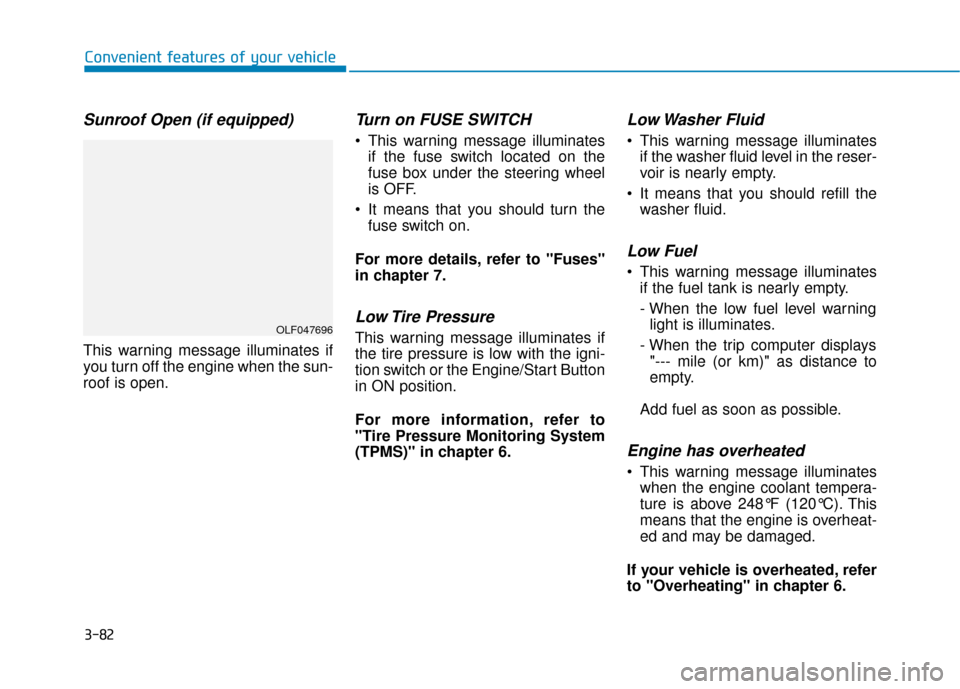
This warning message illuminates if
you turn off the engine when the sun-
roof is open.
Turn on FUSE SWITCH
This warning message illuminatesif the fuse switch located on the
fuse box under the steering wheel
is OFF.
It means that you should turn the fuse switch on.
For more details, refer to "Fuses"
in chapter 7.
Low Tire Pressure
This warning message illuminates if
the tire pressure is low with the igni-
tion switch or the Engine/Start Button
in ON position.
For more information, refer to
"Tire Pressure Monitoring System
(TPMS)" in chapter 6.
Low Washer Fluid
This warning message illuminates if the washer fluid level in the reser-
voir is nearly empty.
It means that you should refill the washer fluid.
Low Fuel
This warning message illuminatesif the fuel tank is nearly empty.
- When the low fuel level warninglight is illuminates.
- When the trip computer displays "--- mile (or km)" as distance to
empty.
Add fuel as soon as possible.
Engine has overheated
This warning message illuminates when the engine coolant tempera-
ture is above 248°F (120°C). This
means that the engine is overheat-
ed and may be damaged.
If your vehicle is overheated, refer
to "Overheating" in chapter 6.
Convenient features of your vehicle
OLF047696
Page 170 of 522
3-85
Convenient features of your vehicle
The trip computer is a microcomput-
er-controlled driver information sys-
tem that displays information related
to driving.
Information
Some driving information stored in the
trip computer (for example Average
Vehicle Speed) resets if the battery is
disconnected.
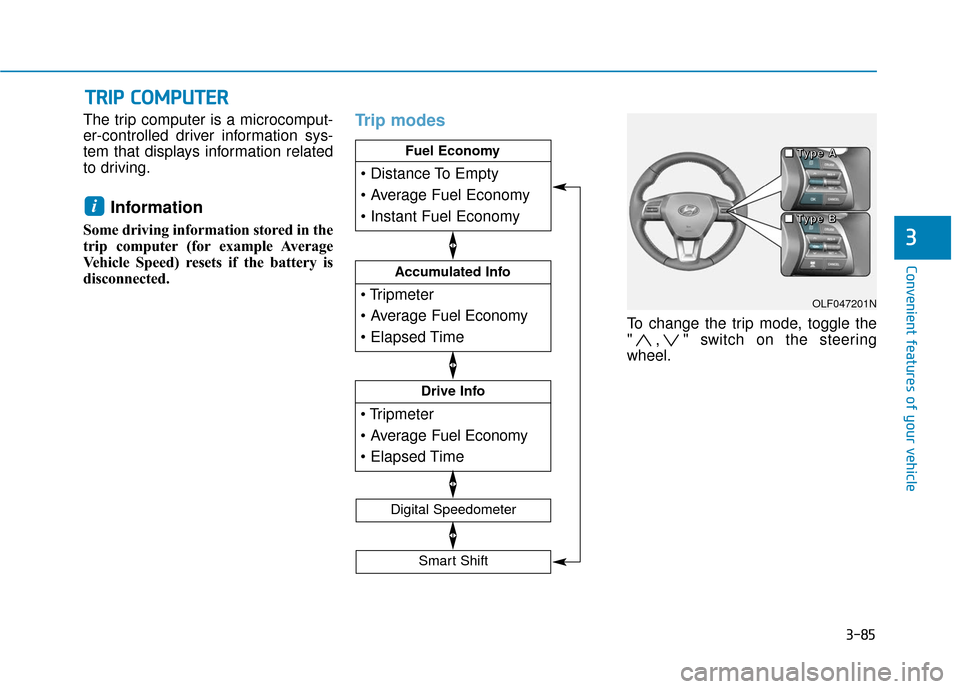
Trip modes
To change the trip mode, toggle the
" , " switch on the steering
wheel.
i
T
TR
R I
IP
P
C
C O
O M
M P
PU
U T
TE
ER
R
3
Drive Info
Accumulated Info
Fuel Economy
Digital Speedometer
Smart Shift
OLF047201N
■
■
■
■
T
T
T
T
y
y
y
y
p
p
p
p
e
e
e
e
A
A
A
A
■
■
■
■
T
T
T
T
y
y
y
y
p
p
p
p
e
e
e
e
B
B
B
B
Page 171 of 522
3-86
Fuel economy
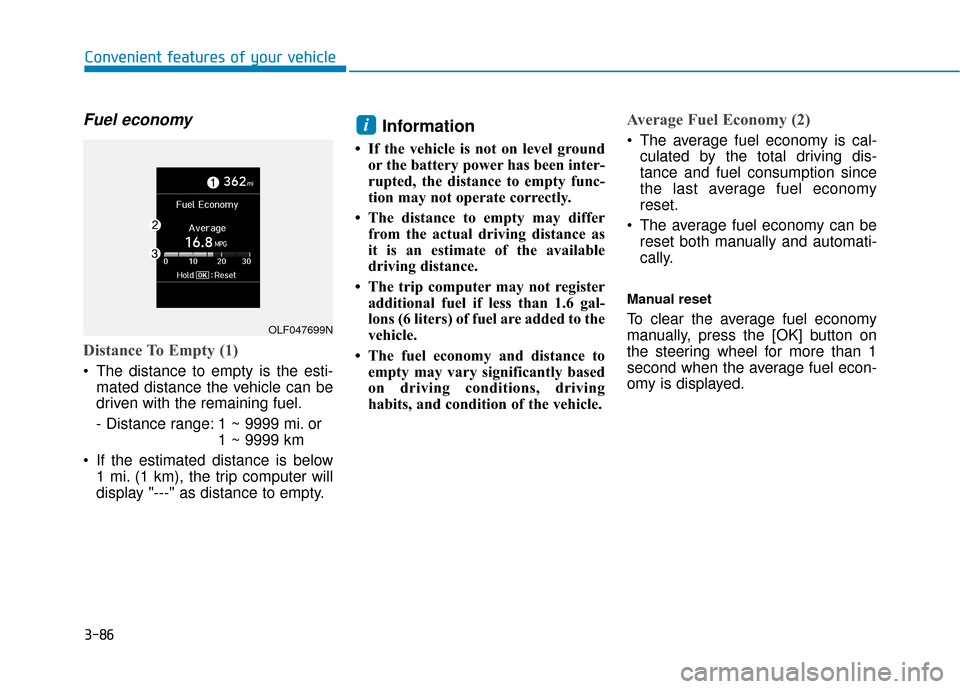
Distance To Empty (1)
The distance to empty is the esti-mated distance the vehicle can be
driven with the remaining fuel.
- Distance range: 1 ~ 9999 mi. or 1 ~ 9999 km
If the estimated distance is below 1 mi. (1 km), the trip computer will
display "---" as distance to empty.
Information
• If the vehicle is not on level groundor the battery power has been inter-
rupted, the distance to empty func-
tion may not operate correctly.
• The distance to empty may differ from the actual driving distance as
it is an estimate of the available
driving distance.
• The trip computer may not register additional fuel if less than 1.6 gal-
lons (6 liters) of fuel are added to the
vehicle.
• The fuel economy and distance to empty may vary significantly based
on driving conditions, driving
habits, and condition of the vehicle.
Average Fuel Economy (2)
The average fuel economy is cal-culated by the total driving dis-
tance and fuel consumption since
the last average fuel economy
reset.
The average fuel economy can be reset both manually and automati-
cally.
Manual reset
To clear the average fuel economy
manually, press the [OK] button on
the steering wheel for more than 1
second when the average fuel econ-
omy is displayed.
i
Convenient features of your vehicle
OLF047699N
Page 301 of 522
5-51
Driving your vehicle
Drive mode indicator screen
The drive mode indicator screen can
be displayed by using the trip com-
puter button on the steering wheel.
drive mode indicator screen displays
the status of current drive mode.
DRIVE MODE button is located onthe lower part of the transmission
lever for selecting drive mode. If
drive mode is selected manually by
the user, the drive mode indicator
screen will show user-selected
drive mode. (COMFORT, ECO, or
SPORT)
If SMART mode is selected by
DRIVE MODE button, the drive
mode indicator screen will show
current drive mode automatically
selected by SMART mode system.
(SMART COMFORT, SMART
ECO, or SMART SPORT)
When the trip computer mode is selected to show drive mode and
the SMART mode is in operation,
an automatically selected driving
mode SMART ECO, SMART
COMFORT, or SMART SPORT will
be selected on the LCD display. And right below is the horizontal
driving style gauge which reflects
the driving style in real time.
If you drive carefully and slowly in SMART mode, the left side of the
driving style gauge will illuminate,
and automatically shift to the
SMART ECO mode.
When the driver accelerates more
frequently, the right side of the driv-
ing style gauge will fill up, and shift
to SMART COMFORT mode.
In addition, if the rate of accelera-
tion and speed is high, drive mode
will change to SMART SPORT
mode.
If the auto cruise control function is operated or the transmission is
shifted to manual shift mode while
SMART mode is on, the SMART
mode will stop temporarily, and the
drive mode will be displayed as
OFF. The driving style gauge light
will be turned off accordingly. If the trip computer is not set to
show drive mode indicator screen,
and you want to know the on/off
status of the SMART mode, simply
check whether the letters 'SMART'
is lighten up on the screen or not
(green - ECO MODE, white -
COMFORT MODE, red - SPORT
MODE).
5