switch Hyundai Sonata 2020 Manual PDF
[x] Cancel search | Manufacturer: HYUNDAI, Model Year: 2020, Model line: Sonata, Model: Hyundai Sonata 2020Pages: 537, PDF Size: 14.54 MB
Page 257 of 537
5-127
05
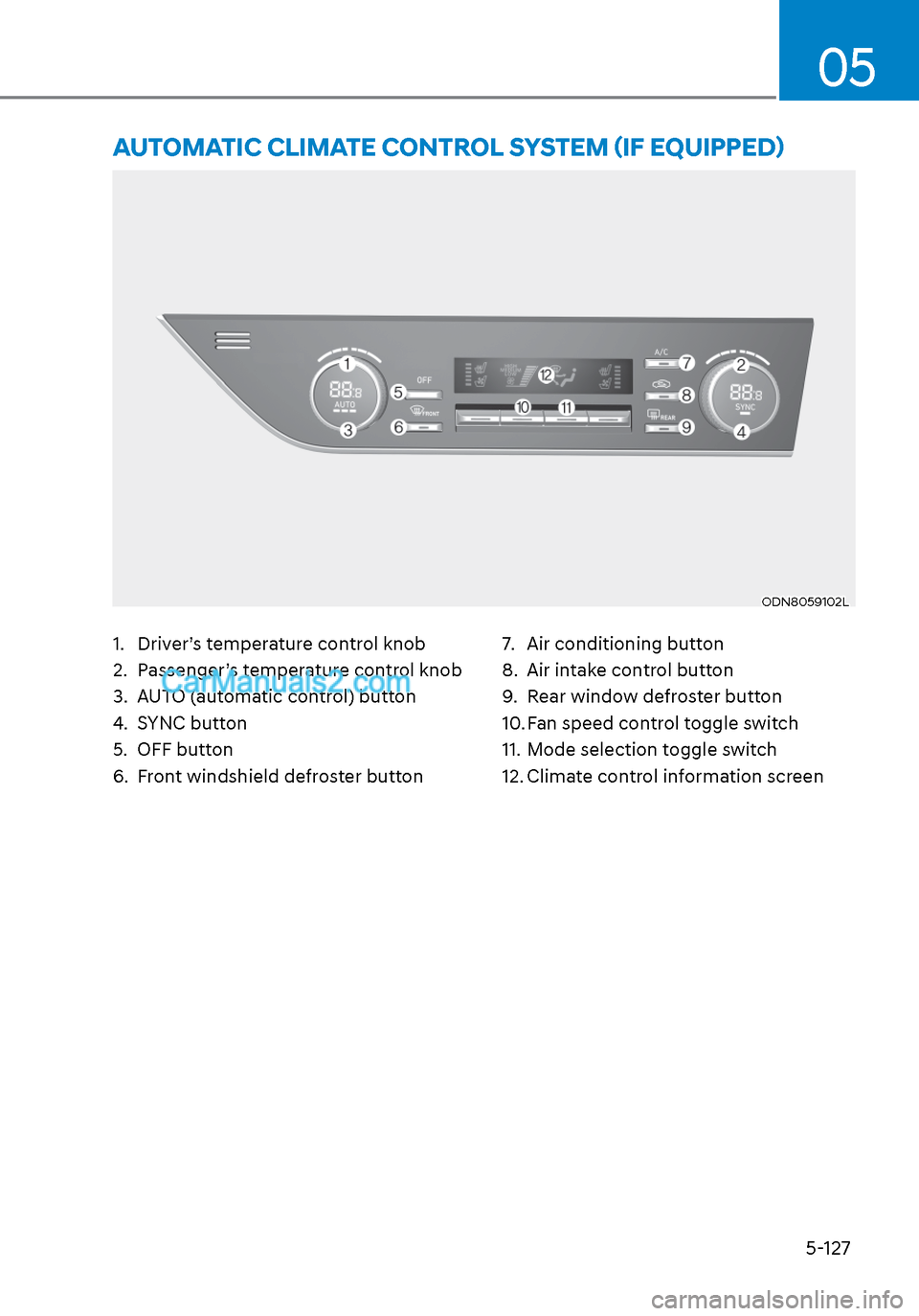
1. Driver’s temperature control knob
2. Passenger’s temperature control knob
3. AUTO (automatic control) button
4. SYNC button
5. OFF button
6. Front windshield defroster button7. Air conditioning button
8. Air intake control button
9. Rear window defroster button
10. Fan speed control toggle switch
11. Mode selection toggle switch
12. Climate control information screen
AUTOMATIC CLIMATE CONTROL SYSTEM (IF EQUIPPED)
ODN8059102LODN8059102L
Page 258 of 537
Convenient Features5-128
Automatic Heating and Air
Conditioning
ODN8059115ODN8059115
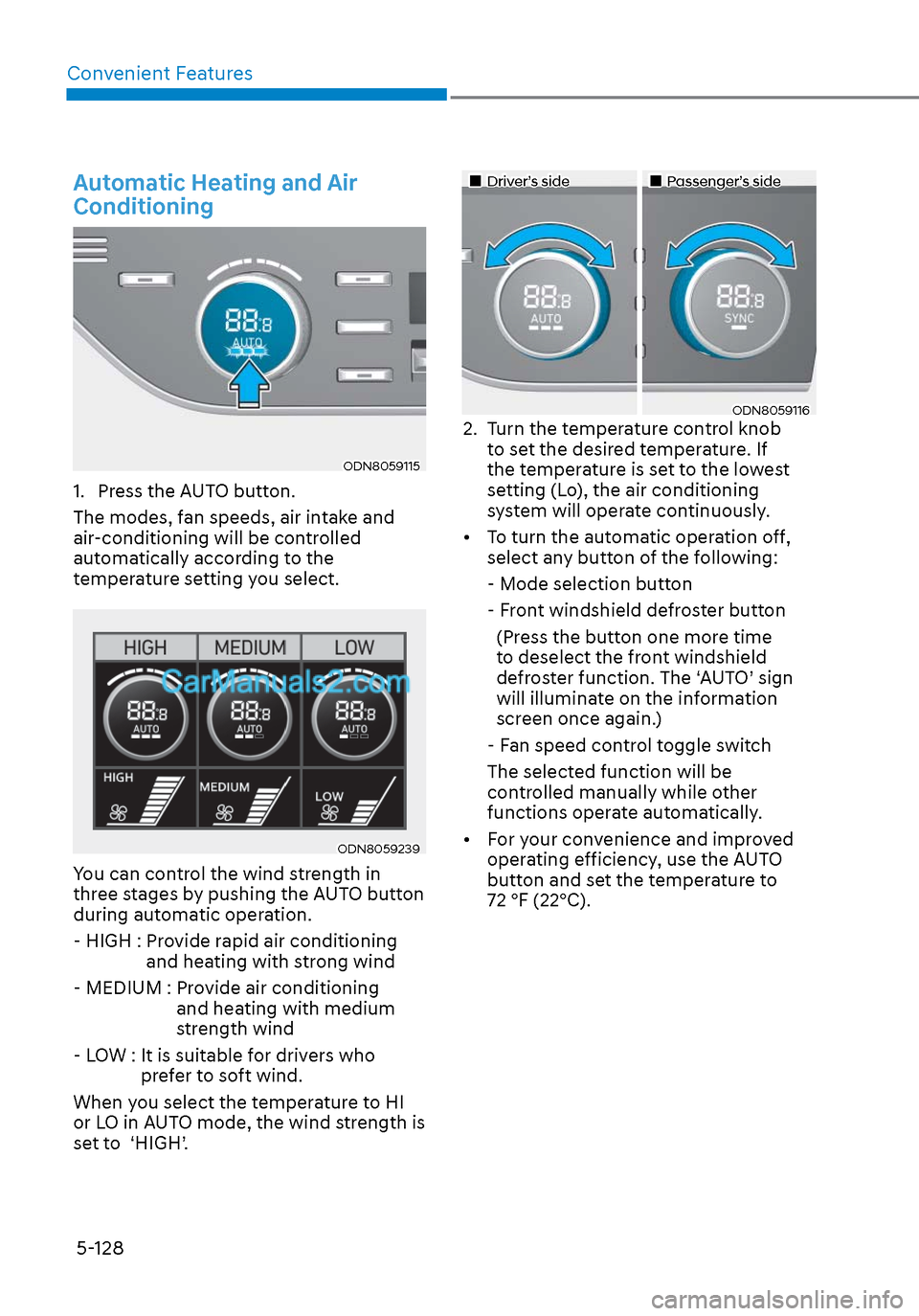
1. Press the AUTO button.
The modes, fan speeds, air intake and
air-conditioning will be controlled
automatically according to the
temperature setting you select.
ODN8059239ODN8059239
You can control the wind strength in
three stages by pushing the AUTO button
during automatic operation.
- HIGH : Provide rapid air conditioning and heating with strong wind
- MEDIUM : Provide air conditioning and heating with medium
strength wind
- LOW : It is suitable for drivers who prefer to soft wind.
When you select the temperature to HI
or LO in AUTO mode, the wind strength is
set to ‘HIGH’.
Driver’s sideDriver’s sidePassenger’s sidePassenger’s side
ODN8059116ODN80591162. Turn the temperature control knob to set the desired temperature. If
the temperature is set to the lowest
setting (Lo), the air conditioning
system will operate continuously.
• To turn the automatic operation off, select any button of the following:
- Mode selection button
- Front windshield defroster button
(Press the button one more time to deselect the front windshield
defroster function. The ‘AUTO’ sign
will illuminate on the information
screen once again.)
- Fan speed control toggle switch
The selected function will be controlled manually while other
functions operate automatically.
• For your convenience and improved operating efficiency, use the AUTO
button and set the temperature to
72 °F (22°C).
Page 264 of 537
Convenient Features5-134
Fan speed control
ODN8H059319ODN8H059319
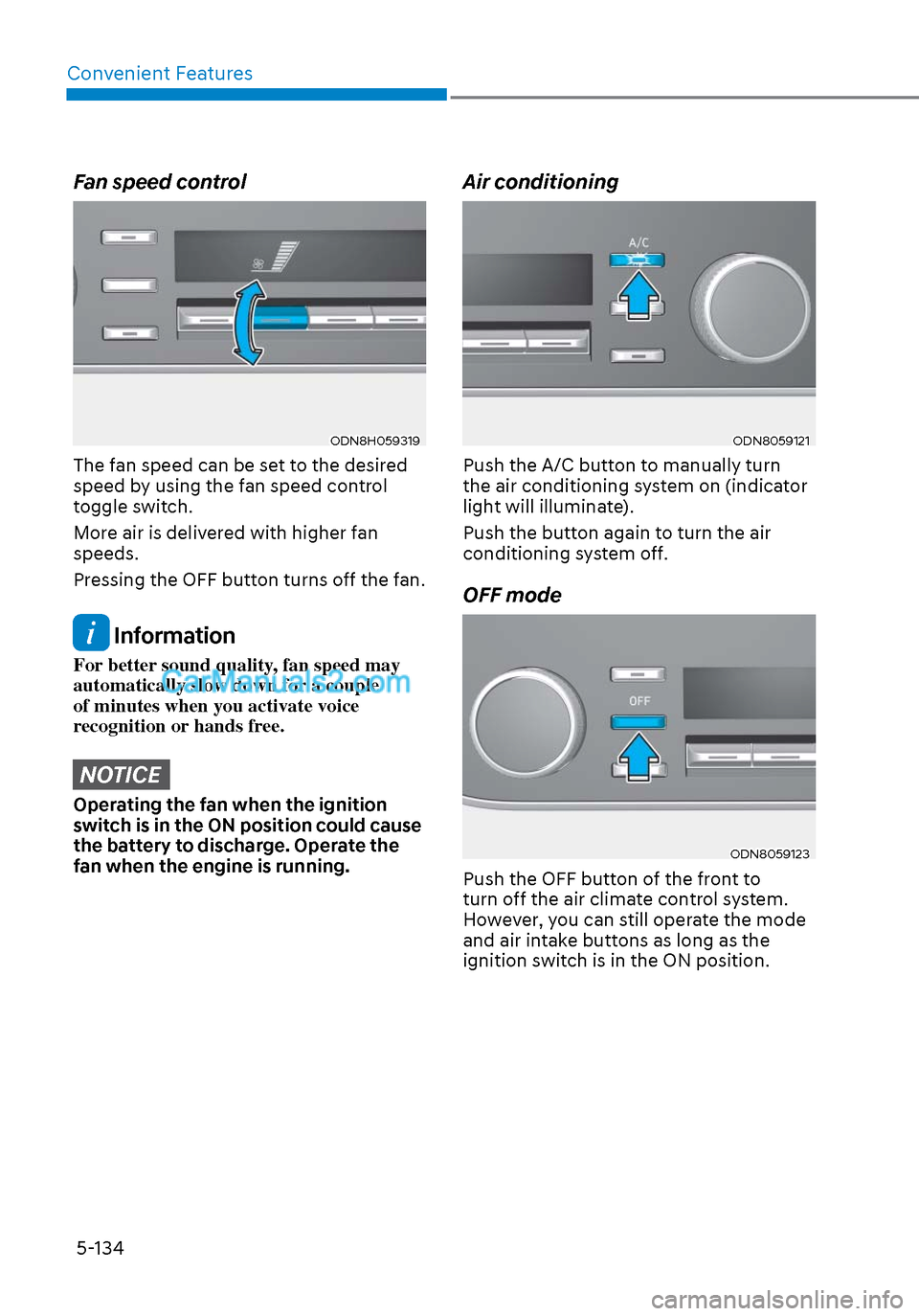
The fan speed can be set to the desired
speed by using the fan speed control
toggle switch.
More air is delivered with higher fan
speeds.
Pressing the OFF button turns off the fan.
Information
For better sound quality, fan speed may
automatically slow down for a couple
of minutes when you activate voice
recognition or hands free.
NOTICE
Operating the fan when the ignition
switch is in the ON position could cause
the battery to discharge. Operate the
fan when the engine is running.
Air conditioning
ODN8059121ODN8059121
Push the A/C button to manually turn
the air conditioning system on (indicator
light will illuminate).
Push the button again to turn the air
conditioning system off.
OFF mode
ODN8059123ODN8059123
Push the OFF button of the front to
turn off the air climate control system.
However, you can still operate the mode
and air intake buttons as long as the
ignition switch is in the ON position.
Page 266 of 537
Convenient Features5-136
Air conditioning system operation tips
• If the vehicle has been parked in dir
ect sunlight during hot weather,
open the windows for a short time
to let the hot air inside the vehicle
escape.
• After sufficient cooling has been achieved, switch back from the
recirculated air to the fresh outside air
position.
• To help reduce moisture inside of the windows on rainy or humid
days, decrease the humidity inside
the vehicle by operating the air
conditioning system with the windows
and sunroof closed.
• Use the air conditioning system every month only for a few minutes
to ensure maximum system
performance.
• If you operate air conditioner excessively, the difference between
the temperature of the outside air and
that of the windshield could cause
the outer surface of the windshield
to fog up, causing loss of visibility. In
this case, set the mode selection knob
or button to the
position and fan
speed control to the lower speed.
System Maintenance
Cabin air filter
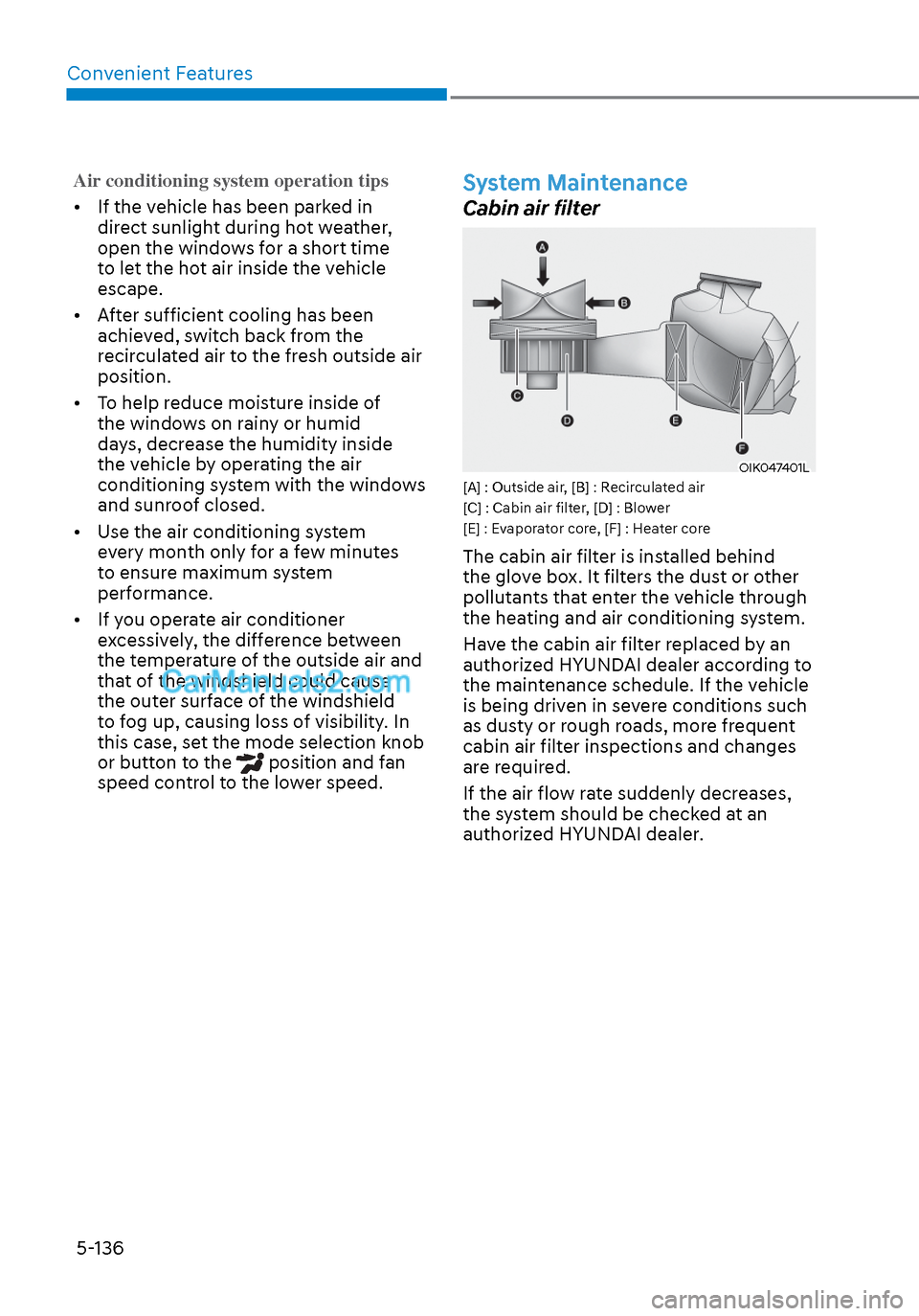
OIK047401LOIK047401L[A] : Outside air, [B] : Recirculated air
[C] : Cabin air filter, [D] : Blower
[E] : Evaporator core, [F] : Heater core
The cabin air filter is installed behind
the glove box. It filters the dust or other
pollutants that enter the vehicle through
the heating and air conditioning system.
Have the cabin air filter replaced by an
authorized HYUNDAI dealer according to
the maintenance schedule. If the vehicle
is being driven in severe conditions such
as dusty or rough roads, more frequent
cabin air filter inspections and changes
are required.
If the air flow rate suddenly decreases,
the system should be checked at an
authorized HYUNDAI dealer.
Page 270 of 537
Convenient Features5-140
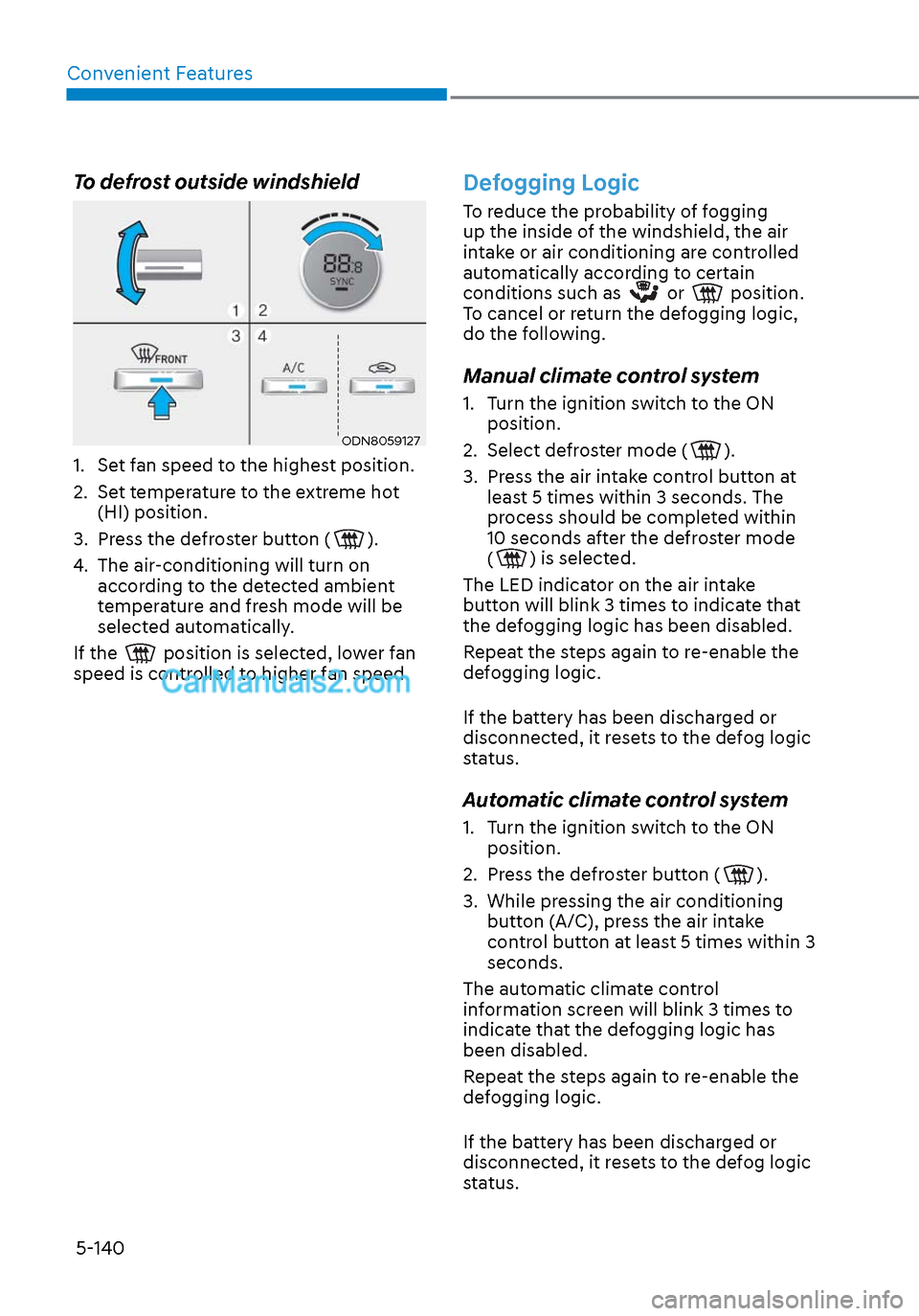
To defrost outside windshield
ODN8059127ODN8059127
1. Set fan speed to the highest position.
2. Set temperature to the extreme hot (HI) position.
3. Press the defroster button (
).
4. The air-conditioning will turn on according to the detected ambient
temperature and fresh mode will be
selected automatically.
If the
position is selected, lower fan
speed is controlled to higher fan speed.
Defogging Logic
To reduce the probability of fogging
up the inside of the windshield, the air
intake or air conditioning are controlled
automatically according to certain
conditions such as
or position.
To cancel or return the defogging logic,
do the following.
Manual climate control system
1. Turn the ignition switch to the ON position.
2. Select defroster mode (
).
3. Press the air intake control button at least 5 times within 3 seconds. The
process should be completed within
10 seconds after the defroster mode
(
) is selected.
The LED indicator on the air intake
button will blink 3 times to indicate that
the defogging logic has been disabled.
Repeat the steps again to re-enable the
defogging logic.
If the battery has been discharged or
disconnected, it resets to the defog logic
status.
Automatic climate control system
1. Turn the ignition switch to the ON position.
2. Press the defroster button (
).
3. While pressing the air conditioning button (A/C), press the air intake
control button at least 5 times within 3
seconds.
The automatic climate control
information screen will blink 3 times to
indicate that the defogging logic has
been disabled.
Repeat the steps again to re-enable the
defogging logic.
If the battery has been discharged or
disconnected, it resets to the defog logic
status.
Page 271 of 537
05
5-141
Auto Defogging System (Only
for Automatic Climate Control
System, if equipped)
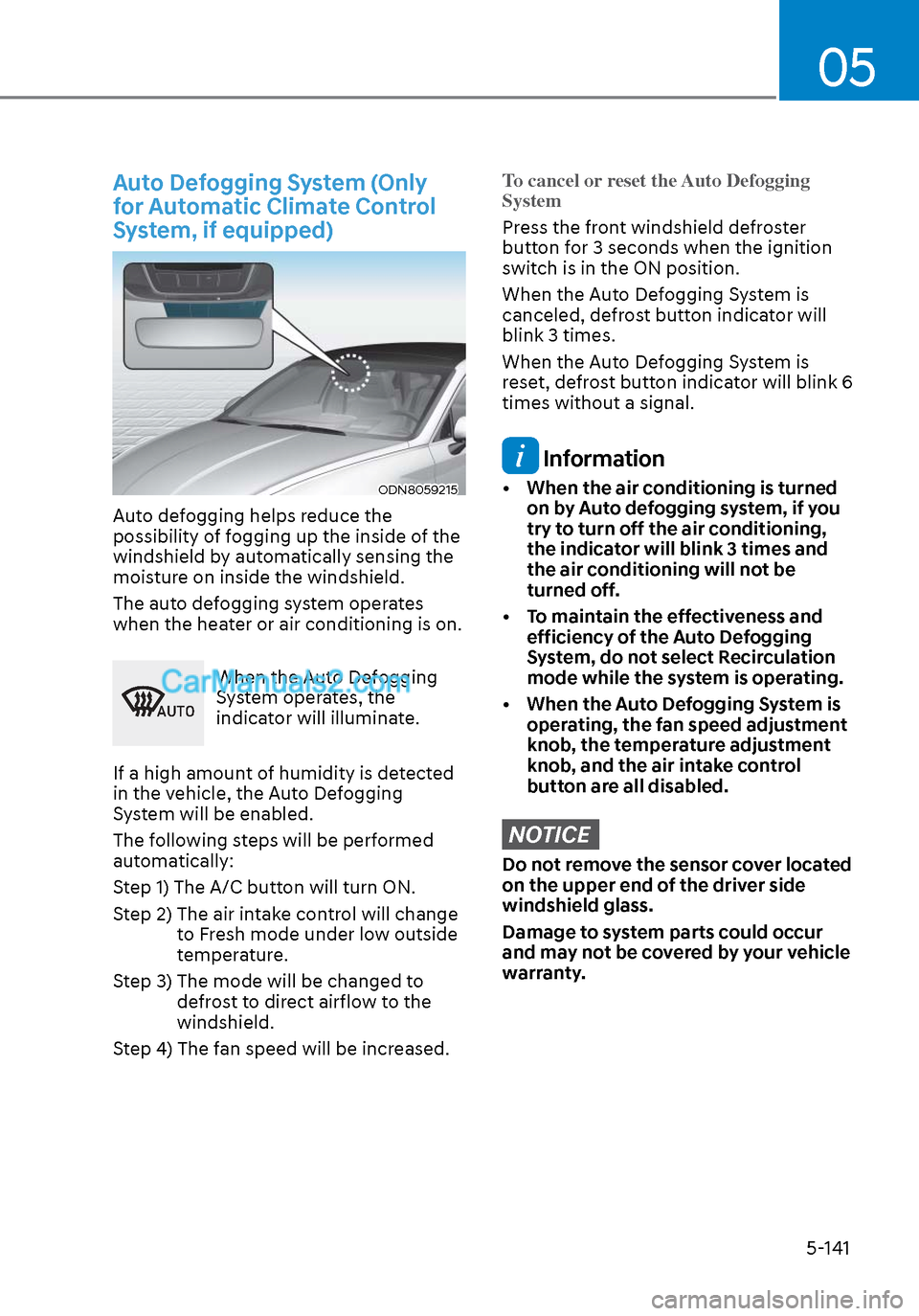
ODN8059215ODN8059215
Auto defogging helps reduce the
possibility of fogging up the inside of the
windshield by automatically sensing the
moisture on inside the windshield.
The auto defogging system operates
when the heater or air conditioning is on.
$872
When the Auto Defogging
System operates, the
indicator will illuminate.
If a high amount of humidity is detected
in the vehicle, the Auto Defogging
System will be enabled.
The following steps will be performed
automatically:
Step 1) The A/C button will turn ON.
Step 2) The air intake control will change to Fresh mode under low outside
temperature.
Step 3) The mode will be changed to defrost to direct airflow to the
windshield.
Step 4) The fan speed will be increased.
To cancel or reset the Auto Defogging
System
Press the front windshield defroster
butt
on for 3 seconds when the ignition
switch is in the ON position.
When the Auto Defogging System is
canceled, defrost button indicator will
blink 3 times.
When the Auto Defogging System is
reset, defrost button indicator will blink 6
times without a signal.
Information
• When the air conditioning is turned on by Auto defogging system, if you
try to turn off the air conditioning,
the indicator will blink 3 times and
the air conditioning will not be
turned off.
• To maintain the effectiveness and efficiency of the Auto Defogging
System, do not select Recirculation
mode while the system is operating.
• When the Auto Defogging System is operating, the fan speed adjustment
knob, the temperature adjustment
knob, and the air intake control
button are all disabled.
NOTICE
Do not remove the sensor cover located
on the upper end of the driver side
windshield glass.
Damage to system parts could occur
and may not be covered by your vehicle
warranty.
Page 272 of 537
Convenient Features5-142
DefrosterNOTICE
To prevent damage to the conductors
bonded to the inside surface of the rear
window, never use sharp instruments or
window cleaners containing abrasives
to clean the window.
Information
If you want to defrost and defog the
front windshield, refer to “Windshield
Defrosting and Defogging” in this chapter.
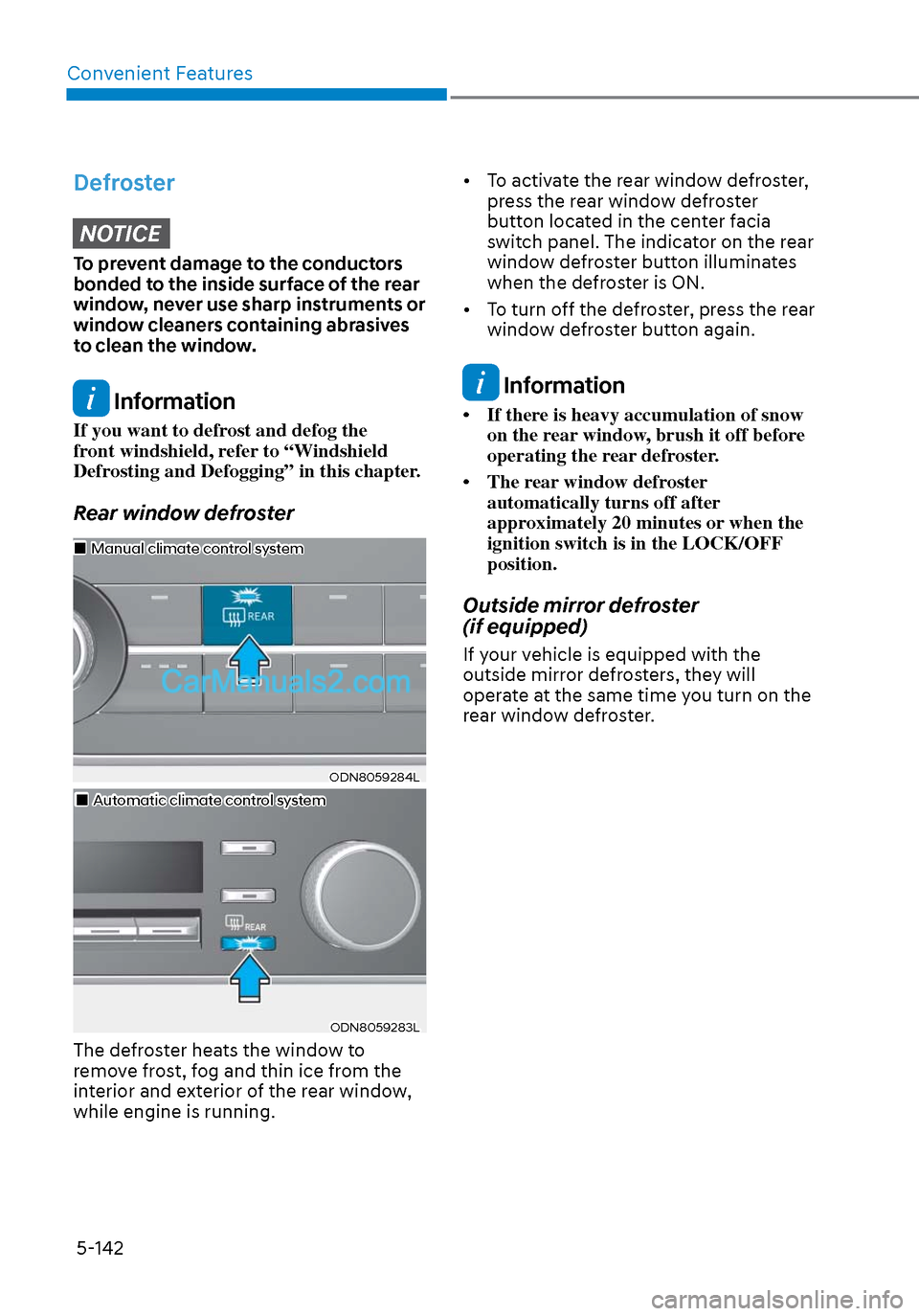
Rear window defroster
ODN8059284LODN8059284L
Manual climate control systemManual climate control system
Automatic climate control systemAutomatic climate control system
ODN8059283LODN8059283L
The defroster heats the window to
remove frost, fog and thin ice from the
interior and exterior of the rear window,
while engine is running. • To activate the rear window defroster,
press the rear window defroster
button located in the center facia
switch panel. The indicator on the rear
window defroster button illuminates
when the defroster is ON.
• To turn off the defroster, press the rear window defroster button again.
Information
• If there is heavy accumulation of snow on the rear window, brush it off before
operating the rear defroster.
• The rear window defroster automatically turns off after
approximately 20 minutes or when the
ignition switch is in the LOCK/OFF
position.
Outside mirror defroster
(if equipped)
If your vehicle is equipped with the
outside mirror defrosters, they will
operate at the same time you turn on the
rear window defroster.
Page 277 of 537
05
5-147
NOTICE
To prevent damage to the Power
Outlets:
• Use the power outlet only when the
engine is running and remove the
accessory plug after use. Using the
accessory plug for prolonged periods
of time with the engine off could
cause the battery to discharge.
• Only use 12V electric accessories
which are less than 180 W in electric
capacity.
• Adjust the air-conditioner or heater
to the lowest operating level when
using the power outlet.
• Close the cover when not in use.
• Some electronic devices can
cause electronic interference
when plugged into a vehicle’s
power outlet. These devices may
cause excessive audio static and
malfunctions in other electronic
systems or devices used in your
vehicle.
• Push the plug in as far as it will go. If
good contact is not made, the plug
may overheat and the fuse may open.
• Plug in battery equipped electrical/
electronic devices with reverse
current protection. The current
from the battery may flow into the
vehicle’s electrical/electronic system
and cause system malfunction.
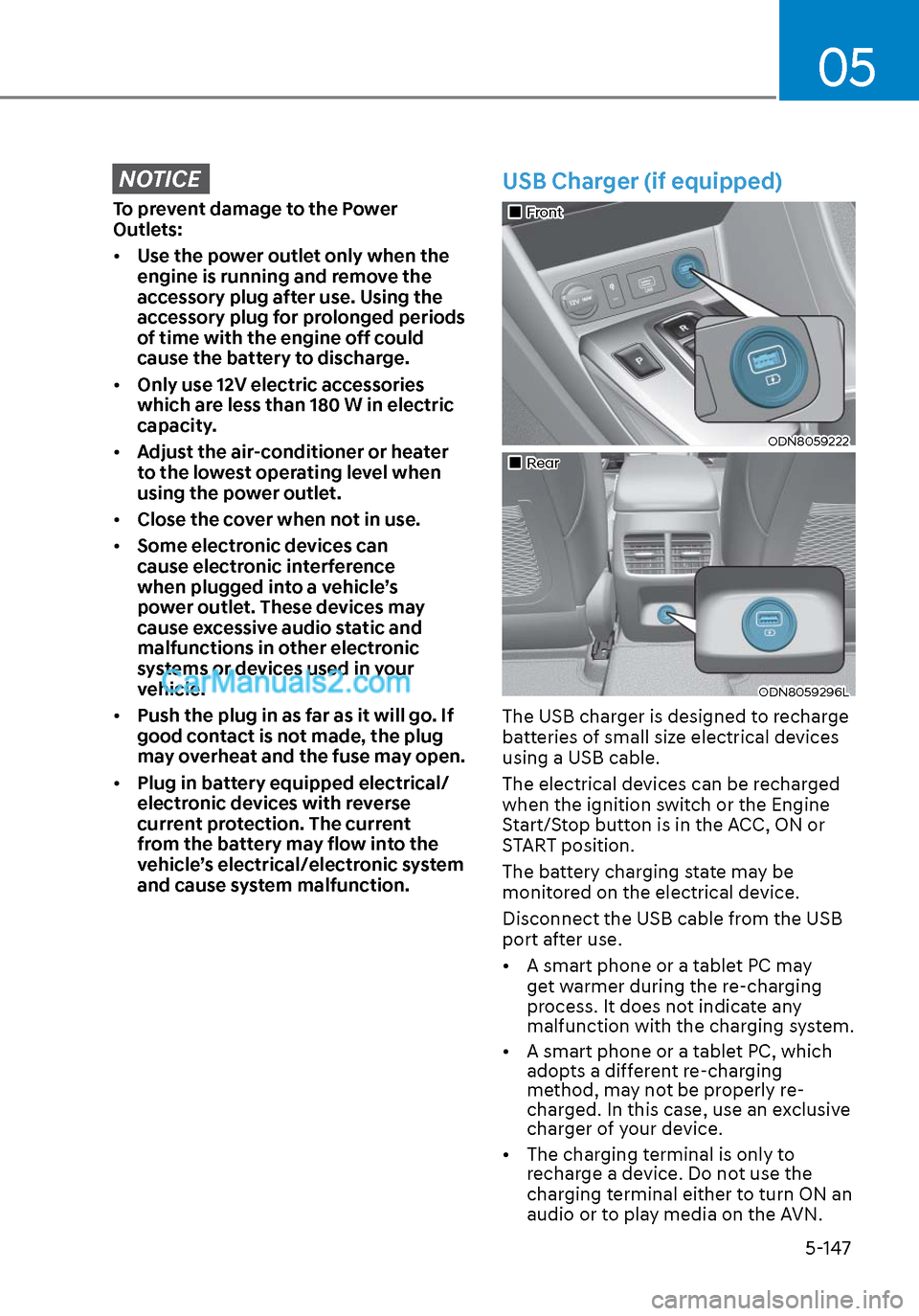
USB Charger (if equipped)
FrontFront
ODN8059222ODN8059222
RearRear
ODN8059296LODN8059296L
The USB charger is designed to recharge
batteries of small size electrical devices
using a USB cable.
The electrical devices can be recharged
when the ignition switch or the Engine
Start/Stop button is in the ACC, ON or
START position.
The battery charging state may be
monitored on the electrical device.
Disconnect the USB cable from the USB
port after use.
• A smart phone or a tablet PC may
get warmer during the re-charging
process. It does not indicate any
malfunction with the charging system.
• A smart phone or a tablet PC, which adopts a different re-charging
method, may not be properly re-
charged. In this case, use an exclusive
charger of your device.
• The charging terminal is only to recharge a device. Do not use the
charging terminal either to turn ON an
audio or to play media on the AVN.
Page 278 of 537
![Hyundai Sonata 2020 Manual PDF Convenient Features5-148
Wireless Cellular Phone
Charging System (if equipped)
ODN8059223ODN8059223
[A]: Indicator light, [B]: Charging pad
On certain models, the vehicle comes
equipped with a wirel](/img/35/16773/w960_16773-277.png "Hyundai Sonata 2020 Manual PDF Convenient Features5-148
Wireless Cellular Phone
Charging System (if equipped)
ODN8059223ODN8059223
[A]: Indicator light, [B]: Charging pad
On certain models, the vehicle comes
equipped with a wirel")
Convenient Features5-148
Wireless Cellular Phone
Charging System (if equipped)
ODN8059223ODN8059223
[A]: Indicator light, [B]: Charging pad
On certain models, the vehicle comes
equipped with a wireless cellular phone
charger.
The system is available when all doors
are closed, and when the ignition switch
is ON.
To charge a cellular phone
The wireless cellular phone charging
system charges only the Qi-enabled
cellular phones. Read the label on the
cellular phone accessory cover or visit
your cellular phone manufacturer’s
website to check whether your cellular
phone supports the Qi technology.
The wireless charging process starts
when you put a Qi-enabled cellular
phone on the wireless charging unit.
1. Remove other items, including the smart key, from the wireless charging
unit. If not, the wireless charging
process may be interrupted. Place
the cellular phone on the center of
the charging pad (
).
2. The indicator light is orange when the cellular phone is charging. The
indicator light turns green when
phone charging is complete.
3. You can turn ON or OFF the wireless charging function in the user settings
mode on the instrument cluster. For
further information, refer to the “LCD
Display Modes” in this chapter.
If your cellular phone is not charging:
- Slightly change the position of the cellular phone on the charging pad.
- Make sure the indicator light is orange.
The indicator light will blink orange for 10
seconds if there is a malfunction in the
wireless charging system.
In this case, temporarily stop the
charging process, and re-attempt to
charge your cellular phone again.
The system warns you with a message
on the LCD display if the cellular phone
is still on the wireless charging unit after
the engine is turned OFF and the front
door is opened.
Information
For some manufacturers’ cellular phones,
the system may not warn you even though
the cellular phone is left on the wireless
charging unit. This is due to the particular
characteristic of the cellular phone and
not a malfunction of the wireless charging.
NOTICE
• The wireless cellular phone charging system may not support certain
cellular phones, which are not
verified for the Qi specification (
).
• When placing your cellular phone on the charging mat, position the
phone in the middle of the mat for
optimal charging performance. If
your cellular phone is off to the side,
the charging rate may be less and in
some cases the cellular phone may
experience higher heat conduction.
• In some cases, the wireless charging may stop temporarily when the
Remote Key or Smart Key is used,
either when starting the vehicle or
locking/unlocking the doors, etc.
• When charging certain cellular phones, the charging indicator
may not change to green when the
cellular phone is fully charged.
Page 279 of 537
05
5-149
• The wireless charging process may temporarily stop, when temperature
abnormally increases inside the
wireless cellular phone charging
system. Stop the charging cellular
phone and wait until temperature
falls to a certain level.
• The wireless charging process may temporarily stop when there is
any metallic item, such as a coin,
between the wireless cellular phone
charging system and the cellular
phone.
• When charging some cellular phones with a self-protection feature,
the wireless charging speed may
decrease and the wireless charging
may stop.
• If the cellular phone has a thick cover, the wireless charging may not
be possible.
• If the cellular phone is not completely contacting the charging
pad, wireless charging may not
operate properly.
• Some magnetic items like credit cards, phone cards or rail tickets may
be damaged if left with the cellular
phone during the charging process.
• When any cellular phone without a wireless charging function or a
metallic object is placed on the
charging pad, a small noise may
sound. This small sound is due to the
vehicle discerning compatibility of
the object placed on the charging
pad. It does not affect your vehicle or
the cellular phone in any way. Information
If the ignition switch is in the OFF
position, the charging also stops.
Information
This device complies with part 15 of the
FCC Rules.
Operation is subject to the following two
conditions:
1. This device may not cause harmful
interference, and
2. This device must accept any
interference received, including
interference that may cause undesired
operation.