gear Hyundai Sonata 2020 Owner's Manual
[x] Cancel search | Manufacturer: HYUNDAI, Model Year: 2020, Model line: Sonata, Model: Hyundai Sonata 2020Pages: 537, PDF Size: 14.54 MB
Page 92 of 537
04
4-7
OIK047141OIK047141
ODN8A049029ODN8A049029
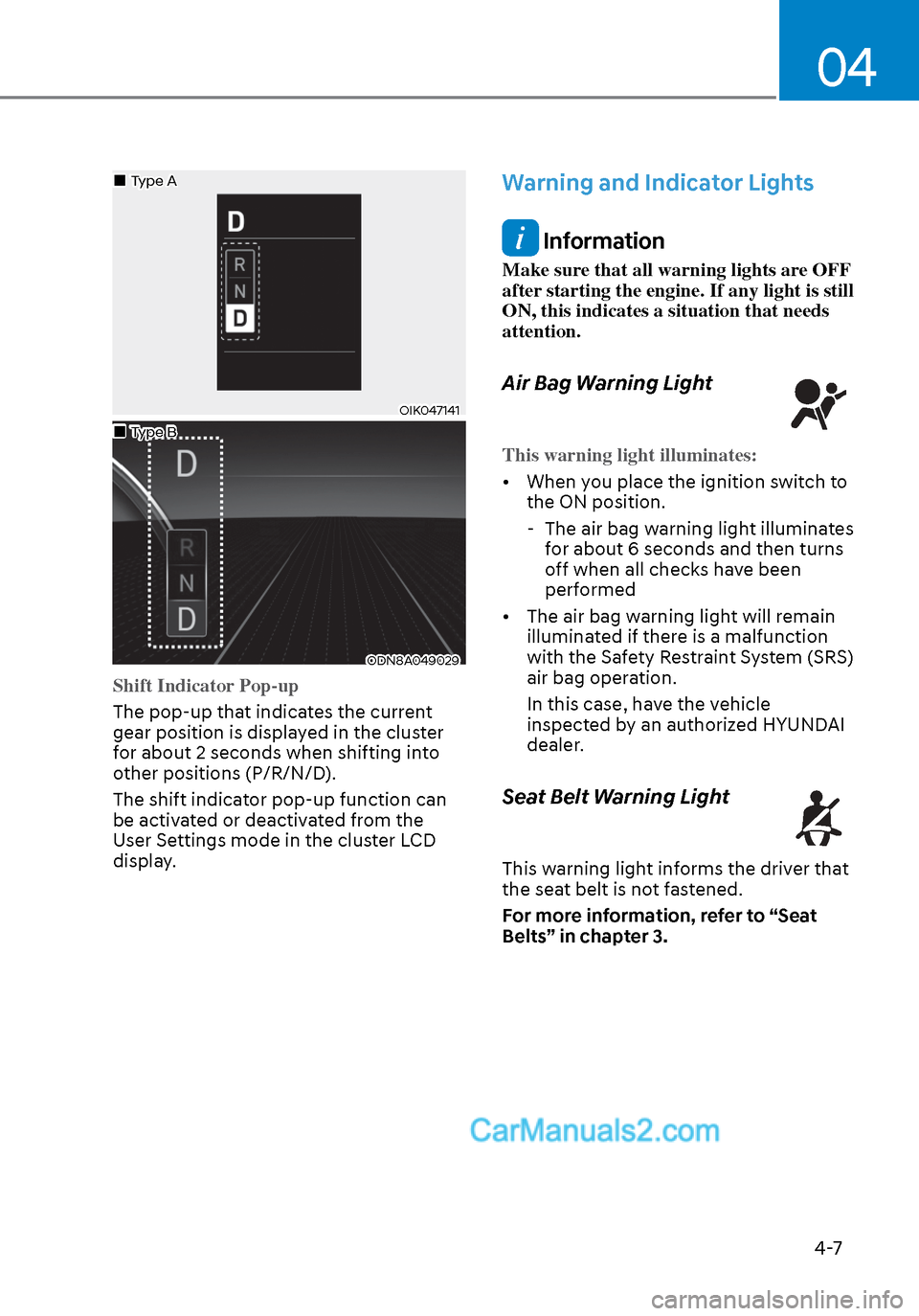
Shift Indicator Pop-up
The pop-up that indicates the current
gear position is displa
yed in the cluster
for about 2 seconds when shifting into
other positions (P/R/N/D).
The shift indicator pop-up function can
be activated or deactivated from the
User Settings mode in the cluster LCD
display.
Warning and Indicator Lights
Information
Make sure that all warning lights are OFF
after starting the engine. If any light is still
ON, this indicates a situation that needs
attention.
Air Bag Warning Light
This warning light illuminates:
• When you place the ignition switch to the ON position.
-
The air bag warning light illuminates
for about 6 seconds and then turns
off when all checks have been
performed
• The air bag warning light will remain illuminated if there is a malfunction
with the Safety Restraint System (SRS)
air bag operation.
In this case, have the vehicle
inspected by an authorized HYUNDAI
dealer.
Seat Belt Warning Light
This warning light informs the driver that
the seat belt is not fastened.
For more information, refer to “Seat
Belts” in chapter 3.
Type AType A
Type BType B
Page 93 of 537
Instrument Cluster4-8
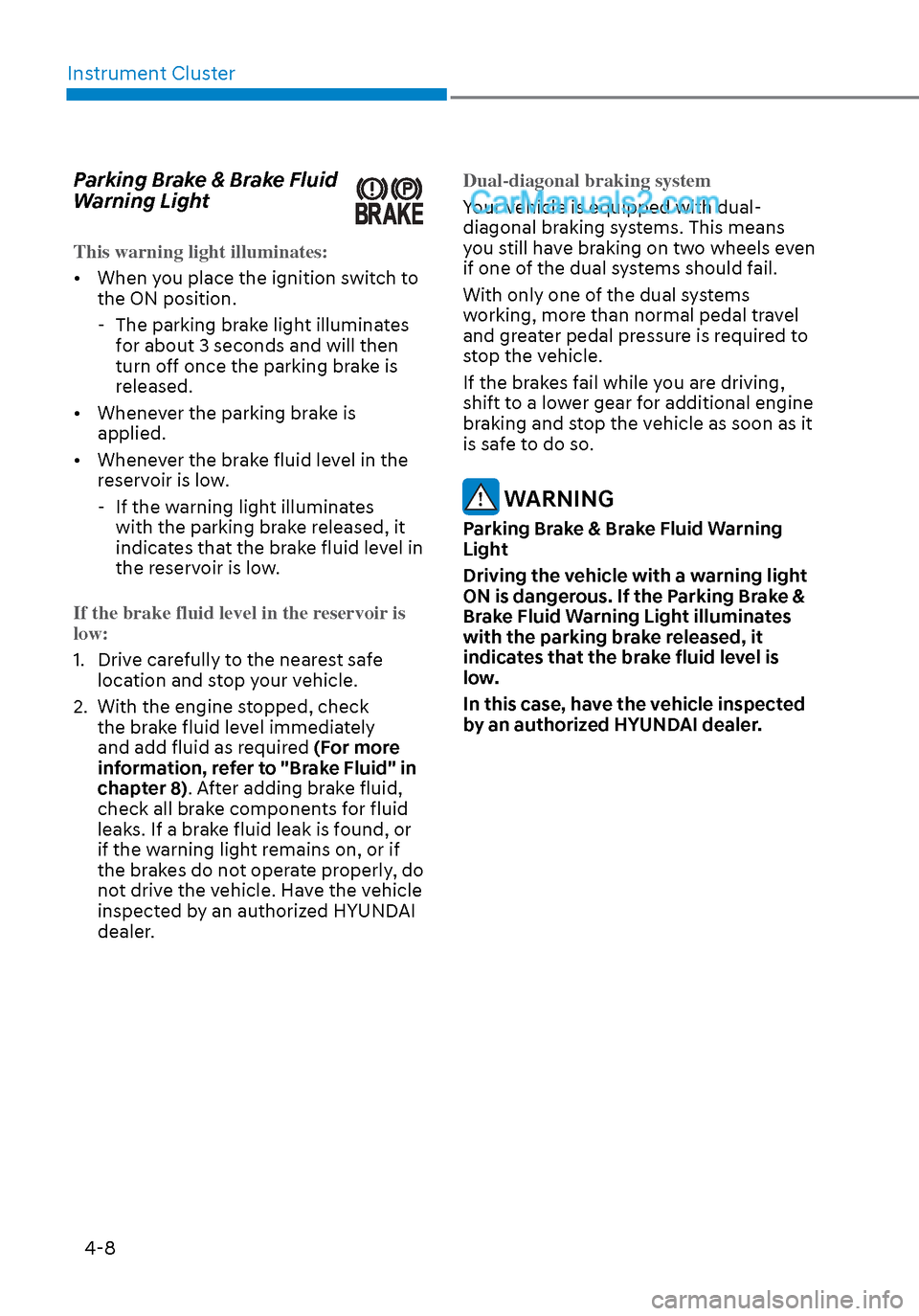
Parking Brake & Brake Fluid
Warning Light
This warning light illuminates:
• When you place the ignition switch to the ON position.
-
The parking brake light illuminates
for about 3 seconds and will then
turn off once the parking brake is
released.
• Whenever the parking brake is applied.
• Whenever the brake fluid level in the reservoir is low.
- If the warning light illuminates with the parking brake released, it
indicates that the brake fluid level in
the reservoir is low.
If the brake fluid level in the reservoir is
low:
1. Drive carefully to the nearest safe loca
tion and stop your vehicle.
2. With the engine stopped, check the brake fluid level immediately
and add fluid as required (For more
information, refer to "Brake Fluid" in
chapter 8). After adding brake fluid,
check all brake components for fluid
leaks. If a brake fluid leak is found, or
if the warning light remains on, or if
the brakes do not operate properly, do
not drive the vehicle. Have the vehicle
inspected by an authorized HYUNDAI
dealer. Dual-diagonal braking system
Your vehicle is equipped with dual-
diagonal br
aking systems. This means
you still have braking on two wheels even
if one of the dual systems should fail.
With only one of the dual systems
working, more than normal pedal travel
and greater pedal pressure is required to
stop the vehicle.
If the brakes fail while you are driving,
shift to a lower gear for additional engine
braking and stop the vehicle as soon as it
is safe to do so.
WARNING
Parking Brake & Brake Fluid Warning
Light
Driving the vehicle with a warning light
ON is dangerous. If the Parking Brake &
Brake Fluid Warning Light illuminates
with the parking brake released, it
indicates that the brake fluid level is
low.
In this case, have the vehicle inspected
by an authorized HYUNDAI dealer.
Page 113 of 537
Instrument Cluster4-28
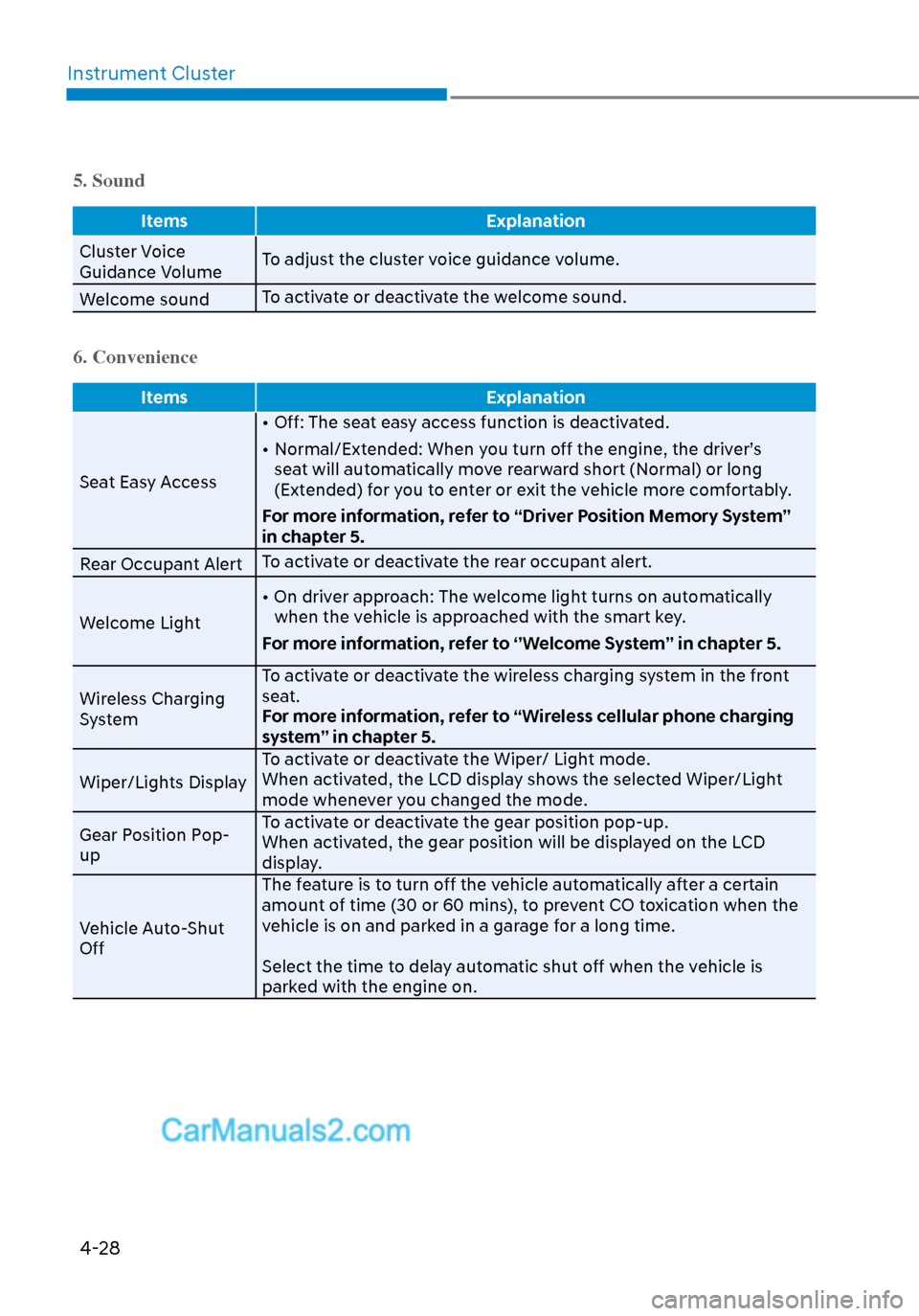
5. Sound
Items Explanation
Cluster Voice
Guidance V
olumeTo adjust the cluster voice guidance volume.
Welcome sound To activate or deactivate the welcome sound.
6. Convenience
Items
Explanation
Seat Easy Access •
Off: The seat easy access function is deactivated.
• Normal/Extended: When you turn off the engine, the driver’s seat will automatically move rearward short (Normal) or long
(Extended) for you to enter or exit the vehicle more comfortably.
For more information, refer to “Driver Position Memory System”
in chapter 5.
Rear Occupant Alert To activate or deactivate the rear occupant alert.
Welcome Light • On driver approach: The welcome light turns on automatically
when the vehicle is approached with the smart key.
For more information, refer to ‘’Welcome System’’ in chapter 5.
Wireless Charging
System To activate or deactivate the wireless charging system in the front
seat.
For more information, refer to “Wireless cellular phone charging
system” in chapter 5.
Wiper/Lights Display To activate or deactivate the Wiper/ Light mode.
When activated, the LCD display shows the selected Wiper/Light
mode whenever you changed the mode.
Gear Position Pop-
up To activate or deactivate the gear position pop-up.
When activated, the gear position will be displayed on the LCD
display.
Vehicle Auto-Shut
Off The feature is to turn off the vehicle automatically after a certain
amount of time (30 or 60 mins), to prevent CO toxication when the
vehicle is on and parked in a garage for a long time.
Select the time to delay automatic shut off when the vehicle is
parked with the engine on.
Page 128 of 537
04
4-43
5. Sound
ItemsExplanation
Cluster Voice
Guidance V
olumeTo adjust the cluster voice guidance volume.
Welcome sound To activate or deactivate the welcome sound.
6. Convenience
Items
Explanation
Seat Easy Access • Off: The sea
t easy access function is deactivated.
• Normal/Extended: When you turn off the engine, the driver’s seat will automatically move rearward short (Normal) or long
(Extended) for you to enter or exit the vehicle more comfortably.
For more information, refer to “Driver Position Memory System”
in chapter 5.
Rear Occupant Alert To activate or deactivate the rear occupant alert.
Welcome Light • On driver approach: The welcome light turns on automatically
when the vehicle is approached with the smart key.
For more information, refer to ‘’Welcome System’’ in chapter 5.
Wireless Charging
System To activate or deactivate the wireless charging system in the front
seat.
For more information, refer to “Wireless cellular phone charging
system” in chapter 5.
Wiper/Lights Display To activate or deactivate the Wiper/ Light mode.
When activated, the LCD display shows the selected Wiper/Light
mode whenever you changed the mode.
Gear Position Pop-
up To activate or deactivate the gear position pop-up.
When activated, the gear position will be displayed on the LCD
display.
Vehicle Auto-Shut
Off The feature is to turn off the vehicle automatically after a certain
amount of time (30 or 60 mins), to prevent CO toxication when the
vehicle is on and parked in a garage for a long time.
Select the time to delay automatic shut off when the vehicle is
parked with the engine on.
Page 141 of 537
05
5-11
Start-up
You can start the vehicle without
inserting the key.
For information, refer to the “Engine
Start/Stop Button” section in chapter 6.
NOTICE
To prevent damaging the smart key:
• Keep the smart key in a cool,
dry place to avoid damage or
malfunction. Exposure to moisture
or high temperature may cause
the internal circuit of the smart key
to malfunction which may not be
covered under warranty.
• Avoid dropping or throwing the
smart key.
• Protect the smart key from extreme
temperatures.
Remote start
You can start the vehicle using the
Remote Start button (7) of the smart key.
To start the vehicle remotely:
• Lock the doors by pressing the door
lock button within 32 feet (10 m)
distance from the vehicle.
• Press the remote start button for over 2 seconds within 4 seconds after
locking the doors and the hazard
warning will blink.
To turn off the remote start function, press
the remote start button once. In case of
the manual operation, the climate control
system will be maintained even when
the engine is turned OFF. However, the
automatic operation is set to 72°F (22°C).
Remote smart parking assist (RSPA)
(if equipped)
The Remote smart parking assist (RSPA)
system helps the drivers park their
vehicle by using sensors to measure
parking spaces and control the steering
wheel, gear shift and vehicle speed to
semi-automatically park the vehicle.
With the smart key, the driver can move
the vehicle forward or backward using
the rearward /forward buttons (5, 6) on
the smart key.
For information, refer to “Remote smart
parking assist (RSPA)” in this chapter.
Page 147 of 537
05
5-17
ODN8A059129ODN8A059129
ODN8A059130ODN8A059130
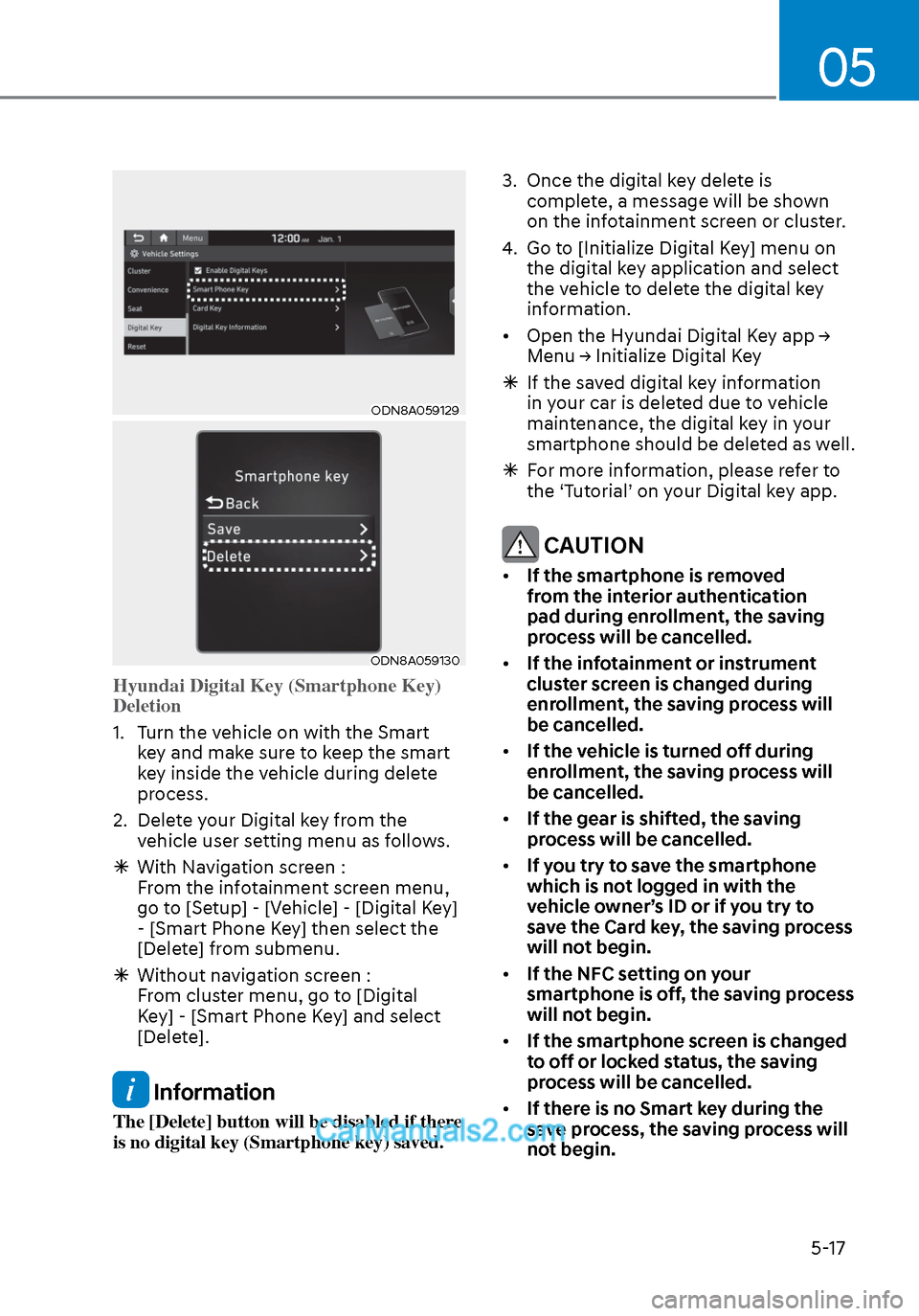
Hyundai Digital Key (Smartphone Key)
Deletion
1. Turn the vehicle on with the Smart k
ey and make sure to keep the smart
key inside the vehicle during delete
process.
2. Delete your Digital key from the vehicle user setting menu as follows.
With Navigation screen :
From the infotainment screen menu,
go to [Setup] - [Vehicle] - [Digital Key]
- [Smart Phone Key] then select the
[Delete] from submenu.
Without navigation screen :
From cluster menu, go to [Digital
Key] - [Smart Phone Key] and select
[Delete].
Information
The [Delete] button will be disabled if there
is no digital key (Smartphone key) saved. 3. Once the digital key delete is
complete, a message will be shown
on the infotainment screen or cluster.
4. Go to [Initialize Digital Key] menu on the digital key application and select
the vehicle to delete the digital key
information.
• Open the Hyundai Digital Key app → Menu → Initialize Digital Key
If the saved digital key information
in your car is deleted due to vehicle
maintenance, the digital key in your
smartphone should be deleted as well.
For more information, please refer to
the ‘Tutorial’ on your Digital key app.
CAUTION
• If the smartphone is removed
from the interior authentication
pad during enrollment, the saving
process will be cancelled.
• If the infotainment or instrument
cluster screen is changed during
enrollment, the saving process will
be cancelled.
• If the vehicle is turned off during
enrollment, the saving process will
be cancelled.
• If the gear is shifted, the saving
process will be cancelled.
• If you try to save the smartphone
which is not logged in with the
vehicle owner’s ID or if you try to
save the Card key, the saving process
will not begin.
• If the NFC setting on your
smartphone is off, the saving process
will not begin.
• If the smartphone screen is changed
to off or locked status, the saving
process will be cancelled.
• If there is no Smart key during the
save process, the saving process will
not begin.
Page 167 of 537
05
5-37
Vehicle Auto-Shut Off Function
If your parked vehicle in a garage is on
for a period of time, the engine turns
off automatically to prevent carbon
monoxide poisoning.
System setting
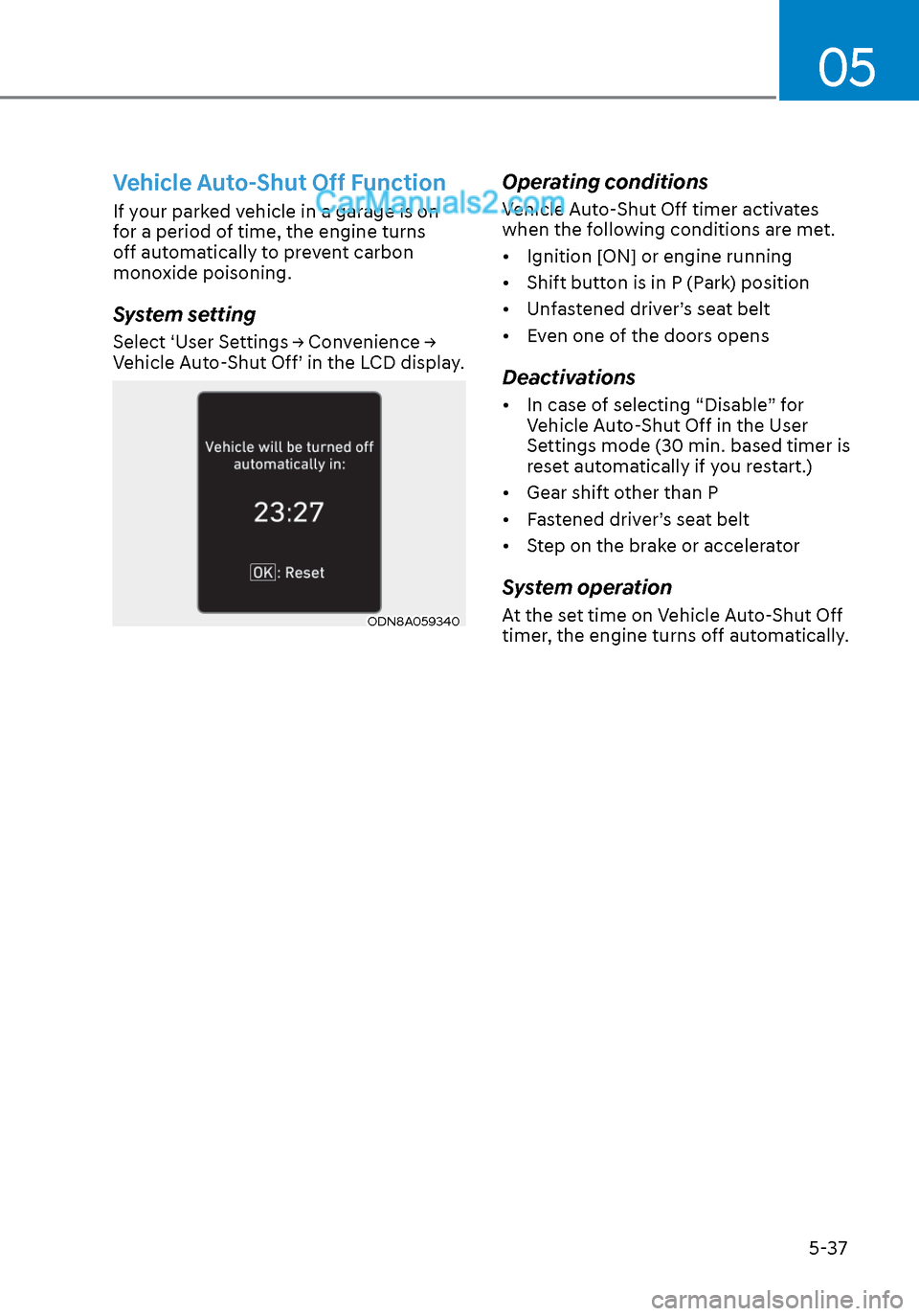
Select ‘User Settings → Convenience →
Vehicle Auto-Shut Off’ in the LCD display.
ODN8A059340ODN8A059340
Operating conditions
Vehicle Auto-Shut Off timer activates
when the following conditions are met.
• Ignition [ON] or engine running
• Shift button is in P (Park) position
• Unfastened driver’s seat belt
• Even one of the doors opens
Deactivations
• In case of selecting “Disable” for Vehicle Auto-Shut Off in the User
Settings mode (30 min. based timer is
reset automatically if you restart.)
• Gear shift other than P
• Fastened driver’s seat belt
• Step on the brake or accelerator
System operation
At the set time on Vehicle Auto-Shut Off
timer, the engine turns off automatically.
Page 170 of 537
Convenient Features5-40
Recalling Positions from Memory
1. Shift to P (Park) while the ignition switch is in the ON position.
2. Press the desired memory button (1 or 2). The system will beep once,
and then the driver’s seat position,
side view mirror position, instrument
panel illumination intensity and
head-up display height/brightness
will automatically adjust to the stored
positions.
3. “Settings 1 (or 2) applied” will appear on the cluster LCD display.
If your vehicle is equipped with
additional navigation, please refer to the
infotainment system manual separately
supplied.
Information
• While recalling the “1” memory
position, pressing the SET or 1 button
temporarily stops the adjustment of
the recalled memory position. Pressing
the 2 button recalls the “2” memory
position.
• While recalling the “2” memory
position, pressing the SET or 2 button
temporarily stops the adjustment of
the recalled memory position. Pressing
the 1 button recalls the “1” memory
position.
• While recalling the stored positions,
pressing one of the control buttons
for the driver’s seat, side view mirror,
instrument panel illumination or head-
up display will cause the movement of
that component to stop and move in
the direction that the control button is
pressed.
Resetting the Driver’s Seat
Memory System
Take the following procedures to reset
the driver’s seat memory system, when it
does not operate properly.
To reset the driver’s seat memory
system
1. Place the ignition switch to the ON
position, shift to P (Park), and open
the driver’s door.
2. Operate the control switch to set the driver’s seat and seatback to the
foremost position.
3. Simultaneously press the SET button and push forward the seat movement
switch over 2 seconds.
While resetting the driver’s seat
memory system
1. It starts with the notification sound.
2. The driver’s seat and seatback is adjusted to the rearward position with
the notification sound.
3. The driver’s seat and seatback is re-adjusted to the default position
(central position) with the notification
sound.
However, in the following cases, the
resetting procedure and the notification
sound may stop.
- The memory button is pressed.
- The control switch is operated.
- The gear is shifted out of P (Park) .
- The driving speed exceeds 2 mph (3 km/h).
- The driver’s door is closed.
Page 173 of 537
05
5-43
Tilt Steering / Telescope Steering
When adjusting the steering wheel to a
comfortable position, adjust the steering
wheel so that it points toward your chest,
not toward your face. Make sure you can
see the instrument cluster warning lights
and gauges. After locking the lever, push
the steering wheel both up and down to
be certain it is locked in position. Always
adjust the position of the steering wheel
before driving.
WARNING
NEVER adjust the steering wheel while
driving. This may cause loss of vehicle
control resulting in an accident.
ODN8059021ODN8059021
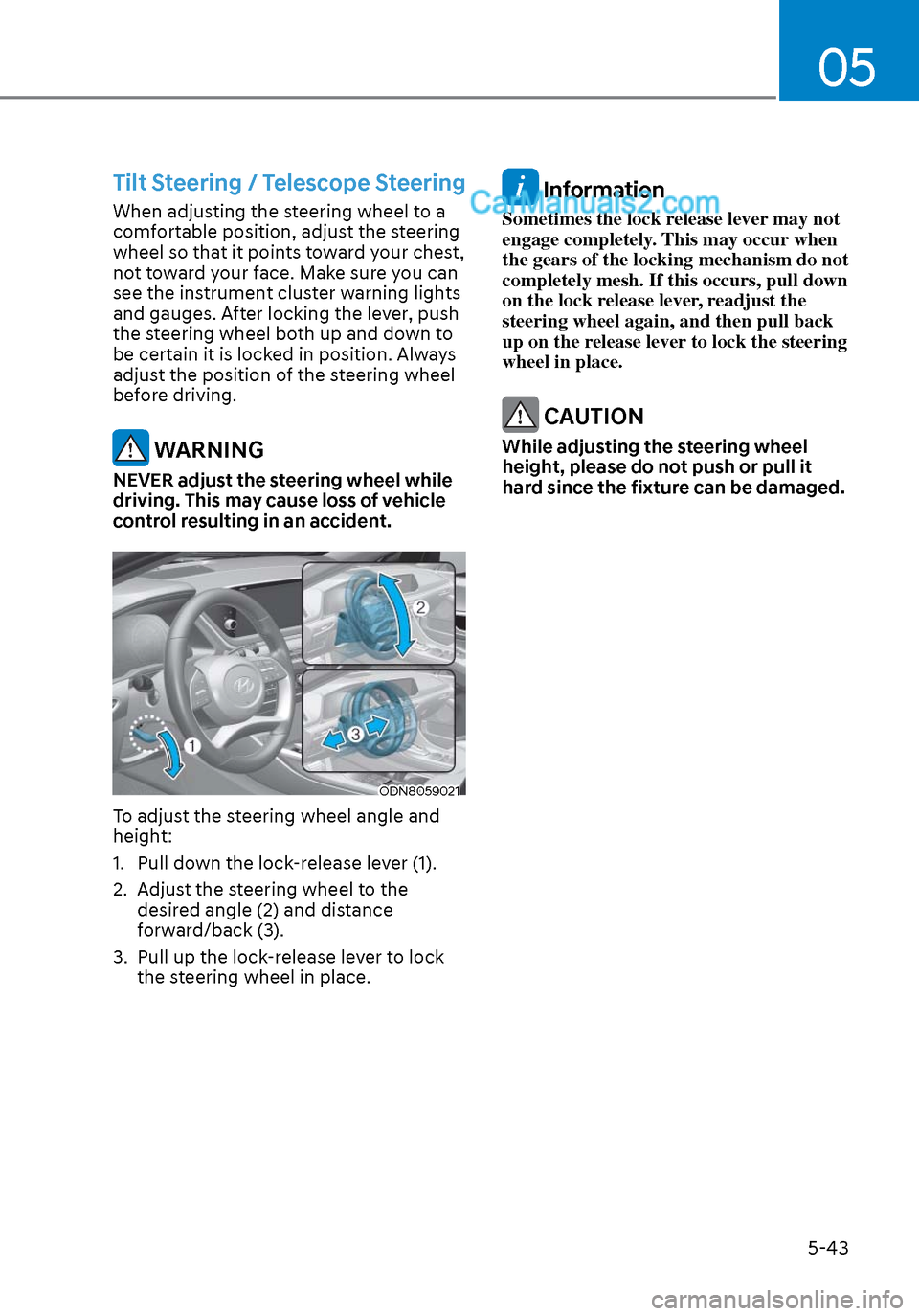
To adjust the steering wheel angle and
height:
1. Pull down the lock-release lever (1).
2. Adjust the steering wheel to the desired angle (2) and distance
forward/back (3).
3. Pull up the lock-release lever to lock the steering wheel in place.
Information
Sometimes the lock release lever may not
engage completely. This may occur when
the gears of the locking mechanism do not
completely mesh. If this occurs, pull down
on the lock release lever, readjust the
steering wheel again, and then pull back
up on the release lever to lock the steering
wheel in place.
CAUTION
While adjusting the steering wheel
height, please do not push or pull it
hard since the fixture can be damaged.
Page 218 of 537
Convenient Features5-88
SURROUND VIEW MONITOR (SVM) (IF EQUIPPED)
ODN8059265ODN8059265
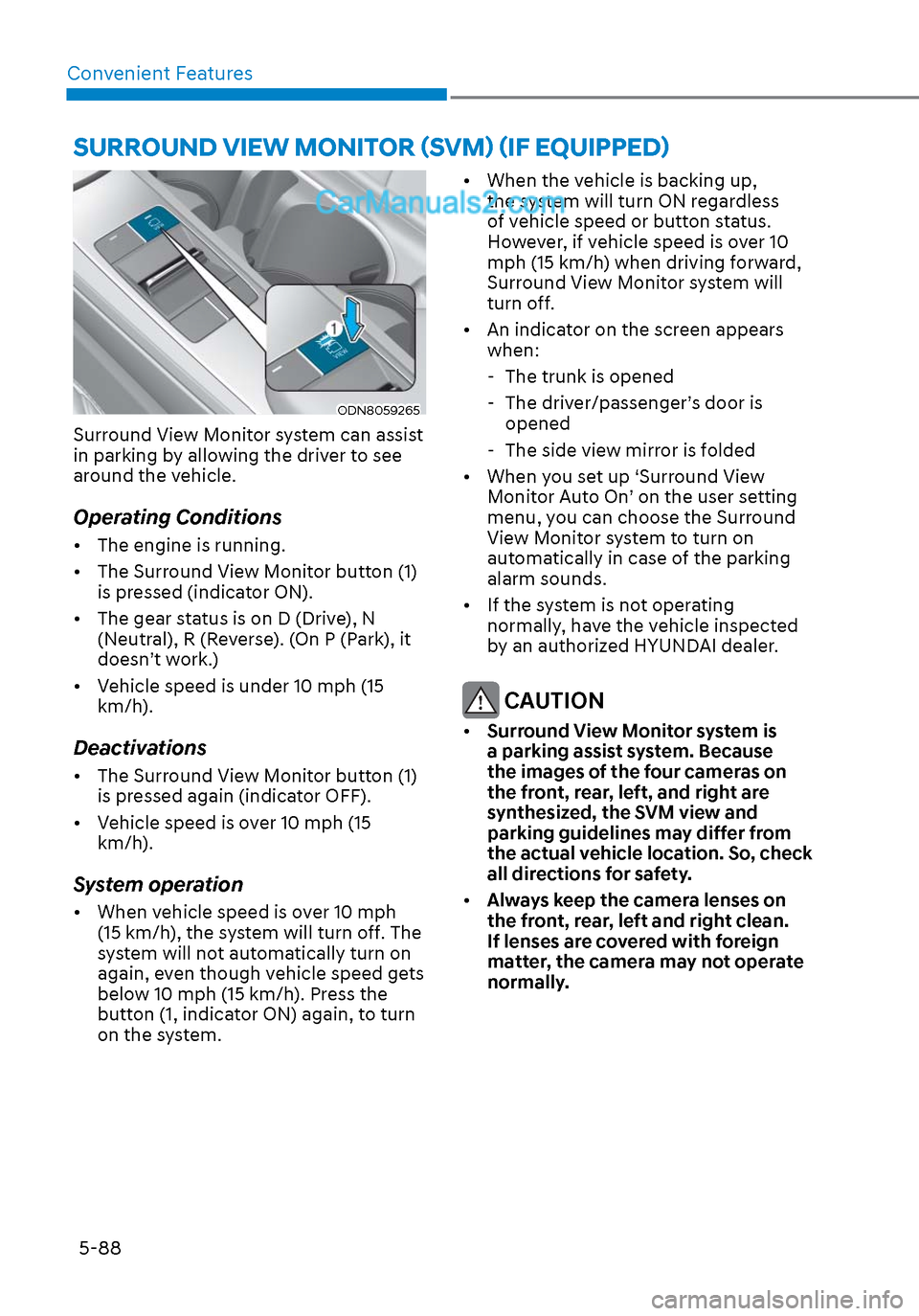
Surround View Monitor system can assist
in parking by allowing the driver to see
around the vehicle.
Operating Conditions
• The engine is running.
• The Surround View Monitor button (1) is pressed (indicator ON).
• The gear status is on D (Drive), N (Neutral), R (Reverse). (On P (Park), it
doesn’t work.)
• Vehicle speed is under 10 mph (15 km/h).
Deactivations
• The Surround View Monitor button (1) is pressed again (indicator OFF).
• Vehicle speed is over 10 mph (15 km/h).
System operation
• When vehicle speed is over 10 mph (15 km/h), the system will turn off. The
system will not automatically turn on
again, even though vehicle speed gets
below 10 mph (15 km/h). Press the
button (1, indicator ON) again, to turn
on the system. • When the vehicle is backing up,
the system will turn ON regardless
of vehicle speed or button status.
However, if vehicle speed is over 10
mph (15 km/h) when driving forward,
Surround View Monitor system will
turn off.
• An indicator on the screen appears when:
- The trunk is opened
- The driver/passenger’s door is opened
- The side view mirror is folded
• When you set up ‘Surround View Monitor Auto On’ on the user setting
menu, you can choose the Surround
View Monitor system to turn on
automatically in case of the parking
alarm sounds.
• If the system is not operating normally, have the vehicle inspected
by an authorized HYUNDAI dealer.
CAUTION
• Surround View Monitor system is
a parking assist system. Because
the images of the four cameras on
the front, rear, left, and right are
synthesized, the SVM view and
parking guidelines may differ from
the actual vehicle location. So, check
all directions for safety.
• Always keep the camera lenses on
the front, rear, left and right clean.
If lenses are covered with foreign
matter, the camera may not operate
normally.