chapter 6 HYUNDAI SONATA 2021 Service Manual
[x] Cancel search | Manufacturer: HYUNDAI, Model Year: 2021, Model line: SONATA, Model: HYUNDAI SONATA 2021Pages: 546, PDF Size: 51.21 MB
Page 197 of 546
05
5-67
How to use the Smart Trunk with
Auto Open
The trunk can be opened with no-touch
activation satisfying all the conditions
below.
• After 15 seconds when all doors are
closed and lock
ed
• Positioned
in the detecting area for
mor
e than 3 seconds.
Information
• The Smart T runk with Auto Open does not operate when:
- The smart key is detected within 15
seconds after
the doors are closed and
locked, and is continuously detected.
- The smart key is detected within 15
seconds after
the doors are closed
and locked, and within 60 inches
(1.5 m) from the front door handles.
(for vehicles equipped with Welcome
Light)
- A
door is not locked or closed.
- The smart key is in the vehicl
e.
1. Setting
To activate the Smart Trunk with Auto
Open, go to User Settings Mode and
select Smart Trunk on the LCD display.
For more information, refer to the “LCD
Display” section in this chapter. If your
vehicle is equipped with additional
navigation, please refer to the
infotainment system manual separately
supplied.
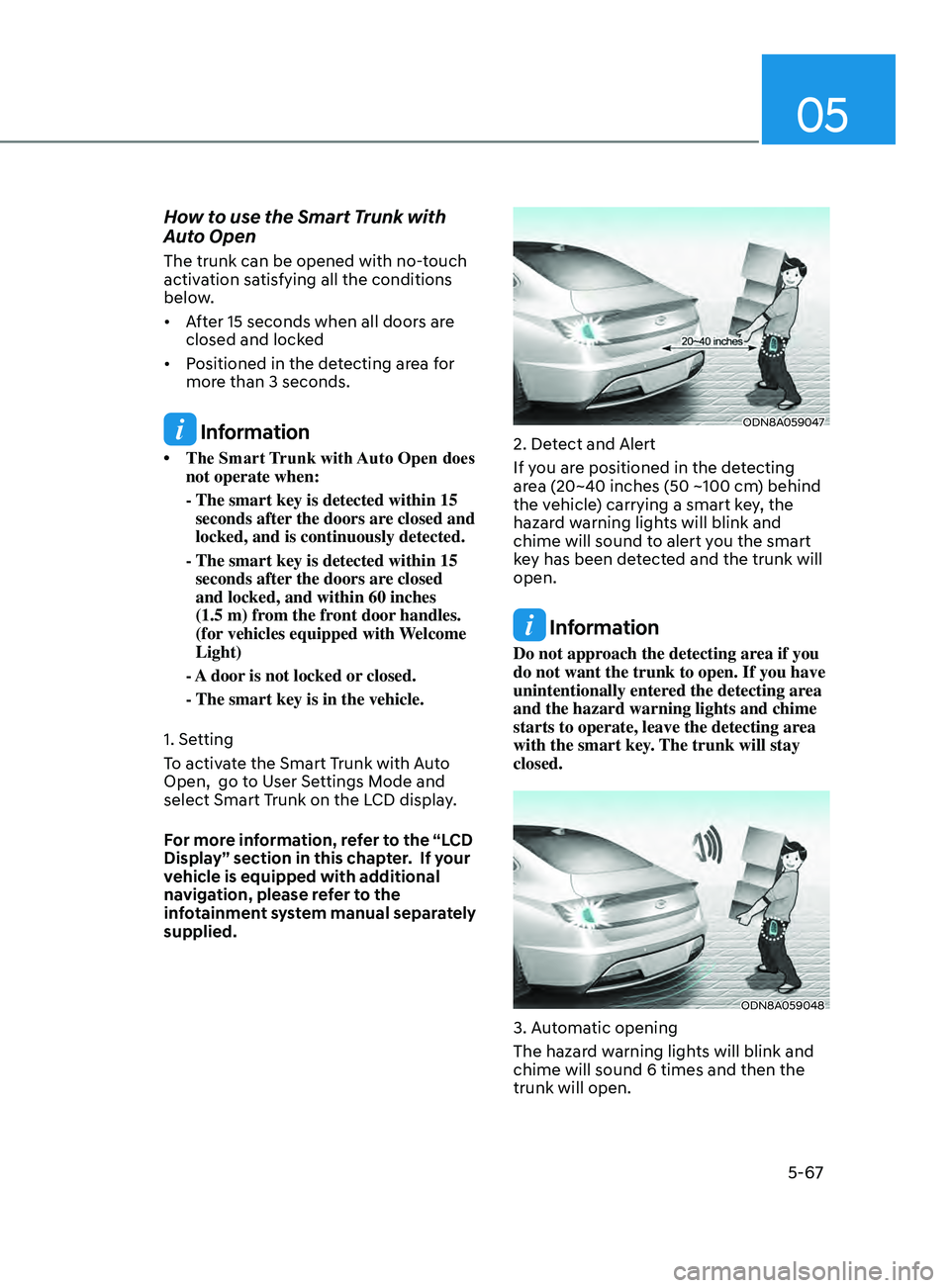
ODN8A059047
2. Detect and Alert
If you are positioned in the detecting
area (20~40 inches (50 ~100 cm) behind
the vehicle) carrying a smart key, the
hazard warning lights will blink and
chime will sound to alert you the smart
key has been detected and the trunk will
open.
Information
Do not approach the detecting area if you
do not want the trunk to open. If you have
unintentionally entered the detecting area
and the hazard warning lights and chime
starts to operate, leave the detecting area
with the smart key. The trunk will stay
closed.
ODN8A059048
3. Automatic opening
The hazard warning lights will blink and
chime will sound 6 times and then the
trunk will open.
Page 201 of 546
05
5-71
• Do not get back into a vehicle
once you have begun refueling.
You can generate a buildup of
static electricity by touching,
rubbing or sliding against any item
or fabric capable of producing
static electricity. Static electricity
discharge can ignite fuel vapors
causing a fire. If you must re-enter
the vehicle, you should once again
eliminate potentially dangerous
static electricity discharge by
touching a metal part of the vehicle,
away from the fuel filler neck, nozzle
or other gasoline source, with your
bare hand.
• When using an approved portable
fuel container, be sure to place the
container on the ground prior to
refueling. Static electricity discharge
from the container can ignite fuel
vapors causing a fire.
Once refueling has begun, contact
between your bare hand and the
vehicle should be maintained until
the filling is complete.
• Use only approved portable plastic
fuel containers designed to carry and
store gasoline.
• When refueling, always move the
shift button to the P (Park) position,
set the parking brake, and place
the ignition switch to the LOCK/
OFF position. Sparks produced by
electrical components related to the
engine can ignite fuel vapors causing
a fire.
• Do not use matches or a lighter and
do not smoke or leave a lit cigarette
in your vehicle while at a gas station,
especially during refueling.
• Do not over-fill or top-off your
vehicle tank, which can cause
gasoline spillage.• If a fire breaks out during refueling,
leave the vicinity of the vehicle, and
immediately contact the manager
of the gas station and then contact
the local fire department. Follow any
safety instructions they provide.
• If pressurized fuel sprays out, it can
cover your clothes or skin and thus
subject you to the risk of fire and
burns. Always remove the fuel cap
carefully and slowly. If the cap is
venting fuel or if you hear a hissing
sound, wait until the condition stops
before completely removing the cap.
• Always check that the fuel cap is
installed securely to prevent fuel
spillage in the event of an accident.
Information
Make sure to refuel your vehicle according
to the “Fuel Requirements” suggested in
the Introduction chapter.
NOTICE
• Do not spill fuel on the exterior
surfaces of the vehicle. Any type of
fuel spilled on painted surfaces may
damage the paint.
• If the fuel filler cap requires
replacement, use only a genuine
HYUNDAI cap or the equivalent
specified for your vehicle. An
incorrect fuel filler cap can result
in a serious malfunction of the fuel
system or emission control system.
Page 202 of 546
Convenient Features5-72
heAD Up DiSplAy ( h UD) (if eQU ippe D )
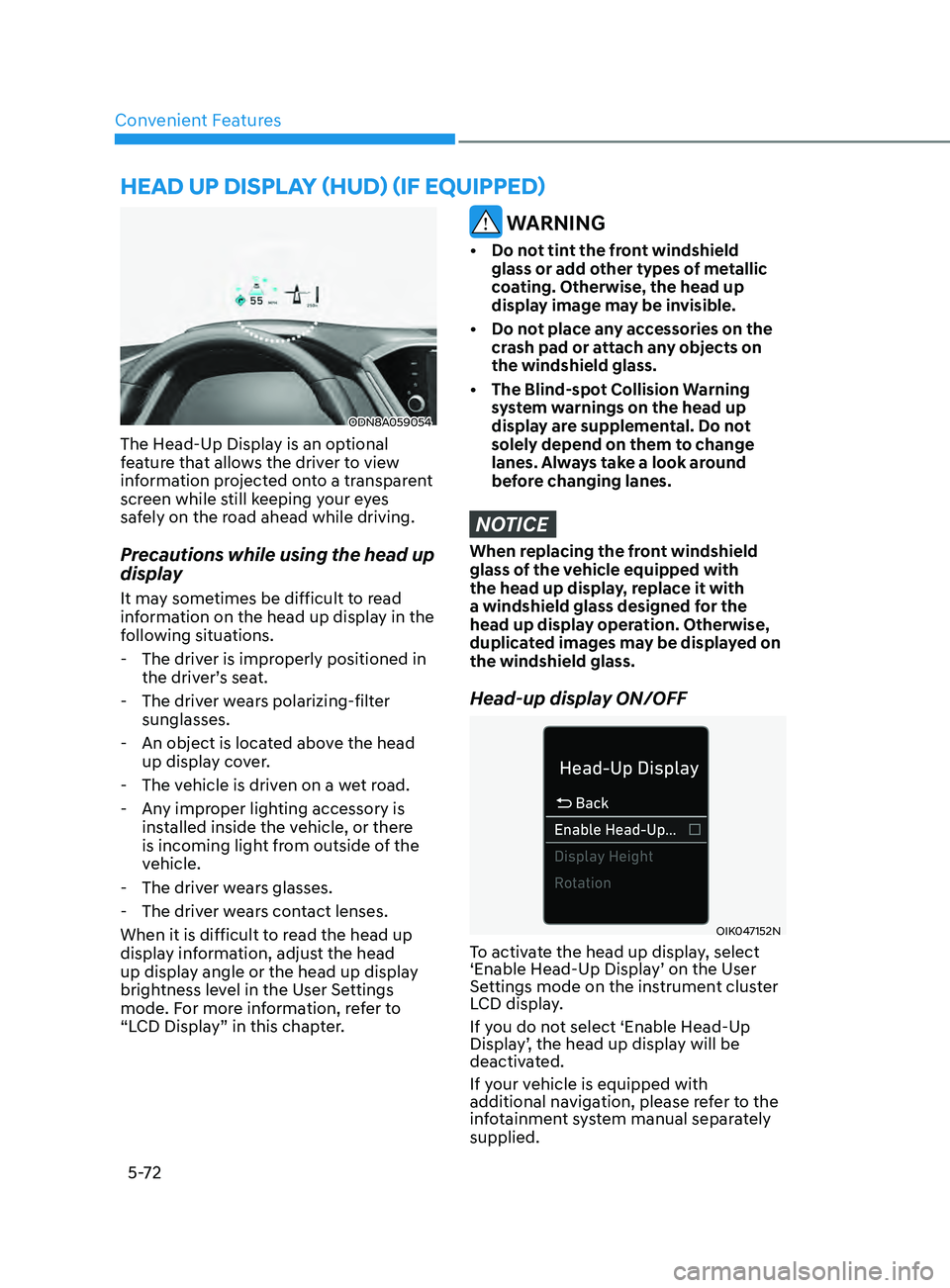
ODN8A059054
The Head-Up Display is an optional
feature that allows the driver to view
information projected onto a transparent
screen while still keeping your eyes
safely on the road ahead while driving.
Precautions while using the head up
display
It may sometimes be difficult to read
information on the head up display in the
following situations.
-
The driv
er is improperly positioned in
the driver’s seat.
-
The driv
er wears polarizing-filter
sunglasses.
-
An object is loca
ted above the head
up display cover.
-
The v
ehicle is driven on a wet road.
-
An
y improper lighting accessory is
installed inside the vehicle, or there
is incoming light from outside of the
vehicle.
-
The driv
er wears glasses.
-
The driv
er wears contact lenses.
When it is difficult to read the head up
display information, adjust the head
up display angle or the head up display
brightness level in the User Settings
mode. For more information, refer to
“LCD Display” in this chapter.
WARNING
• Do not tint the front windshield glass or add other types of metallic
coating. Otherwise, the head up
display image may be invisible.
•
Do no
t place any accessories on the
crash pad or attach any objects on
the windshield glass.
•
The Blind-spo
t Collision Warning
system warnings on the head up
display are supplemental. Do not
solely depend on them to change
lanes. Always take a look around
before changing lanes.
NOTICE
When replacing the front windshield
glass of the vehicle equipped with
the head up display, replace it with
a windshield glass designed for the
head up display operation. Otherwise,
duplicated images may be displayed on
the windshield glass.
Head-up display ON/OFF
OIK047152N
To activate the head up display, select
‘Enable Head-Up Display’ on the User
Settings mode on the instrument cluster
LCD display.
If you do not select ‘Enable Head-Up
Display’, the head up display will be
deactivated.
If your vehicle is equipped with
additional navigation, please refer to the
infotainment system manual separately
supplied.
Page 203 of 546
05
5-73
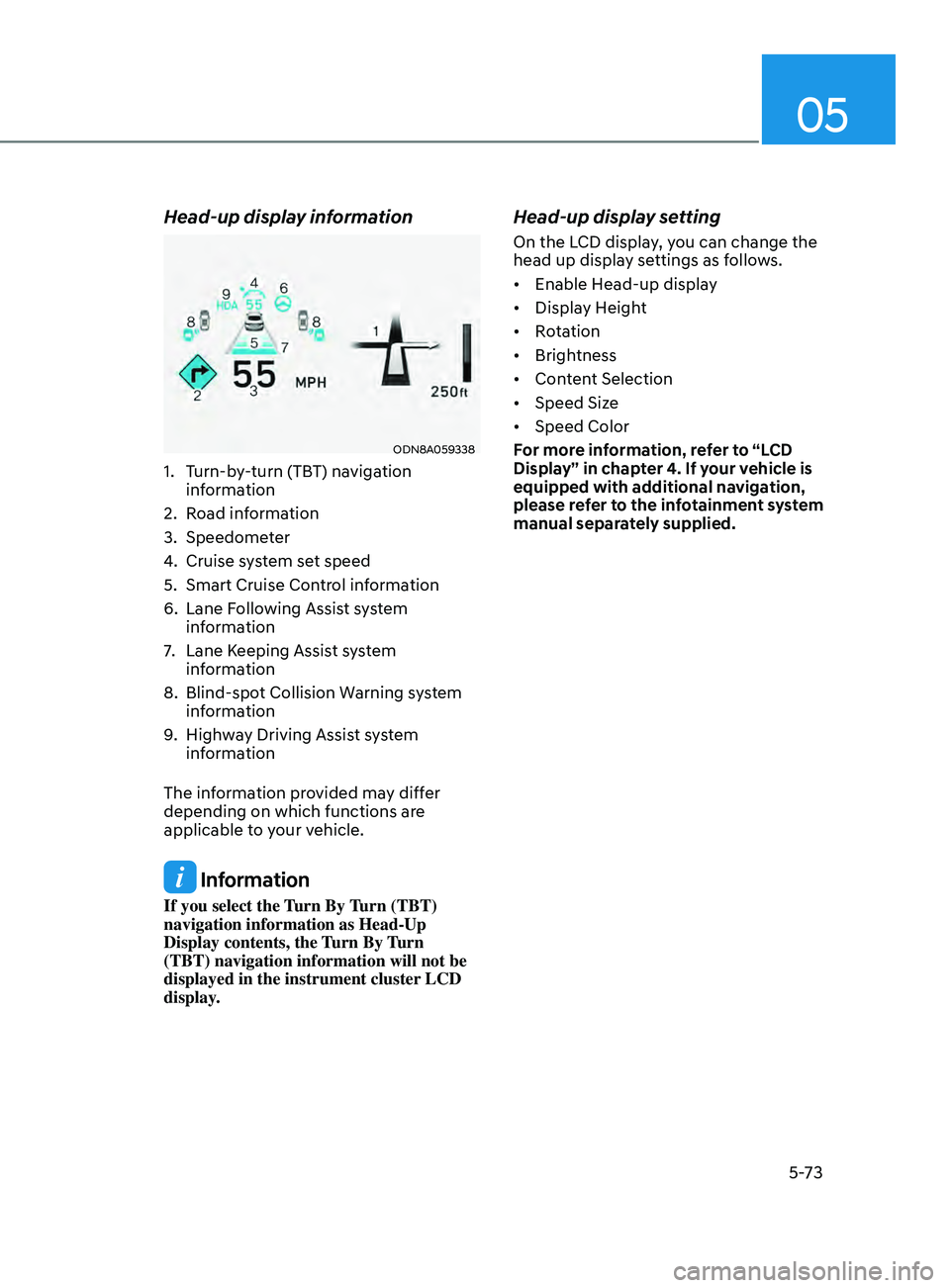
Head-up display information
ODN8A059338
1. Turn-by-turn (TBT) navigation
information
2.
Road information
3.
Speedome
ter
4.
Cruise s
ystem set speed
5.
Smart Cruise Con
trol information
6.
Lane F
ollowing Assist system
information
7.
Lane K
eeping Assist system
information
8.
Blind-spo
t Collision Warning system
information
9.
High
way Driving Assist system
information
The information provided may differ
depending on which functions are
applicable to your vehicle.
Information
If you select the Turn By Turn (TBT)
navigation information as Head-Up
Display contents, the Turn By Turn
(TBT) navigation information will not be
displayed in the instrument cluster LCD
display.
Head-up display setting
On the LCD display, you can change the
head up display settings as follows.
• Enable
Head-up display
• Display
Height
• Rotation
• Brightness
• Content
Selection
• Speed
Size
• Speed
Color
For more information, refer to “LCD
Display” in chapter 4. If your vehicle is
equipped with additional navigation,
please refer to the infotainment system
manual separately supplied.
Page 213 of 546
05
5-83
Welcome System (if equipped)
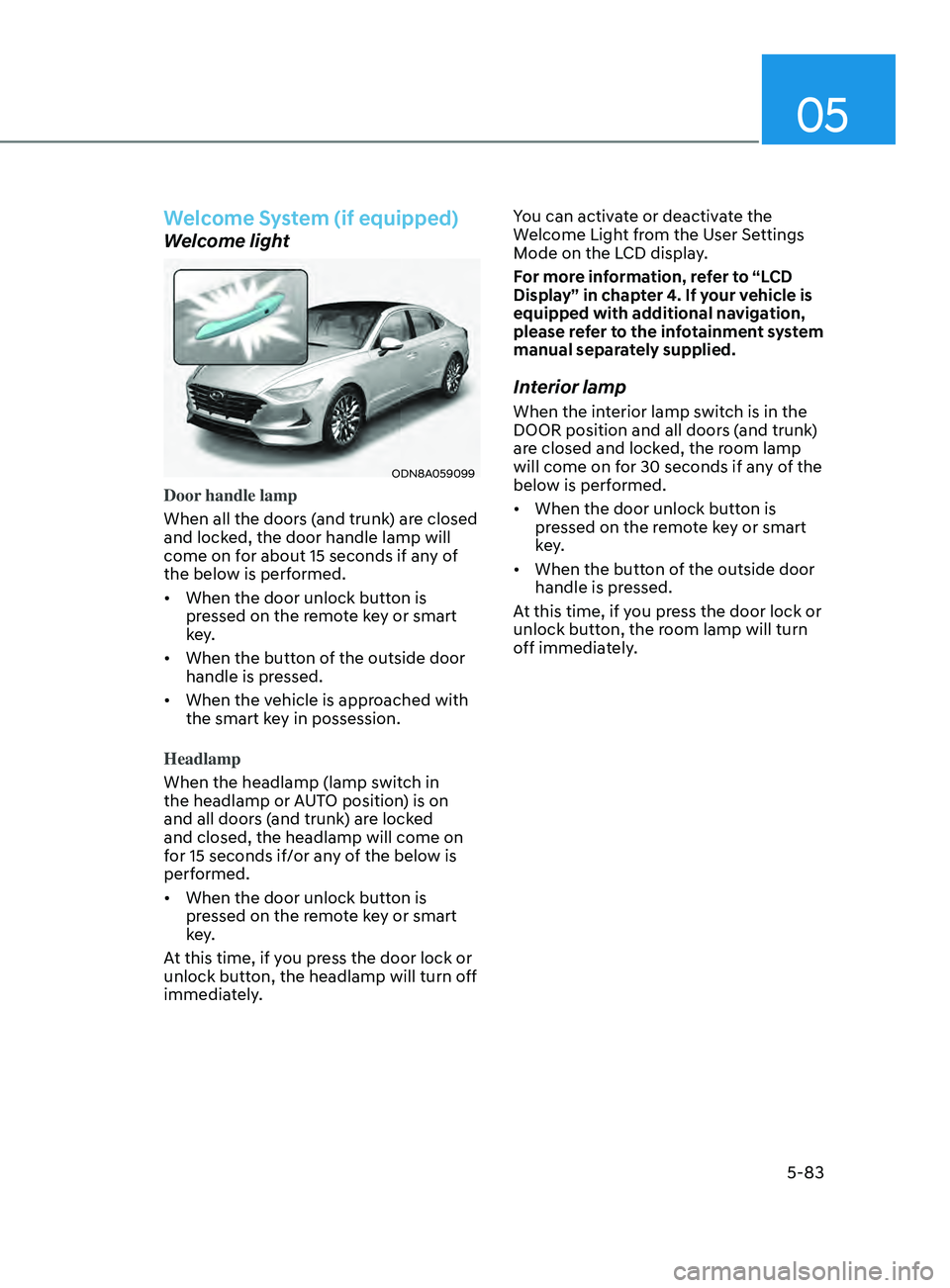
Welcome light
ODN8A059099
Door handle lamp
When all the doors (and trunk) are closed
and locked, the door handle lamp will
come on for about 15 seconds if any of
the below is performed.
• When the door unlock button is
pr
essed on the remote key or smart
key.
• When
the button of the outside door
handle is pr
essed.
• When
the vehicle is approached with
the smart k
ey in possession.
Headlamp
When the headlamp (lamp switch in
the headlamp or AUTO position) is on
and all doors (and trunk) are locked
and closed, the headlamp will come on
for 15 seconds if/or any of the below is
performed.
• When
the door unlock button is
pr
essed on the remote key or smart
key.
At this time, if you press the door lock or
unlock button, the headlamp will turn off
immediately. You can activate or deactivate the
Welcome Light from the User Settings
Mode on the LCD display.
For more information, refer to “LCD
Display” in chapter 4. If your vehicle is
equipped with additional navigation,
please refer to the infotainment system
manual separately supplied.
Interior lamp
When the interior lamp switch is in the
DOOR position and all doors (and trunk)
are closed and locked, the room lamp
will come on for 30 seconds if any of the
below is performed.
• When
the door unlock button is
pr
essed on the remote key or smart
key.
• When
the button of the outside door
handle is pr
essed.
At this time, if you press the door lock or
unlock button, the room lamp will turn
off immediately.
Page 235 of 546
05
5-105
Operating Condition
ODN8059072
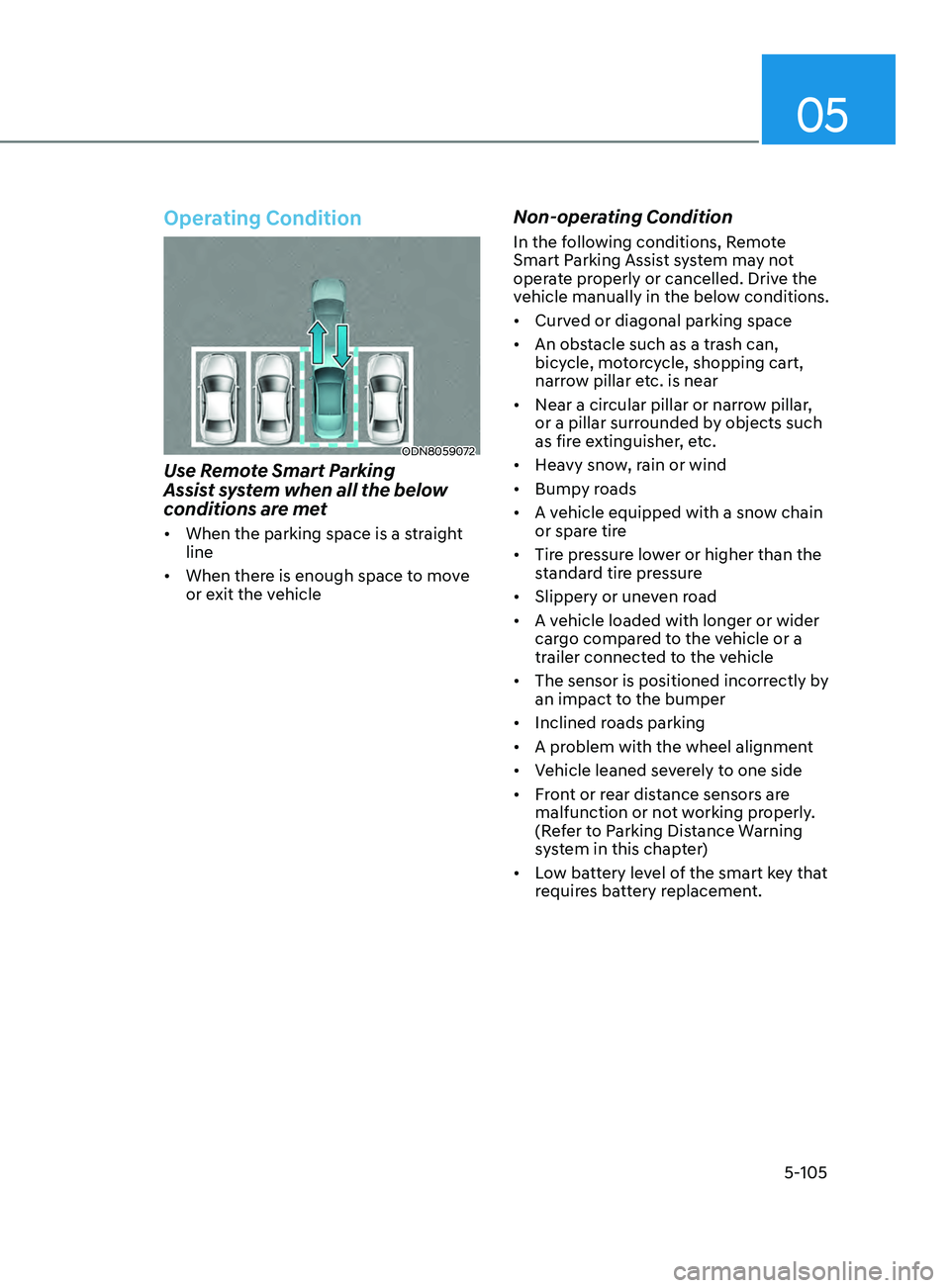
Use Remote Smart Parking
Assist system when all the below
conditions are met
• When the parking space is a straight
line
• When there is enough space to move
or exit the vehicle
Non-operating Condition
In the following conditions, Remote
Smart Parking Assist system may not
operate properly or cancelled. Drive the
vehicle manually in the below conditions.
• Curved or diagonal parking space
• An obstacle such as a trash can,
bicycle, motorcycle, shopping cart,
narrow pillar etc. is near
• Near a circular pillar or narrow pillar,
or a pillar surrounded by objects such
as fire extinguisher, etc.
• Heavy snow, rain or wind
• Bumpy roads
• A vehicle equipped with a snow chain
or spare tire
• Tire pressure lower or higher than the
standard tire pressure
• Slippery or uneven road
• A vehicle loaded with longer or wider
cargo compared to the vehicle or a
trailer connected to the vehicle
• The sensor is positioned incorrectly by
an impact to the bumper
• Inclined roads parking
• A problem with the wheel alignment
• Vehicle leaned severely to one side
• Front or rear distance sensors are
malfunction or not working properly.
(Refer to Parking Distance Warning
system in this chapter)
• Low battery level of the smart key that
requires battery replacement.
Page 238 of 546
Convenient Features
5-108
How Remote Smart Parking
Assist System Works
Remote Moving Forward/Backward
Remote Moving Forward/Backward is
available with the driver outside the
vehicle. Make sure the conditions are
met before activating Remote Moving
Forward/Backward function. With the
function, you can park or exit the vehicle
and the procedure is as follows.
1.
R
emote Moving Forward/Backward
ready:
(1)
With the v
ehicle off: Remotely turn
on the vehicle.
(2)
With the v
ehicle on: with shift
button is in P (Park) position,
then press Remote Smart Parking
Assist system button. Then exit the
vehicle possessing the smart key.
2.
R
emote Moving Forward/Backward
assist: Press and hold the Moving
Forward/Backward button of the
smart key to provide the Remote
Moving Forward/Backward assist
through steering wheel, gear shift and
vehicle speed control.
3.
R
emote Moving Forward/Backward
complete: When the vehicle reaches
the desired position, release the
smart key button. Then complete the
Remote Moving Forward/Backward
by entering the vehicle possessing the
smart key or by pressing the remote
start button of the smart key.
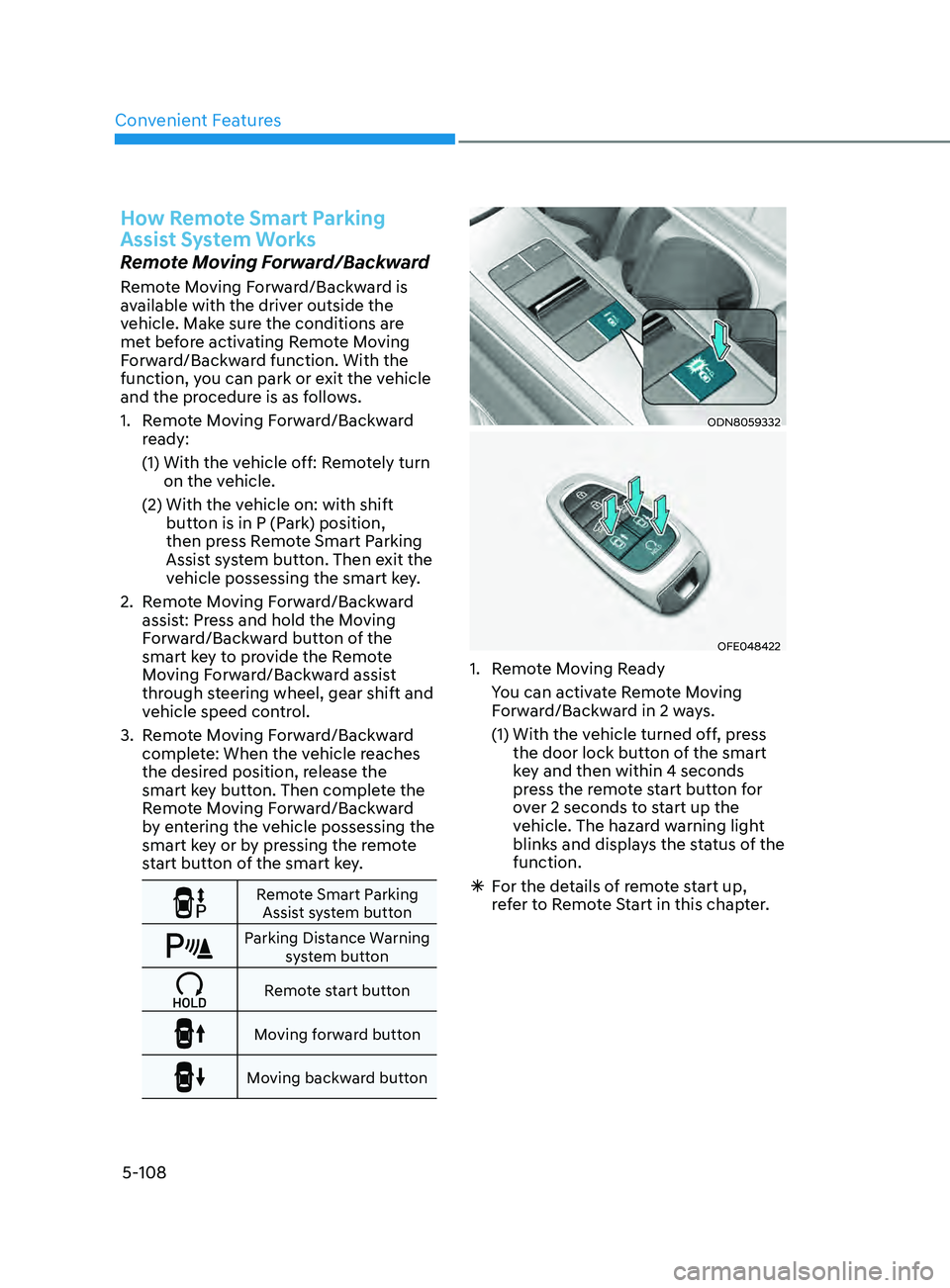
Remote Smart Parking
Assist system button
Parking Distance Warning system button
Remote start button
Moving forward button
Moving backward button
ODN8059332
OFE048422
1. Remote Moving Ready
Y
ou can activate Remote Moving
Forward/Backward in 2 ways.
(1)
With the v
ehicle turned off, press
the door lock button of the smart
key and then within 4 seconds
press the remote start button for
over 2 seconds to start up the
vehicle. The hazard warning light
blinks and displays the status of the
function.
à F
or the details of remote start up,
refer to Remote Start in this chapter.
Page 272 of 546
Convenient Features
5-142
DefrosterNOTICE
To prevent damage to the conductors
bonded to the inside surface of the rear
window, never use sharp instruments or
window cleaners containing abrasives
to clean the window.
Information
If you want to defrost and defog the
front windshield, refer to “Windshield
Defrosting and Defogging” in this chapter.
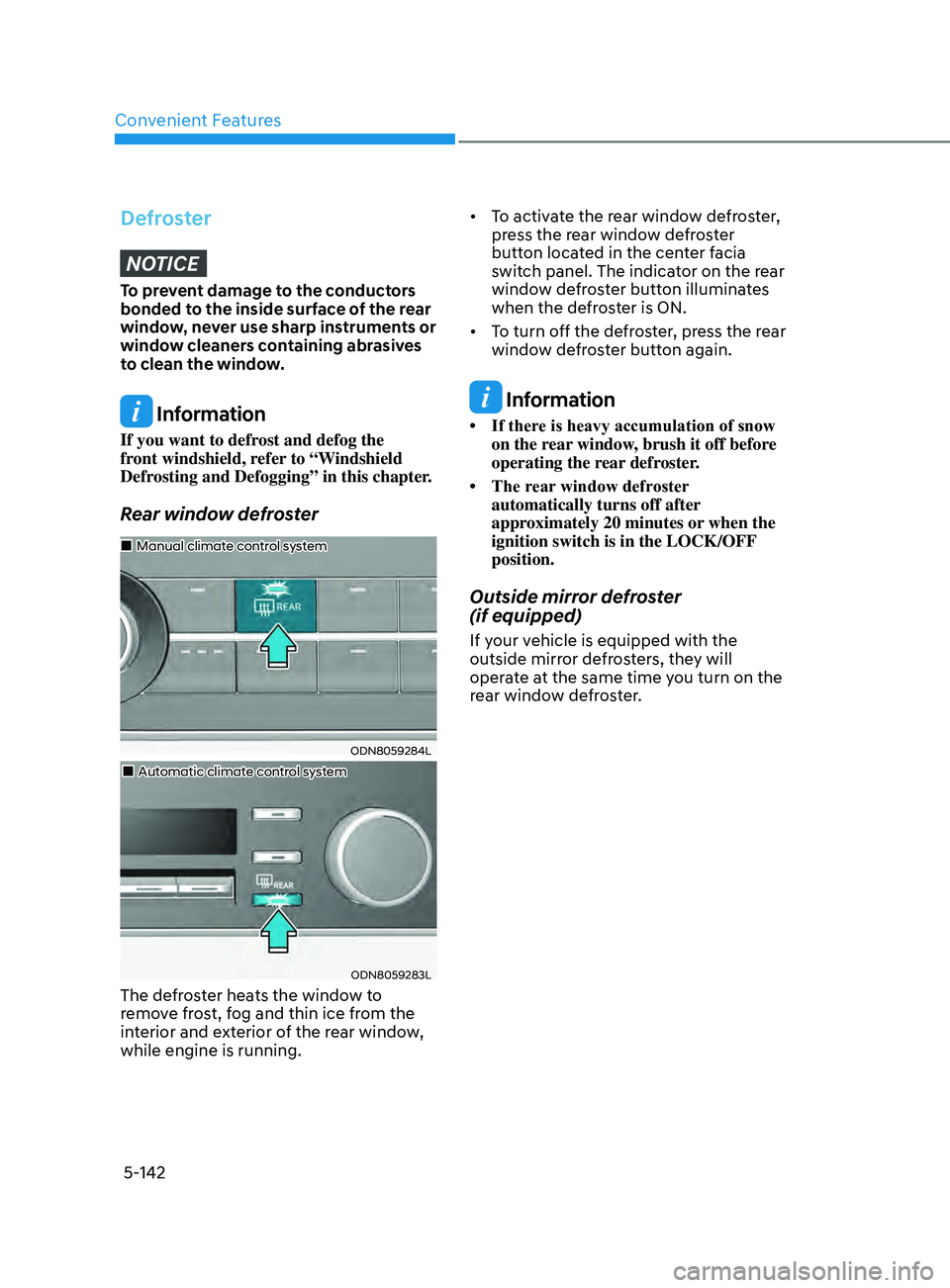
Rear window defroster
ODN8059284L
„„Manual climate control system
„„Automatic climate control system
ODN8059283L
The defroster heats the window to
remove frost, fog and thin ice from the
interior and exterior of the rear window,
while engine is running. • To
activate the rear window defroster,
pr
ess the rear window defroster
button located in the center facia
switch panel. The indicator on the rear
window defroster button illuminates
when the defroster is ON.
• To turn off the defroster, press the rear
windo
w defroster button again.
Information
• If there is heavy accumulation of snow on the r
ear window, brush it off before
operating the rear defroster.
• The
rear
window defroster
automatically turns off after
approximately 20 minutes or when the
ignition switch is in the LOCK/OFF
position.
Outside mirror defroster
(if equipped)
If your vehicle is equipped with the
outside mirror defrosters, they will
operate at the same time you turn on the
rear window defroster.
Page 278 of 546
![HYUNDAI SONATA 2021 Service Manual Convenient Features
5-148
Wireless Cellular Phone
Charging System (if equipped)
ODN8059223
[A]: Indicator light, [B]: Charging pad
On certain models, the vehicle comes
equipped with a wireless cellu](/img/35/41164/w960_41164-277.png "HYUNDAI SONATA 2021 Service Manual Convenient Features
5-148
Wireless Cellular Phone
Charging System (if equipped)
ODN8059223
[A]: Indicator light, [B]: Charging pad
On certain models, the vehicle comes
equipped with a wireless cellu")
Convenient Features
5-148
Wireless Cellular Phone
Charging System (if equipped)
ODN8059223
[A]: Indicator light, [B]: Charging pad
On certain models, the vehicle comes
equipped with a wireless cellular phone
charger.
The system is available when all doors
are closed, and when the ignition switch
is ON.
To charge a cellular phone
The wireless cellular phone charging
system charges only the Qi-enabled
cellular phones. Read the label on the
cellular phone accessory cover or visit
your cellular phone manufacturer’s
website to check whether your cellular
phone supports the Qi technology.
The wireless charging process starts
when you put a Qi-enabled cellular
phone on the wireless charging unit.
1.
R
emove other items, including the
smart key, from the wireless charging
unit. If not, the wireless charging
process may be interrupted. Place
the cellular phone on the center of
the charging pad (
).
2.
The indica
tor light is orange when
the cellular phone is charging. The
indicator light turns green when
phone charging is complete.
3.
Y
ou can turn ON or OFF the wireless
charging function in the user settings
mode on the instrument cluster. For
further information, refer to the “LCD
Display Modes” in this chapter.
If your cellular phone is not charging:
-
Sligh
tly change the position of the
cellular phone on the charging pad.
-
Mak
e sure the indicator light is
orange.
The indicator light will blink orange for 10
seconds if there is a malfunction in the
wireless charging system.
In this case, temporarily stop the
charging process, and re-attempt to
charge your cellular phone again.
The system warns you with a message
on the LCD display if the cellular phone
is still on the wireless charging unit after
the engine is turned OFF and the front
door is opened.
Information
For some manufacturers’ cellular phones,
the system may not warn you even though
the cellular phone is left on the wireless
charging unit. This is due to the particular
characteristic of the cellular phone and
not a malfunction of the wireless charging.
NOTICE
• The wireless cellular phone charging system may not support certain
cellular phones, which are not
verified for the Qi specification (
).
•
When placing y
our cellular phone
on the charging mat, position the
phone in the middle of the mat for
optimal charging performance. If
your cellular phone is off to the side,
the charging rate may be less and in
some cases the cellular phone may
experience higher heat conduction.
•
In some cases, the wir
eless charging
may stop temporarily when the
Remote Key or Smart Key is used,
either when starting the vehicle or
locking/unlocking the doors, etc.
•
When char
ging certain cellular
phones, the charging indicator
may not change to green when the
cellular phone is fully charged.
Page 289 of 546
06
6-5
Before Entering the Vehicle
• Be sure all windows, outside mirror(s),
and outside lights are clean and
unobstructed.
• Remove frost, snow, or ice.
• Visually check the tires for uneven
wear and damage.
• Check under the vehicle for any sign
of leaks.
• Be sure there are no obstacles behind
you if you intend to back up.
Before Starting
• Make sure the hood, the trunk, and
the doors are securely closed and
locked.
• Adjust the position of the seat and
steering wheel.
• Adjust the inside and side view
mirrors.
• Verify all the lights work.
• Fasten your seatbelt. Check that
all passengers have fastened their
seatbelts.
• Check the gauges and indicators
in the instrument panel and the
messages on the instrument display
when the ignition switch is in the ON
position.
• Check that any items you are carrying
are stored properly or fastened down
securely.
WARNING
To reduce the risk of SERIOUS INJURY or
DEATH, take the following precautions:
• ALWAYS wear your seat belt. All
passengers must be properly belted
whenever the vehicle is moving.
For more information, refer to "Seat
Belts" in chapter 3.
• Always drive defensively. Assume
other drivers or pedestrians may be
careless and make mistakes.
• Stay focused on the task of driving.
Driver distraction can cause
accidents.
• Leave plenty of space between you
and the vehicle in front of you.
WARNING
NEVER drink alcohol or take drugs and
drive.
Drinking alcohol or taking drugs and
driving is dangerous and may result in
an accident and SERIOUS INJURY or
DEATH.
Drunk driving is the number one
contributor to the highway death
toll each year. Even a small amount
of alcohol will affect your reflexes,
perceptions and judgment. Just
one drink can reduce your ability to
respond to changing conditions and
emergencies and your reaction time
gets worse with each additional drink.
Driving while under the influence
of drugs is as dangerous or more
dangerous than driving under the
influence of alcohol.
You are much more likely to have a
serious accident if you drink or take
drugs and drive. If you are drinking or
taking drugs, don't drive. Do not ride
with a driver who has been drinking
or taking drugs. Choose a designated
driver or call a taxi.
Before Driving