stop start HYUNDAI SONATA 2022 Owner's Manual
[x] Cancel search | Manufacturer: HYUNDAI, Model Year: 2022, Model line: SONATA, Model: HYUNDAI SONATA 2022Pages: 546, PDF Size: 51.21 MB
Page 151 of 546
05
5-21
Remote Start with Digital Key
• When the shift button of your vehicle
is in P (Park) and all of the doors
including trunk and hood is locked
and the vehicle is off, press the Door
Lock button in the Hyundai Digital
Key app then press the Remote Start
button within 4 seconds.
You can confirm the engine is on if the
hazard warning lights blinks two times
and the chime sounds.
• If you want to turn off the engine,
press Remote Engine Stop. Air
Conditioner / Heating system
maintains the same status as when
you last used the vehicle.
• Unless you put the registered digital
key(smartphone) on the interior
authentication pad (wireless charger)
when the remote start function is on,
the engine will turn off.
• If you do not get on the vehicle within
10 minutes after the engine turns on,
the vehicle will turn off.
For more information, refer to the Engine
Start/Stop button in chapter 6.
Vehicle information Display
The digital key application displays
the vehicle information such as
driving or door conditions through the
communication with the vehicle.
• How to check : Select the vehicle
what you want to check and touch
the vehicle image, then vehicle
information display page will be
shown.
• Contents : accumulated odometer,
latest fuel economy, driving range,
fuel remaining, tire pressure, doors
lock/unlock status and last data
updated time.
ÃDispla
yed vehicle date could be
differed from the current vehicle
condition.
à F
or more information, please refer to
the ‘Tutorial’ on your Digital key app. Smartphone change/App deletion
If you change your smartphone or delete
the Hyundai Digital Key App, please refer
to the following to set up your Digital
Key:
Smartphone Change/ Reset
If you change or reset the smartphone,
the registered digital key in your previous
smartphone may not be used. Please
refer to following procedure to use the
digital key.
1.
Ins
tall the digital key application and
log in.
2.
If y
ou are the owner, retry the Digital
key save process.
3.
If y
ou are the sharer, need to re-share
the key from owner.
App delete & reinstall/ Delete App data
You can re-download the digital key
from server in these cases as follow
procedure.
1.
R
einstall the application and log in.
2.
Input the PIN number f
or user
verification.
3.
If PIN is corr
ect, digital key data
will be re-downloaded to your
smartphone and you can use it
without any further registration or
sharing.
Smartphone operability with Digital Key
The digital key application may not
be available to old type smartphones.
Please check the available smartphone
models with your dealer. NFC antenna
position on the smartphone can be
confirmed on each smartphone’s manual
or contact to customer service center of
the smartphone manufacture.
Page 156 of 546
Convenient Features
5-26
If the digital key (card key) does not
work, please detach the key around
4 inches (0.1 m) from the handle
authentication pad and retry to contact.
The card key may be damaged by the
impact. It would not work properly if
the key is damaged. You should buy a
new card and register again. Long-time
exposure to high temperature may cause
the card key to malfunction. Please be
careful not to expose the key to direct
sunlight or high temperature.
After unlock the door or start up the
vehicle with digital key, even though
the driver tries to lock the doors by the
central door lock switch, the door lock
will be once locked and immediately
released at the moment of door closed.Start-up with Card key
After placing your registered card key
onto the interior authentication pad
(wireless charger), step on the brake and
press the Engine Start/Stop button.
WARNING
•
If you do not place the digital key
(card key) onto the center of the
interior authentication pad (wireless
charger) exactly, the card key may
not be recognized. If the engine is
not turned on, adjust and place the
key again.
• If you overlap and use the key
with NFC-enabled cards such as
transportation card or credit card,
the card key may not be recognized.
• If the digital key (card key) does not
work, please detach the key around
4 inches (0.1 m) from the handle
authentication pad and retry to
contact.
• The card key may be damaged due to
impact. It would not work properly if
the key is damaged. You should buy a
new card and register again.
For more information, refer to the
Engine Start/Stop button in chapter 6.
Page 157 of 546
05
5-27
„„Type A
ODN8A059133
„„Type B
ODN8A059247
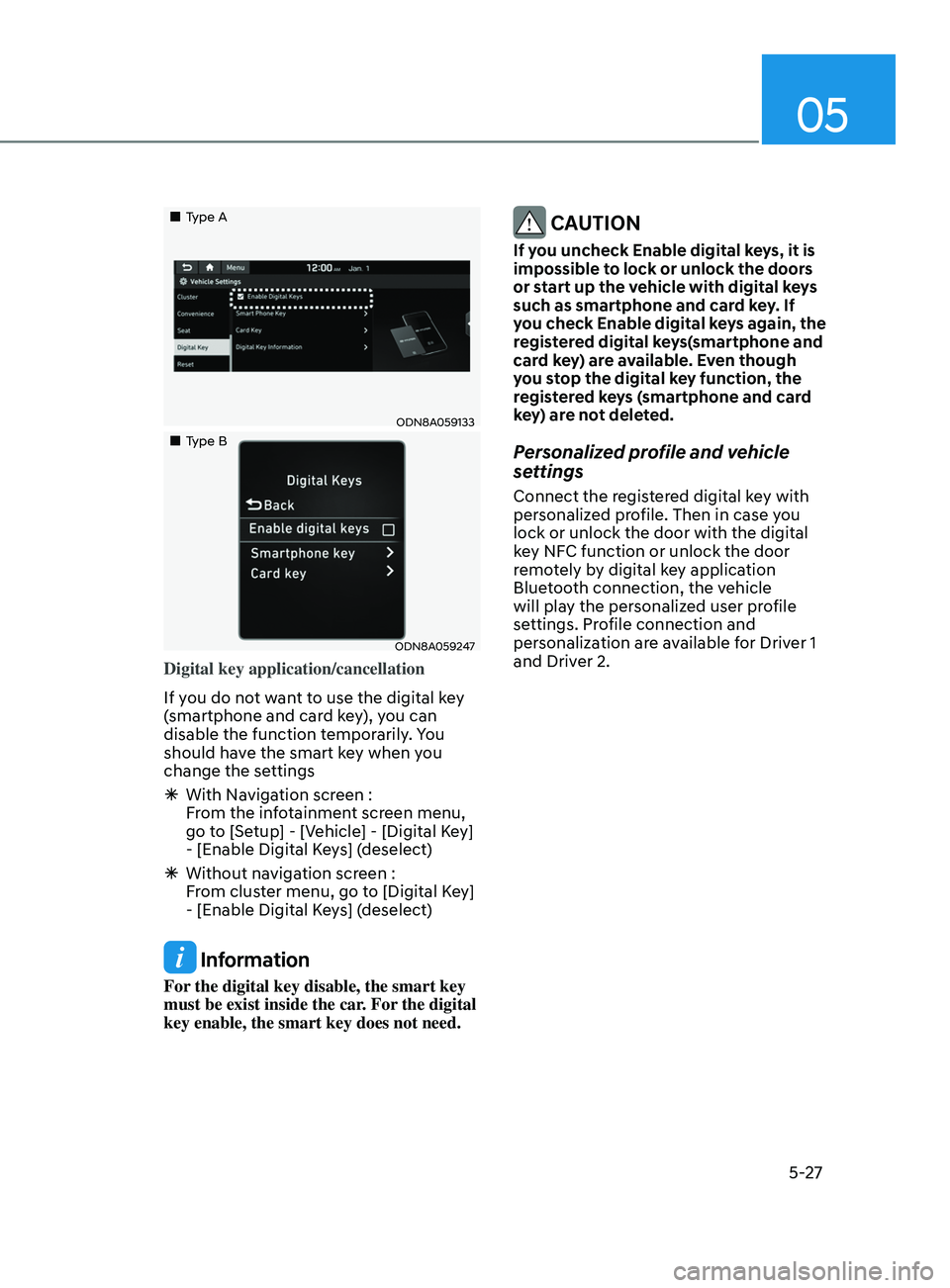
Digital key application/cancellation
If you do not want to use the digital key
(smartphone and card key), you can
disable the function temporarily. You
should have the smart key when you
change the settings
ÃWith Na
vigation screen :
From the infotainment screen menu,
go to [Setup] - [Vehicle] - [Digital Key]
- [Enable Digital Keys] (deselect)
à Without na
vigation screen :
From cluster menu, go to [Digital Key]
- [Enable Digital Keys] (deselect)
Information
For the digital key disable, the smart key
must be exist inside the car. For the digital
key enable, the smart key does not need.
CAUTION
If you uncheck Enable digital keys, it is
impossible to lock or unlock the doors
or start up the vehicle with digital keys
such as smartphone and card key. If
you check Enable digital keys again, the
registered digital keys(smartphone and
card key) are available. Even though
you stop the digital key function, the
registered keys (smartphone and card
key) are not deleted.
Personalized profile and vehicle
settings
Connect the registered digital key with
personalized profile. Then in case you
lock or unlock the door with the digital
key NFC function or unlock the door
remotely by digital key application
Bluetooth connection, the vehicle
will play the personalized user profile
settings. Profile connection and
personalization are available for Driver 1
and Driver 2.
Page 170 of 546
Convenient Features
5-40
Recalling Positions from Memory
1. Shift to P (Park) while the ignition switch is in the ON position.
2.
Pr
ess the desired memory button
(1 or 2). The system will beep once,
and then the driver’s seat position,
side view mirror position, instrument
panel illumination intensity and
head-up display height/brightness
will automatically adjust to the stored
positions.
3.
“Se
ttings 1 (or 2) applied” will appear
on the cluster LCD display.
If your vehicle is equipped with
additional navigation, please refer to the
infotainment system manual separately
supplied.
Information
• While recalling the “1” memory
position, pressing the SET or 1 button
temporarily stops the adjustment of
the recalled memory position. Pressing
the 2 button recalls the “2” memory
position.
• While recalling the “2” memory
position, pressing the SET or 2 button
temporarily stops the adjustment of
the recalled memory position. Pressing
the 1 button recalls the “1” memory
position.
• While recalling the stored positions,
pressing one of the control buttons
for the driver’s seat, side view mirror,
instrument panel illumination or head-
up display will cause the movement of
that component to stop and move in
the direction that the control button is
pressed.
Resetting the Driver’s Seat
Memory System
Take the following procedures to reset
the driver’s seat memory system, when it
does not operate properly.
To reset the driver’s seat memory
system
1. Place the ignition s witch to the ON
position, shift to P (Park), and open
the driver’s door.
2.
Oper
ate the control switch to set
the driver’s seat and seatback to the
foremost position.
3.
Simultaneously pr
ess the SET button
and push forward the seat movement
switch over 2 seconds.
While resetting the driver’s seat
memory system
1. It starts with the notification sound.
2.
The driv
er’s seat and seatback is
adjusted to the rearward position with
the notification sound.
3.
The driv
er’s seat and seatback is
re-adjusted to the default position
(central position) with the notification
sound.
However, in the following cases, the
resetting procedure and the notification
sound may stop.
-
The memory butt
on is pressed.
-
The con
trol switch is operated.
-
The gear is shift
ed out of P (Park) .
-
The driving speed e
xceeds 2 mph (3
km/h).
-
The driv
er’s door is closed.
Page 171 of 546
05
5-41
NOTICE
• Reattempt to do the resetting procedure again, when the resetting
procedure incompletely stops or the
notification sound do not stop.
•
M
ake sure that there is no obstacle
around the driver’s seat in advance
of resetting the driver’s seat memory
system.
Easy Access Function
The system will move the driver’s seat
automatically as follows:
• It will move the driver’s seat rearward
when the Engine Start/Stop button is
pressed to the OFF position.
• It will move the driver’s seat forward
when the Engine Start/Stop button is
pressed to the ACC or START position.
You can activate or deactivate the Easy
Access Function from the User Settings
mode in the cluster LCD display.
‘Convenience
→ Seat Easy Access →
Off/Normal/Extended’.
For more information, refer to “LCD
Display” in chapter 4.If your vehicle is
equipped with additional navigation,
please refer to the infotainment system
manual separately supplied.
CAUTION
Driver should be cautious when using
this function to assure no injury to
passenger or child on the back seat.
In case of emergency the driver has to
stop movement of front seat (when easy
access feature is activated) by pressing
SET button or any of the driver seat
control switches.
Page 178 of 546
Convenient Features5-48
Automatic-Dimming Night Vision Safety™
(NVS®) Mirror (if equipped)
The NVS® Mirror automatically reduces
glare by monitoring light levels in the
front and the rear of the vehicle. Any
object that obstructs either light sensor
will degrade the automatic dimming
control feature.
For more information regarding NVS®
mirrors and other applications, please
refer to the Gentex website:
www.gentex.com
Your mirror will automatically dim
upon detecting glare from the vehicles
traveling behind you.
The mirror defaults to the ON position
each time the vehicle is started.
Integrated HomeLink
® Wireless Control
System
The HomeLink® Wireless Control System
can replace up to three hand-held
radio-frequency (RF) transmitters with
a single built-in device. This innovative
feature will learn the radio frequency
codes of most current transmitters to
operate devices such as gate operators,
garage door openers, entry door locks,
security systems, even home lighting.
Both standard and rolling code-equipped
transmitters can be programmed by
following the outlined procedures.
Additional HomeLink® information can
be found at: www.homelink.com, www.
youtube.com/HomeLinkGentex or by
calling 1-800-355-3515.
Retain the original transmitter of the
RF device you are programming for use
in other vehicles as well as for future
HomeLink® programming. It is also
suggested that upon the sale of the
vehicle, the programmed HomeLink®
buttons be erased for security purposes.
WARNING
Before programming HomeLink® to a
garage door opener or gate operator,
make sure people and objects are out
of the way of the device to prevent
potential harm or damage. Do not
use the HomeLink® with any garage
door opener that lacks the safety
stop and reverse features required
by U.S. federal safety standards (this
includes any garage door opener model
manufactured before April 1, 1982).
A garage door that cannot detect an
object - signaling the door to stop and
reverse - does not meet current U.S.
federal safety standards. Using a garage
door opener without these features
increases the risk of serious injury or
death.
Programming HomeLink
®
Please note the following:
• When
programming a garage door
opener
, it is advised to park the
vehicle outside of the garage.
• It
is recommended that a new battery
be placed in the hand-held tr
ansmitter
of the device being programmed to
HomeLink® for quicker training and
accurate transmission of the radio-
frequency signal.
• Some
vehicles may require the
E
ngine Start/Stop button to be in the
ACC (or “Accessories”) position for
programming and/or operation of
HomeLink®.
• In
the event that there are still
pr
ogramming difficulties or questions
after following the programming steps
listed below, contact HomeLink® at:
www.homelink.com, www.youtube.
com/HomeLinkGentex or by calling
1-800-355-3515.
Page 215 of 546
05
5-85
Information
If the wiper switch is set in AUTO mode
when Engine Start/Stop button is in the
ON position, the wiper will operate once to
perform a self-check of the system. Set the
wiper to the OFF position when the wiper
is not in use.
WARNING
To avoid personal injury from the
windshield wipers, when the engine
is running and the windshield wiper
switch is placed in the AUTO mode:
•
Do no
t touch the upper end of the
windshield glass facing the rain
sensor.
•
Do no
t wipe the upper end of the
windshield glass with a damp or wet
cloth.
•
Do no
t put pressure on the
windshield glass.
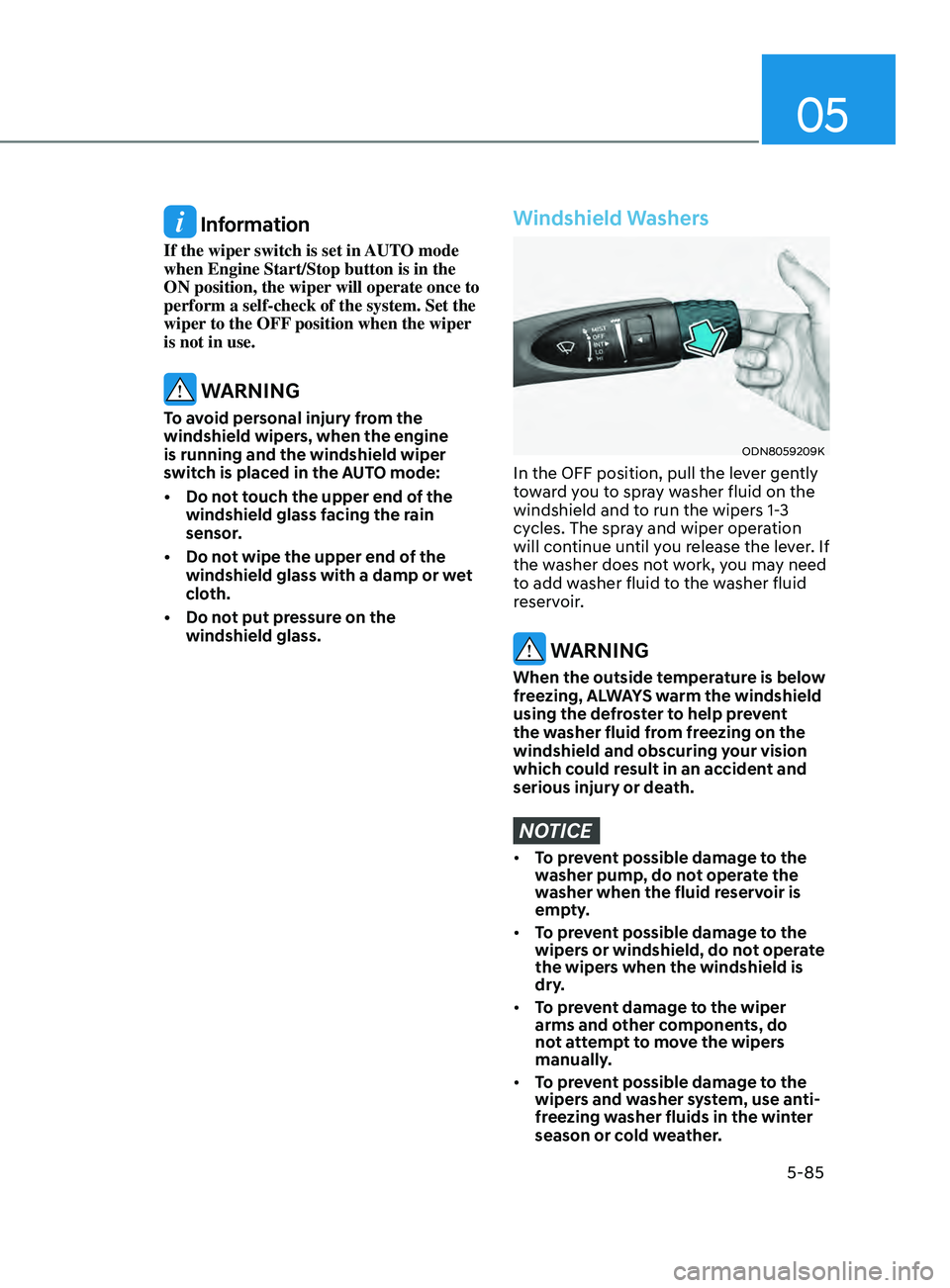
Windshield Washers
ODN8059209K
In the OFF position, pull the lever gently
toward you to spray washer fluid on the
windshield and to run the wipers 1-3
cycles. The spray and wiper operation
will continue until you release the lever. If
the washer does not work, you may need
to add washer fluid to the washer fluid
reservoir.
WARNING
When the outside temperature is below
freezing, ALWAYS warm the windshield
using the defroster to help prevent
the washer fluid from freezing on the
windshield and obscuring your vision
which could result in an accident and
serious injury or death.
NOTICE
• To prevent possible damage to the
washer pump, do not operate the
washer when the fluid reservoir is
empty.
• To prevent possible damage to the
wipers or windshield, do not operate
the wipers when the windshield is
dry.
• To prevent damage to the wiper
arms and other components, do
not attempt to move the wipers
manually.
• To prevent possible damage to the
wipers and washer system, use anti-
freezing washer fluids in the winter
season or cold weather.
Page 219 of 546
05
5-89
Reverse Parking Collision-Avoidance
Assist (PCA) is a supplemental system
that can warn the driver or apply braking
force to reduce the possibility of collision
with pedestrians when the vehicle is
reversing.
WARNING
• Always look around your vehicle to
make sure there are no objects or
pedestrian before moving the vehicle
in any direction to prevent a collision.
• Do not solely rely on Reverse Parking
Collision-Avoidance Assist system.
The system might not assist the
driver leading to pedestrian injury or
vehicle damage.
• Be aware that some objects may
not be visible on the screen or be
detected by the rear ultrasonic
sensors, due to the objects’ distance,
size or material, all of which can limit
the effectiveness of the sensors.
System Setting and Operation
System setting
Parking Collision-Avoidance Assist-
Reverse (PCA-R) can be activated from
the Settings menu in the LCD display or
infotainment system display by following
the procedure below.
1.
Se
t the Engine Start/Stop button to
the ON or START position.
2.
Select
‘User Settings → Driver
Assis
tance → Parking Safety → Active
Assis
t / Warning Only / Off’ in the
LCD display or infotainment system
display.
- The s
ystem is ready for operation
when ‘Active Assist’ is selected. In
the event of an imminent collision
with a pedestrian or an object, the
system warns the driver or applies
braking force to help avoid the
collision.
- The s
ystem is ready for operation
when ‘Warning Only’ is selected. In
the event of an imminent collision
with a pedestrian, the system warns
the driver but does not assist in
braking.
- The s
ystem deactivates when ‘Off’ is
selected.
reverS e pA r K in G colli S ion -Av oi DA nce ASS i ST
Page 242 of 546
Convenient Features
5-112
The Remote Moving Forward/
Backward assist will stop
temporarily when:
7. An obstacle is detected at the direction the vehicle is heading.
8.
The door or trunk is opened.
9.
The mo
ving forward/backward button
on the smart key is released.
10.
Multiple butt
ons on the smart key are
pressed at the same time.
11.
The dis
tance between the smart key
and vehicle is over 13 ft. (4 m).
12.
A butt
on on the other smart key is
pressed during operation.
13.
R
ear Cross-Traffic Collision-Avoidance
Assist system is activated while
reserving.
14.
The v
ehicle moves 23 ft. (7 m) with the
Remote Moving Forward/Backward
while the smart key is pressed.
(Maximum travel distance per move)
à The v
ehicle stops when the Remote
Smart Parking Assist system will stop
temporarily and the function will
resume when the above condition is
cleared.
The Remote Moving Forward/
Backward assist is cancelled while
in operation when:
1. The driver holds the steering wheel while the steering wheel is controlled.
2.
The gear is shift
ed or the Electronic
Parking Brake (EPB) is activated.
3.
The hood opens.
4.
The v
ehicle speed exceeds 3 mph
(5km/h).
5.
The v
ehicle accelerates suddenly.
6.
The v
ehicle slips back while
controlling the vehicle speed.
7.
The wheel is s
tuck and the vehicle is
unable to move.
8.
About 3 minut
es and 50 seconds
have passed after the Remote Moving
Forward/Backward assist starts. 9.
The gr
adient of the road exceeds
the range supported by the Remote
Moving Forward/Backward assist.
10.
The s
teering, shifting gear and drive
assist are difficult.
11.
The suspended s
tatus lasts for over 1
minute.
12.
The driv
er continuously presses and
releases the smart key’s moving
forward/backward button over 10
times.
13.
The T
raction Control System (TCS) is
activated while controlling the vehicle
speed.
14.
The smart k
ey is damaged.
15.
The acceler
ator/brake pedal is
depressed while all the doors are
closed.
16.
The br
ake pedal is depressed while
the driver’s door is open and the smart
key is outside the vehicle.
17. The vehicle travels more than 46 ft. (14
m) after the Remote Moving Forward/
Backward assist is activated.
18.
The the
ft alarm system is activated.
Ã
When the R
emote Moving Forward/
Backward is completed, the gear in
P(Park) and Electronic Parking Brake
(EPB) are engaged automatically and
the vehicle turns off. Ã The fr equent beep sounds are
generated to show the deactivation
status.
Page 245 of 546
05
5-115
Link with other systems
Activation of other systems may
be restricted according to the
circumstances while Remote Smart
Parking Assist system is in activation.
The systems linked to the Remote Smart
Parking Assist system are as follows:
1.
I
dle Stop & Go
(1)
While R
emote Smart Parking
Assist system is operating, ISG is
deactivated.
(2)
If R
emote Smart Parking Assist
system is completed or cancelled,
ISG can be activated.
2.
A
uto Hold
(1)
The activ
ated Auto Hold is
switched to deactivation status
when Remote Smart Parking Assist
system starts.
(2)
The A
uto Hold button will not
respond while Remote Smart
Parking Assist system is in
activation.
(3
)
A
fter Remote Smart Parking
Assist system is completed or
deactivated, the Auto Hold will
return to the status before Remote
Smart Parking Assist system was
activated.
3.
Electr
onic Stability Control (ESC)
(1)
Electr
onic Stability Control (ESC)
system switches from OFF to
activation status (ESC OFF button
turns off) when Remote Smart
Parking Assist system is activated.
(2)
The ESC OFF butt
on will not
respond while Remote Smart
Parking Assist system is in
activation.
(3
)
The ABS/T
CS/ESC system activates
while Remote Smart Parking Assist
system is in activation.
(
4)
A
fter Remote Smart Parking
Assist system is completed or
deactivated, the ESC maintains the
ON status.
How the Remote Moving
Forward/Backward System
Works
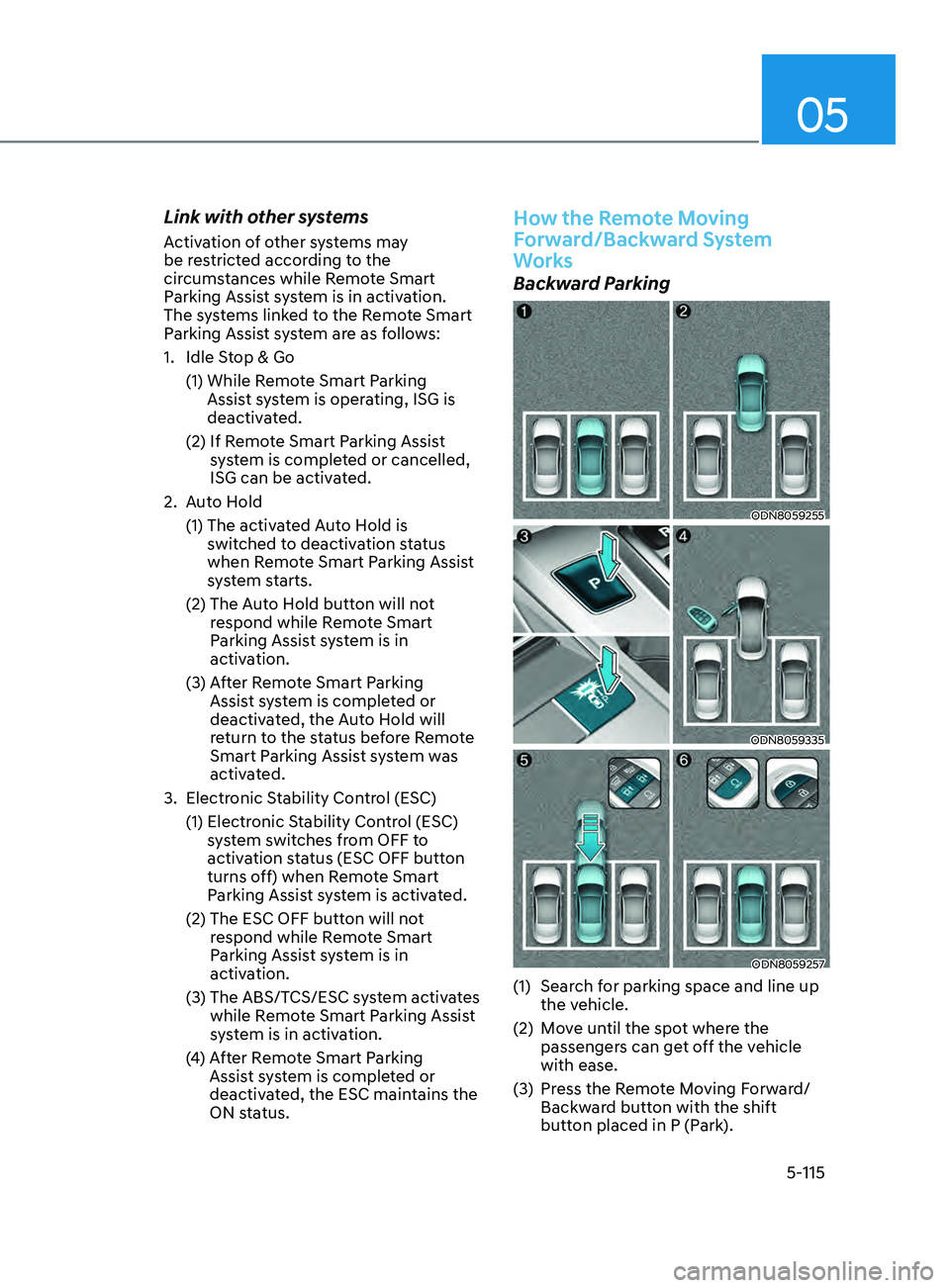
Backward Parking
ODN8059255
ODN8059335
ODN8059257
(1) Search for parking space and line up the vehicle.
(2)
M
ove until the spot where the
passengers can get off the vehicle
with ease.
(3)
Pr
ess the Remote Moving Forward/
Backward button with the shift
button placed in P (Park).