navigation system HYUNDAI SONATA 2023 User Guide
[x] Cancel search | Manufacturer: HYUNDAI, Model Year: 2023, Model line: SONATA, Model: HYUNDAI SONATA 2023Pages: 555, PDF Size: 42.72 MB
Page 199 of 555
05
5-53
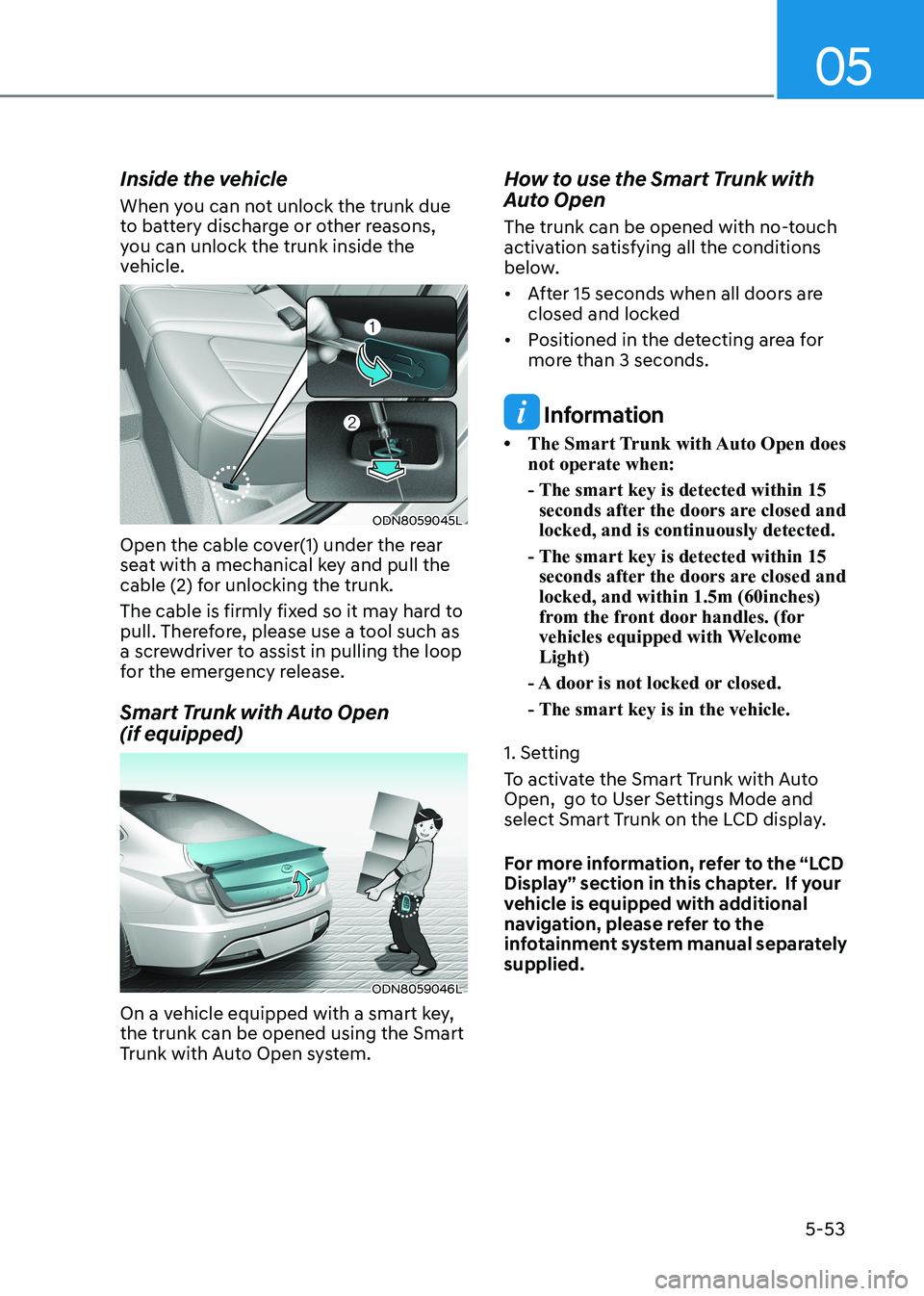
Inside the vehicle
When you can not unlock the trunk due
to battery discharge or other reasons,
you can unlock the trunk inside the
vehicle.
ODN8059045L
Open the cable cover(1) under the rear
seat with a mechanical key and pull the
cable (2) for unlocking the trunk.
The cable is firmly fixed so it may hard to
pull. Therefore, please use a tool such as
a screwdriver to assist in pulling the loop
for the emergency release.
Smart Trunk with Auto Open (if equipped)
ODN8059046L
On a vehicle equipped with a smart key, the trunk can be opened using the Smart
Trunk with Auto Open system. How to use the Smart Trunk with
Auto Open
The trunk can be opened with no-touch
activation satisfying all the conditions
below.
• After 15 seconds when all doors are
closed and locked
• Positioned in the detecting area for more than 3 seconds.
Information
• The Smart Trunk with Auto Open does not operate when:
- The smart key is detected within 15 seconds after the doors are closed and locked, and is continuously detected.
- The smart key is detected within 15 seconds after the doors are closed and locked, and within 1.5m (60inches)
from the front door handles. (for
vehicles equipped with Welcome Light)
- A door is not locked or closed.
- The smart key is in the vehicle.
1. Setting
To activate the Smart Trunk with Auto
Open, go to User Settings Mode and
select Smart Trunk on the LCD display.
For more information, refer to the “LCD
Display” section in this chapter. If your
vehicle is equipped with additional
navigation, please refer to the
infotainment system manual separately supplied.
Page 205 of 555
05
5-59
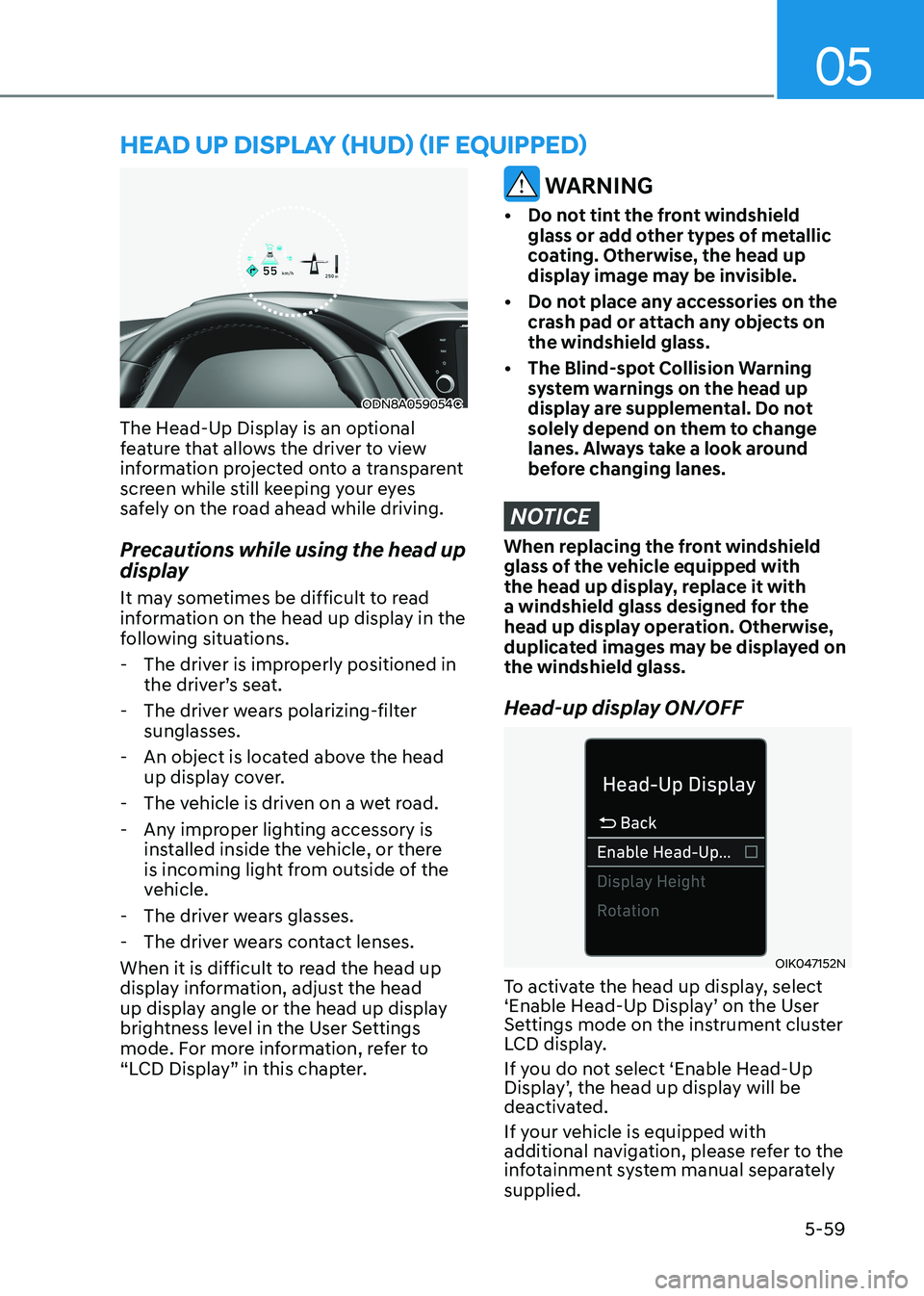
heAD Up DiSplAy (hUD) (if eQUippeD)
ODN8A059054C
The Head-Up Display is an optional
feature that allows the driver to view
information projected onto a transparent
screen while still keeping your eyes
safely on the road ahead while driving.
Precautions while using the head up
display
It may sometimes be difficult to read
information on the head up display in the
following situations.
- The driver is improperly positioned in the driver’s seat.
- The driver wears polarizing-filter sunglasses.
- An object is located above the head up display cover.
- The vehicle is driven on a wet road.
- Any improper lighting accessory is installed inside the vehicle, or there
is incoming light from outside of the
vehicle.
- The driver wears glasses.
- The driver wears contact lenses.
When it is difficult to read the head up
display information, adjust the head
up display angle or the head up display
brightness level in the User Settings
mode. For more information, refer to
“LCD Display” in this chapter.
WARNING
• Do not tint the front windshield glass or add other types of metallic
coating. Otherwise, the head up
display image may be invisible.
• Do not place any accessories on the crash pad or attach any objects on the windshield glass.
• The Blind-spot Collision Warning system warnings on the head up
display are supplemental. Do not
solely depend on them to change
lanes. Always take a look around
before changing lanes.
NOTICE
When replacing the front windshield
glass of the vehicle equipped with
the head up display, replace it with
a windshield glass designed for the
head up display operation. Otherwise,
duplicated images may be displayed on the windshield glass.
Head-up display ON/OFF
OIK047152N
To activate the head up display, select
‘Enable Head-Up Display’ on the User
Settings mode on the instrument cluster
LCD display.
If you do not select ‘Enable Head-Up
Display’, the head up display will be
deactivated.
If your vehicle is equipped with
additional navigation, please refer to the
infotainment system manual separately supplied.
Page 206 of 555
Convenience Features
5-60
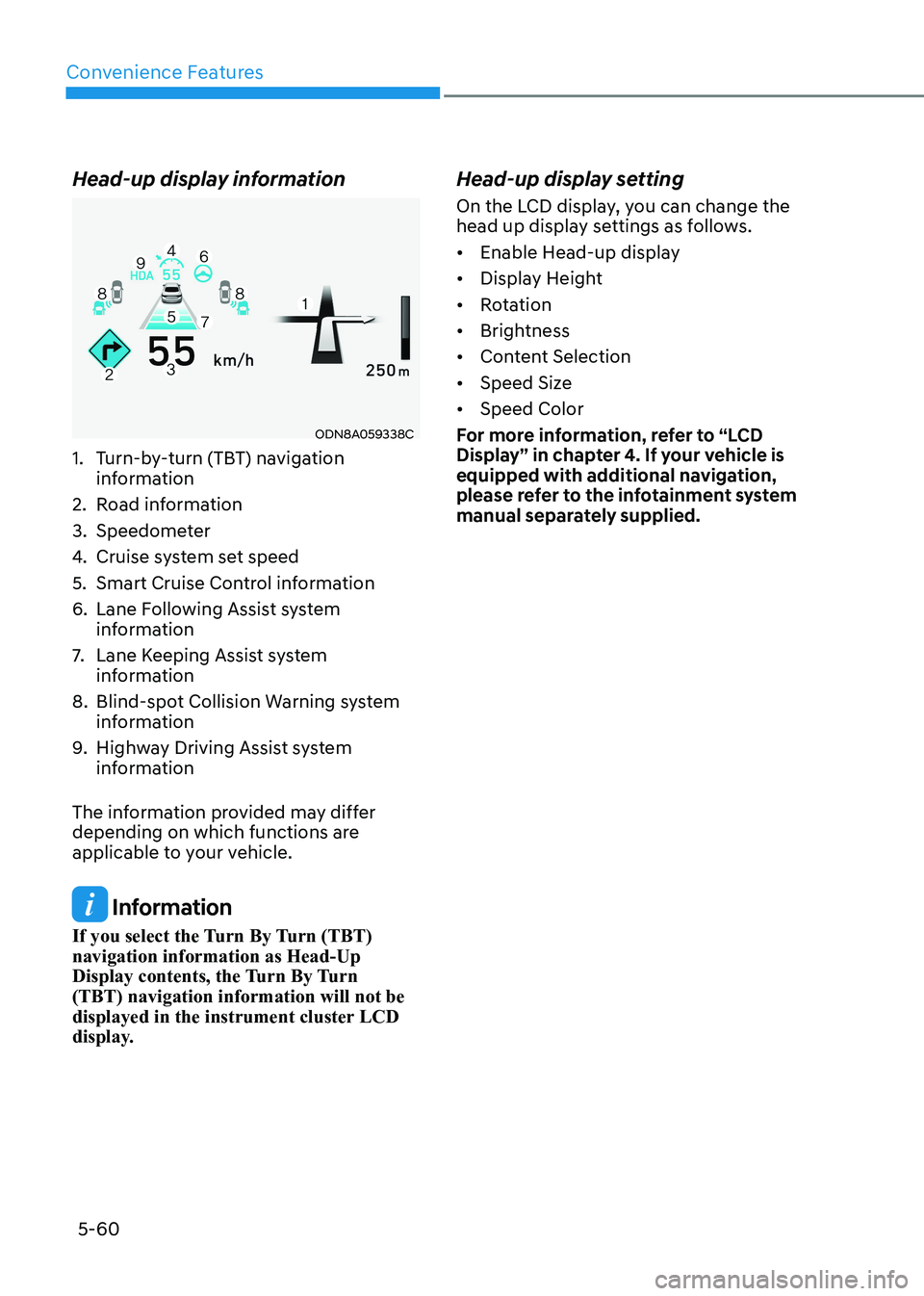
Head-up display information
ODN8A059338C
1. Turn-by-turn (TBT) navigation information
2. Road information
3. Speedometer
4. Cruise system set speed
5. Smart Cruise Control information
6. Lane Following Assist system information
7. Lane Keeping Assist system
information
8. Blind-spot Collision Warning system information
9. Highway Driving Assist system
information
The information provided may differ
depending on which functions are
applicable to your vehicle.
Information
If you select the Turn By Turn (TBT) navigation information as Head-Up
Display contents, the Turn By Turn (TBT) navigation information will not be
displayed in the instrument cluster LCD
display. Head-up display setting
On the LCD display, you can change the
head up display settings as follows.
• Enable Head-up display
• Display Height
• Rotation
• Brightness
• Content Selection
• Speed Size
• Speed Color
For more information, refer to “LCD
Display” in chapter 4. If your vehicle is
equipped with additional navigation,
please refer to the infotainment system
manual separately supplied.
Page 216 of 555
Convenience Features
5-70
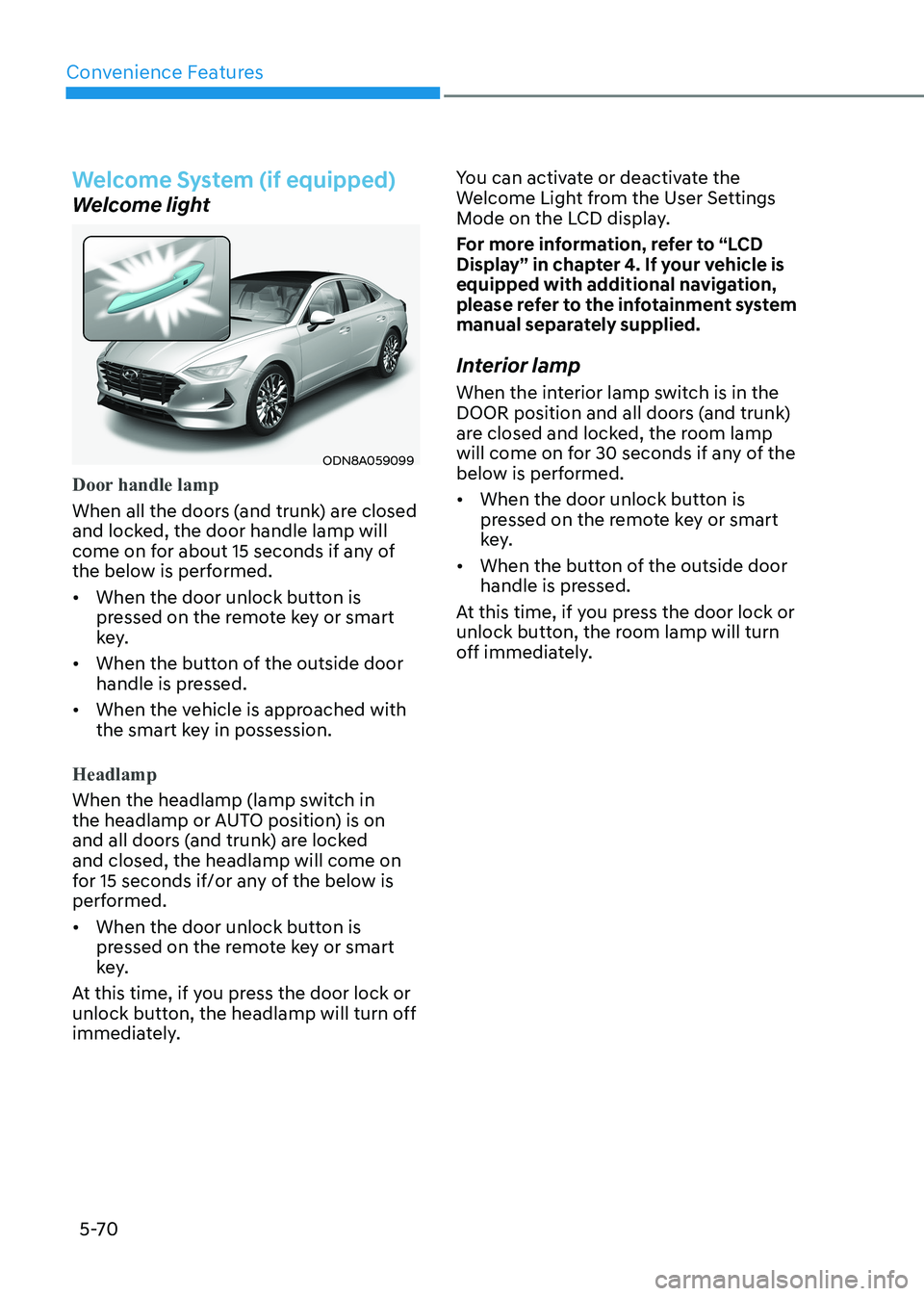
Welcome System (if equipped)
Welcome light
ODN8A059099
Door handle lamp
When all the doors (and trunk) are closed
and locked, the door handle lamp will
come on for about 15 seconds if any of
the below is performed.
• When the door unlock button is pressed on the remote key or smart
key.
• When the button of the outside door handle is pressed.
• When the vehicle is approached with the smart key in possession.
Headlamp
When the headlamp (lamp switch in
the headlamp or AUTO position) is on
and all doors (and trunk) are locked and closed, the headlamp will come on
for 15 seconds if/or any of the below is
performed.
• When the door unlock button is pressed on the remote key or smart
key.
At this time, if you press the door lock or
unlock button, the headlamp will turn off
immediately. You can activate or deactivate the
Welcome Light from the User Settings
Mode on the LCD display.
For more information, refer to “LCD
Display” in chapter 4. If your vehicle is
equipped with additional navigation,
please refer to the infotainment system
manual separately supplied.
Interior lamp
When the interior lamp switch is in the
DOOR position and all doors (and trunk)
are closed and locked, the room lamp
will come on for 30 seconds if any of the
below is performed.
• When the door unlock button is pressed on the remote key or smart
key.
• When the button of the outside door handle is pressed.
At this time, if you press the door lock or
unlock button, the room lamp will turn
off immediately.
Page 287 of 555
05
5-141
Bluetooth® Wireless Technology
Hands-Free
ODN8059230
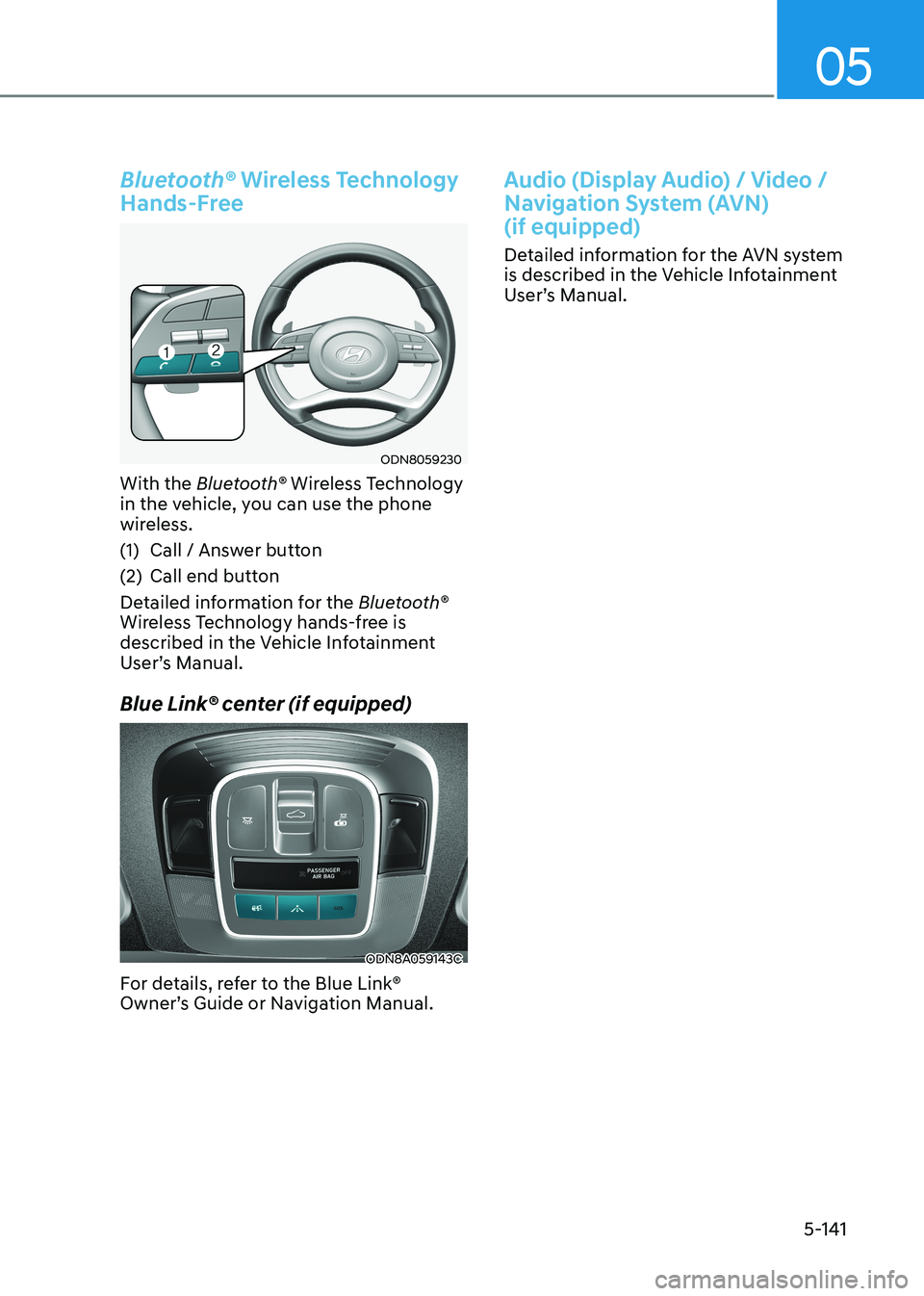
With the Bluetooth® Wireless Technology
in the vehicle, you can use the phone
wireless.
(1) Call / Answer button
(2) Call end button
Detailed information for the Bluetooth®
Wireless Technology hands-free is
described in the Vehicle Infotainment
User’s Manual.
Blue Link® center (if equipped)
ODN8A059143C
For details, refer to the Blue Link®
Owner’s Guide or Navigation Manual.
Audio (Display Audio) / Video /
Navigation System (AVN) (if equipped)
Detailed information for the AVN system
is described in the Vehicle Infotainment
User’s Manual.
Page 290 of 555
Navigation-Based Smart Cruise Control ..................................................6-122
System Setting and Operation ............................................................................. 6-123
Lane Following Assist (LFA) ....................................................................... 6-126
LFA Operation ........................................................................................................ 6-127
Warning Message .................................................................................................. 6-128
Limitations of the System .................................................................................... 6-130
Highway Driving Assist (HDA) .................................................................... 6-132
System Setting and Operation ............................................................................. 6-133
Warning Message .................................................................................................. 6-135
Rear Cross-Traffic Collision Warning (RCCW) /
Rear Cross-Traffic Collision-Avoidance Assist (RCCA) ...........................6-138
System Description .............................................................................................. 6-138
System Setting and Activation ............................................................................ 6-139
Warning and System Control ................................................................................ 6-141
Detecting Sensors ................................................................................................ 6-144
Limitations of the System ..................................................................................... 6-145
Special Driving Conditions ........................................................................ 6-150
Hazardous Driving Conditions ............................................................................ 6-150
Rocking the Vehicle ............................................................................................. 6-150
Smooth Cornering ................................................................................................. 6-151
Driving at Night ..................................................................................................... 6-151
Driving in The Rain ................................................................................................ 6-151
Driving in Flooded Areas ....................................................................................... 6-152
Highway Driving .................................................................................................... 6-152
Winter Driving ............................................................................................. 6-153
Snow or Icy Conditions ......................................................................................... 6-153
Winter Precautions ................................................................................................ 6-154
Vehicle Load Limit ..................................................................................... 6-156
Tire Loading Information Label ............................................................................ 6-156
Trailer Towing .............................................................................................. 6-161
6
6. While Driving
Page 409 of 555
While Driving
6-122
Navigation-based Smart Cruise Control
system will help automatically adjust
your speed when a curved road is ahead
by receiving road information from
the navigation while the Smart Cruise
Control is operating.
WARNING
• Navigation-based Smart Cruise
Control system is not a substitute
for safe driving practices, but a
convenience function. It is the
responsibility of the driver to always
be aware of the surroundings and
drive safely.
• Navigation-based Smart Cruise
Control system relies entirely on
the road information provided by
the navigation system and may
accelerate above speed limit. It is the
responsibility of the driver to follow
traffic laws and avoid accidents.
• For your safety, please read the
owner's manual before using the
system.
Information
• Navigation-based Smart Cruise Control
system is available only on controlled
access road of certain highways. Controlled access road indicates
roads with limited entrances and exits that allow uninterrupted high
speed traffic flow. Only passenger
cars and motorcycles are allowed on
controlled access roads.
Available highway
(Controlled access road)
USA Select Interstate
Highway and U.S.
(Federal) and State
Highways
Canada Select Provincial and
Territorial Highways
• Additional highways may be expanded by navigation updates.
navigation-BaseD smart cruise control
(if equipppeD)
Page 410 of 555
06
6-123
System Setting and Operation
System setting • With the Engine Start/Stop button in
the ON or START position, Navigation-
based Smart Cruise Control can
be activated by selecting 'Driver
Assistance →
Highway Auto Curve
Slowdown' from the User Settings
mode on the infotainment system.
For detailed information, please refer
to the infotainment system manual
separately supplied.
• If the engine is turned off then on
again, the system maintains the last
setting.
Operating conditions
Select 'Highway Auto Curve Slowdown'
from the Settings menu in the
infotainment system screen and satisfy
the following conditions for the system
to operate. • Driving on the highway main line
• Smart Cruise Control is operating
If all the mentioned conditions are
satisfied, the system is ENABLED and
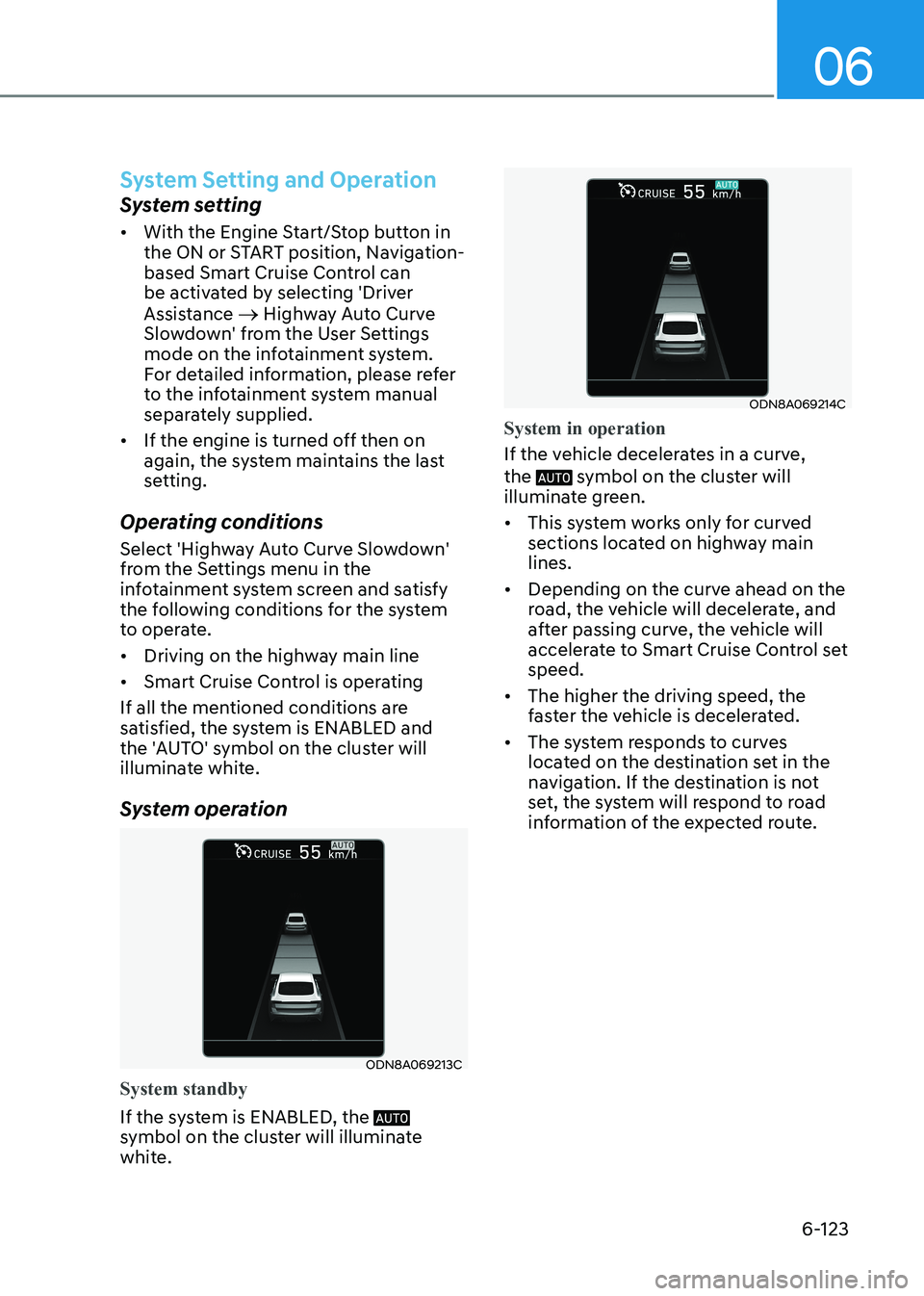
the 'AUTO' symbol on the cluster will
illuminate white.
System operation
ODN8A069213C
System standby
If the system is ENABLED, the
symbol on the cluster will illuminate
white.
ODN8A069214C
System in operation
If the vehicle decelerates in a curve, the
symbol on the cluster will
illuminate green. • This system works only for curved
sections located on highway main lines.
• Depending on the curve ahead on the
road, the vehicle will decelerate, and
after passing curve, the vehicle will
accelerate to Smart Cruise Control set speed.
• The higher the driving speed, the
faster the vehicle is decelerated.
• The system responds to curves
located on the destination set in the
navigation. If the destination is not
set, the system will respond to road
information of the expected route.
Page 411 of 555
While Driving
6-124
Information
• Navigation-based Smart Cruise Control
is limited in other countries.
• The system may not operate due to the existence of leading vehicles and the driving situations of the vehicle.
• The system operates regardless of
whether the sharp curve warning appears on the navigation, but the time
gap could occur between the warning and system operation.
• The navigation only provides curve information within permitted speed ranges so that the system may not
decrease its speed during extreme over-speed driving.
• The system is not designed to work on
highways other than mentioned as a
controlled access road.
• The system automatically cancels when
you leave the highway. •
Highway Driving Assist and Navigation-based Smart Cruise
Control uses the same
symbol
that indicates the status of the system.
Therefore, even if Navigation-based
Cruise Control is off, the
symbol
may be displayed.
• If there is a problem with Navigation-
based Smart Cruise Control, the system
cannot be activated in the AVN system
screen, and the
symbol will turn
off. However, if Highway Driving Assist is activated, the
symbol will be
displayed.
• After you pass through a tollgate on a
highway, the system operates based
on the first lane. If you enter one of
the other lanes, the system might not
properly decelerate.
• If you over speed, the system may not decelerate the vehicle in a curve.
• Deceleration by the system may not be
sufficient if the driver accelerates while the system is operating,
• Deceleration by the system may not be
sufficient due to road conditions such
as uneven road surfaces, narrow lanes, etc.
• If the road is controlled, due to
construction or holiday events, the
system might not work properly.
Page 412 of 555
06
6-125
CAUTION
Navigation-based Cruise Control
system may not function properly in the
following situations: • The navigation is not working
properly.
• The navigation is not updated.
• The real-time GPS or map
information provided has errors.
• The navigation is overloaded by
performing functions such as route
search, video playback, voice
recognition, etc. are performing
simultaneously.
• GPS signals are blocked in areas such as a tunnel.
• The driver goes off course or the
route to the destination is changed
or canceled by resetting the
navigation.
• The vehicle enters a service station
or rest area.
• A section of the highway’s shape has changed.
• Android Auto or Car Play is operating.
• The navigation cannot detect the
current vehicle position (ex: elevated
roads including overpass adjacent to
general roads or nearby roads exist
in a parallel way).
• The navigation is being updated while driving.
• The navigation is being reset while driving.
• The road is slippery due to bad
weather such as rain or snow. Information
This device complies with Industry Canada RSS-210 standard.
Operation is subject to the following three conditions: 1. This device may not cause harmful
interference, and
2. This device must accept any
interference received, including
interference that may cause undesired operation.
3. Changes or modifications not expressly
approved by the party responsible
for compliance could void the user's authority to operate the device.
Information
Radio frequency radiation exposure information: This equipment complies with RSS
radiation exposure limits set forth for an
uncontrolled environment. This equipment should be installed and operated with minimum distance of 20 cm
(8 in.) between the radiator (antenna) and
your body.
This transmitter must not be co-located or
operating in conjunction with any other
antenna or transmitter.