radio Hyundai Sonata Hybrid 2012 Owner's Manual
[x] Cancel search | Manufacturer: HYUNDAI, Model Year: 2012, Model line: Sonata Hybrid, Model: Hyundai Sonata Hybrid 2012Pages: 403, PDF Size: 7.86 MB
Page 2 of 403
F2
Your Hyundai should not be modified in any way. Such modifications may adversely affect the per-
formance, safety or durability of your Hyundai and may, in addition, violate conditions of the limited
warranties covering the vehicle. Certain modifications may also be in violation of regulations estab-
lished by the U.S. Department of Transportation and other federal or state agencies.
Your vehicle is equipped with electronic fuel injection and other electronic c\
omponents. It is possible
for an improperly installed/adjusted two-way radio or cellular telephone to adversely affect electronic
systems. For this reason, we recommend that you carefully follow the radio manufacturer's instruc-
tions or consult your Hyundai dealer for precautionary measures or special instructions if you choose
to install one of these devices.
CAUTION: MODIFICATIONS TO YOUR HYUNDAI
TWO-WAY RADIO OR CELLULAR TELEPHONE INSTALLATION
Page 86 of 403
45
Features of your vehicle
Smart key precautions
✽
✽NOTICE
• If, for some reason, you happen to lose
your smart key, you will not be able to
start the hybrid system. Tow the vehi-
cle, if necessary, and contact an
authorized HYUNDAI dealer.
• A maximum of 2 smart keys can be registered to a single vehicle. If you
lose a smart key, you should immedi-
ately take the vehicle and the second
key to your authorized HYUNDAI
dealer to protect it from potential
theft.
• The smart key will not work if any of the following occur:
- The smart key is close to a radiotransmitter such as a radio station or
an airport which can interfere with
normal operation of the smart key.
- The smart key near a mobile two- way radio system or a cellular
phone.
- Another vehicle’s smart key is being operated close to your vehicle.
When the smart key does not work
correctly, open and close the door with
the mechanical key. If you have a
problem with the smart key, contact
an authorized HYUNDAI dealer.
This device complies with Part 15 of
the FCC rules.
Operation is subject to the following two
conditions:
1. This device may not cause harmful
interference, and
2. This device must accept any interfer- ence received, including interference
that may cause undesired operation.
WARNING
Changes or modifications not
expressly approved by the party
responsible for compliance could
void the user’s authority to operate
the equipment. If the keyless entry
system is inoperative due to
changes or modifications not
expressly approved by the party
responsible for compliance, it will
not be covered by your manufactur-
er’s vehicle warranty.
CAUTION
Keep the smart key away fromwater or any liquid. If the keylessentry system is inoperative due toexposure to water or liquids, it willnot be covered by your manufactur- er’s vehicle warranty.
Page 115 of 403
Features of your vehicle
34
4
To adjust the Zone setting:
1. Determine the desired Zone Number
based upon your current location on
the Zone Map.
2. Press and hold the button for more than 3 but less than 6 seconds, the
current Zone Number will appear on
the display.
3. Pressing and holding the button again will cause the numbers to incre-
ment (Note: they will repeat …13, 14,
15, 1, 2, …). Releasing the button
when the desired Zone Number
appears on the display will set the new
Zone.
4. Within about 5 seconds the compass will start displaying a compass head-
ing again.
There are some conditions that can
cause changes to the vehicle magnets,
such as installing a ski rack or a CB
antenna. Body repair work on the vehicle
can also cause changes to the vehicle's
magnetic field. In these situations, the
compass will need to be re-calibrated to
quickly correct for these changes. To re-
calibrate the compass: 1. Press and hold the button for more
than 6 seconds. When the compass
memory is cleared a "C" will appear in
the display.
2. To calibrate the compass, drive the vehicle in 2 complete circles at less
than 5 mph (8 km/h).
Integrated HomeLink
®Wireless Control
System
The HomeLink® Wireless Control
System provides a convenient way to
replace up to three hand-held radio-fre-
quency (RF) transmitters with a single
built-in device. This innovative feature will
learn the radio frequency codes of most
current transmitters to operate devices
such as gate operators, garage door
openers, entry door locks, security sys-
tems, even home lighting. Both standard
and rolling code-equipped transmitters
can be programmed by following the out-
lined procedures. Additional HomeLink
®
information can be found at: www.home-
link.com or by calling 1-800-355-3515. Retain the original transmitter of the RF
device you are programming for use in
other vehicles as well as for future
HomeLink
®programming. It is also sug-
gested that upon the sale of the vehicle,
the programmed HomeLink
®buttons be
erased for security purposes.
CAUTION
Before programming HomeLink®to
a garage door opener or gate oper- ator, make sure that people and objects are out of the way of thedevice to prevent potential harm ordamage. Do not use HomeLink
®
with any garage door opener thatlacks the safety stop and reverse features required by U.S. federalsafety standards (this includes any garage door opener model manu-factured before April 1, 1982). Agarage door that cannot detect anobject - signaling the door to stop and reverse - does not meet currentU.S. federal safety standards. Using a garage door opener without thesefeatures increases the risk of seri- ous injury or death.
Page 116 of 403
435
Features of your vehicle
Programming HomeLink®
✽
✽NOTICE
• When programming a garage door
opener, it is advised to park the vehi-
cle outside of the garage.
• It is recommended that a new battery be placed in the hand-held transmit-
ter of the device being programmed to
HomeLink
®for quicker training and
accurate transaxle of the radio-fre-
quency signal.
• Some vehicles may require the engine start/stop button to be turned to the
second (or "accessories") position for
programming and/or operation of
HomeLink.
• In the event that there are still pro- gramming difficulties or questions
after following the programming steps
listed below, contact HomeLink
®at:
www.homelink.com or 1-800-355-
3515.
Standard programming
To train most devices, follow these
instructions:
1. For first-time programming, press and
hold the two outside buttons,
HomeLink
®Channel 1 and Channel 3
Buttons, until the indicator light begins
to flash (after 20 seconds). Release
both buttons. Do not hold the buttons
for longer than 30 seconds.
2. Position the end of your hand-held transmitter 1-3 inches (2-8 cm) away
from the HomeLink
®buttons while
keeping the indicator light in view.
3. Simultaneously press and hold both the HomeLink
®and hand-held trans-
mitter button. DO NOT release the but-
tons until step 4 has been completed.
4. While continuing to hold the buttons the red Indicator Status LED will flash
slowly and then rapidly after
HomeLink
®successfully trains to the
frequency signal from the hand-held
transmitter. Release both buttons. 5. Press and hold the just-trained
HomeLink
®button and observe the red
Status Indicator LED. If the indicator
light stays on constantly, programming
is complete and your device should
activate when the HomeLink
®button is
pressed and released.
6. To program the remaining two HomeLink
®buttons, follow steps 2
through 5.
Rolling code programming
Rolling code devices which are "code-
protected" and manufactured after 1996
may be determined by the following:
Reference the device owner's manual for verification.
The handheld transmitter appears to program the HomeLink
®Universal
Transceiver but does not activate the
device.
Press and hold the trained HomeLink button. The device has the rolling code
feature if the indicator light flashes rap-
idly and then turns solid after 2 sec-
onds.
Page 192 of 403
4111
Features of your vehicle
✽
✽NOTICE
If you install an after market HID head
lamp, your vehicle's audio and electron-
ic device may malfunction.
Antenna
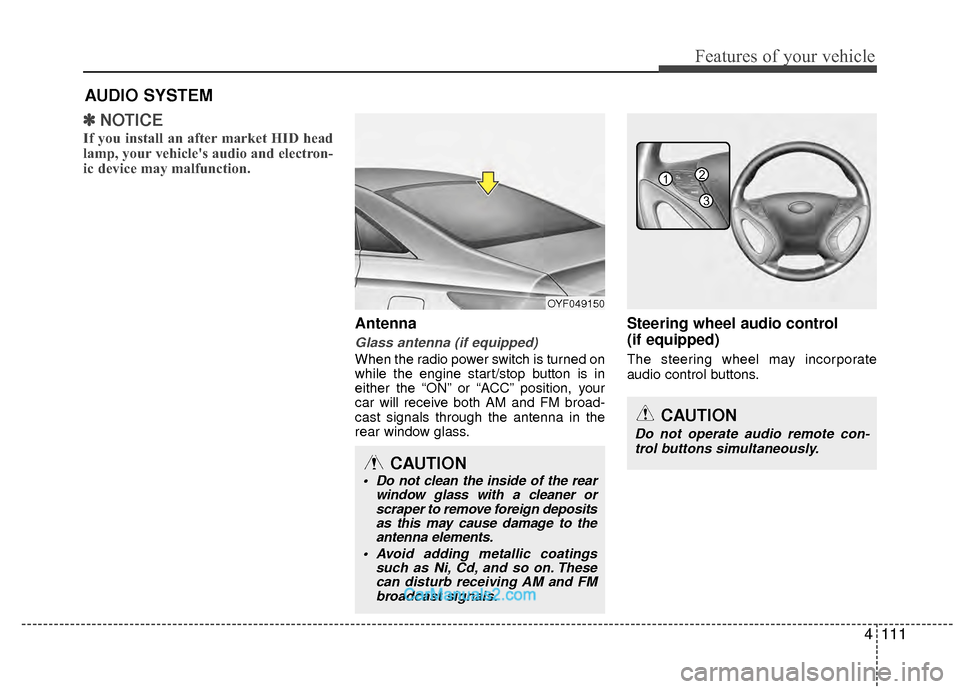
Glass antenna (if equipped)
When the radio power switch is turned on
while the engine start/stop button is in
either the “ON” or “ACC” position, your
car will receive both AM and FM broad-
cast signals through the antenna in the
rear window glass.
Steering wheel audio control
(if equipped)
The steering wheel may incorporate
audio control buttons.
AUDIO SYSTEM
OYF049150
CAUTION
• Do not clean the inside of the rear
window glass with a cleaner orscraper to remove foreign depositsas this may cause damage to theantenna elements.
Avoid adding metallic coatings such as Ni, Cd, and so on. Thesecan disturb receiving AM and FMbroadcast signals.
CAUTION
Do not operate audio remote con-
trol buttons simultaneously.
1
3
2
Page 193 of 403
Features of your vehicle
112
4
1. VOLUME (VOL+/-)
Push the lever upward (+) to increase the
volume.
Push the lever downward (-) to decrease the volume.
2. PRESET/SEEK ( / )
The SEEK/PRESET button has different
functions based on the system mode.
For the following functions the button
should be pressed for 0.8 second or
more.
RADIO mode
It will function as the AUTO SEEK select
button.
CD/USB/ iPod mode
It will function as the FF/REW button.
If the SEEK/PRESET button is pressed
for less than 0.8 second, it will work as
follows in each mode. RADIO mode
It will function as the PRESET STATION
buttons.
CD/USB/ iPod mode
It will function as TRACK UP/DOWN
button.
3. MODE
Press the button to change audio source.
- FM(1~2)
➟AM➟SAT(1~3)➟CD➟USB
AUX(iPod) FM...
Detailed information for audio control
buttons are described in the following
pages in this section.
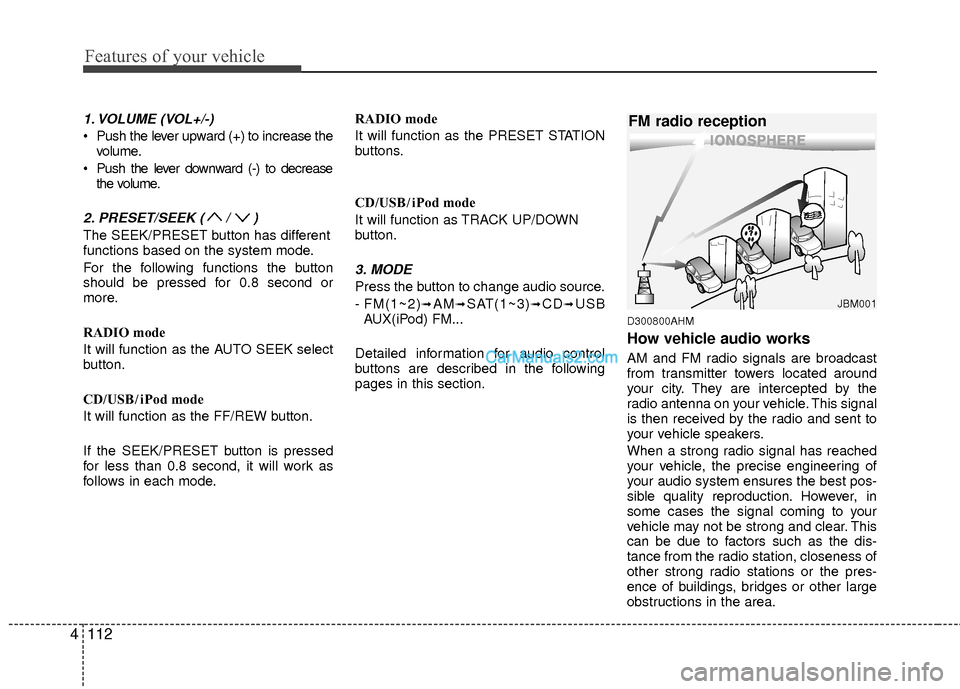
D300800AHM
How vehicle audio works
AM and FM radio signals are broadcast
from transmitter towers located around
your city. They are intercepted by the
radio antenna on your vehicle. This signal
is then received by the radio and sent to
your vehicle speakers.
When a strong radio signal has reached
your vehicle, the precise engineering of
your audio system ensures the best pos-
sible quality reproduction. However, in
some cases the signal coming to your
vehicle may not be strong and clear. This
can be due to factors such as the dis-
tance from the radio station, closeness of
other strong radio stations or the pres-
ence of buildings, bridges or other large
obstructions in the area.
JBM001
FM radio reception
Page 194 of 403
4113
Features of your vehicle
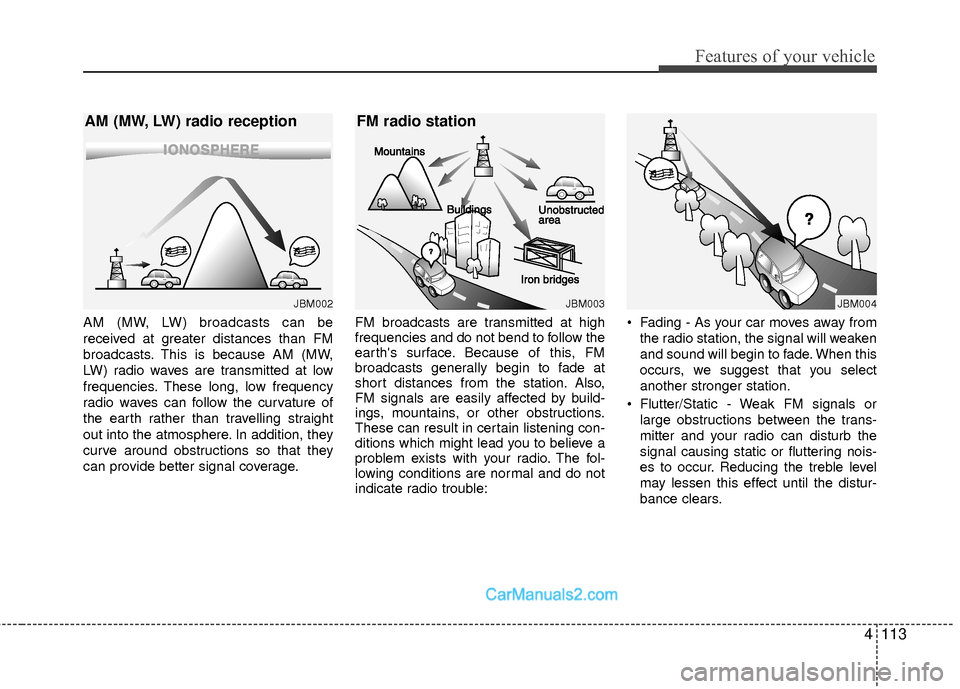
AM (MW, LW) broadcasts can be
received at greater distances than FM
broadcasts. This is because AM (MW,
LW) radio waves are transmitted at low
frequencies. These long, low frequency
radio waves can follow the curvature of
the earth rather than travelling straight
out into the atmosphere. In addition, they
curve around obstructions so that they
can provide better signal coverage.FM broadcasts are transmitted at high
frequencies and do not bend to follow the
earth's surface. Because of this, FM
broadcasts generally begin to fade at
short distances from the station. Also,
FM signals are easily affected by build-
ings, mountains, or other obstructions.
These can result in certain listening con-
ditions which might lead you to believe a
problem exists with your radio. The fol-
lowing conditions are normal and do not
indicate radio trouble: Fading - As your car moves away from
the radio station, the signal will weaken
and sound will begin to fade. When this
occurs, we suggest that you select
another stronger station.
Flutter/Static - Weak FM signals or large obstructions between the trans-
mitter and your radio can disturb the
signal causing static or fluttering nois-
es to occur. Reducing the treble level
may lessen this effect until the distur-
bance clears.
JBM002
AM (MW, LW) radio reception
JBM003
FM radio station
JBM004
Page 195 of 403
Features of your vehicle
114
4
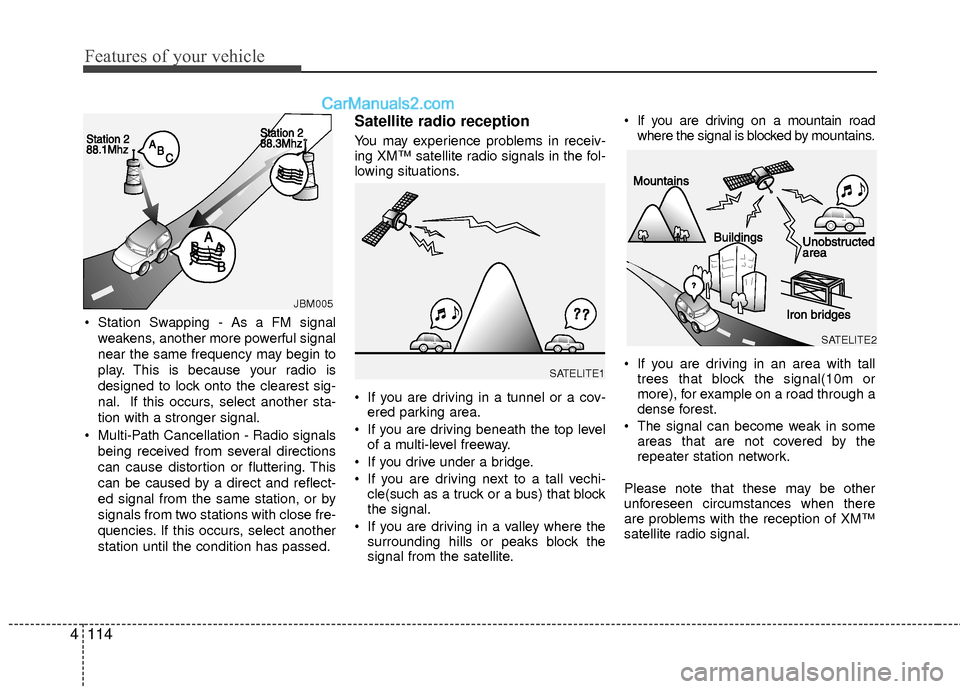
Station Swapping - As a FM signal
weakens, another more powerful signal
near the same frequency may begin to
play. This is because your radio is
designed to lock onto the clearest sig-
nal. If this occurs, select another sta-
tion with a stronger signal.
Multi-Path Cancellation - Radio signals being received from several directions
can cause distortion or fluttering. This
can be caused by a direct and reflect-
ed signal from the same station, or by
signals from two stations with close fre-
quencies. If this occurs, select another
station until the condition has passed.
Satellite radio reception
You may experience problems in receiv-
ing XM™ satellite radio signals in the fol-
lowing situations.
If you are driving in a tunnel or a cov-ered parking area.
If you are driving beneath the top level of a multi-level freeway.
If you drive under a bridge.
If you are driving next to a tall vechi- cle(such as a truck or a bus) that block
the signal.
If you are driving in a valley where the surrounding hills or peaks block the
signal from the satellite. If you are driving on a mountain road
where the signal is blocked by mountains.
If you are driving in an area with tall trees that block the signal(10m or
more), for example on a road through a
dense forest.
The signal can become weak in some areas that are not covered by the
repeater station network.
Please note that these may be other
unforeseen circumstances when there
are problems with the reception of XM™
satellite radio signal.
JBM005
SATELITE1
SATELITE2
Page 196 of 403
4115
Features of your vehicle
Using a cellular phone or a two-
way radio
When a cellular phone is used inside the
vehicle, noise may be produced from the
audio equipment. This does not mean
that something is wrong with the audio
equipment. In such a case, use the cellu-
lar phone at a place as far as possible
from the audio equipment.
Care of disc (if equipped)
If the temperature inside the car is toohigh, open the car windows for ventilation
before using your car audio.
It is illegal to copy and use MP3/WMA/ AAC/WAVE files without permission.
Use CDs that are created only by lawful
means.
Do not apply volatile agents such as benzene and thinner, normal cleaners
and magnetic sprays made for ana-
logue disc onto CDs.
To prevent the disc surface from get- ting damaged. Hold and carry CDs by
the edges or the edges of the center
hole only.
Clean the disc surface with a piece of soft cloth before playback (wipe it from
the center to the outside edge).
Do not damage the disc surface or attach pieces of sticky tape or paper
onto it.
Make sure on undesirable matter other than CDs are inserted into the CD
player (Do not insert more than one
CD at a time).
Keep CDs in their cases after use to protect them from scratches or dirt. Depending on the type of CD-R/CD-
RW CDs, certain CDs may not operate
normally according to manufacturing
companies or making and recording
methods. In such circumstances, if you
still continue to use those CDs, they
may cause the malfunction of your car
audio system.
✽ ✽ NOTICE- Playing an
Incompatible Copy-Protected
Audio CD
Some copy protected CDs, which do not
comply with the international audio CD
standards (Red Book), may not play on
your car audio. Please note that if you
try to play copy protected CDs and the
CD player does not perform correctly
the CDs maybe defective, not the CD
player.
CAUTION
When using a communication sys-
tem such a cellular phone or a radioset inside the vehicle, a separateexternal antenna must be fitted.When a cellular phone or a radio set is used with an internal antennaalone, it may interfere with the vehi-cle's electrical system and adverse-ly affect safe operation of the vehi-cle.
WARNING
Don't use a cellular phone when
you are driving. You must stop at a
safe place to use a cellular phone.
Page 197 of 403
Features of your vehicle
116
4
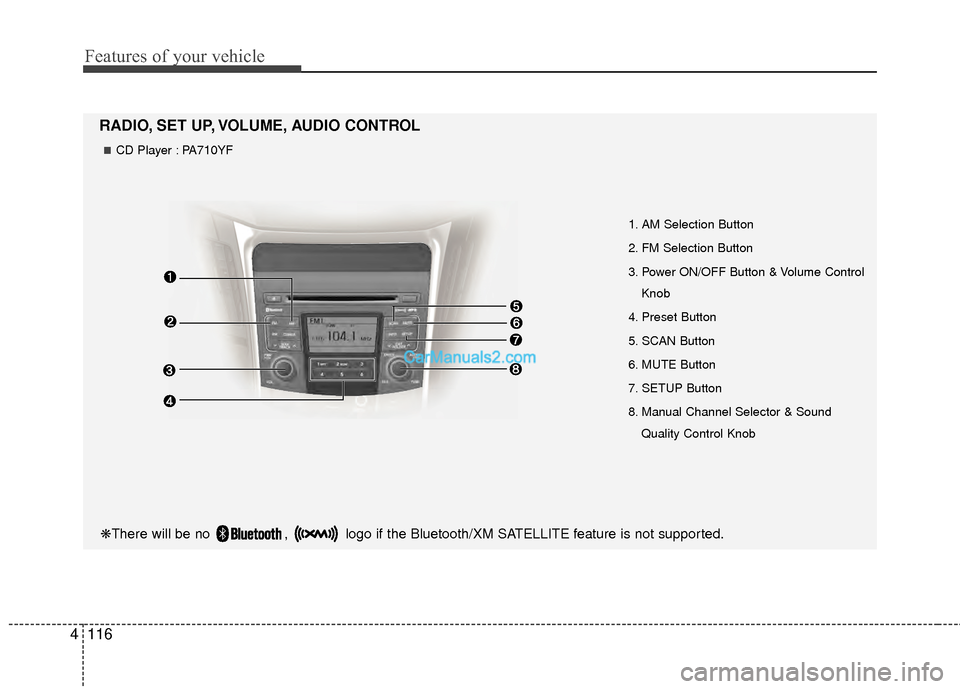
1. AM Selection Button
2. FM Selection Button
3. Power ON/OFF Button & Volume Control
Knob
4. Preset Button
5. SCAN Button
6. MUTE Button
7. SETUP Button
8. Manual Channel Selector & Sound Quality Control Knob
RADIO, SET UP, VOLUME, AUDIO CONTROL
❋There will be no , logo if the Bluetooth/XM SATELLITE feature is not supported.
CD Player : PA710YF