ESP Hyundai Sonata Hybrid 2013 User Guide
[x] Cancel search | Manufacturer: HYUNDAI, Model Year: 2013, Model line: Sonata Hybrid, Model: Hyundai Sonata Hybrid 2013Pages: 425, PDF Size: 36.95 MB
Page 150 of 425
Features of your vehicle
70 4
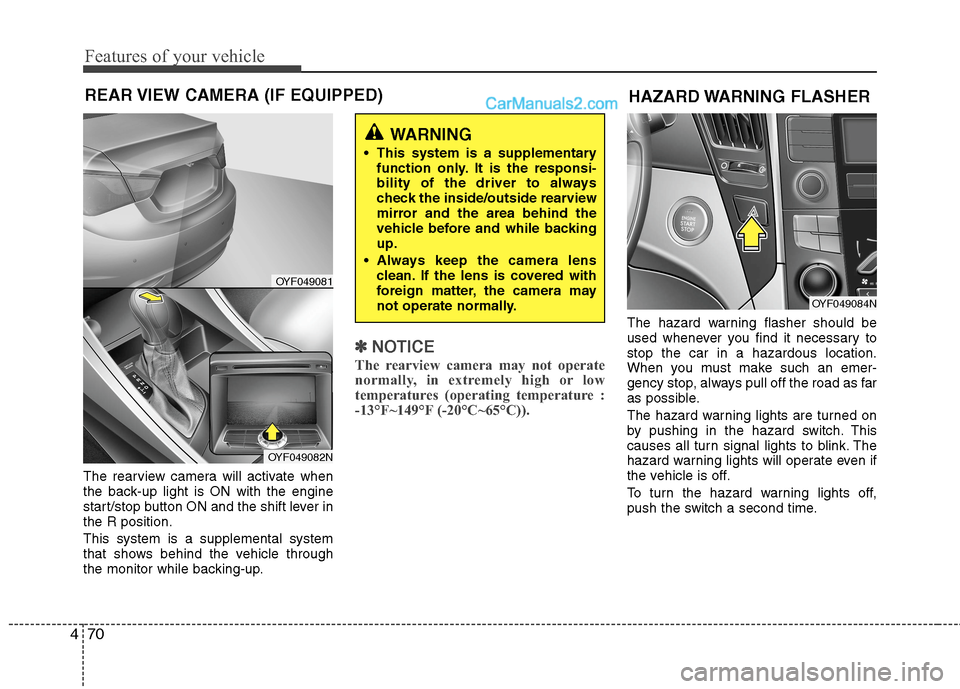
The rearview camera will activate when
the back-up light is ON with the engine
start/stop button ON and the shift lever in
the R position.
This system is a supplemental system
that shows behind the vehicle through
the monitor while backing-up.
✽ ✽
NOTICE
The rearview camera may not operate
normally, in extremely high or low
temperatures (operating temperature :
-13°F~149°F (-20°C~65°C)).
The hazard warning flasher should be
used whenever you find it necessary to
stop the car in a hazardous location.
When you must make such an emer-
gency stop, always pull off the road as far
as possible.
The hazard warning lights are turned on
by pushing in the hazard switch. This
causes all turn signal lights to blink. The
hazard warning lights will operate even if
the vehicle is off.
To turn the hazard warning lights off,
push the switch a second time.
REAR VIEW CAMERA (IF EQUIPPED)
WARNING
This system is a supplementary
function only. It is the responsi-
bility of the driver to always
check the inside/outside rearview
mirror and the area behind the
vehicle before and while backing
up.
Always keep the camera lens
clean. If the lens is covered with
foreign matter, the camera may
not operate normally.
OYF049081
OYF049082N
HAZARD WARNING FLASHER
OYF049084N
Page 151 of 425
471
Features of your vehicle
Battery saver function
The purpose of this feature is to pre-
vent the battery from being dis-
charged. The system automatically
turns off the parking lights when the
driver turns off the hybrid system and
opens the driver-side door.
With this feature, the parking lights will
be turned off automatically if the driver
parks on the side of the road at night.
If necessary, to keep the lights on
when the vehicle is off, perform the fol-
lowing:
1) Open the driver-side door.
2) Turn the parking lights OFF and ON
again using the light switch on the
steering column.
Headlamp delay (if equipped)
If you press the engine start/stop button
to the ACC or OFF position with the
headlights ON, the headlights (and/or tail
lights) remain on for about 20 minutes.
However, if the driver’s door is opened
and closed, the headlights are turned off
after 30 seconds.
The headlights can be turned off by
pressing the lock button on the smart key
twice or turning the light switch to the
OFF or Auto position.
However, if you turn the light switch to the
Auto position when it is dark outside, the
headlights will not be turned off.
Headlamp welcome function
When the headlight switch is in the ON or
AUTO position and all doors (and trunk)
are closed and locked, if you press the
door unlock button on the smart key, the
headlights will come on for about 15 sec-
onds. At this time, if you press the door
lock button on the smart key, the head-
lights will turn off immediately.
Daytime running light
(if equipped)
Daytime Running Lights (DRL) can make
it easier for others to see the front of your
vehicle during the day. DRL can be help-
ful in many different driving conditions,
and it is especially helpful after dawn and
before sunset.
The DRL system will turn OFF when:
1. The headlight is ON.
2. Engine stops.
3. If the multifuntion switch is on “DRL
OFF” position.
4. Parking brake ON.
LIGHTING
CAUTION
If the driver gets out of the vehicle
through doors other than the (dri-
ver's door), the battery saver func-
tion does not operate and the head
lamp delay does not turn off auto-
matically. Therefore, the battery may
become discharged. In this case,
make sure to turn off the lamps
before getting out of the vehicle.
Page 205 of 425
![Hyundai Sonata Hybrid 2013 User Guide 4125
Features of your vehicle
SYSTEM SETTINGS
Press the key Select [System]
through tune knob or key Select
menu through TUNE knob
Memory Information
Displays currently used memory and
total system](/img/35/19650/w960_19650-204.png "Hyundai Sonata Hybrid 2013 User Guide 4125
Features of your vehicle
SYSTEM SETTINGS
Press the key Select [System]
through tune knob or key Select
menu through TUNE knob
Memory Information
Displays currently used memory and
total system")
4125
Features of your vehicle
SYSTEM SETTINGS
Press the key Select [System]
through tune knob or key Select
menu through TUNE knob
Memory Information
Displays currently used memory and
total system memory.
Select [Memory Information] OK
The currently used memory is displayed
on the left side while the total system
memory is displayed on the right side.
Prompt Feedback
This feature is used to change voice
command feedback between Normal and
Expert modes.
Select [Prompt Feedback] Set through
TUNEknob
Normal : This mode is for beginner
users and provides detailed instruc-
tions during voice command operation.
Expert : This mode is for expert users
and omits some information during
voice command operation. (When using
Expert mode, guidance instructions can
be heard through the [Help] or [Menu]
commands.
Language
This menu is used to set the display and
voice recognition language.
Select [Language] Set through TUNE
knob
❈The system will reboot after the lan-
guage is changed.
❈Language support by region
- English, Francais, Espanol
4
SETUP
Page 207 of 425
4127
Features of your vehicle
Automatic switching between dig-
ital and analog broadcasting
If the reception of the digital signal is lost,
the system switches automatically to the
analog signal. As soon as the digital sig-
nal is available again, it will switch back.
Due to the fact that sub channels are
only broadcasted digital, the system
mutes playback if you have tuned to a
sub channel and the digital signal is lost.
The main line will shows the message No
HD signal in place of station name.
After approximately one minute with the
digital signal lost, the system will auto-
matically tune to the analog signal of the
corresponding frequency.
Text based information
HD RadioTMstations are able to broad-
cast text based information, e.g. station
name, song title and artist name. The
Driver Information System is able to dis-
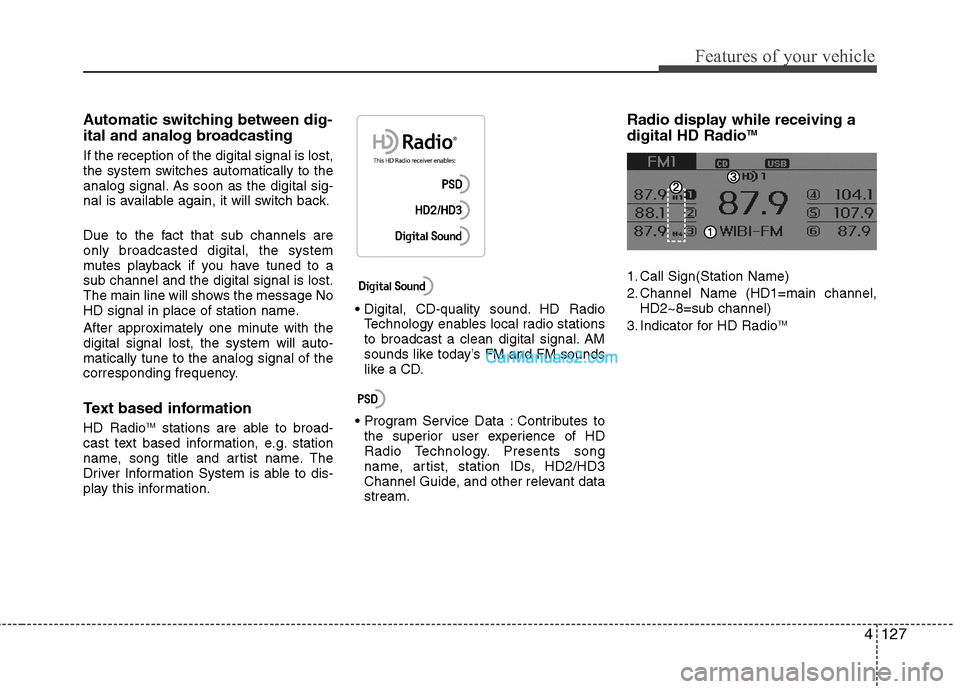
play this information. HD Radio
Technology enables local radio stations
to broadcast a clean digital signal. AM
sounds like today’s FM and FM sounds
like a CD.
Contributes to
the superior user experience of HD
Radio Technology. Presents song
name, artist, station IDs, HD2/HD3
Channel Guide, and other relevant data
stream.
Radio display while receiving a
digital HD RadioTM
1. Call Sign(Station Name)
2. Channel Name (HD1=main channel,
HD2~8=sub channel)
3. Indicator for HD Radio
TM
Page 208 of 425
Features of your vehicle
128 4
RADIO : FM, AM OR XM
Changing RADIO mode
(FM, AM or XM)
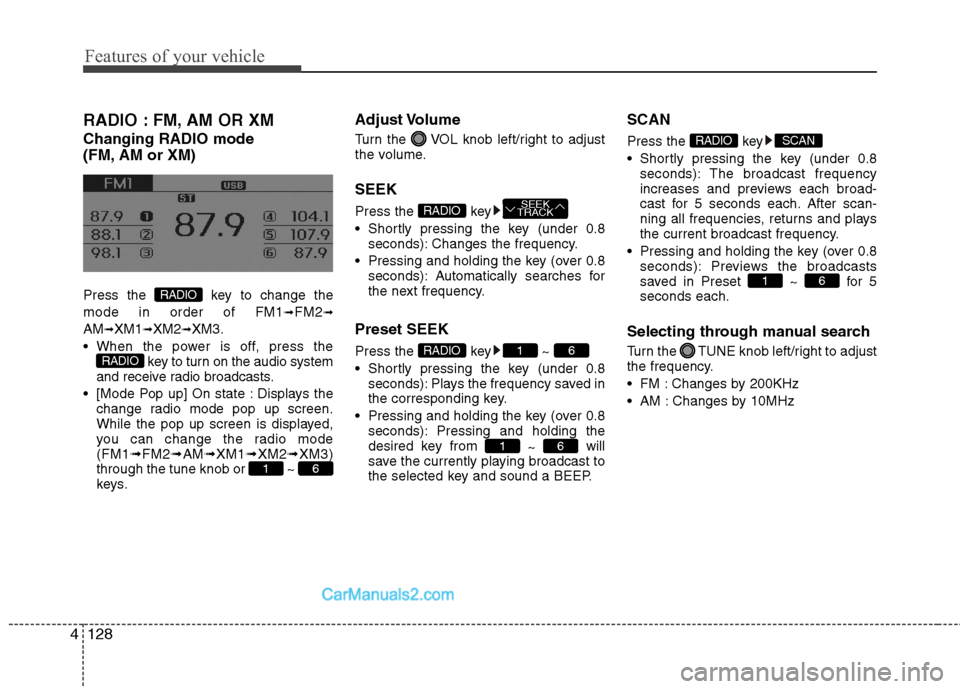
Press the key to change the
mode in order of FM1
➟FM2➟
AM➟XM1➟XM2➟XM3.
When the power is off, press the
key to turn on the audio system
and receive radio broadcasts.
[Mode Pop up] On state : Displays the
change radio mode pop up screen.
While the pop up screen is displayed,
you can change the radio mode
(FM1➟FM2➟AM➟XM1➟XM2➟XM3)
through the tune knob or ~
keys.
Adjust Volume
Turn the VOL knob left/right to adjust
the volume.
SEEK
Press the key
Shortly pressing the key (under 0.8
seconds): Changes the frequency.
Pressing and holding the key (over 0.8
seconds): Automatically searches for
the next frequency.
Preset SEEK
Press the key ~
Shortly pressing the key (under 0.8
seconds): Plays the frequency saved in
the corresponding key.
Pressing and holding the key (over 0.8
seconds): Pressing and holding the
desired key from
~ will
save the currently playing broadcast to
the selected key and sound a BEEP.
SCAN
Press the key
Shortly pressing the key (under 0.8
seconds): The broadcast frequency
increases and previews each broad-
cast for 5 seconds each. After scan-
ning all frequencies, returns and plays
the current broadcast frequency.
Pressing and holding the key (over 0.8
seconds): Previews the broadcasts
saved in Preset ~ for 5
seconds each.
Selecting through manual search
Turn the TUNE knob left/right to adjust
the frequency.
FM : Changes by 200KHz
AM : Changes by 10MHz
61
SCANRADIO
61
61RADIO
SEEK
TRACKRADIO
61
RADIO
RADIO
Page 212 of 425
Features of your vehicle
132 4
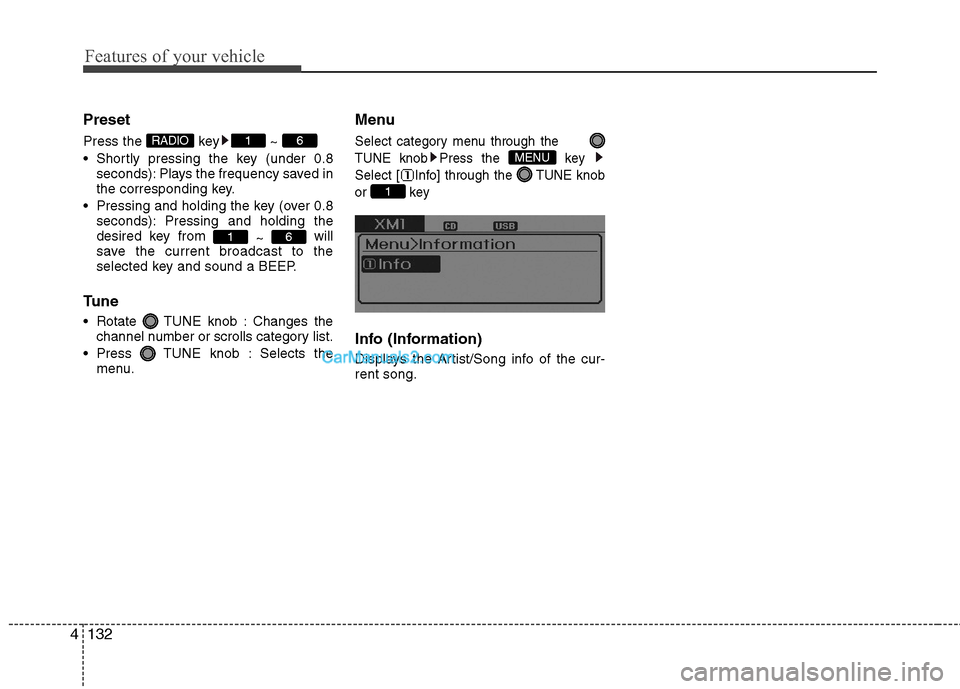
Preset
Press the key ~
Shortly pressing the key (under 0.8
seconds): Plays the frequency saved in
the corresponding key.
Pressing and holding the key (over 0.8
seconds): Pressing and holding the
desired key from
~ will
save the current broadcast to the
selected key and sound a BEEP.
Tune
Rotate TUNE knob : Changes the
channel number or scrolls category list.
Press TUNE knob : Selects the
menu.
Menu
Select category menu through the
TUNE knob Press the key
Select [ Info] through the TUNE knob
or key
Info (Information)
Displays the Artist/Song info of the cur-
rent song.
1
MENU
61
61RADIO
Page 234 of 425
Features of your vehicle
154 4
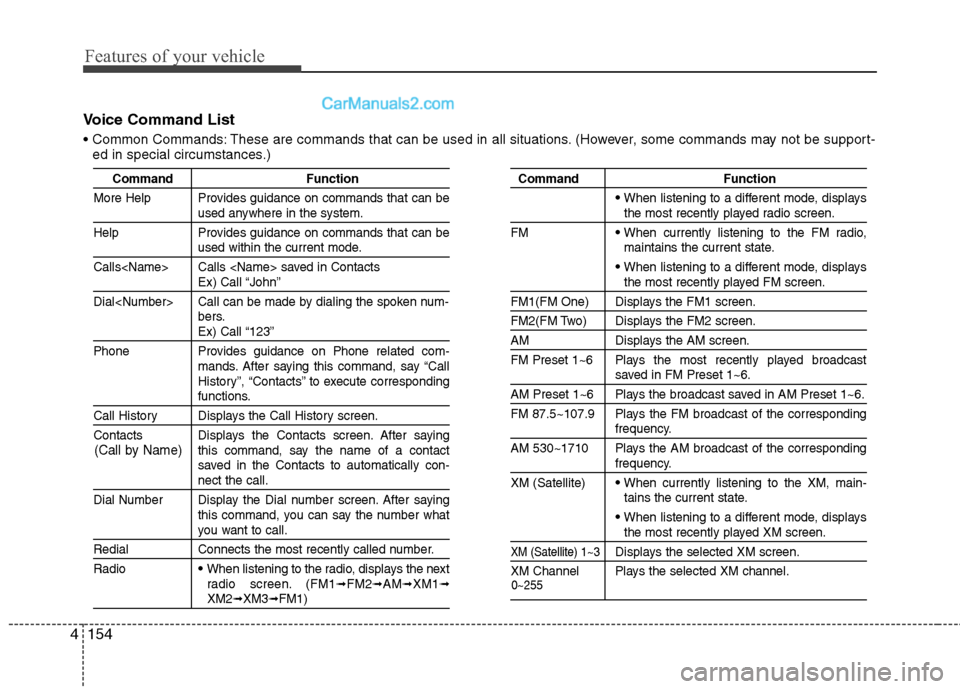
Voice Command List
These are commands that can be used in all situations. (However, some commands may not be support-
ed in special circumstances.)
Command Function
More Help Provides guidance on commands that can be
used anywhere in the system.
Help Provides guidance on commands that can be
used within the current mode.
Calls
Ex) Call “John”
Dial
bers.
Ex) Call “123”
Phone Provides guidance on Phone related com-
mands. After saying this command, say “Call
History”, “Contacts” to execute corresponding
functions.
Call History Displays the Call History screen.
Contacts Displays the Contacts screen. After saying
this command, say the name of a contact
saved in the Contacts to automatically con-
nect the call.
Dial Number Display the Dial number screen. After saying
this command, you can say the number what
you want to call.
Redial Connects the most recently called number.
Radio
When listening to the radio, displays the next
radio screen. (FM1➟FM2➟AM➟XM1➟XM2➟XM3➟FM1)
Command Function
When listening to a different mode, displaysthe most recently played radio screen.
FM
When currently listening to the FM radio,
maintains the current state.
When listening to a different mode, displaysthe most recently played FM screen.
FM1(FM One) Displays the FM1 screen.
FM2(FM Two) Displays the FM2 screen.
AM Displays the AM screen.
FM Preset 1~6 Plays the most recently played broadcast
saved in FM Preset 1~6.
AM Preset 1~6 Plays the broadcast saved in AM Preset 1~6.
FM 87.5~107.9 Plays the FM broadcast of the corresponding
frequency.
AM 530~1710 Plays the AM broadcast of the corresponding
frequency.
XM (Satellite)
When currently listening to the XM, main-
tains the current state.
When listening to a different mode, displaysthe most recently played XM screen.
XM (Satellite) 1~3Displays the selected XM screen.
XM Channel Plays the selected XM channel.
(Call by Name)
0~255
Page 235 of 425
4155
Features of your vehicle
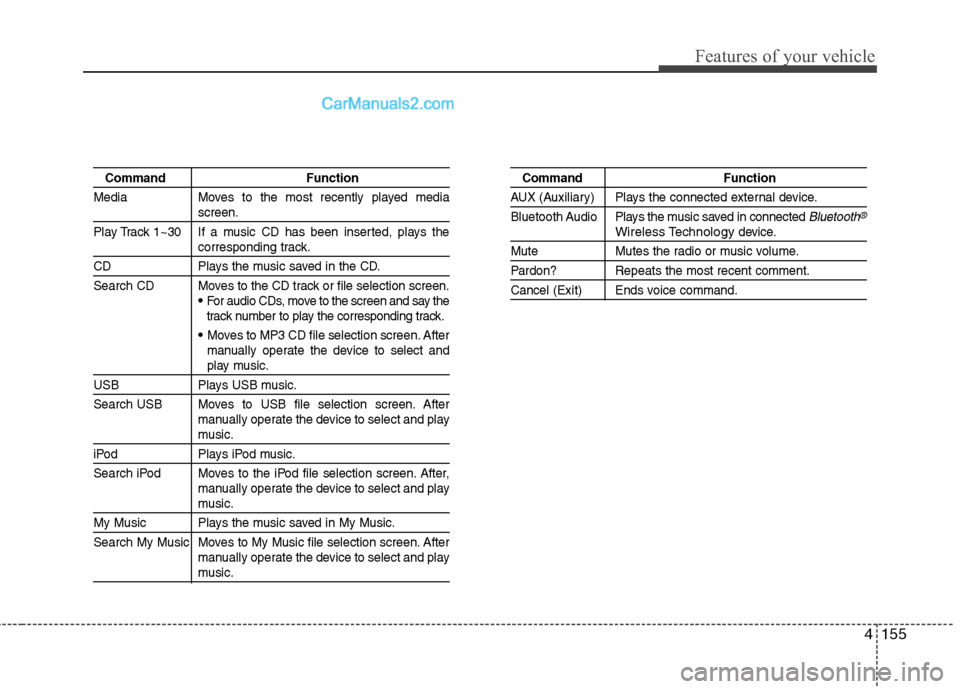
Command Function
Media Moves to the most recently played media
screen.
Play Track 1~30 If a music CD has been inserted, plays the
corresponding track.
CD Plays the music saved in the CD.
Search CD Moves to the CD track or file selection screen.
For audio CDs, move to the screen and say the
track number to play the corresponding track.
Moves to MP3 CD file selection screen. After
manually operate the device to select and
play music.
USB Plays USB music.
Search USB Moves to USB file selection screen. After
manually operate the device to select and play
music.
iPod Plays iPod music.
Search iPod Moves to the iPod file selection screen. After,
manually operate the device to select and play
music.
My Music Plays the music saved in My Music.
Search My Music Moves to My Music file selection screen. After
manually operate the device to select and play
music.
Command Function
AUX (Auxiliary) Plays the connected external device.
Bluetooth Audio Plays the music saved in connected
Bluetooth®
Wireless Technology device.
Mute Mutes the radio or music volume.
Pardon? Repeats the most recent comment.
Cancel (Exit) Ends voice command.
Page 237 of 425
4157
Features of your vehicle
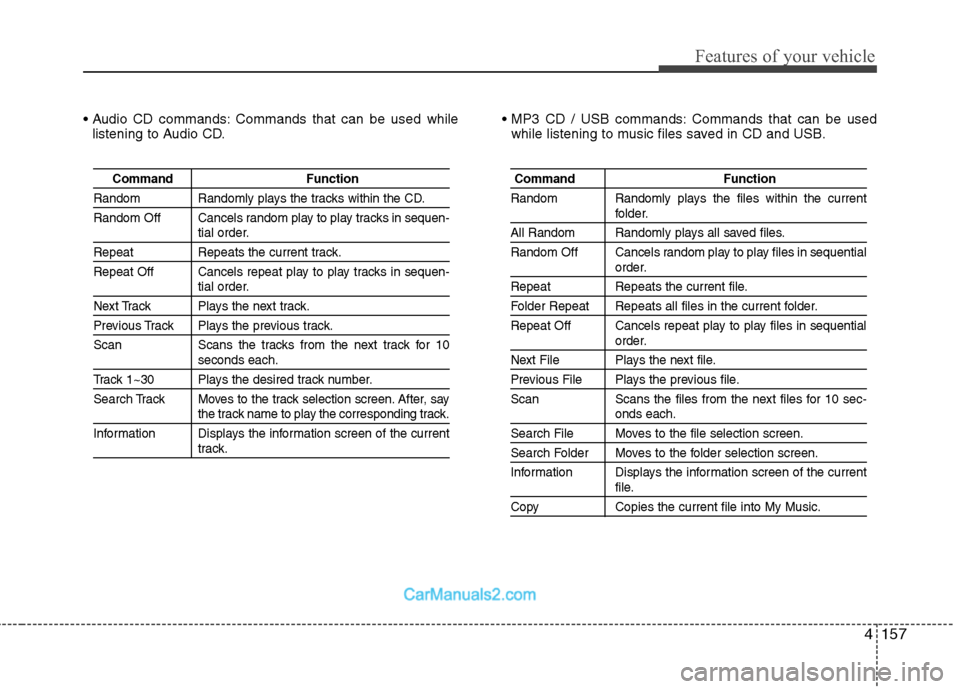
Commands that can be used while
listening to Audio CD. Commands that can be used
while listening to music files saved in CD and USB.
Command Function
Random Randomly plays the tracks within the CD.
Random Off Cancels random play to play tracks in sequen-
tial order.
Repeat Repeats the current track.
Repeat Off Cancels repeat play to play tracks in sequen-
tial order.
Next Track Plays the next track.
Previous Track Plays the previous track.
Scan Scans the tracks from the next track for 10
seconds each.
Track 1~30 Plays the desired track number.
Search Track Moves to the track selection screen. After, say
the track name to play the corresponding track.
Information Displays the information screen of the current
track.
Command Function
Random Randomly plays the files within the current
folder.
All Random Randomly plays all saved files.
Random Off Cancels random play to play files in sequential
order.
Repeat Repeats the current file.
Folder Repeat Repeats all files in the current folder.
Repeat Off Cancels repeat play to play files in sequential
order.
Next File Plays the next file.
Previous File Plays the previous file.
Scan Scans the files from the next files for 10 sec-
onds each.
Search File Moves to the file selection screen.
Search Folder Moves to the folder selection screen.
Information Displays the information screen of the current
file.
Copy Copies the current file into My Music.
Page 245 of 425
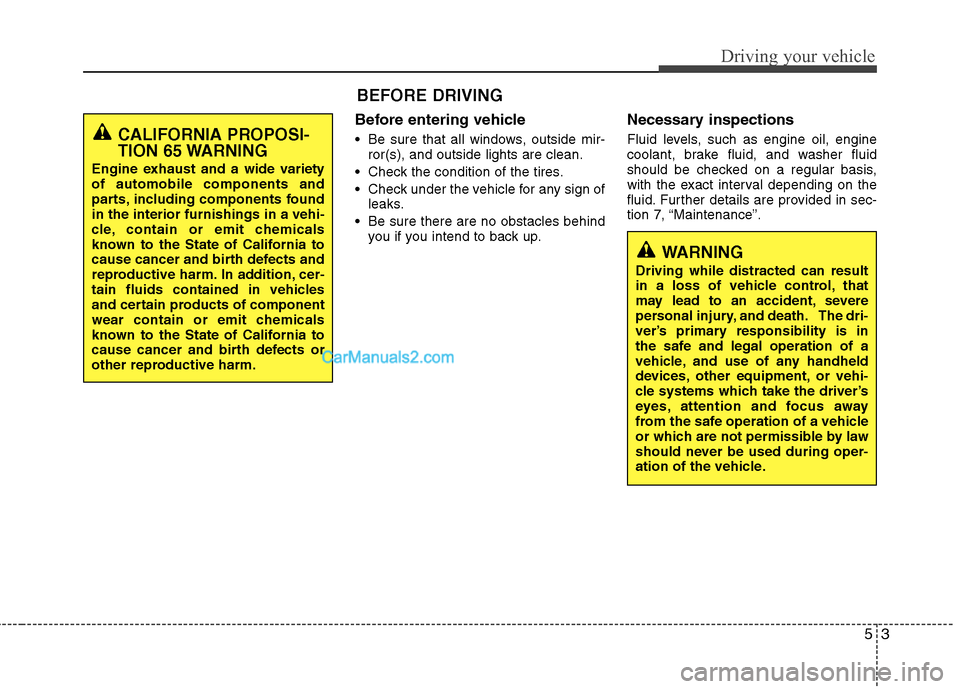
53
Driving your vehicle
Before entering vehicle
• Be sure that all windows, outside mir-
ror(s), and outside lights are clean.
Check the condition of the tires.
Check under the vehicle for any sign of
leaks.
Be sure there are no obstacles behind
you if you intend to back up.
Necessary inspections
Fluid levels, such as engine oil, engine
coolant, brake fluid, and washer fluid
should be checked on a regular basis,
with the exact interval depending on the
fluid. Further details are provided in sec-
tion 7, “Maintenance”.
BEFORE DRIVING
CALIFORNIA PROPOSI-
TION 65 WARNING
Engine exhaust and a wide variety
of automobile components and
parts, including components found
in the interior furnishings in a vehi-
cle, contain or emit chemicals
known to the State of California to
cause cancer and birth defects and
reproductive harm. In addition, cer-
tain fluids contained in vehicles
and certain products of component
wear contain or emit chemicals
known to the State of California to
cause cancer and birth defects or
other reproductive harm.
WARNING
Driving while distracted can result
in a loss of vehicle control, that
may lead to an accident, severe
personal injury, and death. The dri-
ver’s primary responsibility is in
the safe and legal operation of a
vehicle, and use of any handheld
devices, other equipment, or vehi-
cle systems which take the driver’s
eyes, attention and focus away
from the safe operation of a vehicle
or which are not permissible by law
should never be used during oper-
ation of the vehicle.