reset Hyundai Sonata Hybrid 2015 User Guide
[x] Cancel search | Manufacturer: HYUNDAI, Model Year: 2015, Model line: Sonata Hybrid, Model: Hyundai Sonata Hybrid 2015Pages: 543, PDF Size: 25.53 MB
Page 215 of 543
Features of your vehicle
134
4
✽
✽
NOTICE - USING THE
iPod®DEVICE
• Some iPod®models may not sup-
port communication protocol and
files may not properly play.
Supported iPod
®models:
- iPhone®3GS/4
- iPod®touch 1st~4th generation
- iPod®nano 1st~6th generation
- iPod®classic
• The order of search or playback of songs in the iPod
®can be different
from the order searched in the
audio system.
• If the iPod
®is disabled due to its
own malfunction, reset the iPod®.
(Reset: Refer to iPod®manual)
• An iPod®may not operate normal-
ly on low battery. (Continued)(Continued)
• Some iPod
®devices, such as the
iPhone®, can be connected through
the Bluetooth®Wireless Technology
interface. The device must have
audio Bluetooth
®Wireless
Technology capability (such as for
stereo headphone Bluetooth
®
Wireless Technology).
The device can play, but it will not
be controlled by the audio system.
• To use iPod
®features within the
audio, use the cable provided upon
purchasing an iPod
®device.
• Skipping or improper operation may occur depending on the char-
acteristics of your iPod
®/ iPhone®
device.
• If your iPhone®is connected to
both the Bluetooth®Wireless
Technology and USB, the sound
may not be properly played. In
your iPhone
®, select the Dock con-
nector or Bluetooth®Wireless
Technology to change the sound
output (source). (Continued)(Continued)
• When connecting iPod
®with the
iPod®Power Cable, insert the con-
nector to the multimedia socket
completely. If not inserted com-
pletely, communications between
iPod
®and audio may be interrupt-
ed.
• When adjusting the sound effects of the iPod
®and the audio system, the
sound effects of both devices will
overlap and might reduce or distort
the quality of the sound.
• Deactivate (turn off) the equalizer function of an iPod
®when adjust-
ing the audio system’s volume, and
turn off the equalizer of the audio
system when using the equalizer of
an iPod
®.
• When not using iPod®with car
audio, detach the iPod®cable from
iPod®. Otherwise, iPod®may
remain in accessory mode, and may
not work properly.
Page 222 of 543
4141
Features of your vehicle
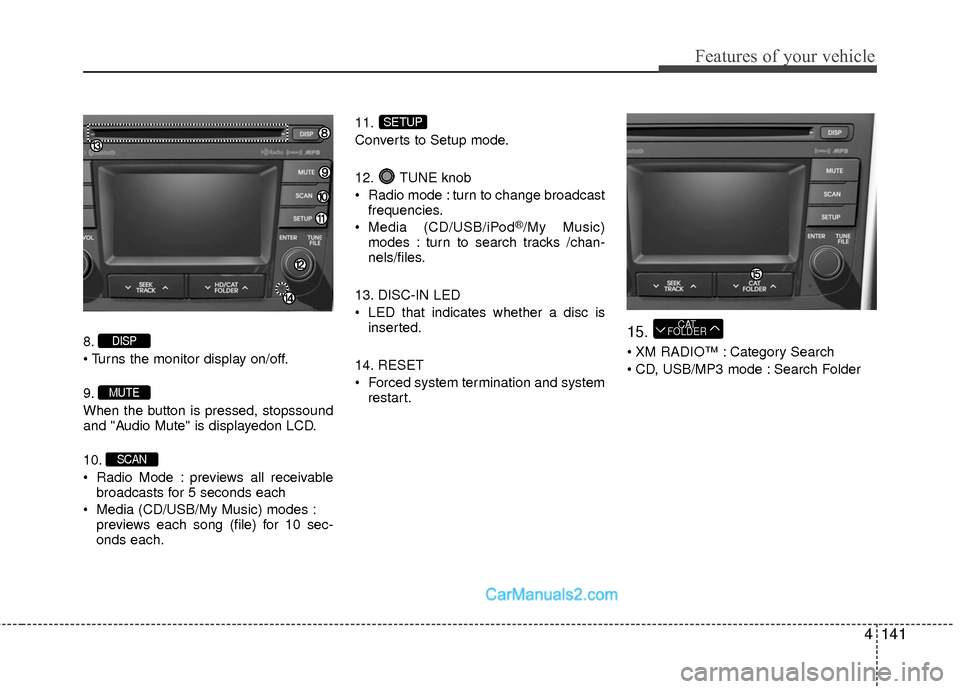
8.
9.
When the button is pressed, stopssound
and "Audio Mute" is displayedon LCD.
10.
Radio Mode : previews all receivablebroadcasts for 5 seconds each
Media (CD/USB/My Music) modes : previews each song (file) for 10 sec-
onds each. 11.
Converts to Setup mode.
12. TUNE knob
Radio mode : turn to change broadcast
frequencies.
Media (CD/USB/iPod
®/My Music)
modes : turn to search tracks /chan-
nels/files.
13. DISC-IN LED
LED that indicates whether a disc is inserted.
14. RESET
Forced system termination and system restart.
15.
XM RADIO™ : Category Search
CD, USB/MP3 mode : Search Folder
CAT
FOLDER
SETUP
SCAN
MUTE
DISP
Page 223 of 543
Features of your vehicle
142
4
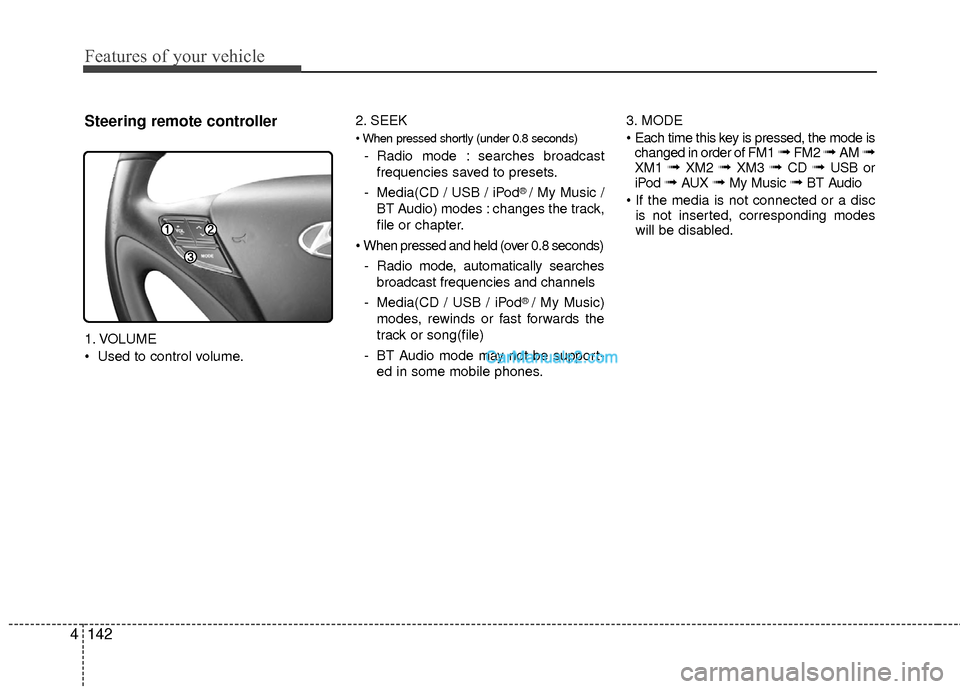
Steering remote controller
1. VOLUME
Used to control volume. 2. SEEK
- Radio mode : searches broadcast
frequencies saved to presets.
- Media(CD / USB / iPod
® / My Music /
BT Audio) modes : changes the track,
file or chapter.
- Radio mode, automatically searches broadcast frequencies and channels
- Media(CD / USB / iPod
® / My Music)
modes, rewinds or fast forwards the
track or song(file)
- BT Audio mode may not be support- ed in some mobile phones. 3. MODE
changed in order of FM1
➟ FM2 ➟ AM ➟XM1 ➟ XM2 ➟ XM3 ➟ CD ➟ USB or
iPod ➟ AUX ➟ My Music ➟ BT Audio
is not inserted, corresponding modes
will be disabled.
Page 226 of 543
![Hyundai Sonata Hybrid 2015 User Guide 4145
Features of your vehicle
RADIO MODE
Basic Mode Screen
1. Mode Display
Displays currently operating mode.
2. Frequency
Displays the current frequency.
3. Preset
Displays current preset number [1]](/img/35/19645/w960_19645-225.png "Hyundai Sonata Hybrid 2015 User Guide 4145
Features of your vehicle
RADIO MODE
Basic Mode Screen
1. Mode Display
Displays currently operating mode.
2. Frequency
Displays the current frequency.
3. Preset
Displays current preset number [1]")
4145
Features of your vehicle
RADIO MODE
Basic Mode Screen
1. Mode Display
Displays currently operating mode.
2. Frequency
Displays the current frequency.
3. Preset
Displays current preset number [1] ~ [6].
4. Preset Display
Displays preset buttons.
5. Info
Displays broadcast information.
6. HD
Changes HD Radio channels.
7. A.store
Automatically saves frequencies with
superior reception to Preset buttons.
Page 227 of 543
Features of your vehicle
146
4
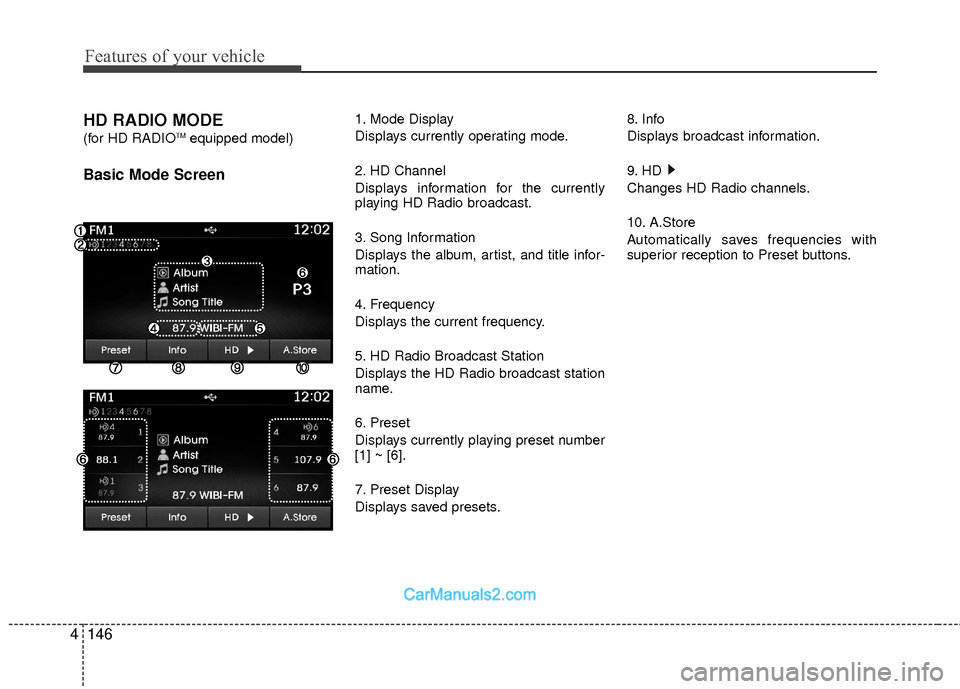
HD RADIO MODE
(for HD RADIOTMequipped model)
Basic Mode Screen
1. Mode Display
Displays currently operating mode.
2. HD Channel
Displays information for the currently
playing HD Radio broadcast.
3. Song Information
Displays the album, artist, and title infor-
mation.
4. Frequency
Displays the current frequency.
5. HD Radio Broadcast Station
Displays the HD Radio broadcast station
name.
6. Preset
Displays currently playing preset number
[1] ~ [6].
7. Preset Display
Displays saved presets. 8. Info
Displays broadcast information.
9. HD
Changes HD Radio channels.
10. A.Store
Automatically saves frequencies with
superior reception to Preset buttons.
Page 228 of 543
![Hyundai Sonata Hybrid 2015 User Guide 4147
Features of your vehicle
Switching to Radio Mode
Pressing the key will change the
operating mode in order of FM1
➟FM2➟AM➟XM1➟XM2➟XM3
If [Mode Pop up] is turned on within [Display], the](/img/35/19645/w960_19645-227.png "Hyundai Sonata Hybrid 2015 User Guide 4147
Features of your vehicle
Switching to Radio Mode
Pressing the key will change the
operating mode in order of FM1
➟FM2➟AM➟XM1➟XM2➟XM3
If [Mode Pop up] is turned on within [Display], the")
4147
Features of your vehicle
Switching to Radio Mode
Pressing the key will change the
operating mode in order of FM1
➟FM2➟AM➟XM1➟XM2➟XM3
If [Mode Pop up] is turned on within [Display], then pressing the
key will display the Radio Pop-
up Mode screen.
Turn the TUNE knob to move the
focus. Press the knob to select.
Searching Radio Frequencies
Using Seek
Press the key to play the pre-
vious/next frequency.
Using TUNE
Turn the TUNE knob to select the
desired frequency.
FM : Increases/decreased by 200kHz
AM : Increases/decreased by 10kHz
Using Radio Mode
Selecting Presets/Saving Presets
Press the button to display the
broadcast information for the frequency
saved to each button.
Press the ~ buttons to play the
desired preset.
✽ ✽ NOTICE
While listening to a frequency you want
to save as a preset, press and hold one of
the ~ preset buttons (over 0.8
seconds) to save the current frequency
to the selected preset.
61
61
PresetSEEK
TRACK
RADIO
SETUP
RADIO
Page 229 of 543
![Hyundai Sonata Hybrid 2015 User Guide Features of your vehicle
148
4
Auto Store
Press the button to automatical-
ly save receivable frequencies to Preset
buttons.
✽ ✽
NOTICE
While Auto Store is operating, pressing
the [Cancel] butto](/img/35/19645/w960_19645-228.png "Hyundai Sonata Hybrid 2015 User Guide Features of your vehicle
148
4
Auto Store
Press the button to automatical-
ly save receivable frequencies to Preset
buttons.
✽ ✽
NOTICE
While Auto Store is operating, pressing
the [Cancel] butto")
Features of your vehicle
148
4
Auto Store
Press the button to automatical-
ly save receivable frequencies to Preset
buttons.
✽ ✽
NOTICE
While Auto Store is operating, pressing
the [Cancel] button again will cancel
Auto Store and restore the previous fre-
quency.
Scan
Press the key to preview fre-
quencies with superior reception for 5
seconds each.
Press and hold the key (over
0.8 seconds) to preview presets for 5
seconds each.
Once scan is complete, the previous fre-
quency will be restored.
While Scan is operating, pressing the
key will cancel the scan opera-
tion.
Listening to HD Radio Stations
HD Radio Technology is a digital radio
technology used by AM and FM radio
station to transmit audio and data via a
digital signal in conjunction with their
analog signals.
While listening to the radio, the HD Radio
icon will become displayed if receiving an
HD Radio broadcast.
Changing HD Radio stations
Press the button to change HD
Radio station.
Viewing Station Information
Press the button to view station
information.Info
SCAN
SCAN
SCAN
A.Store
Page 231 of 543
Features of your vehicle
150
4
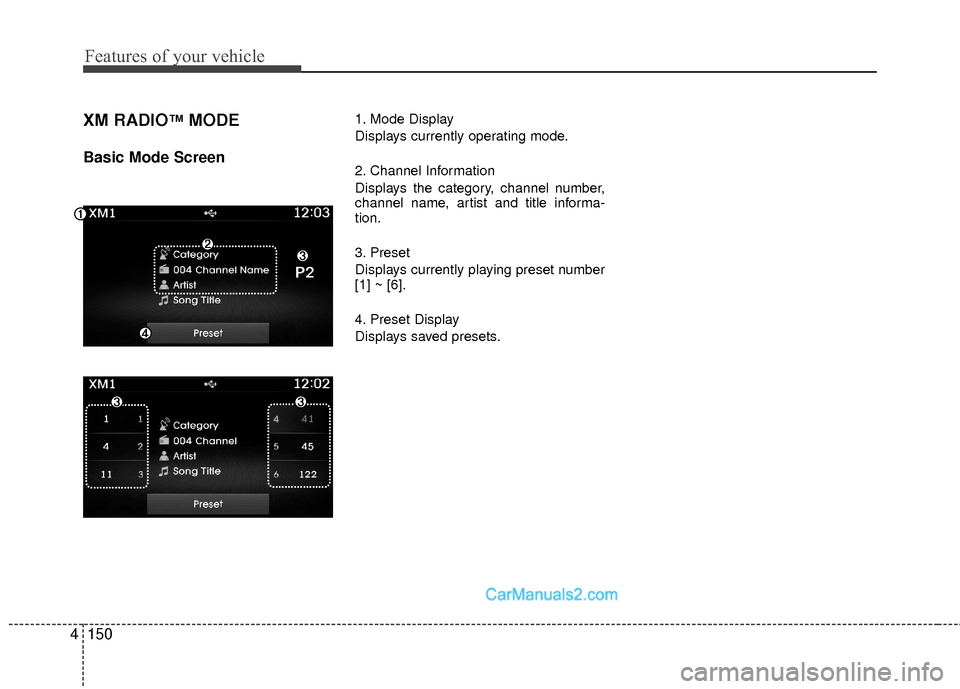
XM RADIO™MODE
Basic Mode Screen
1. Mode Display
Displays currently operating mode.
2. Channel Information
Displays the category, channel number,
channel name, artist and title informa-
tion.
3. Preset
Displays currently playing preset number
[1] ~ [6].
4. Preset Display
Displays saved presets.
Page 232 of 543
4151
Features of your vehicle
Using SEEK
Press the key to play the pre-
vious/next channel.
❈ If the “Category” icon is displayed,
channels are changed within the cur-
rent category.
Using Tune
Turn the TUNE knob to select the
desired channel.
SCAN
Press the key to scan all chan-
nels with superior reception for 5 sec-
onds each.
Once scan is complete, the previously
played channel will be restored.
During Scan, pressing the key
again will cancel the scan operation and
restore the previously played channel.
If the “Category” icon is displayed, chan-
nels are changed within the current cate-
gory.
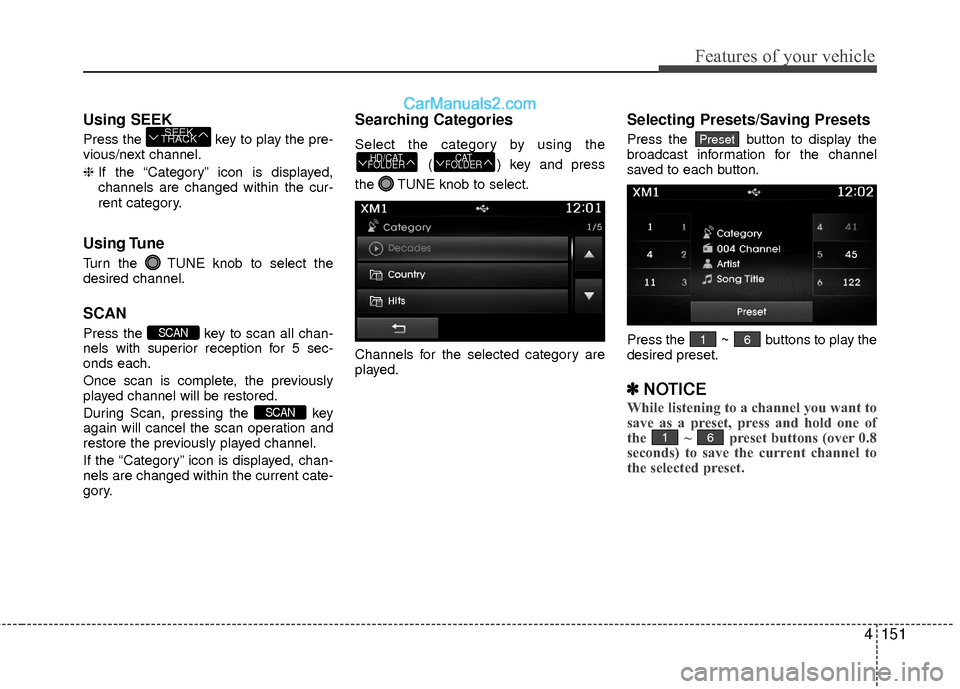
Searching Categories
Select the category by using the
( ) key and press
the TUNE knob to select.
Channels for the selected category are
played.
Selecting Presets/Saving Presets
Press the button to display the
broadcast information for the channel
saved to each button.
Press the ~ buttons to play the
desired preset.
✽ ✽ NOTICE
While listening to a channel you want to
save as a preset, press and hold one of
the ~ preset buttons (over 0.8
seconds) to save the current channel to
the selected preset.
61
61
Preset
CAT
FOLDERHD/CAT
FOLDER
SCAN
SCAN
SEEK
TRACK
Page 247 of 543
Features of your vehicle
166
4
✽
✽
NOTICE - USING THE
iPod®DEVICE
• iPod®is a registered trademark of
Apple Inc.
• In order to use the iPod
®while
operating the keys, you must use a
dedicated iPod
®cable. (the cable
that is supplied when purchasing
iPod
®/iPhone®products)
• If the iPod®is connected to the
vehicle while it is playing, a high
pitch sound could occur for approx-
imately 1-2 seconds immediately
after connecting. If possible, con-
nect the iPod to the vehicle with the
iPod
®stopped/paused.
• During ACC ON state, connecting the iPod
®through the iPod®cable
will charge the iPod®through the
car audio system.
• When connecting with the iPod
®
cable, make sure to fully insert the
jack to prevent communication
interference. (Continued)(Continued)
• When the EQ features of an exter-
nal device, such as the iPod
®, and
the audio system are both active,
EQ effects could overlap and cause
sound deterioration and distortion.
Whenever possible, turn off the EQ
feature within the external device
upon use by connecting with the
audio system.
• Noise may occur when an iPod
®or
AUX device is connected. When
such devices are not being used, dis-
connect the device for storage.
• When the iPod
®or AUX device
power is connected to the power
jack, playing the external device
may result in noise. In such cases,
disconnect the power connection
before use.
• Skipping or improper operation may occur depending on the char-
acteristics of your iPod
® /Phone®
device. (Continued)(Continued)
• If your iPhone
®is connected to
both the Bluetooth®Wireless
Technology and USB, the sound
may not be properly played. In
your iPhone
®, select the Dock con-
nector or Bluetooth®Wireless
Technology to change the sound
output (source).
• iPod mode cannot be operated when the iPod
®cannot be recog-
nized due to versions that do not
support communication protocols.
• For fifth generation iPod
®Nano
devices, the iPod®may not be rec-
ognized when the battery level is
low. Please charge the iPod
®for
use.
• Search/play orders shown within the iPod
®device may differ with the
orders shown within the audio sys-
tem.
• If the iPod
®malfunctions due to an
iPod®device defect, reset the iPod®
and try again. (To learn more, refer
to your iPod®manual)
(Continued)