USB Hyundai Sonata Hybrid 2015 Owner's Guide
[x] Cancel search | Manufacturer: HYUNDAI, Model Year: 2015, Model line: Sonata Hybrid, Model: Hyundai Sonata Hybrid 2015Pages: 543, PDF Size: 25.53 MB
Page 290 of 543
4209
Features of your vehicle
SYSTEM CONTROLLERS AND
FUNCTIONS
Audio Head Unit
(for HD RADIOTMequipped model)
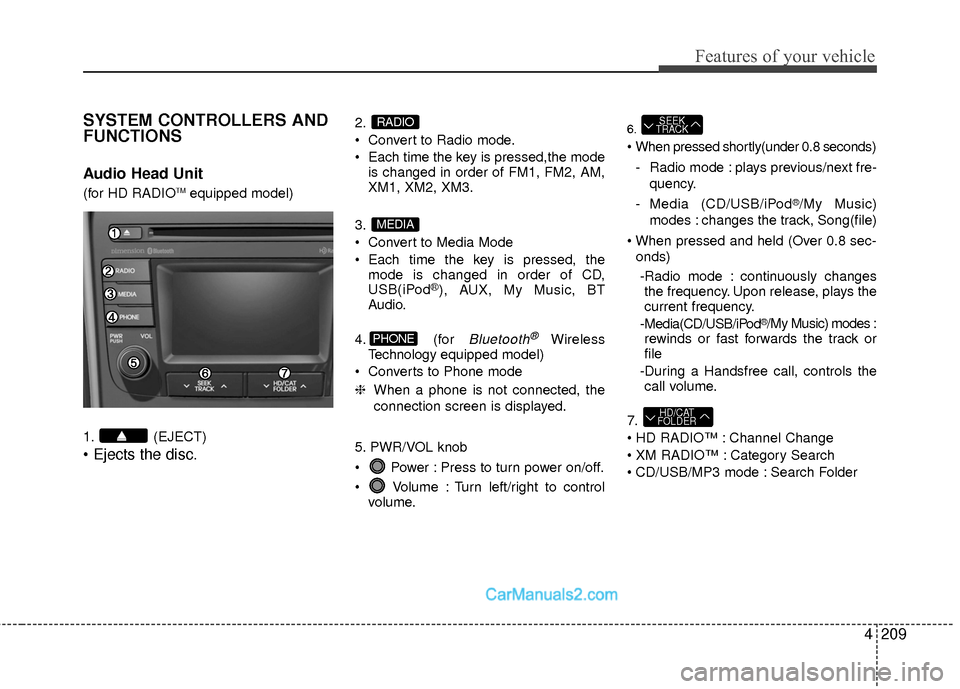
1. (EJECT)
• Ejects the disc.
2.
Convert to Radio mode.
Each time the key is pressed,the mode is changed in order of FM1, FM2, AM,
XM1, XM2, XM3.
3.
Convert to Media Mode
Each time the key is pressed, the mode is changed in order of CD,
USB(iPod
®), AUX, My Music, BT
Audio.
4. (for
Bluetooth®Wireless
Technology equipped model)
Converts to Phone mode
❈ When a phone is not connected, the
connection screen is displayed.
5. PWR/VOL knob
Power : Press to turn power on/off.
Volume : Turn left/right to control volume.
6.
- Radio mode : plays previous/next fre- quency.
- Media (CD/USB/iPod
®/My Music)
modes : changes the track, Song(file)
onds)
-Radio mode : continuously changes the frequency. Upon release, plays the
current frequency.
-Media(CD/USB/iPod
®/My Music) modes :
rewinds or fast forwards the track or
file
-During a Handsfree call, controls the call volume.
7.
Channel Change
Category Search
CD/USB/MP3 mode : Search Folder
HD/CAT
FOLDER
SEEK
TRACK
PHONE
MEDIA
RADIO
Page 291 of 543
Features of your vehicle
210
4
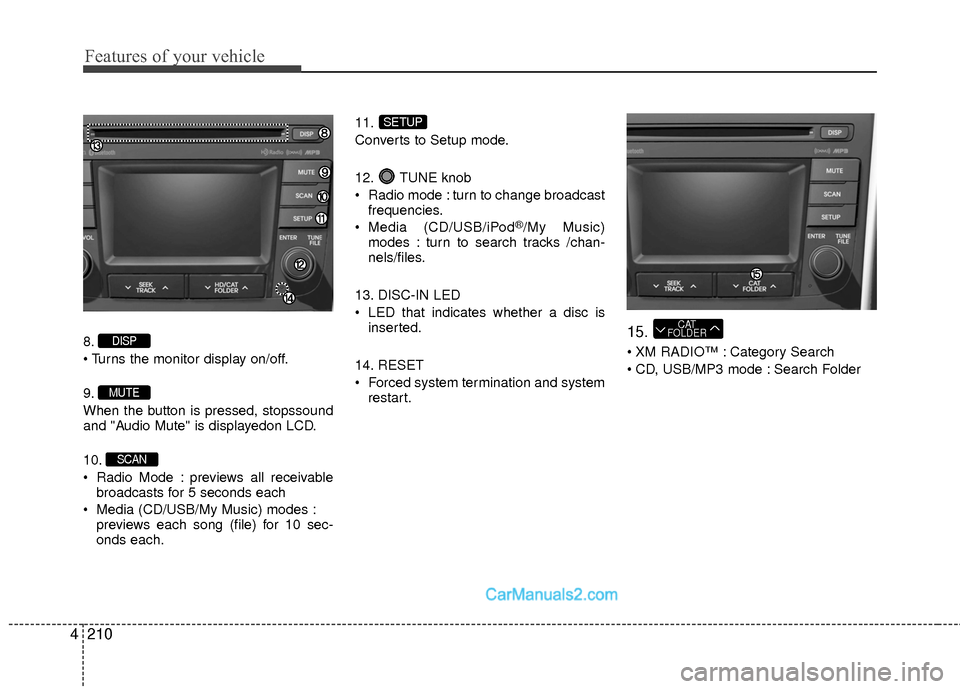
8.
9.
When the button is pressed, stopssound
and "Audio Mute" is displayedon LCD.
10.
Radio Mode : previews all receivable
broadcasts for 5 seconds each
Media (CD/USB/My Music) modes : previews each song (file) for 10 sec-
onds each. 11.
Converts to Setup mode.
12. TUNE knob
Radio mode : turn to change broadcast
frequencies.
Media (CD/USB/iPod
®/My Music)
modes : turn to search tracks /chan-
nels/files.
13. DISC-IN LED
LED that indicates whether a disc is inserted.
14. RESET
Forced system termination and system restart.
15.
XM RADIO™ : Category Search
CD, USB/MP3 mode : Search Folder
CAT
FOLDER
SETUP
SCAN
MUTE
DISP
Page 292 of 543
4211
Features of your vehicle
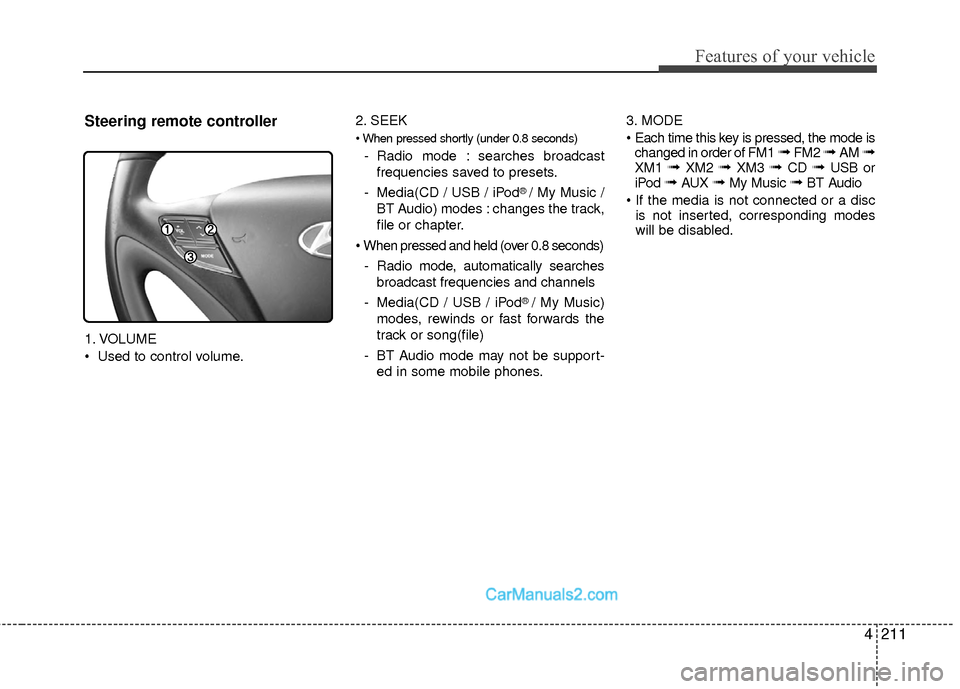
Steering remote controller
1. VOLUME
Used to control volume.2. SEEK
- Radio mode : searches broadcast
frequencies saved to presets.
- Media(CD / USB / iPod
® / My Music /
BT Audio) modes : changes the track,
file or chapter.
- Radio mode, automatically searches broadcast frequencies and channels
- Media(CD / USB / iPod
® / My Music)
modes, rewinds or fast forwards the
track or song(file)
- BT Audio mode may not be support- ed in some mobile phones. 3. MODE
changed in order of FM1
➟ FM2 ➟ AM ➟XM1 ➟ XM2 ➟ XM3 ➟ CD ➟ USB or
iPod ➟ AUX ➟ My Music ➟ BT Audio
is not inserted, corresponding modes
will be disabled.
Page 303 of 543
![Hyundai Sonata Hybrid 2015 Owners Guide Features of your vehicle
222
4
MEDIA MODE
Pressing the key will change the
operating mode in order of CD ➟USB(iPod®) ➟ AUX ➟ My Music ➟BT
Audio.
If [Mode Pop up] is turned on within
[Display](/img/35/19645/w960_19645-302.png "Hyundai Sonata Hybrid 2015 Owners Guide Features of your vehicle
222
4
MEDIA MODE
Pressing the key will change the
operating mode in order of CD ➟USB(iPod®) ➟ AUX ➟ My Music ➟BT
Audio.
If [Mode Pop up] is turned on within
[Display")
Features of your vehicle
222
4
MEDIA MODE
Pressing the key will change the
operating mode in order of CD ➟USB(iPod®) ➟ AUX ➟ My Music ➟BT
Audio.
If [Mode Pop up] is turned on within
[Display], then pressing the
key will display the Media Pop-
up Mode screen.
Turn the TUNE knob to move the
focus. Press the knob to select.
✽ ✽ NOTICE
The media mode pop up screen can be
displayed only when there are two or
more media modes turned on.
Title Icon
When a Bluetooth®Wireless
Technology, iPod®, USB, or AUX device
is connected or a CD is inserted, the cor-
responding mode icon will be displayed.
Icon Title
Bluetooth®Wireless Technology
CD
iPod®
USB
AUX
MEDIA
SETUP
MEDIA
Page 310 of 543
4229
Features of your vehicle
✽
✽NOTICE - USING THE USB
DEVICE
• Connect the USB device after turning
on the engine. The USB device may
become damaged if it is already con-
nected when the ignition is turned
on.The USB device may not operate
properly if the car ignition is turned
on or off with the USB device connect-
ed.
• Heed caution to static electricity when connecting/disconnecting USB
devices.
• Encoded MP3 Players will not be rec- ognized when connected as an exter-
nal device.
• When connecting an external USB device, the device may not properly
recognize the USB is in some states.
• Only products formatted with byte/sectors under 64Kbyte will be
recognized.
• This device recognizes USB devices formatted in FAT 12/16/32 file for-
mats. This device does not recognize
files in NTFS file format. (Continued)(Continued)
• Some USB devices may not be sup- ported due to compatibility issues.
• Avoid contact between the USB con- nector with bodily parts or foreign
objects.
• Repeated connecting/disconnecting of USB devices within short periods of
time may result in product malfunc-
tion.
• A strange noise may occur when dis- connecting the USB.
• Make sure to connect/disconnect external USB devices with the audio
power turned off.
• The amount of time required to recog- nize the USB device may differ
depending on the type, size or file for-
mats stored in the USB. Such differ-
ences in time are not indications of
malfunctions.
• The device only supports USB devices used to play music files.
• USB images and videos are not sup- ported. (Continued)(Continued)
• Do not use the USB I/F to charge bat- teries or USB accessories that gener-
ate heat. Such acts may lead to wors-
ened performance or damage to the
device.
• The device may not recognize the USB device if separately purchased USB
hubs and extension cables are being
used. Connect the USB directly with
the multimedia terminal of the vehi-
cle.
• When using mass storage USB devices with separate logical drives, only files
saved to the root drive can be played.
• Files may not properly operate if application programs are installed to
the USBs.
• The device may not operate normally if MP3 Players, cellular phones, digi-
tal cameras, or other electronic
devices (USB devices not recognized
as portable disk drives) are connected
with the device.
Page 311 of 543
Features of your vehicle
230
4
(Continued)
• Charging through the USB may not
work for some mobile devices.
• The device may not support normal operation when using a USB memory
type besides (Metal Cover Type) USB
Memory.
• The device may not support normal operation when using formats such as
HDD Type, CF, or SD Memory.
• The device will not support files locked by DRM (Digital Rights
Management.)
• USB memory sticks used by connect- ing an Adaptor (SD Type or CF Type)
may not be properly recognized.
• The device may not operate properly when using USB HDDs or USBs sub-
ject to connection failures caused by
vehicle vibrations. (e.g. i-stick type) (Continued)(Continued)
• Avoid use of USB memo-
ry products that can also
be used as key chains or
mobile phone accessories.
Use of such products may
cause damage to the USB jack.
• Connecting an MP3 device or phone through various channels, such as
AUX/BT or Audio/ USB mode may
result in pop noises or abnormal oper-
ation.
Page 312 of 543
4231
Features of your vehicle
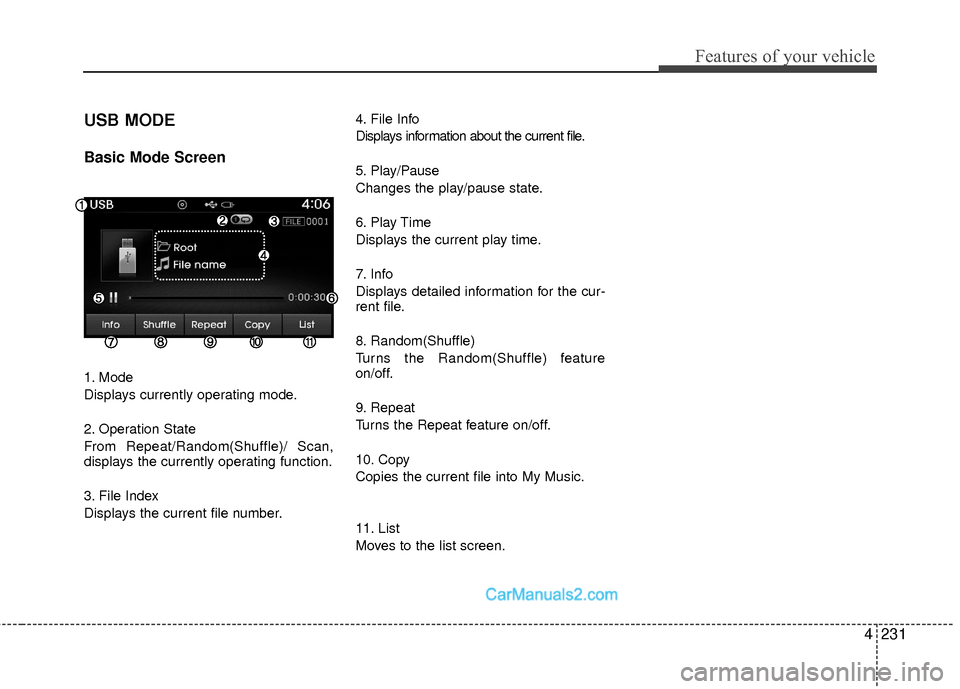
USB MODE
Basic Mode Screen
1. Mode
Displays currently operating mode.
2. Operation State
From Repeat/Random(Shuffle)/ Scan,
displays the currently operating function.
3. File Index
Displays the current file number.4. File Info
Displays information about the current file.
5. Play/Pause
Changes the play/pause state.
6. Play Time
Displays the current play time.
7. Info
Displays detailed information for the cur-
rent file.
8. Random(Shuffle)
Turns the Random(Shuffle) feature
on/off.
9. Repeat
Turns the Repeat feature on/off.
10. Copy
Copies the current file into My Music.
11. List
Moves to the list screen.
Page 313 of 543
Features of your vehicle
232
4
Using USB Mode
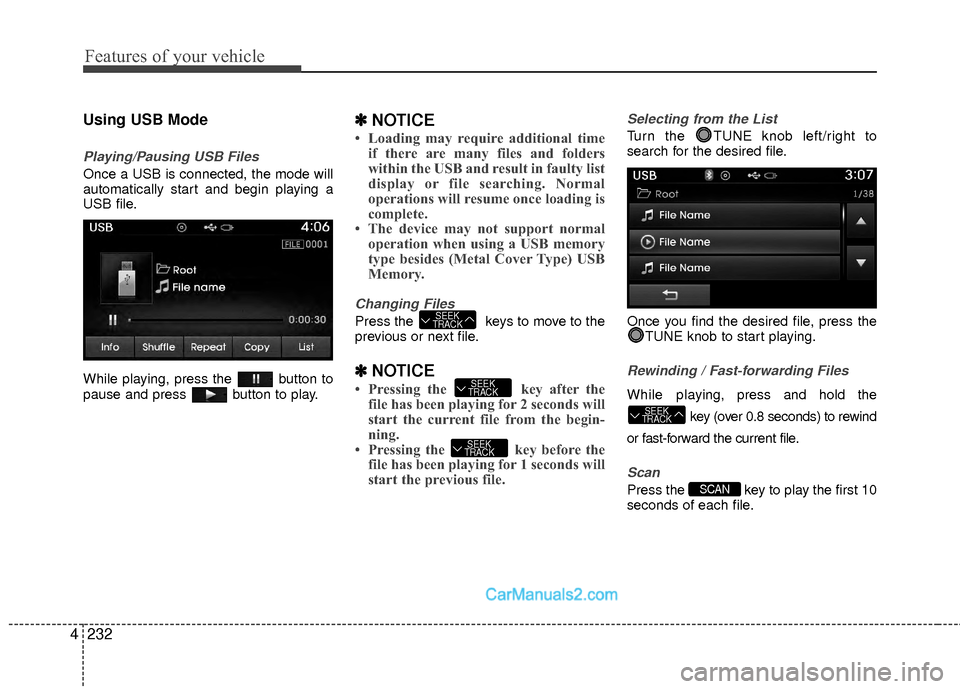
Playing/Pausing USB Files
Once a USB is connected, the mode will
automatically start and begin playing a
USB file.
While playing, press the button to
pause and press button to play.
✽ ✽
NOTICE
• Loading may require additional time
if there are many files and folders
within the USB and result in faulty list
display or file searching. Normal
operations will resume once loading is
complete.
• The device may not support normal operation when using a USB memory
type besides (Metal Cover Type) USB
Memory.
Changing Files
Press the keys to move to the
previous or next file.
✽ ✽ NOTICE
• Pressing the key after the
file has been playing for 2 seconds will
start the current file from the begin-
ning.
• Pressing the key before the file has been playing for 1 seconds will
start the previous file.
Selecting from the List
Turn the TUNE knob left/right to
search for the desired file.
Once you find the desired file, press the
TUNE knob to start playing.
Rewinding / Fast-forwarding Files
While playing, press and hold the
key (over 0.8 seconds) to rewind
or fast-forward the current file.
Scan
Press the key to play the first 10
seconds of each file.SCAN
SEEK
TRACK
SEEK
TRACK
SEEK
TRACK
SEEK
TRACK
Page 314 of 543
4233
Features of your vehicle
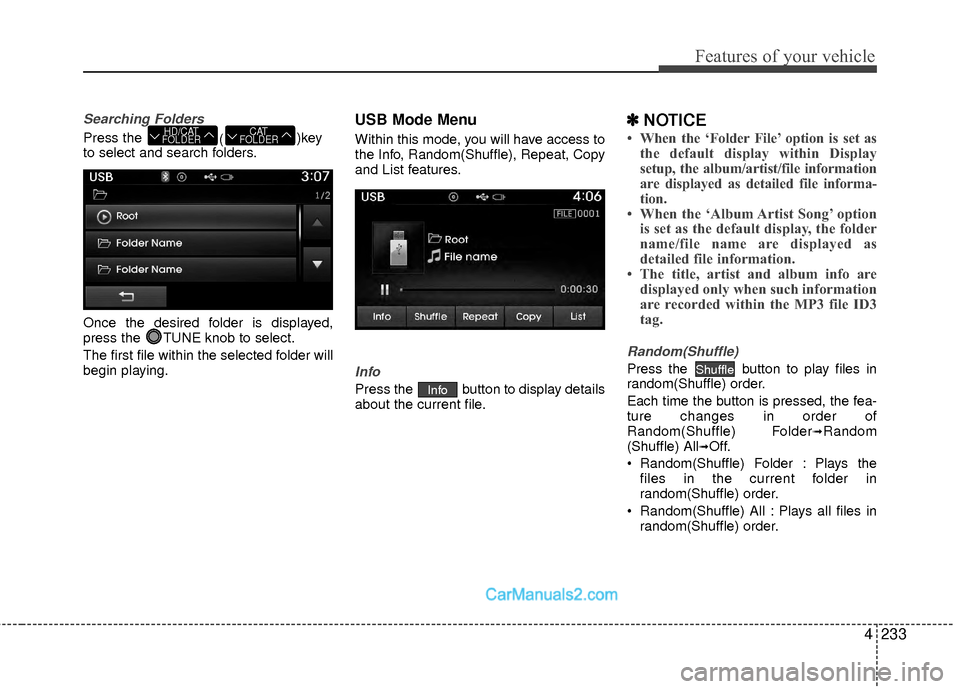
Searching Folders
Press the ()key
to select and search folders.
Once the desired folder is displayed,
press the TUNE knob to select.
The first file within the selected folder will
begin playing.
USB Mode Menu
Within this mode, you will have access to
the Info, Random(Shuffle), Repeat, Copy
and List features.
Info
Press the button to display details
about the current file.
✽ ✽ NOTICE
• When the ‘Folder File’ option is set as
the default display within Display
setup, the album/artist/file information
are displayed as detailed file informa-
tion.
• When the ‘Album Artist Song’ option is set as the default display, the folder
name/file name are displayed as
detailed file information.
• The title, artist and album info are displayed only when such information
are recorded within the MP3 file ID3
tag.
Random(Shuffle)
Press the button to play files in
random(Shuffle) order.
Each time the button is pressed, the fea-
ture changes in order of
Random(Shuffle) Folder
➟Random
(Shuffle) All➟Off.
Random(Shuffle) Folder : Plays the files in the current folder in
random(Shuffle) order.
Random(Shuffle) All : Plays all files in random(Shuffle) order.
Shuffle
Info
CAT
FOLDERHD/CAT
FOLDER
Page 316 of 543
4235
Features of your vehicle
✽
✽NOTICE - USING THE
iPod®DEVICE
• iPod®is a registered trademark of
Apple Inc.
• In order to use the iPod
®while
operating the keys, you must use a
dedicated iPod
®cable. (the cable
that is supplied when purchasing
iPod
®/iPhone®products)
• If the iPod®is connected to the
vehicle while it is playing, a high
pitch sound could occur for approx-
imately 1-2 seconds immediately
after connecting. If possible, con-
nect the iPod to the vehicle with the
iPod
®stopped/paused.
• During ACC ON state, connecting the iPod
®through the iPod®cable
will charge the iPod®through the
car audio system.
• When connecting with the iPod
®
cable, make sure to fully insert the
jack to prevent communication
interference. (Continued)(Continued)
• When the EQ features of an exter-
nal device, such as the iPod
®, and
the audio system are both active,
EQ effects could overlap and cause
sound deterioration and distortion.
Whenever possible, turn off the EQ
feature within the external device
upon use by connecting with the
audio system.
• Noise may occur when an iPod
®or
AUX device is connected. When
such devices are not being used, dis-
connect the device for storage.
• When the iPod
®or AUX device
power is connected to the power
jack, playing the external device
may result in noise. In such cases,
disconnect the power connection
before use.
• Skipping or improper operation may occur depending on the char-
acteristics of your iPod
® /Phone®
device. (Continued)(Continued)
• If your iPhone
®is connected to
both the Bluetooth®Wireless
Technology and USB, the sound
may not be properly played. In
your iPhone
®, select the Dock con-
nector or Bluetooth®Wireless
Technology to change the sound
output (source).
• iPod mode cannot be operated when the iPod
®cannot be recog-
nized due to versions that do not
support communication protocols.
• For fifth generation iPod
®Nano
devices, the iPod®may not be rec-
ognized when the battery level is
low. Please charge the iPod
®for
use.
• Search/play orders shown within the iPod
®device may differ with the
orders shown within the audio sys-
tem.
• If the iPod
®malfunctions due to an
iPod®device defect, reset the iPod®
and try again. (To learn more, refer
to your iPod®manual)
(Continued)