bluetooth Hyundai Sonata Hybrid 2015 Owner's Guide
[x] Cancel search | Manufacturer: HYUNDAI, Model Year: 2015, Model line: Sonata Hybrid, Model: Hyundai Sonata Hybrid 2015Pages: 543, PDF Size: 25.53 MB
Page 268 of 543
![Hyundai Sonata Hybrid 2015 Owners Guide 4187
Features of your vehicle
Contacts
Press the key Select
[Contacts]
The list of saved phone book entries is
displayed. Press the button to
download the call history.
1) Contacts List :
- Displays](/img/35/19645/w960_19645-267.png "Hyundai Sonata Hybrid 2015 Owners Guide 4187
Features of your vehicle
Contacts
Press the key Select
[Contacts]
The list of saved phone book entries is
displayed. Press the button to
download the call history.
1) Contacts List :
- Displays")
4187
Features of your vehicle
Contacts
Press the key Select
[Contacts]
The list of saved phone book entries is
displayed. Press the button to
download the call history.
1) Contacts List :
- Displays downloaded contacts entries
- Connects call upon selection
2) Sort by : Find a contact in an alphabet- ical order.
3) Download : Download contacts entries
✽ ✽ NOTICE
• Up to 1,000 contacts saved in your
Bluetooth®Wireless Technology
phone can be downloaded into the car
contacts. Contacts that have been
downloaded to the car cannot be edit-
ed or deleted on the phone.
• Mobile phone contacts are managed separately for each paired Bluetooth
®
Wireless Technology device (max 5
devices x 1,000 contacts each).
Previously downloaded data is main-
tained even if the Bluetooth
®Wireless
Technology device has been discon-
nected.
(However, the contacts and call histo-
ry saved to the phone will be deleted if
a paired phone is deleted.)
• It is possible to download contacts during Bluetooth streaming audio.
• When downloading contacts, the icon will be displayed within the status bar. (Continued)(Continued)
• It is not possible to begin downloading
a contact list when the contact down-
load feature has been turned off with-
in the Bluetooth
®Wireless Technology
device. In addition, some devices may
require device authorization upon
attempting to download contacts. If
downloading does not normally occur,
check the Bluetooth
®Wireless
Technology device settings or the
screen state.
• The contacts download feature may not be supported in some mobile
phones. For more information of sup-
ported Bluetooth
®devices and func-
tion support, refer to your phone’s
user manual.
Download
PHONE
Page 269 of 543
![Hyundai Sonata Hybrid 2015 Owners Guide Features of your vehicle
188
4
Bluetooth®Wireless Technology
Setting
Pairing a New Device
Press the key Select
[Phone] Select [Pair Phone]
Bluetooth®Wireless Technology devices
can be paired with t](/img/35/19645/w960_19645-268.png "Hyundai Sonata Hybrid 2015 Owners Guide Features of your vehicle
188
4
Bluetooth®Wireless Technology
Setting
Pairing a New Device
Press the key Select
[Phone] Select [Pair Phone]
Bluetooth®Wireless Technology devices
can be paired with t")
Features of your vehicle
188
4
Bluetooth®Wireless Technology
Setting
Pairing a New Device
Press the key Select
[Phone] Select [Pair Phone]
Bluetooth®Wireless Technology devices
can be paired with the audio system.
For more information, refer to the “Pairing
through Phone Setup” section within
Bluetooth®Wireless Technology.
Viewing Paired Phone List
Press the key Select
[Phone] Select [Paired Phone List]
This feature is used to view mobile
phones that have been paired with the
audio system. Upon selecting a paired
phone, the setup menu is displayed.
For more information, refer to the “Setting
Bluetooth®Wireless Technology
Connection” section within Bluetooth®
Wireless Technology. 1) : Moves to the previous screen
2) Connect/Disconnect Phone : Connect/
disconnects currently selected phone
3) Delete : Deletes the currently selected phone
4) Change Priority : Sets currently selected phone to highest connection priority
SETUP
SETUP
Page 270 of 543
4189
Features of your vehicle
✽
✽NOTICE BEFORE DOWN-
LOADING CONTACTS
• Only contacts within connected
phones can be downloaded. Also
check to see that your mobile phone
supports the download feature.
• To learn more about whether your mobile phone supports contacts
downloads, refer to your mobile
phone user’s manual.
• The contacts for only the connected phone can be downloaded.
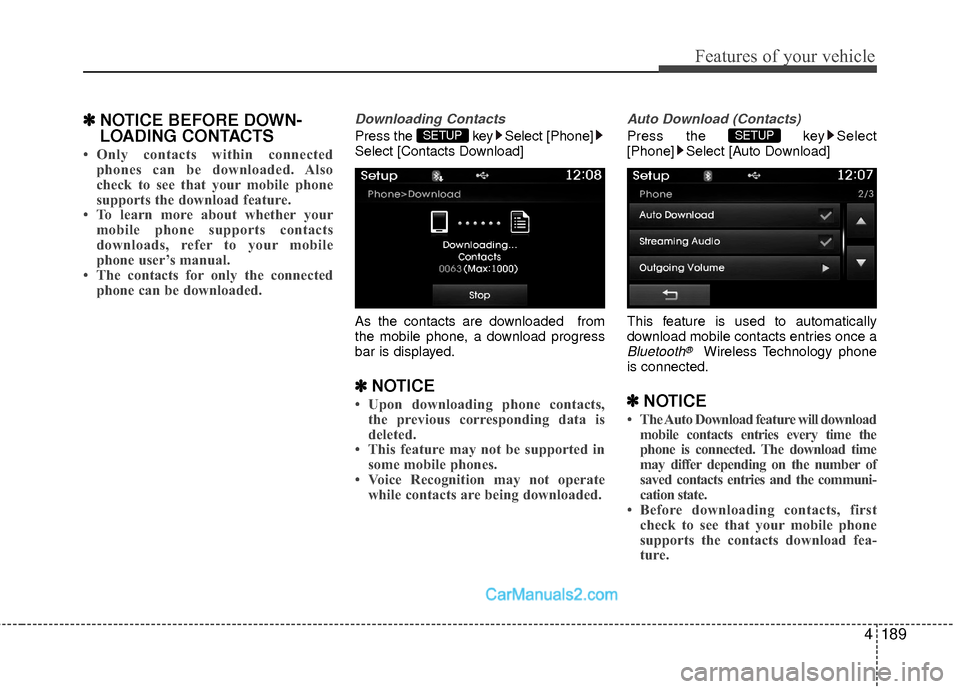
Downloading Contacts
Press the key Select [Phone]
Select [Contacts Download]
As the contacts are downloaded from
the mobile phone, a download progress
bar is displayed.
✽ ✽ NOTICE
• Upon downloading phone contacts,
the previous corresponding data is
deleted.
• This feature may not be supported in some mobile phones.
• Voice Recognition may not operate while contacts are being downloaded.
Auto Download (Contacts)
Press the key Select
[Phone] Select [Auto Download]
This feature is used to automatically
download mobile contacts entries once a
Bluetooth®Wireless Technology phone
is connected.
✽ ✽ NOTICE
• The Auto Download feature will download
mobile contacts entries every time the
phone is connected. The download time
may differ depending on the number of
saved contacts entries and the communi-
cation state.
• Before downloading contacts, first check to see that your mobile phone
supports the contacts download fea-
ture.
SETUP SETUP
Page 271 of 543
![Hyundai Sonata Hybrid 2015 Owners Guide Features of your vehicle
190
4
Streaming Audio
Press the key Select
[Phone] Select [Streaming Audio]
When Streaming Audio is turned on, you
can play music files saved in your
Bluetooth®Wireless Tech](/img/35/19645/w960_19645-270.png "Hyundai Sonata Hybrid 2015 Owners Guide Features of your vehicle
190
4
Streaming Audio
Press the key Select
[Phone] Select [Streaming Audio]
When Streaming Audio is turned on, you
can play music files saved in your
Bluetooth®Wireless Tech")
Features of your vehicle
190
4
Streaming Audio
Press the key Select
[Phone] Select [Streaming Audio]
When Streaming Audio is turned on, you
can play music files saved in your
Bluetooth®Wireless Technology device
through the audio system.
Outgoing Volume
Press the key Select
[Phone] Select [Outgoing Volume]
Use the , buttons to adjust the
outgoing volume level.
✽ ✽ NOTICE
While on a call, the volume can be
changed by using the key.
Turning Bluetooth System Off
Press the key Select
[Phone] Select [Bluetooth System Off]
Once
Bluetooth®Wireless Technology is
turned off, Bluetooth®Wireless
Technology related features will not be
supported within the audio system.
✽ ✽ NOTICE
To turn Bluetooth®Wireless Technology
back on, go to [Phone] and
press “YesSETUP
SETUP
SEEK
TRACK
SETUP SETUP
Page 274 of 543
4193
Features of your vehicle
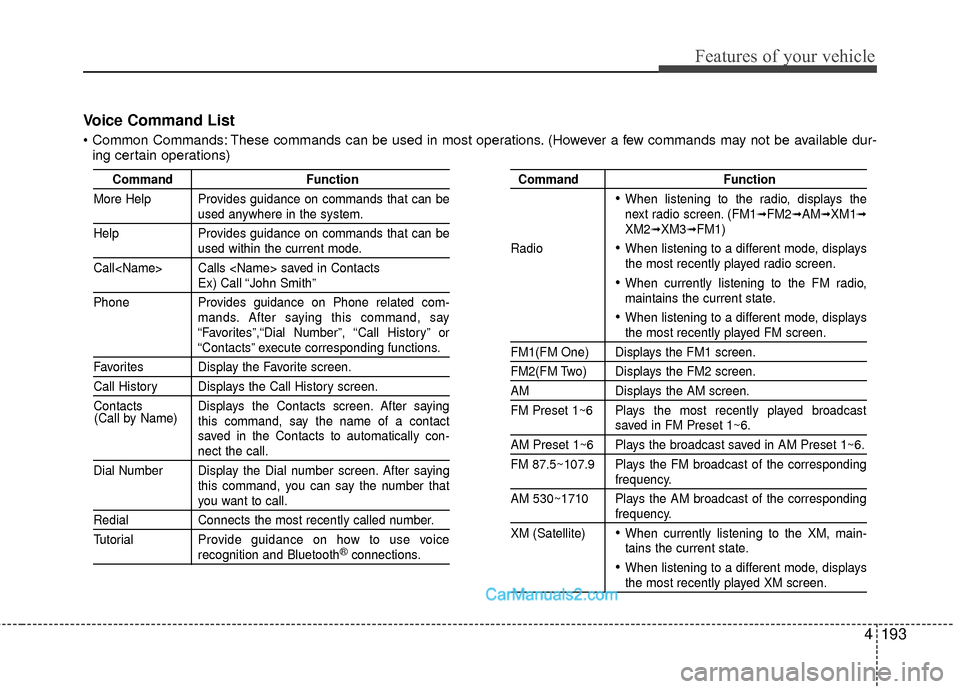
CommandFunction
More Help Provides guidance on commands that can be
used anywhere in the system.
Help Provides guidance on commands that can be
used within the current mode.
Call
Ex) Call “John Smith”
Phone Provides guidance on Phone related com- mands. After saying this command, say
“Favorites”,“Dial Number”, “Call History” or
“Contacts” execute corresponding functions.
Favorites Display the Favorite screen.
Call History Displays the Call History screen.
Contacts Displays the Contacts screen. After sayingthis command, say the name of a contact
saved in the Contacts to automatically con-
nect the call.
Dial Number Display the Dial number screen. After saying this command, you can say the number that
you want to call.
RedialConnects the most recently called number.
Tutorial Pro vide guidance on how to use voice
recognition and Bluetooth®connections.
Command Function
When listening to the radio, displays the
next radio screen. (FM1➟FM2➟AM➟XM1➟XM2➟XM3➟FM1)
Radio
When listening to a different mode, displays
the most recently played radio screen.
When currently listening to the FM radio,
maintains the current state.
When listening to a different mode, displaysthe most recently played FM screen.
FM1(FM One) Displays the FM1 screen.
FM2(FM Two) Displays the FM2 screen.
AM Displays the AM screen.
FM Preset 1~6 Plays the most recently played broadcast
saved in FM Preset 1~6.
AM Preset 1~6 Plays the broadcast saved in AM Preset 1~6.
FM 87.5~107.9 Plays the FM broadcast of the corresponding
frequency.
AM 530~1710 Plays the AM broadcast of the corresponding
frequency.
XM (Satellite)
When currently listening to the XM, main-
tains the current state.
When listening to a different mode, displaysthe most recently played XM screen.
(Call by Name)
Voice Command List
These commands can be used in most operations. (However a few commands may not be available dur-
ing certain operations)
Page 275 of 543
Features of your vehicle
194
4
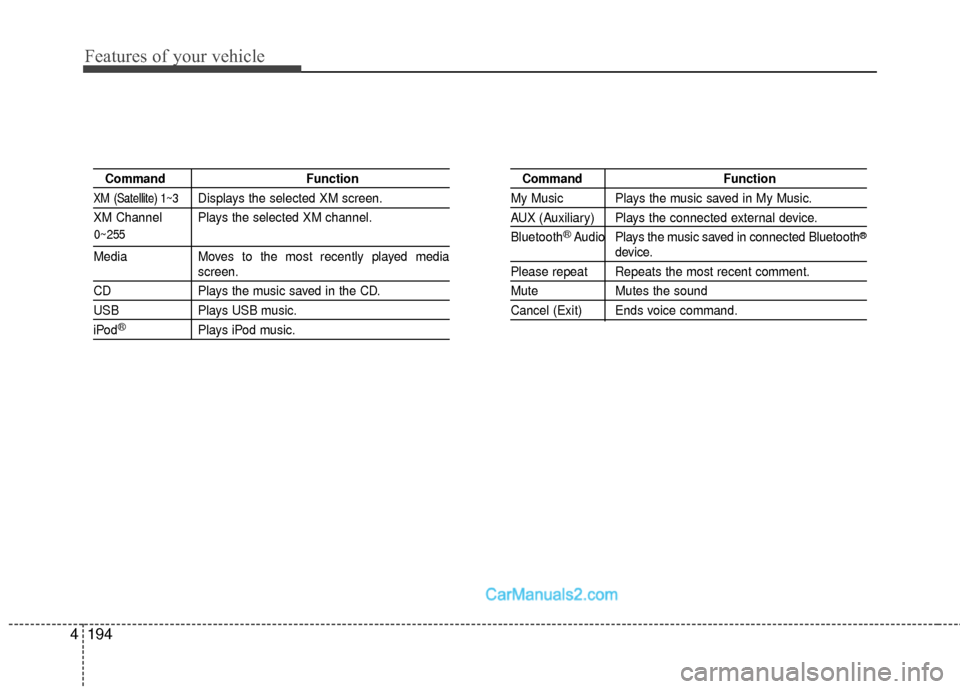
0~255
Command Function
XM (Satellite) 1~3Displays the selected XM screen.
XM Channel Plays the selected XM channel.
Media Moves to the most recently played mediascreen.
CD Plays the music saved in the CD.
USBPlays USB music.
iPod®Plays iPod music.
Command Function
My Music Plays the music saved in My Music.
AUX (Auxiliary) Plays the connected external device.
Bluetooth
®Audio Plays the music saved in connected Bluetooth®
device.
Please repeat Repeats the most recent comment.
Mute Mutes the sound
Cancel (Exit) Ends voice command.
Page 285 of 543
Features of your vehicle
204
4
Blue Link®
(if equipped)
Hyundai aims to offer differentiated cus-
tomer values through a ‘Connected Car
Life,’ which is to provide consumers with
fast and reliable IT technology. As con-
sumers’ lifestyles become more and more
mobile in thanks to remarkable advances
in smart phones, tablet PCs and overall
wireless telecommunication, new lifestyle
patterns demand seamless connection
between one’s office, home, outdoors and
automobiles.
Automobile companies are now faced with
the task of shifting their paradigm from
vehicle-centered services to customer
value-centered services, with the ultimate
goal of securing global leadership in the
field of vehicle IT and telematics. Hyundai Motor plans to achieve this by
realizing a terminal platform flexible to
changes in IT technology, cooperating
with global IT companies, creating an
eco-system and providing the latest con-
tents & services based on an open envi-
ronment.
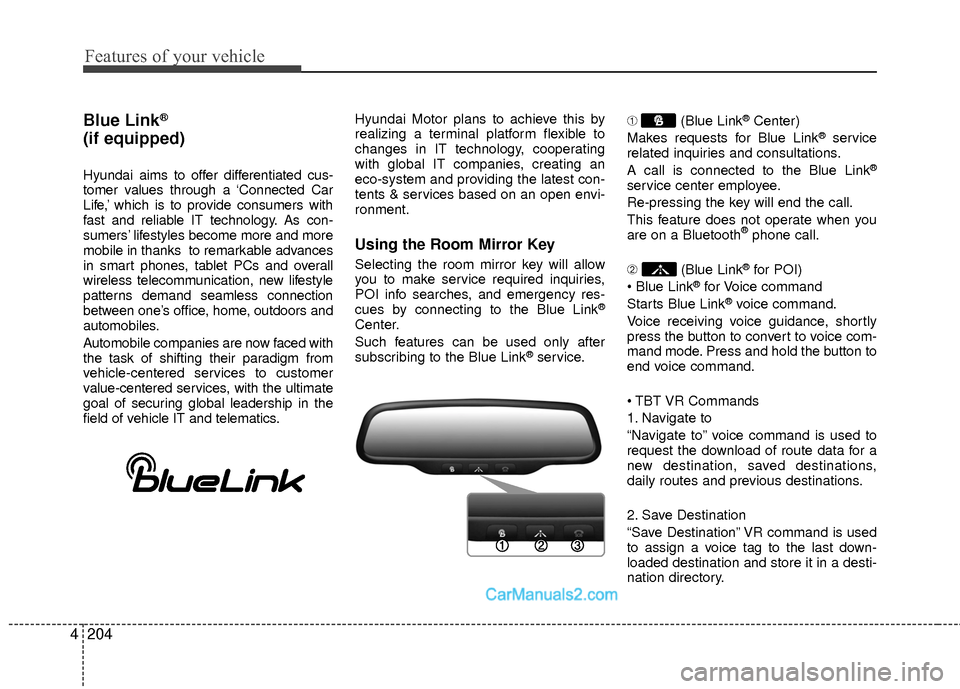
Using the Room Mirror Key
Selecting the room mirror key will allow
you to make service required inquiries,
POI info searches, and emergency res-
cues by connecting to the Blue Link
®
Center.
Such features can be used only after
subscribing to the Blue Link
®service.
➀
(Blue Link
®Center)
Makes requests for Blue Link®service
related inquiries and consultations.
A call is connected to the Blue Link
®
service center employee.
Re-pressing the key will end the call.
This feature does not operate when you
are on a Bluetooth
®phone call.
\b (Blue Link
®for POI)
®for Voice command
Starts Blue Link®voice command.
Voice receiving voice guidance, shortly
press the button to convert to voice com-
mand mode. Press and hold the button to
end voice command.
1. Navigate to
“Navigate to” voice command is used to
request the download of route data for a
new destination, saved destinations,
daily routes and previous destinations.
2. Save Destination
“Save Destination” VR command is used
to assign a voice tag to the last down-
loaded destination and store it in a desti-
nation directory.
Page 286 of 543
4205
Features of your vehicle
NOTE:
The Turn by Turn(TBT) feature sup-
ports the store of ten(10) destinations
in the TBT destinations directory.
3. Route Preview
“Route Preview” VR command allows the
user to preview the route instructions
(upcoming maneuver instructions) at any
time during the route guidance.
4. Destinations List
“Destinations List” VR command allows
the user to preview and delete the stored
destinations with their associated voice
tags in the Turn by Turn destinations
directory.5. Voice Guidance
“Voice Guidance” VR command allows
the user to mute/unmute the Turn by
Turn(TBT) direction announcements.
6. Suspend Route
“Suspend Route” VR command allows
the user to suspend and pause Turn by
Turn(TBT) route guidance while in the
guidance mode.
7. Resume Route
“Resume Route” VR command allows
the user to resume Turn by Turn(TBT)
route guidance.
➂
(Blue Link
®for SOS)
In the case of an emergency, requests for
help to the Blue Link
®center.
Call is connected to the Blue Link®emer-
gency rescue center. Re-pressing the
key will end the call.
If already on a Bluetooth
®phone call, the
call will end to connect you to the Blue Link®
Emergency Rescue Center.
CAUTION
You cannot talk simultaneously on the Bluetooth®phone and
Blue Link®phone.
While on a Bluetooth®call, press-
ing the key or key will display a message indicating thatyou are currently on a call.
A message will be displayed if you receive a Bluetooth
®Bluetooth®
Wireless Technology call whilealready on a Blue Link®call. At
this time, press the key on the steering wheel remote controllerto accept the call. The phone bell will not ring.
Page 290 of 543
4209
Features of your vehicle
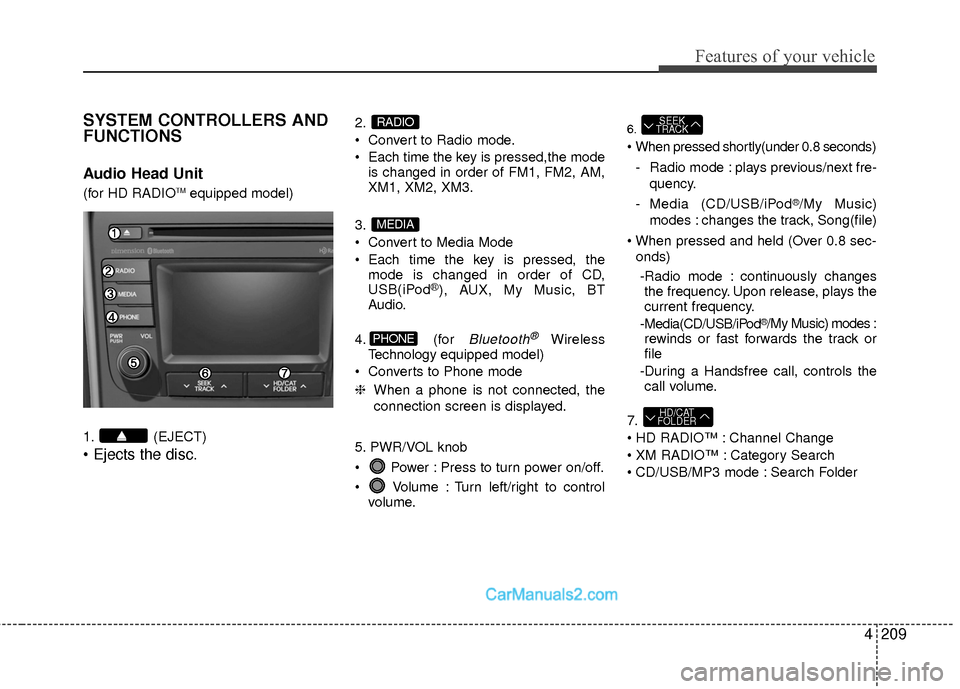
SYSTEM CONTROLLERS AND
FUNCTIONS
Audio Head Unit
(for HD RADIOTMequipped model)
1. (EJECT)
• Ejects the disc.
2.
Convert to Radio mode.
Each time the key is pressed,the mode is changed in order of FM1, FM2, AM,
XM1, XM2, XM3.
3.
Convert to Media Mode
Each time the key is pressed, the mode is changed in order of CD,
USB(iPod
®), AUX, My Music, BT
Audio.
4. (for
Bluetooth®Wireless
Technology equipped model)
Converts to Phone mode
❈ When a phone is not connected, the
connection screen is displayed.
5. PWR/VOL knob
Power : Press to turn power on/off.
Volume : Turn left/right to control volume.
6.
- Radio mode : plays previous/next fre- quency.
- Media (CD/USB/iPod
®/My Music)
modes : changes the track, Song(file)
onds)
-Radio mode : continuously changes the frequency. Upon release, plays the
current frequency.
-Media(CD/USB/iPod
®/My Music) modes :
rewinds or fast forwards the track or
file
-During a Handsfree call, controls the call volume.
7.
Channel Change
Category Search
CD/USB/MP3 mode : Search Folder
HD/CAT
FOLDER
SEEK
TRACK
PHONE
MEDIA
RADIO
Page 293 of 543
Features of your vehicle
212
4
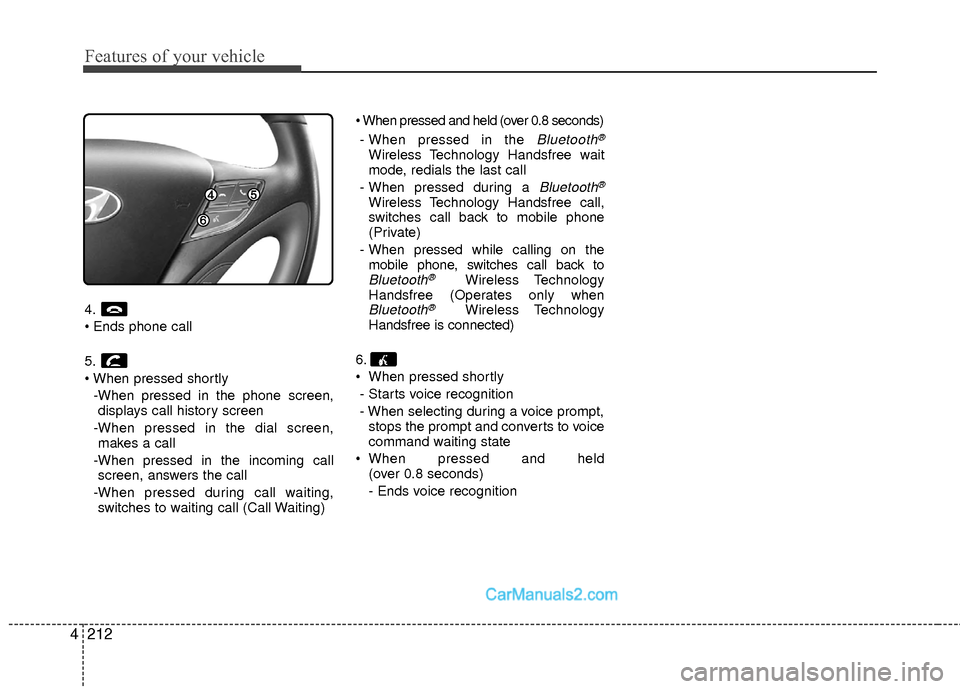
4.
5.
-When pressed in the phone screen,displays call history screen
-When pressed in the dial screen, makes a call
-When pressed in the incoming call screen, answers the call
-When pressed during call waiting, switches to waiting call (Call Waiting)
- When pressed in the
Bluetooth®
Wireless Technology Handsfree wait
mode, redials the last call
- When pressed during a
Bluetooth®
Wireless Technology Handsfree call,
switches call back to mobile phone
(Private)
- When pressed while calling on the mobile phone, switches call back to
Bluetooth®Wireless Technology
Handsfree (Operates only when
Bluetooth®Wireless Technology
Handsfree is connected)
6.
When pressed shortly - Starts voice recognition
- When selecting during a voice prompt, stops the prompt and converts to voice
command waiting state
When pressed and held (over 0.8 seconds)
- Ends voice recognition