wheel Hyundai Sonata Hybrid 2015 Owner's Guide
[x] Cancel search | Manufacturer: HYUNDAI, Model Year: 2015, Model line: Sonata Hybrid, Model: Hyundai Sonata Hybrid 2015Pages: 543, PDF Size: 25.53 MB
Page 179 of 543
Features of your vehicle
98
4
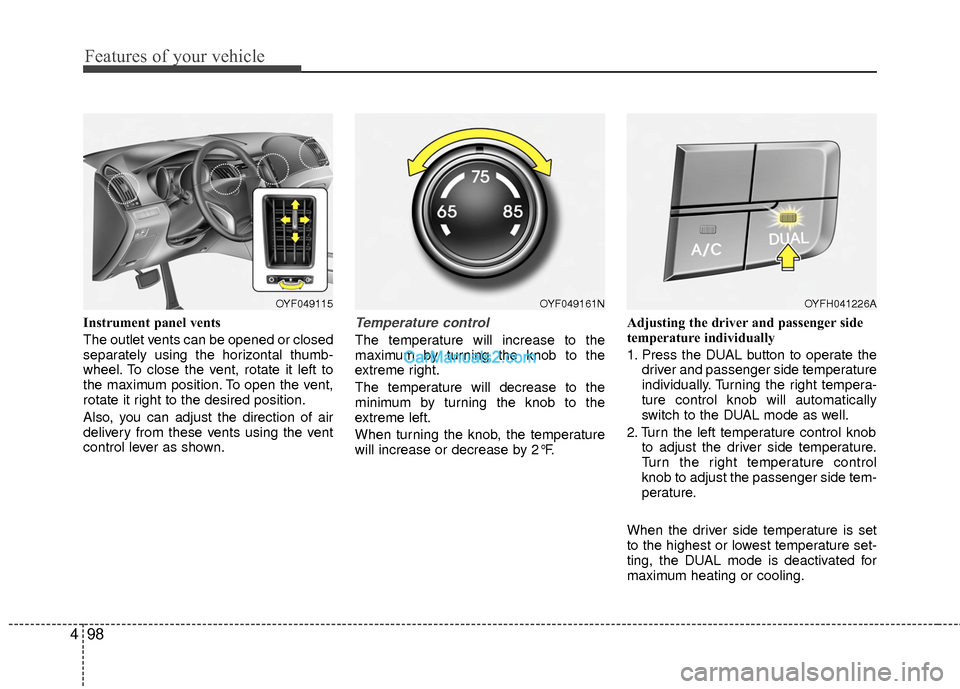
Instrument panel vents
The outlet vents can be opened or closed
separately using the horizontal thumb-
wheel. To close the vent, rotate it left to
the maximum position. To open the vent,
rotate it right to the desired position.
Also, you can adjust the direction of air
delivery from these vents using the vent
control lever as shown.Temperature control
The temperature will increase to the
maximum by turning the knob to the
extreme right.
The temperature will decrease to the
minimum by turning the knob to the
extreme left.
When turning the knob, the temperature
will increase or decrease by 2°F. Adjusting the driver and passenger side
temperature individually
1. Press the DUAL button to operate the
driver and passenger side temperature
individually. Turning the right tempera-
ture control knob will automatically
switch to the DUAL mode as well.
2. Turn the left temperature control knob to adjust the driver side temperature.
Turn the right temperature control
knob to adjust the passenger side tem-
perature.
When the driver side temperature is set
to the highest or lowest temperature set-
ting, the DUAL mode is deactivated for
maximum heating or cooling.
OYF049115OYF049161NOYFH041226A
Page 190 of 543
4109
Features of your vehicle
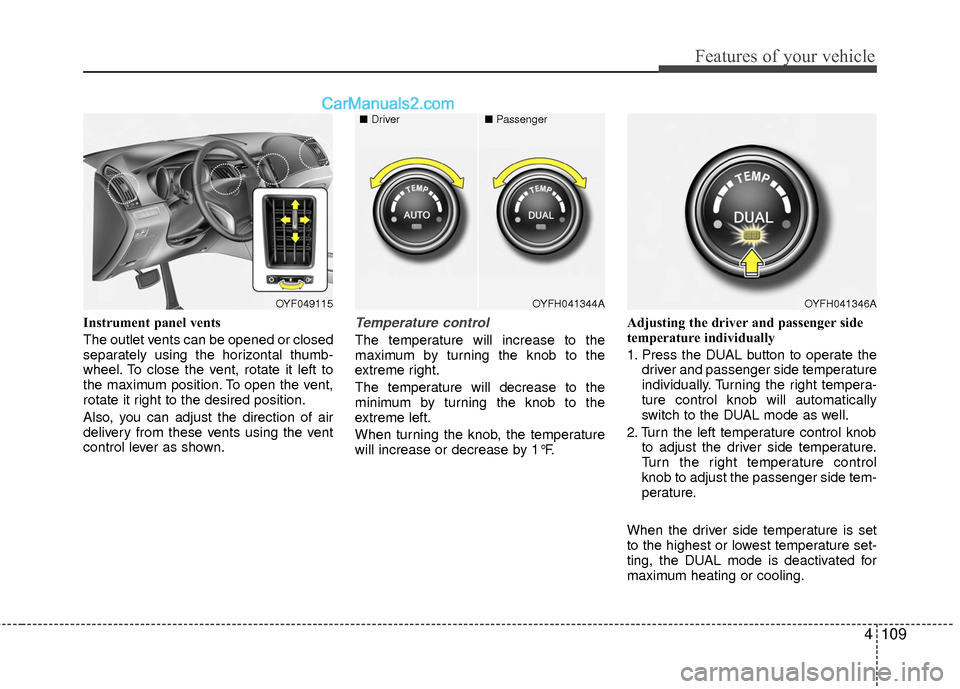
Instrument panel vents
The outlet vents can be opened or closed
separately using the horizontal thumb-
wheel. To close the vent, rotate it left to
the maximum position. To open the vent,
rotate it right to the desired position.
Also, you can adjust the direction of air
delivery from these vents using the vent
control lever as shown.Temperature control
The temperature will increase to the
maximum by turning the knob to the
extreme right.
The temperature will decrease to the
minimum by turning the knob to the
extreme left.
When turning the knob, the temperature
will increase or decrease by 1°F.Adjusting the driver and passenger side
temperature individually
1. Press the DUAL button to operate the
driver and passenger side temperature
individually. Turning the right tempera-
ture control knob will automatically
switch to the DUAL mode as well.
2. Turn the left temperature control knob to adjust the driver side temperature.
Turn the right temperature control
knob to adjust the passenger side tem-
perature.
When the driver side temperature is set
to the highest or lowest temperature set-
ting, the DUAL mode is deactivated for
maximum heating or cooling.
OYF049115OYFH041344A
■ Driver ■Passenger
OYFH041346A
Page 207 of 543
Features of your vehicle
126
4
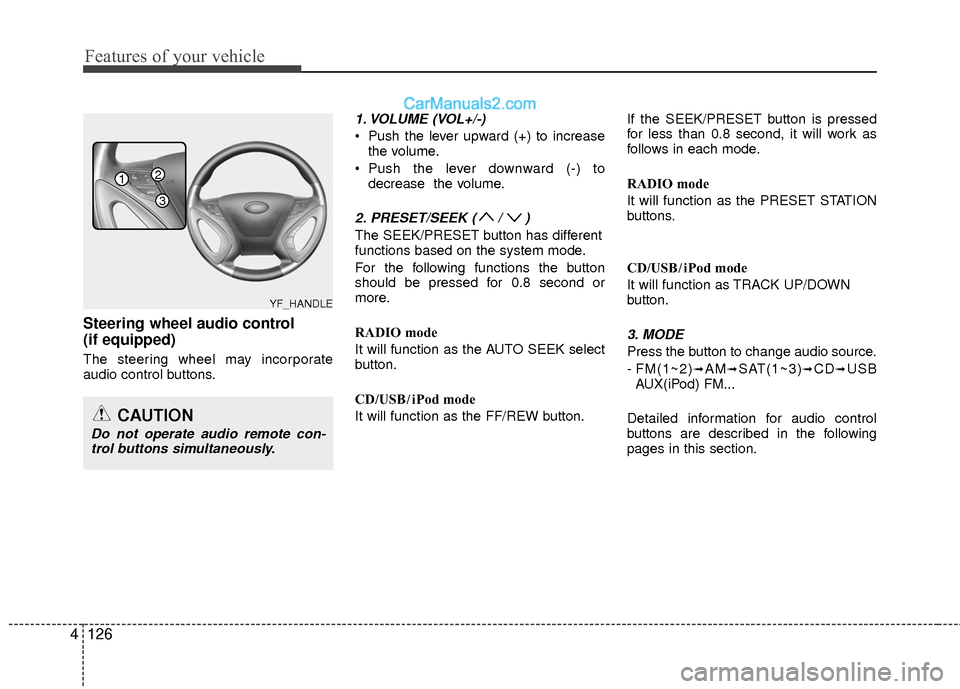
Steering wheel audio control
(if equipped)
The steering wheel may incorporate
audio control buttons.
1. VOLUME (VOL+/-)
Push the lever upward (+) to increase
the volume.
Push the lever downward (-) to decrease the volume.
2. PRESET/SEEK ( / )
The SEEK/PRESET button has different
functions based on the system mode.
For the following functions the button
should be pressed for 0.8 second or
more.
RADIO mode
It will function as the AUTO SEEK select
button.
CD/USB/ iPod mode
It will function as the FF/REW button. If the SEEK/PRESET button is pressed
for less than 0.8 second, it will work as
follows in each mode.
RADIO mode
It will function as the PRESET STATION
buttons.
CD/USB/ iPod mode
It will function as TRACK UP/DOWN
button.
3. MODE
Press the button to change audio source.
- FM(1~2)
➟AM➟SAT(1~3)➟CD➟USB
AUX(iPod) FM...
Detailed information for audio control
buttons are described in the following
pages in this section.
CAUTION
Do not operate audio remote con- trol buttons simultaneously.
1
3
2
YF_HANDLE
Page 260 of 543
![Hyundai Sonata Hybrid 2015 Owners Guide 4179
Features of your vehicle
[Non SSP supported device]
(SSP: Secure Simple Pairing)
4. After a few moments, a screen is dis-played where the passkey is entered.
Hear, enter the passkey “0000” to](/img/35/19645/w960_19645-259.png "Hyundai Sonata Hybrid 2015 Owners Guide 4179
Features of your vehicle
[Non SSP supported device]
(SSP: Secure Simple Pairing)
4. After a few moments, a screen is dis-played where the passkey is entered.
Hear, enter the passkey “0000” to")
4179
Features of your vehicle
[Non SSP supported device]
(SSP: Secure Simple Pairing)
4. After a few moments, a screen is dis-played where the passkey is entered.
Hear, enter the passkey “0000” to pair
your
Bluetooth®Wireless Technology
device with the car audio system.
[SSP supported device]
4. After a few moments, a screen is dis- played 6 digits passkey.
Hear, check the passkey on your
Bluetooth®Wireless Technology
device and confirm.
5. Once pairing is complete, the following screen is displayed.
✽ ✽NOTICE
If Bluetooth®Wireless Technology
devices are paired but none are current-
ly connected, pressing the key
or the key on the
steering wheel displays the following
screen. Press the [Pair] button to pair a
new device or press the [Connect] to
connect a previously paired device.
Pairing through [PHONE] Setup
Press the key Select
[Phone] Select [Pair Phone] Select TUNE knob
1. The following steps are the same as those described in the section "When
No Devices have been Paired" on the
previous page.SETUP
PHONE
Page 272 of 543
4191
Features of your vehicle
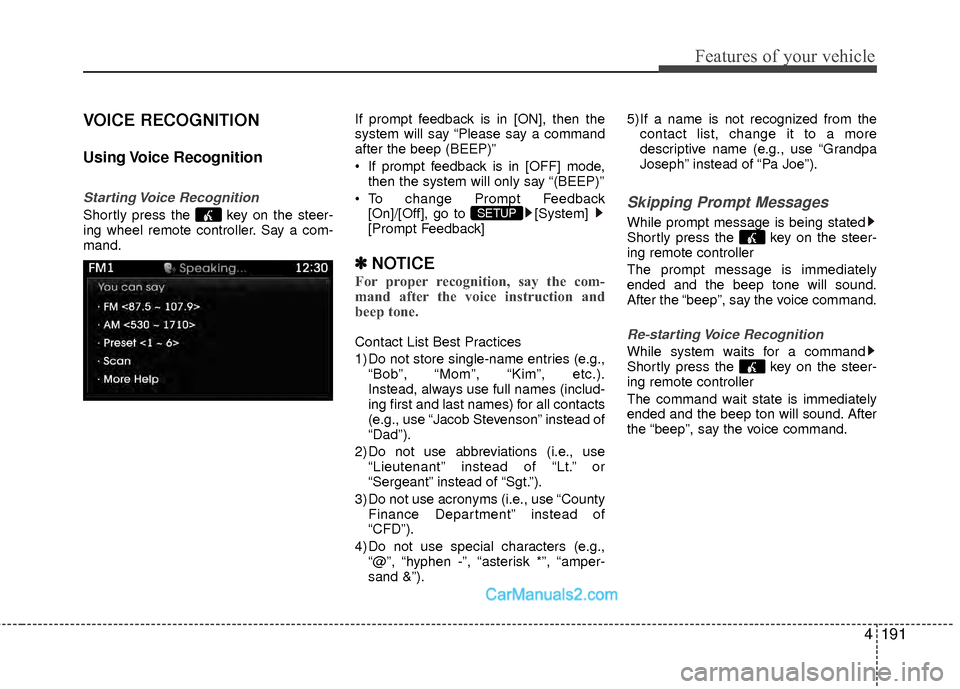
VOICE RECOGNITION
Using Voice Recognition
Starting Voice Recognition
Shortly press the key on the steer-
ing wheel remote controller. Say a com-
mand.If prompt feedback is in [ON], then the
system will say “Please say a command
after the beep (BEEP)”
If prompt feedback is in [OFF] mode,
then the system will only say “(BEEP)”
To change Prompt Feedback [On]/[Off], go to [System]
[Prompt Feedback]
✽ ✽ NOTICE
For proper recognition, say the com-
mand after the voice instruction and
beep tone.
Contact List Best Practices
1) Do not store single-name entries (e.g.,
“Bob”, “Mom”, “Kim”, etc.).
Instead, always use full names (includ-
ing first and last names) for all contacts
(e.g., use “Jacob Stevenson” instead of
“Dad”).
2) Do not use abbreviations (i.e., use “Lieutenant” instead of “Lt.” or
“Sergeant” instead of “Sgt.”).
3) Do not use acronyms (i.e., use “County Finance Department” instead of
“CFD”).
4) Do not use special characters (e.g., “@”, “hyphen -”, “asterisk *”, “amper-
sand &”). 5) If a name is not recognized from the
contact list, change it to a more
descriptive name (e.g., use “Grandpa
Joseph” instead of “Pa Joe”).
Skipping Prompt Messages
While prompt message is being stated
Shortly press the key on the steer-
ing remote controller
The prompt message is immediately
ended and the beep tone will sound.
After the “beep”, say the voice command.
Re-starting Voice Recognition
While system waits for a command
Shortly press the key on the steer-
ing remote controller
The command wait state is immediately
ended and the beep ton will sound. After
the “beep”, say the voice command.
SETUP
Page 286 of 543
4205
Features of your vehicle
NOTE:
The Turn by Turn(TBT) feature sup-
ports the store of ten(10) destinations
in the TBT destinations directory.
3. Route Preview
“Route Preview” VR command allows the
user to preview the route instructions
(upcoming maneuver instructions) at any
time during the route guidance.
4. Destinations List
“Destinations List” VR command allows
the user to preview and delete the stored
destinations with their associated voice
tags in the Turn by Turn destinations
directory.5. Voice Guidance
“Voice Guidance” VR command allows
the user to mute/unmute the Turn by
Turn(TBT) direction announcements.
6. Suspend Route
“Suspend Route” VR command allows
the user to suspend and pause Turn by
Turn(TBT) route guidance while in the
guidance mode.
7. Resume Route
“Resume Route” VR command allows
the user to resume Turn by Turn(TBT)
route guidance.
➂
(Blue Link
®for SOS)
In the case of an emergency, requests for
help to the Blue Link
®center.
Call is connected to the Blue Link®emer-
gency rescue center. Re-pressing the
key will end the call.
If already on a Bluetooth
®phone call, the
call will end to connect you to the Blue Link®
Emergency Rescue Center.
CAUTION
You cannot talk simultaneously on the Bluetooth®phone and
Blue Link®phone.
While on a Bluetooth®call, press-
ing the key or key will display a message indicating thatyou are currently on a call.
A message will be displayed if you receive a Bluetooth
®Bluetooth®
Wireless Technology call whilealready on a Blue Link®call. At
this time, press the key on the steering wheel remote controllerto accept the call. The phone bell will not ring.
Page 329 of 543
![Hyundai Sonata Hybrid 2015 Owners Guide Features of your vehicle
248
4
[Non SSP supported device]
(SSP: Secure Simple Pairing)
4. After a few moments, a screen is dis-
played where the passkey is entered.
Hear, enter the passkey “0000”](/img/35/19645/w960_19645-328.png "Hyundai Sonata Hybrid 2015 Owners Guide Features of your vehicle
248
4
[Non SSP supported device]
(SSP: Secure Simple Pairing)
4. After a few moments, a screen is dis-
played where the passkey is entered.
Hear, enter the passkey “0000”")
Features of your vehicle
248
4
[Non SSP supported device]
(SSP: Secure Simple Pairing)
4. After a few moments, a screen is dis-
played where the passkey is entered.
Hear, enter the passkey “0000” to pair
your
Bluetooth®Wireless Technology
device with the car audio system.
[SSP supported device]
4. After a few moments, a screen is dis- played 6 digits passkey.
Hear, check the passkey on your
Bluetooth®Wireless Technology
device and confirm.
5. Once pairing is complete, the following screen is displayed.
✽ ✽NOTICE
If Bluetooth®Wireless Technology
devices are paired but none are current-
ly connected, pressing the key
or the key on the
steering wheel displays the following
screen. Press the [Pair] button to pair a
new device or press the [Connect] to
connect a previously paired device.
Pairing through [PHONE] Setup
Press the key Select
[Phone] Select [Pair Phone] Select TUNE knob
1. The following steps are the same as those described in the section "When
No Devices have been Paired" on the
previous page.SETUP
PHONE
Page 341 of 543
Features of your vehicle
260
4
VOICE RECOGNITION
Using Voice Recognition
Starting Voice Recognition
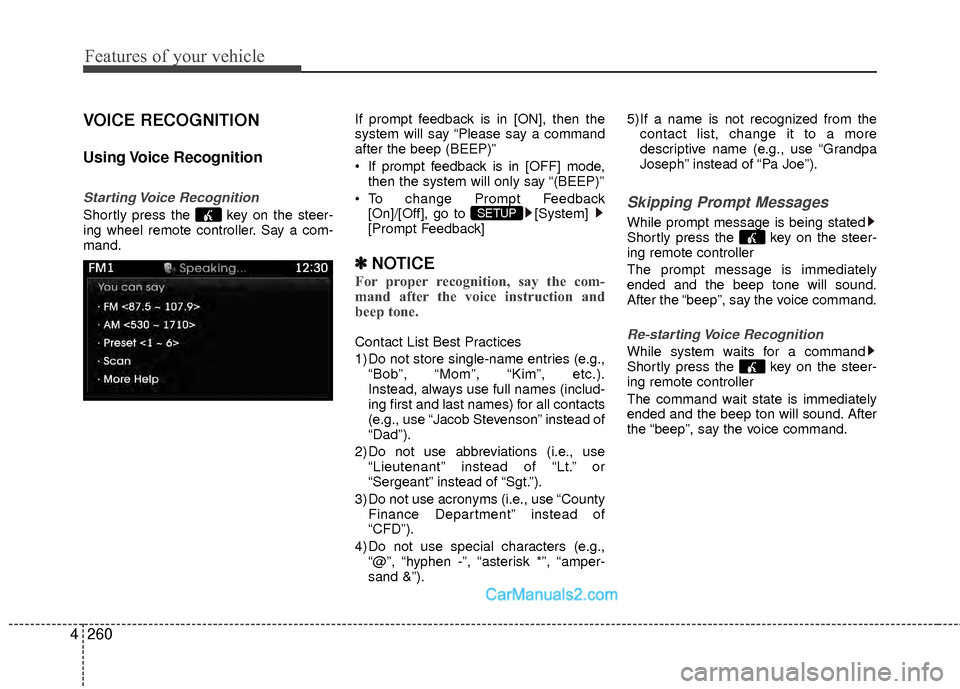
Shortly press the key on the steer-
ing wheel remote controller. Say a com-
mand. If prompt feedback is in [ON], then the
system will say “Please say a command
after the beep (BEEP)”
If prompt feedback is in [OFF] mode,
then the system will only say “(BEEP)”
To change Prompt Feedback [On]/[Off], go to [System]
[Prompt Feedback]
✽ ✽ NOTICE
For proper recognition, say the com-
mand after the voice instruction and
beep tone.
Contact List Best Practices
1) Do not store single-name entries (e.g.,
“Bob”, “Mom”, “Kim”, etc.).
Instead, always use full names (includ-
ing first and last names) for all contacts
(e.g., use “Jacob Stevenson” instead of
“Dad”).
2) Do not use abbreviations (i.e., use “Lieutenant” instead of “Lt.” or
“Sergeant” instead of “Sgt.”).
3) Do not use acronyms (i.e., use “County Finance Department” instead of
“CFD”).
4) Do not use special characters (e.g., “@”, “hyphen -”, “asterisk *”, “amper-
sand &”). 5) If a name is not recognized from the
contact list, change it to a more
descriptive name (e.g., use “Grandpa
Joseph” instead of “Pa Joe”).
Skipping Prompt Messages
While prompt message is being stated
Shortly press the key on the steer-
ing remote controller
The prompt message is immediately
ended and the beep tone will sound.
After the “beep”, say the voice command.
Re-starting Voice Recognition
While system waits for a command
Shortly press the key on the steer-
ing remote controller
The command wait state is immediately
ended and the beep ton will sound. After
the “beep”, say the voice command.
SETUP
Page 355 of 543
Features of your vehicle
274
4
NOTE:
The Turn by Turn(TBT) feature sup-
ports the store of ten(10) destinations
in the TBT destinations directory.
3. Route Preview
“Route Preview” VR command allows the
user to preview the route instructions
(upcoming maneuver instructions) at any
time during the route guidance.
4. Destinations List
“Destinations List” VR command allows
the user to preview and delete the stored
destinations with their associated voice
tags in the Turn by Turn destinations
directory. 5. Voice Guidance
“Voice Guidance” VR command allows
the user to mute/unmute the Turn by
Turn(TBT) direction announcements.
6. Suspend Route
“Suspend Route” VR command allows
the user to suspend and pause Turn by
Turn(TBT) route guidance while in the
guidance mode.
7. Resume Route
“Resume Route” VR command allows
the user to resume Turn by Turn(TBT)
route guidance.
➂
(Blue Link
®for SOS)
In the case of an emergency, requests for
help to the Blue Link
®center.
Call is connected to the Blue Link®emer-
gency rescue center. Re-pressing the
key will end the call.
If already on a Bluetooth
®phone call, the
call will end to connect you to the Blue Link®
Emergency Rescue Center.
CAUTION
You cannot talk simultaneously on the Bluetooth®phone and
Blue Link®phone.
While on a Bluetooth®call, press-
ing the key or key will display a message indicating thatyou are currently on a call.
A message will be displayed if you receive a Bluetooth
®Bluetooth®
Wireless Technology call whilealready on a Blue Link®call. At
this time, press the key on the steering wheel remote controllerto accept the call. The phone bell will not ring.
Page 361 of 543
Driving your vehicle
45
Before starting
Close and lock all doors.
Position the seat so that all controls areeasily reached.
Adjust the inside and outside rearview mirrors.
Be sure that all lights work.
Check all gauges.
Check the operation of warning lights when the engine start/stop button is
turned to the ON position.
Release the parking brake and make sure the brake warning light goes out.
For safe operation, be sure you are famil-
iar with your vehicle and its equipment.
WARNING- Driving under
the influence of alcohol or
drugs
Drinking and driving is dangerous.
Drunk driving is the number one
contributor to the highway death
toll each year. Even a small amount
of alcohol will affect your reflexes,
perceptions and judgment. Driving
while under the influence of drugs
is as dangerous or more dangerous
than driving drunk.
You are much more likely to have a
serious accident if you drink or
take drugs and drive.
If you are drinking or taking drugs,
don’t drive. Do not ride with a driv-
er who has been drinking or taking
drugs. Choose a designated driver
or call a cab.
WARNING
All passengers must be properly
belted whenever the vehicle is mov-
ing. Refer to “Seat belts” in section
3 for more information on their
proper use.
WARNING
Always check the surrounding
areas near your vehicle for people,
especially children, before putting a
car into D (Drive) or R (Reverse).
WARNING
When you intend to park or stop
the vehicle with the engine on, be
careful not to depress the acceler-
ator pedal for a long period of
time. It may overheat the engine or
exhaust system and cause a fire.
When you make a sudden stop or turn the steering wheel rapidly,
loose objects may drop on the
floor and it could interfere with
the operation of the foot pedals,
possibly causing an accident.
Keep all things in the vehicle
safely stored.
If you do not focus on driving, it may cause an accident. Be care-
ful when operating controls while
driving such as the audio or
heater. It is the responsibility of
the driver to always drive safely.