navigation system Hyundai Sonata Hybrid 2016 Owner's Manual
[x] Cancel search | Manufacturer: HYUNDAI, Model Year: 2016, Model line: Sonata Hybrid, Model: Hyundai Sonata Hybrid 2016Pages: 708, PDF Size: 25.92 MB
Page 15 of 708
F15F15
Multimedia System.................................................4-2
AUX, USB and iPod®Port ...............................................4-2
Antenna ........................................................................\
.......4-2
Steering Wheel Audio Control........................................4-3
Audio / Video / Navigation System (AVN) ..................4-4
Bluetooth®Wireless Technology Hands-Free ...........4-4
How Vehicle Audio Works ...............................................4-5
Features of Your Vehicle.................................................4-7
System Controllers and Functions
- 3.8 Inch Mono TFT ...........................................4-18
Audio Head Unit ..............................................................4-18
Setup ........................................................................\
..........4-20
Radio : FM, AM ................................................................4-23
XM
TMRADIO ......................................................................4-\
24
Basic Method of Use : Audio CD / MP3 CD / USB /
iPod
®/ My Music ...........................................................4-26
Bluetooth®Wireless Technology Audio ....................4-32
Making a Call Using the Steering Wheel Remote
Controller........................................................................\
...4-33
Bluetooth®Wireless Technology ................................4-34
Voice Recognition ...........................................................4-46
Ending Voice Recognition .............................................4-47
System Controllers and Functions
- 5 Inch Color TFT LCD .......................................4-53
Audio Head Unit ..............................................................4-53
Steering-Wheel Mounted Controls ............................4-55
Radio Mode.......................................................................4\
-57
XM
TMRadio Mode ...........................................................4-59
Media Mode......................................................................4-\
61
Audio CD Mode ................................................................4-62
MP3 CD Mode ..................................................................4-64
USB Mode ........................................................................\
.4-67
iPod
®Mode ......................................................................4-\
70
AUX Mode ........................................................................\
.4-72
MY Music Mode ..............................................................4-73
Bluetooth®Wireless Technology Audio Mode ........4-76
Voice Recognition ...........................................................4-92
Setup ........................................................................\
..........4-98
Rear View Camera ........................................................4-103
Blue Link
®.......................................................................4\
-103
Before driving.........................................................5-4
Before entering the vehicle ...........................................5-4
Before starting...................................................................5-4
4Multimedia system
5Driving your vehicle
Page 24 of 708
I
IN
N S
ST
T R
R U
U M
M E
EN
N T
T
P
P A
A N
N E
EL
L
O
O V
VE
ER
R V
V I
IE
E W
W
1-5
Your vehicle at a glance
1
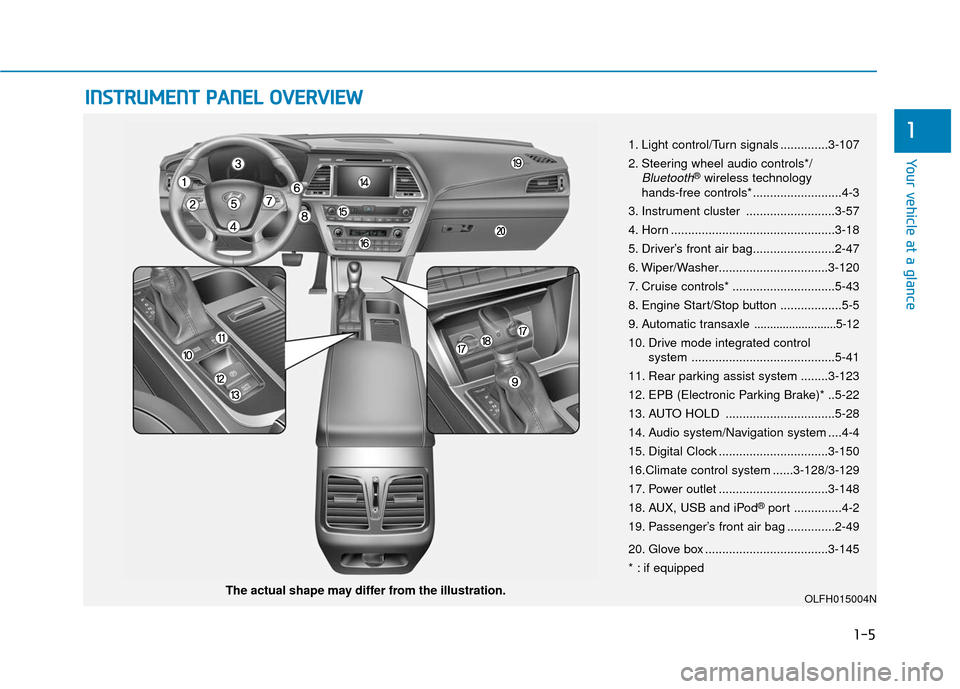
The actual shape may differ from the illustration. 1. Light control/Turn signals ..............3-107
2. Steering wheel audio controls*/
Bluetooth®wireless technology
hands-free controls* ..........................4-3
3. Instrument cluster ..........................3-57
4. Horn ................................................3-18
5. Driver’s front air bag........................2-47
6. Wiper/Washer................................3-120
7. Cruise controls* ..............................5-43
8. Engine Start/Stop button ..................5-5
9. Automatic transaxle
..........................5-12
10. Drive mode integrated control system ..........................................5-41
11. Rear parking assist system ........3-123
12. EPB (Electronic Parking Brake)* ..5-22
13. AUTO HOLD ................................5-28
14. Audio system/Navigation system ....4-4
15. Digital Clock ................................3-150
16.Climate control system ......3-128/3-129
17. Power outlet ................................3-148
18. AUX, USB and iPod
®port ..............4-2
19. Passenger’s front air bag ..............2-49
20. Glove box ....................................3-145
* : if equipped
OLFH015004N
Page 86 of 708
2-61
Safety system of your vehicle
2
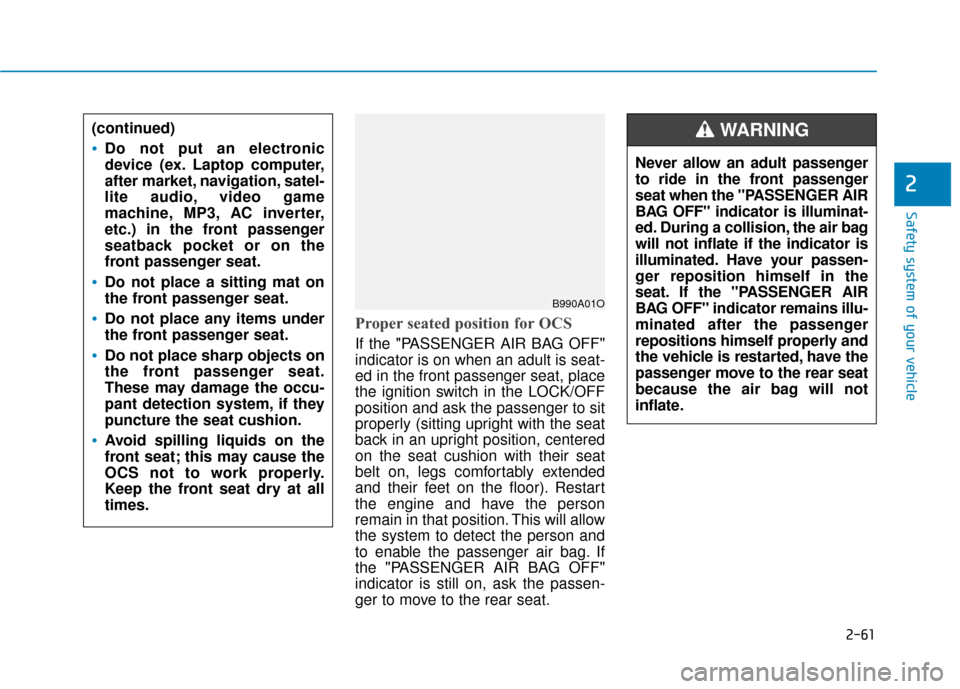
Proper seated position for OCS
If the "PASSENGER AIR BAG OFF"
indicator is on when an adult is seat-
ed in the front passenger seat, place
the ignition switch in the LOCK/OFF
position and ask the passenger to sit
properly (sitting upright with the seat
back in an upright position, centered
on the seat cushion with their seat
belt on, legs comfortably extended
and their feet on the floor). Restart
the engine and have the person
remain in that position. This will allow
the system to detect the person and
to enable the passenger air bag. If
the "PASSENGER AIR BAG OFF"
indicator is still on, ask the passen-
ger to move to the rear seat.
B990A01O
Never allow an adult passenger
to ride in the front passenger
seat when the "PASSENGER AIR
BAG OFF" indicator is illuminat-
ed. During a collision, the air bag
will not inflate if the indicator is
illuminated. Have your passen-
ger reposition himself in the
seat. If the "PASSENGER AIR
BAG OFF" indicator remains illu-
minated after the passenger
repositions himself properly and
the vehicle is restarted, have the
passenger move to the rear seat
because the air bag will not
inflate.
WARNING (continued)
Do not put an electronic
device (ex. Laptop computer,
after market, navigation, satel-
lite audio, video game
machine, MP3, AC inverter,
etc.) in the front passenger
seatback pocket or on the
front passenger seat.
Do not place a sitting mat on
the front passenger seat.
Do not place any items under
the front passenger seat.
Do not place sharp objects on
the front passenger seat.
These may damage the occu-
pant detection system, if they
puncture the seat cushion.
Avoid spilling liquids on the
front seat; this may cause the
OCS not to work properly.
Keep the front seat dry at all
times.
Page 115 of 708
3-20
Convenient features of your vehicle
Pull the day/night lever toward you to
reduce glare from the headlamps of
the vehicles behind you during night
driving.
Remember that you lose some
rearview clarity in the night position.
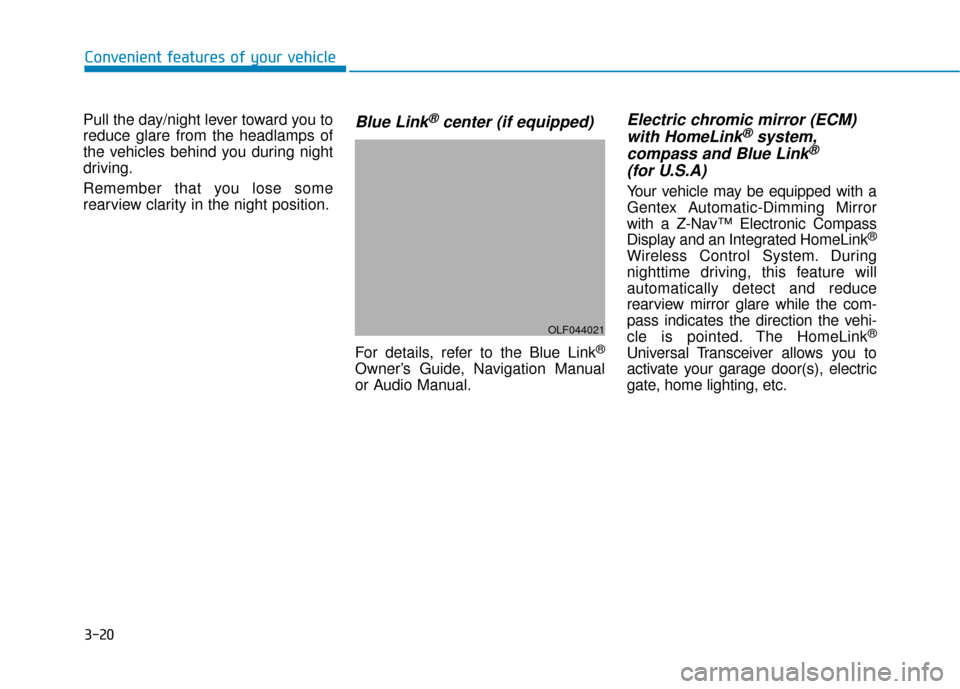
Blue Link®center (if equipped)
For details, refer to the Blue Link®
Owner’s Guide, Navigation Manual
or Audio Manual.
Electric chromic mirror (ECM) with HomeLink®system,
compass and Blue Link®
(for U.S.A)
Your vehicle may be equipped with a
Gentex Automatic-Dimming Mirror
with a Z-Nav™ Electronic Compass
Display and an Integrated HomeLink
®
Wireless Control System. During
nighttime driving, this feature will
automatically detect and reduce
rearview mirror glare while the com-
pass indicates the direction the vehi-
cle is pointed. The HomeLink
®
Universal Transceiver allows you to
activate your garage door(s), electric
gate, home lighting, etc.
OLF044021
Page 181 of 708
3-86
Convenient features of your vehicle
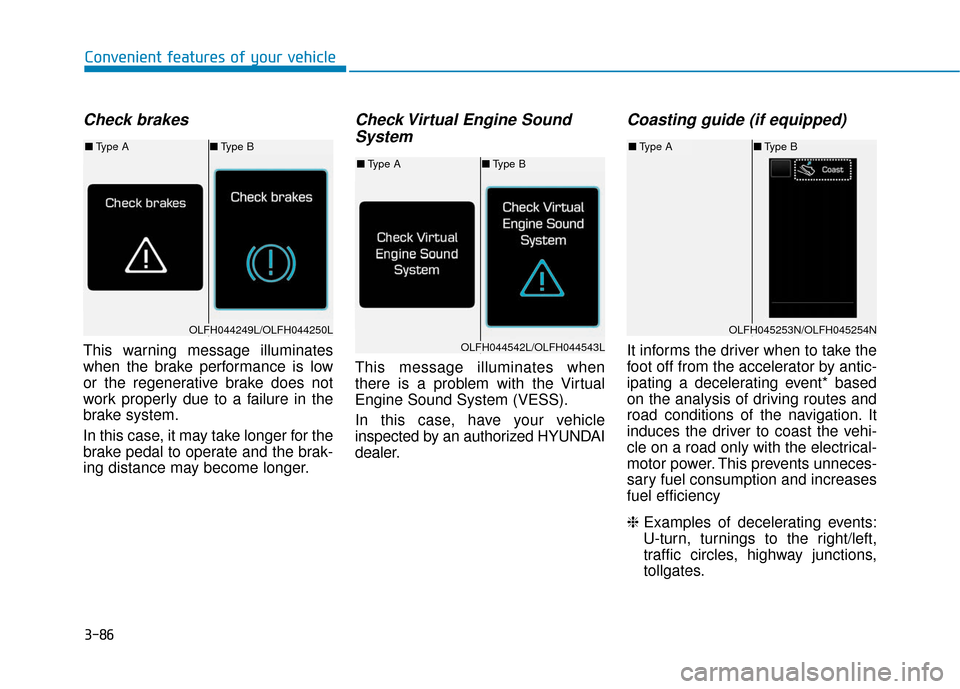
Check brakes
This warning message illuminates
when the brake performance is low
or the regenerative brake does not
work properly due to a failure in the
brake system.
In this case, it may take longer for the
brake pedal to operate and the brak-
ing distance may become longer.
Check Virtual Engine SoundSystem
This message illuminates when
there is a problem with the Virtual
Engine Sound System (VESS).
In this case, have your vehicle
inspected by an authorized HYUNDAI
dealer.
Coasting guide (if equipped)
It informs the driver when to take the
foot off from the accelerator by antic-
ipating a decelerating event* based
on the analysis of driving routes and
road conditions of the navigation. It
induces the driver to coast the vehi-
cle on a road only with the electrical-
motor power. This prevents unneces-
sary fuel consumption and increases
fuel efficiency
❈ Examples of decelerating events:
U-turn, turnings to the right/left,
traffic circles, highway junctions,
tollgates.
OLFH044249L/OLFH044250L
■Type A ■Type B
OLFH044542L/OLFH044543L
■Type A ■Type B
OLFH045253N/OLFH045254N
■Type A ■Type B
Page 182 of 708
3-87
Convenient features of your vehicle
3
Information
Coasting guide is only a supplemental
system to assist with fuel-efficient driv-
ing. Thus, the operating conditions
may be different in accordance with
traffic/road conditions (i.e. driving in a
traffic jam, driving on a slope, driving
on a curve). Thus, take the actual driv-
ing conditions into consideration, such
as distances from the vehicles ahead/
behind, while referring to the coasting
guide system as guidance.
i■Type B
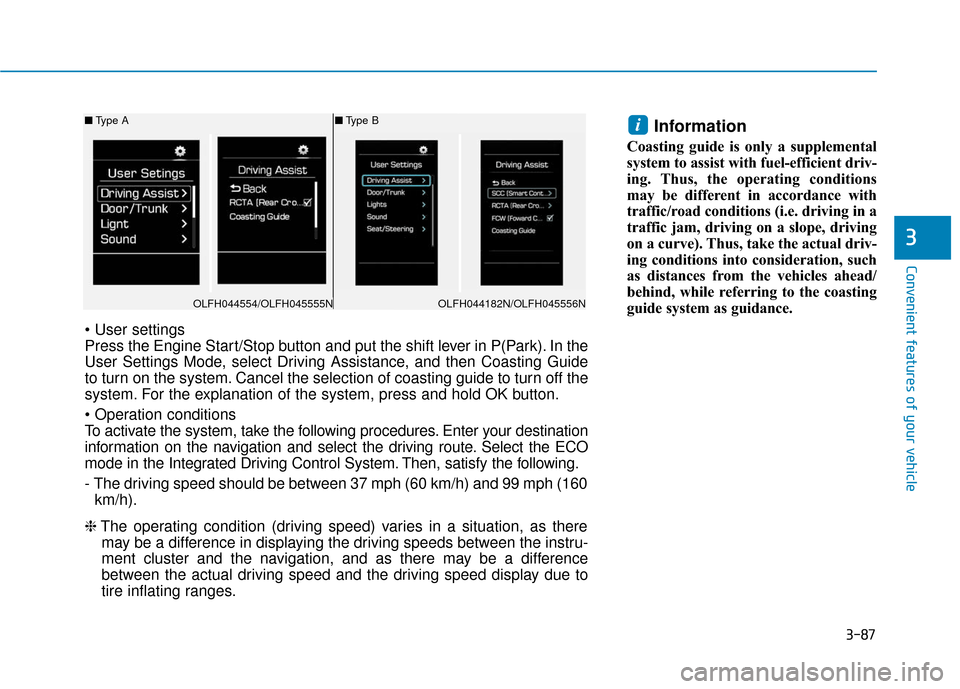
Press the Engine Start/Stop button and put the shift lever in P(Park). In the
User Settings Mode, select Driving Assistance, and then Coasting Guide
to turn on the system. Cancel the selection of coasting guide to turn off the
system. For the explanation of the system, press and hold OK button.
To activate the system, take the following procedures. Enter your destination
information on the navigation and select the driving route. Select the ECO
mode in the Integrated Driving Control System. Then, satisfy the following.
- The driving speed should be between 37 mph (60 km/h) and 99 mph (160
km/h).
❈ The operating condition (driving speed) varies in a situation, as there
may be a difference in displaying the driving speeds between the instru-
ment cluster and the navigation, and as there may be a difference
between the actual driving speed and the driving speed display due to
tire inflating ranges.
OLFH044554/OLFH045555N
■ Type A
OLFH044182N/OLFH045556N
Page 183 of 708
3-88
Convenient features of your vehicle
LCD Display
LCD display control
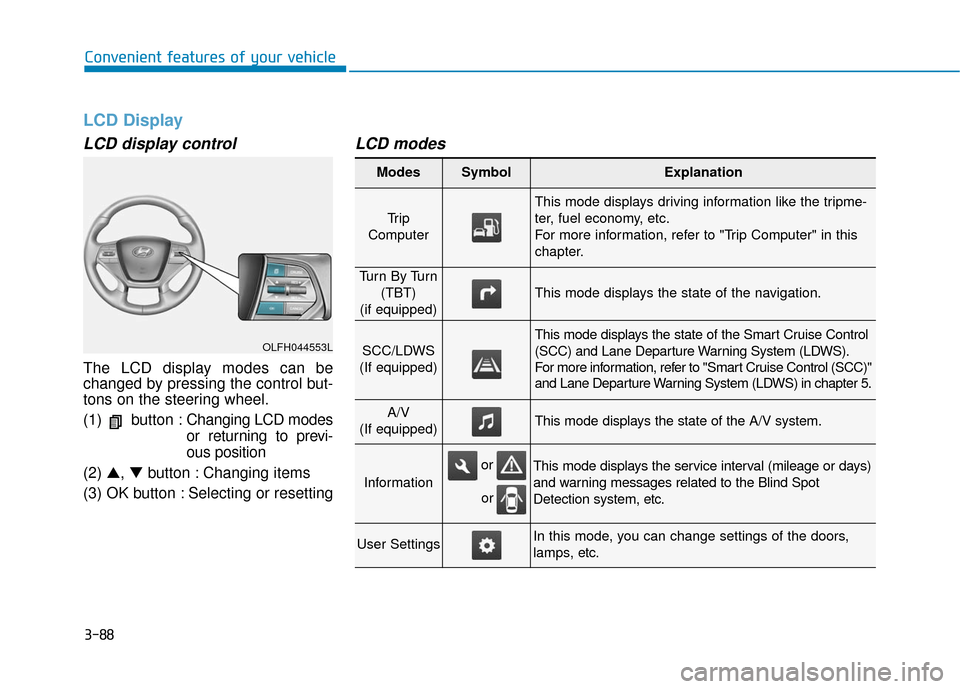
The LCD display modes can be
changed by pressing the control but-
tons on the steering wheel.
(1) button :Changing LCD modes
or returning to previ-
ous position
(2) ▲, ▼button : Changing items
(3) OK button : Selecting or resetting
LCD modes
OLFH044553L
Modes SymbolExplanation
Tr i p
Computer
This mode displays driving information like the tripme-
ter, fuel economy, etc.
For more information, refer to "Trip Computer" in this
chapter.
Tu r n B y Tu r n (TBT)
(if equipped)
This mode displays the state of the navigation.
SCC/LDWS
(If equipped)
This mode displays the state of the Smart Cruise Control
(SCC) and Lane Departure Warning System (LDWS).
For more information, refer to "Smart Cruise Control (SCC)"
and Lane Departure Warning System (LDWS) in chapter 5.
A/V
(If equipped)This mode displays the state of the A/V system.
Information
This mode displays the service interval (mileage or days)
and warning messages related to the Blind Spot
Detection system, etc.
User SettingsIn this mode, you can change settings of the doors,
lamps, etc.
or
or
Page 185 of 708
3-90
Convenient features of your vehicle
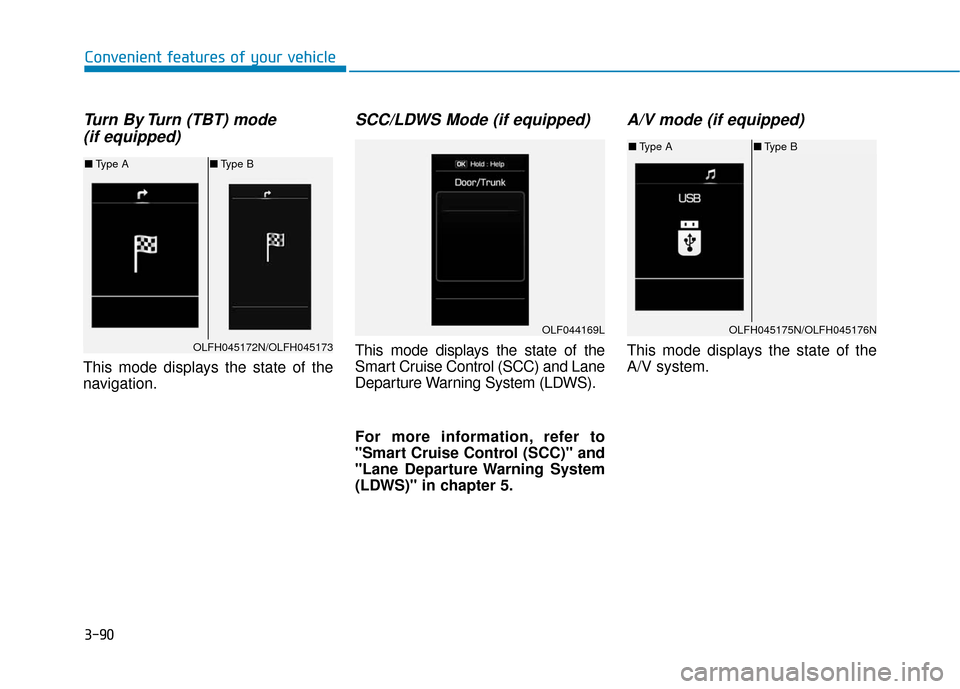
Turn By Turn (TBT) mode (if equipped)
This mode displays the state of the
navigation.
SCC/LDWS Mode (if equipped)
This mode displays the state of the
Smart Cruise Control (SCC) and Lane
Departure Warning System (LDWS).
For more information, refer to
"Smart Cruise Control (SCC)" and
"Lane Departure Warning System
(LDWS)" in chapter 5.
A/V mode (if equipped)
This mode displays the state of the
A/V system.OLFH045172N/OLFH045173
■ Type A ■Type B
OLFH045175N/OLFH045176N
■Type A ■Type B
OLF044169L
Page 217 of 708
3-122
Convenient features of your vehicle
D
DR
RI
IV
V E
ER
R
A
A S
SS
SI
IS
S T
T
S
S Y
Y S
ST
T E
EM
M
Rear view camera
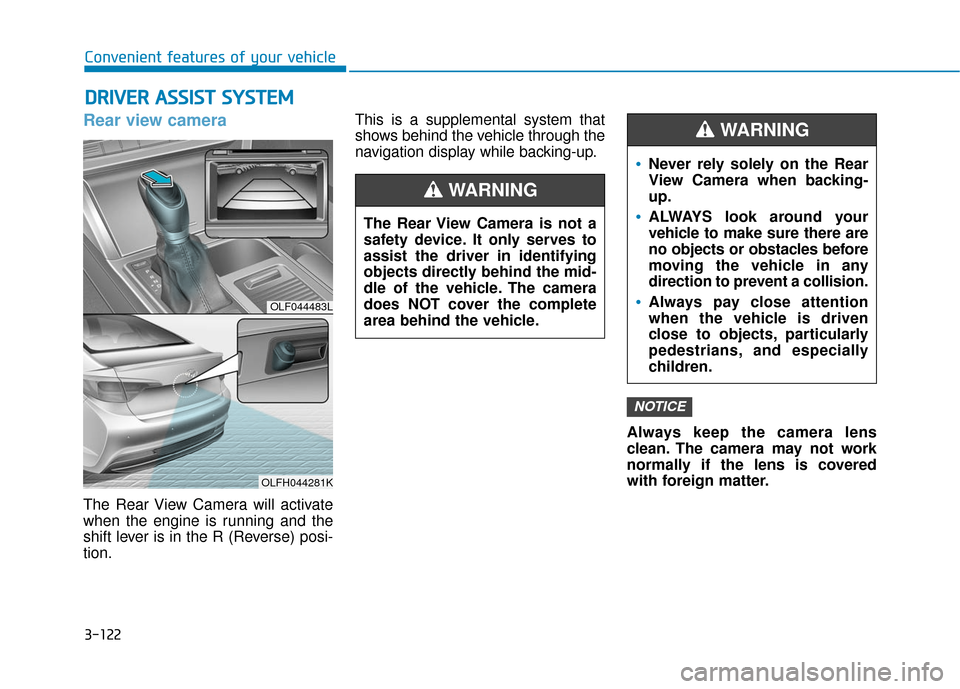
The Rear View Camera will activate
when the engine is running and the
shift lever is in the R (Reverse) posi-
tion. This is a supplemental system that
shows behind the vehicle through the
navigation display while backing-up.
Always keep the camera lens
clean. The camera may not work
normally if the lens is covered
with foreign matter.
NOTICE
OLF044483L
OLFH044281K
The Rear View Camera is not a
safety device. It only serves to
assist the driver in identifying
objects directly behind the mid-
dle of the vehicle. The camera
does NOT cover the complete
area behind the vehicle.
WARNING
Never rely solely on the Rear
View Camera when backing-
up.
ALWAYS look around your
vehicle to make sure there are
no objects or obstacles before
moving the vehicle in any
direction to prevent a collision.
Always pay close attention
when the vehicle is driven
close to objects, particularly
pedestrians, and especially
children.
WARNING
Page 245 of 708
3-150
Convenient features of your vehicle
Clock
With Audio system
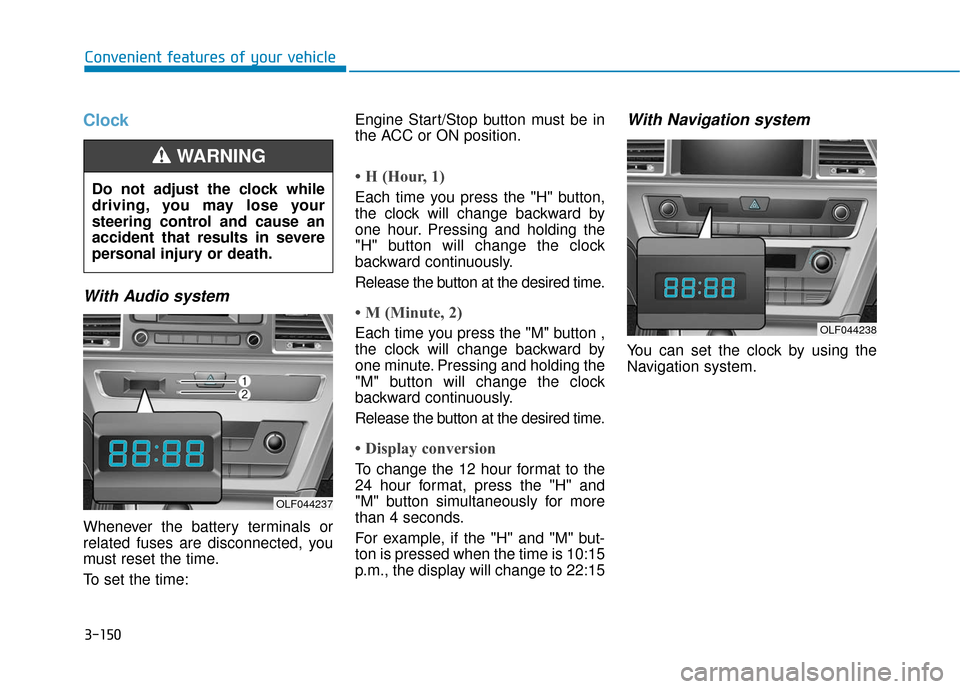
Whenever the battery terminals or
related fuses are disconnected, you
must reset the time.
To set the time:Engine Start/Stop button must be in
the ACC or ON position.
• H (Hour, 1)
Each time you press the "H" button,
the clock will change backward by
one hour. Pressing and holding the
"H" button will change the clock
backward continuously.
Release the button at the desired time.
• M (Minute, 2)
Each time you press the "M" button ,
the clock will change backward by
one minute. Pressing and holding the
"M" button will change the clock
backward continuously.
Release the button at the desired time.
• Display conversion
To change the 12 hour format to the
24 hour format, press the "H" and
"M" button simultaneously for more
than 4 seconds.
For example, if the "H" and "M" but-
ton is pressed when the time is 10:15
p.m., the display will change to 22:15
With Navigation system
You can set the clock by using the
Navigation system.
Do not adjust the clock while
driving, you may lose your
steering control and cause an
accident that results in severe
personal injury or death.
WARNING
OLF044237
OLF044238