USB Hyundai Sonata Hybrid 2017 User Guide
[x] Cancel search | Manufacturer: HYUNDAI, Model Year: 2017, Model line: Sonata Hybrid, Model: Hyundai Sonata Hybrid 2017Pages: 562, PDF Size: 16.44 MB
Page 287 of 562
4-27
Multimedia System
4
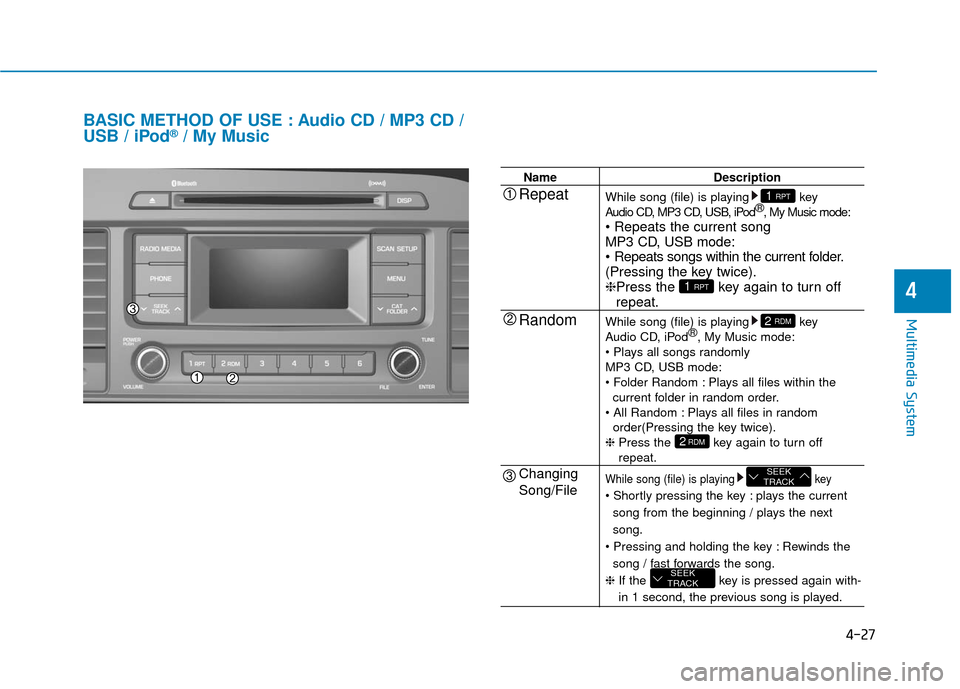
BASIC METHOD OF USE : Audio CD / MP3 CD /
USB / iPod®/ My Music
NameDescription
While song (file) is playing key
Audio CD, MP3 CD, USB, iPod ®
, My Music mode:
MP3 CD, USB mode:
(Pressing the key twice).
❈ Press the key again to turn off
repeat.
While song (file) is playing key
Audio CD, iPod ®
, My Music mode:
MP3 CD, USB mode:
Plays all files within the current folder in random order.
Plays all files in random order(Pressing the key twice).
❈ Press the key again to turn off
repeat.
While song (file) is playing key
plays the current
song from the beginning / plays the next
song.
Rewinds the song / fast forwards the song.
❈ If the key is pressed again with-
in 1 second, the previous song is played.
SEEK
TRACK
SEEK
TRACK
2RDM
2 RDM
1 RPT
1 RPTRepeat
Random
Changing
Song/File
Page 288 of 562
4-28
Multimedia System
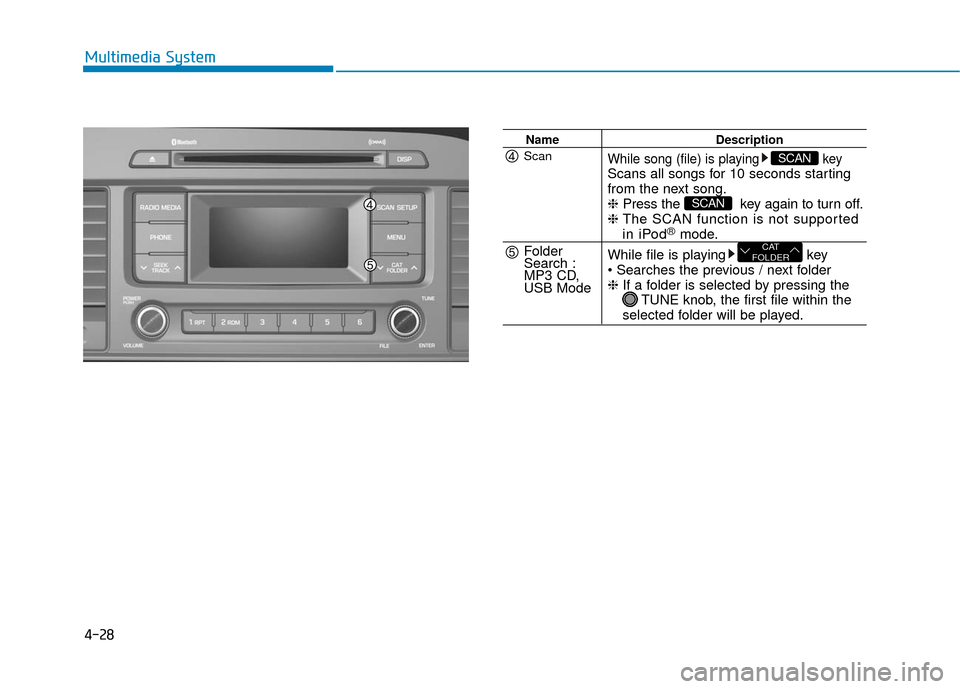
NameDescription
While song (file) is playing keyScans all songs for 10 seconds starting
from the next song.
❈Press the key again to turn off.
❈ The SCAN function is not supported
in iPod®mode.
While file is playing key
❈ If a folder is selected by pressing the
TUNE knob, the first file within the
selected folder will be played.
CAT
FOLDER
SCAN
SCANScan
Folder
Search :
MP3 CD,
USB Mode
Page 289 of 562
![Hyundai Sonata Hybrid 2017 User Guide 4-29
Multimedia System
4
MENU : Audio CD
In Audio CD mode, press key.
Repeat
Set [ RPT] through the TUNE
knob or key to repeat the cur-
rent song.
❈Press RPT again to turn off.
Random
Set [ RDM] t](/img/35/19638/w960_19638-288.png "Hyundai Sonata Hybrid 2017 User Guide 4-29
Multimedia System
4
MENU : Audio CD
In Audio CD mode, press key.
Repeat
Set [ RPT] through the TUNE
knob or key to repeat the cur-
rent song.
❈Press RPT again to turn off.
Random
Set [ RDM] t")
4-29
Multimedia System
4
MENU : Audio CD
In Audio CD mode, press key.
Repeat
Set [ RPT] through the TUNE
knob or key to repeat the cur-
rent song.
❈Press RPT again to turn off.
Random
Set [ RDM] through the TUNE
knob or key to randomly play
songs within the current CD.
❈Press RDM again to turn off.
Information
Set [ Info] through the TUNE
knob or key to display informa-
tion of the current song.
❈ Press the key to turn off
info display.
MENU : MP3 CD / USB
In MP3 CD / USB mode, press
key.
Repeat
Set [ RPT] through the TUNE
knob or key to repeat the cur-
rent song.
❈Press RPT again to turn off.
Folder Random
Set [ F.RDM] through the TUNE
knob or key to randomly play
songs within the current folder.
❈Press F.RDM again to turn off.2 RDM
1 RPT
MENU
MENU
3
2 RDM
1 RPT
MENU
Page 290 of 562
![Hyundai Sonata Hybrid 2017 User Guide 4-30
Multimedia System
Folder Repeat
Set [ F.RPT] through the TUNE
knob or key to repeat songs
within the current folder.
❈Press F.RPT again to turn off.
All Random
Set [ A.RDM] through the TUNE
kn](/img/35/19638/w960_19638-289.png "Hyundai Sonata Hybrid 2017 User Guide 4-30
Multimedia System
Folder Repeat
Set [ F.RPT] through the TUNE
knob or key to repeat songs
within the current folder.
❈Press F.RPT again to turn off.
All Random
Set [ A.RDM] through the TUNE
kn")
4-30
Multimedia System
Folder Repeat
Set [ F.RPT] through the TUNE
knob or key to repeat songs
within the current folder.
❈Press F.RPT again to turn off.
All Random
Set [ A.RDM] through the TUNE
knob or key to randomly play all
songs within the CD/USB.
❈Press A.RDM again to turn off.
Information
Set [ Info] through the TUNE
knob or key to display informa-
tion of the current song.
❈Press the key to turn off
info display.
Copy
Set [ Copy] through the TUNE
knob or key.
❈This is used to copy the current
song into My Music. You can play
the copied Music in My Music
mode.
❈ If another key is pressed while
copying is in progress, a pop up
asking you whether to cancel
copying is displayed.
❈ If another media is connected or
inserted (USB, CD, iPod
®, AUX)
while copying is in progress, copy-
ing is canceled.
❈ Music will not be played while
copying is in progress.
MENU : iPod®
In iPod mode, press key.
Repeat
Set [ RPT] through the TUNE
knob or key to repeat the cur-
rent song.
❈ Press RPT again to turn repeat off.
Random
Set [ RDM] through the TUNE
knob or key.
Plays all songs within the currently
playing category in random order.
❈ Press RDM again to turn off.
2 RDM
1 RPT
MENU
6
MENU
5
4
3
Page 293 of 562
4-33
Multimedia System
4
Bluetooth®Wireless
Technology AUDIO
What is
Bluetooth®Wireless
Technology?
Bluetooth®Wireless Technology allows
devices to be connected in a short dis-
tance, including hands-free devices,
stereo headsets, wireless remote con-
trollers, etc. For more information, visit
the
Bluetooth®Wireless Technology
website
at www.Bluetooth.com
Before using Bluetooth®Wireless
Technology audio features
Bluetooth®Wireless Technology
audio may not be supported
depending on the compatibility of
your
Bluetooth®Wireless
Technology mobile phone.
In order to use
Bluetooth®Wireless
Technology audio, you must first
pair and connect the
Bluetooth®
Wireless Technology mobile phone.
Bluetooth®Wireless Technology
audio can be used only when the
[Audio Streaming] of Phone is
turned .
Starting Bluetooth®Wireless
Technology Audio
Press the key to change
the mode in order of CD ➟ USB ➟
AUX ➟ My Music ➟ BT Audio.
If BT Audio is selected,
Bluetooth®
Wireless Technology audio will
start playing.
❈ Audio may not automatically start
playing in some mobile phones.
Using the Bluetooth®Wireless
Technology audio features
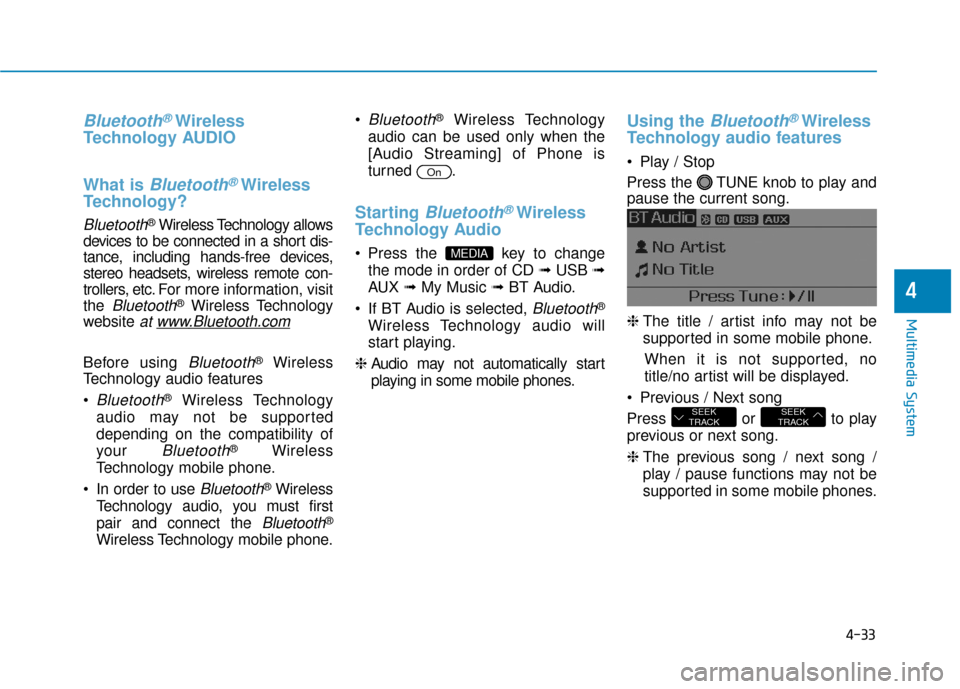
Play / Stop
Press the TUNE knob to play and
pause the current song.
❈ The title / artist info may not be
supported in some mobile phone.
When it is not supported, no
title/no artist will be displayed.
Previous / Next song
Press or to play
previous or next song.
❈ The previous song / next song /
play / pause functions may not be
supported in some mobile phones.
SEEK
TRACKSEEK
TRACK
MEDIA
On
Page 294 of 562
4-34
Multimedia System
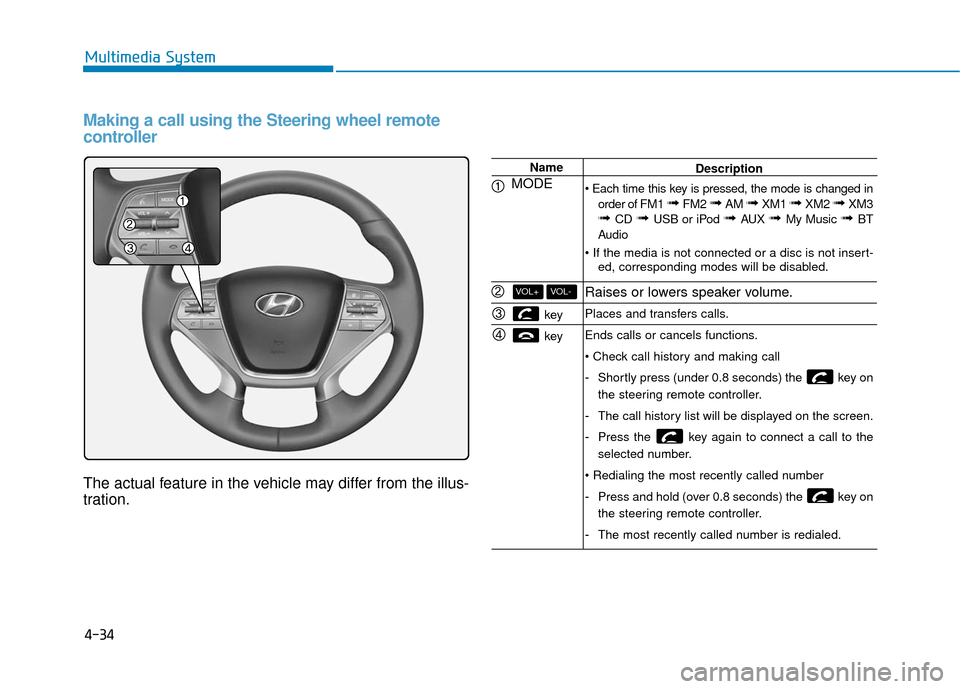
Making a call using the Steering wheel remote
controller
The actual feature in the vehicle may differ from the illus-
tration.
Name
MODE
key
key
VOL-VOL+
Description
order of FM1
➟ FM2 ➟ AM ➟ XM1 ➟ XM2 ➟ XM3➟ CD ➟ USB or iPod ➟ AUX ➟ My Music ➟ BT
Audio
ed, corresponding modes will be disabled.
Raises or lowers speaker volume.
Places and transfers calls.
Ends calls or cancels functions.
-Shortly press (under 0.8 seconds) the key on
the steering remote controller.
- The call history list will be displayed on the screen.
- Press the key again to connect a call to the
selected number.
- Press and hold (over 0.8 seconds) the key on
the steering remote controller.
- The most recently called number is redialed.
Page 308 of 562
4-48
Multimedia System
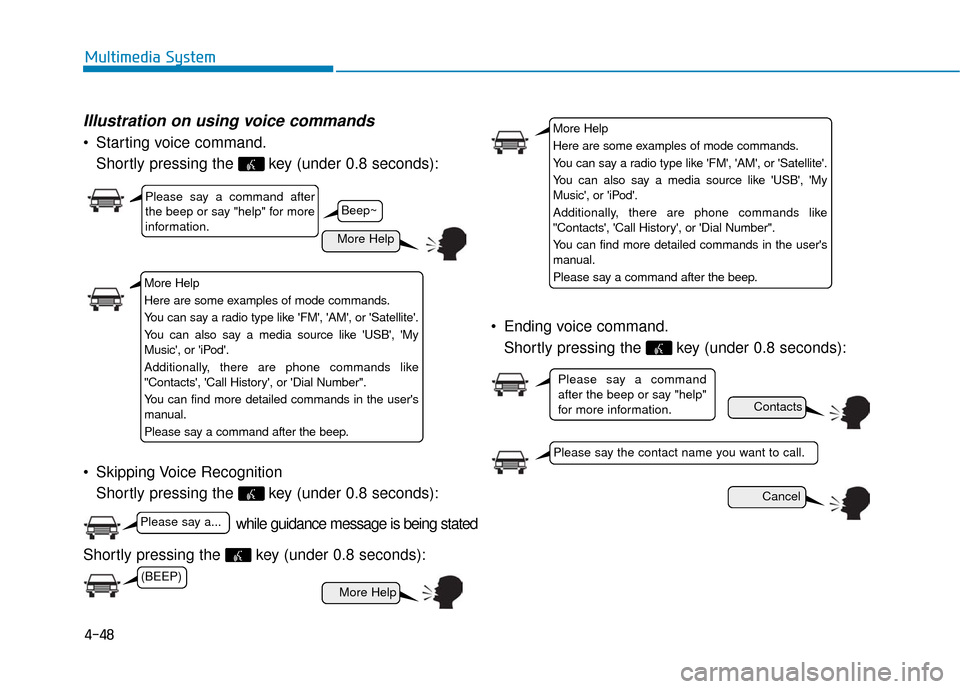
Illustration on using voice commands
Starting voice command.Shortly pressing the key (under 0.8 seconds):
Skipping Voice Recognition Shortly pressing the key (under 0.8 seconds):
Shortly pressing the key (under 0.8 seconds): Ending voice command.
Shortly pressing the key (under 0.8 seconds):
while guidance message is being stated
More Help
Contacts
Cancel
More Help
Please say a command after
the beep or say "help" for more
information.
Please say the contact name you want to call.
Please say a command
after the beep or say "help"
for more information.
Beep~
More Help
Here are some examples of mode commands.
You can say a radio type like 'FM', 'AM', or 'Satellite'.
You can also say a media source like 'USB', 'My
Music', or 'iPod'.
Additionally, there are phone commands like
"Contacts', 'Call History', or 'Dial Number".
You can find more detailed commands in the user's
manual.
Please say a command after the beep.
More Help
Here are some examples of mode commands.
You can say a radio type like 'FM', 'AM', or 'Satellite'.
You can also say a media source like 'USB', 'My
Music', or 'iPod'.
Additionally, there are phone commands like
"Contacts', 'Call History', or 'Dial Number".
You can find more detailed commands in the user's
manual.
Please say a command after the beep.
(BEEP)
Please say a...
Page 310 of 562
4-50
Multimedia System
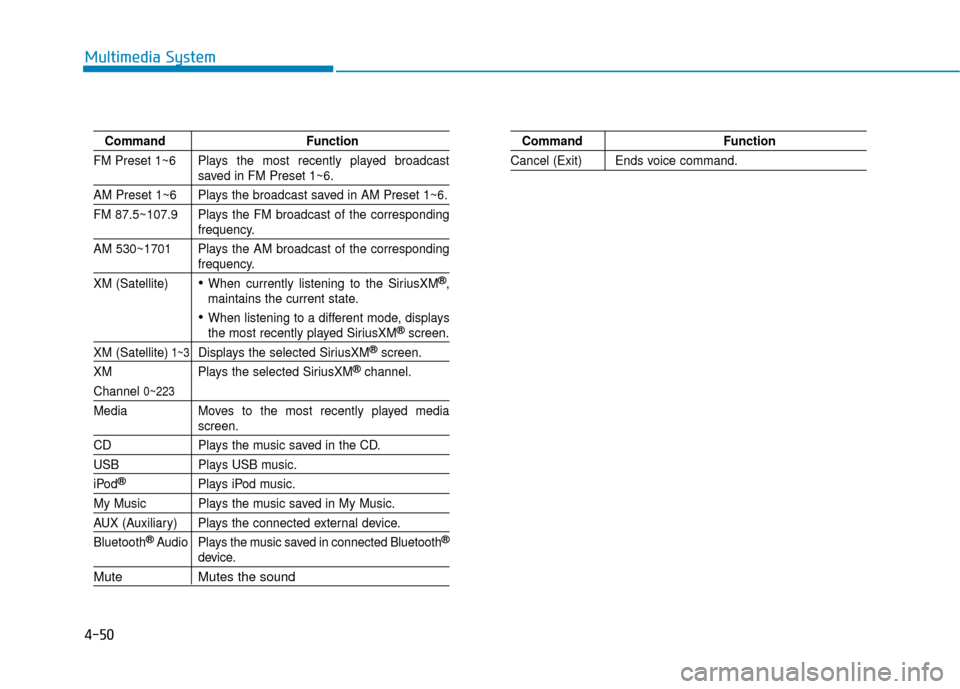
CommandFunction
FM Preset 1~6 Plays the most recently played broadcast
saved in FM Preset 1~6.
AM Preset 1~6 Plays the broadcast saved in AM Preset 1~6.
FM 87.5~107.9 Plays the FM broadcast of the corresponding
frequency.
AM 530~1701 Plays the AM broadcast of the corresponding
frequency.
XM (Satellite)
When currently listening to the SiriusXM®,
maintains the current state.
When listening to a different mode, displaysthe most recently played SiriusXM®screen.
XM (Satellite)1~3Displays the selected SiriusXM®screen.
XM Plays the selected SiriusXM
®channel.
Channel 0~223
Media Moves to the most recently played mediascreen.
CD Plays the music saved in the CD.
USBPlays USB music.
iPod®Plays iPod music.
My Music Plays the music saved in My Music.
AUX (Auxiliary) Plays the connected external device.
Bluetooth
®Audio Plays the music saved in connected Bluetooth®
device.
Mute Mutes the sound
Command Function
Cancel (Exit) Ends voice command.
Page 311 of 562
4-51
Multimedia System
4
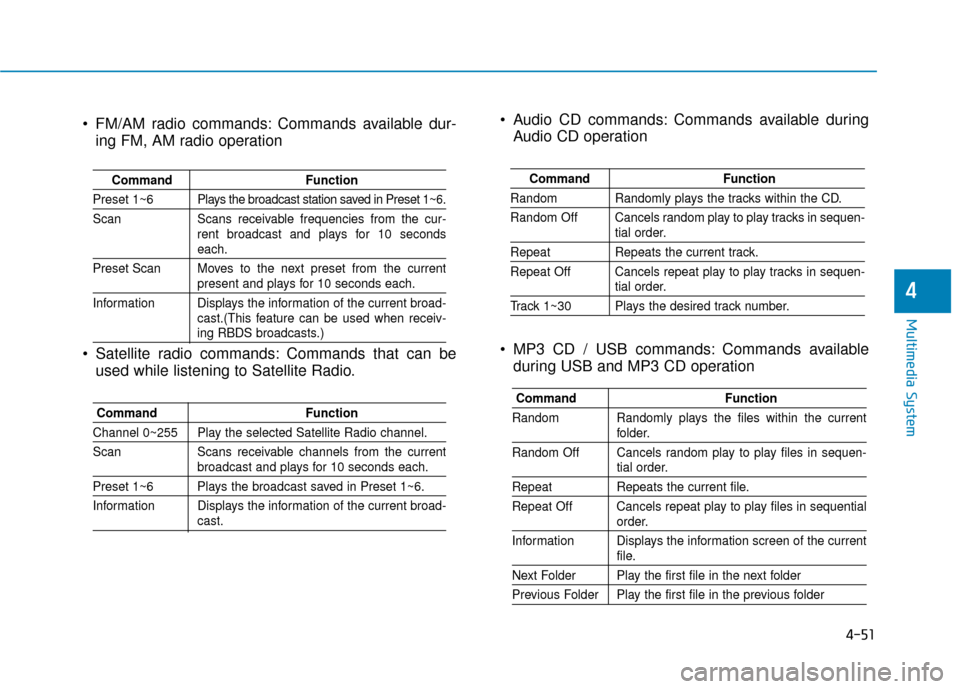
Audio CD commands: Commands available duringAudio CD operation
MP3 CD / USB commands: Commands available during USB and MP3 CD operation
Command Function
Random Randomly plays the tracks within the CD.
Random Off Cancels random play to play tracks in sequen-
tial order.
RepeatRepeats the current track.
Repeat Off Cancels repeat play to play tracks in sequen-
tial order.
Track 1~30 Plays the desired track number.
Command Function
Random Randomly plays the files within the current
folder.
Random Off Cancels random play to play files in sequen-
tial order.
Repeat Repeats the current file.
Repeat Off Cancels repeat play to play files in sequential
order.
Information Displays the information screen of the current
file.
Next Folder Play the first file in the next folder
Previous Folder Play the first file in the previous folder
FM/AM radio commands: Commands available dur- ing FM, AM radio operation
Satellite radio commands: Commands that can be used while listening to Satellite Radio.
Command Function
Preset 1~6 Plays the broadcast station saved in Preset 1~6.
Scan Scans receivable frequencies from the cur- rent broadcast and plays for 10 seconds
each.
Preset Scan Moves to the next preset from the current
present and plays for 10 seconds each.
Information Displays the information of the current broad- cast.(This feature can be used when receiv-
ing RBDS broadcasts.)
Command Function
Channel 0~255 Play the selected Satellite Radio channel.
Scan Scans receivable channels from the current
broadcast and plays for 10 seconds each.
Preset 1~6 Plays the broadcast saved in Preset 1~6.
Information Displays the information of the current broad-
cast.